4 ways you can prevent your PC from going into the Sleep Mode on Windows 11.
4 ways you can prevent your PC from going into the Sleep Mode on Windows 11.
by Parth Sawhney
Preventing your Windows 11 computer from entering sleep mode can be crucial, especially if you’re running background tasks or prefer not to enter your password repeatedly. Fortunately, Windows 11 offers several ways to adjust your sleep settings to keep your computer awake when left unattended.
Will preventing sleep mode affect your computer’s performance? Disabling sleep mode does not impact your computer’s performance. However, it may increase energy consumption and could slightly reduce battery life over time. Operating systems default to sleep settings to conserve power and extend battery longevity when the device is idle.
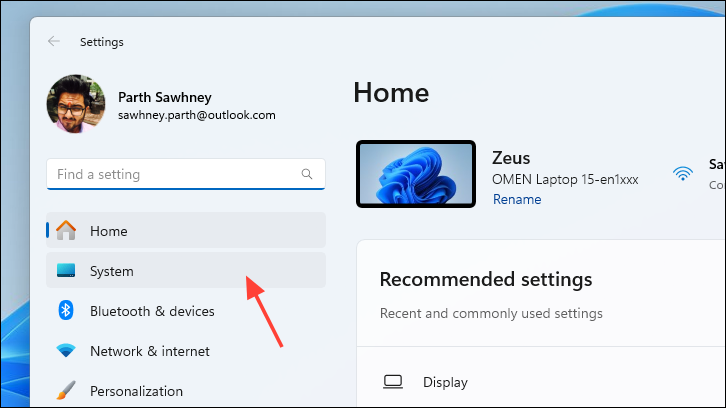
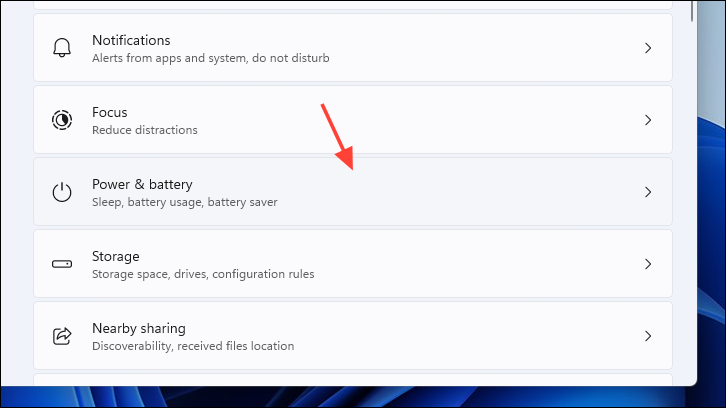
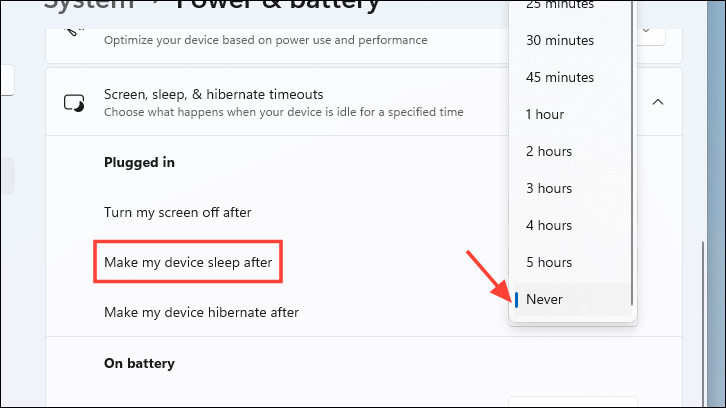
Under the ‘Screen and sleep’ section, click the drop-down menu next to ‘On battery power, put my device to sleep after’ and select ‘Never’. Do the same for ‘When plugged in, put my device to sleep after’, ensuring both are set to ‘Never’.
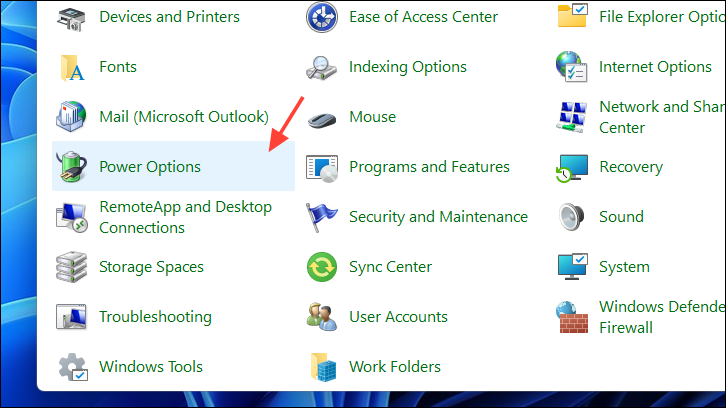
Adjust Sleep Settings Using the Control Panel
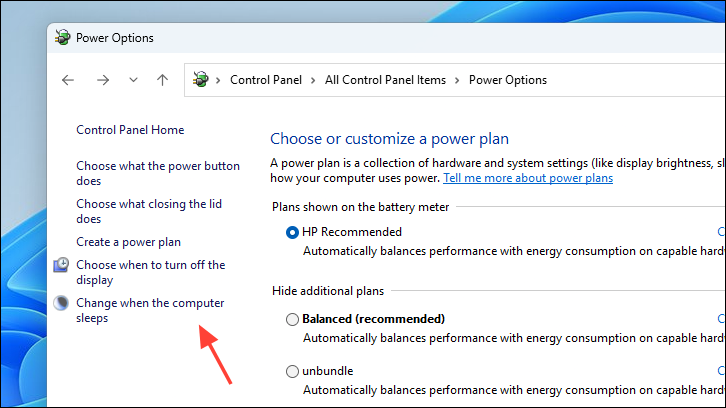
If you prefer using the Control Panel, you can change the sleep settings through it as well.
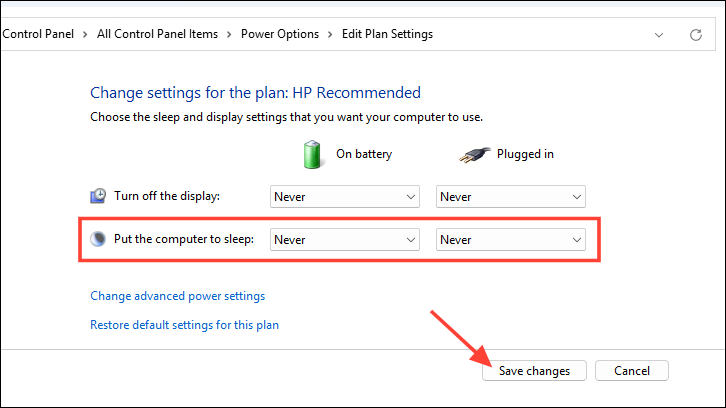
Set both ‘Put the computer to sleep’ options to ‘Never’ for ‘On battery’ and ‘Plugged in’. Then, click ‘Save changes’.
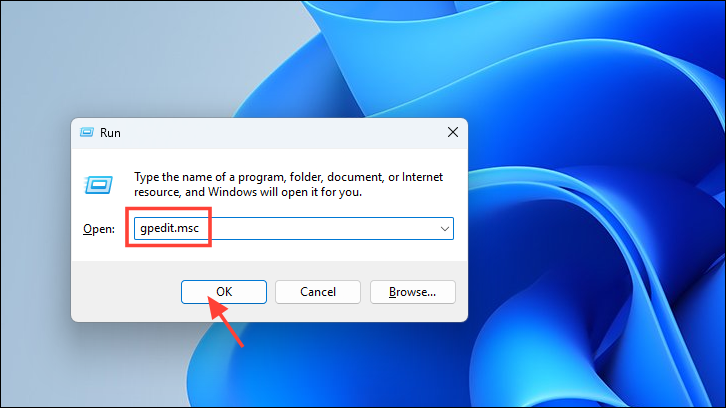
Disable Sleep Mode Using the Group Policy Editor
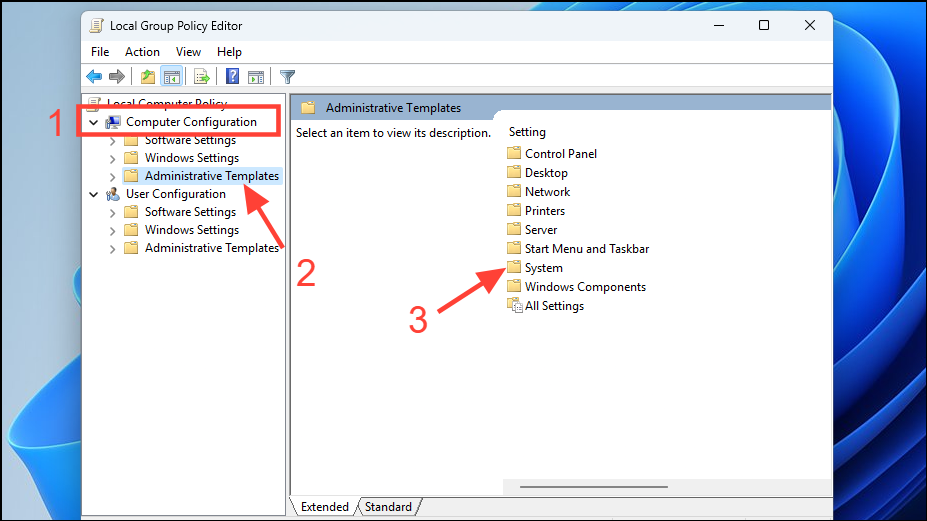
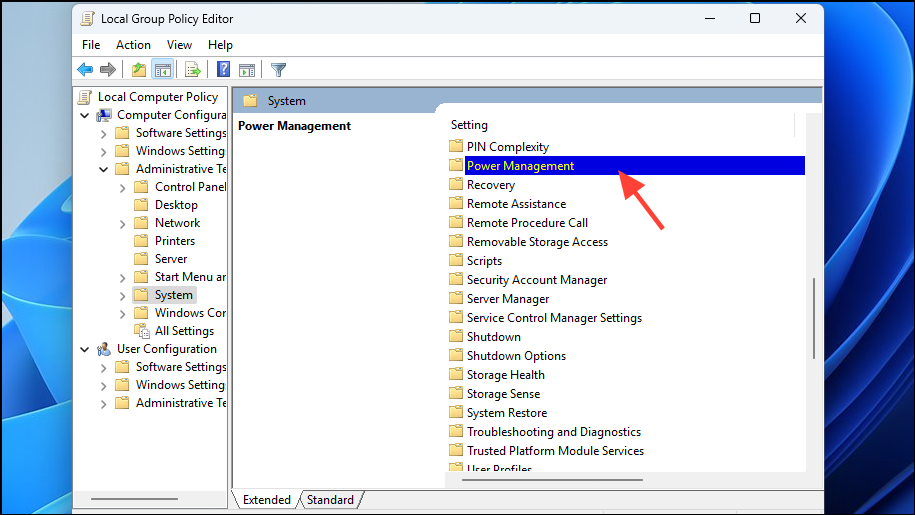
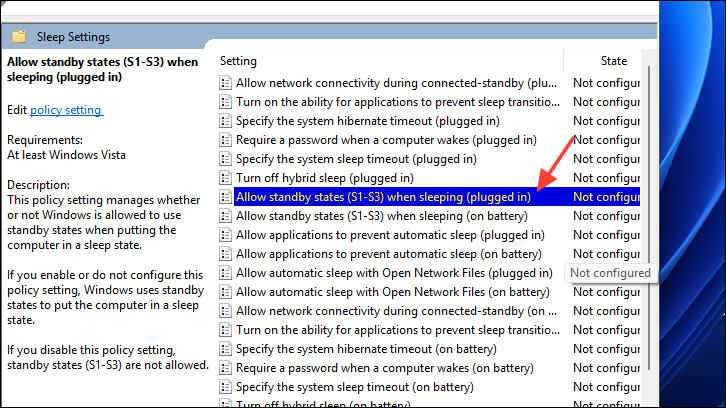
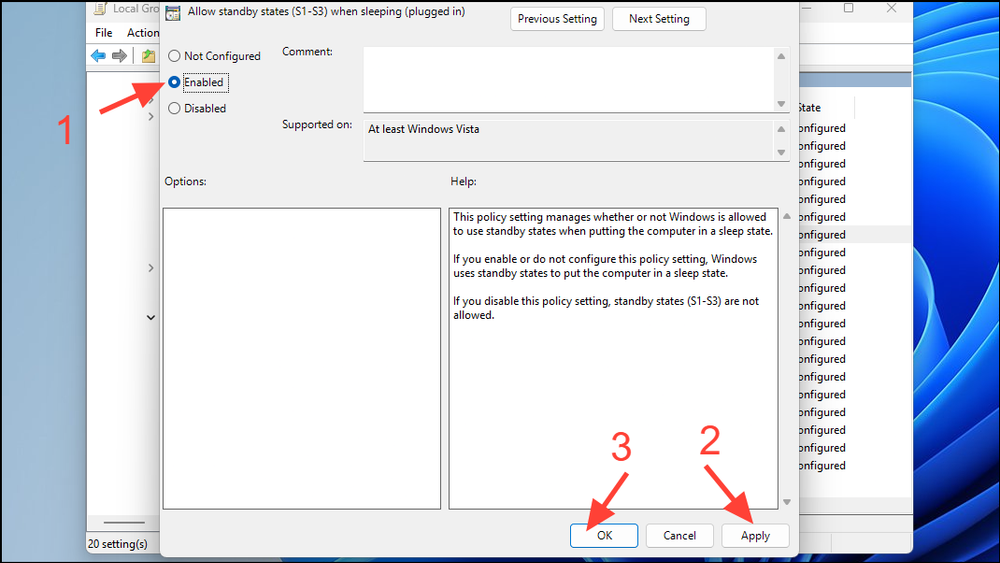
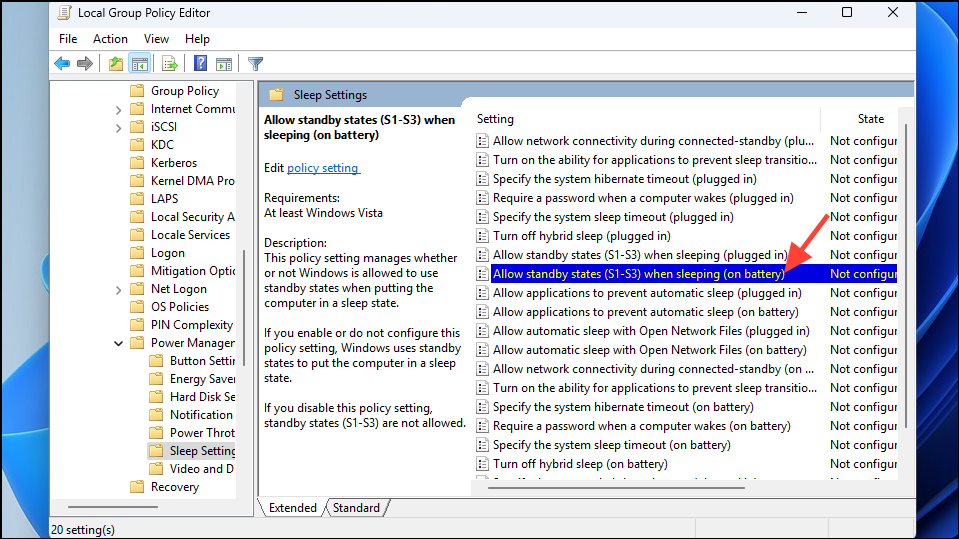
You can also use the Local Group Policy Editor to modify sleep settings for all users on your computer. This method is particularly useful in business environments or when you need to enforce settings across multiple accounts.
Note: The Local Group Policy Editor is only available in Windows 11 Pro, Enterprise, and Education editions. It is not accessible in the Windows Home edition.
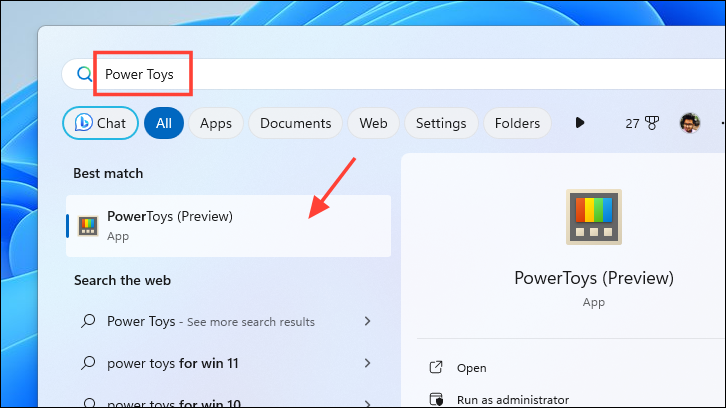
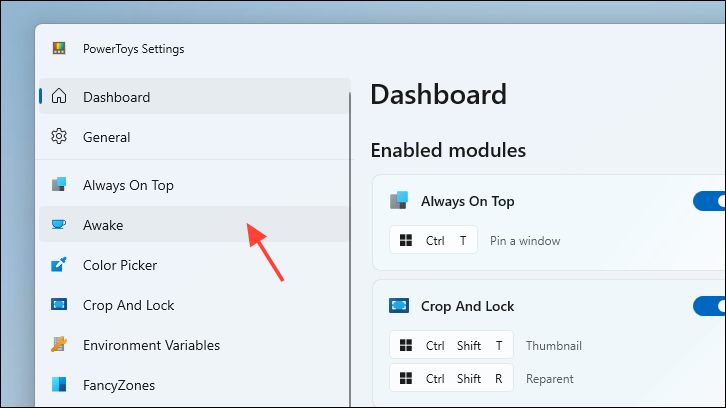
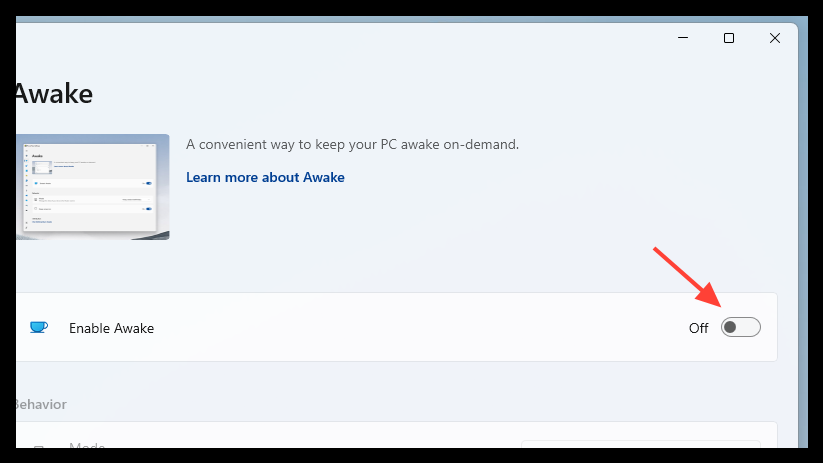
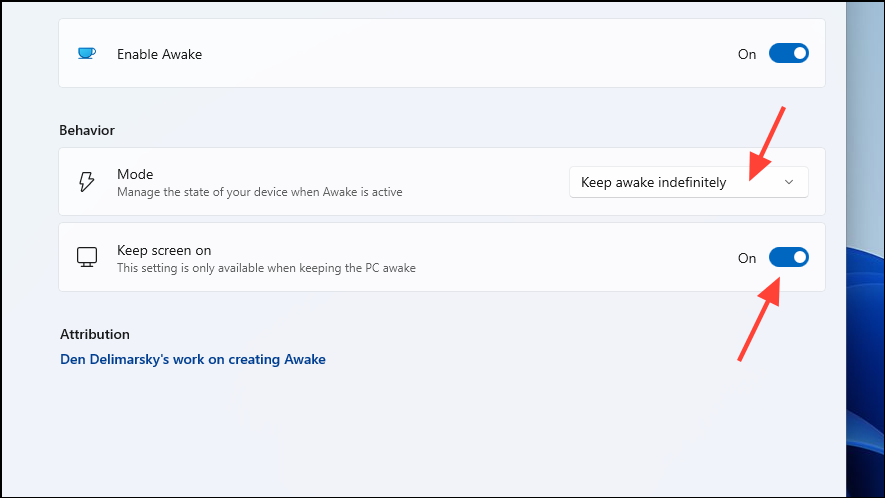
Under ‘Behavior’, select ‘Keep awake indefinitely’ from the drop-down menu. Optionally, enable ‘Keep screen on’ if you don’t want the display to turn off.
Restart your computer for the changes to take effect. Remember that PowerToys must be running in the background for this to work.
Note: PowerToys must remain running in the background for the Awake feature to function. If you exit the application or close it from the system tray, your computer may start sleeping again.
By adjusting your Windows 11 sleep settings using any of these methods, you can prevent your computer from entering sleep mode when left unattended. This ensures that background tasks run uninterrupted and you can return to your work without delays.