How to Store BitLocker Recovery Keys in Active Directory
Securely back up BitLocker keys by saving them directly to Active Directory.
Securely back up BitLocker keys by saving them directly to Active Directory.
by Pallav Pathak
BitLocker recovery keys are critical for accessing encrypted drives when standard authentication methods fail. Storing these keys securely and centrally in Active Directory (AD) simplifies management and ensures quick recovery during emergencies. This guide explains how to configure Group Policy to automatically save BitLocker recovery keys directly into Active Directory.
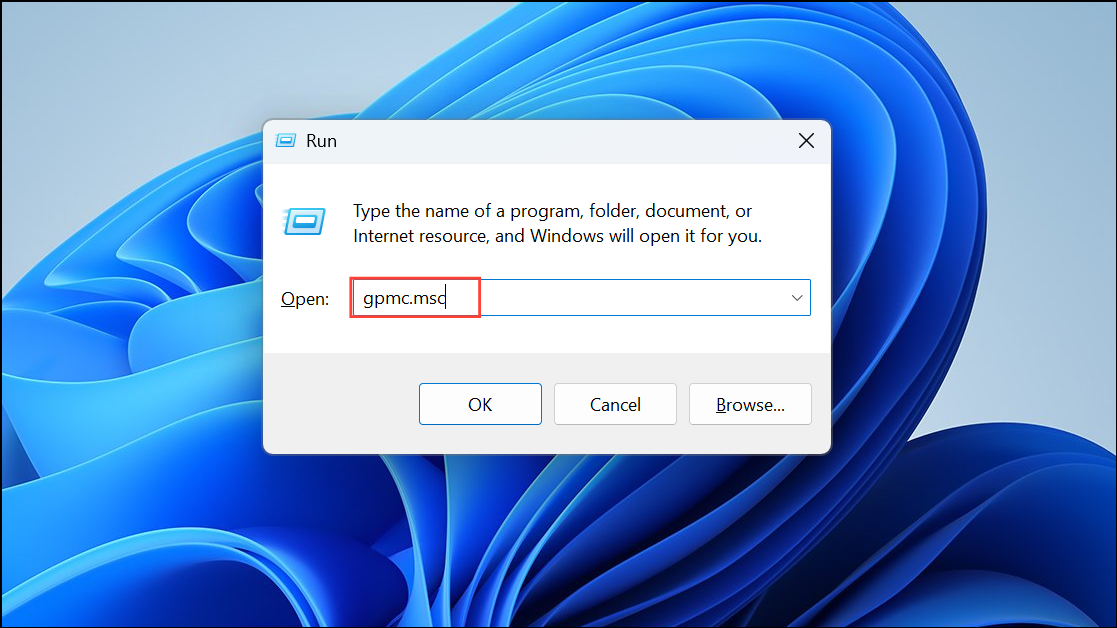
Method 1: Using Group Policy to Automatically Store BitLocker Keys in Active Directory
Right-click the newly created GPO and select “Edit.” In the Group Policy Management Editor, navigate to Computer Configuration > Policies > Administrative Templates > Windows Components > BitLocker Drive Encryption > Operating System Drives.
Locate and double-click “Choose how BitLocker-protected operating system drives can be recovered.” Set this policy to “Enabled.” Next, check the box labeled “Save BitLocker recovery information to Active Directory Domain Services (Windows Server 2008 and later).” You can also optionally select “Do not enable BitLocker until recovery information is stored to AD DS,” ensuring encryption won’t proceed without successful key backup.
Close the Group Policy Management Editor. To enforce the policy immediately on client computers, run gpupdate /force from an elevated command prompt on each client, or wait for the policy to apply naturally during the next Group Policy refresh cycle.
Verify that BitLocker keys are successfully stored in Active Directory by opening Active Directory Users and Computers, going to the computer’s object properties, and selecting the “BitLocker Recovery” tab. You should see the recovery keys listed there.
Method 2: Manually Backing Up BitLocker Keys to Active Directory
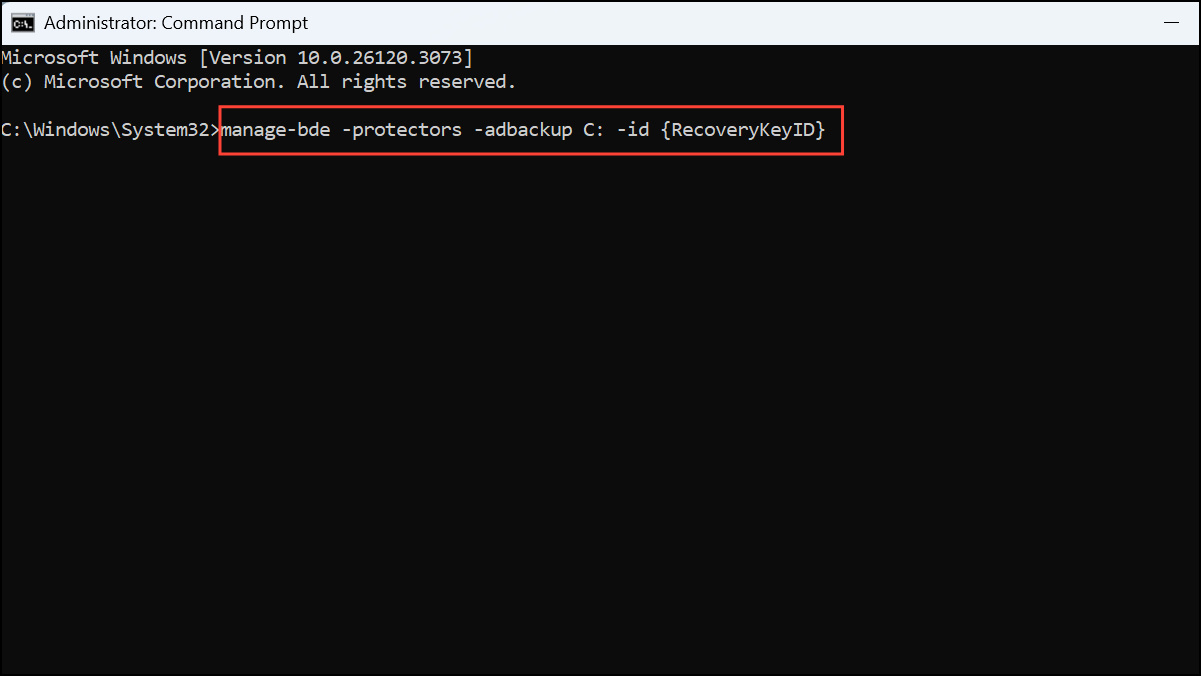
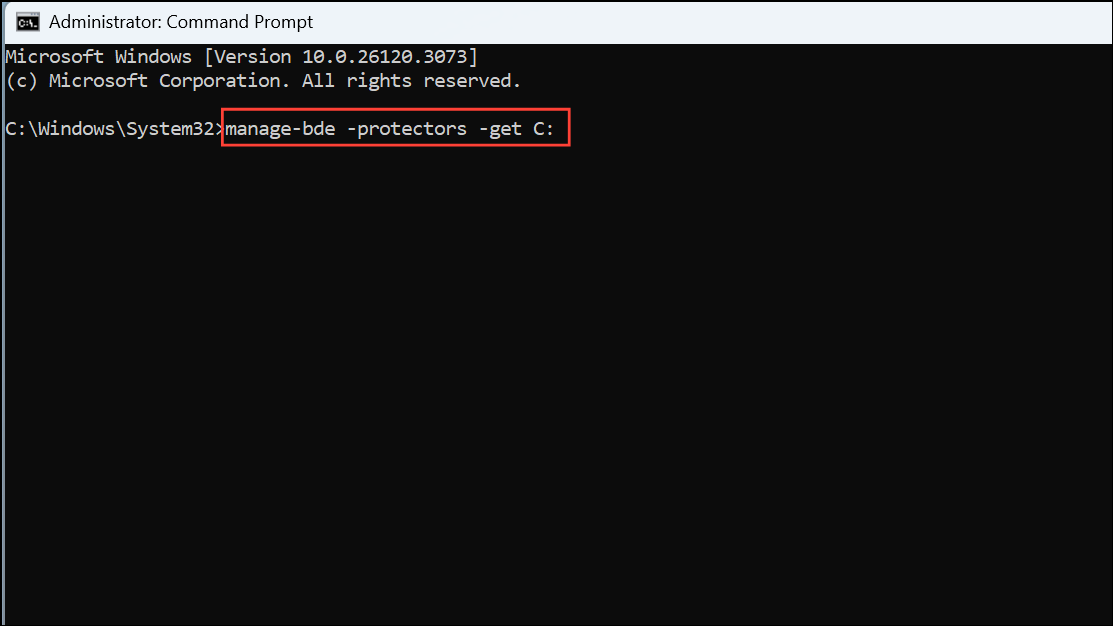
If you prefer not to use Group Policy, you can manually back up BitLocker recovery keys into Active Directory using the command-line tool manage-bde. This method is suitable for small-scale environments or one-off backups.
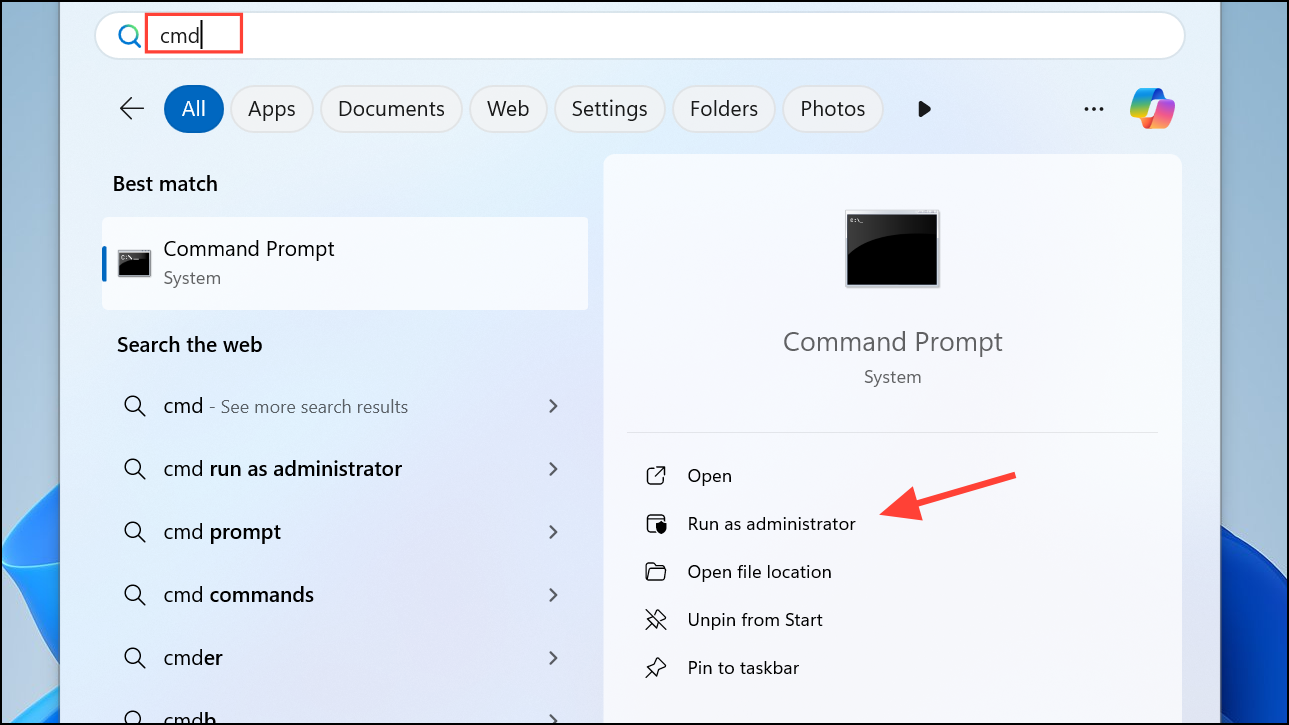
On the computer with BitLocker enabled, open an elevated command prompt by typing “cmd” in the Start menu, right-clicking “Command Prompt,” and selecting “Run as administrator.”
After executing the backup command, confirm the recovery key is stored successfully by checking the computer object’s “BitLocker Recovery” tab in Active Directory Users and Computers.
Regularly verify that BitLocker recovery keys are correctly stored in Active Directory to prevent data loss and ensure seamless recovery when you need it most.