Neverness to Everness (NTE) installs both a game client and a kernel-mode anti-cheat driver on Windows. The standard uninstaller handles the game files, but the driver service registered as HtAntiCheatDriver can stay registered after removal and continue to load at boot. A complete uninstall means removing the client, deleting leftover folders, and verifying the driver service is no longer present.
Quick answer: Close NTE, open Settings > Apps > Installed apps, uninstall Neverness to Everness, then run Get-Item "HKLM:\SYSTEM\CurrentControlSet\Services\HtAntiCheatDriver" in an elevated PowerShell to confirm the anti-cheat service is gone.
Before you start: close NTE and its launcher
The uninstaller will not run while the game or its launcher is active. Right-click the taskbar and open Task Manager, then end any process tied to Neverness to Everness, the NTE launcher, or its anti-cheat helper. If you skip this, the uninstaller will either fail to start or leave files locked on disk.
A reboot before uninstalling is also useful when the launcher recently downloaded updates. It releases file handles the updater may still be holding.
Method 1: Uninstall NTE through Windows Settings
This is the supported path and works on most installations made through the official Windows installer.
Windows + I to open Settings, then go to Apps and select Installed apps. Type Neverness in the search box to filter the list.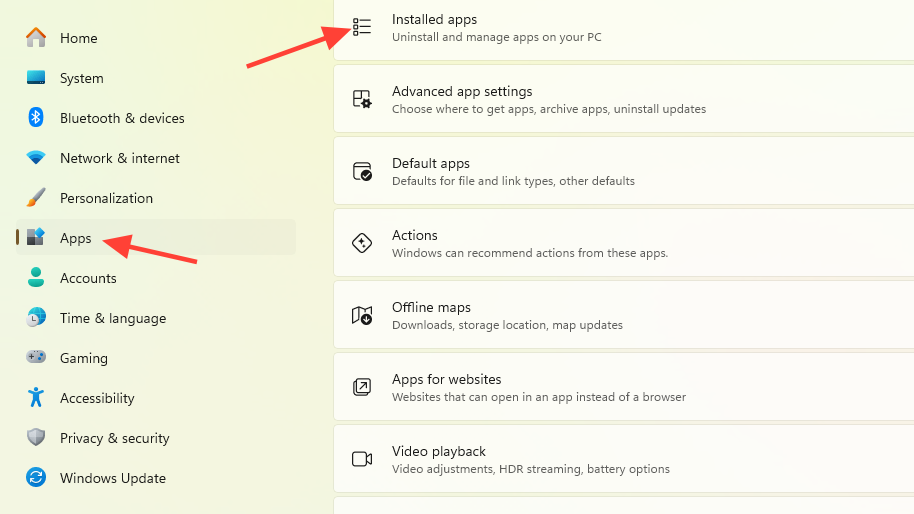
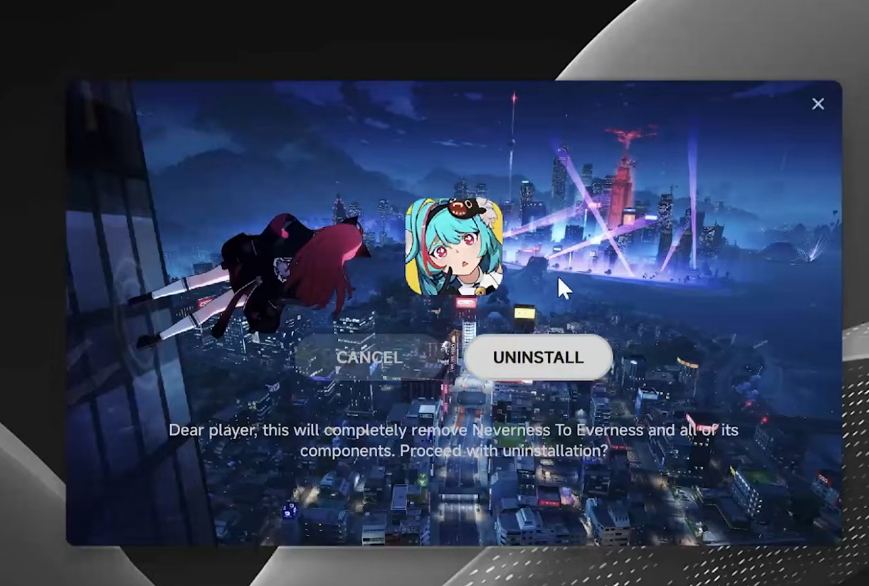
Method 2: Run the bundled uninstaller from the install folder
If the Settings entry is missing or the Settings uninstall fails, the game folder ships its own uninstaller executable.
C:\Program Files\Neverness to Everness or a custom folder selected in the launcher’s resource settings.uninst.exe or uninstall.exe. Right-click it and choose Run as administrator.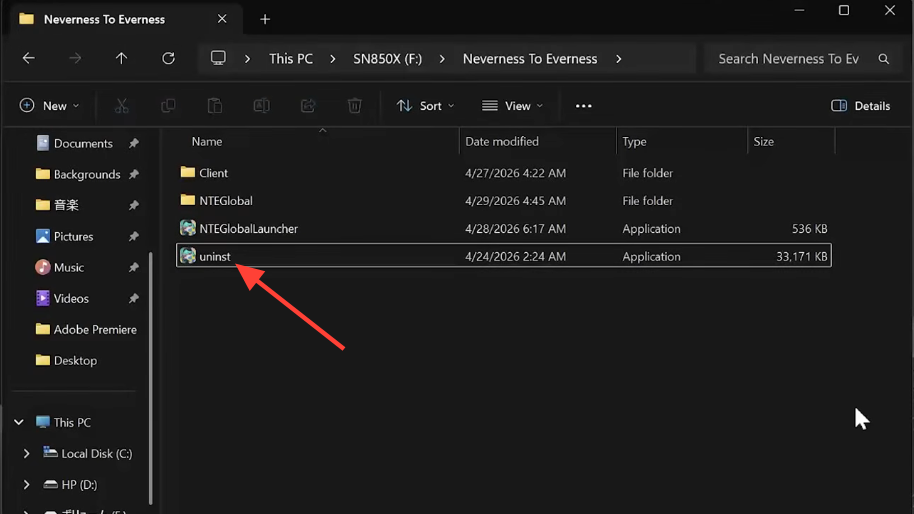
uninst.exe or uninstall.exe | Image credit: Perfect World Games (via YouTube/@TechFixIT)Delete leftover folders and cache
After a reboot, check the locations below and remove any remaining NTE-related folders. These holdovers cause reinstall failures, stuck updates, and launcher errors if you ever install the game again.
| Location | What to look for |
|---|---|
%LocalAppData% | Folders named Neverness to Everness, NTE, or the launcher name |
%AppData% | Roaming config and cache folders for NTE or its launcher |
%ProgramFiles% and %ProgramFiles(x86)% | Any residual install folder if the uninstaller left files behind |
%ProgramData% | Anti-cheat support folders left by the driver installer |
%Temp% | Installer logs and update cache from the launcher |
To open these paths, press Windows + R, type the variable (for example %LocalAppData%), and press Enter. Delete only folders that clearly belong to NTE or its launcher. Leave unrelated folders alone.
Verify the HtAntiCheatDriver service is removed
This is the step most uninstall walkthroughs skip. NTE’s anti-cheat is a kernel-mode driver registered as the Windows service HtAntiCheatDriver. The standard uninstaller does not always remove that service, and the leftover driver is what triggers Roblox’s “third-party software is interfering” error after NTE is gone.
PowerShell, right-click Windows PowerShell, and choose Run as administrator. Approve the UAC prompt.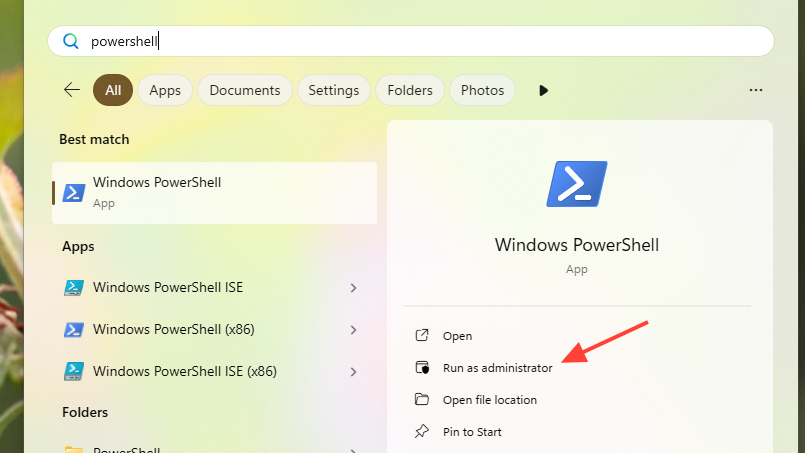
Get-Item "HKLM:\SYSTEM\CurrentControlSet\Services\HtAntiCheatDriver"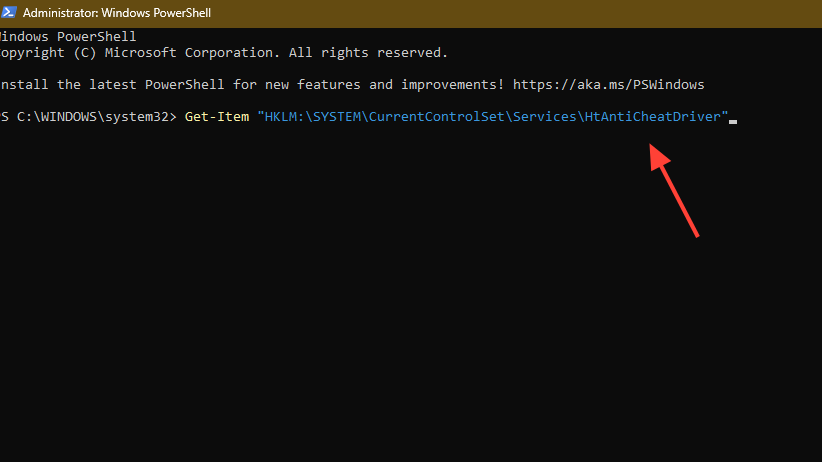
Set-ItemProperty -Path "HKLM:\SYSTEM\CurrentControlSet\Services\HtAntiCheatDriver" -Name "Start" -Value 4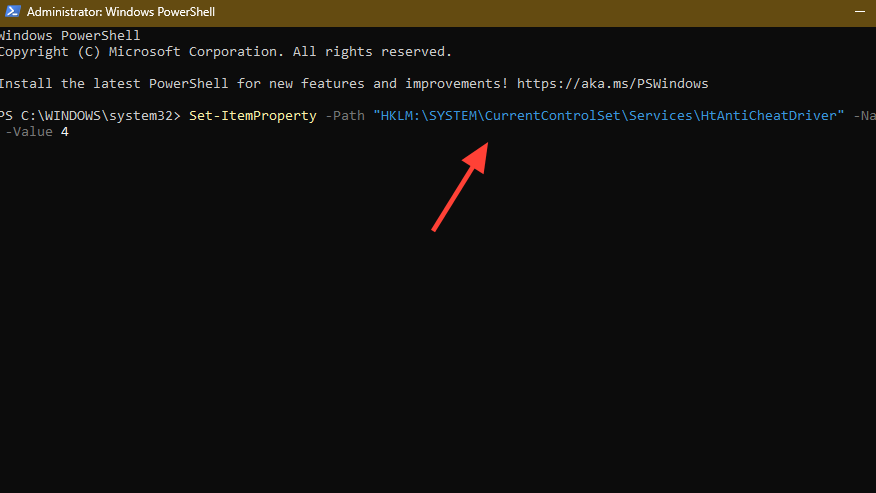
Get-Item check again and delete any remaining NTE or anti-cheat folders under %ProgramFiles%, %ProgramData%, and %LocalAppData%.The Start value controls when a Windows service or driver loads. The mapping is below for reference.
| Value | Meaning | Effect on the NTE driver |
|---|---|---|
| 0 | Boot | Loads with the kernel |
| 1 | System | Loads during system initialization |
| 2 | Automatic | Loads at Windows startup (NTE default) |
| 3 | Manual | Loads only when NTE requests it |
| 4 | Disabled | Driver does not load at all |
How to confirm the uninstall worked
You know the removal is complete when all three of the following are true. Neverness to Everness no longer appears in Settings > Apps > Installed apps. The install folder under Program Files (or your custom path) is empty or gone. The PowerShell Get-Item check on HtAntiCheatDriver returns a “path does not exist” error.
If you uninstalled NTE specifically to fix the Roblox conflict, launching Roblox after a reboot should now load past the launcher into a game session without the third-party interference popup.
Common reasons the uninstall fails
- The game or launcher is still running. End all NTE processes in Task Manager before retrying.
- The PC has not been restarted since the last NTE session, so the kernel driver is still resident and locking files.
- The uninstaller was launched without administrator rights. Right-click and choose Run as administrator.
- Antivirus or endpoint protection is blocking the uninstaller’s writes. Temporarily allow the install folder, then run the uninstaller again.
Reinstalling later
If you plan to reinstall NTE on the same PC, complete all of the cleanup above first. A clean state prevents the launcher’s update process from getting stuck on stale cache files and avoids duplicate registrations of the anti-cheat driver. The official client is available through the platform store or installer you used originally.
Mobile removal is simpler. On iOS and Android, long-press the NTE app icon and choose the platform’s standard remove or uninstall action. There is no separate driver component on mobile, so no further cleanup is required.