Every time Iron Gate ships a new Valheim patch, your dedicated server has to be brought up to the same build before anyone can join. Clients are forced onto the newest version through Steam, and a server still running the old build becomes incompatible. Updating is quick, but the order matters: shut the server down and back up your save first, then patch.
Quick answer: Stop the server with Ctrl + C, back up your world folder, then either press update on Valheim Dedicated Server in your Steam Library or run app_update 896660 in SteamCMD.

Before you update: stop the server and back up your world
The server must not be running while it patches. In the server’s command window, press Ctrl + C to send the shutdown signal. If the window asks you to confirm, press Y. When the command window disappears from the taskbar, the process has closed.
If players are connected, give them a few minutes’ warning so they can log out somewhere safe and avoid a rollback. A dedicated server writes its world to disk every 20 minutes, and an admin can force a fresh save by running the save command in the F5 console before shutting down.
Next, make a copy of your world files. On Windows the default save location is:
%USERPROFILE%/AppData/LocalLow/IronGate/Valheim/Press Win + R, paste the path, and press Enter to open it. Copying the whole IronGate folder is the safest option, since it holds your worlds if anything goes wrong during the patch.
If you launch your server with a modified copy of the original start_headless_server.bat file, back that file up too. The update and file-verification steps can reset it to default settings.
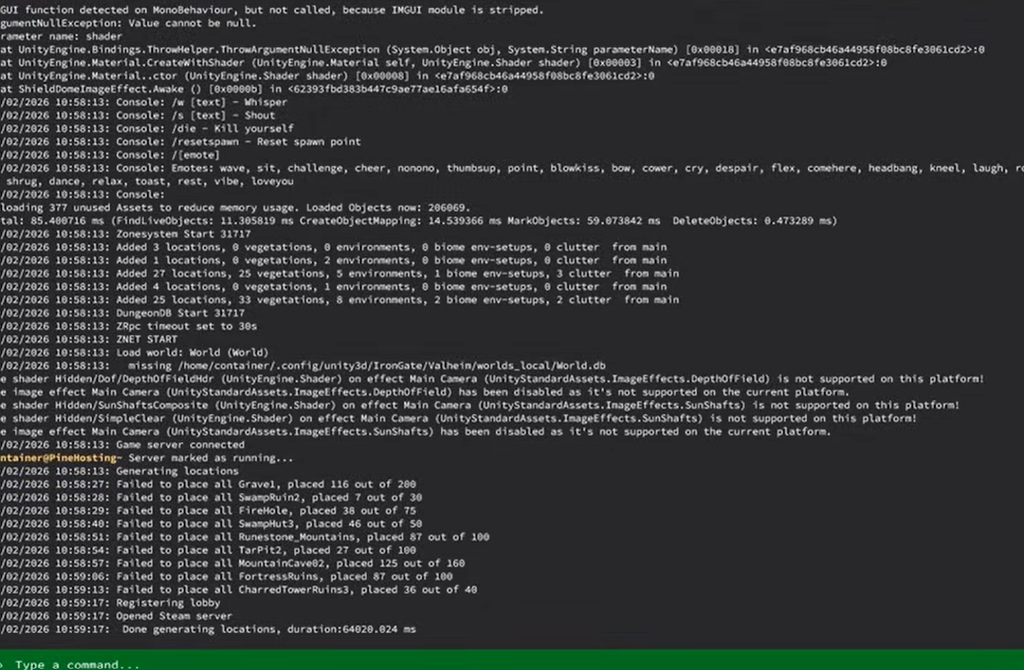
Update through the Steam client
If you installed the server from your Steam Library, the client patches it the same way it patches any other game. The server just lives under Tools instead of your games list.
If Steam does not patch cleanly, right-click Valheim Dedicated Server, choose Properties, open Local Files, and select Verify integrity of game files. Steam will check every install file and correct anything that is broken.
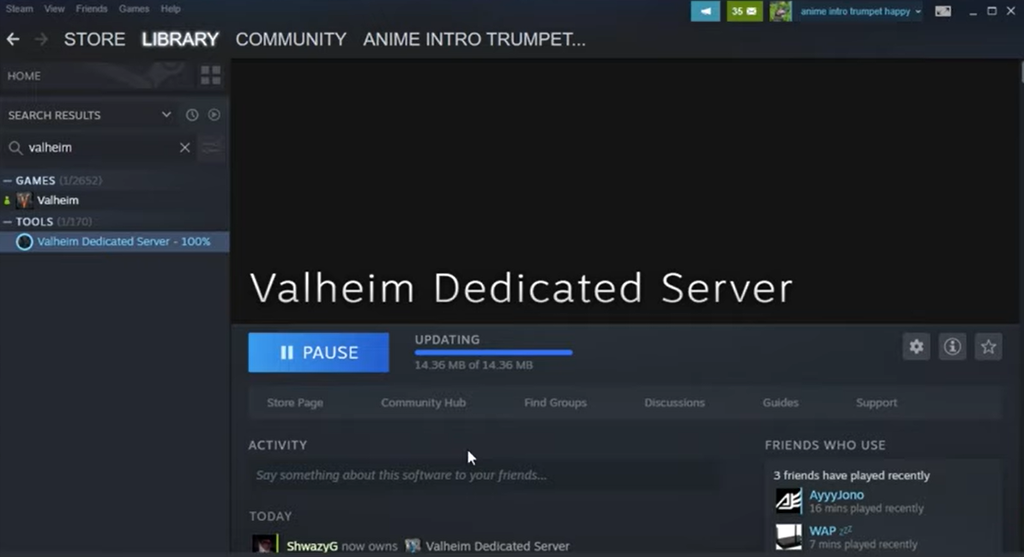
Update through SteamCMD
If you installed the server manually with SteamCMD, you patch it with a single command using the server’s app ID, 896660. Confirm the server is stopped and your Valheim folder is backed up first.
app_update 896660Once SteamCMD reports the update is complete, restart the server with your normal startup script.
Many setups fold the update into the batch file that launches the server, so it checks for a patch on every run. A typical line looks like this, with the paths changed to match your own install:
C:\steamcmd\steamcmd.exe +login anonymous +force_install_dir C:\Valheim\ +app_update 896660 +quitPlaced at the top of the batch file, this runs before valheim_server.exe launches and downloads any new files automatically. The +login anonymous flag means no Steam account is needed to pull server files.
The app_update process can overwrite the original start_headless_server.bat with default settings, so keep the customized copy you launch from set aside.
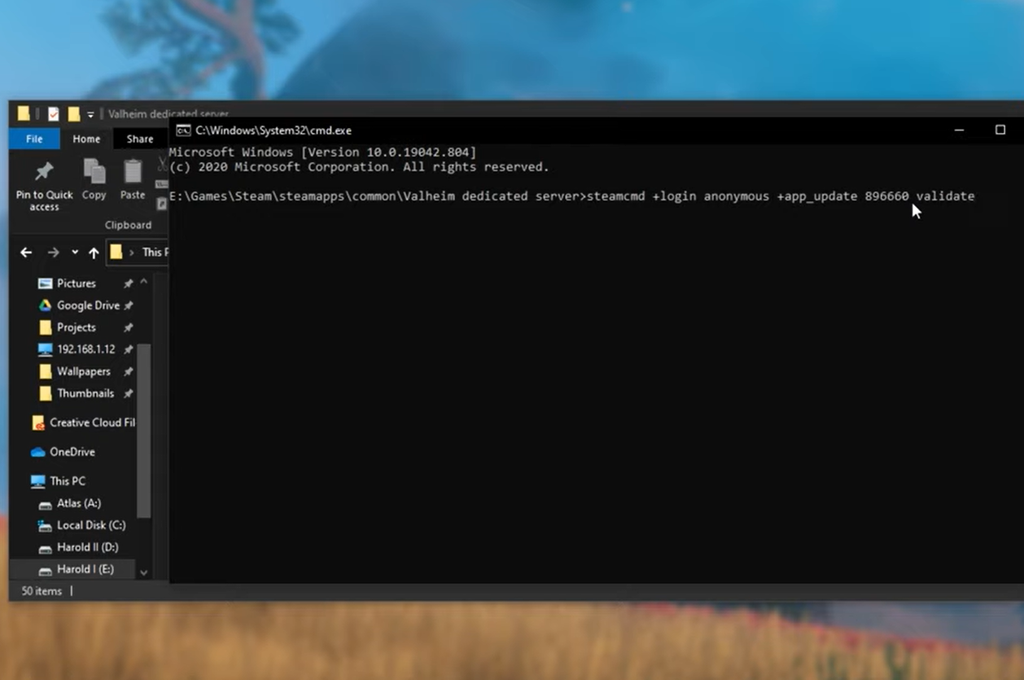
Confirm the update worked
Start the server and watch the command window. When it loads the world and reaches the Game server connected state, the process is live on the new build. The clearest proof is that players on the latest client can connect again without a version mismatch, since matching versions is exactly what the patch fixes.
Once your friends are back in and the world loads with your existing progress intact, the server is fully patched and ready to run until the next update lands.