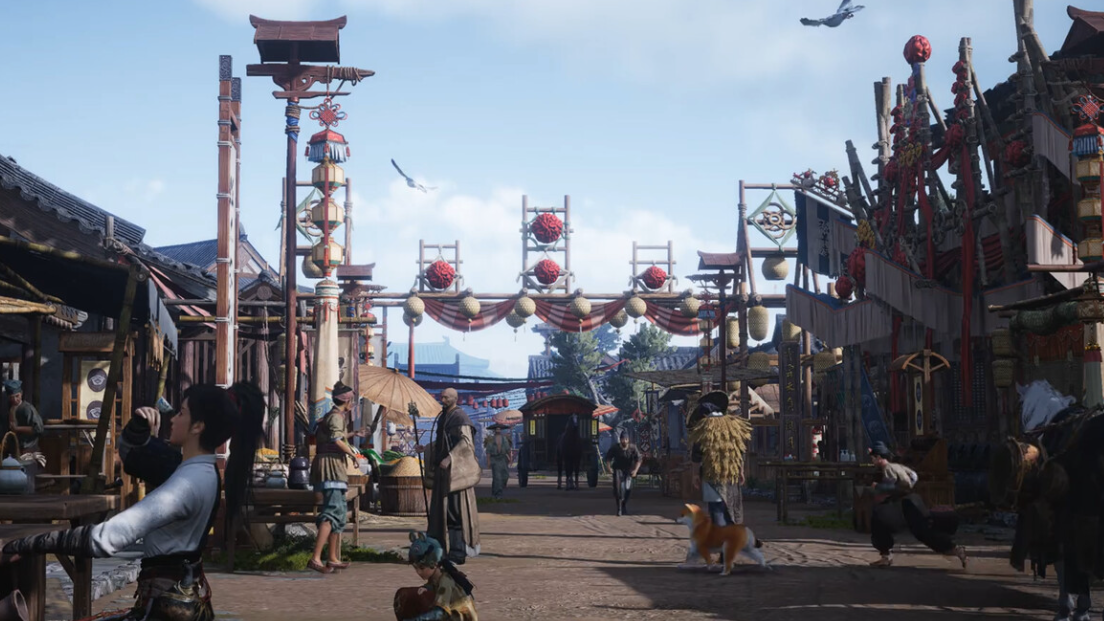
Keeping Where Winds Meet updated ensures access to new content, bug fixes, and a smoother experience across PC and PlayStation 5. On streaming platforms such as GeForce NOW, updates work differently and depend on when the service onboards the latest build.
Update Where Winds Meet on Steam (PC)
On Steam, updates are delivered through the Steam client. The game is free to play and available on Windows 10/11 64-bit via the official store page at store.steampowered.com/app/3564740/Where_Winds_Meet/.
Steam manages all installed games from the Library view. Opening it lets you see if Where Winds Meet shows an “Update queued” or “Update required” status.
If the button shows Update or Download, Steam has a newer version ready. If it shows Play and no update bar appears, the game is already on the latest version.
Steam will download the patch and then run an “Unpacking” phase, where it rebuilds game files. This phase can take noticeably longer than the download itself for large games, which is expected behavior.
Interrupting the unpacking or verification process can lead to missing or corrupt files. Let Steam finish both phases; the status will return to “Ready to Play” when it is safe to launch.
Check automatic update settings on Steam
Steam can keep Where Winds Meet updated in the background, but only if automatic updates are enabled.
This opens the game’s configuration window, where you can control its update behavior and local files.
Here Steam shows how it handles new builds for this specific game.
Select the setting that updates the game automatically (for example, the option that always keeps the game up to date). This reduces the chance of being blocked by a required patch before you can enter the game.
Fix Steam update issues for Where Winds Meet
Large patches, antivirus interference, or disk problems can cause “corrupt update files”, endless unpacking, or redownloads of tens of gigabytes.
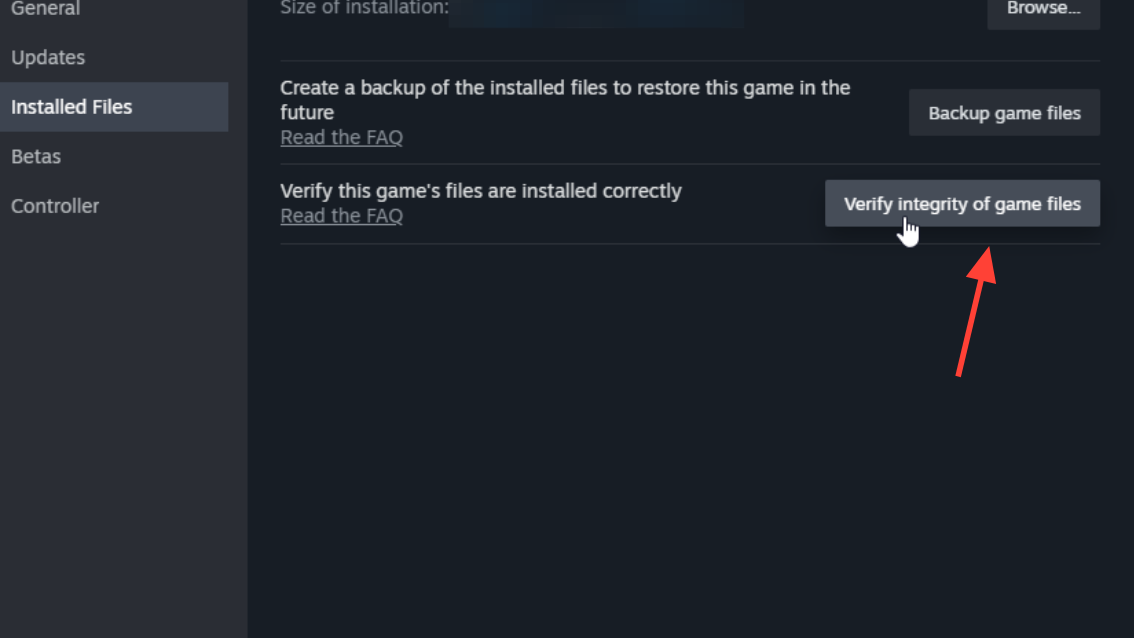
Right-click Where Winds Meet in the Library, open Properties, switch to Local Files, and run the file verification option. Steam will compare your installation against the current build and redownload damaged or missing files.
Some security tools may falsely flag executables or anti-cheat components during updates and remove them, which prevents the game from starting. Add the Where Winds Meet installation folder to your antivirus exclusions or pause protection while the patch is installing, then re-enable it afterward.
A fresh start clears temporary locks on files and can allow the update to resume correctly. After rebooting, open Steam again and check whether the patch continues from where it stopped.
Use the Uninstall option from the game’s context menu in Steam, then install it again. Reinstallation downloads the complete latest build, which usually resolves persistent corruption issues, though it requires enough free disk space and bandwidth.
Update Where Winds Meet on Epic Games Store (PC)
Where Winds Meet is also available on the Epic Games Store. Updates there are controlled by the Epic launcher, and some early issues required launching the launcher itself with administrative rights to start the game correctly.
The Library lists all claimed games and shows whether they are installed and up to date. Find Where Winds Meet in this list.
If Epic has published a new build, the launcher shows an Update prompt. If you only see a Play button with no progress bar or warning icon, the installed version is current.
Do not start the game during a partially finished update. Wait until the button returns to Play and the progress bar has disappeared.
On some systems, permission issues can prevent the Epic launcher from handing off correctly to the game. Closing the launcher, then reopening it as an administrator, helps the update and launch processes complete properly.
Uninstall the game from its context menu in the Library, then download it again. Reinstallation ensures that the local files match the current Epic build.
Update Where Winds Meet on PlayStation 5
On PlayStation 5, the system usually updates games like Where Winds Meet automatically, especially around major launch patches. However, early pre-download builds sometimes fail to patch correctly and block you with a “Downloading an update file” message and an empty progress bar.
This opens a side menu for the game with settings and version options.
The console contacts PlayStation Network to see whether a newer patch exists. If there is one, it will start downloading it; if you are already current, it will confirm that no update is necessary.
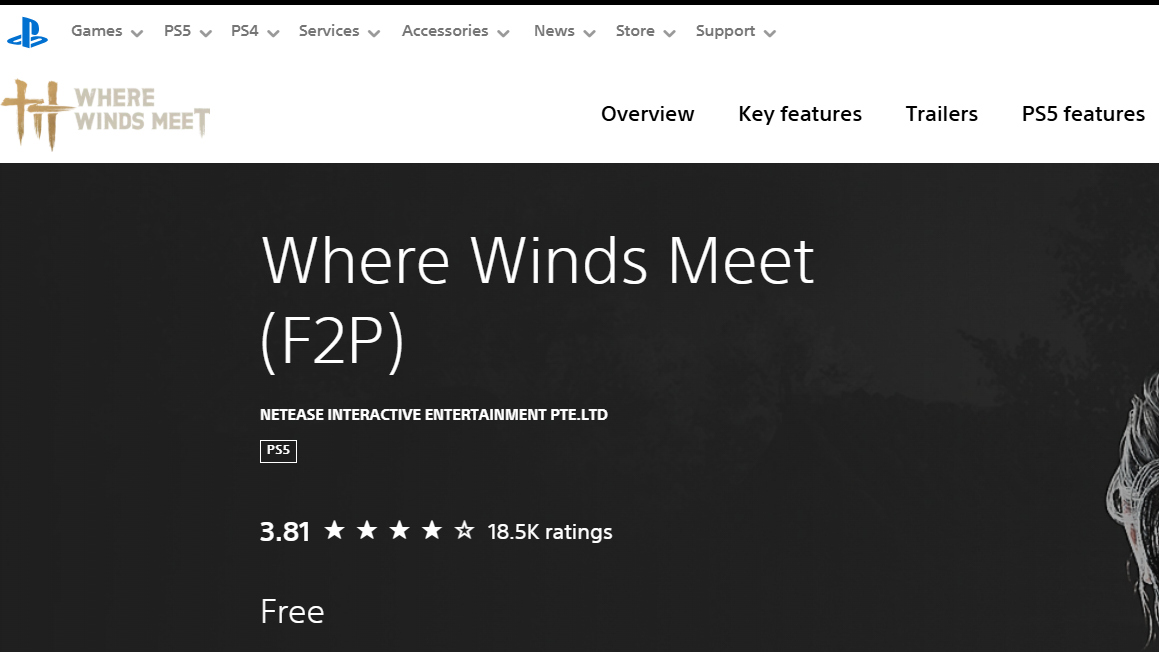
Highlight Where Winds Meet, press Options, choose Delete, and confirm. Then open your Game Library or the store page at playstation.com/en-us/games/where-winds-meet/ and redownload the game. The current downloadable build already includes the latest patch, which avoids the broken pre-download state.
Launching during an install or patch can cause errors or partial updates. Wait until the PS5 shows the game as fully installed with no active download bar before pressing Play.
Update behavior on GeForce NOW
GeForce NOW is a cloud service, so updates for Where Winds Meet are handled on NVIDIA’s servers rather than on your local hardware. You play versions from stores such as Epic or Steam, but the timing of updates is controlled by when GeForce NOW onboards a stable build.
Use the GeForce NOW app or website to search for Where Winds Meet. If the title appears and is marked playable, it has been onboarded. If it is missing, onboarding is still in progress.
Install and update Where Winds Meet on your own PC account (Epic or Steam) so your account owns the latest version. GeForce NOW reads your ownership from those services, even though it runs the game in the cloud.
When a new patch or a launch build goes live, GeForce NOW needs time to test the version across tiers, regions, and supported launchers. This can result in a delay of hours or days between a store release date and when you see the updated game in the GeForce NOW library.
There is no local update process on your device. When NVIDIA updates the server-side image, your next session automatically loads the newer version without a download on your end.
Link accounts for cross-progression when updating
Where Winds Meet supports cross-progression across Steam, Epic Games, the official PC launcher, and PlayStation. This makes updates on different devices more seamless because your character and progress travel with you.
The official site at www.wherewindsmeetgame.com provides a cross-progression account linking guide that explains how to connect Steam, Epic Games, the PC launcher, and PlayStation accounts to a shared profile.
By connecting accounts early, you avoid duplicated characters or progress split across unlinked profiles. When you update or switch platforms later, your character data remains consistent.
Make sure Steam/Epic/PS5 have installed the latest patch so that cross-progression works correctly. Out-of-date clients can fail to connect or may show outdated data until updated.
Compare update methods and when to use them
The main ways to update Where Winds Meet vary by platform. The following table summarizes the key paths and when each is most useful.
| Platform | Primary update method | When to use |
|---|---|---|
| Steam (PC) | Automatic updates in Library with optional file verification. | Best for regular play on a Windows 10/11 PC; use verification if you see corrupt file errors. |
| Epic Games Store (PC) | Update button in Library, sometimes reopening launcher with admin rights. | Use when you installed the game through Epic and need to apply the latest build. |
| PlayStation 5 | “Check for Update” on game tile; reinstall if pre-download is stuck. | Best when the console shows an empty update progress bar or will not start the game after launch day. |
| GeForce NOW | Server-side onboarding; no device updates. | Use once the game appears in the GeForce NOW library; there is no manual update process. |
Keeping Where Winds Meet updated mainly comes down to letting each platform’s client download patches, and falling back to verification or a fresh install when patching fails; once everything is on the latest version, cross-progression makes it much easier to move between PC, PS5, and cloud play without losing your place.