Organize web content effectively using the Collections feature in Microsoft Edge.
Organize web content effectively using the Collections feature in Microsoft Edge.
by Pallav Pathak
Microsoft Edge’s Collections feature simplifies organizing your online research, shopping lists, travel plans, or any other web-based projects. Collections allow you to store web pages, images, text snippets, and notes in one convenient location, making it easy to access and manage your content across multiple devices. Here’s how to effectively use Collections in Microsoft Edge.
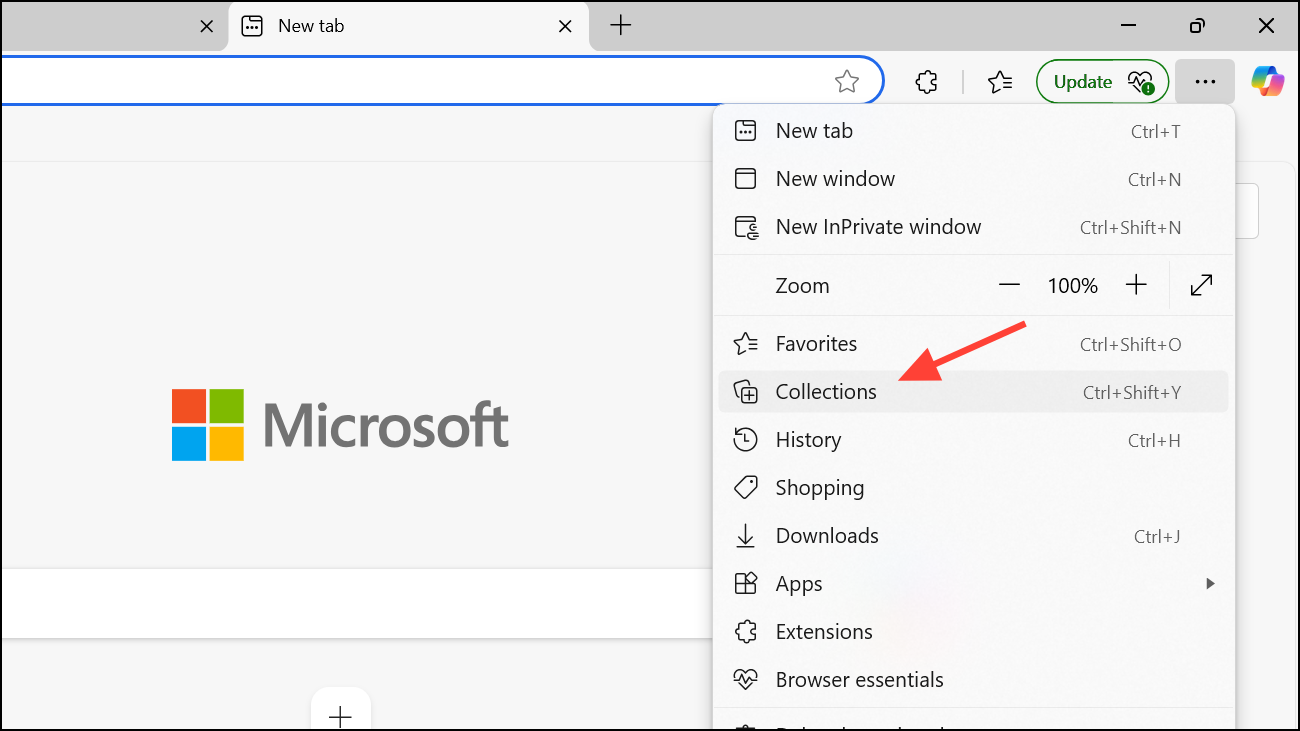
Open Microsoft Edge and locate the Collections icon at the top-right corner of the browser window. The icon resembles a small stack of papers. Click on this icon to open the Collections pane. If you cannot find it there, click the three dots on the top right and then select “Collections’ from the dropdown menu.
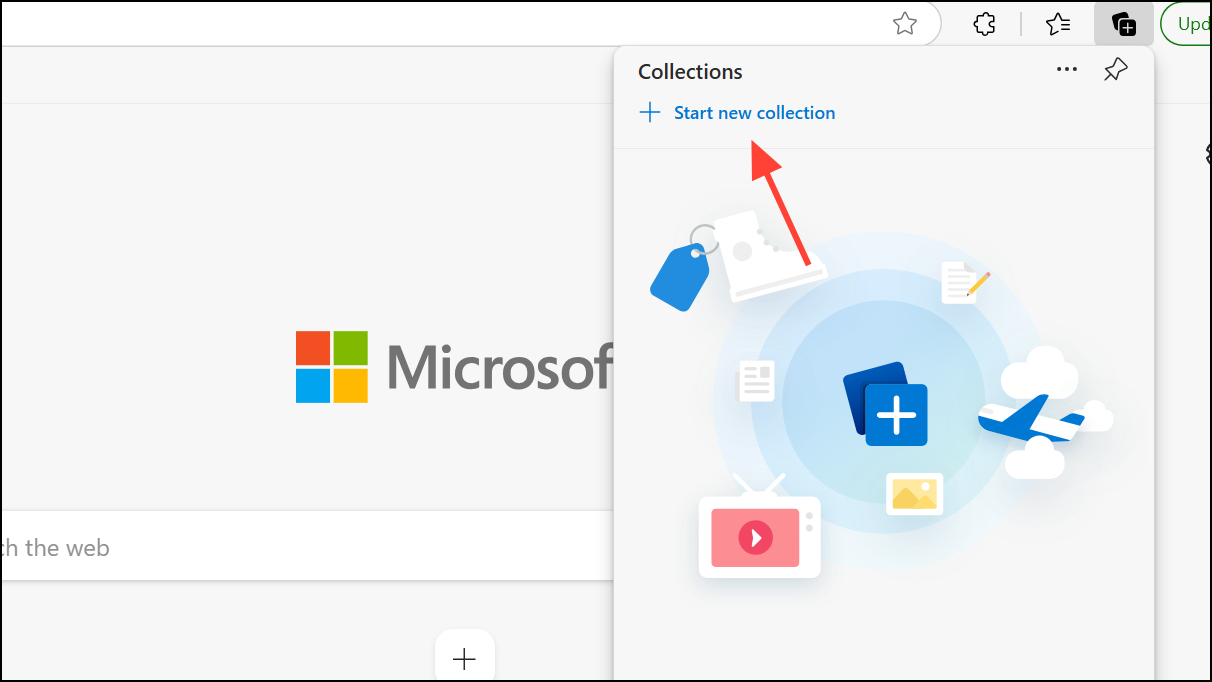
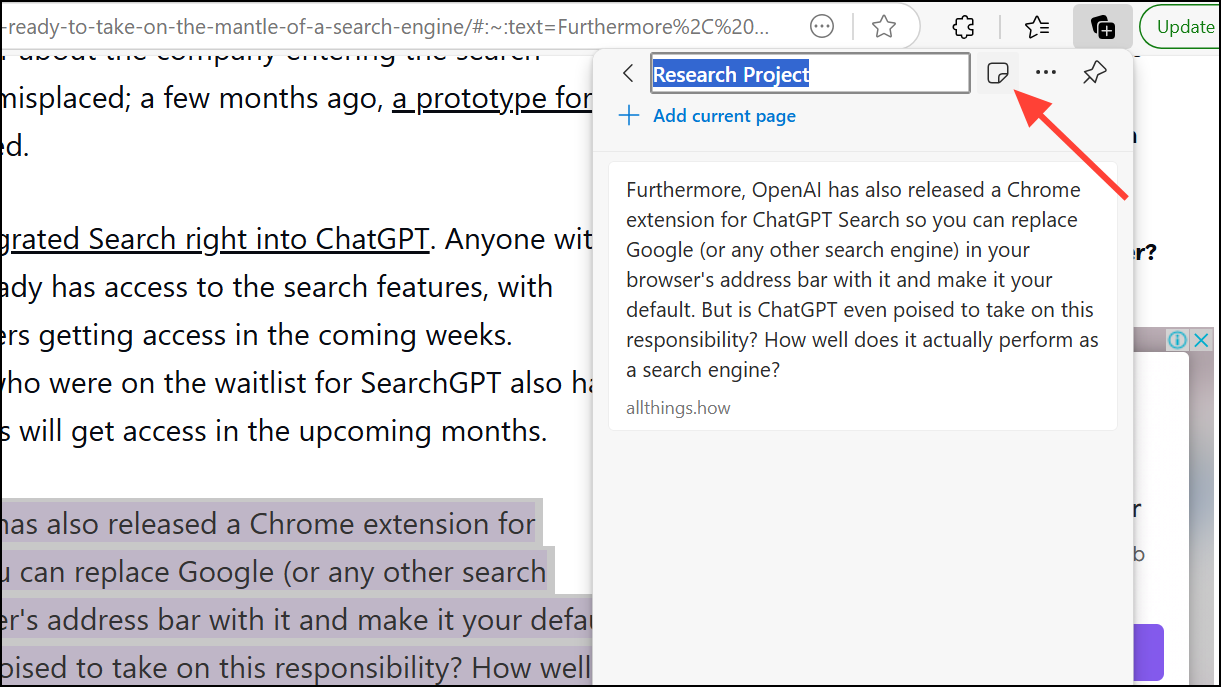
In the Collections pane, select “Start new collection.” Give your collection a clear, descriptive name, such as “Vacation Planning,” “Research Project,” or “Shopping List,” and press Enter to save it.
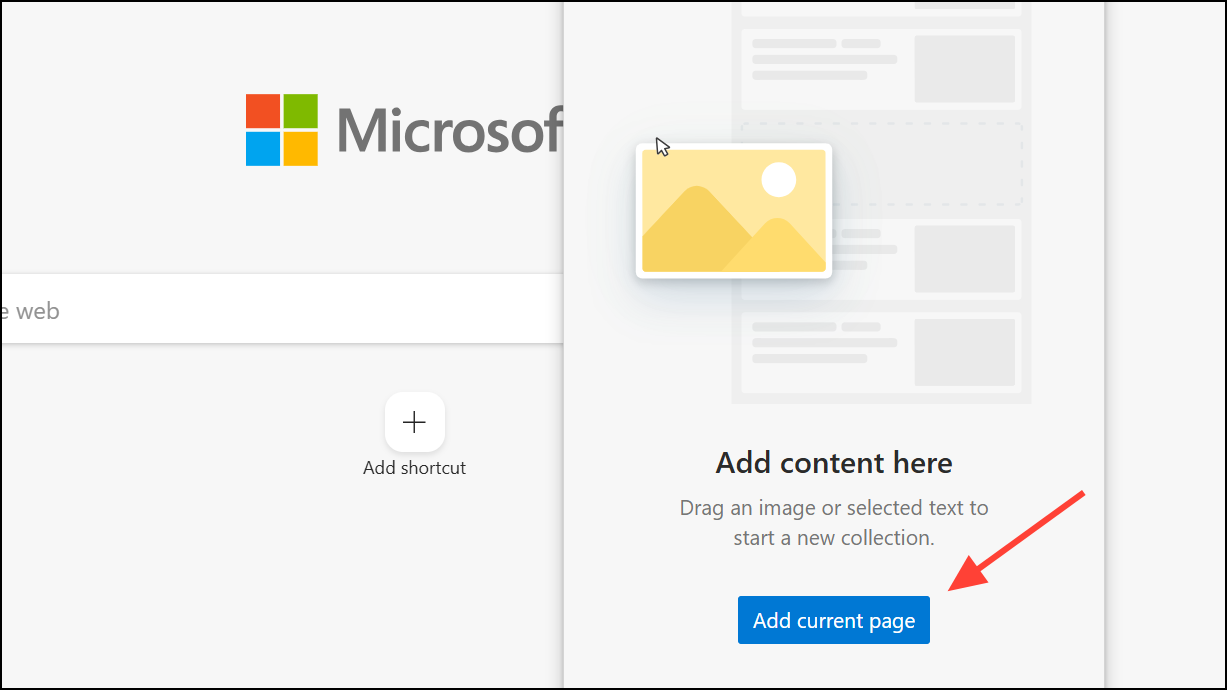
To add a webpage to your collection, navigate to the desired page and click the Collections icon again. In the pane, click “Add current page” to save the entire webpage.
To save specific content, such as text or images, highlight the text or right-click the image. From the context menu, hover over “Add to Collections” and select your collection. Alternatively, you can drag selected text or images directly into the Collections pane.
To add personalized notes, click the “Add note” icon within your collection. A text editor will appear, allowing you to jot down ideas, reminders, or additional context. Click the checkmark to save your note.
To rearrange items within your collection, simply drag and drop them into your preferred order. This allows you to prioritize and structure your content logically.
To edit an item’s title or notes, right-click the item and select “Edit.” You can modify the title or update the notes to reflect new insights or additional information.
To remove unnecessary items, right-click the item and select “Delete.” To delete an entire collection, right-click on the collection’s title in the Collections pane and choose “Delete collection.”
Sharing and Exporting Collections
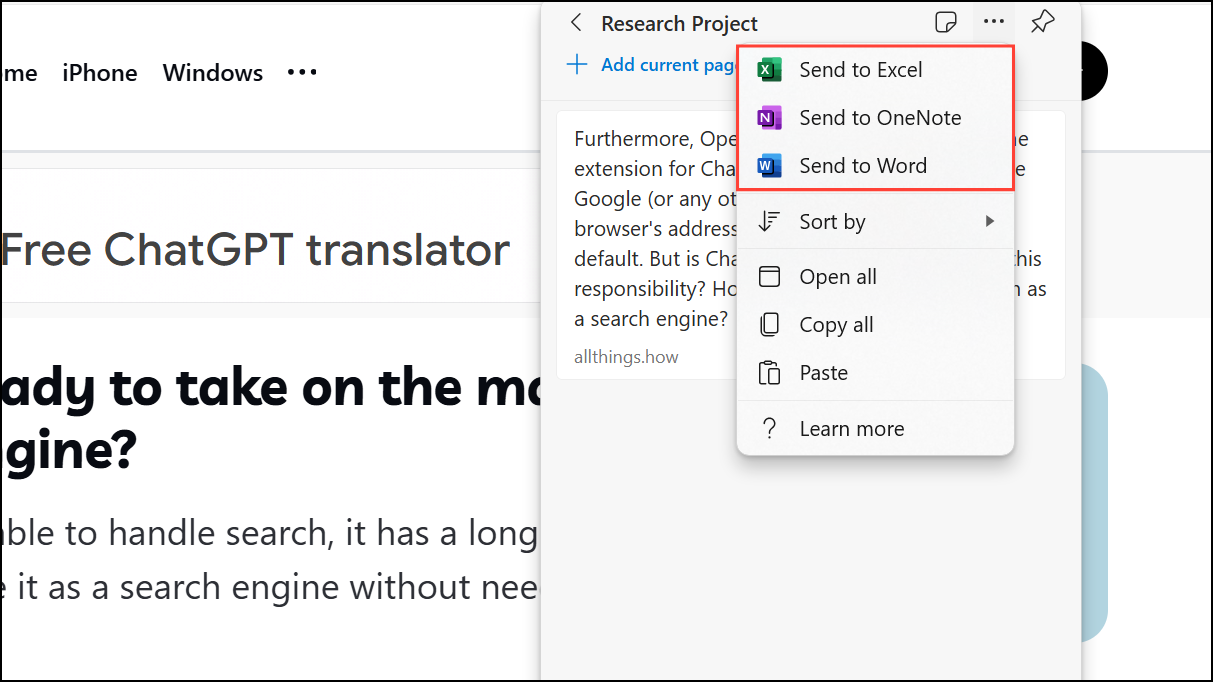
Microsoft Edge allows you to easily share or export your collections to other applications, such as Excel, Word, OneNote, or Pinterest.
To share or export a collection, open the Collections pane and select the collection you wish to share. Click on the “Sharing and more” icon (three-dot menu) at the top of the pane.
From the dropdown menu, choose your preferred export option, such as “Send to Excel,” “Send to Word,” “Send to OneNote,” or “Send to Pinterest.” You can also select “Copy all” to copy the entire collection to your clipboard for pasting into emails or documents.
Using Collections on Mobile Devices
Collections sync automatically across devices when you’re signed into Microsoft Edge, allowing you to access your saved content from anywhere.
To add content to your collection, navigate to a webpage, open the Collections menu, and tap “Add current page to collection.” Choose the collection you wish to update or create a new one by tapping the “+” icon.
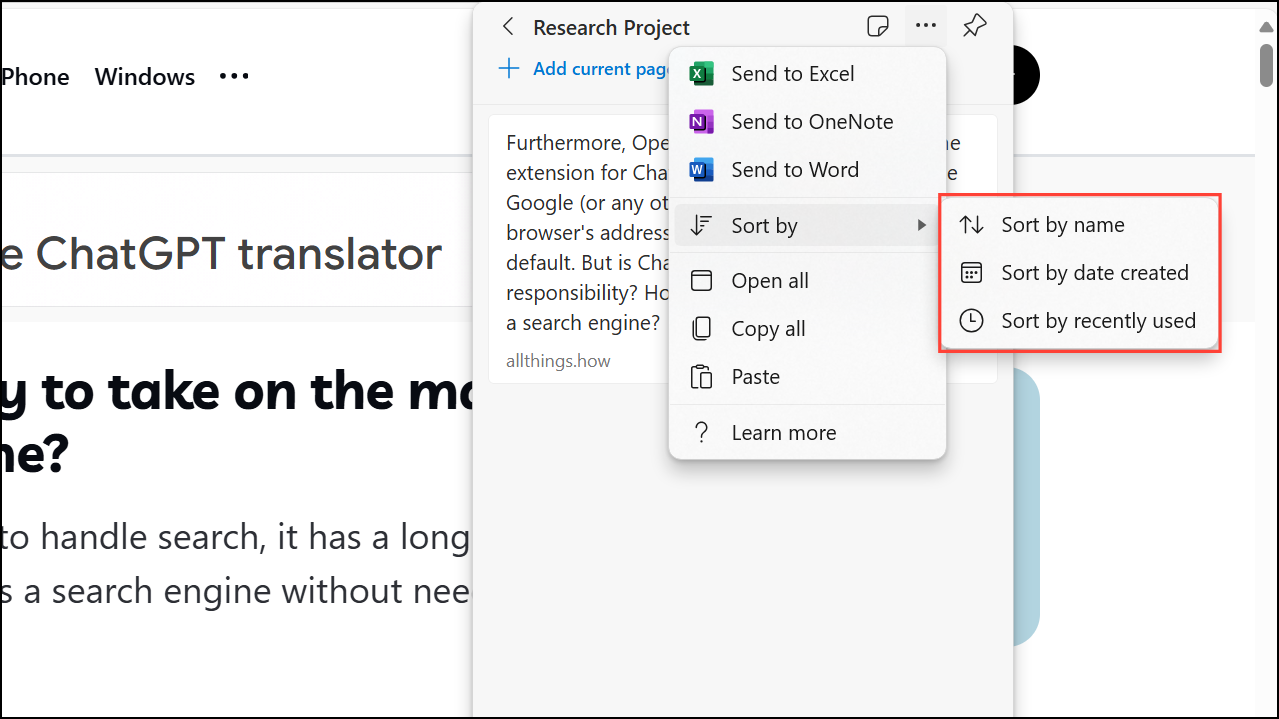
Open the Collections pane and click the three-dot menu at the top. Select your preferred sorting method: “Sort by name,” “Sort by date created,” or “Sort by recently used.”
To unpin the Collections pane, click the pin icon again, returning it to the default flyout behavior.
Backing Up Collections Data
Microsoft Edge stores your Collections data locally. If you wish to backup your Collections, open File Explorer and navigate to the following directory on your computer:
Replace “[YourUsername]” with your actual Windows username. From here, you can copy the data to a safe location for backup purposes.
Collections in Microsoft Edge provides a practical solution for organizing web content, saving time, and collaborating effectively. Start using this built-in tool today to streamline your browsing experience.