

Windows Security (Microsoft Defender) is a reliable antivirus solution that comes built into Windows. However, sometimes the Windows Security app might be inaccessible—particularly if you’re running an unactivated version of Windows or experiencing system issues. In these cases, PowerShell provides an effective alternative to perform virus and malware scans directly from the command line.
This guide shows how to use PowerShell to check your system’s antivirus status, update antivirus definitions, and perform various types of scans to identify and remove malware threats.
Launching PowerShell as Administrator
Windows key, type PowerShell, right-click on “Windows PowerShell,” and select “Run as administrator.”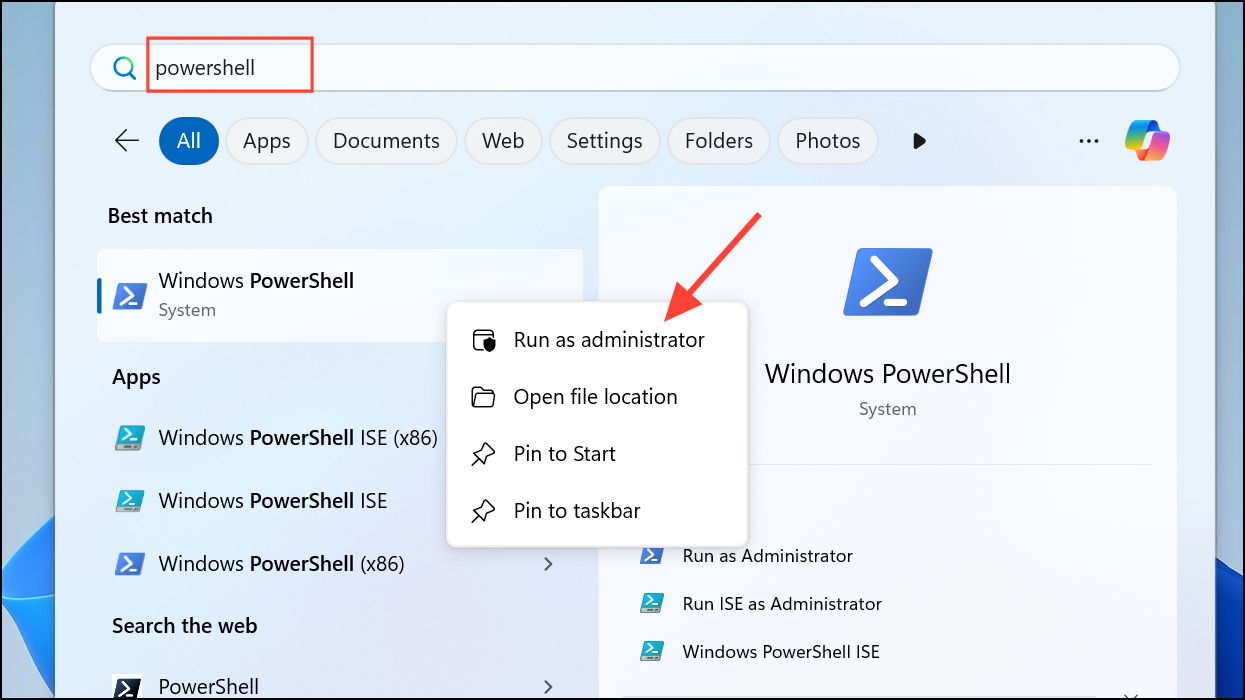
Checking Windows Security Status
Get-MpComputerStatus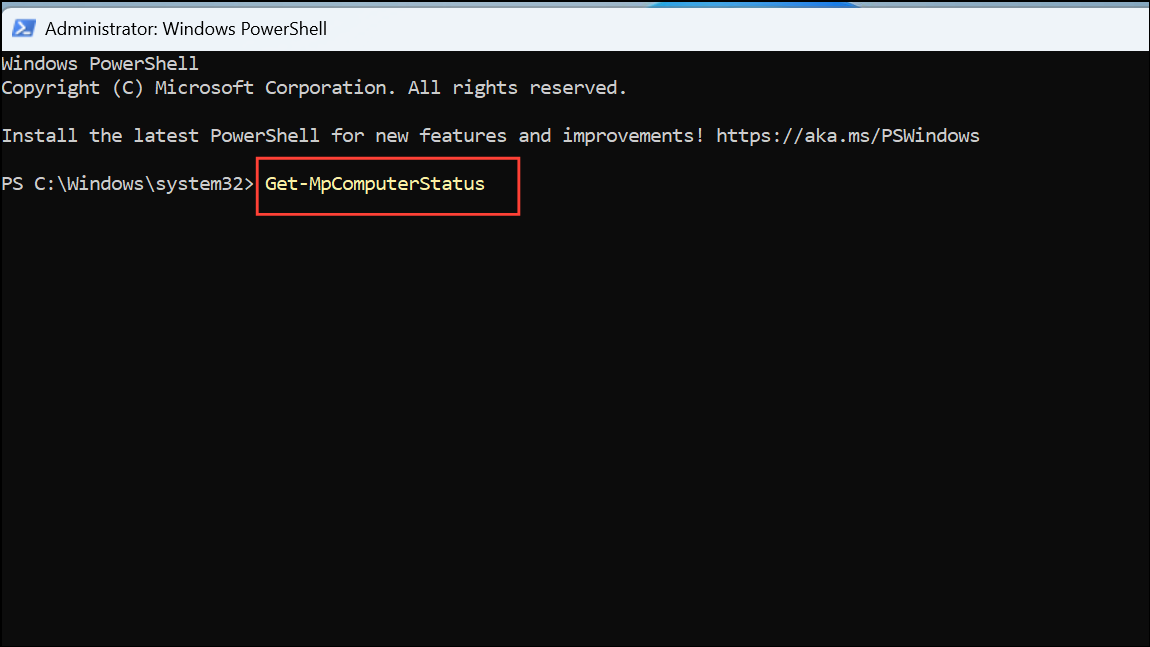
This command displays detailed information about your antivirus status. Look for the field labeled AntivirusEnabled. If it shows True, your antivirus is active and ready for scanning.
Updating Antivirus Definitions
Update-MpSignature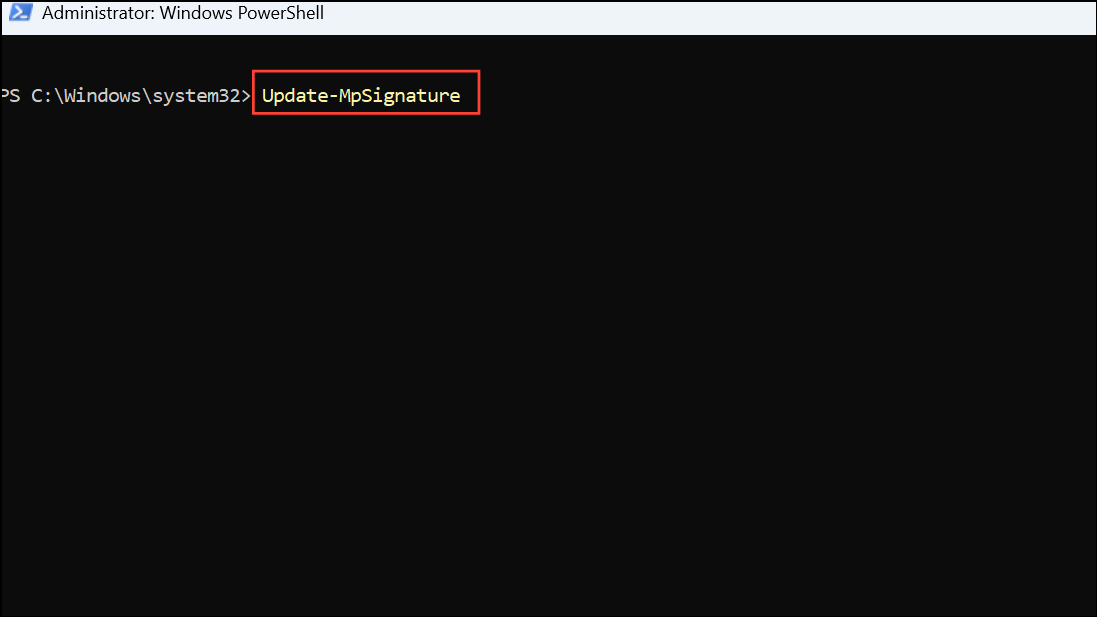
Once executed, this command downloads and installs the latest virus definitions from Microsoft’s servers. It’s best practice to run this command regularly, especially before performing a scan.
Running a Full Virus Scan
Start-MpScan -ScanType FullScan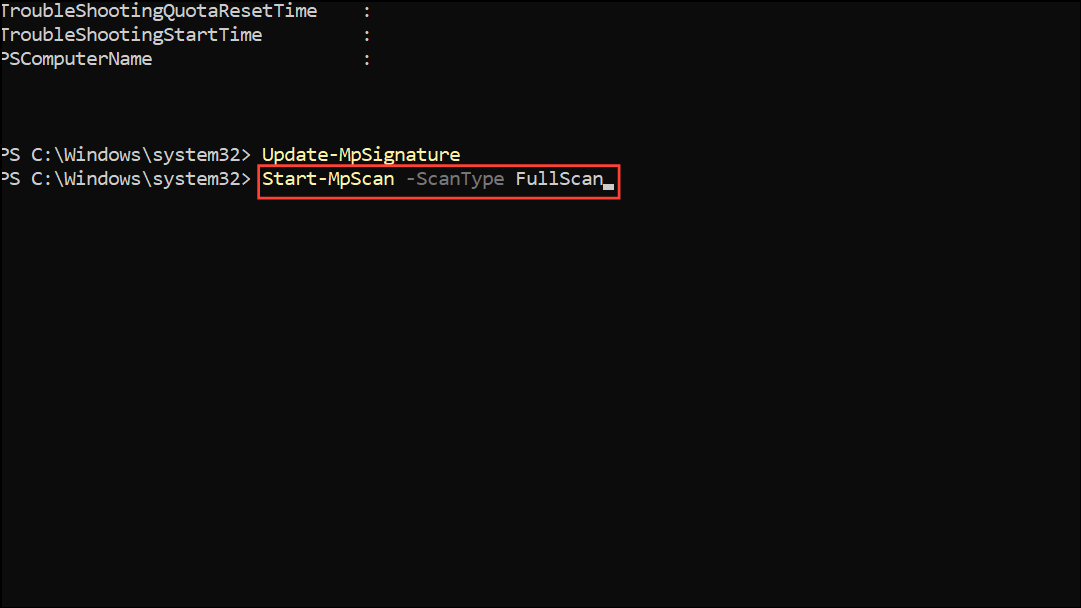
Start-MpScan -ScanType FullScan -AsJob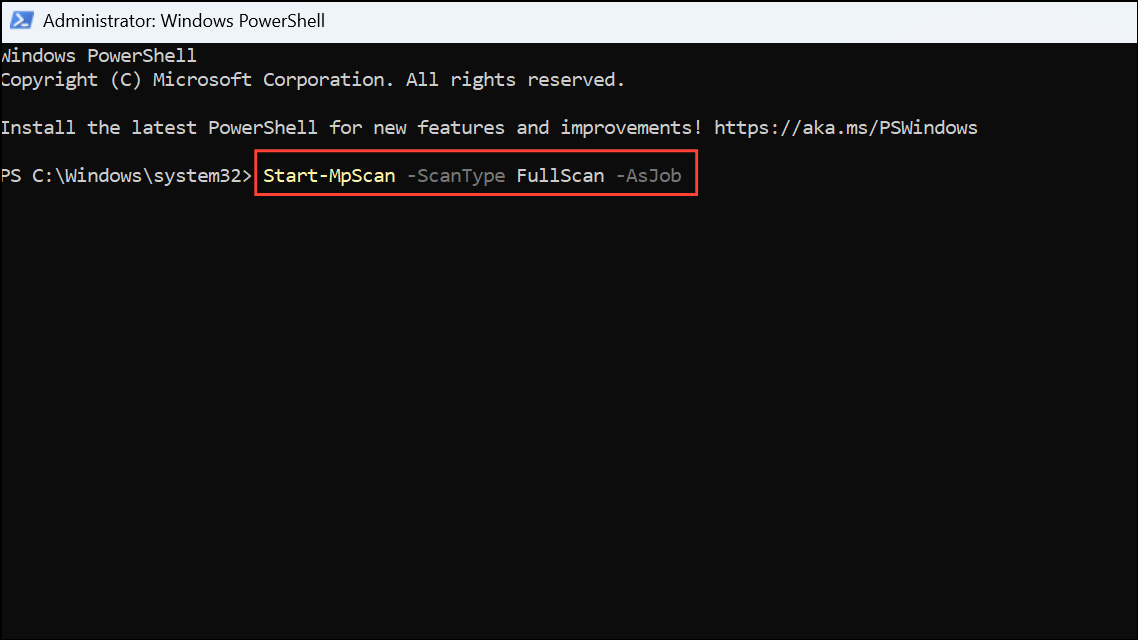
This command runs the full scan as a background job, allowing you to continue working without performance interruptions.
Performing a Quick Scan
Start-MpScan -ScanType QuickScan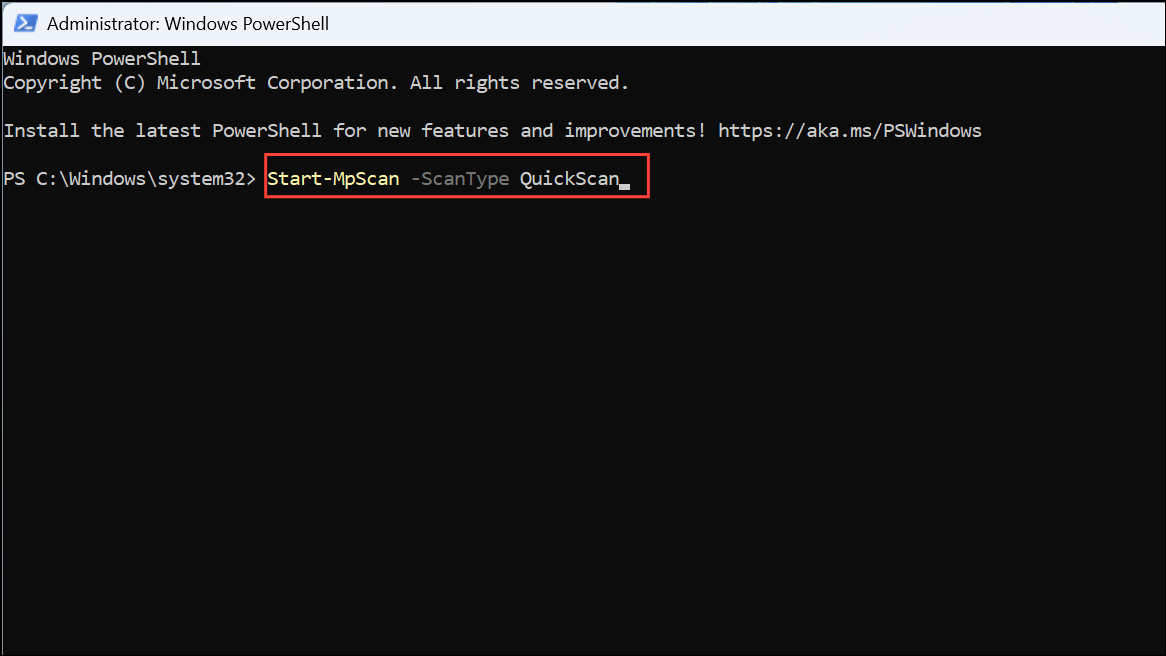
A quick scan typically completes within minutes, making it ideal for regular checks or when you suspect malware but don’t have time for a full scan.
Running a Windows Defender Offline Scan
Before running this scan, save all your open work as your PC will restart immediately after entering the following command:
Start-MpWDOScanYour PC will reboot into the offline scanning environment, perform the scan, and then restart normally once completed.
Automating Malware Scanning with a PowerShell Script
ScanMalware.ps1:# Update antivirus definitions
Update-MpSignature
# Perform a full system scan
Start-MpScan -ScanType FullScan
# Trigger Windows Defender Offline scan
Start-MpWDOScan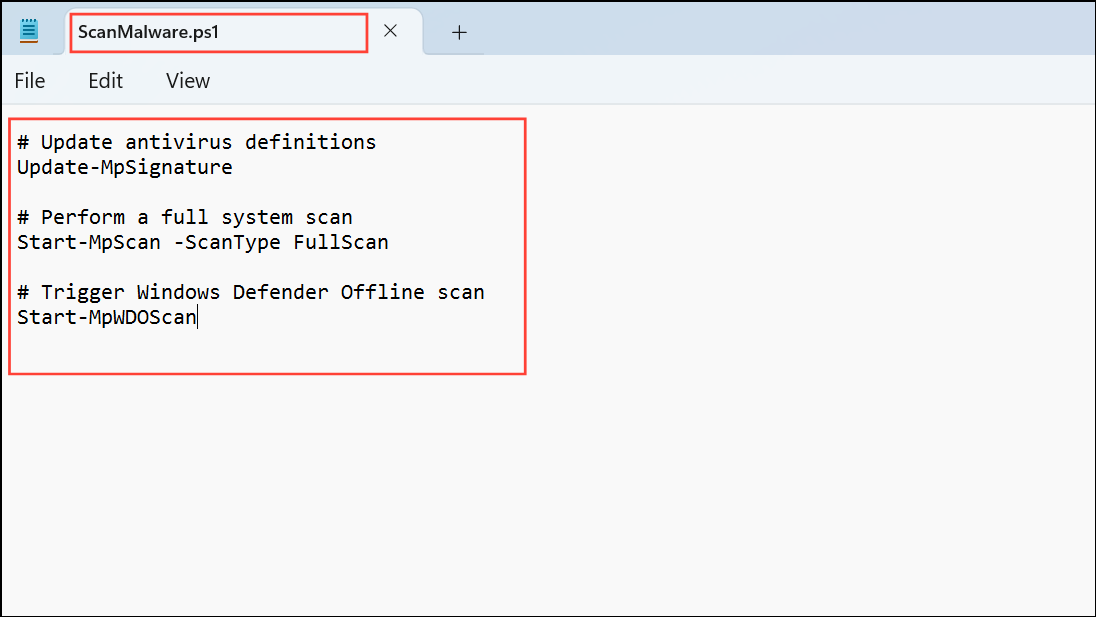
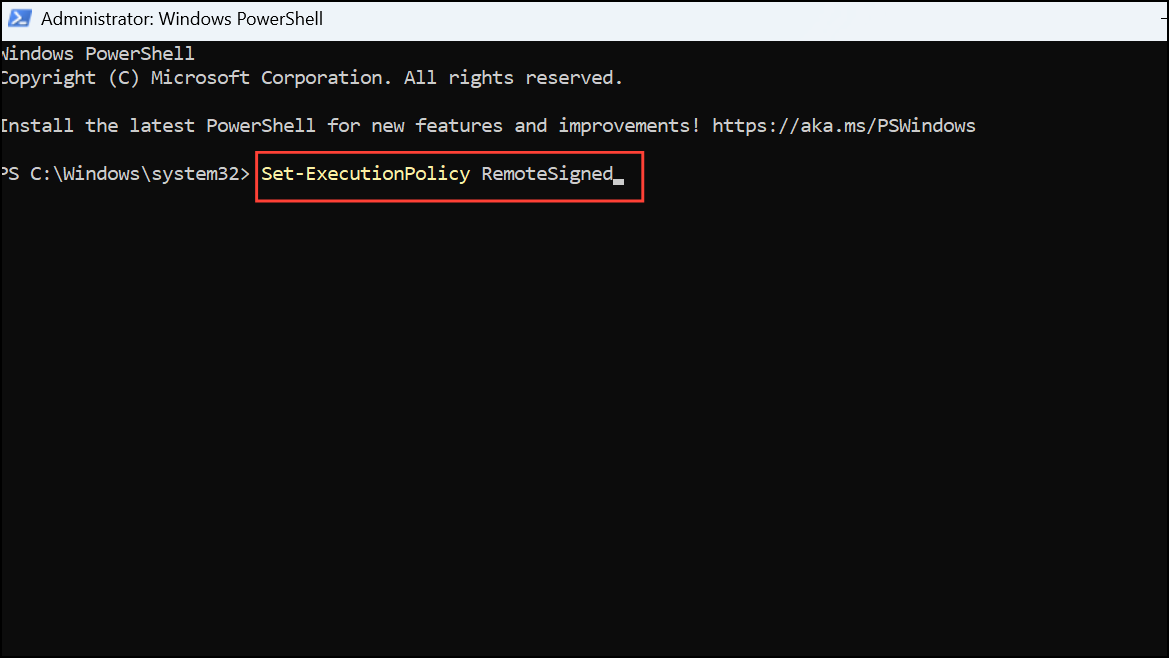
.\ScanMalware.ps1Ensure your execution policy allows running scripts. If not, temporarily set it with Set-ExecutionPolicy RemoteSigned and revert after completing the scan.
Using PowerShell for antivirus scanning provides a robust alternative when the Windows Security interface is unavailable or malfunctioning. Regularly performing these scans helps maintain your system’s security and keeps malware threats at bay.





