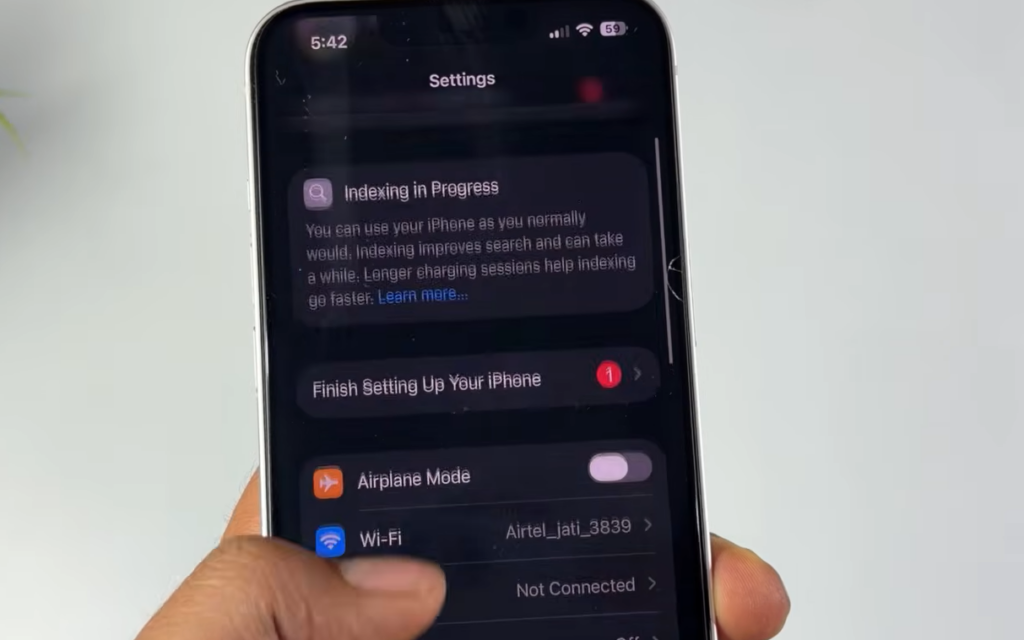
After updating to iOS 27, many iPhones display an “Indexing in Progress” banner inside the Settings app, usually with the note that it is working “to improve search.” This is a background task tied to the device rebuilding its on-device search and Apple Intelligence index. It is expected behavior on a fresh install, not a sign that something is broken.
Quick answer: Leave the iPhone powered on, connected to Wi-Fi, and ideally on a charger. The message clears on its own once indexing finishes, which can take anywhere from minutes to a few days depending on how much content you have. No setting needs to be changed.
What “Indexing in Progress” means on iOS 27
When iOS 27 finishes installing, the system rebuilds the catalog it uses to search through apps, settings, messages, photos, and other content. Part of this work also feeds the new Siri and Apple Intelligence features, which rely on a semantic search index. Building that index means processing your existing content and generating the data the system needs to find and match it later.
The banner appears most often at the top of the Settings app, but the indexing affects search across the device while it runs. It also shows up independently of the Siri waitlist. People who already have the new Siri active still report their phones indexing in the background.
Why Settings search does not work while indexing
While the index is being built, search can behave oddly. A common report is typing a term such as “Messages” into the Settings search field and getting no result. The screen stays on the initial list and does not jump to the matching page. This happens because the search index is incomplete, so there is nothing for the query to match against yet.
In most cases, search starts working normally once indexing completes and the banner disappears. If you need it sooner, a soft reset has cleared the stuck state for some users, and the indexing message went away afterward as well.
How long iOS 27 indexing takes
There is no fixed time. Light setups can finish quickly, while phones with large photo libraries, message histories, and other content take much longer. Because the process generates the embeddings used for semantic search, it can realistically run for hours and, in heavier cases, span a day or more. Expect it to keep going in the background rather than vanish right away.
| Factor | Effect on indexing time |
|---|---|
| Amount of content (photos, messages, files) | More content means longer processing |
| Time since update | Indexing starts right after install and runs until complete |
| New Siri active | Indexing can continue even after waitlist access is granted |
| Device left idle and charging | Helps the process finish faster |
Warmth and battery drain during indexing
While indexing runs, the device works harder than usual, so it is normal for the iPhone or iPad to feel warm and lose battery faster. Some users report noticeable drain and heat in the first hours after updating, including iPads that stay warm for an extended period.
Battery readings taken during this window are not representative of normal use. The reindexing phase puts extra load on the system, so it makes sense to wait until indexing finishes before judging how iOS 27 affects battery life.
How to confirm indexing finished
You will know the process is done when the “Indexing in Progress” banner disappears from Settings and search returns matching results again. Heat and faster-than-normal battery drain should also settle back to typical levels once the index is complete.
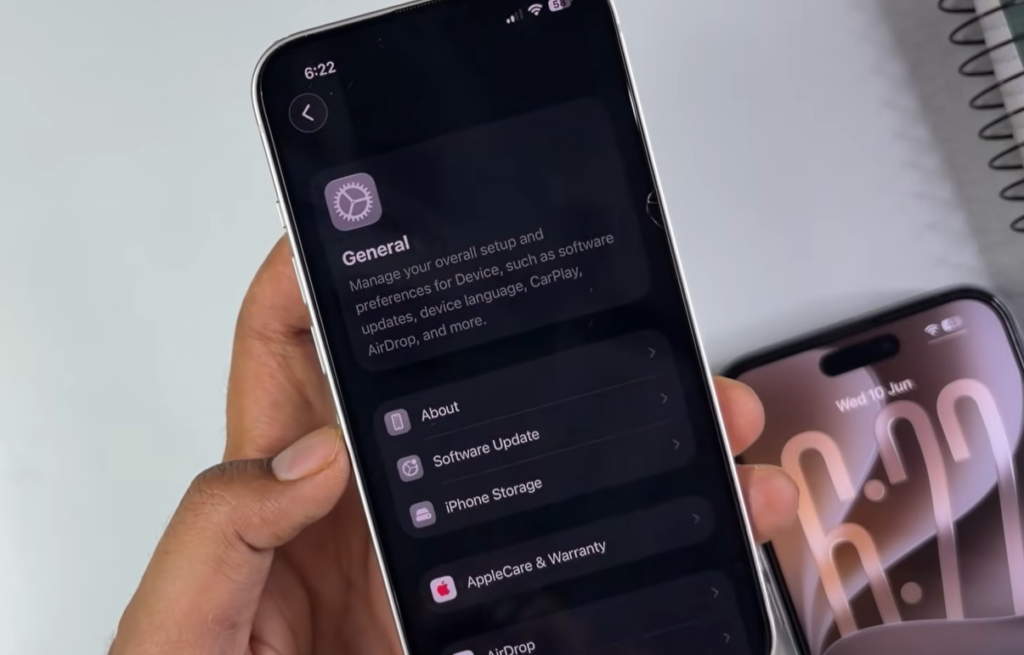
For the most part, the “Indexing in Progress” message is a temporary side effect of moving to iOS 27 and nothing to act on. Give it time on Wi-Fi and power, expect some warmth and battery loss while it runs, and let it clear on its own before you start measuring how the update performs day to day.