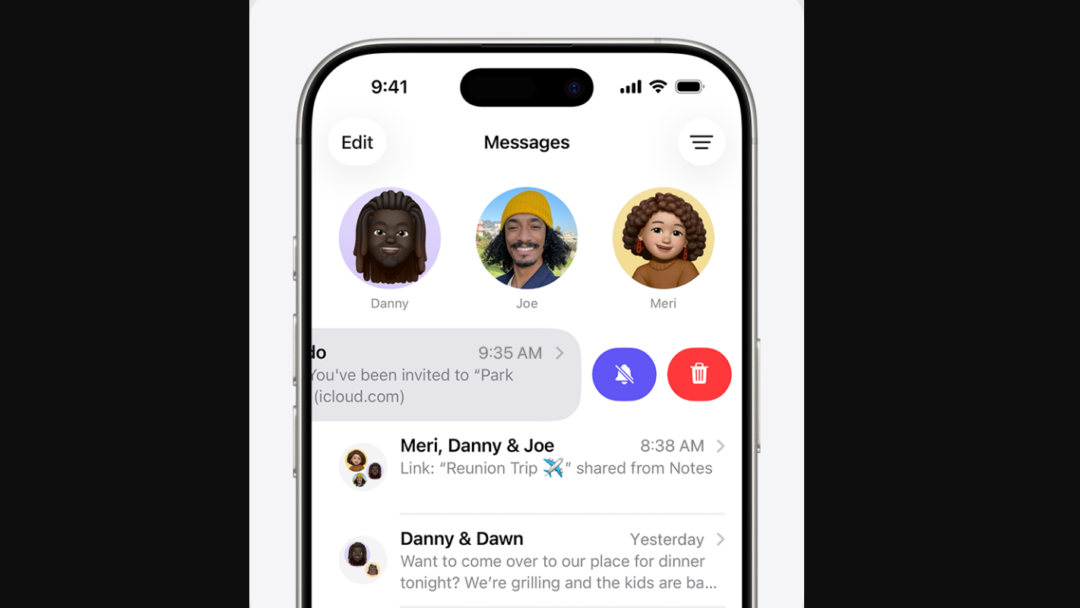
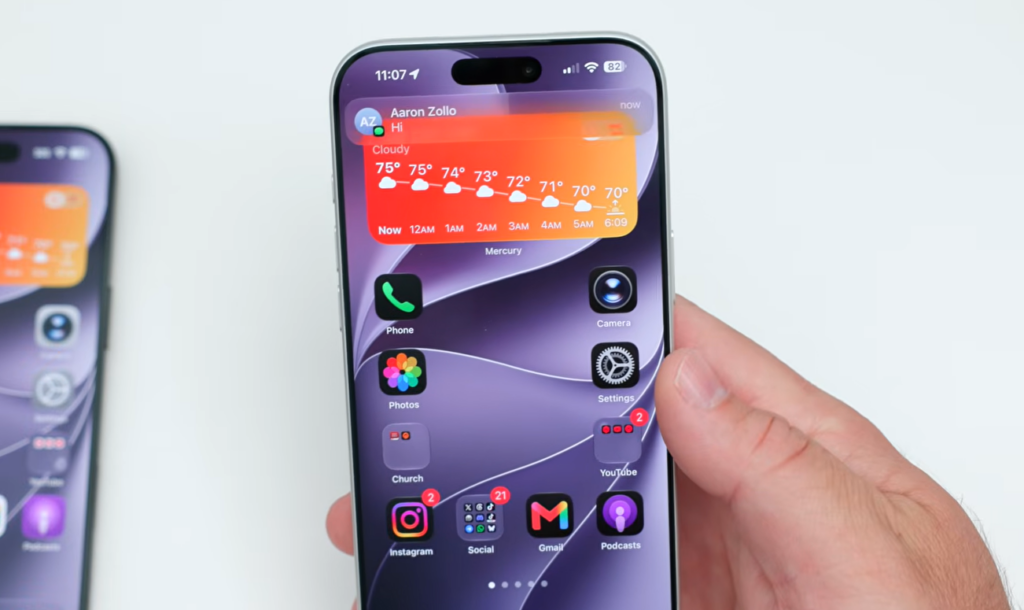
Notifications work differently on the iPhone in iOS 27, and the shift is tied to a larger gesture change across the system. New alerts slide in from the left edge of the screen instead of dropping down from the top, and the place you swipe to open Notification Center has moved as well.
Quick answer: In iOS 27, swipe down from the top-left corner to open Notification Center. The top-center swipe near the Dynamic Island now opens a new Siri-linked “Search or Ask” panel, and Control Center stays in the top-right corner.
What changes in the iOS 27 Notification Center
The most visible change is the animation. When a new alert arrives in iOS 27 and iPadOS 27, it slides in from the left side of the screen rather than appearing from the top. The underlying notification system behaves the same, so what you receive and how alerts stack does not change. Only the entrance and the access point are different.
Notification Center access moves to the top-left corner of the screen. To dismiss a notification, you swipe it to the right. Control Center keeps its spot in the top-right corner, which keeps notifications and quick settings on separate sides so the two gestures do not overlap.
| Action | iOS 27 gesture |
|---|---|
| Open Notification Center | Swipe down from the top-left corner |
| Dismiss a notification | Swipe the alert to the right |
| Open Control Center | Swipe down from the top-right corner |
| Open Siri “Search or Ask” panel | Swipe down from the top-center, near the Dynamic Island |
Why the notification gesture moved
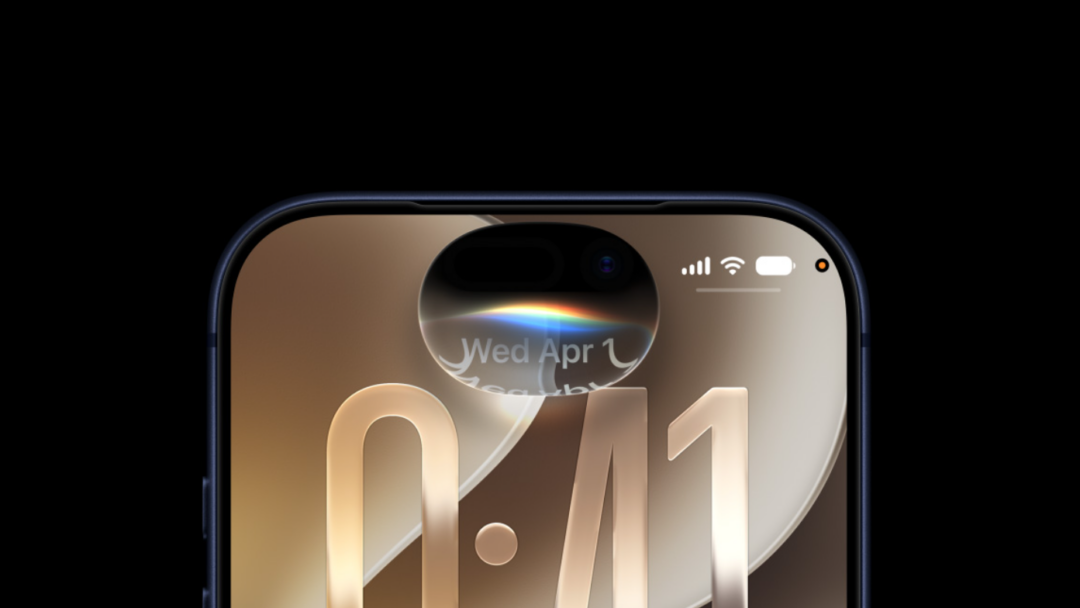
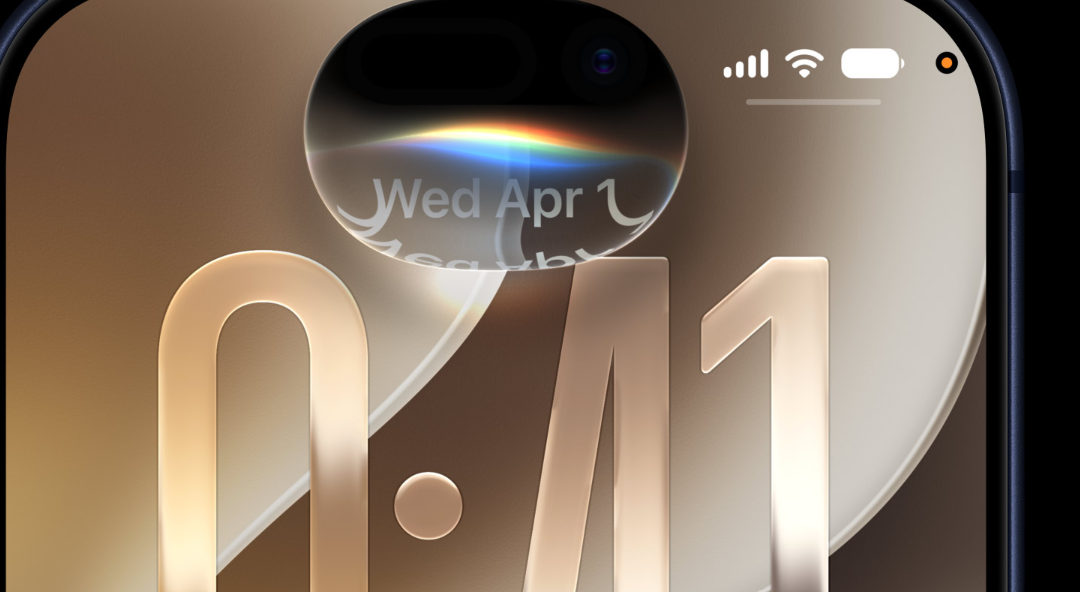
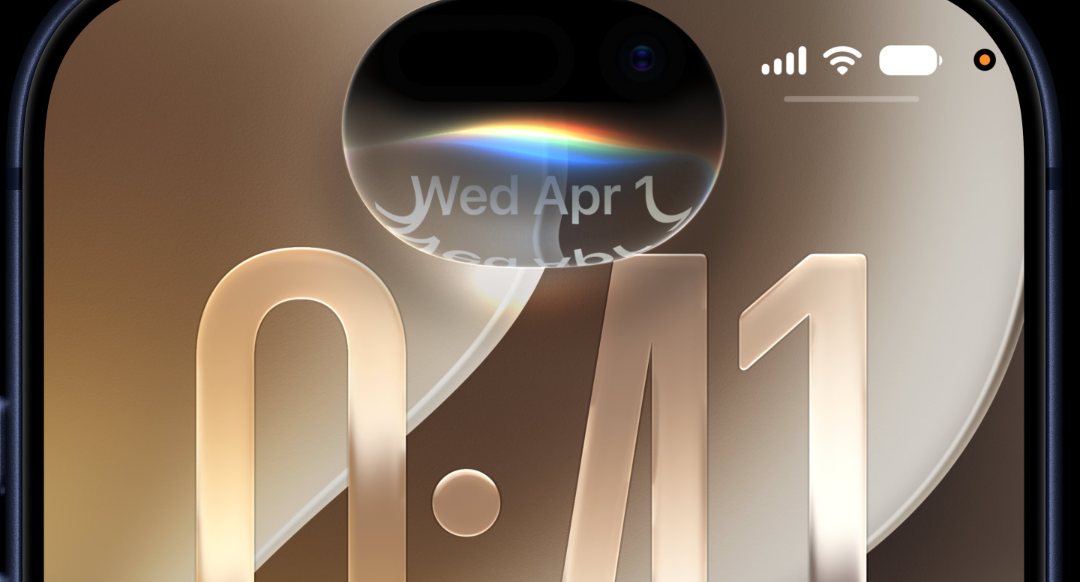
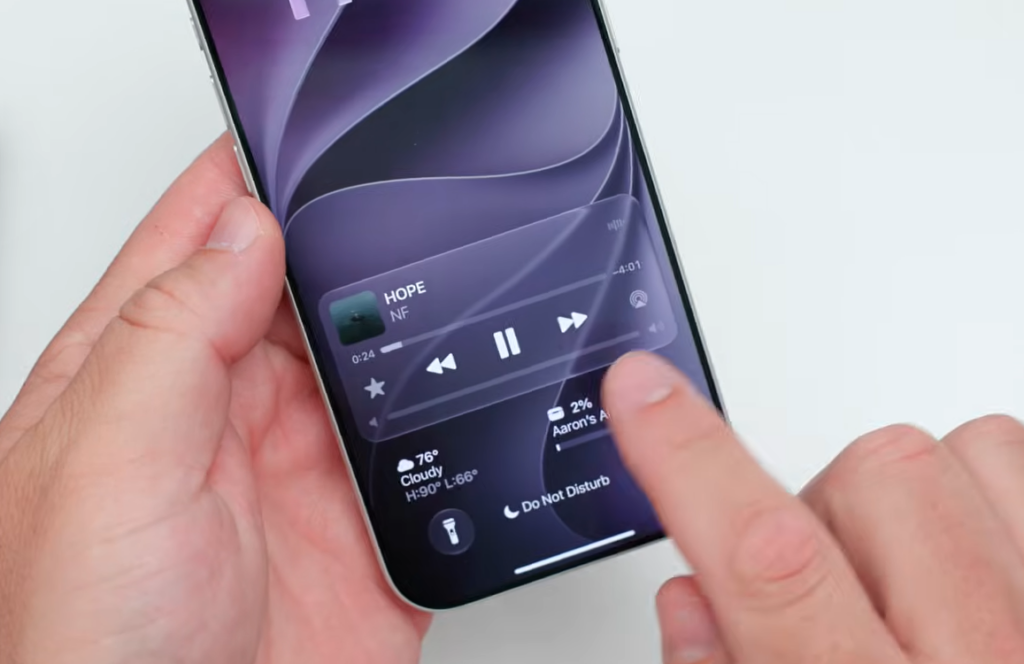
The reason Notification Center shifted to the left is Siri. The top-center swipe is being reassigned to a new AI-powered “Search or Ask” interface. On supported iPhones, pulling down near the Dynamic Island launches that search panel, so Notification Center had to move to a different corner to make room.
Notifications across iOS 27 and iPadOS 27 have a new effect for when alerts arrive. They now slide in from the left side of the screen.
For everyday use, the practical effect is that you relearn one gesture. The corner you reach for to check missed alerts is now on the left, and the familiar top-center pull-down does something new. Everything else about reading and clearing notifications stays familiar.
How to adjust after updating
If a top-center swipe opens a search field instead of your alerts, that is the new Siri “Search or Ask” interface working as designed, not a Notification Center bug.
Availability
iOS 27 was unveiled at WWDC 2026, with a developer beta following the keynote and a public release planned in the months after testing. The left-side notification animation applies to both iOS 27 and iPadOS 27, while the Siri-driven swipe behavior depends on supported hardware. Devices running the A13 chip, including the iPhone 11 lineup and the second-generation iPhone SE, are not eligible for the update.
The Notification Center redesign is one of the smaller pieces of iOS 27, but it is the one you will feel every day. Once the new corner and the rightward dismiss swipe become muscle memory, the change blends into the rest of the system rather than getting in the way.