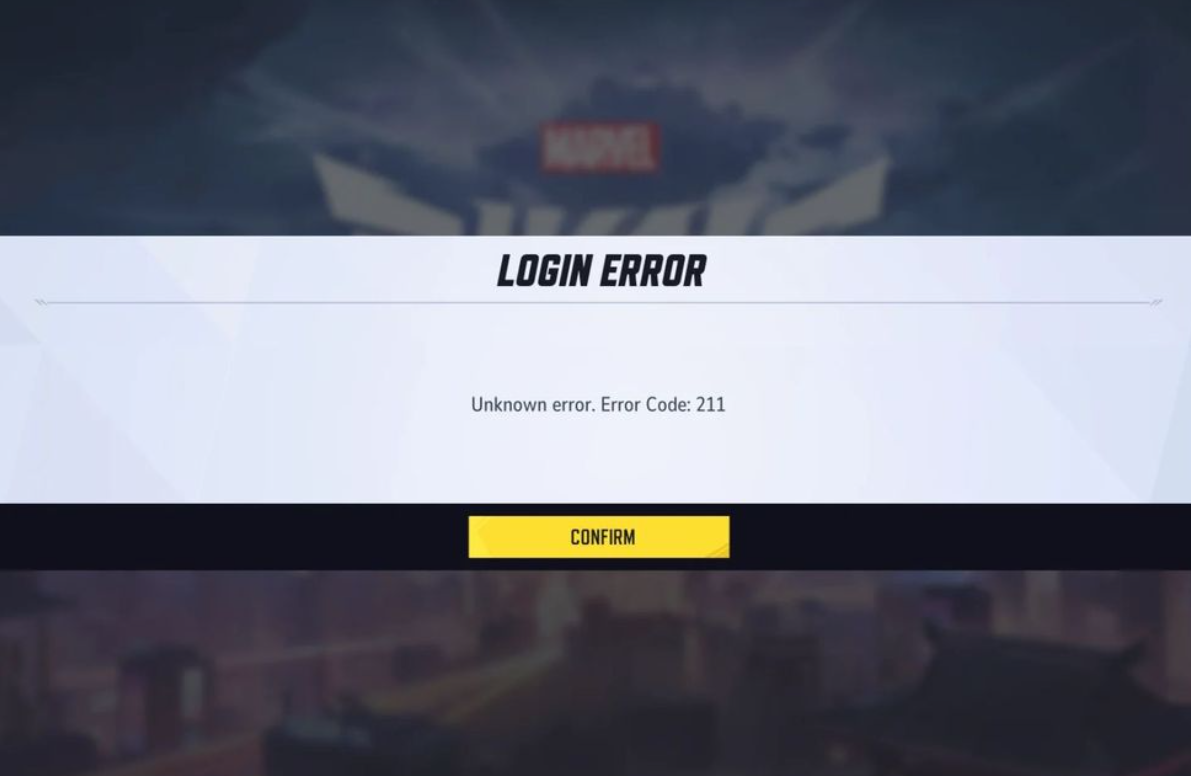
Marvel Rivals error code 211 typically appears on launch via Steam and blocks login. The issue is tied to connectivity and platform handoff, and often resolves after a clean Steam restart. If it persists, the steps below address common local causes such as firewall rules, server blockers, DNS cache, unstable Wi‑Fi, and corrupted game files.
Marvel Rivals error 211 — causes at a glance
Use this quick mapping to decide where to start.
| Likely cause | What to try |
|---|---|
| Stuck Steam session or token (sometimes after password changes). | Fully close Steam and relaunch it, then start the game. |
| Firewall or antivirus blocking Steam or the game. | Allow both apps in Windows Firewall and security software. |
| Server blocker tools or custom routing apps (e.g., region filters). | Disable or uninstall server blockers and test again. |
| Unstable Wi‑Fi or noisy 5 GHz environment. | Use Ethernet or switch to a stable 2.4 GHz network. |
| Stale DNS cache or ISP routing quirks. | Flush DNS; if needed, test a VPN to a nearby region. |
| Corrupted or missing game files. | Verify game files in Steam. |
| Temporary server maintenance or outage. | Check official channels for status and try later. |
| Steam-specific launch path problem. | Install and launch the Epic Games Store version as a workaround. |
Fix error 211 — restart Steam completely
Exit Steam from the system tray menu so no Steam windows remain open. This clears the active client state and prepares it for a clean start.
Open Task Manager and end any remaining
Steam processes. Closing background processes removes stale sessions that can block the game from launching.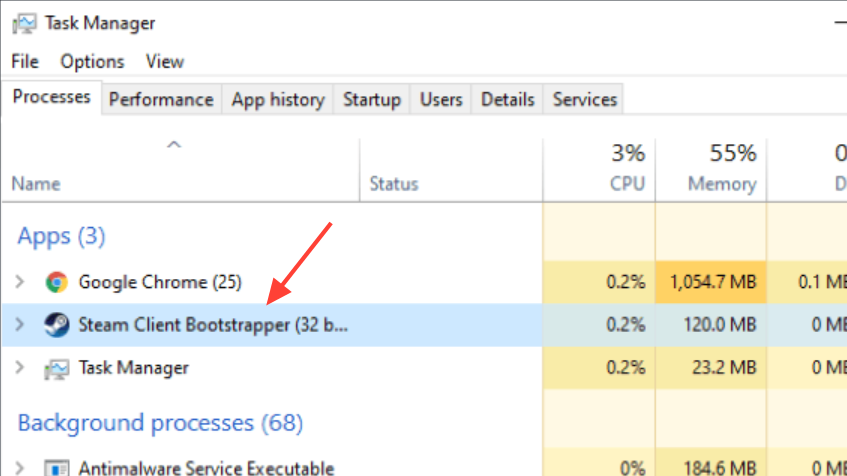
Relaunch Steam and sign in, then start Marvel Rivals from your Library. This refreshes the platform handshake the game relies on at launch.
Fix error 211 — allow Steam and Marvel Rivals in Windows Firewall
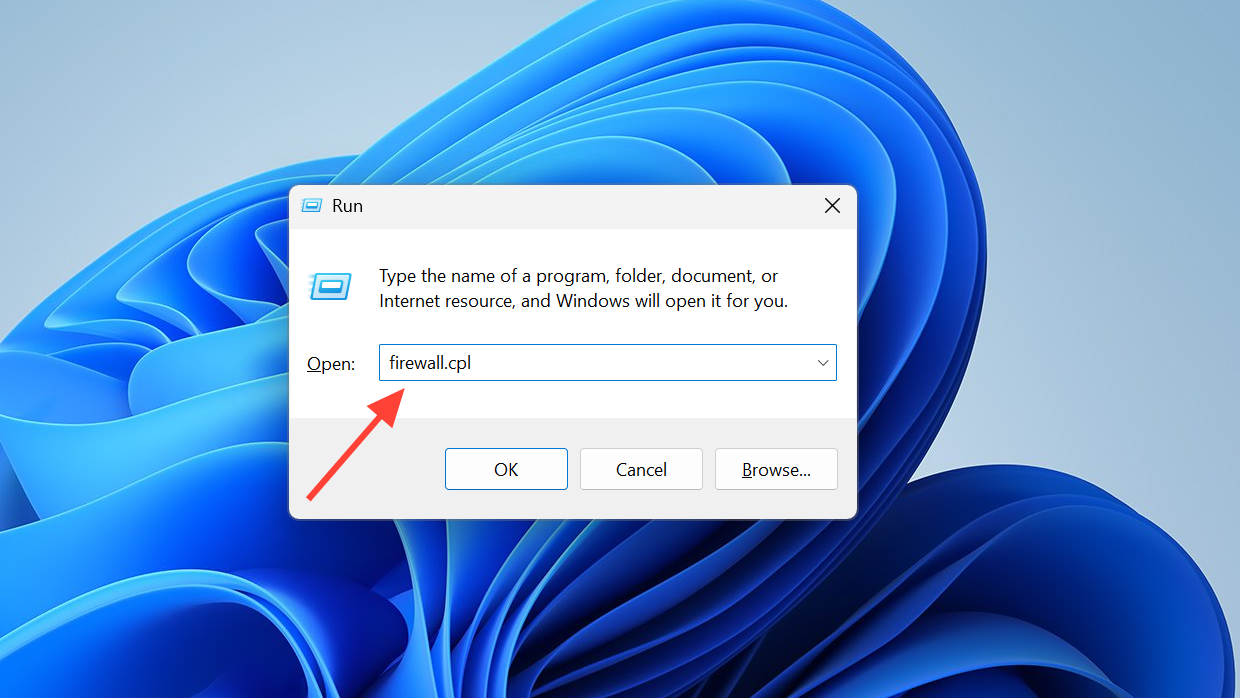
Select “Allow an app or feature through Windows Defender Firewall.” This page controls which programs can communicate on Private and Public networks.
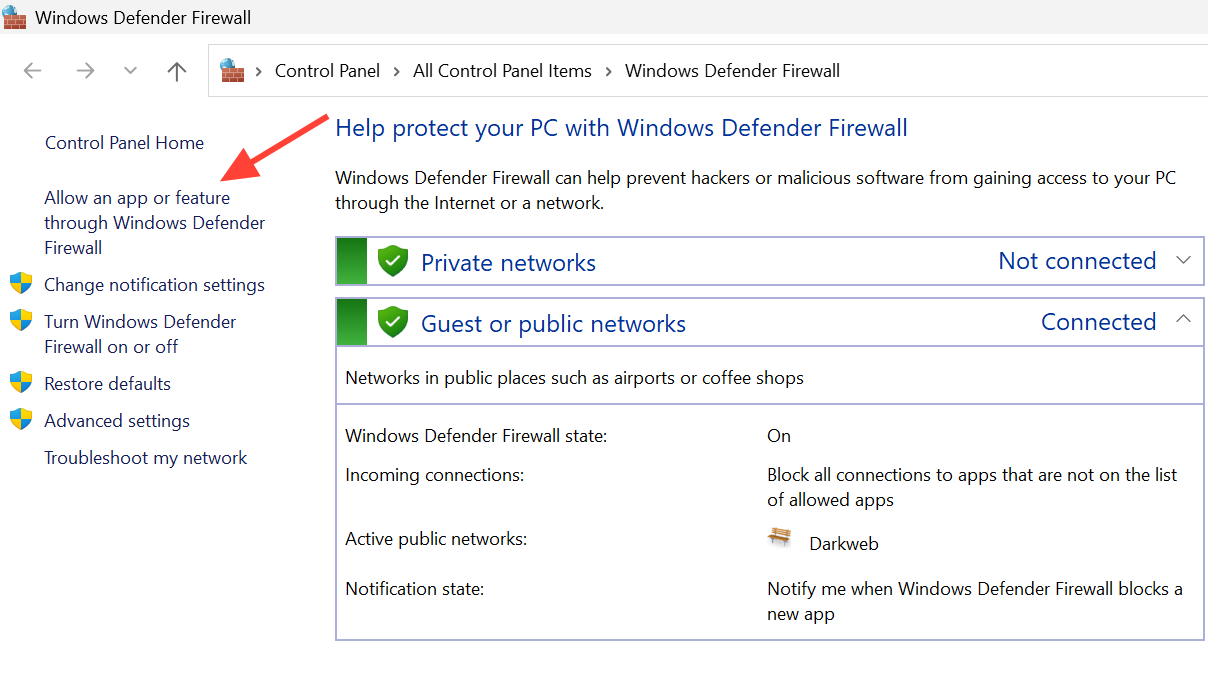
Find entries for Steam and Marvel Rivals and enable them on both Private and Public profiles. If entries are missing, add them and re-test the game.
Fix error 211 — disable server blockers and similar tools
Close any apps that block or reroute servers (for example, region selectors or game-specific server filter tools). These can prevent proper matchmaking or login.
If you previously edited hosts, firewall, or router rules for other games, revert those changes. Removing these blocks restores the game’s default routing path.
Launch Marvel Rivals again via Steam to check if the connection succeeds without the blocker in place.
Fix error 211 — stabilize your network (Ethernet or 2.4 GHz)
Connect your PC with an Ethernet cable if possible. A wired link avoids Wi‑Fi interference and reduces packet loss during the login handshake.
If you must use Wi‑Fi, connect to a steady 2.4 GHz SSID. In crowded environments, 2.4 GHz can deliver more consistent signal than certain 5 GHz setups.
Power-cycle your router: turn it off, wait 30 seconds, then turn it back on. Restarting clears transient routing faults that can block session setup.
Fix error 211 — flush your DNS cache
Open an elevated Command Prompt from Start by typing
cmd, then choosing to run as administrator. Administrator rights ensure the DNS cache command works.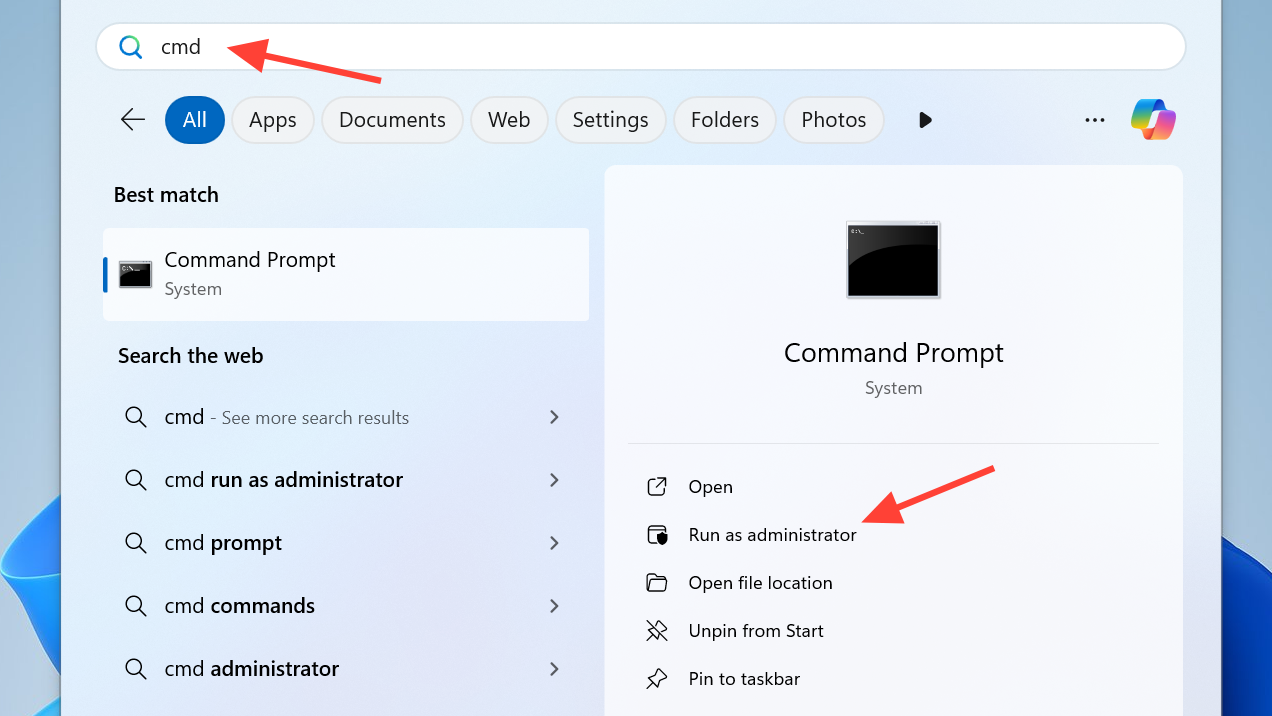
Run a DNS flush to clear stale lookups that can misroute traffic. This forces Windows to fetch fresh server addresses on next connection.
ipconfig /flushdns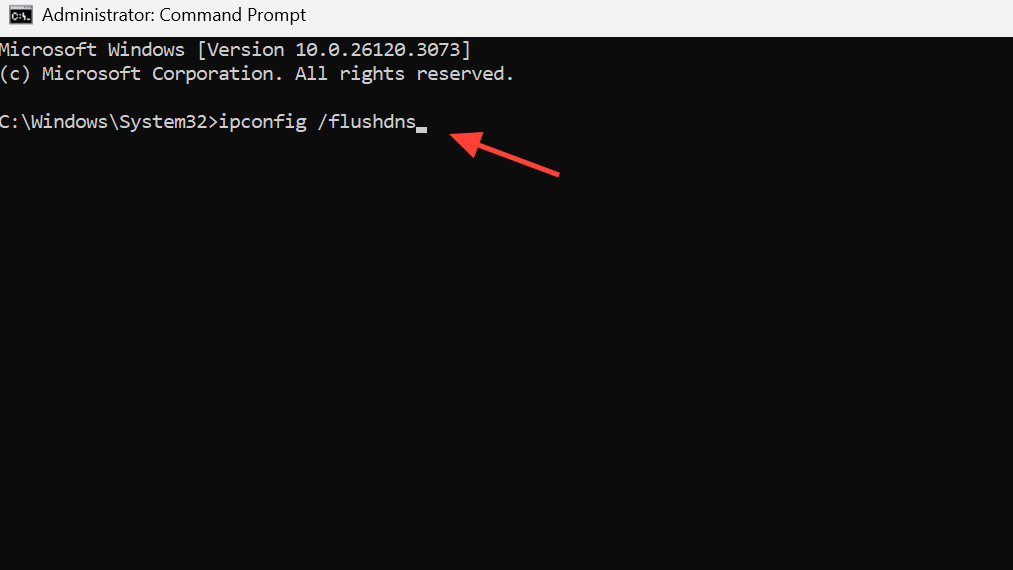
Close the window and retry launching the game. If resolution was the issue, login should proceed without the prior error.
Fix error 211 — verify game files on Steam
In Steam Library, right‑click Marvel Rivals and open Properties. This gives access to integrity tools for the installation.
Select Installed Files, then choose the option to verify files. Steam will repair or redownload missing or corrupted assets.
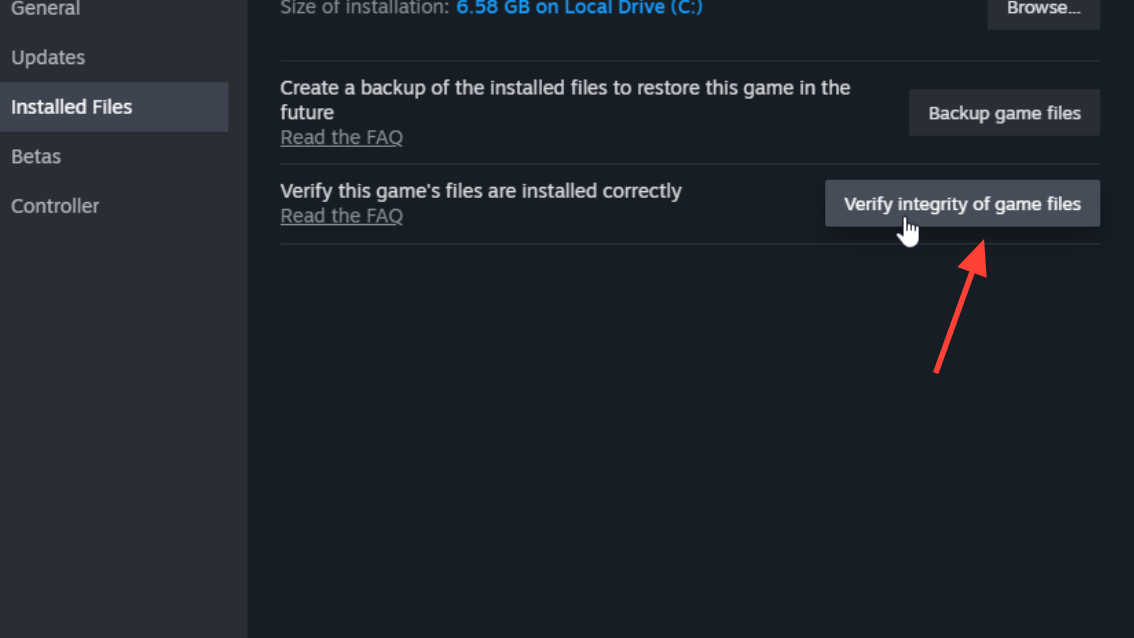
When verification completes, start the game again. Corrected files remove launch failures tied to bad data.
Fix error 211 — check official server status
Look for maintenance notices or outage updates on the game’s official social channels or community announcements. Server downtime can present as a local connection error.
If maintenance is active, wait until the window ends and try again. Attempting to connect during downtime will continue to fail regardless of local changes.
Fix error 211 — use a VPN to test regional routing
Connect to a VPN location near your region. A nearby endpoint keeps latency reasonable while changing the route your traffic takes.
Launch the game and check if the login proceeds. If it works, your regular route may be experiencing temporary issues with the game’s servers.
Disconnect the VPN later and re-test. If the issue returns, contact your ISP about routing, or temporarily play with the working VPN region.
Fix error 211 — reset Windows network settings
Open Settings, then go to Network & internet and locate Network reset. This tool reinstalls adapters and restores default networking options.
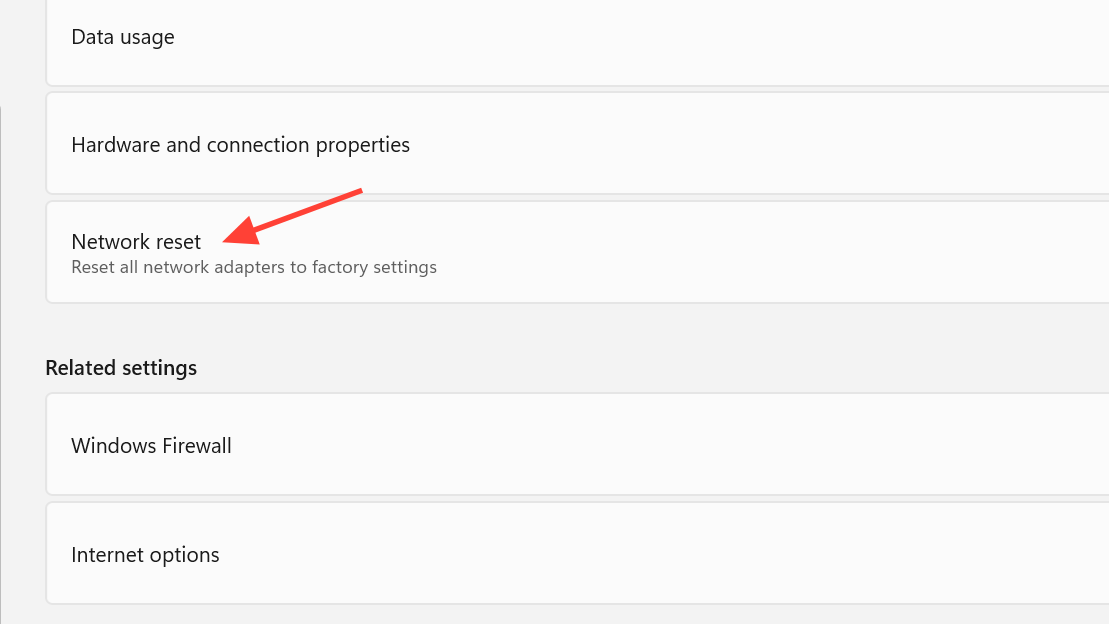
Run the reset and allow Windows to restart. Be aware this clears custom IP, DNS, and VPN configurations you may need to reapply afterward.
After reboot, start Steam and the game again. A clean stack can resolve hidden adapter or configuration faults.
Fix error 211 — install via Epic Games Store (workaround)
Install the Epic Games Store version of Marvel Rivals and sign in there. This bypasses the Steam launch path that some users report as the source of 211.
Start the game from Epic and confirm you can reach the main menu. This verifies game servers are reachable from your setup via an alternate storefront.
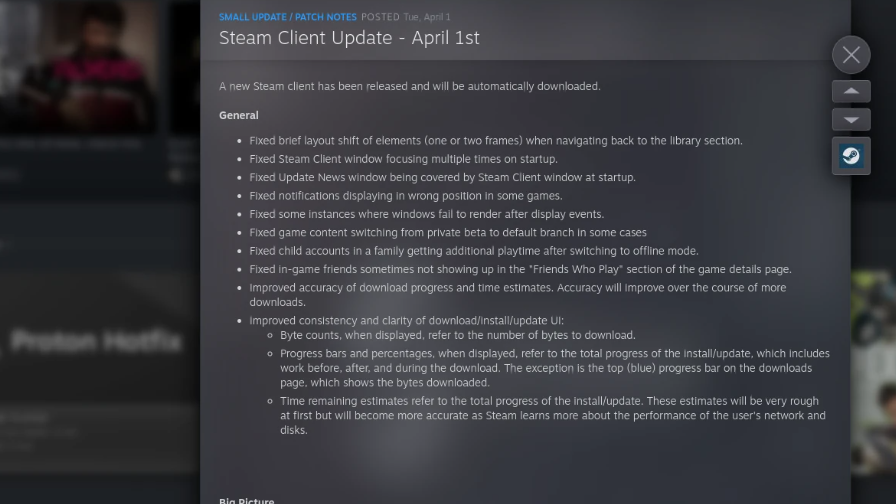
If desired, return to Steam later and retry after a client update. Platform-side fixes can restore normal Steam launching over time.
Fix error 211 — reinstall Marvel Rivals as a last resort
Uninstall Marvel Rivals from your current launcher. This removes any lingering corrupted data not corrected by verification.
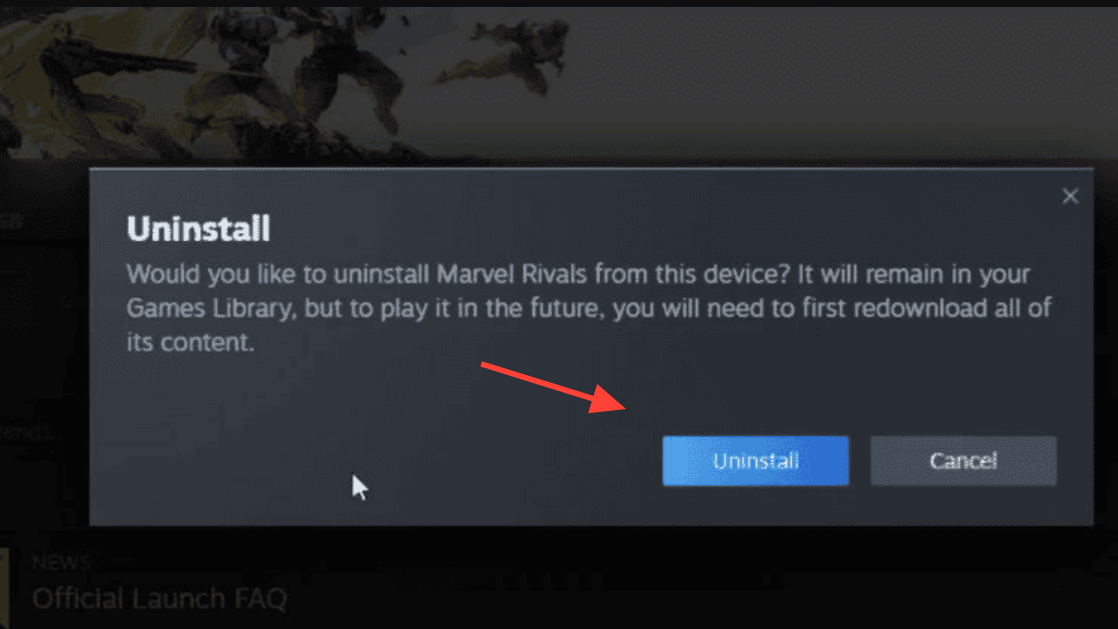
Restart your PC to clear file locks and cached handles. A reboot ensures the next install writes cleanly.
Reinstall and launch the game. A fresh build eliminates file integrity issues that may be blocking login.
Error 211 is usually solved by a clean Steam restart; if not, the steps above systematically address the most common local blockers. Keep an eye on official announcements during patch days, since maintenance can temporarily trigger the same error symptoms.