Dead Battery is the first Order on the second page of the Underground chapter in MW4 DMZ. It has two objectives. The first is Print a DDOS Field Upgrade. The second is Disable 3 Enemy Vehicles or Drones with the DDOS Field Upgrade. Printing the device takes care of the first objective right away. The second objective depends on where you trigger the EMP and what you trigger it on.
Quick answer: Use the 3D Printer to make a DDOS, spending 20 Electronics and 2 Detonators. Equip the device and press L1 + R1 while within 15–20 meters of an enemy drone or occupied enemy vehicle. Repeat this process three times.
DDOS Field Upgrade recipe and cost
The DDOS shows up under Field Upgrades at the 3D Printer in the FOB. When the Order becomes active, the game shows a “Printer Recipe Unlocked” notification. The in-game description says the device shuts down electronics and scrambles enemy sensors close by for a short time. You can find DDOS units as random loot in Hajin, but they are rare. Printing one before you deploy is the dependable way to get it.
| Ingredient | Amount per DDOS |
|---|---|
| Electronics | 20 |
| Detonators | 2 |
The game treats each DDOS as single-use, and one activation uses it up. You need three disables, so print several DDOS units if your ingredients allow it. The printer’s Max Printable count is set by whichever ingredient you have the least of. Detonators usually run out first.
How to print and equip the DDOS before deploying
PRINT TO STASH or PRINT TO OPERATOR to craft it. Printing the device completes Print a DDOS Field Upgrade and the Orders menu shows 1/1. If you are short on ingredients, INGREDIENT LOCATIONS shows where to search.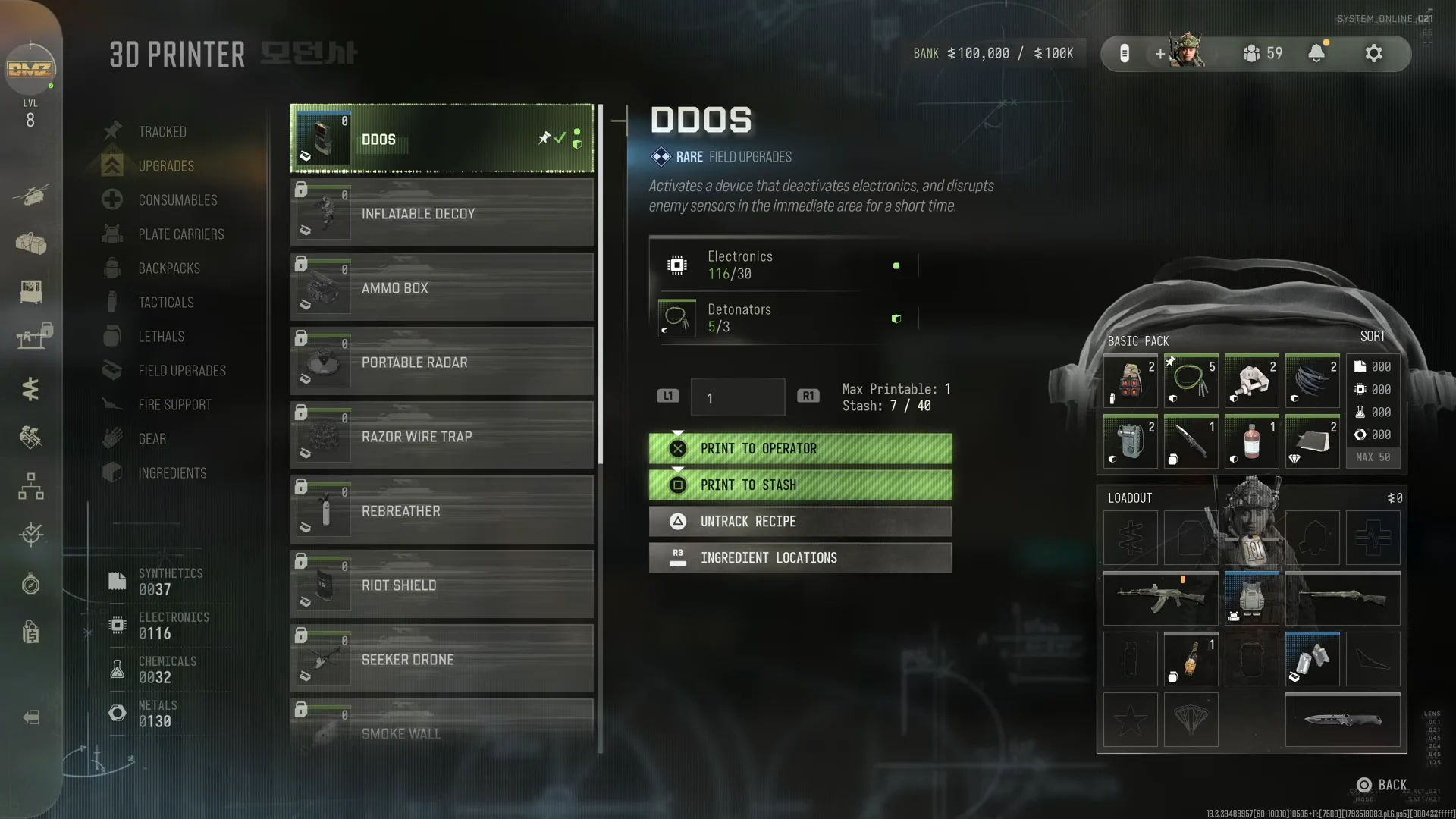
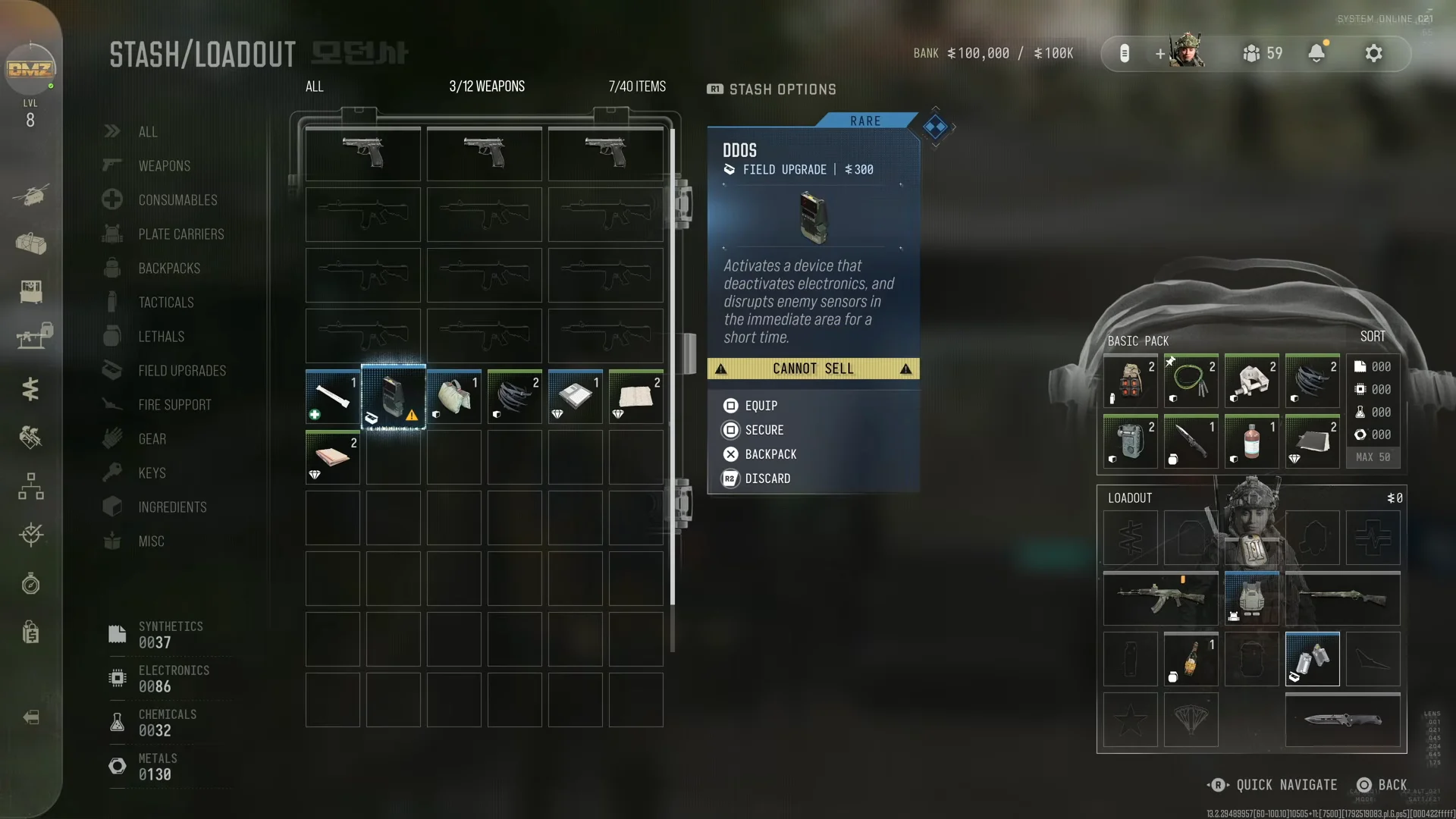
After you load in, the DDOS icon appears on the Field Upgrade section of the HUD, bound to L1 + R1 on controller.
What counts as a disable for Dead Battery
The EMP only adds progress when the target and your distance meet certain conditions. These conditions decide whether an activation counts:
- The target is an enemy drone or an enemy vehicle.
- Enemy vehicles need enemy combatants inside them. Empty vehicles give no credit.
- The target is roughly 15 to 20 meters from you or closer when you trigger the pulse.
- A clear line of sight is not needed. The pulse goes through solid walls, including concrete.
Because the pulse goes through walls, you can stay behind cover. A drone flying on the far side of a wall or overhead can still be disabled, provided it is inside the radius.
Where to find drones: Chang-san Air Base
Chang-san Air Base has hostile drones flying near its concrete perimeter. The area around Compound Foxtrot on the base’s outer wall is a good place to find one. Expect enemy soldiers at the entrances, so deal with them before you stop to look for drones overhead.

Once you spot a drone, move in until it is within the 15–20 meter radius. You can do this from behind the perimeter wall. Then press L1 + R1 to fire the pulse. If you have spare DDOS units in your backpack, put a new one in the Field Upgrade slot and repeat until you have disabled three targets.
How to confirm the DDOS disable registered
A successful hit gives you several signals at the same moment. An “EMPED VEHICLE” prompt shows on screen. For a drone, the announcer also says “Enemy drone destroyed. Stay sharp.” The Dead Battery tracker in the objective panel at the top right moves up by one, for example from 0/3 to 1/3.

You can also open the Orders menu from the Tac-Map during the deployment to check the count. The Order is done when the second objective shows 3/3.

Orders progress works by page. After every Order on the current page is complete, you need to exfil successfully before the next page of the Underground chapter unlocks.