

Restoring individual files or reviewing the contents of an .adi disk image is a common need after creating system or disk backups with AOMEI Backupper. The .adi format is proprietary to AOMEI and is not natively supported by Windows or most third-party tools. To open or explore these files, use AOMEI Backupper’s utilities that allow mounting and browsing image contents directly from the backup file, eliminating the need to restore the entire image.
Explore .adi Files Using AOMEI Backupper Image Mounting
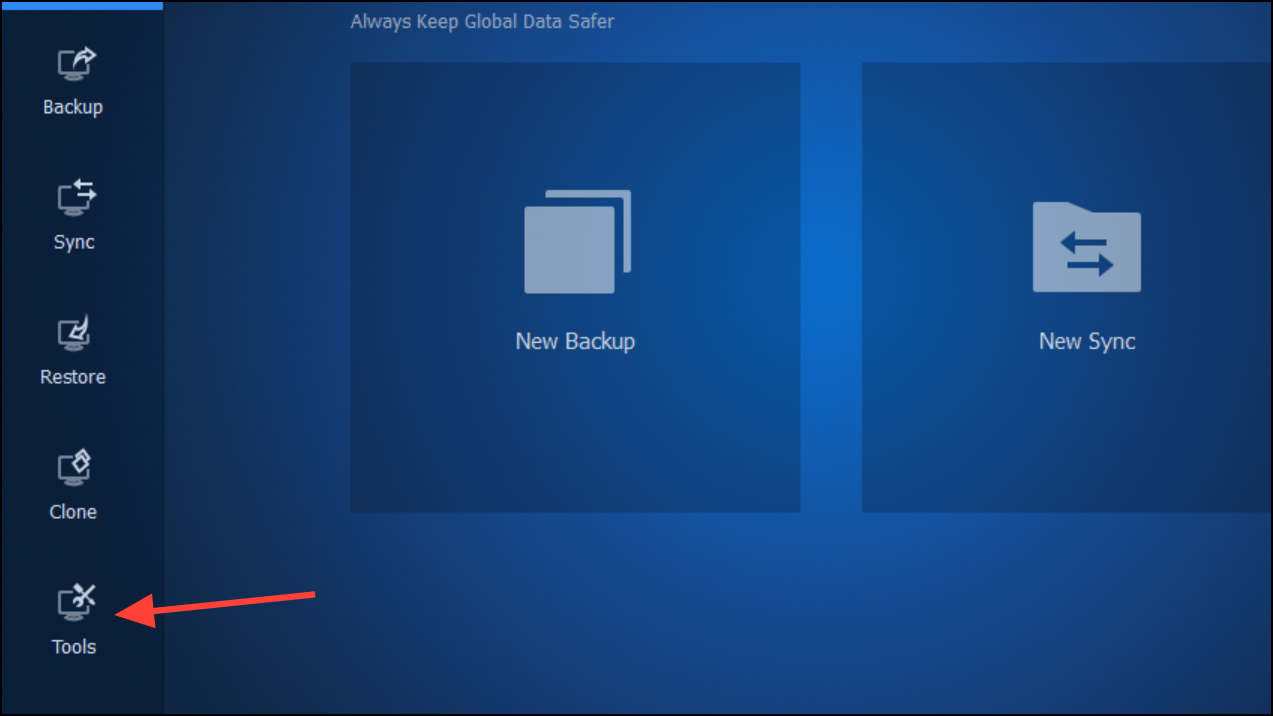
Explore Image or Mount Image from the list of utilities. This tool allows you to mount the .adi file as a virtual drive.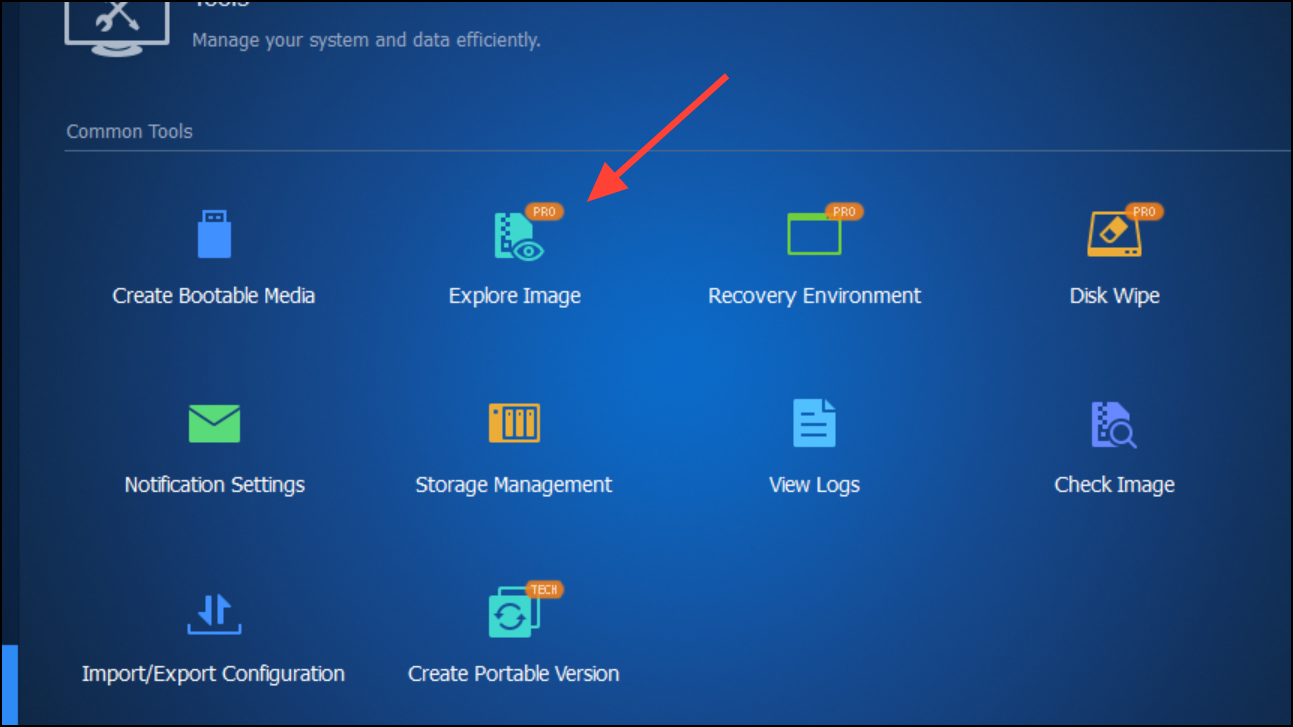
File Explorer (Windows Explorer). A new drive letter will appear, representing the mounted backup image. You can browse, copy, or open files from this virtual drive as you would with any other drive on your system.Tools > Unmount or Detach Image to safely remove the virtual drive from your system.Restore Files From .adi Backup Without Mounting
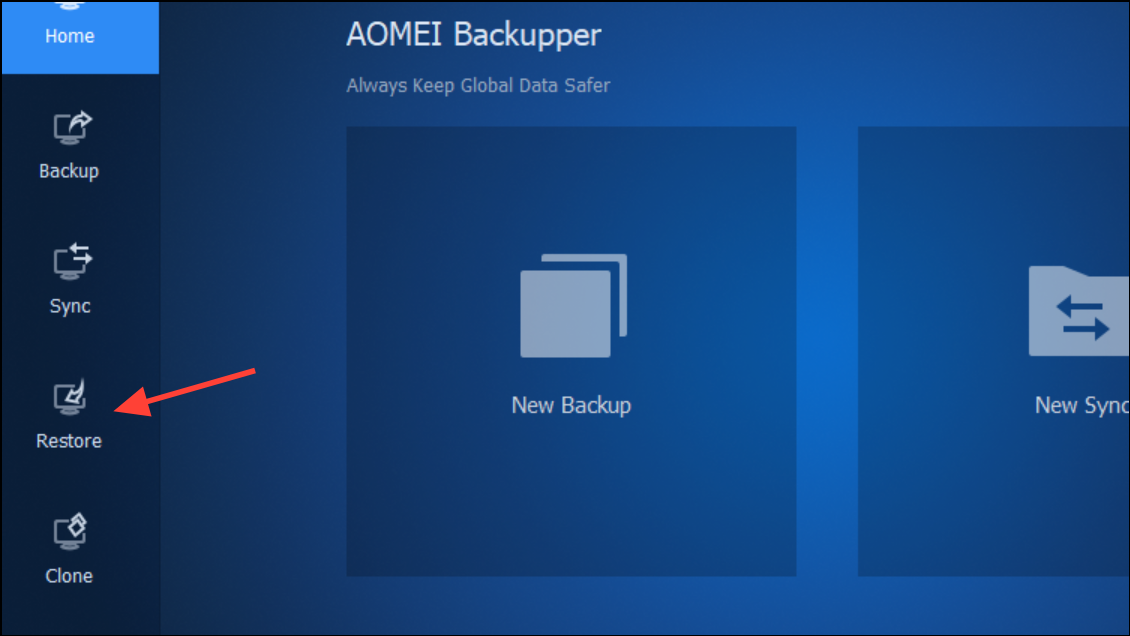
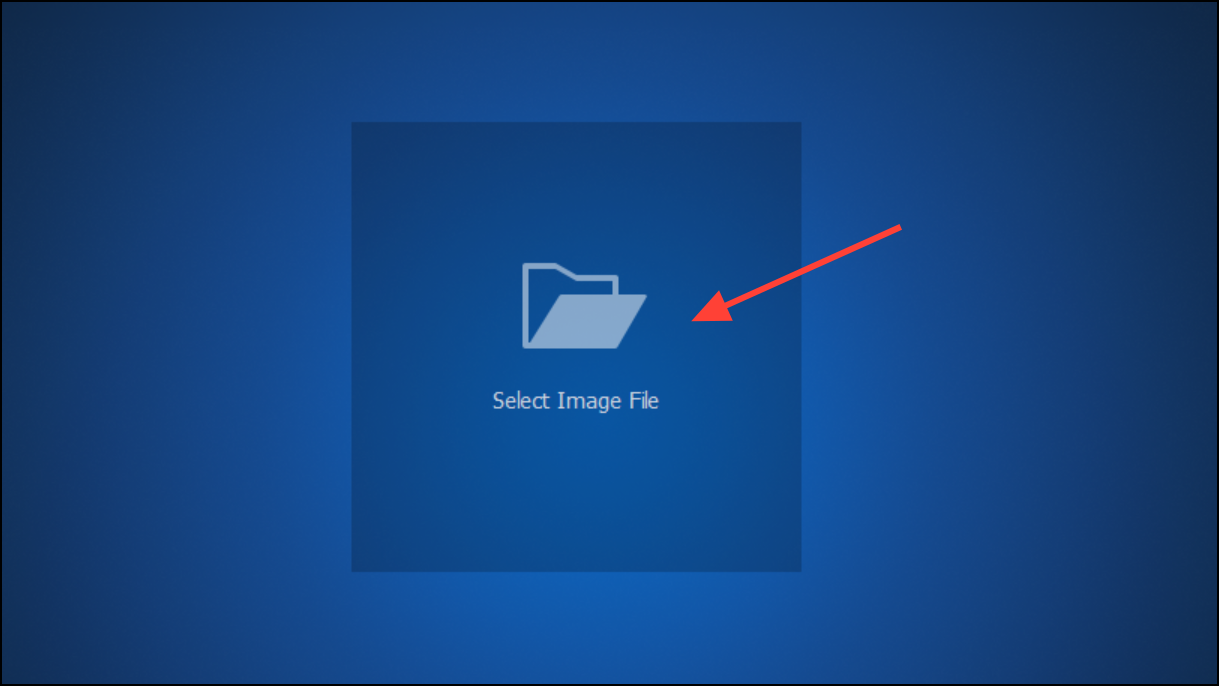
Restore files or Select files/folders if the option is available.Alternative: Using AOMEI Backupper Portable or Trial Version
If you do not have AOMEI Backupper installed, you can download a trial version from the official website. The process for mounting and exploring .adi files is the same as described above. Always download software directly from the official AOMEI website to avoid security risks.
Opening and exploring .adi files is straightforward with AOMEI Backupper’s built-in tools, allowing you to quickly access or recover files from your backups without a full restore. Remember to unmount images after use to keep your system organized and avoid drive letter conflicts.





