Palworld supports crossplay, and it covers nearly every version of the game. Players on Steam, Xbox Series X|S, Xbox One, PC Game Pass, PS5, and Mac can all join the same multiplayer world. The one thing that still trips people up is not whether crossplay works, but how consoles are allowed to connect to a server.
Quick answer: Since the v0.5.0 update in March 2025, Steam, Xbox (console and PC), PS5, and Mac players can share one dedicated server. PC players can connect by IP, but Xbox and PS5 players can only join servers that appear in the in-game community server list.
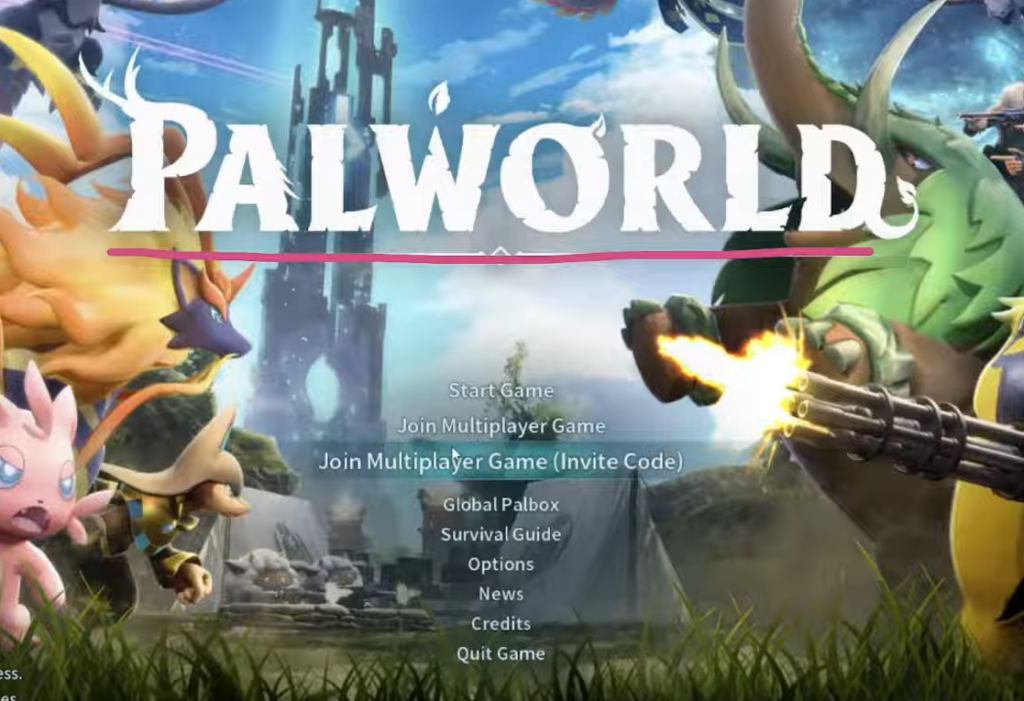
Which platforms can play Palworld together
Every current platform can connect to every other one on the same server. There are no leftover walls between Steam and Xbox, or between PC and PS5. The table below shows how the platforms line up.
| Platform | Plays with everyone? | How it connects |
|---|---|---|
| Steam | Yes | Direct IP or server browser |
| Xbox Series X|S and Xbox One | Yes | Community server list only |
| Xbox / Microsoft Store (PC Game Pass) | Yes | Community server list only |
| PS5 | Yes | Community server list only |
| Mac | Yes | Direct IP or server browser |
PC versions, meaning Steam, Mac, and the Microsoft Store build, have the most flexibility because they can type in a server address directly. Consoles cannot do that, which is the key difference to plan around.

What changed with the v0.5.0 crossplay update
Crossplay was the feature players asked for most in the first year after launch. Before v0.5.0, Steam and Xbox ran on completely separate networks. The Microsoft Store and Game Pass PC version could talk to Xbox consoles because they shared Xbox Live, but that was as far as it went. Steam and PS5 were each on their own island.
The update introduced a single server binary that speaks to all platforms at once. It also added dedicated server support to PS5 and Mac for the first time. Alongside crossplay, the same update brought a global Palbox for moving Pals between worlds, a photo mode, a character transmog system, and a Drafting Table for combining lower-level blueprints into higher-level ones.
Dedicated servers vs. community servers
This is the part that causes most of the confusion. Palworld has two server modes, and the difference decides whether consoles can join at all.
- Dedicated servers run on a specific IP and port. PC players connect by entering that address directly.
- Community servers are dedicated servers that also register on Palworld’s in-game server list, so they show up in the browser on every platform.
Xbox and PS5 players can only join community servers. Console versions have no way to type in an IP address, so they browse the in-game list and join from there. If a server is not registered as a community server, console players simply cannot see it or connect to it.
Set up crossplay on a self-hosted server
If you run your own server, four things need to be right before mixed platforms can connect. Managed hosts usually handle all of this for you, but here is the manual checklist.
PalWorldSettings.ini in Pal/Saved/Config/LinuxServer/ on Linux or Pal/Saved/Config/WindowsServer/ on Windows, then find or add the setting below. If a platform is missing here, players on that platform cannot connect.CrossplayPlatforms=(Steam,Xbox,PS5,Mac)-publiclobby flag to your startup arguments so the server registers on the in-game list. This is what lets Xbox and PS5 players find it.ServerName="Your Server Name"
PublicIP="your.public.ip"
PublicPort=8211
Common crossplay problems and how to fix them
Console friends can’t find the server
Check that -publiclobby is in your startup arguments, that PublicIP and PublicPort are set correctly, and that port 27015 UDP is open. The in-game browser only shows the first 200 results, so have players search by the exact server name instead of scrolling.
“Incompatible version” error
The server and client are on different versions. Restart the server to pull the latest update. When one platform’s patch lags behind another, cross-platform play breaks briefly and fixes itself once both are on the same version.
Connected but can’t see each other
A single Palworld server can host more than one world. If players are on the same server but cannot interact, they probably joined different worlds. Make sure everyone selects the same one.
General connection issues
Not every failure is a crossplay problem. Firewalls, VPNs, and unstable networks can block a connection even when cross-platform support is working normally. Outdated server files or incorrect settings can also stop players from joining, which shows up more often on custom dedicated servers.

The short version: is that the platform no longer decides who you can play with. Buy Palworld wherever you like, and as long as everyone is on the same version and the server is registered so consoles can find it, a Steam, Xbox, PS5, and Mac group can all share the same world.