
Getting into a friend’s Palworld world comes down to two connection methods, and one of them works far more reliably than the other. You can type in a raw IP address and port for a direct link, or you can search by server name inside the community server list. Both start from the same menu, and once you have connected a single time, the game remembers the world for you.
Quick answer: Launch Palworld, click Join Multiplayer Game, enter your IP Address:Port in the field below the server list, then confirm and connect. If you load into the world, it worked.

Join a Palworld server by IP address
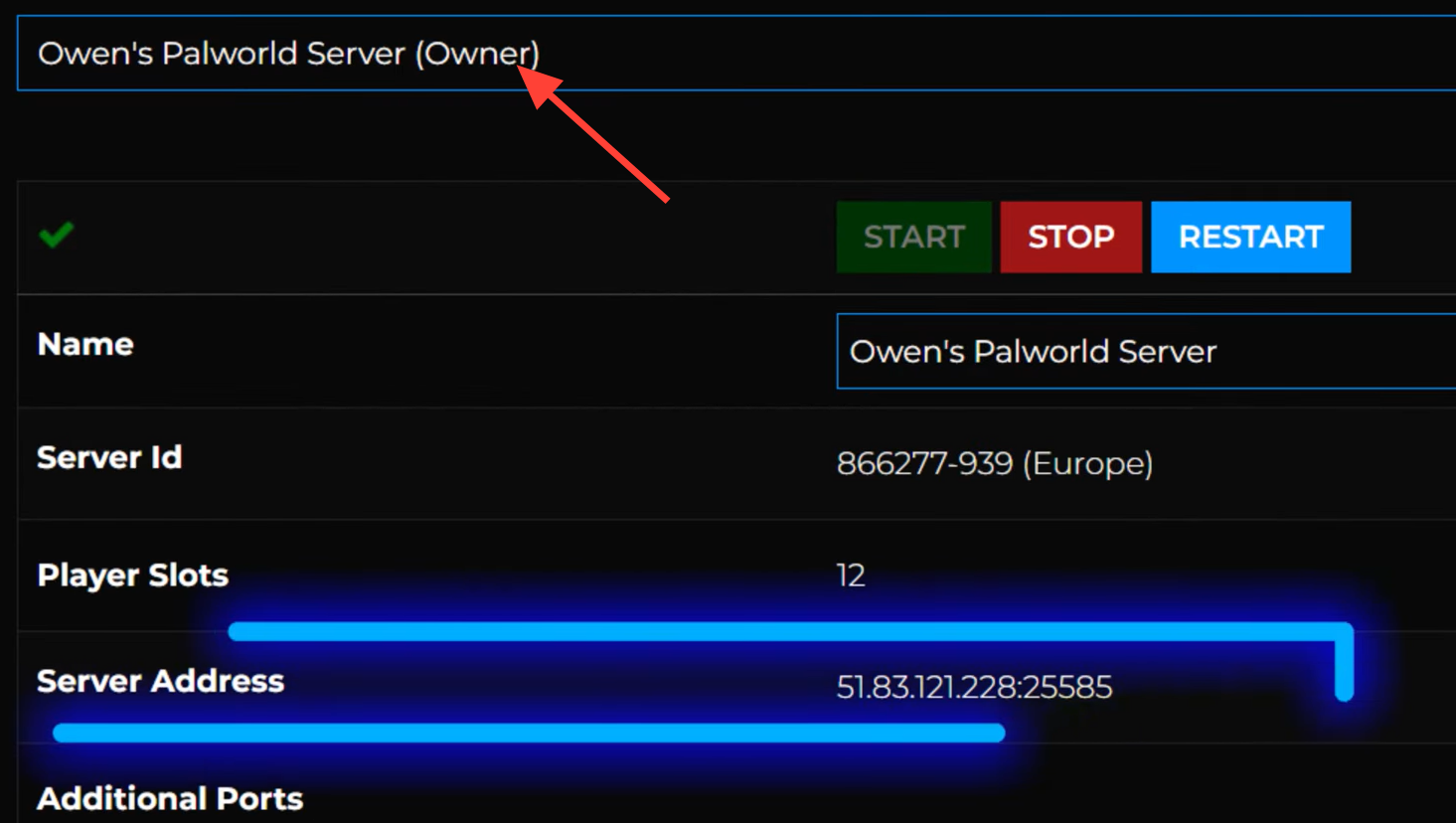
Connecting by IP is the direct method, and it gives you the best chance of getting in on the first try. You need the server’s public address followed by its port number, written as IP Address:Port. If you rent the server, the address is shown near the top of your host’s control panel, ready to copy.
IP Address:Port into the text box located below the server list. The port is the number at the end, such as :25606, and it must be included.Connect. If the details match an active server, you will load straight into the game world.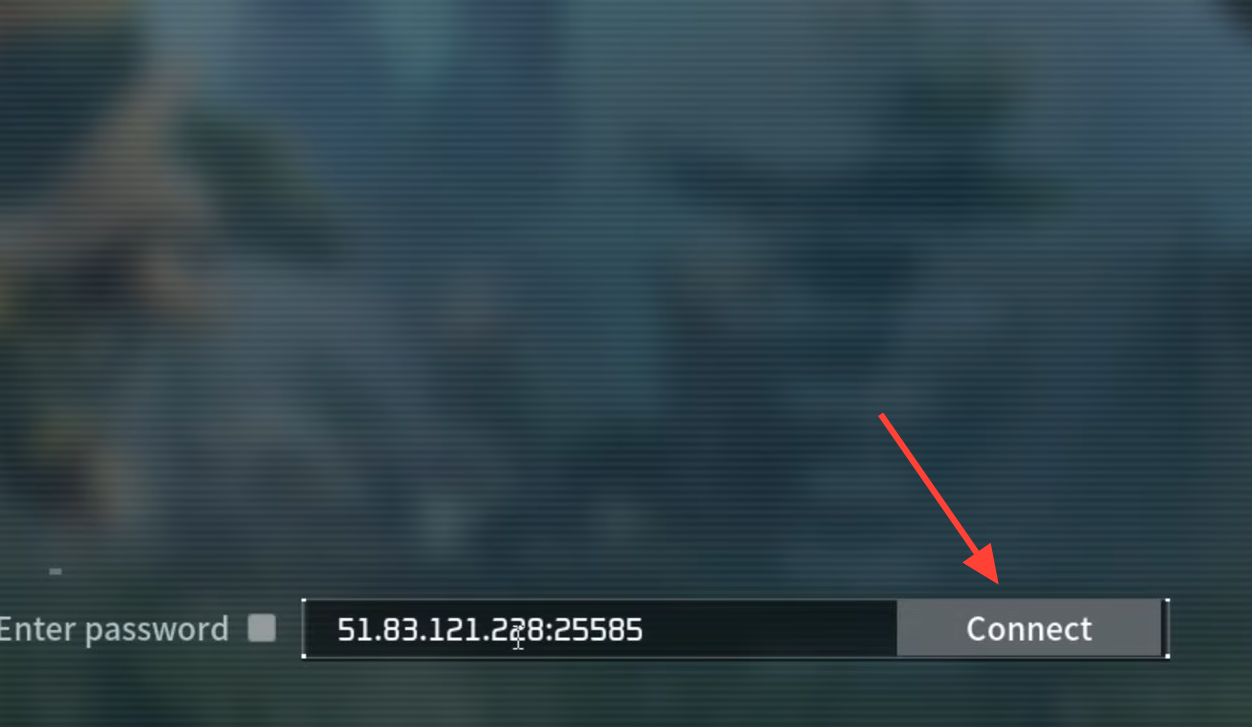
Join a Palworld server by name in the community list
Searching by name is the more convenient route, but it currently works less consistently than a direct IP connection. For this to function, the server’s public name has to be set by whoever owns it, and the server needs a restart after that name is applied.
Community Servers from the left side of the server list. Skipping this selection is a common reason a search returns nothing.Server Name in the text box at the top, then click Search. The matching server should appear in the list for you to click and join.Name search can be unreliable. If your server refuses to show up, use the IP Address:Port method above for your first connection instead.
Rejoin instantly with Recent Servers
You only need to use IP or name search one time. After a successful first connection, the world is stored in the Recent Servers area in-game, which becomes the fastest way to hop back in. This is how most players keep returning to the same world without re-entering any details.
Fix common connection problems
| Problem | What to check |
|---|---|
| Server not found by name | Confirm you selected Community Servers before searching, or switch to the IP Address:Port method. |
| IP address won’t connect | Make sure the port number is included at the end, for example :25606. |
| Correct IP still fails | Verify the server is online and active, then restart Palworld and try again. |
Forgetting the port is the single most frequent mistake, so double-check that value first. Once the address is confirmed valid and the server is running, the connection should succeed, and you can rely on the Recent Servers list from then on.