

Default Windows 11 update settings only allow pausing updates for a maximum of five weeks, which can be limiting for users who want long-term control over their update schedule. Modifying a specific registry value lets you pause updates for approximately 20 years, giving you the flexibility to choose exactly when your system receives updates. However, this approach comes with significant security risks and is not recommended for general use. Below, you’ll find detailed steps for this registry-based method, followed by other approaches you can use to manage or block Windows 11 updates.
Pause Windows 11 Updates for 20 Years via Registry Editor
Windows key, type Registry Editor, and select Run as administrator. When prompted by User Account Control, click Yes to grant permission.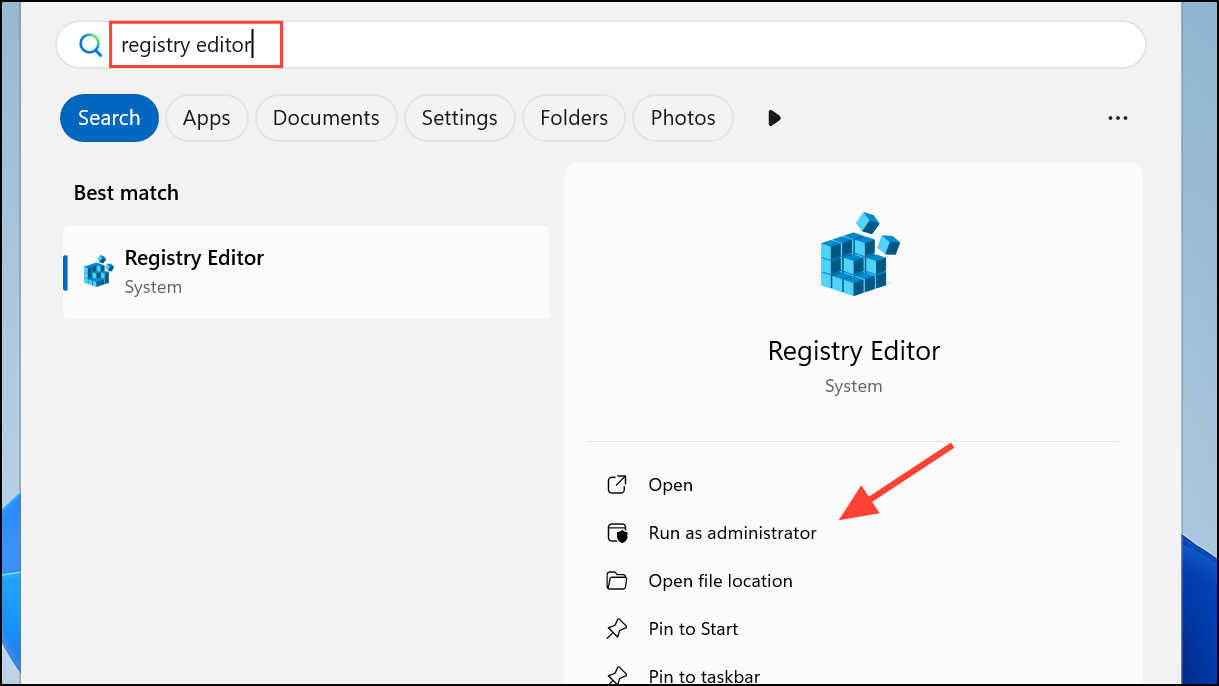
HKEY_LOCAL_MACHINE\SOFTWARE\Microsoft\WindowsUpdate\UX\Settings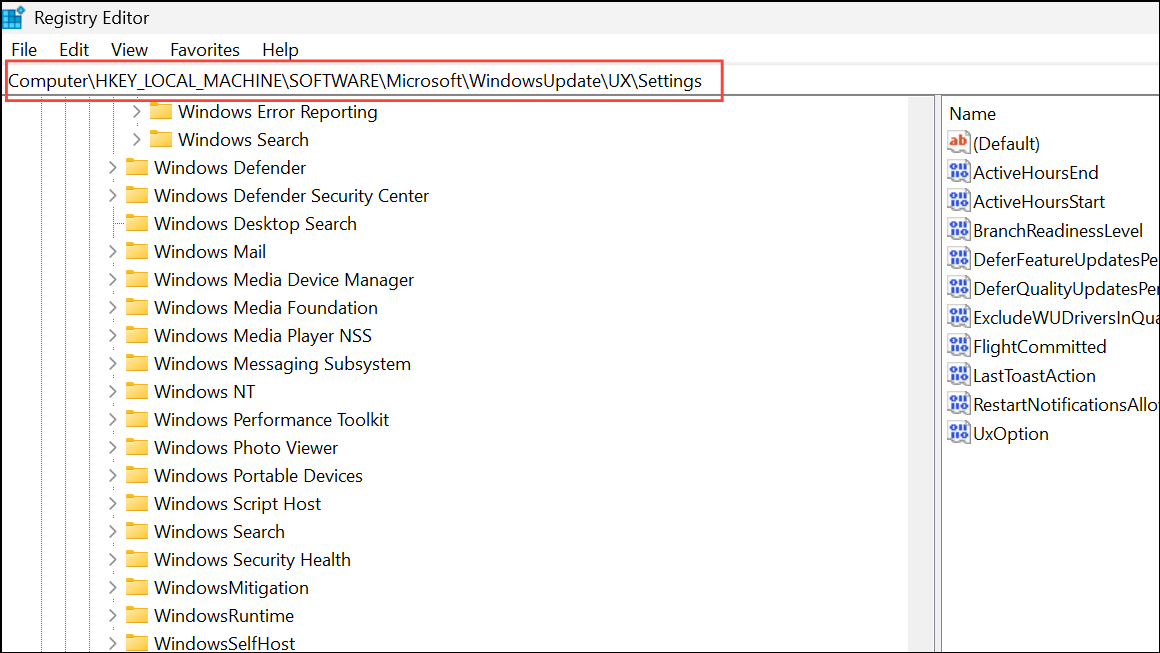
This path contains configuration values for the Windows Update user experience.
FlightSettingsMaxPauseDays. If it doesn’t exist, right-click the Settings folder, choose New > DWORD (32-bit) Value, and name it FlightSettingsMaxPauseDays.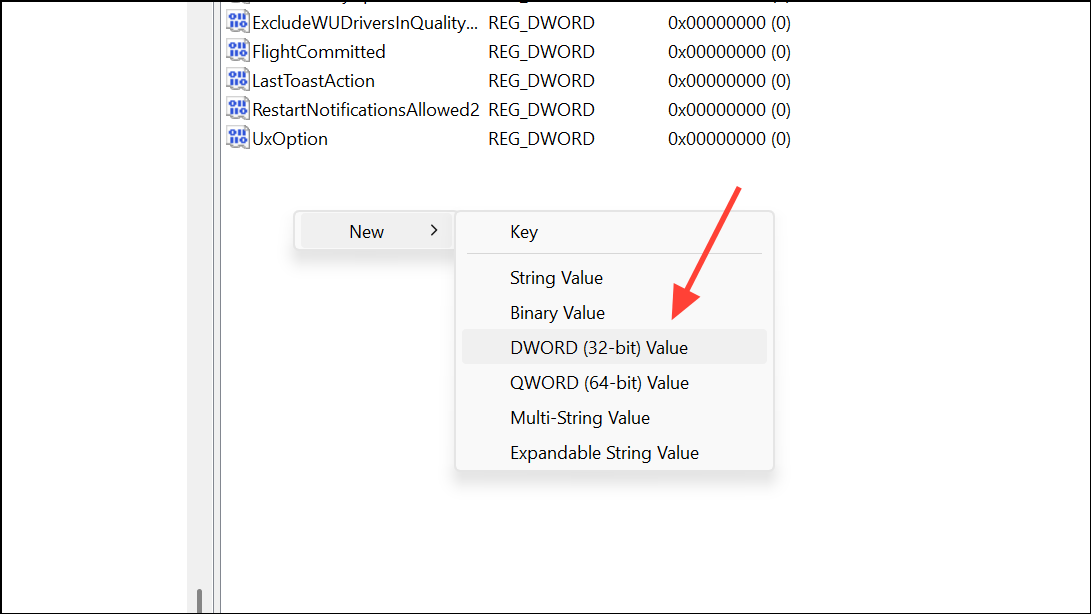
FlightSettingsMaxPauseDays value. In the Value Data field, enter 00001c84 (hexadecimal), which equals 7,168 days or about 20 years. Click OK to save.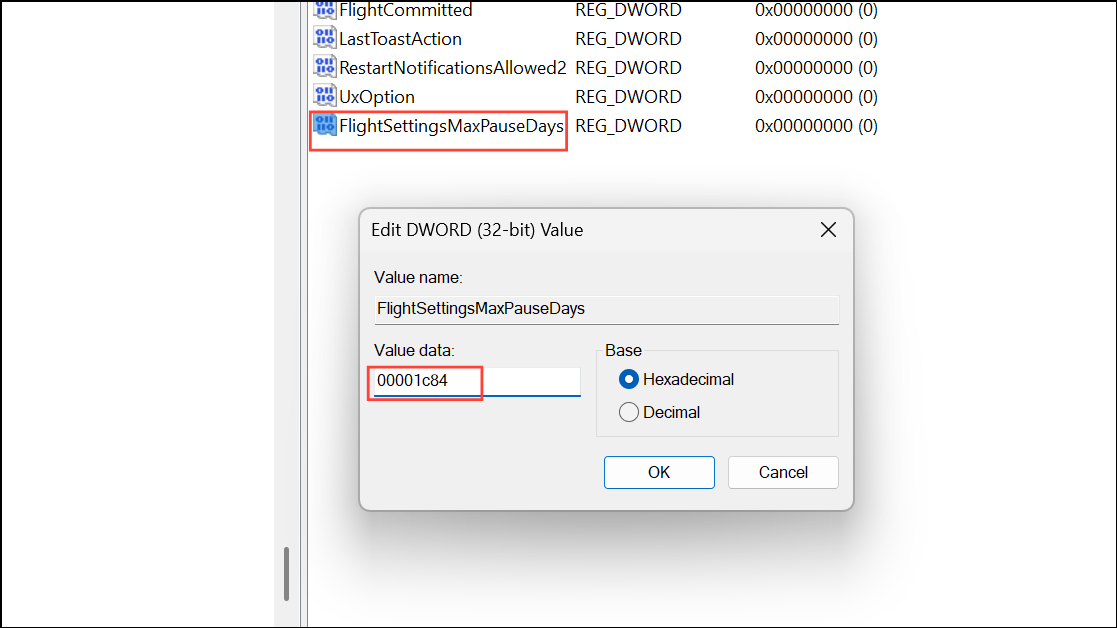
Settings > Windows Update. Click the drop-down arrow next to Pause updates. You should now see the option to pause updates for up to 1,042 weeks, which is roughly 20 years.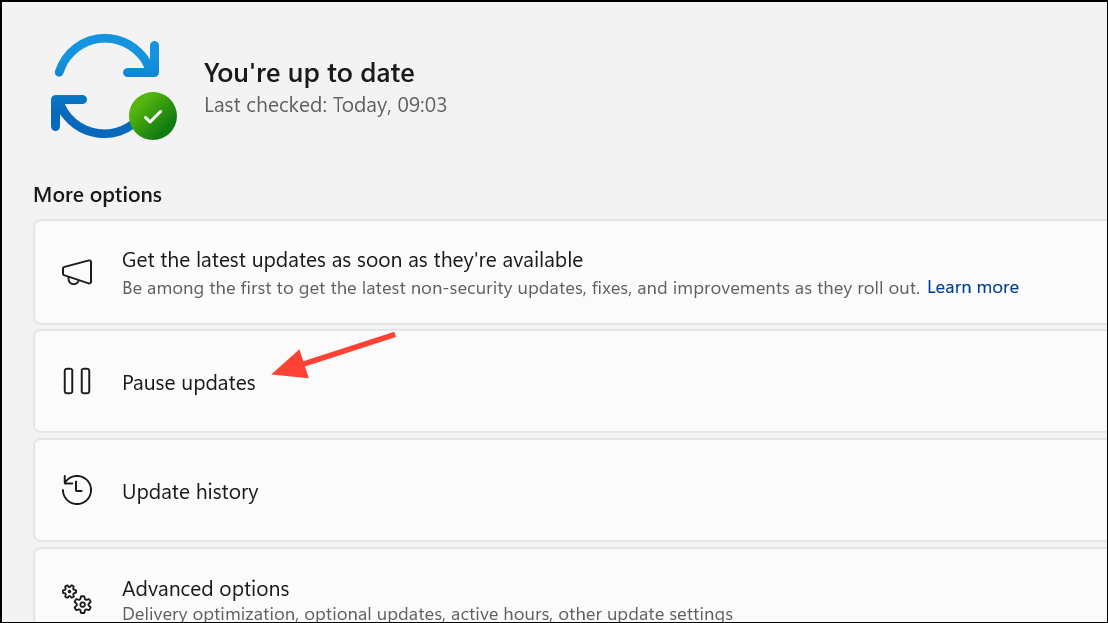
To revert this change, return to the same registry value and set it back to 28 (for 28 days, or 4 weeks), or simply delete the FlightSettingsMaxPauseDays entry. Restart your PC for the default behavior to return.
Disable Automatic Updates via Group Policy Editor
For users on Windows 11 Pro, Enterprise, or Education editions, the Group Policy Editor allows disabling automatic updates at the policy level.
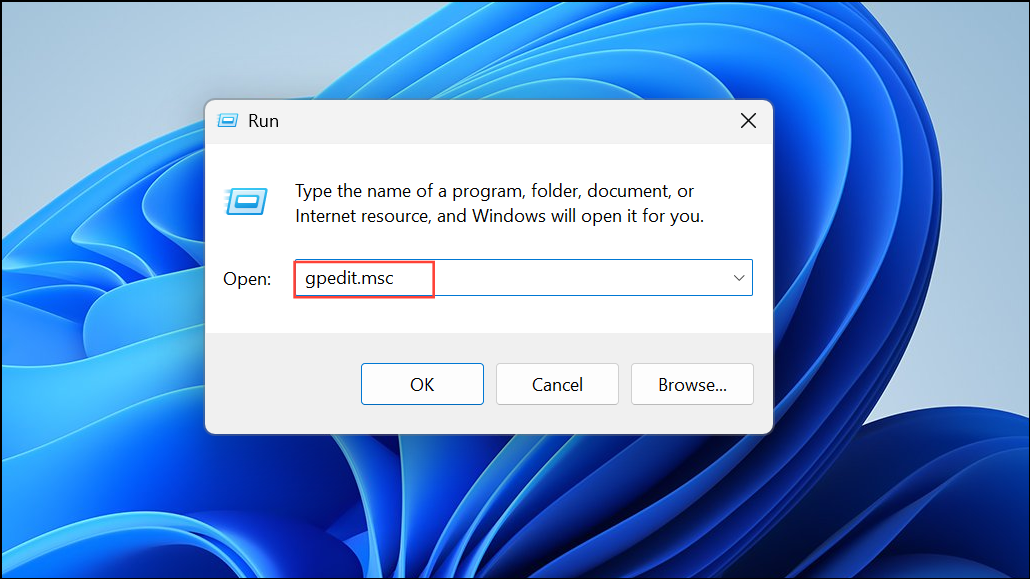
Computer Configuration > Administrative Templates > Windows Components > Windows Update > Manage end user experience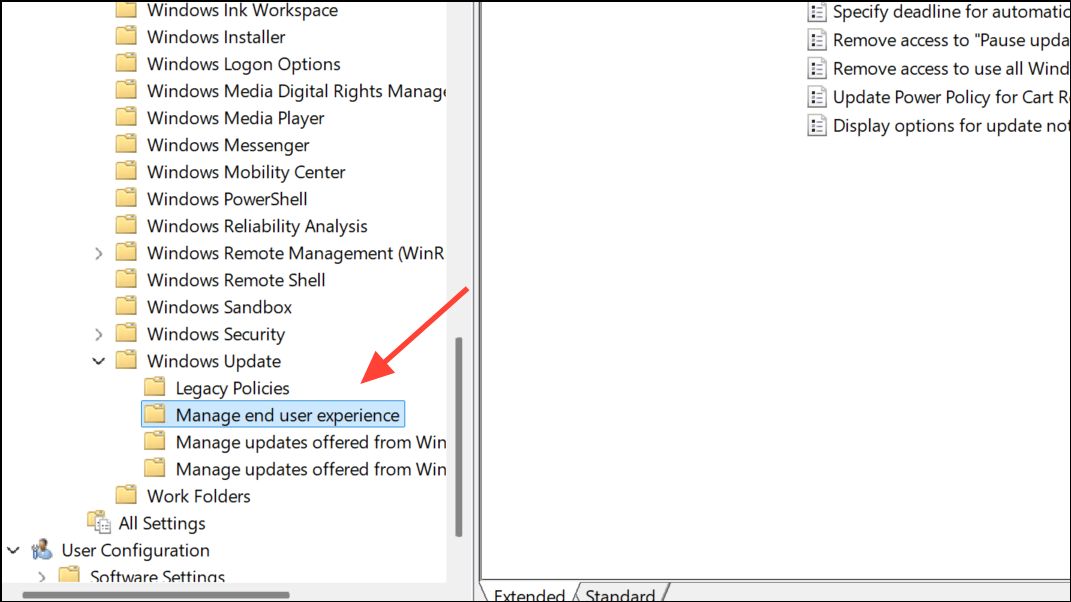
Remove access to "Pause updates" feature or Configure Automatic Updates in the right pane.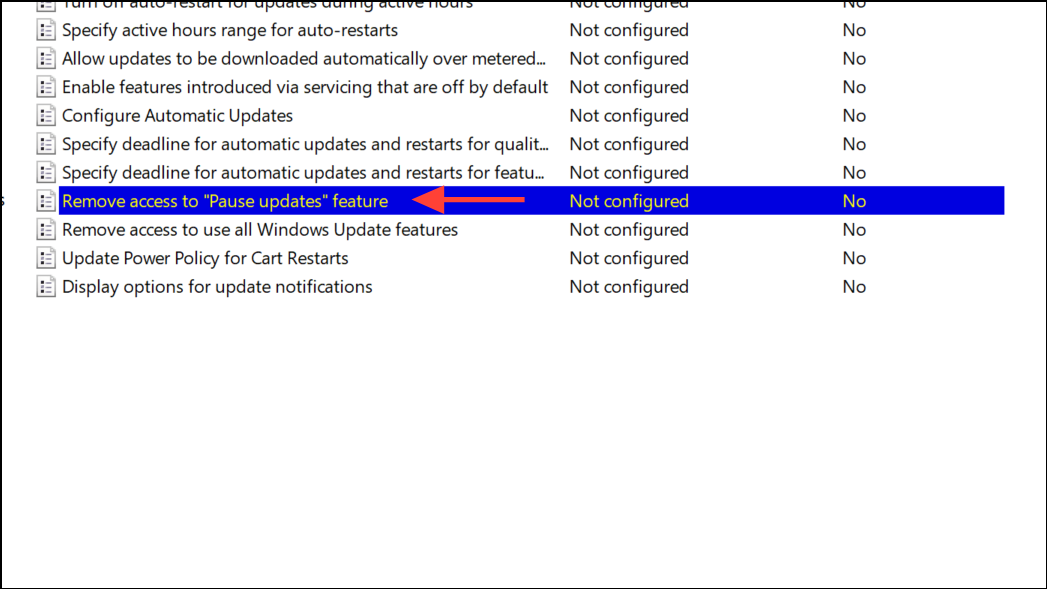
Enabled to remove pause access, or Disabled to turn off automatic updates. Click Apply and OK to save changes.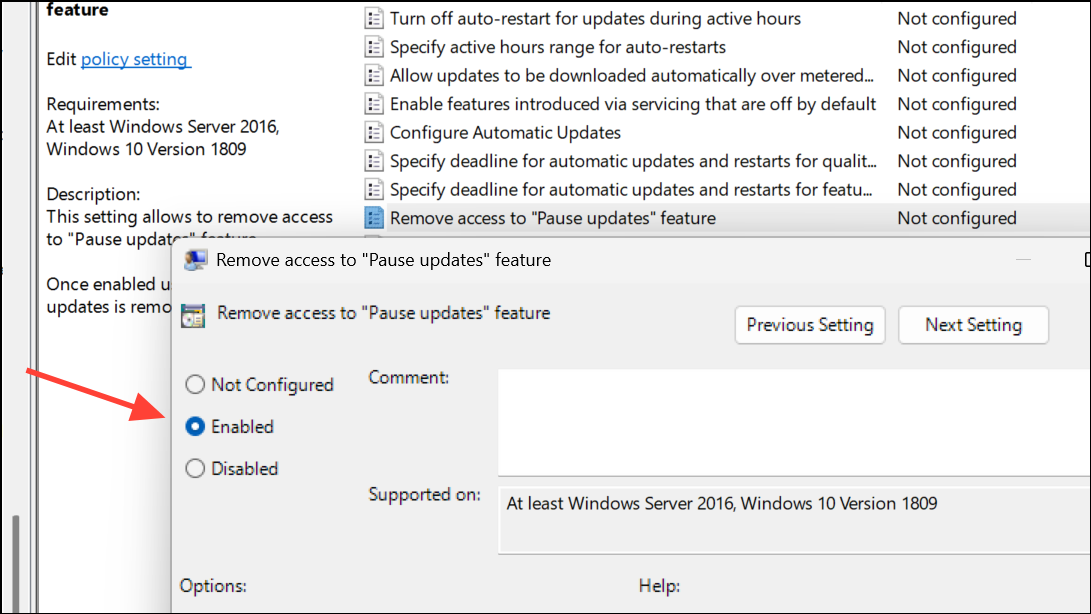
Note that Windows Home users do not have access to the Group Policy Editor by default.
Block Automatic Updates via Registry Editor (NoAutoUpdate)
Another registry-based method involves setting the NoAutoUpdate value, which prevents Windows from automatically downloading and installing updates.
HKEY_LOCAL_MACHINE\SOFTWARE\Policies\Microsoft\Windows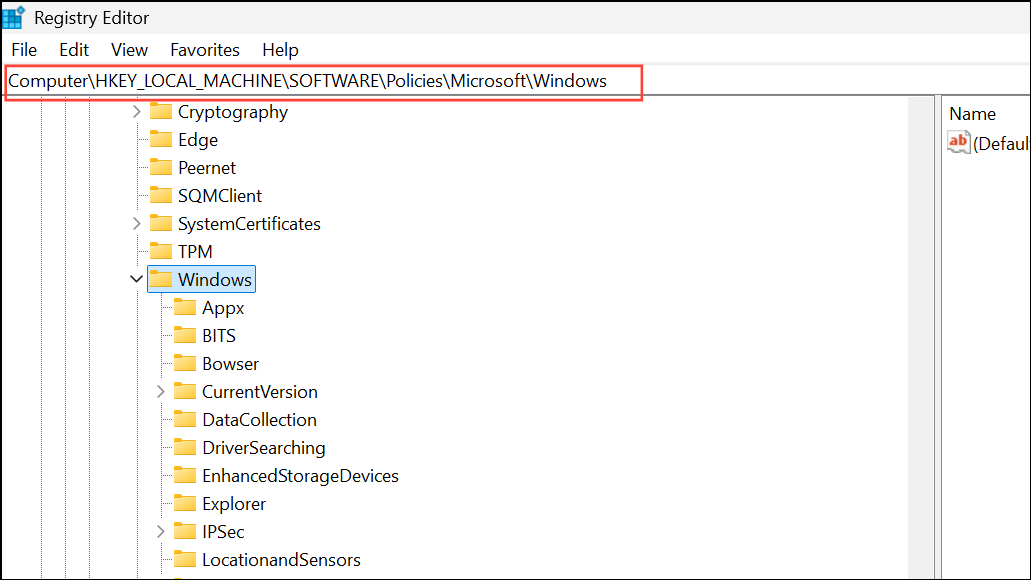
Windows key, select New > Key, and name it WindowsUpdate. Then, right-click WindowsUpdate, choose New > Key, and name it AU.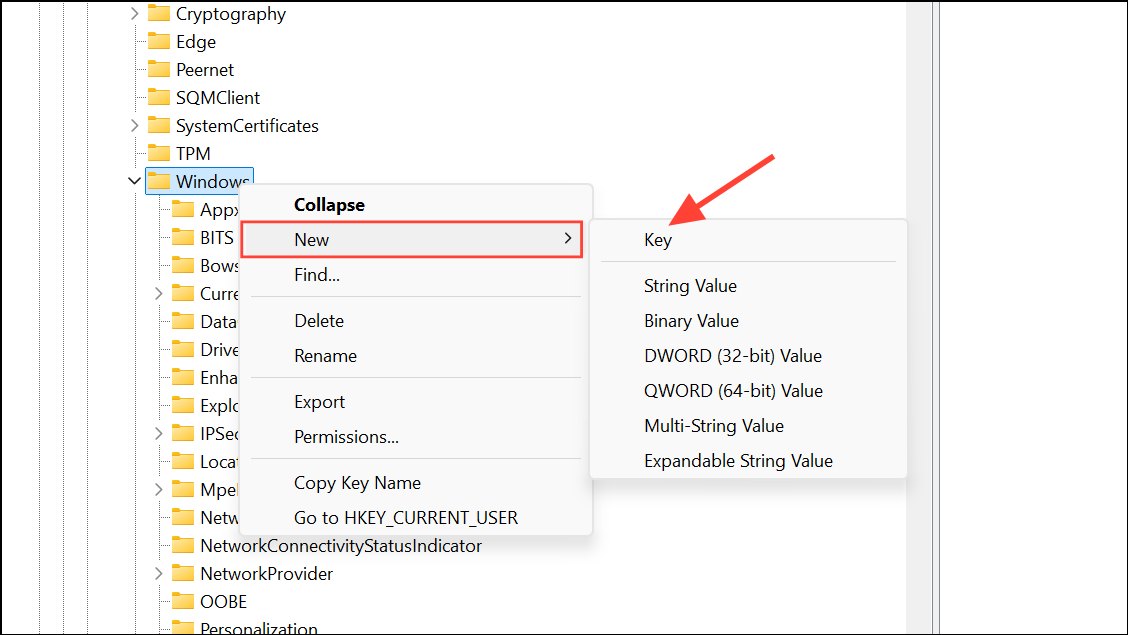
AU selected, right-click the right pane, choose New > DWORD (32-bit) Value, and name it NoAutoUpdate.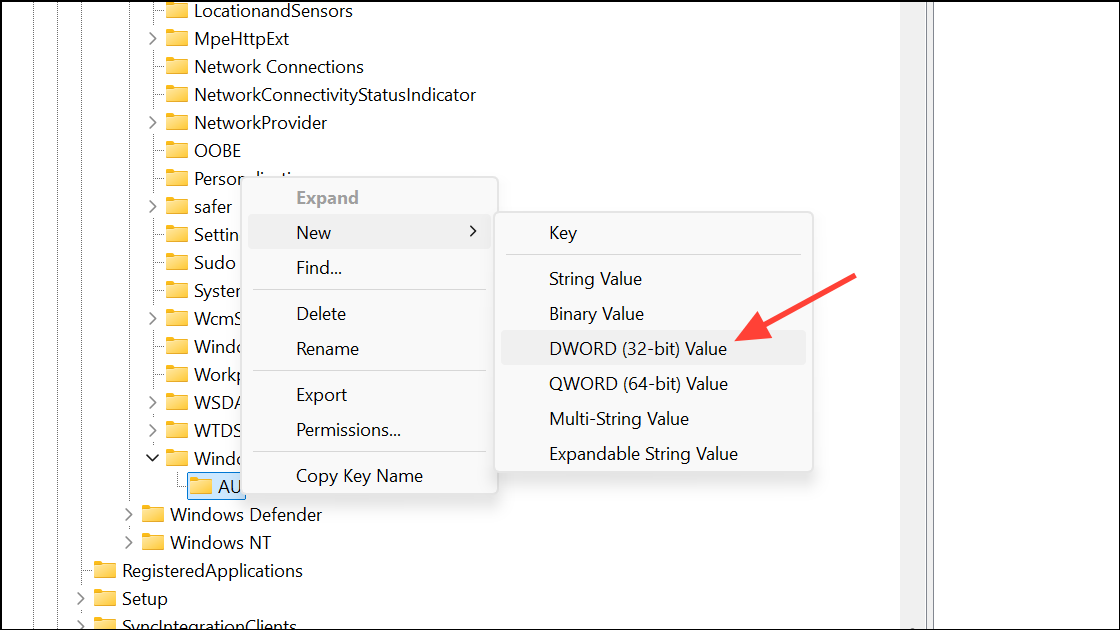
NoAutoUpdate and set its value to 1 to disable automatic updates. Setting it to 0 re-enables updates.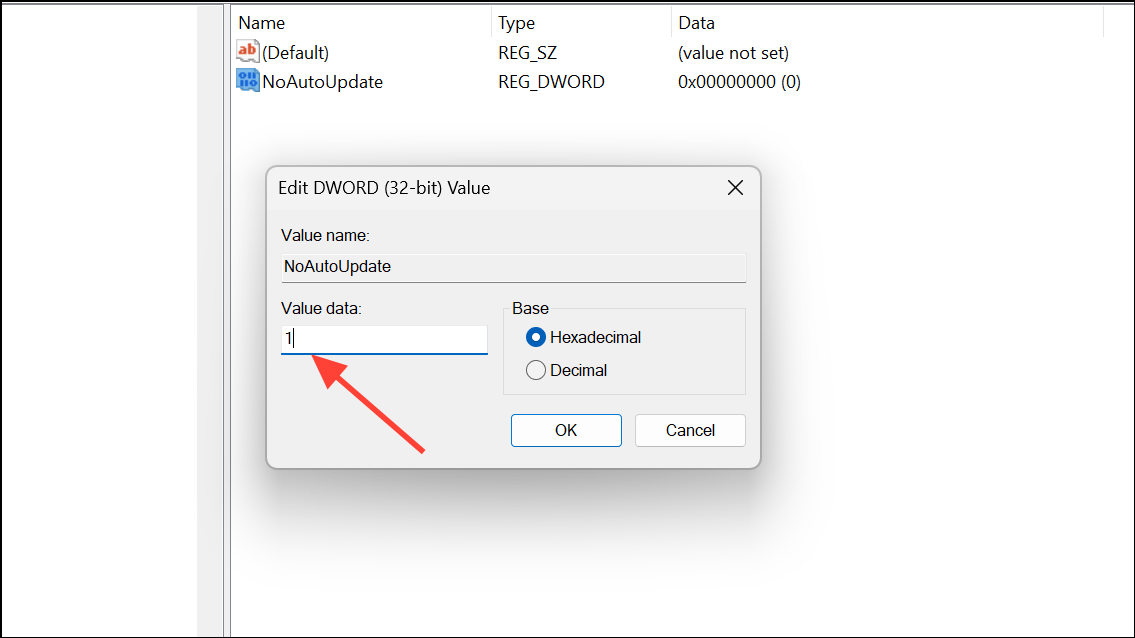
Restart your PC to apply the changes. This method blocks automatic updates, but you can still manually check for updates when needed.
Disable Windows Update Service via Services Console
Stopping the Windows Update service prevents updates from running, but Windows may re-enable this service during major updates or after system restarts.
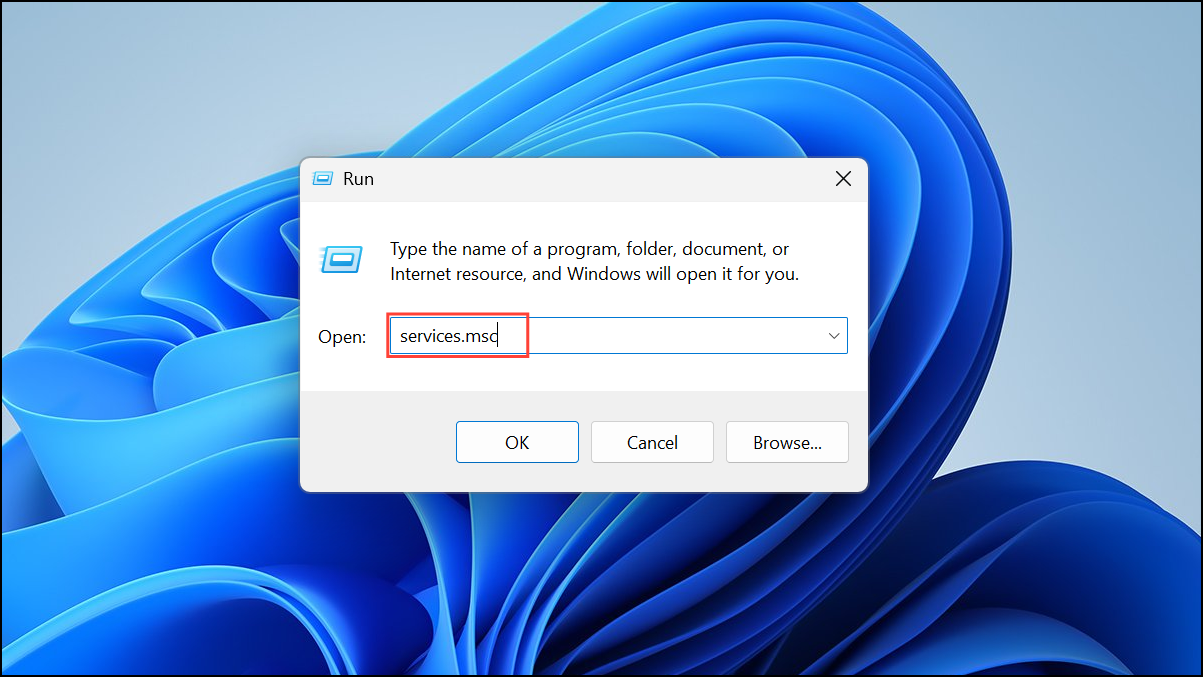
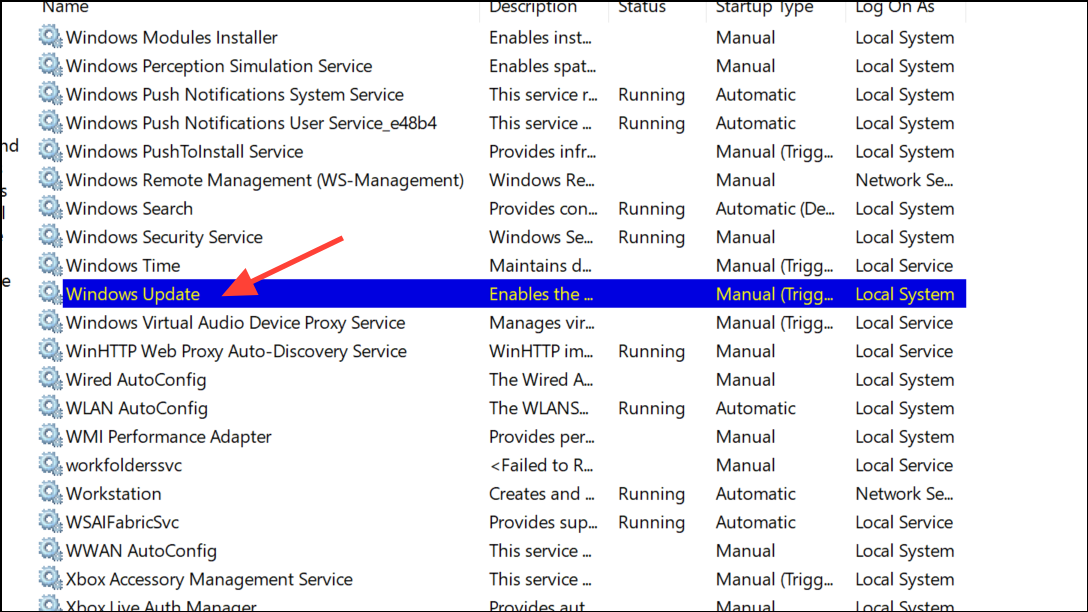
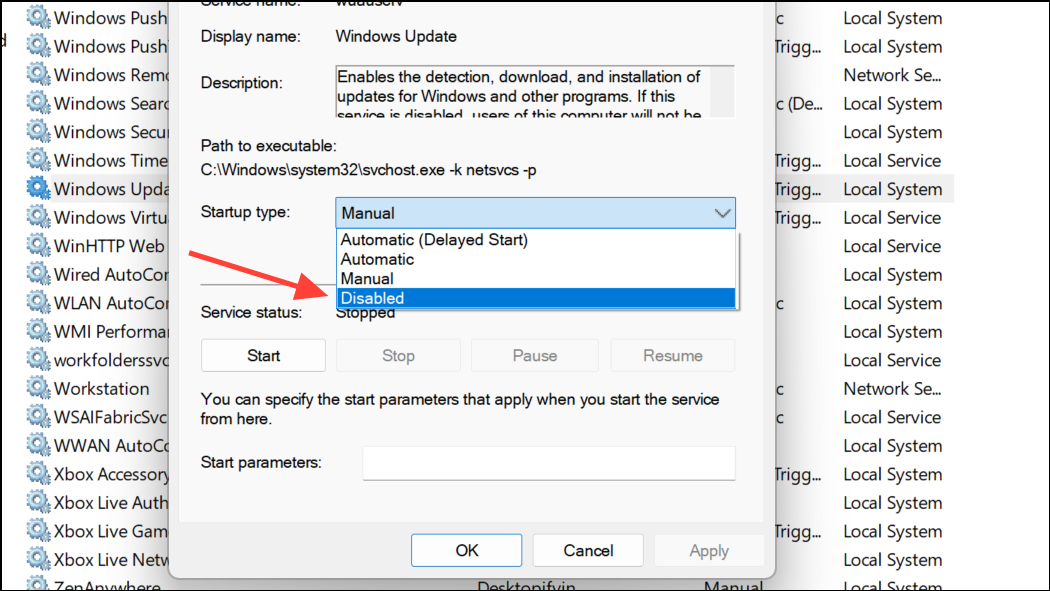
Keep in mind, Windows may override this setting during certain update cycles, so check periodically if the service remains disabled.
Use Metered Connection to Limit Update Downloads
Designating your network as metered restricts Windows from downloading most updates automatically, which is useful if you want to minimize update activity without advanced system changes.
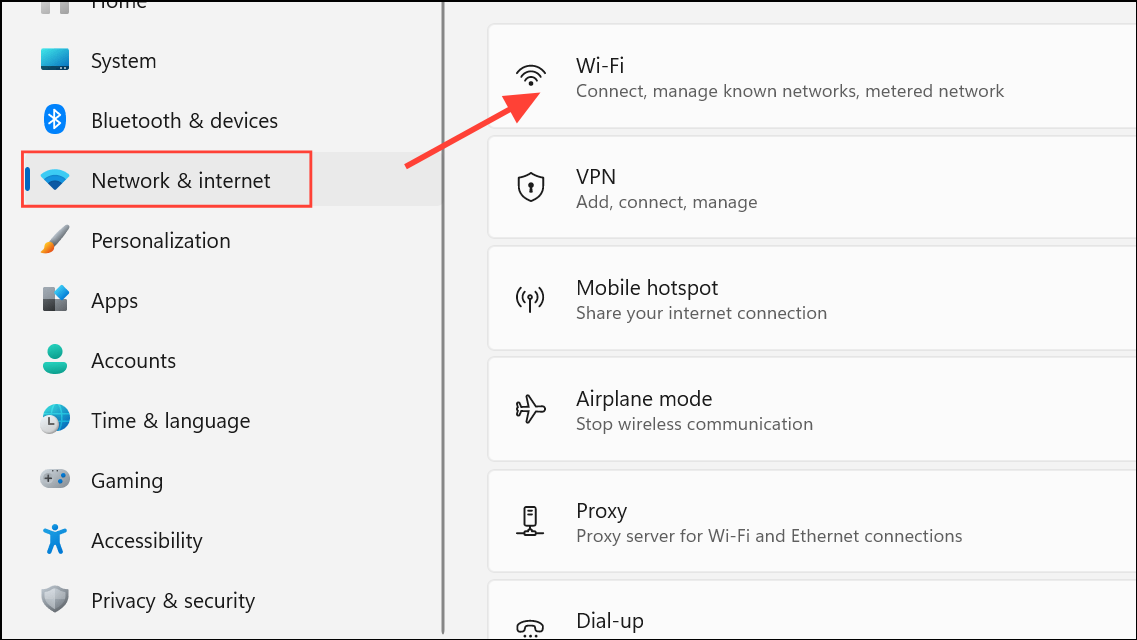
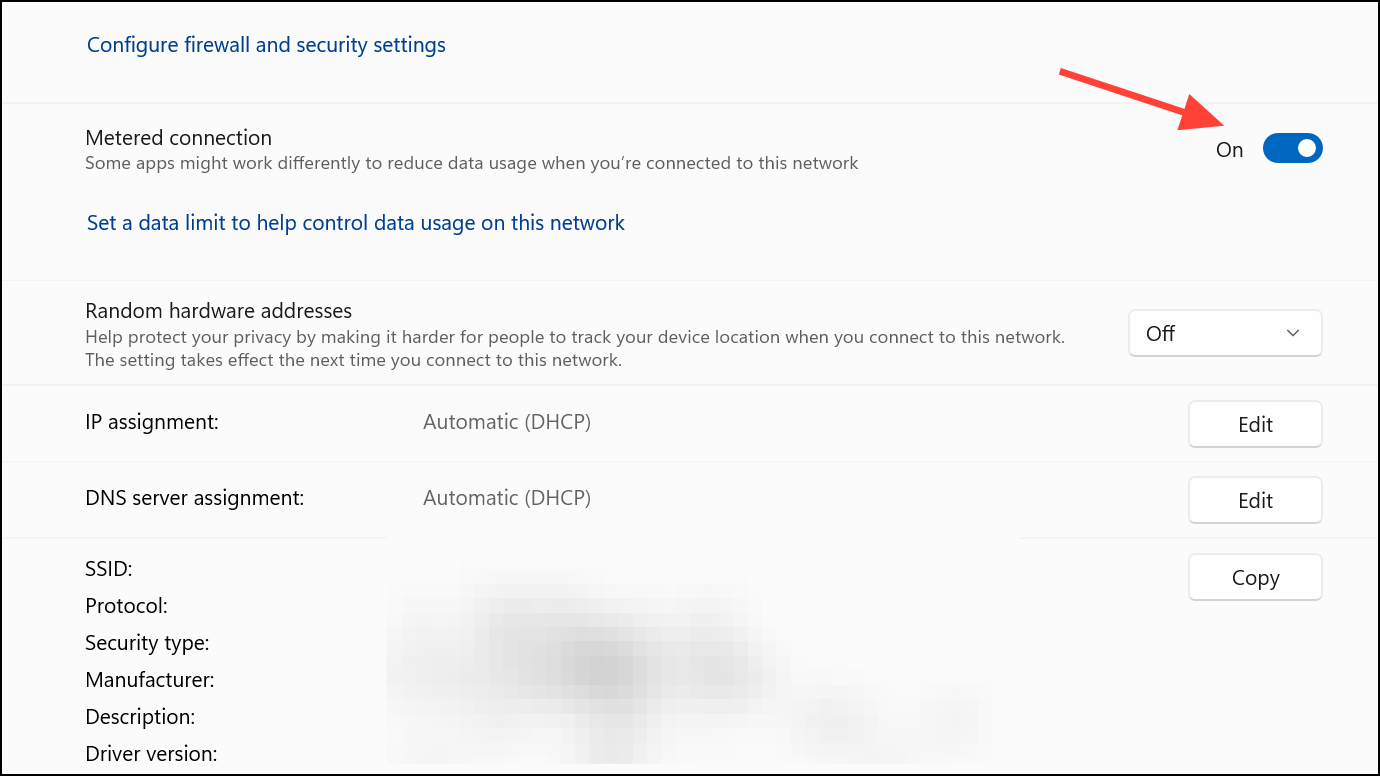
Settings > Windows Update > Advanced options and turn off Download updates over metered connections.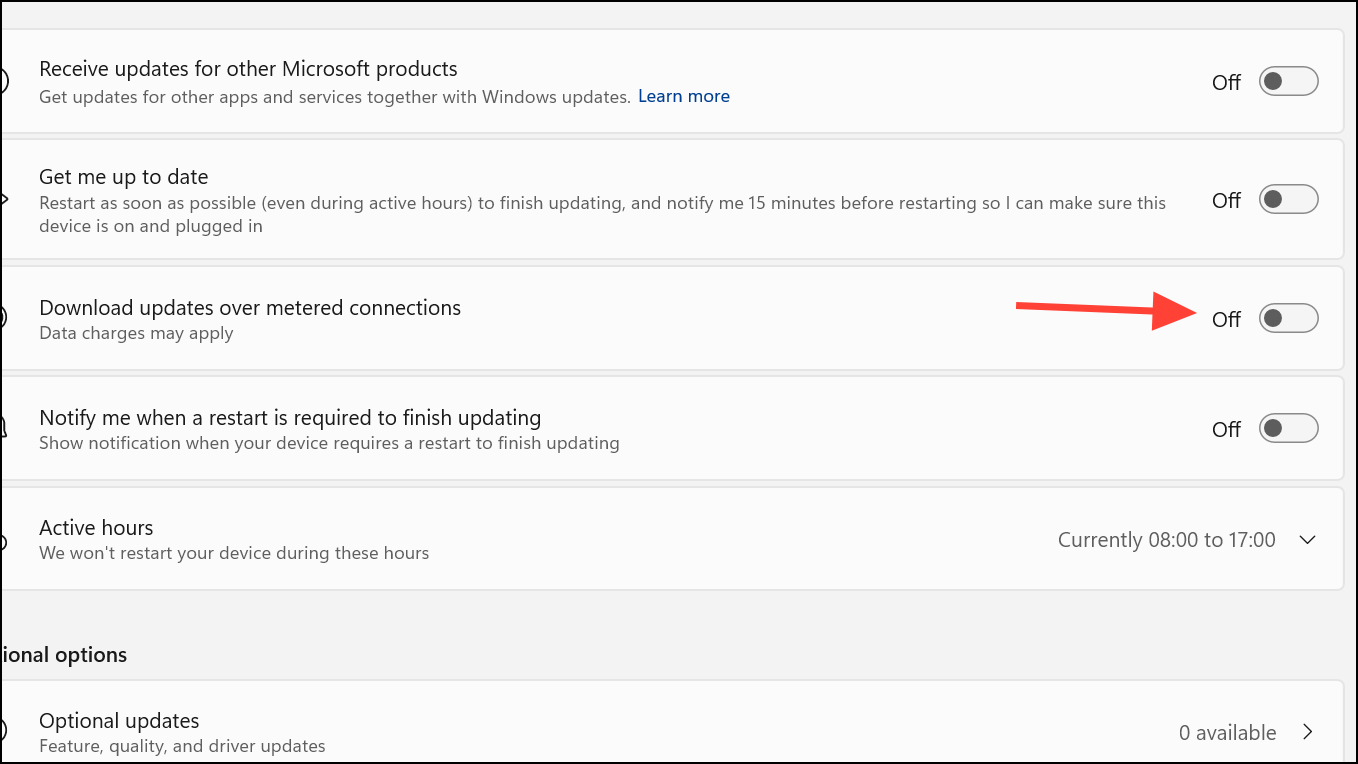
This method is less invasive and can reduce bandwidth usage, but some critical updates may still download and install automatically.
Extending the Windows 11 update pause period to 20 years is possible with a registry tweak, though it comes with significant security risks and is not recommended for most users. For safer long-term control, use policy or service-based methods, and always review your system’s update status regularly to maintain security and compatibility.



