On PC, Phantom Blade Zero does not keep its saves in AppData. The Steam version writes them inside the game’s own install folder, and the settings file lives separately in AppData. That detail matters if you plan to back up, move, or uninstall the game.
Quick answer: Saves are in <Steam library>\steamapps\common\PBZ\ProjectPBZ\Saved\SaveGames\Steam\<SteamID64>\, inside the game’s install folder. The current save is PBZSaveGame.sav.
| What | Path |
|---|---|
| Save folder (any Steam library) | <Steam library>\steamapps\common\PBZ\ProjectPBZ\Saved\SaveGames\Steam\<SteamID64>\ |
| Save folder (default Steam library) | C:\Program Files (x86)\Steam\steamapps\common\PBZ\ProjectPBZ\Saved\SaveGames\Steam\<SteamID64>\ |
| Settings file | %LOCALAPPDATA%\ProjectPBZ\Saved\Config\Windows\GameUserSettings.ini |
<SteamID64> stands for your Steam account’s 64-bit ID, a 17-digit number. Each Steam account that plays the game on the PC gets its own folder with that name.
Phantom Blade Zero save folder and what’s inside it
The fastest route to the install folder is through Steam. Right-click Phantom Blade Zero in your library, pick Manage, then Browse local files. The install folder is named PBZ. From there, open ProjectPBZ\Saved\SaveGames\Steam\ and then the folder named after your SteamID64.
Inside that folder you’ll find:
PBZSaveGame.sav, the current save. It is small, around 3 KB early in the prologue.1RealTime,2Hourlyand3Daily, three sub-folders holding dated copies of the save.- The small Steam Cloud marker for this folder is
steam_autocloud.vdf.
The copies in the three sub-folders are named by the date and time they were made, in a format like 20261029-090013-723.sav. As the folder names suggest, one set is written frequently, one roughly hourly, and one daily.
Phantom Blade Zero settings file location
Graphics and other options (see our best PC settings guide) are stored in GameUserSettings.ini under %LOCALAPPDATA%\ProjectPBZ\Saved\Config\Windows\. Written out in full, that is C:\Users\<your user name>\AppData\Local\ProjectPBZ\.... The same ProjectPBZ folder in AppData also holds the game’s Logs and its shader pipeline cache.
Only settings, logs and the shader cache are in AppData. Your progress is in the install folder, not here.
Steam Cloud sync for Phantom Blade Zero saves
The saves sync through Steam Cloud. The steam_autocloud.vdf file in the save folder flags it as cloud-synced, and Steam’s cloud cache for the game lists every .sav file, including the current save and the dated copies in all three sub-folders.
How to back up a Phantom Blade Zero save
Close the game first. Then copy the entire <SteamID64> folder, with the 1RealTime, 2Hourly and 3Daily sub-folders included, to a location outside the game’s install folder.
Because the saves live inside the install folder, make that outside copy before you uninstall the game or move it to another drive or library.
How to load a save in Phantom Blade Zero
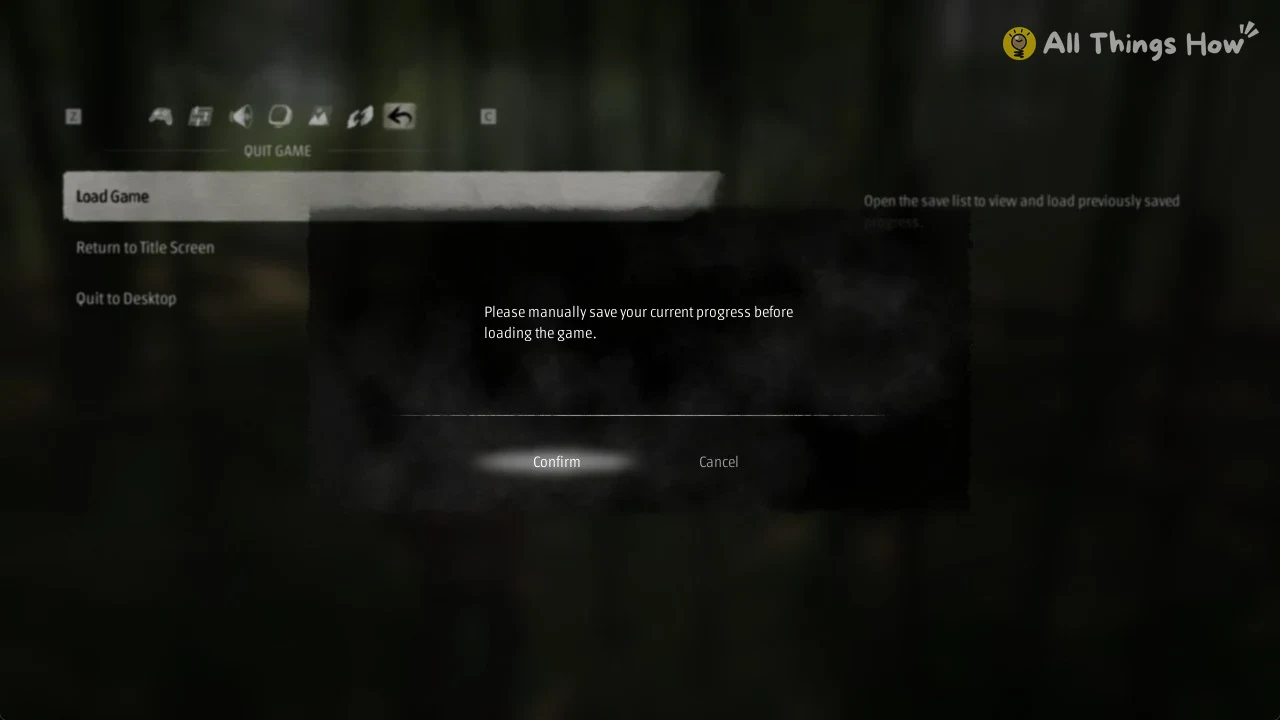
A save entry includes a thumbnail, its chapter label (for example, Prologue), the difficulty (such as “Difficulty: PATHBREAKER”), an AUTO marker and slot number for autosaves (AUTO 01), the save date and time, and the play time recorded for that file. Compare the chapter, timestamp, and play time to identify the save you want to load. The difficulty on each save is the mode you picked; see Phantom Blade Zero difficulty modes.
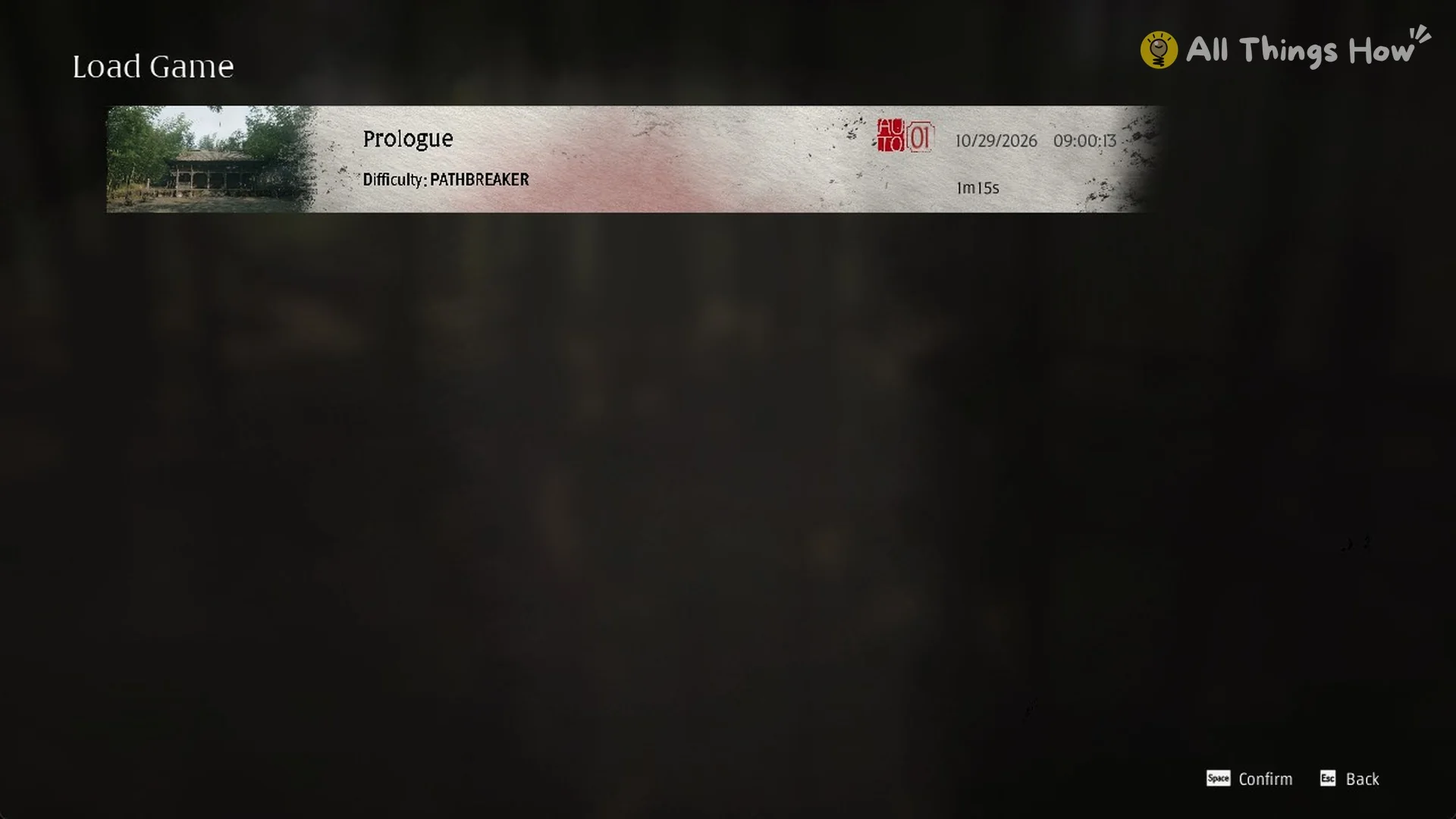
You can also resume from the title screen. Once a save exists, the title menu adds a Continue option that loads your latest save directly.