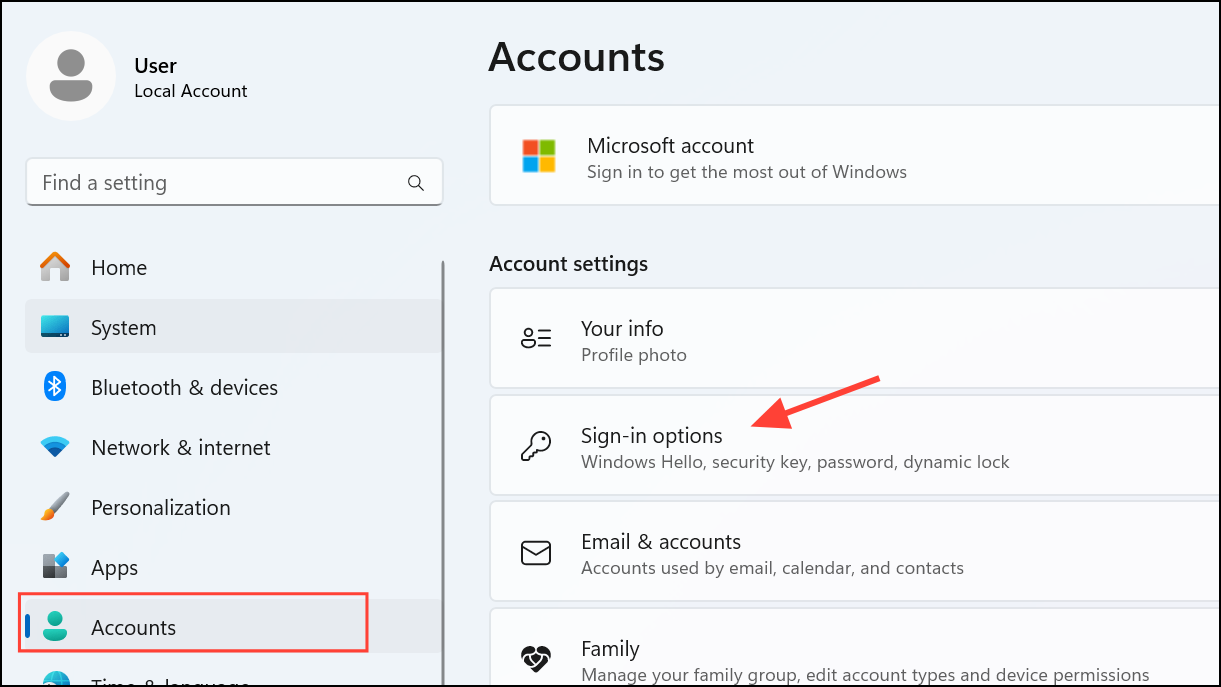
Prevent Windows 11 From Automatically Locking Your PC
Stop your Windows 11 computer from locking after inactivity by adjusting sign-in, power, and registry settings.
Stop your Windows 11 computer from locking after inactivity by adjusting sign-in, power, and registry settings.
by Pallav Pathak
Automatic locking on Windows 11 interrupts active work, gaming, or long-running tasks by requiring a PIN or password after short periods of inactivity. This behavior persists even when display and sleep settings are set to “Never,” causing frustration for users who want uninterrupted access to their PC. Addressing this issue involves changing sign-in requirements, adjusting sleep and screen saver settings, and, if necessary, modifying the Windows Registry for a more permanent solution.
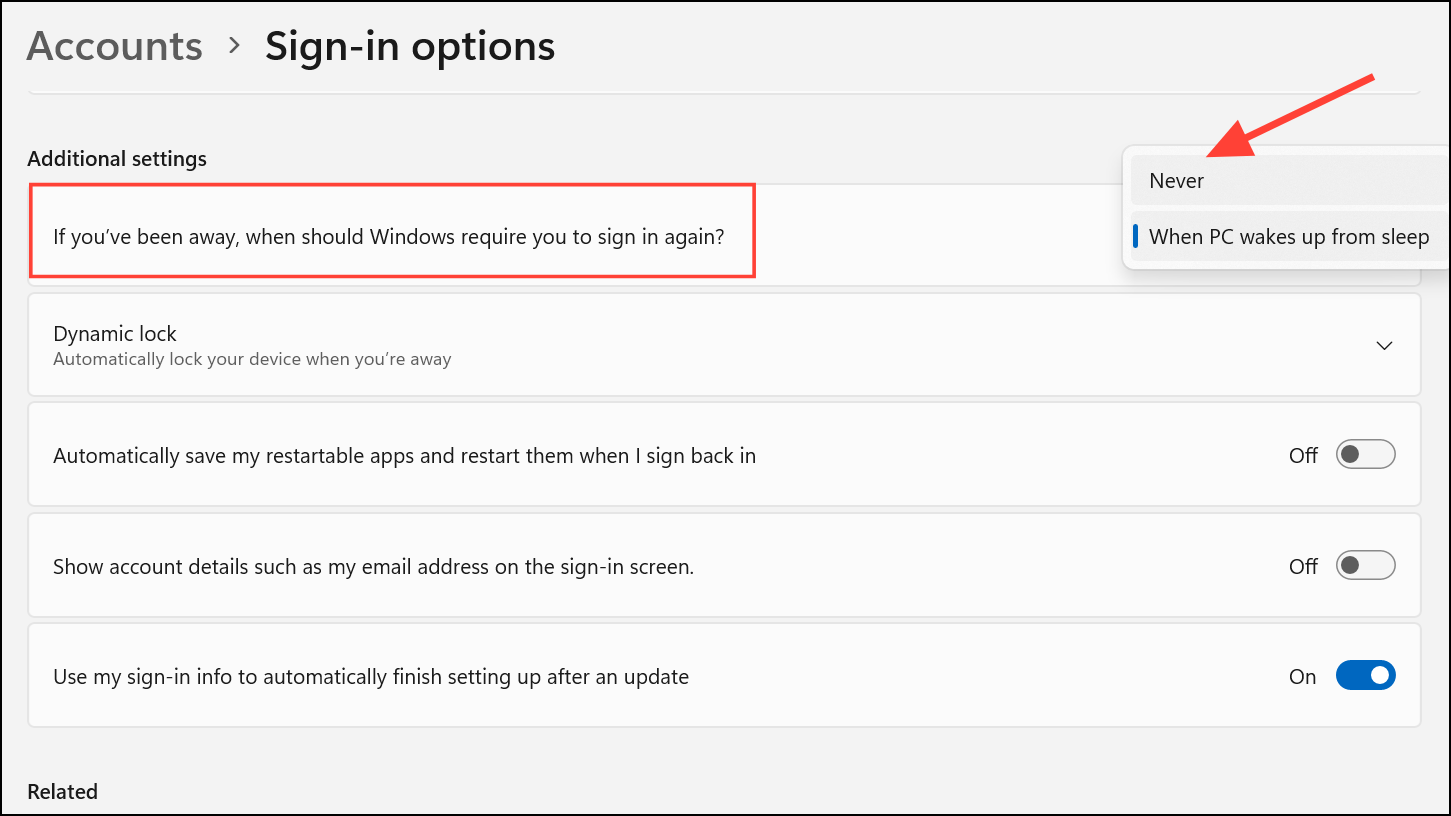
In the Additional settings section, find the option labeled If you’ve been away, when should Windows require you to sign in again? Set this dropdown to Never. This setting prevents Windows from asking for your credentials after inactivity, even if the screen turns off.
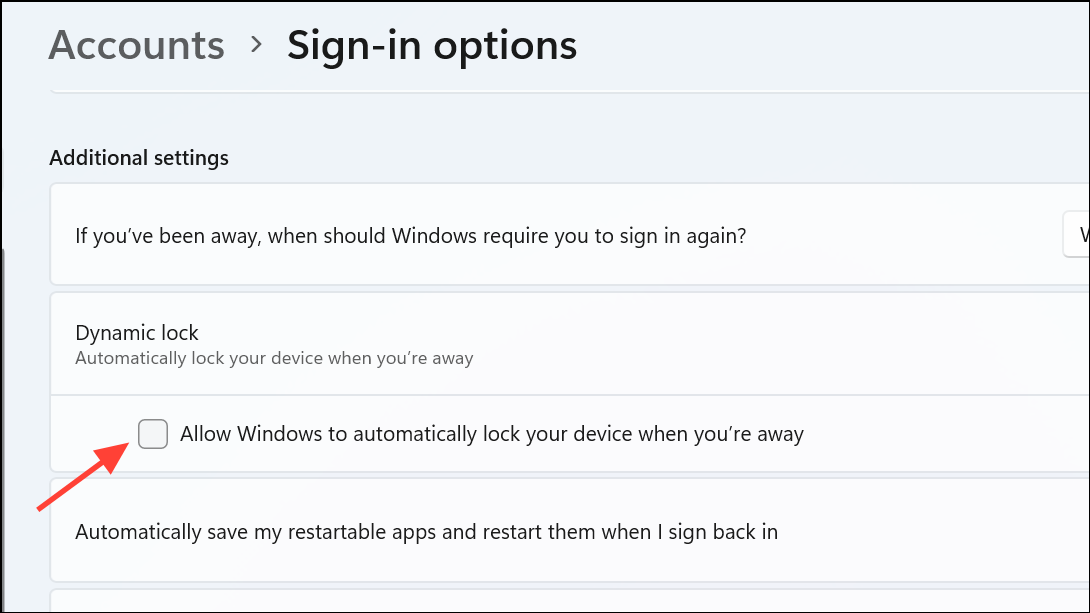
Scroll down to the Dynamic lock section. Make sure the box for Allow Windows to automatically lock your device when you’re away is unchecked. Dynamic Lock uses Bluetooth proximity to trigger the lock screen, so disabling it ensures your PC stays unlocked unless you manually lock it.
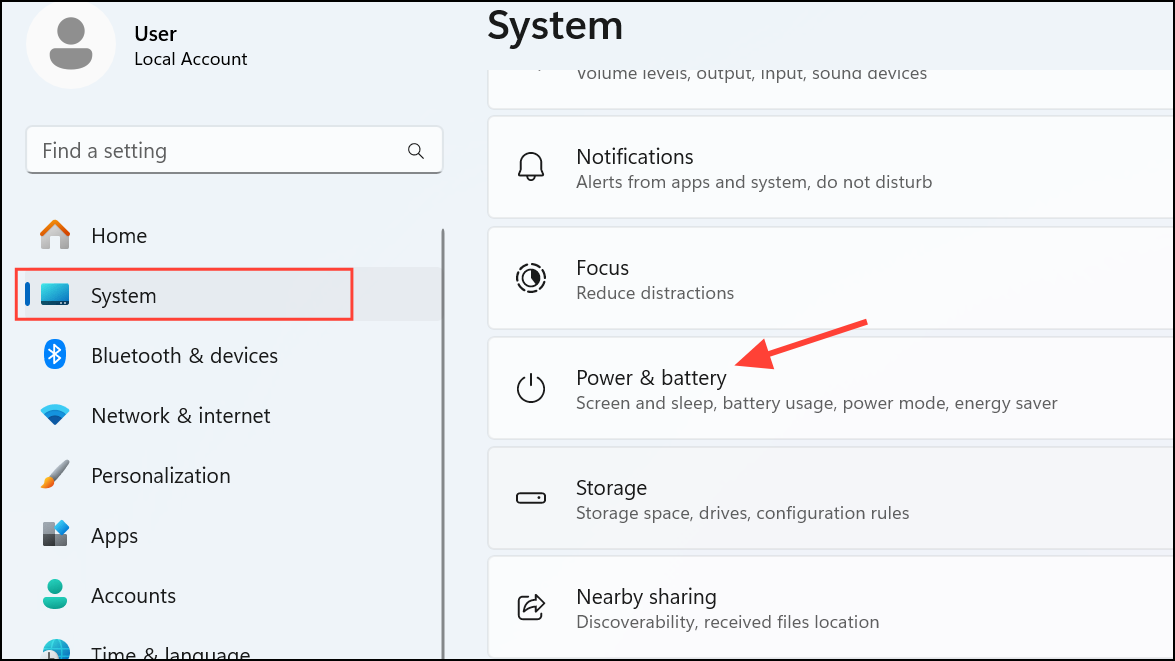
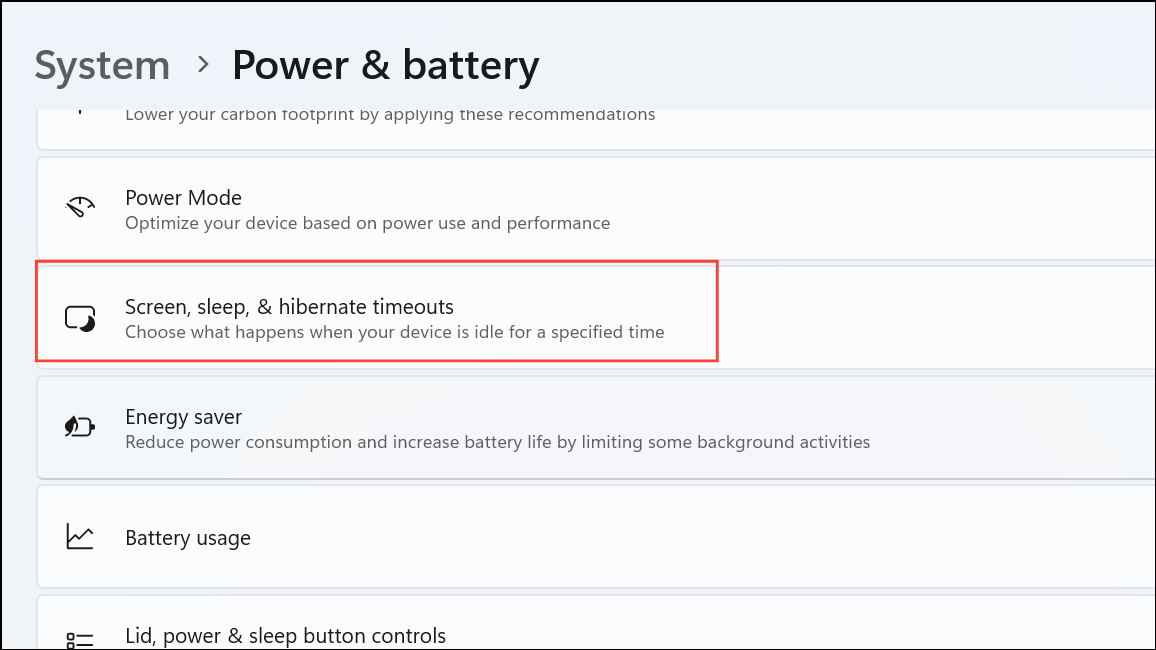
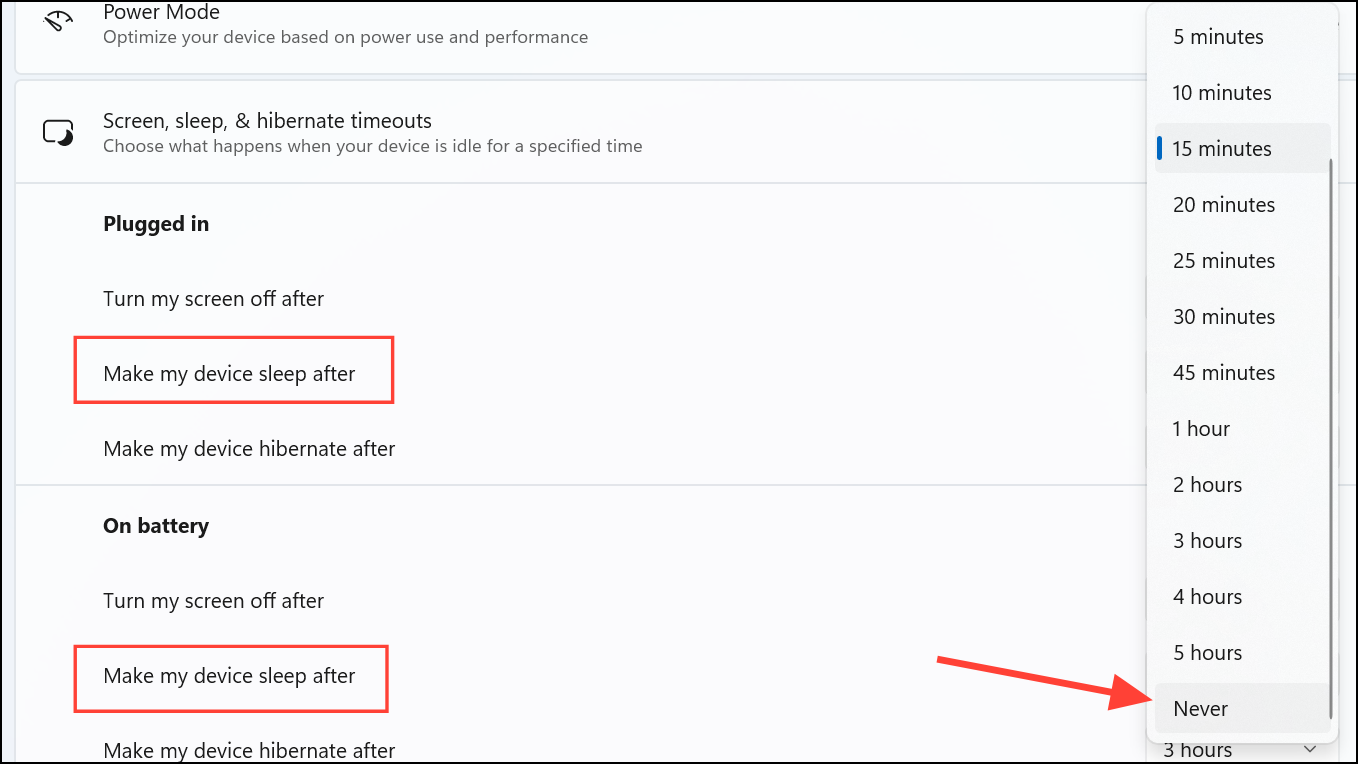
Set both On battery power, make my device sleep after and When plugged in, make my device sleep after to Never. This prevents Windows from entering sleep mode, which often triggers the lock screen.
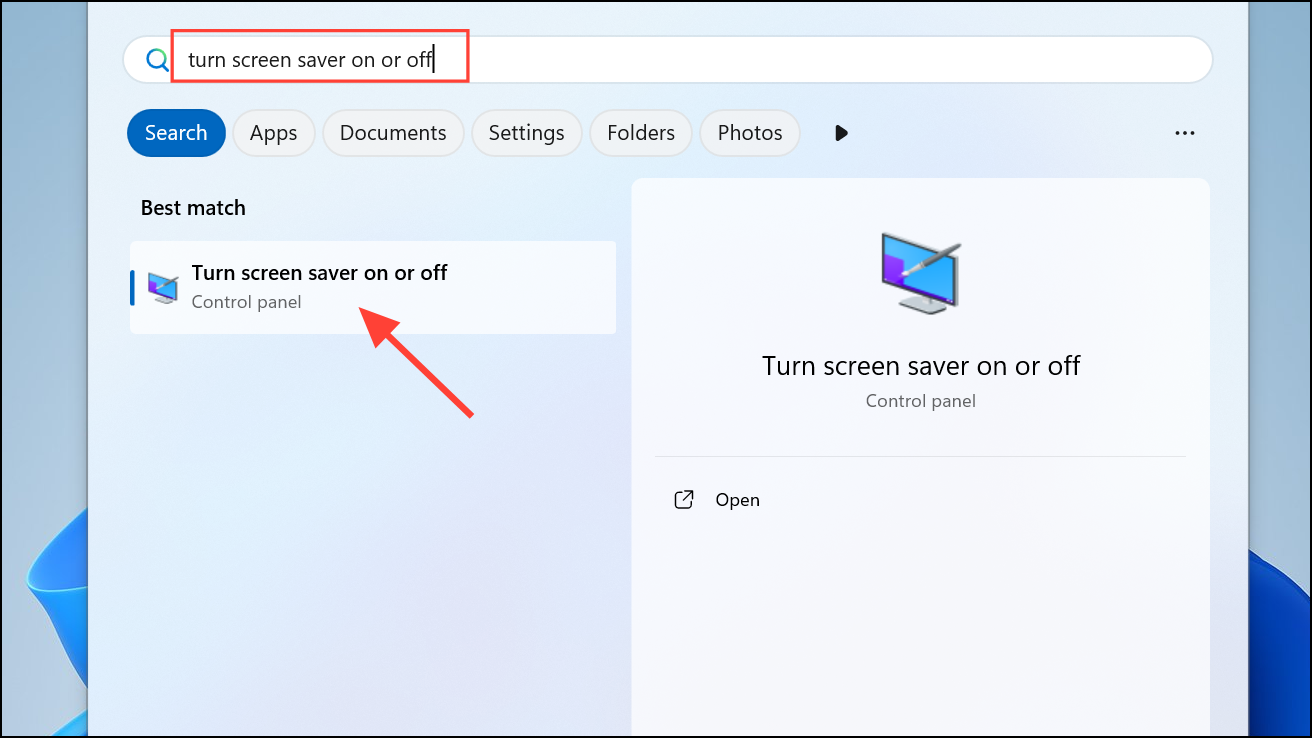
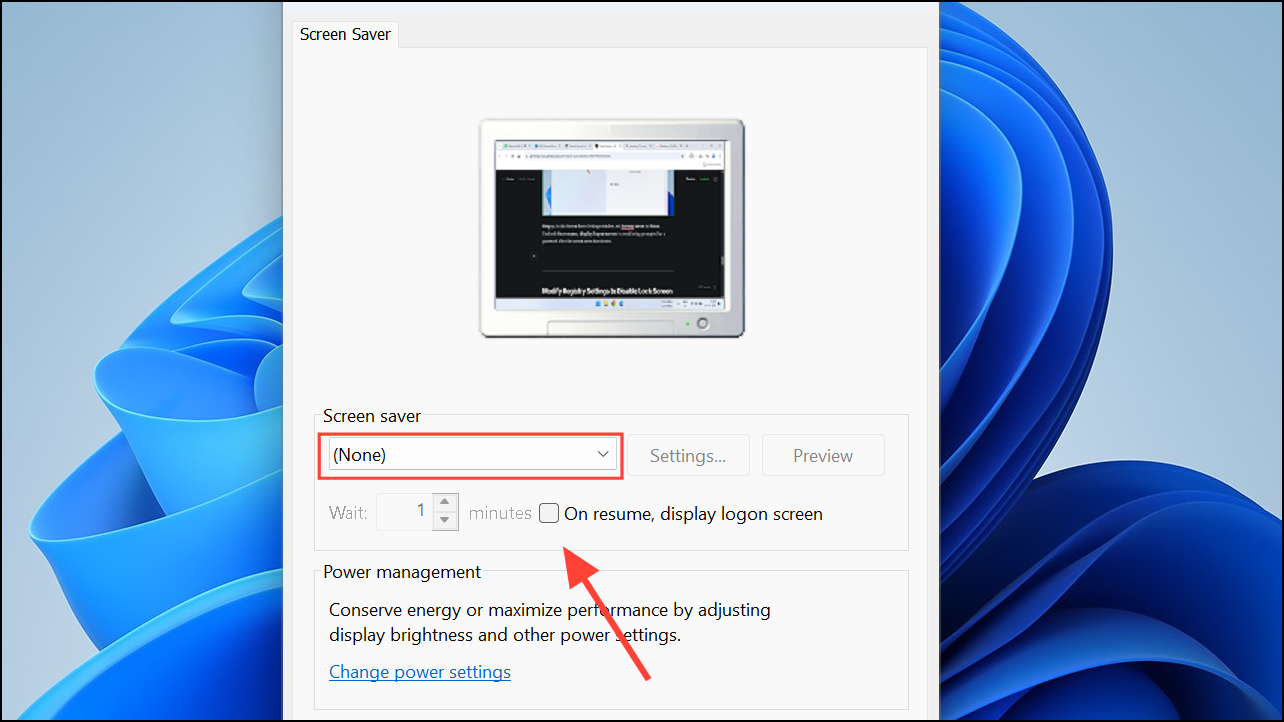
In the Screen Saver Settings window, set Screen saver to None. Uncheck On resume, display logon screen to avoid being prompted for a password after the screen saver deactivates.
Modify Registry Settings to Disable Lock Screen
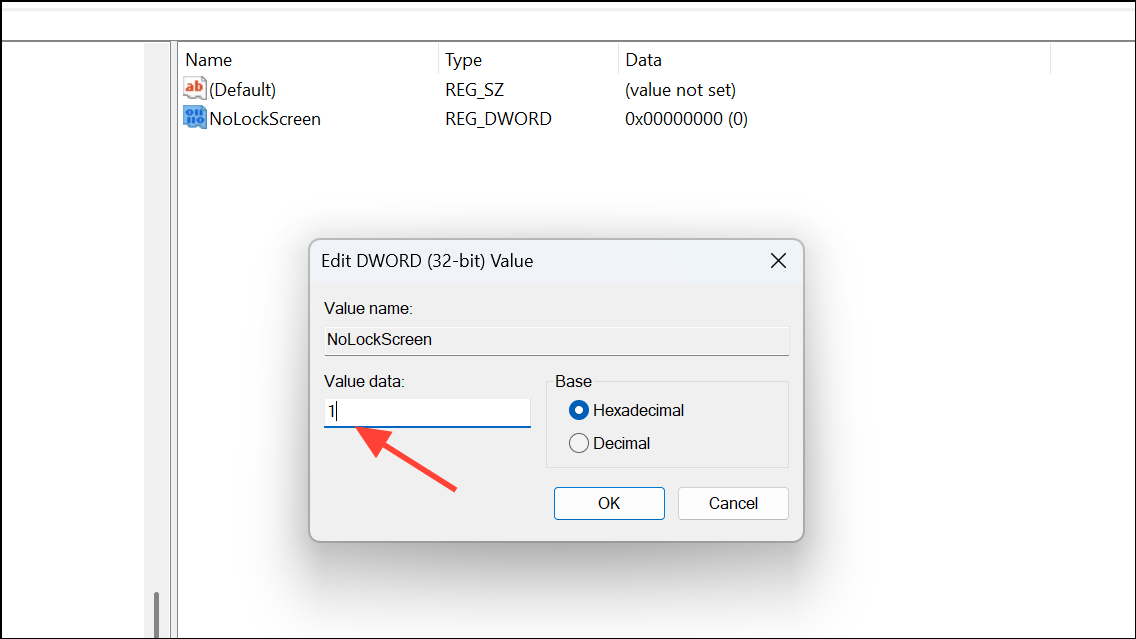
Editing the Windows Registry offers a deeper solution, especially if standard settings don’t prevent automatic locking. However, modifying the registry can cause system issues if not done correctly. Always back up your registry or create a restore point before making changes.
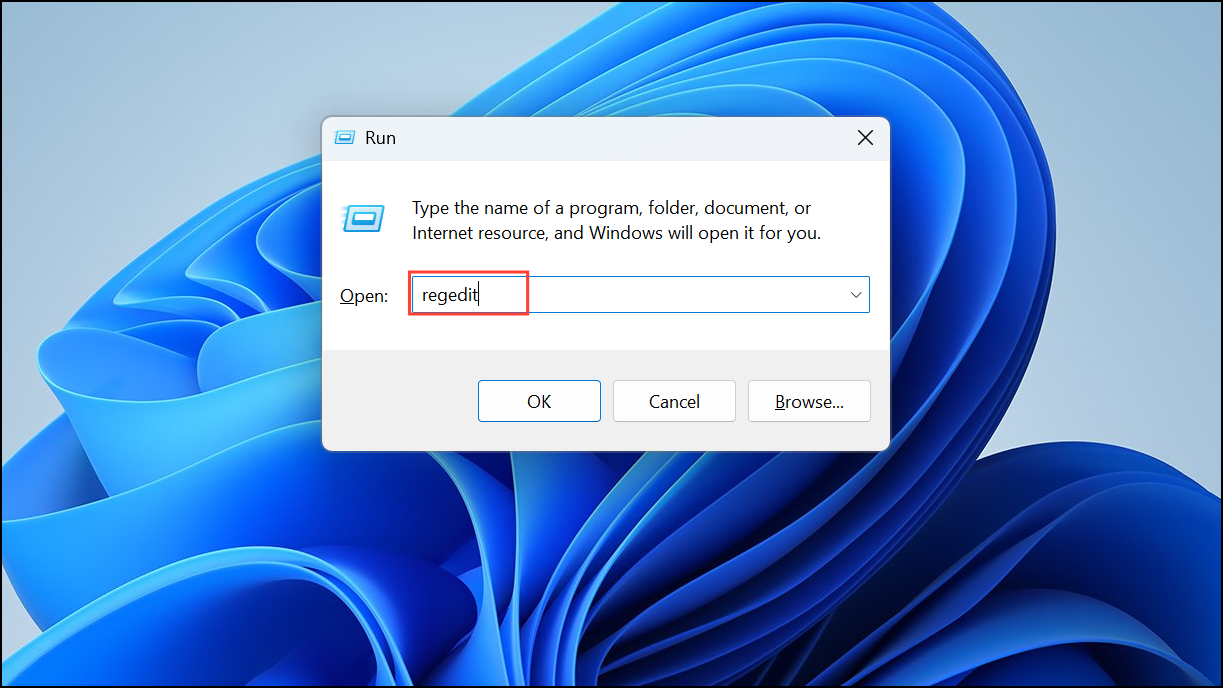
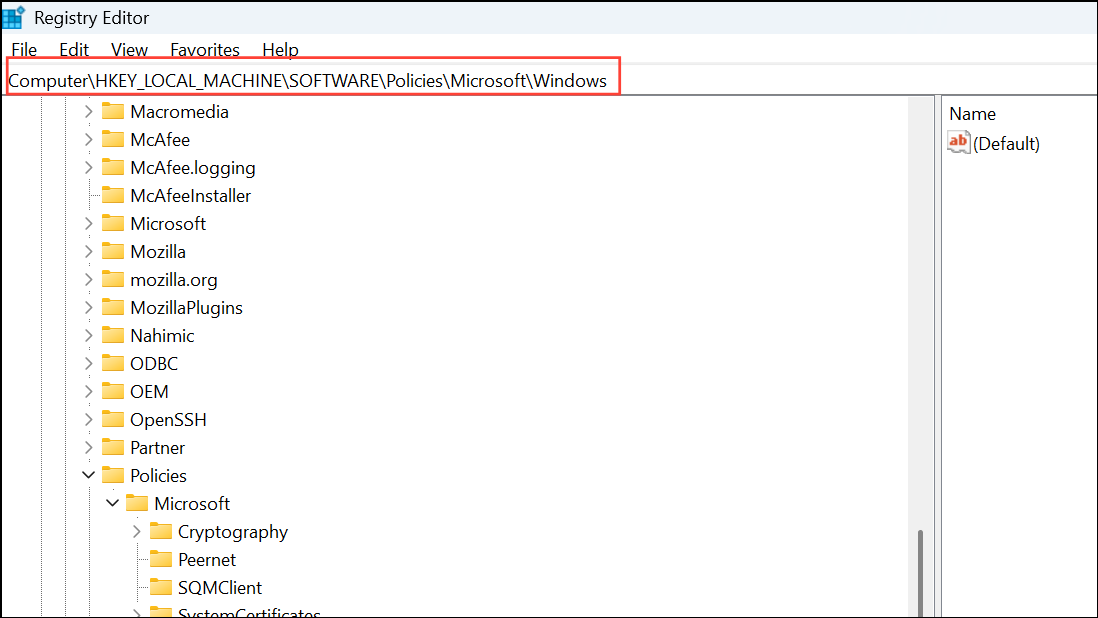
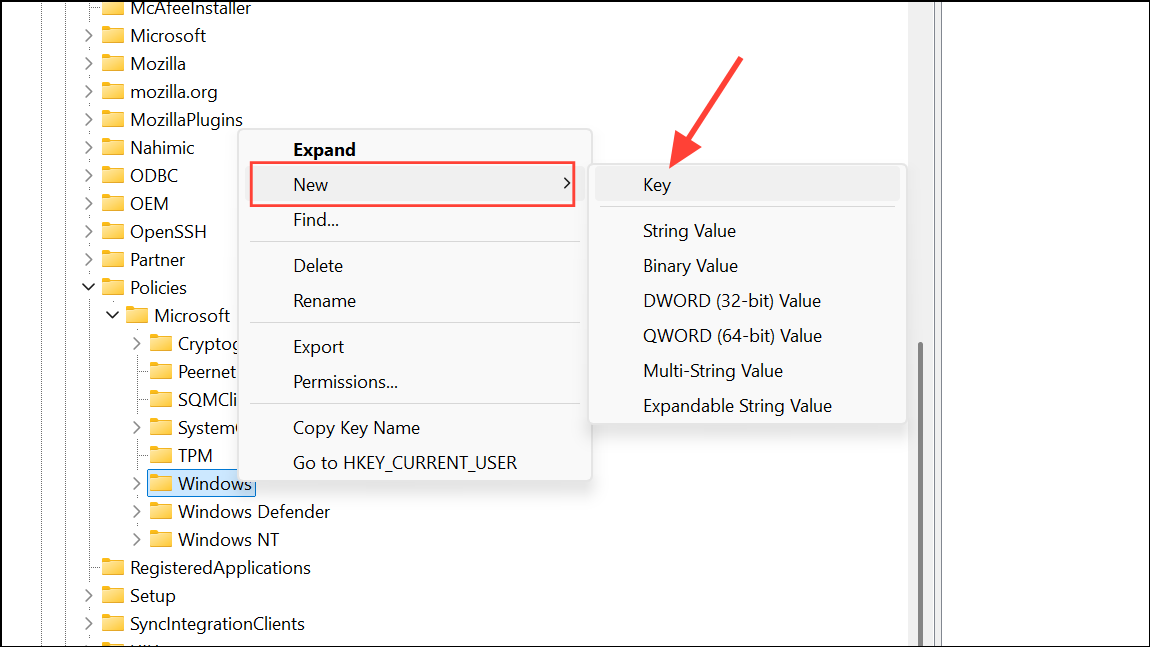
Open the Run dialog by pressing Win + R, type regedit, and press Enter. If prompted by User Account Control, click Yes to allow Registry Editor to open.
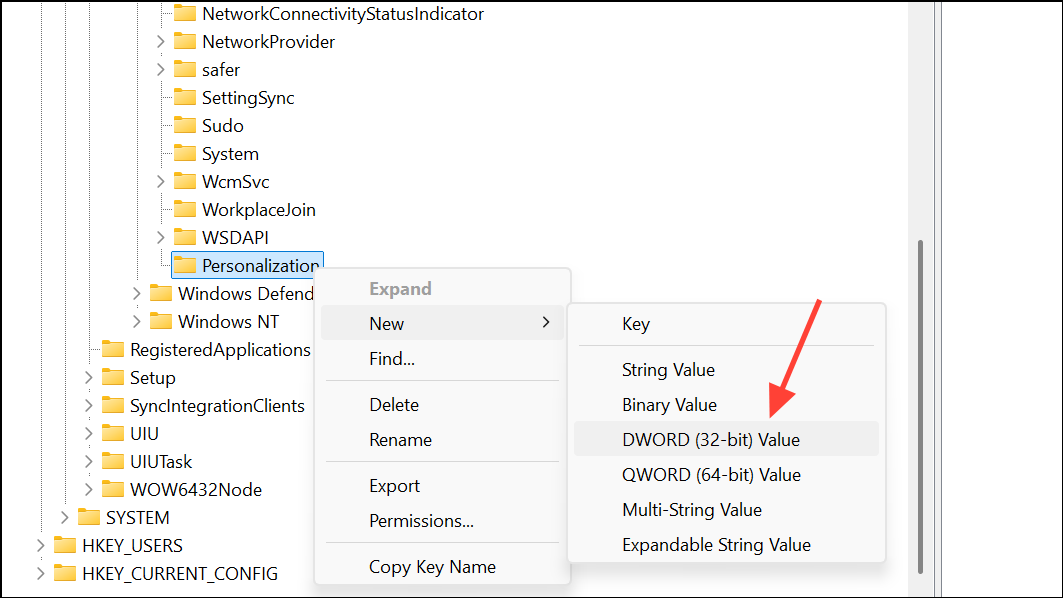
Close Registry Editor and restart your computer. The lock screen should now be disabled, and your PC will remain accessible after periods of inactivity.
Note: If the registry change does not work, double-check the spelling of “Personalization” (must use a “z”) and confirm you are editing the correct registry path.
Check for Group Policy or Netplwiz Options (Pro Editions)
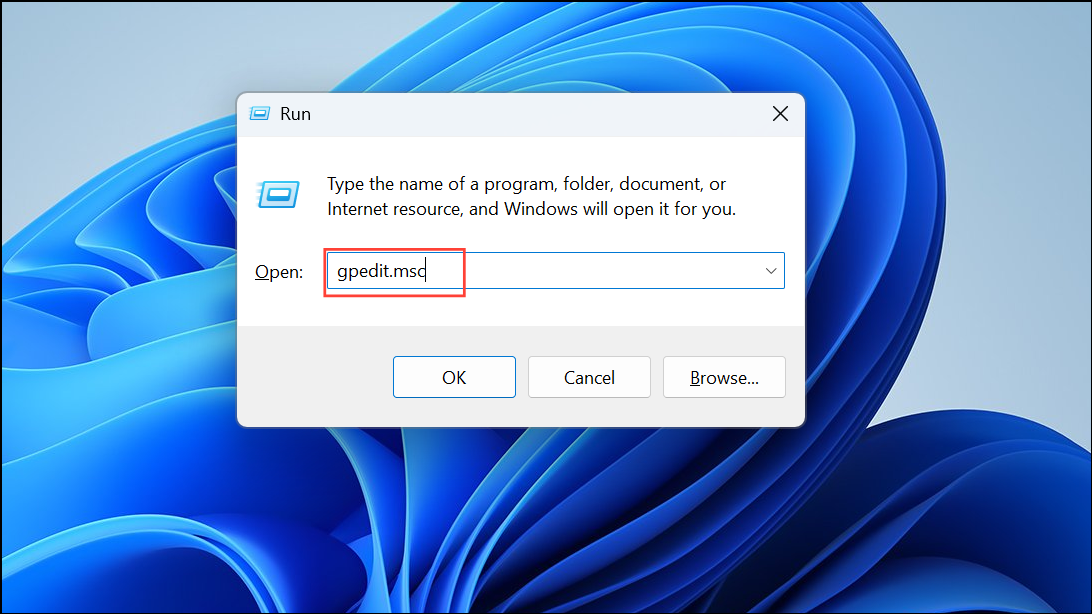
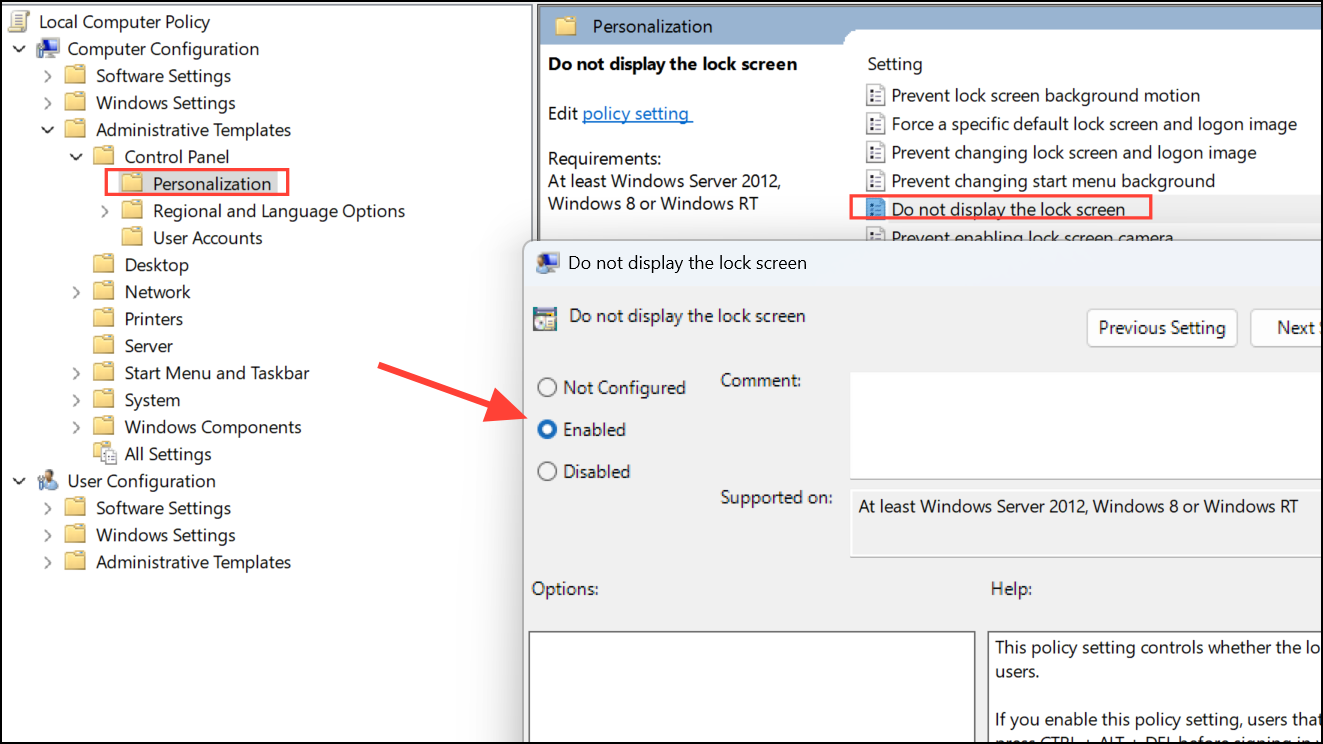
On Windows 11 Pro, you can use the Group Policy Editor to manage lock screen behavior.
Navigate to Computer Configuration > Administrative Templates > Control Panel > Personalization, and set Do not display the lock screen to Enabled. Restart your PC for changes to take effect.
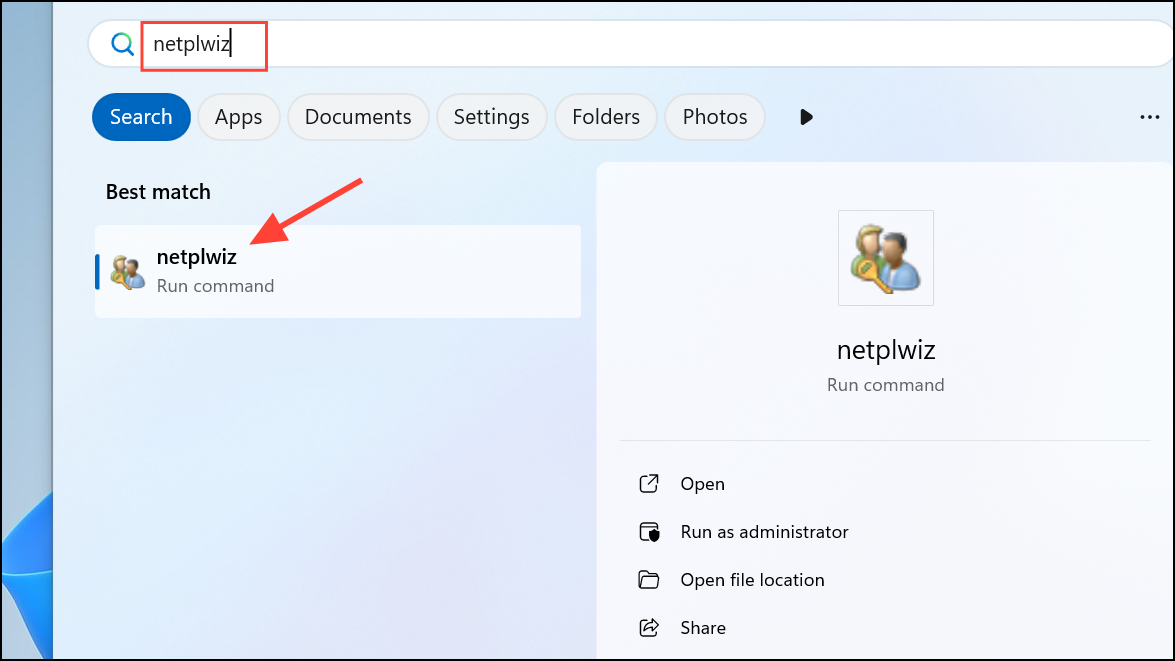
Uncheck Users must enter a user name and password to use this computer, and confirm your password when prompted. This step streamlines access but does not always affect inactivity-based locking, so combine it with other methods for best results.
Disabling automatic locking on Windows 11 requires adjusting sign-in, sleep, and registry settings. Confirm each change takes effect by waiting through your usual inactivity period and verifying the lock screen no longer appears.