The cheat menu in Project Zomboid is not hidden behind a code or a mod. It lives inside the game’s debug mode, which you switch on with a single Steam launch option. Once debug is active, a ladybug icon appears on your screen and opens a panel packed with developer tools, cheat toggles, and a full item spawner.
Quick answer: Add -debug to the game’s Launch Options in Steam, start the game, then click the ladybug icon at the bottom of the icon column on the left side of the screen to open the admin panel.
Enable debug mode with the -debug launch option
Debug mode unlocks the cheat panel in singleplayer and turns on developer options that are normally reserved for testing. You set it once in Steam and it stays on until you remove it.
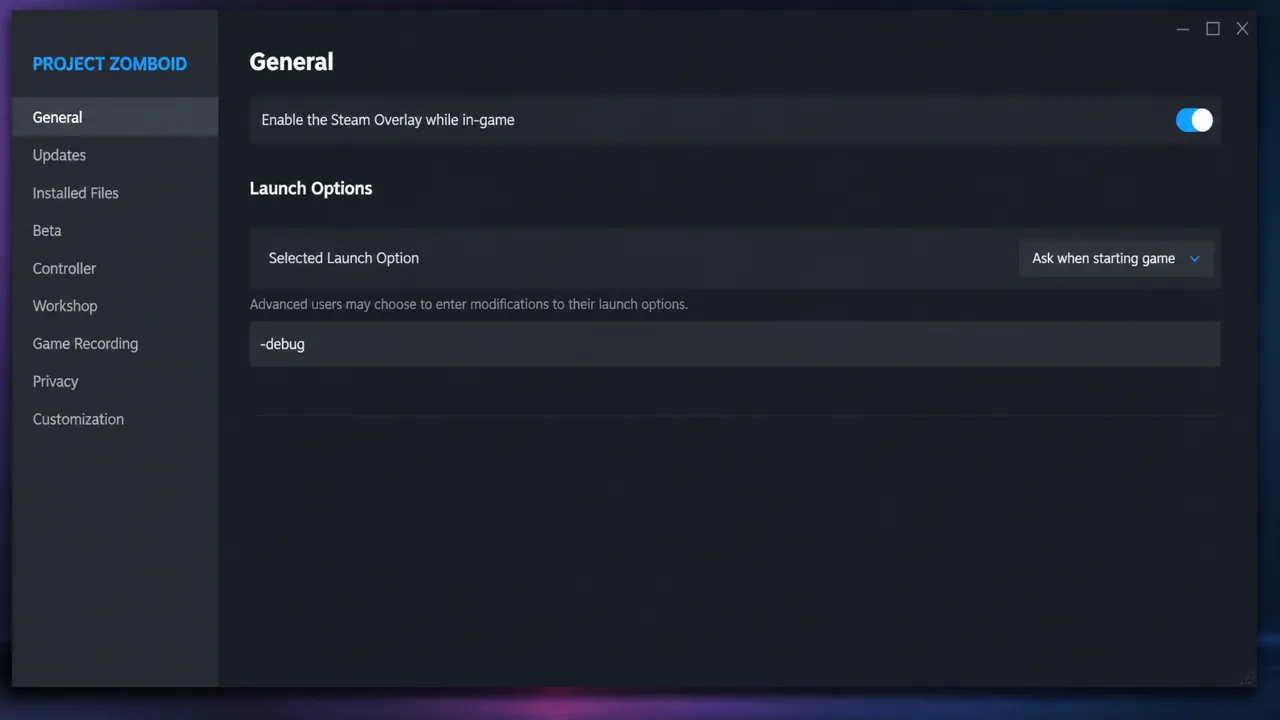
Note: With debug on, you will also see extra developer and cheat entries in the right-click context menus on objects around the world. That added clutter is normal and confirms debug is running even before you open the panel.
Open the admin panel with the ladybug icon
Load into any save, then look at the column of icons on the left edge of the screen. A ladybug icon sits at the bottom of that column. Clicking it opens the admin panel, which is your entry point to every cheat and debug tool.
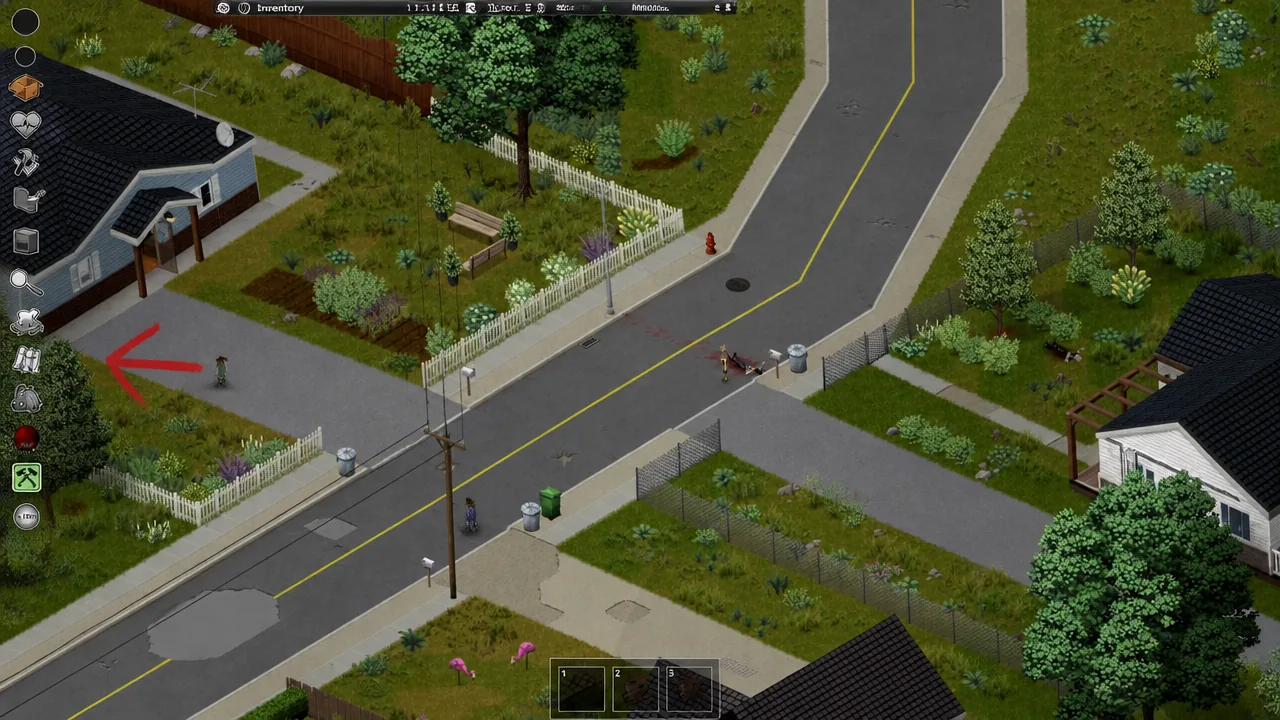
Seeing the ladybug icon is how you know debug mode worked. If it is missing, the launch option did not apply, so close the game, recheck that -debug is in the Launch Options exactly as written, and start again.
Turn on cheats and spawn items
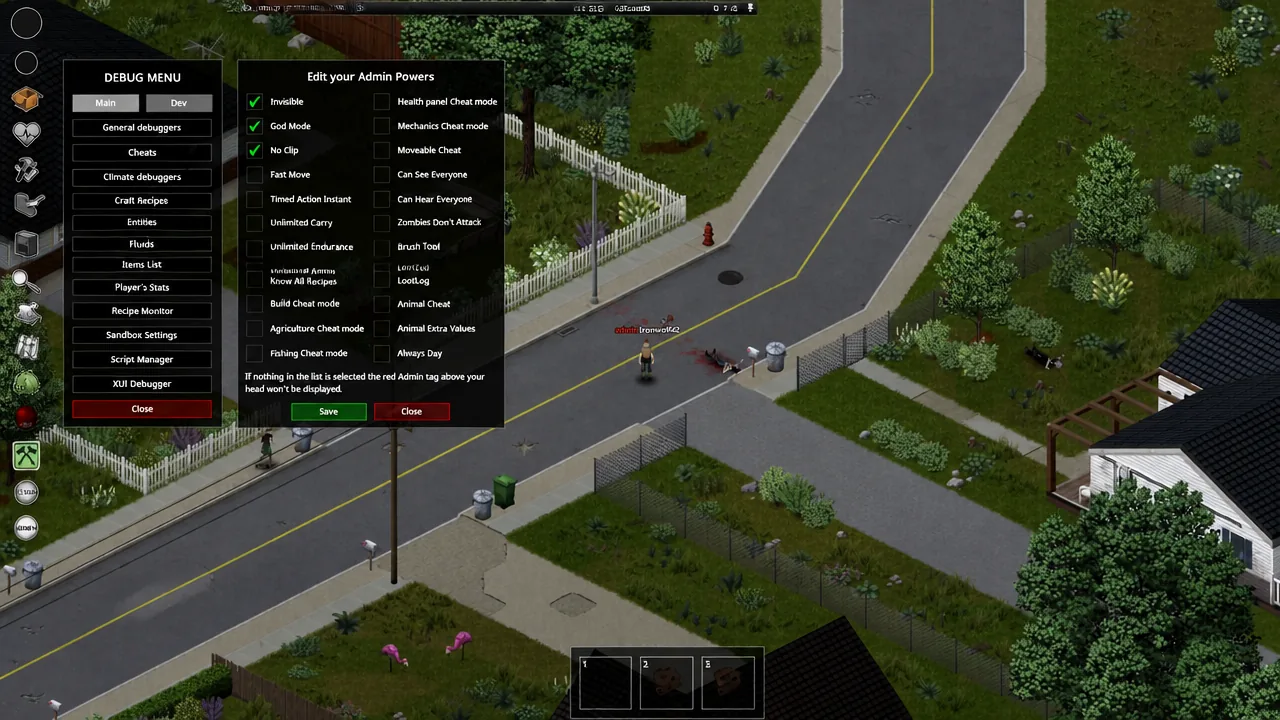
Inside the panel, click the Cheats option to reach the toggle list. This is where the popular power-ups live, including God Mode, Unlimited Ammo, Unlimited Carry, and Build Cheat mode. Flip a toggle and the effect applies immediately.
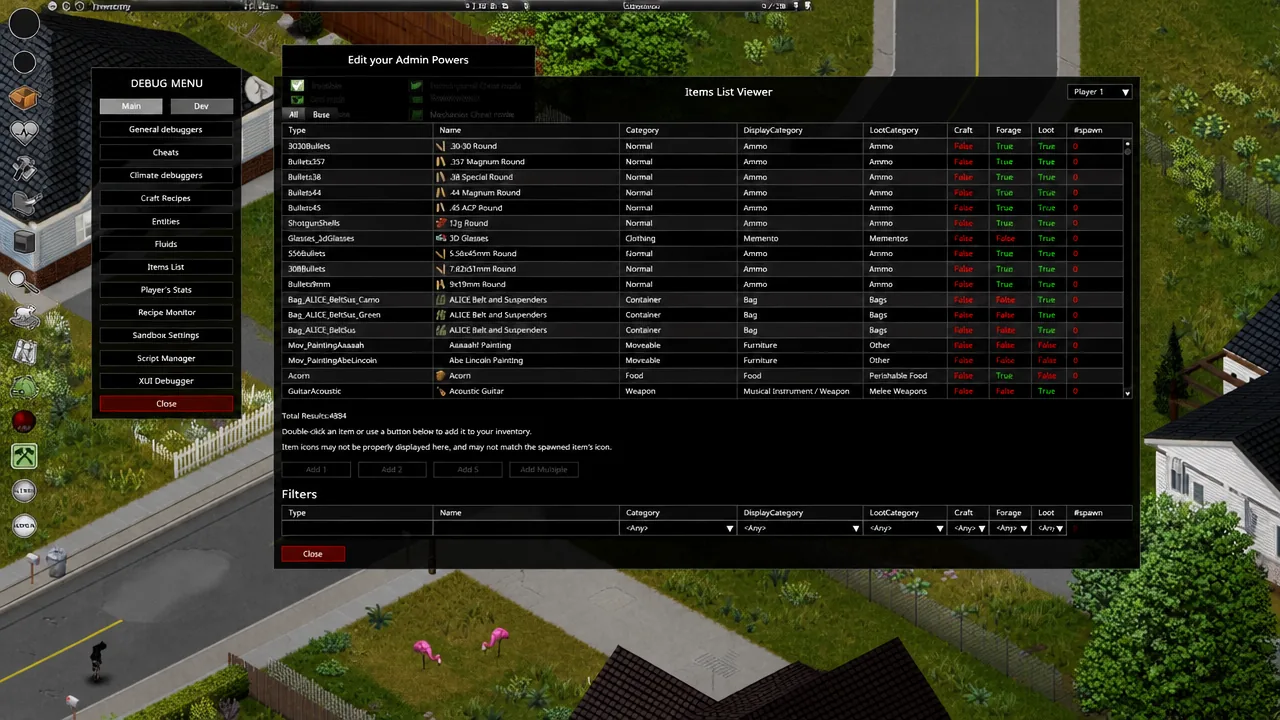
To add gear, choose the Items List option. This opens a window that contains every item in the game. Double-click any entry and it drops straight into your inventory, so there is no code to type for spawning.
Get the admin panel in multiplayer
On a server, cheats are gated by account access, not by the launch option alone. You need to be the host, or hold admin privileges, before the panel becomes available. Grant admin to a specific account with this chat command:
/setaccesslevel "YOUR NAME" adminRun the command in chat while playing on a non-dedicated (Host button) game, or in the server console for a dedicated server, where no leading slash is needed. Use your Steam name or the shortened name that floats above your character, and keep the quotes. The game may report success even when the name did not match, so try the other name variant if the admin icon does not appear.
When it works, an admin icon shows up in the top-left icon area, giving you the server management panel. Granting yourself admin usually also makes you invisible, invulnerable, and free of hunger, thirst, and fatigue. To return to a normal survivor, run /setaccesslevel "YOUR NAME" none.
What the admin panel options do
The panel groups every management tool in one place. These are the entries you will find and what each one controls.
| Option | Function |
|---|---|
| See Database | View user logs, player tickets, banned IPs, banned Steam IDs, and the server whitelist. |
| Check your Stats | See your detailed player stats and change them freely. |
| Edit your Admin Powers | Turn individual admin cheats on or off; disabling all of them hides the red admin tag. |
| Items List viewer | Browse every item and add copies straight to your inventory. |
| See Server Options | View the full INI settings list and edit them from inside the game. |
| Factions List | List all factions on the server. |
| Safehouses List | List every safehouse and teleport to them. |
| Add Safezone | Draw safe zones using specified coordinates. |
| See Tickets | View and reply to player support tickets. |
| Mini Scoreboard | See player scores on the server. |
| Packet Counts | Show all packet types coming from the server and clients. |
| Sandbox Options | View and change sandbox settings during a live game. |
| Climate Control | Fully customize weather, storms, and temperature. |
| Show Statistics | See client and server stats such as RAM usage and ping. |
Turn debug mode back off
When you want the normal game back, open the Steam Properties window again and delete -debug from the Launch Options. The ladybug icon and the extra context-menu entries disappear on the next launch, and the game runs exactly as it did before.