
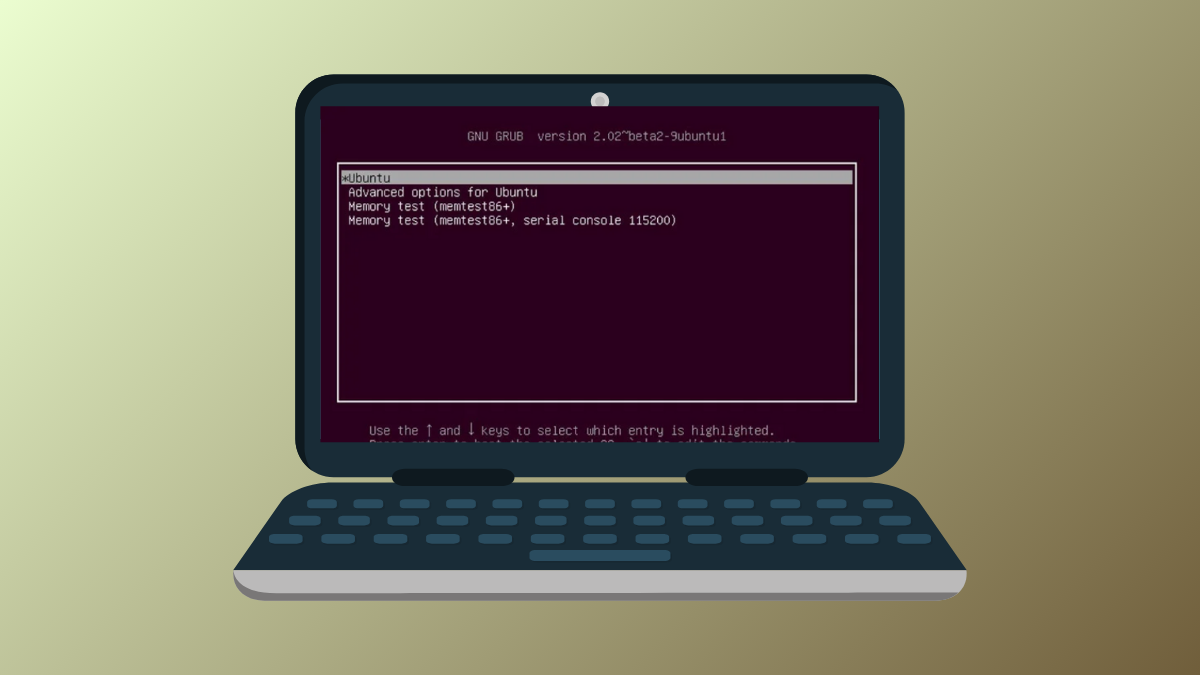
System startup halts at a GRUB rescue prompt or skips directly to Windows after a failed update, BIOS change, or dual-boot adjustment. This typically means the GRUB bootloader is missing, misconfigured, or overwritten, leaving Linux partitions inaccessible. Restoring GRUB restores access to your Linux installation and restores the multi-boot menu, resolving the boot issue and eliminating the need for a full OS reinstall.
Repairing GRUB Using a Live Linux USB
F12, Esc, or Del), and select the USB device. Choose the “Try” or “Live” session option without installing.lsblk -f or fdisk -l to list available block devices and their mount points. For Btrfs systems, note subvolumes (e.g., root or @).
sudo su
mount -o subvol=root /dev/nvme0n1p7 /mnt
mount /dev/nvme0n1p6 /mnt/boot
mount /dev/nvme0n1p1 /mnt/boot/efi
Adjust device names and subvolumes to match your system. For LUKS-encrypted partitions, unlock with cryptsetup luksOpen first, then mount the resulting /dev/mapper/ device.
mount -o bind /dev /mnt/dev
mount -o bind /sys /mnt/sys
mount -o bind /proc /mnt/proc
mount -o bind /run /mnt/run
mount -o bind /sys/firmware/efi/efivars /mnt/sys/firmware/efi/efivars
chroot /mnt
This gives you a shell inside your installed Linux environment. If you see errors mounting partitions, double-check your device names and /etc/fstab entries for accuracy. For Btrfs or complex setups, confirm subvolume names and options.
dnf reinstall shim-* grub2-*
or for Ubuntu/Debian:
apt-get install --reinstall grub-efi-amd64
This reinstalls the bootloader and its signed shims, which are critical for Secure Boot compatibility.
grub2-mkconfig -o /boot/grub2/grub.cfg
On Ubuntu or Debian, use:
update-grub
efibootmgr -c -d /dev/nvme0n1 -p 1 -L Fedora -l '\EFI\fedora\shimx64.efi'
Change device paths and labels as needed for your distribution and partition layout.
exit
umount /mnt/boot/efi
umount /mnt/boot
umount /mnt/dev
umount /mnt/sys
umount /mnt/proc
umount /mnt/run
umount /mnt
reboot
Remove the live USB when prompted. On reboot, your system should present the GRUB menu, allowing you to select between Linux and other installed operating systems.
Restoring GRUB Using the Boot Repair Tool
The Boot Repair tool offers a graphical interface for repairing GRUB without manual chroot steps. This is especially useful for Ubuntu and derivatives, or when manual steps fail.
sudo add-apt-repository ppa:yannubuntu/boot-repair
sudo apt update
sudo apt install boot-repair -y
boot-repair
Follow the on-screen prompts and select “Recommended repair.” Boot Repair will attempt to detect your partitions, reinstall GRUB, and update the UEFI boot order automatically.
Manual Recovery from the GRUB Rescue Prompt
If your system drops to a grub rescue> prompt, you can attempt temporary recovery without external media. This method is most useful for quick fixes or diagnostics.
ls
Identify the partition containing your /boot directory, for example (hd0,gpt2) or (hd0,msdos1).
set root=(hd0,gpt2)
set prefix=(hd0,gpt2)/boot/grub
insmod normal
normal
This should load the full GRUB menu. If successful, you can boot into Linux and then run the full GRUB reinstall process from within your OS.
Additional Tips and Troubleshooting
- For dual-boot systems with Windows, disabling Fast Startup in Windows settings prevents Windows from locking the EFI partition, which can block GRUB updates.
- Secure Boot may block unsigned GRUB binaries. If you see Secure Boot errors, ensure Secure Boot is disabled in UEFI firmware, or reinstall signed shims as shown above.
- If mounting the EFI partition fails with I/O errors, check the partition for corruption and repair or reformat if needed.
- Always double-check device names and UUIDs before mounting or running
grub-installto avoid writing to the wrong disk. - For distributions using systemd-boot instead of GRUB, use
bootctl installandreinstall-kernelsafter mounting the ESP at/efior/boot/efi.
Following these steps restores Linux boot access and the GRUB menu after updates or configuration changes disrupt startup. Keeping backups of critical configuration files and noting your partition layout before updates can further reduce recovery time in the future.





