


If your speed test looks fine but interactive tasks still feel sluggish, Windows itself may be adding the delay. A pair of registry values buried under your network adapter’s settings controls a decades-old TCP optimization that trades responsiveness for efficiency. Turning both off makes small, frequent messages leave immediately, which is exactly what makes a connection feel snappy again.
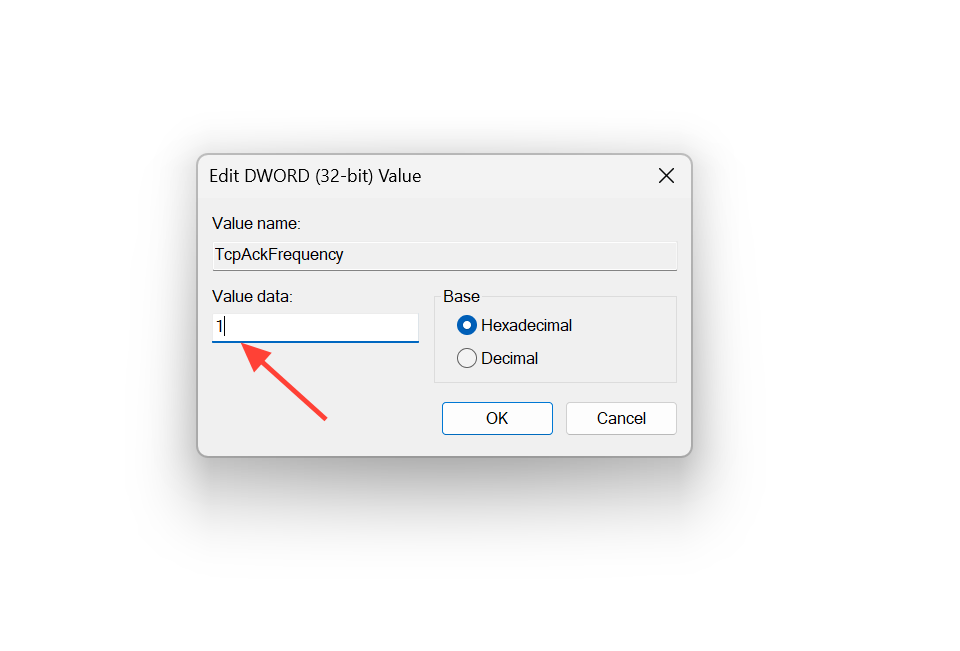
Quick answer: In HKEY_LOCAL_MACHINESYSTEMCurrentControlSetServicesTcpipParametersInterfaces, open the subkey for your active adapter, create two DWORD (32-bit) values named TcpNoDelay and TcpAckFrequency, set both to 1, and restart. This disables Nagle’s Algorithm and delayed ACKs on that interface.
What TcpNoDelay and TcpAckFrequency actually change
TCP breaks your data into packets, sends them in order, and waits for the other side to confirm each one with an acknowledgment (an ACK). When an app sends tiny bits of data, like a few keystrokes or a short command, each one still gets wrapped in roughly 40 bytes of headers. Nagle’s Algorithm, defined in RFC 896, was designed to reduce that waste by holding small writes back and bundling them, either until the previous data is acknowledged or until there’s enough to fill a full-sized packet.
The problem shows up when Nagle’s bundling meets delayed ACKs. The receiving side often waits about 100 to 200 milliseconds before sending an acknowledgment, hoping to piggyback it on outgoing data. The sender won’t send because it’s waiting for an ACK, and the receiver won’t ACK because it’s waiting for something to piggyback on. Every tiny message picks up an extra 100 to 200 milliseconds of delay that has nothing to do with your network speed.
The two registry values target each half of that standoff. TcpNoDelay set to 1 disables Nagle’s Algorithm so small writes go out right away. TcpAckFrequency set to 1 disables delayed ACKs so your machine acknowledges every incoming packet immediately instead of waiting to piggyback.
Apply the tweak to the correct network adapter
Before editing anything, create a system restore point so you can roll back if needed. Editing the registry can break things in subtle or obvious ways, so follow the steps exactly and change only the values below.
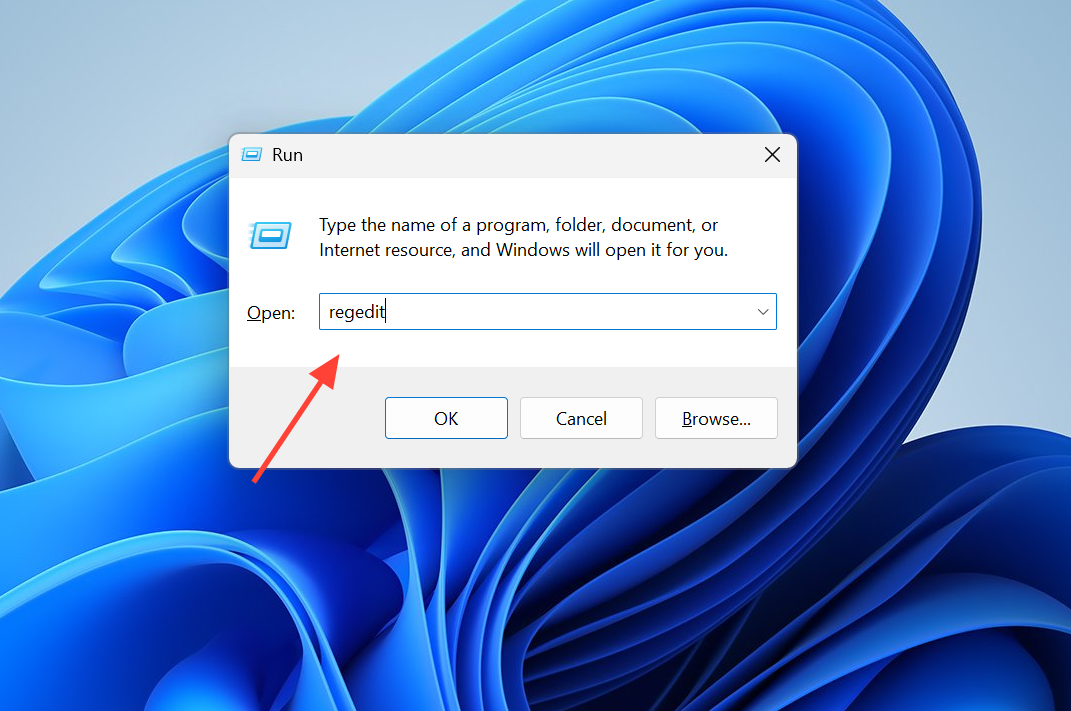
HKEY_LOCAL_MACHINESYSTEMCurrentControlSetServicesTcpipParametersInterfaces. You’ll see several subkeys with long ID strings, and each one represents a network adapter.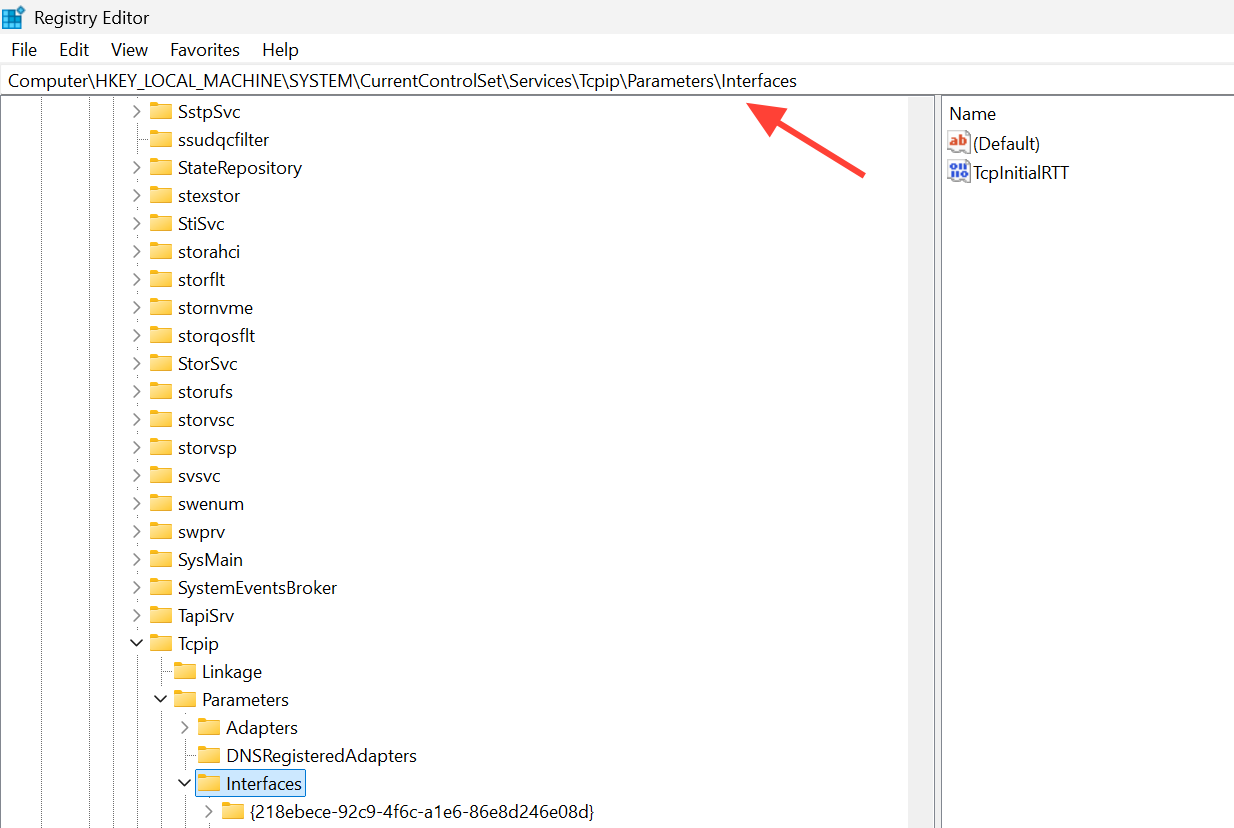
ipconfig to note your current IP address. Click through the subkeys until you find the one where DhcpIPAddress or IPAddress matches. That is your active adapter.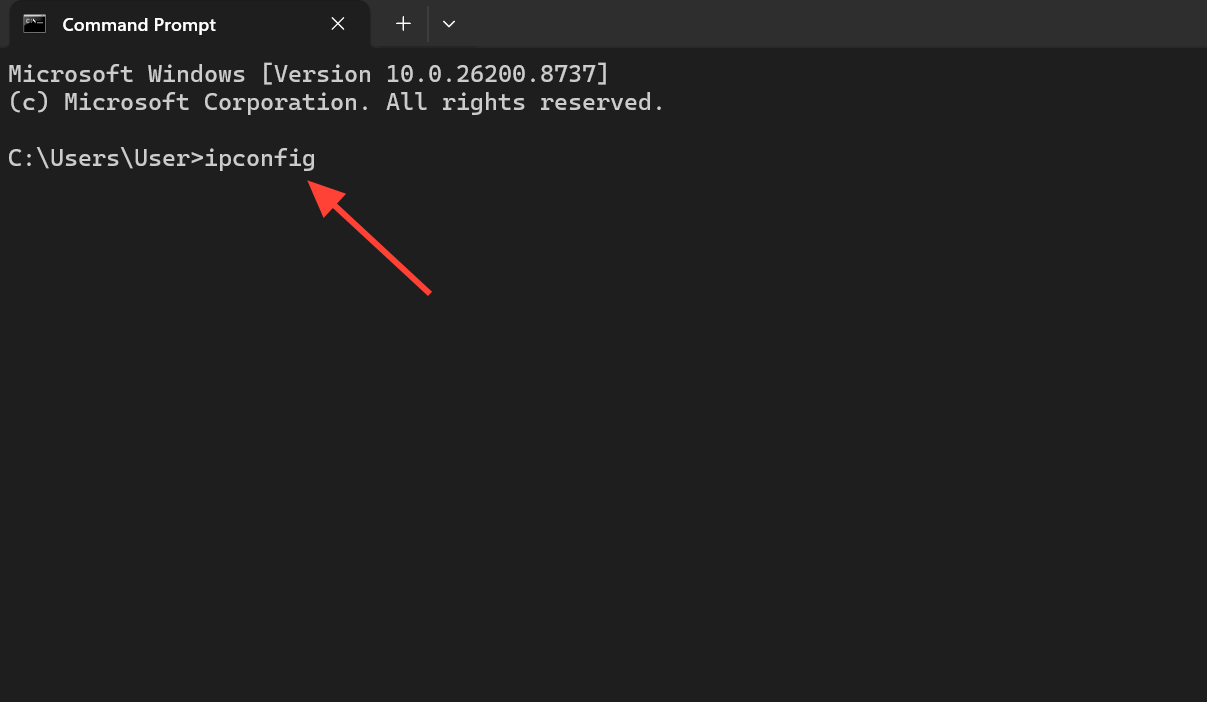
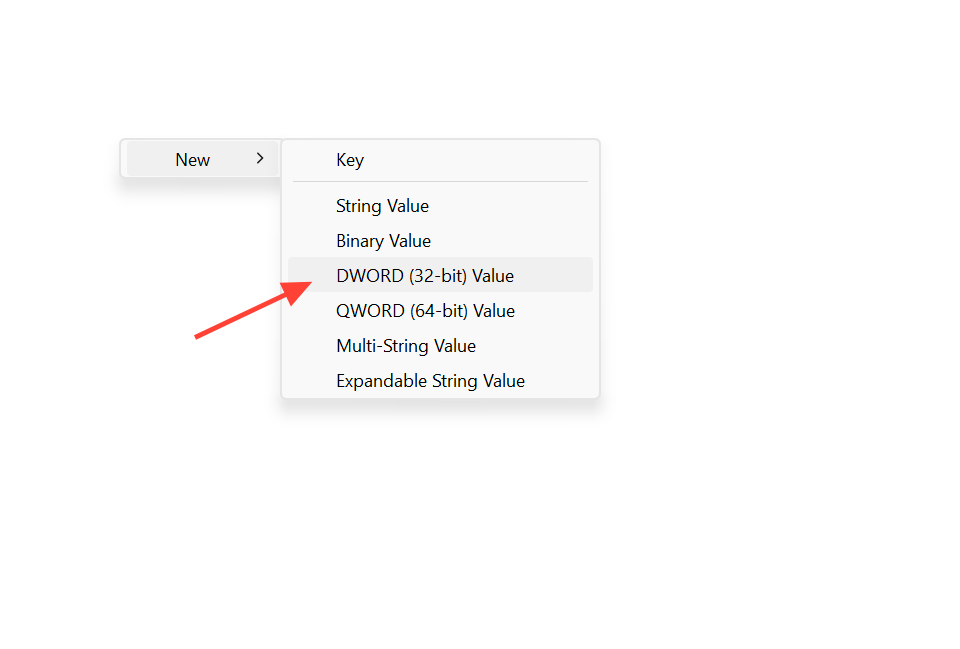
How to confirm it worked
After the restart, chatty TCP workflows should feel noticeably more responsive. On remote desktop sessions, the sticky delay between typing and seeing characters appear is gone, and keystrokes register promptly. The change isn’t the dramatic jump of a bandwidth upgrade. It removes the artificial pause Windows was adding on top of an otherwise fine connection, so small packets leave as soon as the app writes them and ACKs come back right away.
The tradeoff is more small packets on the wire. That’s fine for modern broadband, but worth knowing if you’re on a heavily constrained network. If you notice any issue, delete both DWORD values or restore from your restore point to return to default behavior.
When this tweak won’t help
Nagle’s Algorithm is a TCP-only optimization, so this fix only touches TCP traffic. Most modern online games, especially first-person shooters, battle royales, and fast-paced action titles, send their latency-critical data over UDP, which never uses Nagle’s Algorithm. Disabling it on the TCP side changes nothing for those games.
| Workload | Benefits from the tweak? |
|---|---|
| Remote Desktop (RDP) | Yes, small frequent writes go out instantly |
| SSH and other chatty TCP sessions | Yes |
| UDP-based online games | No, UDP does not use Nagle’s Algorithm |
| Game chat, matchmaking, login (TCP) | Minor at best, not latency-critical |
Your ping in games is also shaped by physical distance, ISP routing, and congestion along the path to the server. No client-side registry value can shorten that route. Disabling Nagle’s Algorithm also won’t rescue a genuinely slow or congested connection, a weak Wi-Fi signal, or maxed-out bandwidth. What it fixes is the specific case where your speed looks normal but interactive, message-by-message tasks still feel laggy. If you rely on RDP, SSH, or any TCP-based workflow where small messages need to feel instant, these two values are the ones worth setting.



