

The “Cannot import, Error accessing the registry” message appears when Registry Editor refuses to merge a .reg file into the Windows Registry. The block is almost always about permissions or a locked key, not the file itself. Knowing which of those is at play decides whether you need elevation, ownership changes, or Safe Mode.
What triggers the error
The error fires when Registry Editor cannot write one or more keys defined inside the .reg file. The file parses correctly, but at least one target path is protected, locked, or out of reach for the current user token.
Three conditions cover nearly every case:
- The Registry Editor process is running without administrator rights.
- The target key is owned by SYSTEM or TrustedInstaller, and your account lacks Full Control.
- Another process holds the key open, or a policy/service is enforcing it in real time.
If the file itself were malformed, Windows would return a different message, such as “The specified file is not a registry script.” That distinction matters because it tells you not to bother re-encoding the .reg file here.
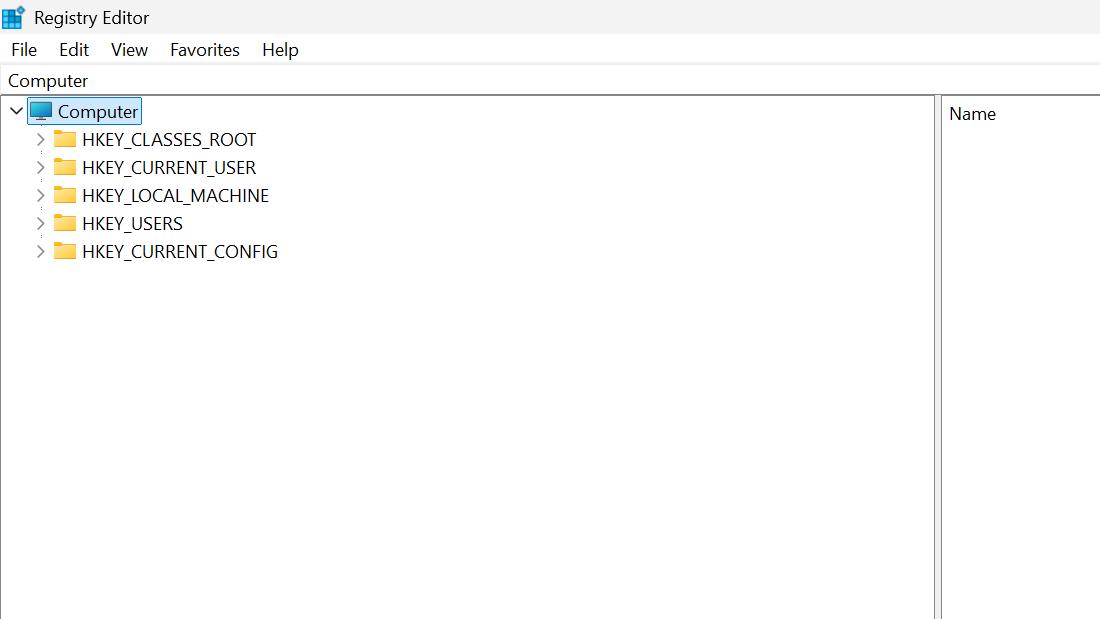
Verify before changing anything
Before touching ownership or policies, confirm the basics. These checks resolve a large share of cases without any registry surgery.
| Check | What to confirm |
|---|---|
| Account type | You are signed in to an account with administrator rights. |
| Elevation | Registry Editor was launched with “Run as administrator”, not a normal double-click. |
| File extension | The file ends in .reg, not .reg.txt. |
| Target hive | Open the .reg in Notepad and note the top-level keys (HKLM, HKCU, HKCR, HKU). |
| Backup | Export the affected key(s) before making changes. |
Knowing the target hive matters because HKEY_LOCAL_MACHINE and HKEY_CLASSES_ROOT branches are the most common sources of permission errors. HKEY_CURRENT_USER usually imports without elevation.
Import with administrator rights
This is the first and most effective fix when the .reg writes to HKLM or system-owned subkeys.
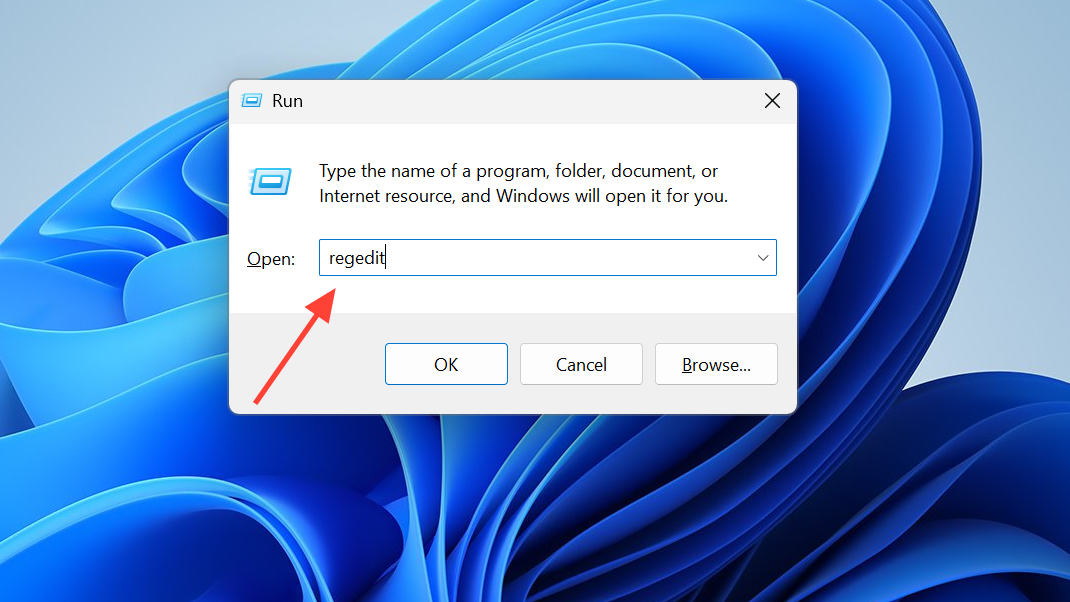
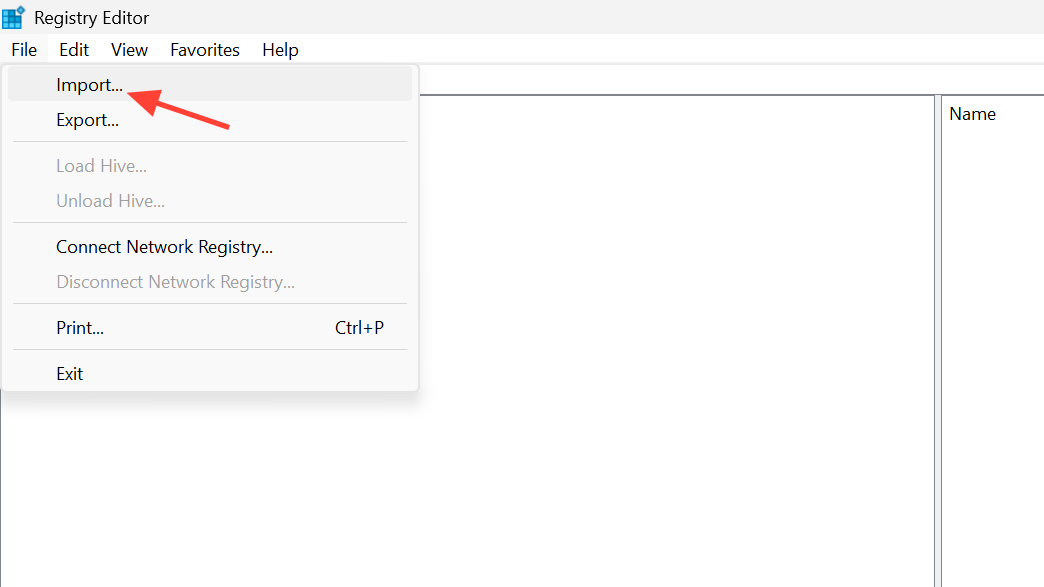
If the import succeeds, the confirmation dialog is your verification. If you still see “Error accessing the registry,” the target key has tighter protection and needs ownership changes.
Take ownership and grant Full Control
Some keys are owned by SYSTEM or TrustedInstaller. Administrators can read them, but writing requires taking ownership first. Identify the deepest key path in the .reg file that the import is touching, then apply ownership to that key.
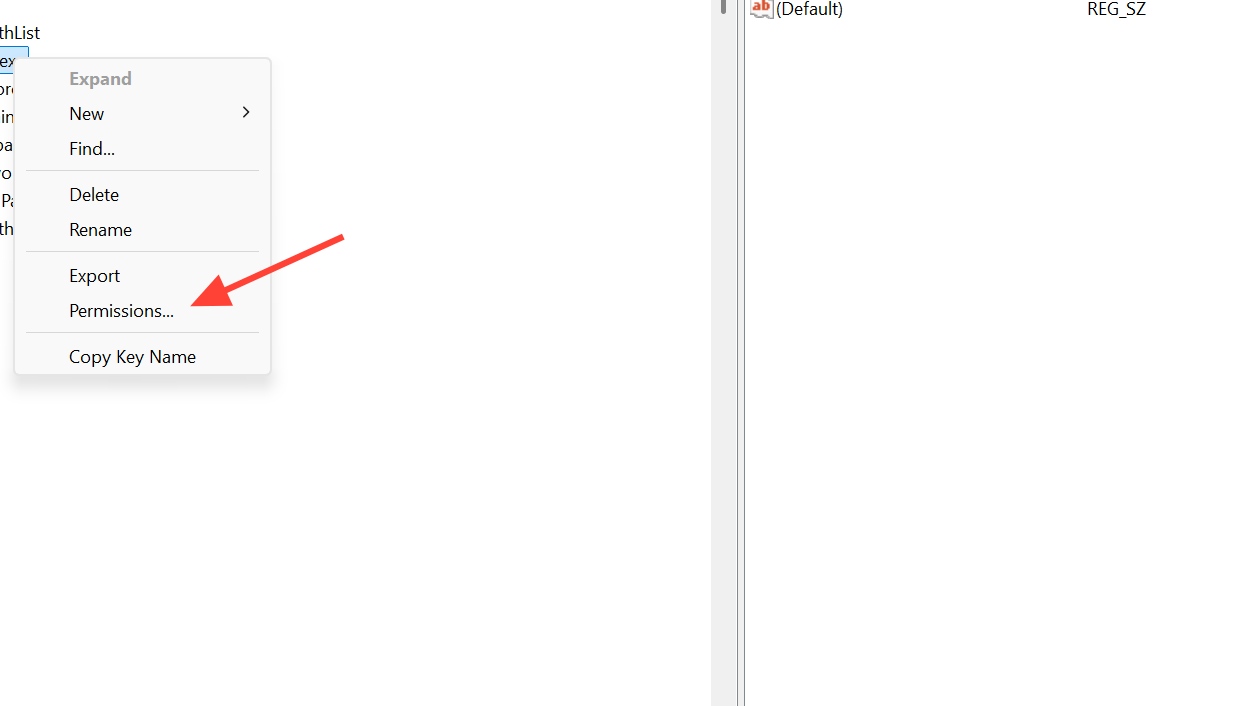
Administrators), click Check Names, then OK.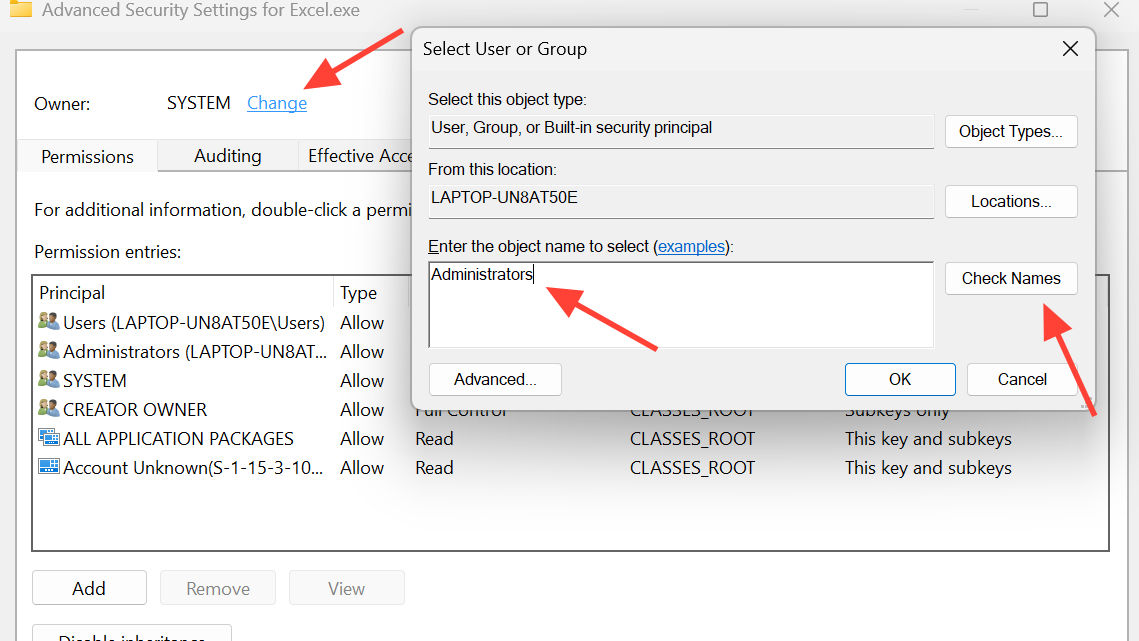
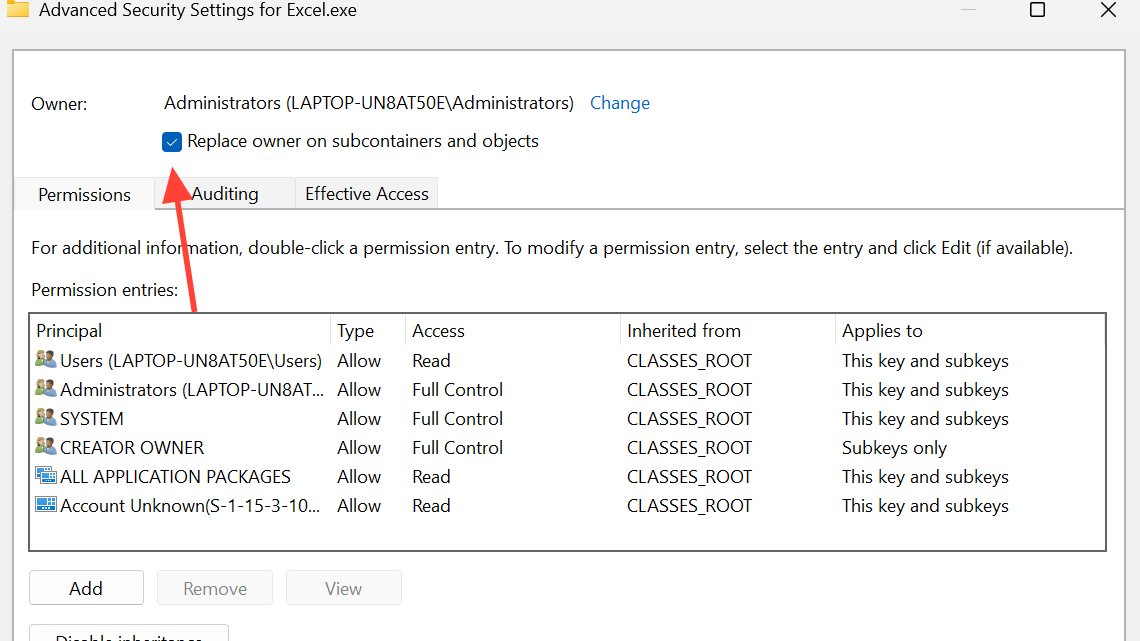
Use Safe Mode when a service holds the key
Some keys are held open by a running service or third-party security tool. The simplest way around that is to boot into Safe Mode, where most non-essential services are not loaded.
msconfig, and press Enter. On the Boot tab, tick Safe boot (Minimal) and click OK. Restart when prompted.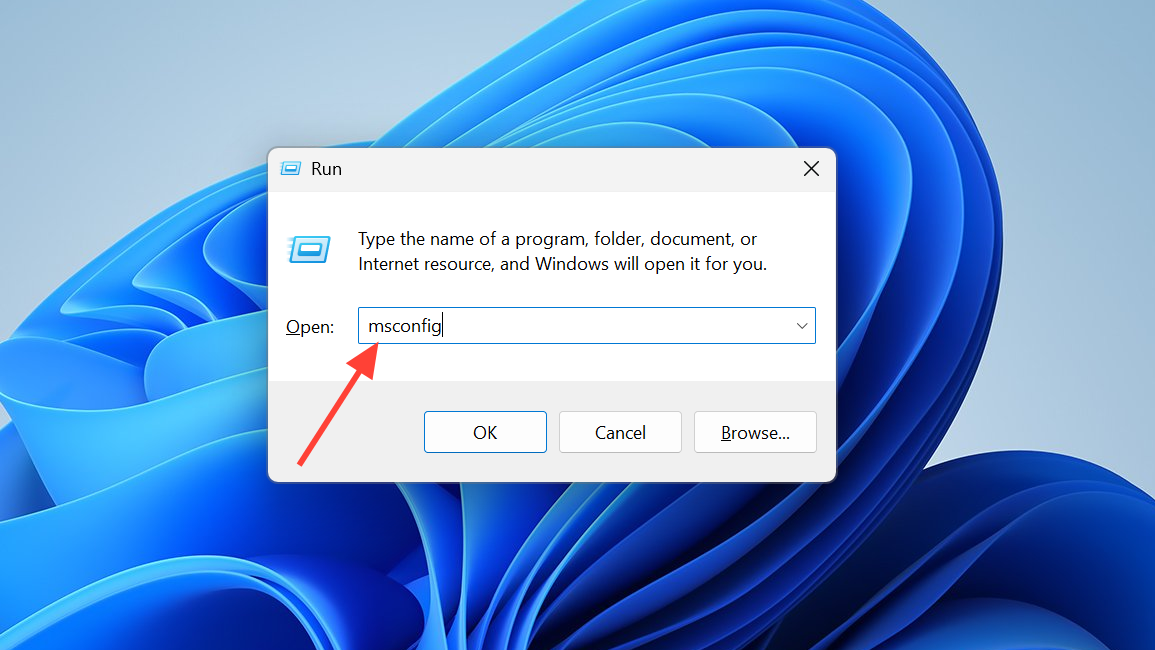
msconfig, untick Safe boot, and restart into normal Windows. Verify the imported values are present in the expected key path.This step is especially useful when antivirus software, endpoint protection, or a driver service is keeping a key locked.
Repair system files if the error persists
When ownership and Safe Mode both fail, corrupted system files can be the cause. Damaged components in the security subsystem can block registry writes even for elevated accounts.
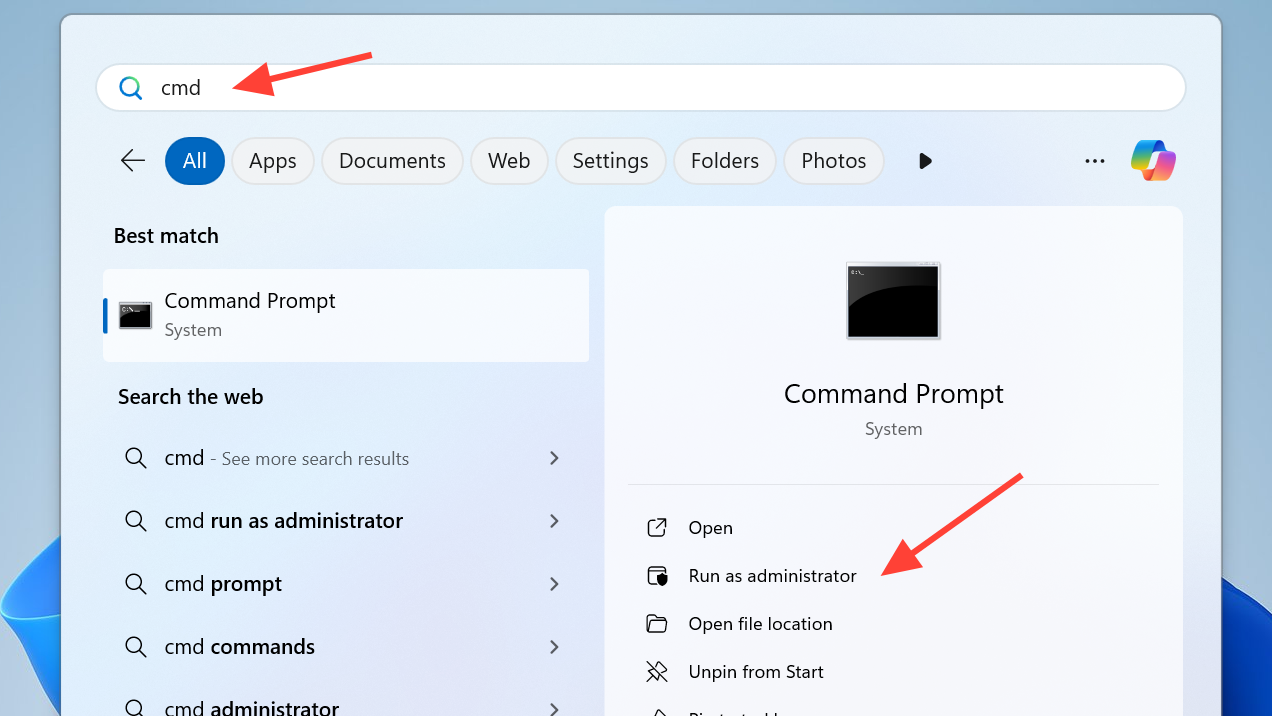
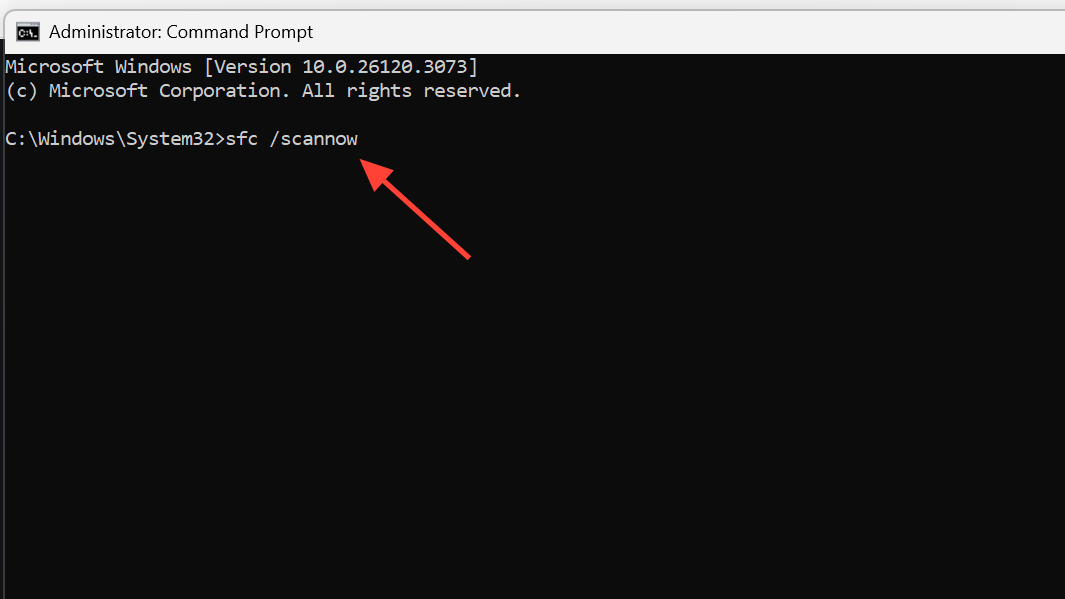
DISM /Online /Cleanup-Image /RestoreHealth, then run sfc /scannow a second time. Reboot, then retry the registry import.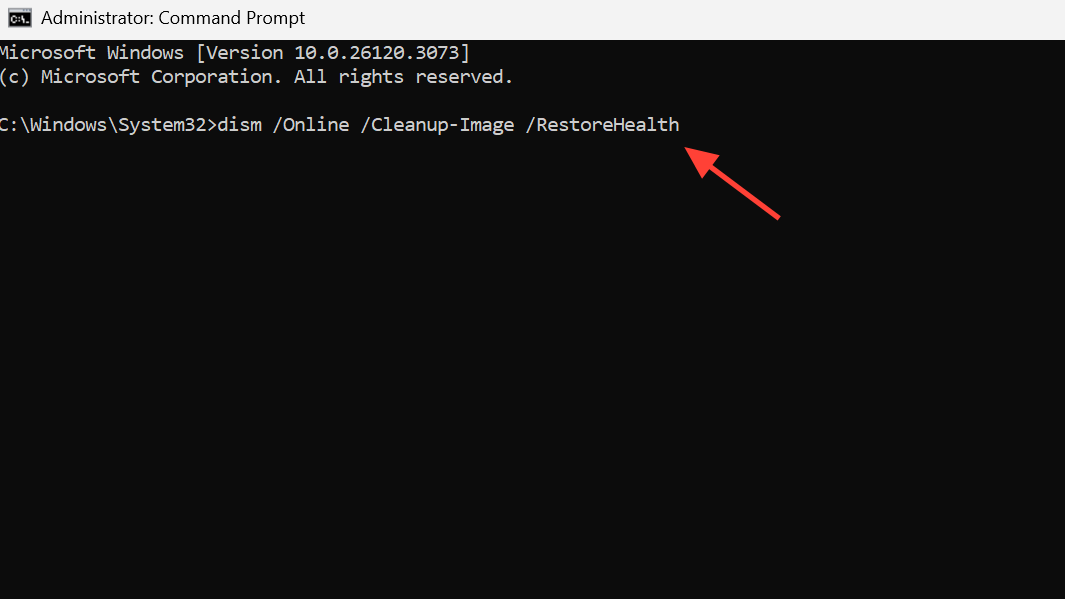
If Registry Editor itself is disabled
A different but related symptom is being unable to open regedit at all, often because a group policy or earlier malware cleanup set DisableRegistryTools. Re-enabling it lets you reach the editor before attempting the import.
From an elevated Run dialog, execute:
REG add "HKCU\Software\Microsoft\Windows\CurrentVersion\Policies\System" /v DisableRegistryTools /t REG_DWORD /d 0 /f
Re-enable Registry Editor
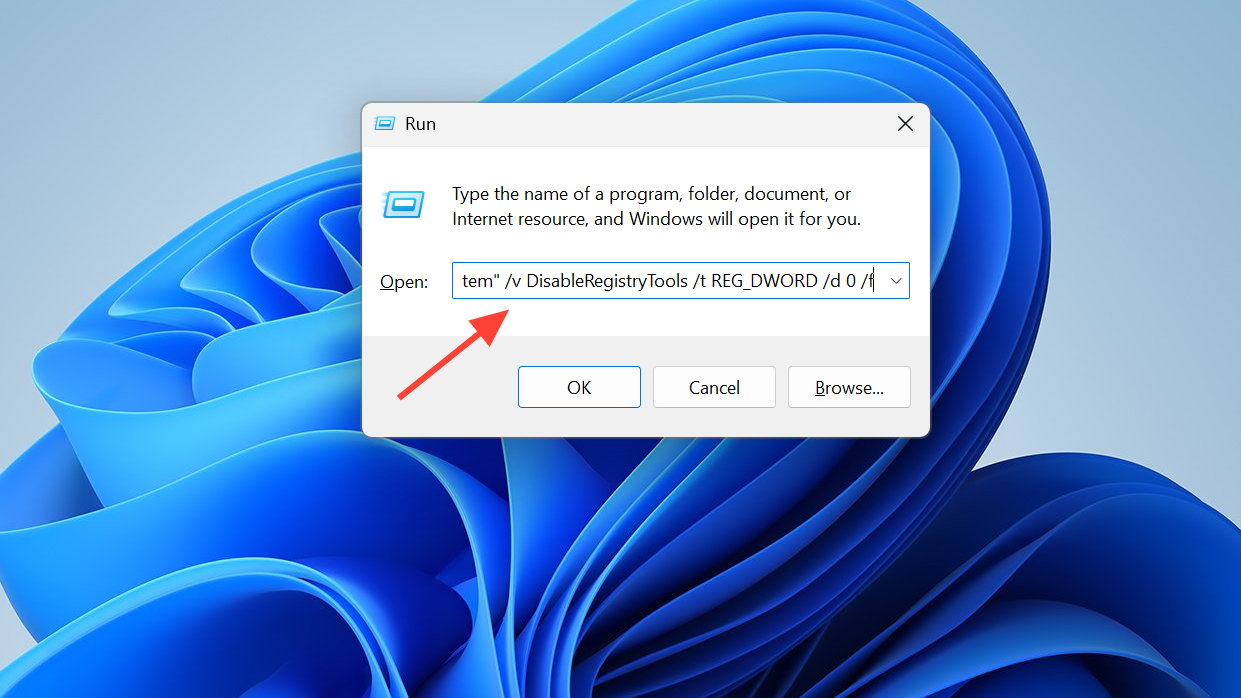
On systems with Group Policy Editor, the equivalent setting is at User Configuration → Administrative Templates → System → “Prevent access to registry editing tools.” Set it to Disabled or Not configured, then sign out and back in.
Verifying the import worked
Registry Editor shows a confirmation dialog after a successful merge. Beyond that, navigate to one of the key paths declared in the .reg file and confirm the values exist with the expected types and data. For settings that affect Explorer or a running app, restart the relevant process (or sign out and back in) so the change takes effect.
If you imported a context menu entry, right-click the relevant file type to confirm it appears. For shell or policy tweaks, a reboot is the cleanest way to confirm the new state.
When to stop and roll back
If the import still fails after elevation, ownership, Safe Mode, and SFC/DISM, the .reg file is likely targeting a key that Windows actively protects in normal operation, or the system has a deeper integrity problem. At that point, restoring to a recent System Restore point or using your pre-change registry export is safer than escalating further. Avoid third-party “registry repair” utilities that promise to fix permission errors automatically; they can replace healthy ACLs with permissive ones and create security gaps that are hard to detect later.



