Clear out disabled programs from your Windows Startup menu to streamline boot times and keep your system organized.
Clear out disabled programs from your Windows Startup menu to streamline boot times and keep your system organized.
by Pallav Pathak
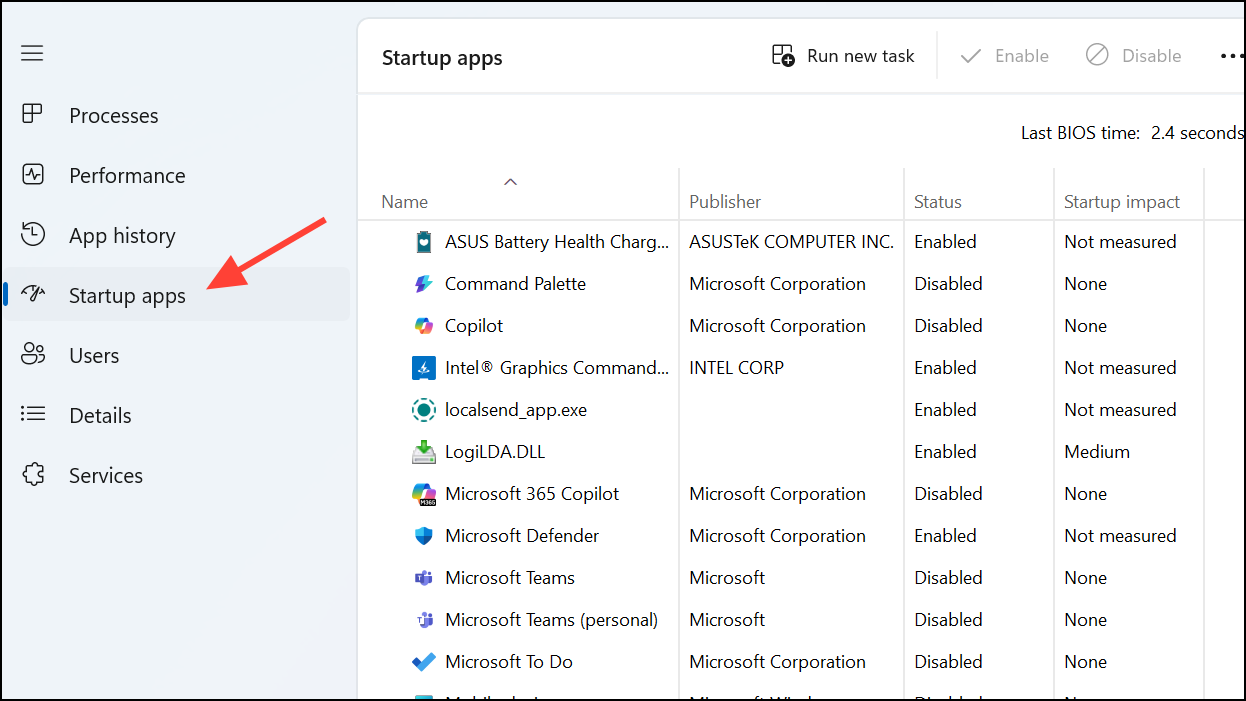
Disabled apps listed in the Windows Startup menu can clutter your system configuration and make it harder to manage which programs actually launch at boot. Even though these apps are not running, their presence can slow down troubleshooting and create confusion about what is active when Windows starts. Removing these disabled entries improves system clarity and can marginally speed up the boot process.
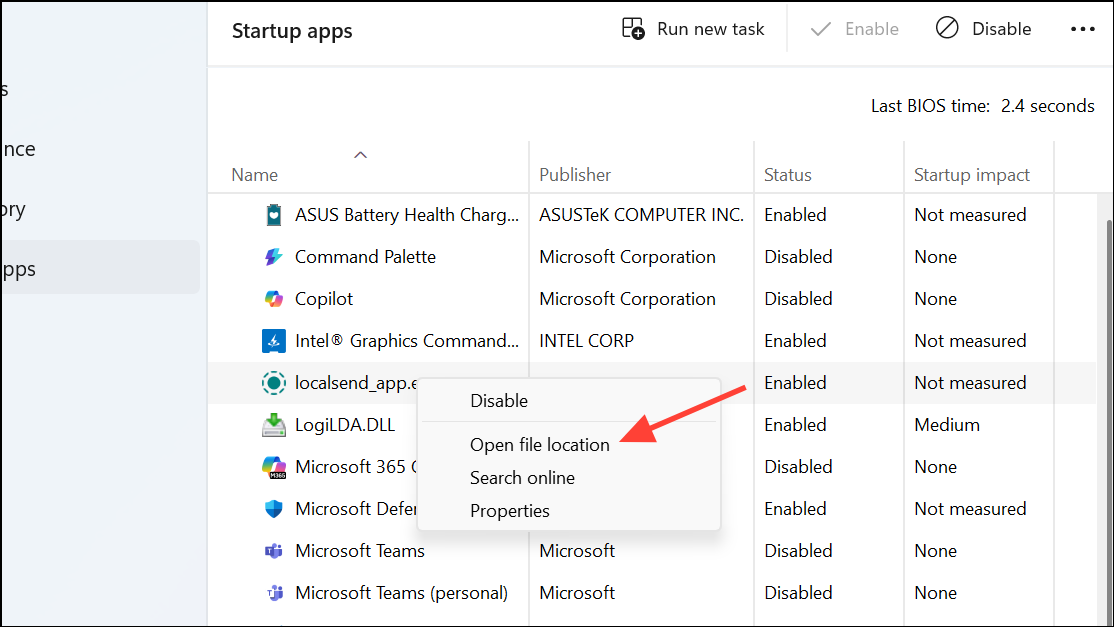
Right-click any disabled app you want to remove and select Open file location. This will open the folder containing the shortcut or executable responsible for launching the app at startup.
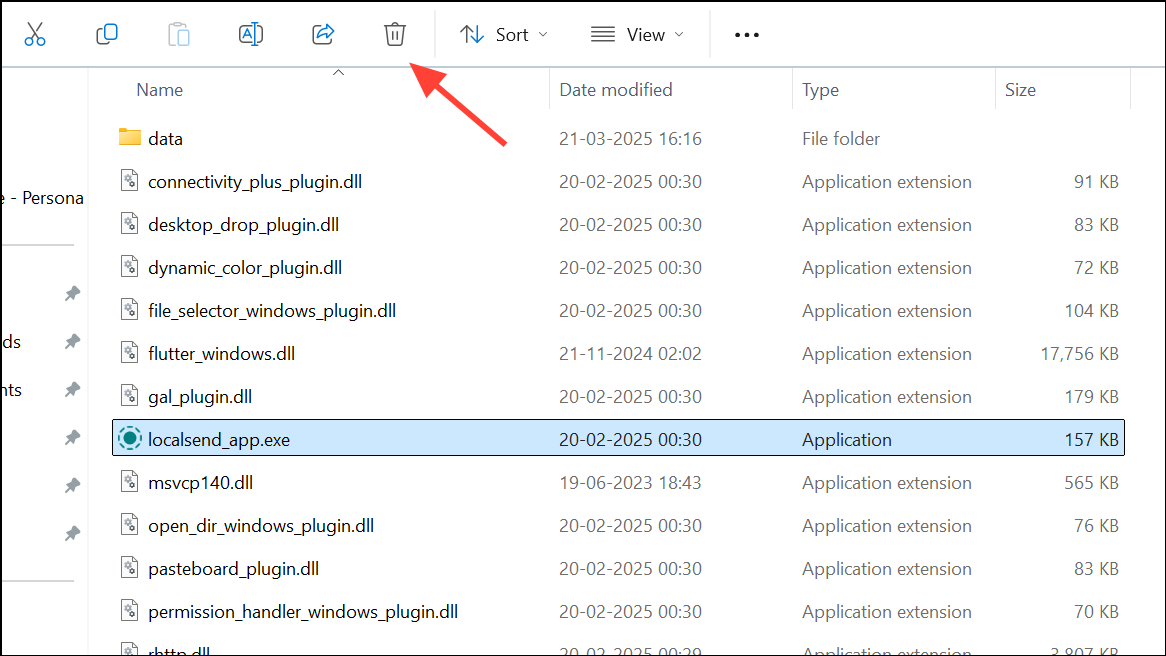
Delete the shortcut or file from the Startup folder. This action removes the entry from the Startup tab, so it will no longer appear as enabled or disabled.
Close Task Manager and restart your computer. Upon reboot, check the Startup tab again to confirm the disabled app no longer appears.
Note: Double-check and make sure you delete the shortcut or file from the Shortcut folder only. If you delete it from the program folder where the app is installed, the app will stop working completely.
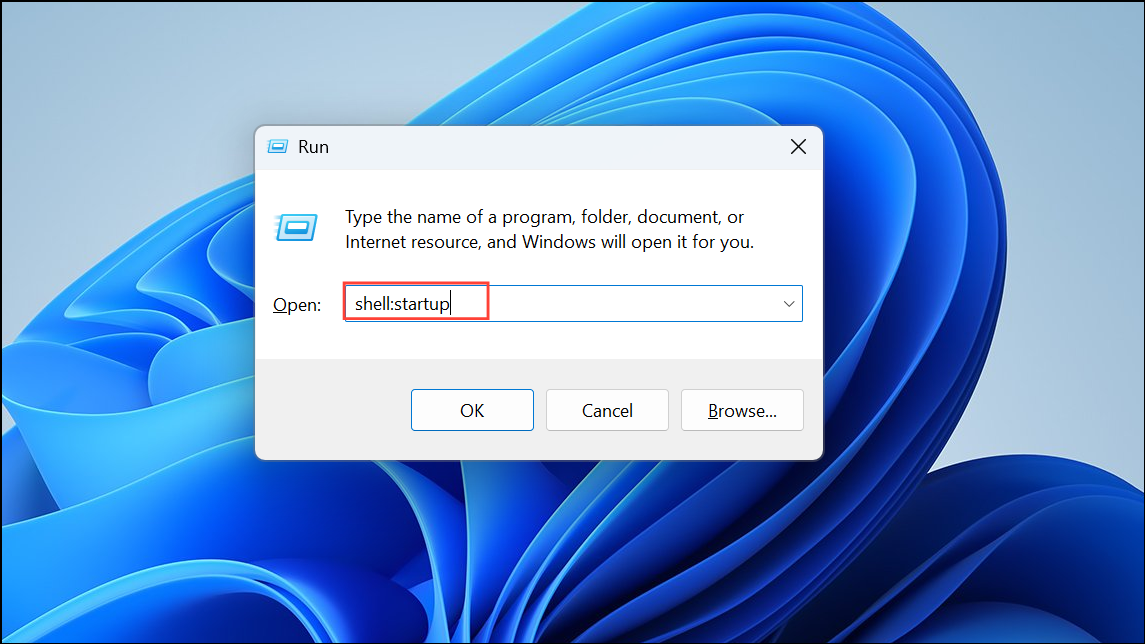
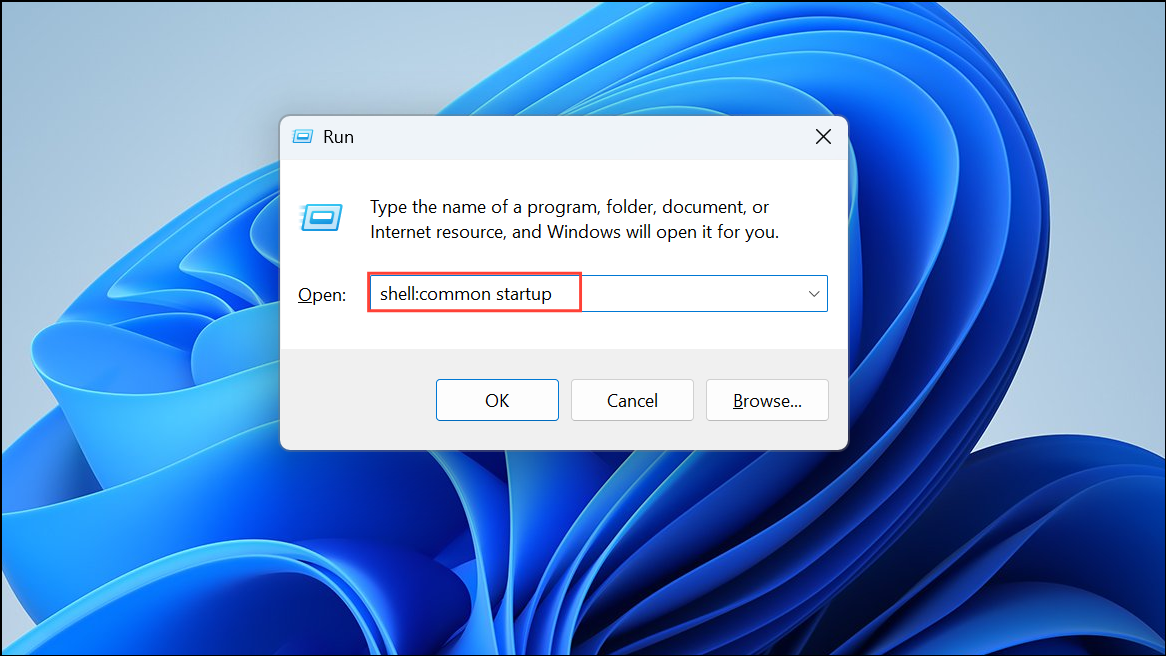
Remove Disabled Startup Apps via the Startup Folder
Review the list of shortcuts in this folder. Identify any shortcuts that correspond to apps you have disabled in Task Manager and wish to remove completely.
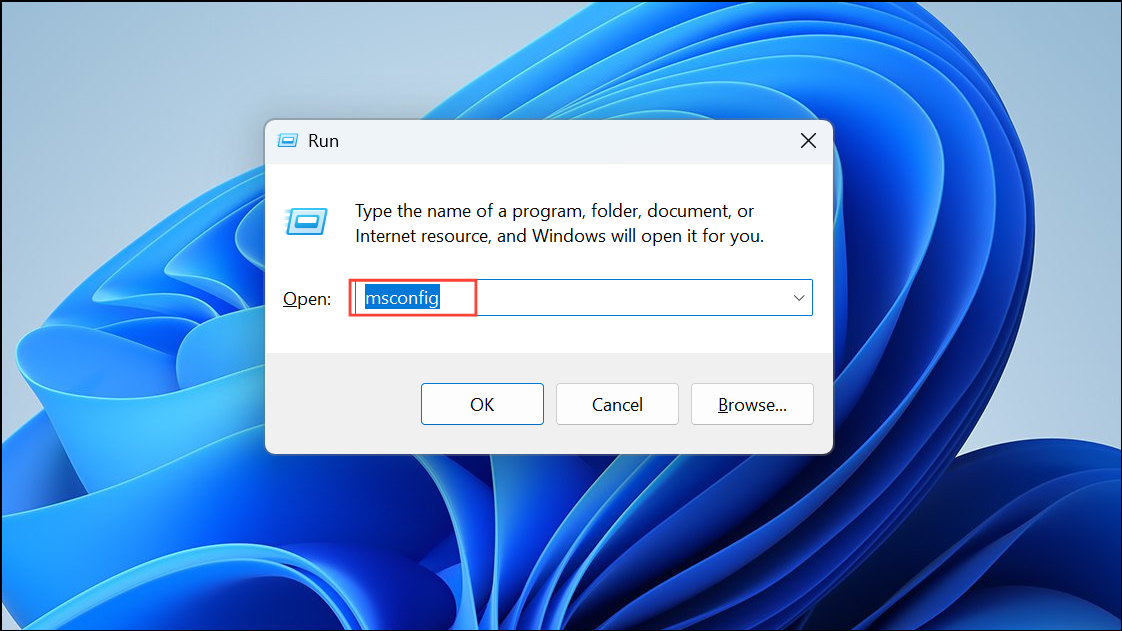
Go to the Startup tab. In recent Windows versions, this tab will redirect you to Task Manager. In older versions (Windows 7 and earlier), you can directly manage startup items here.
Uncheck or remove any disabled entries you no longer need. For direct removal, you may need to delete the corresponding registry entry or shortcut manually.
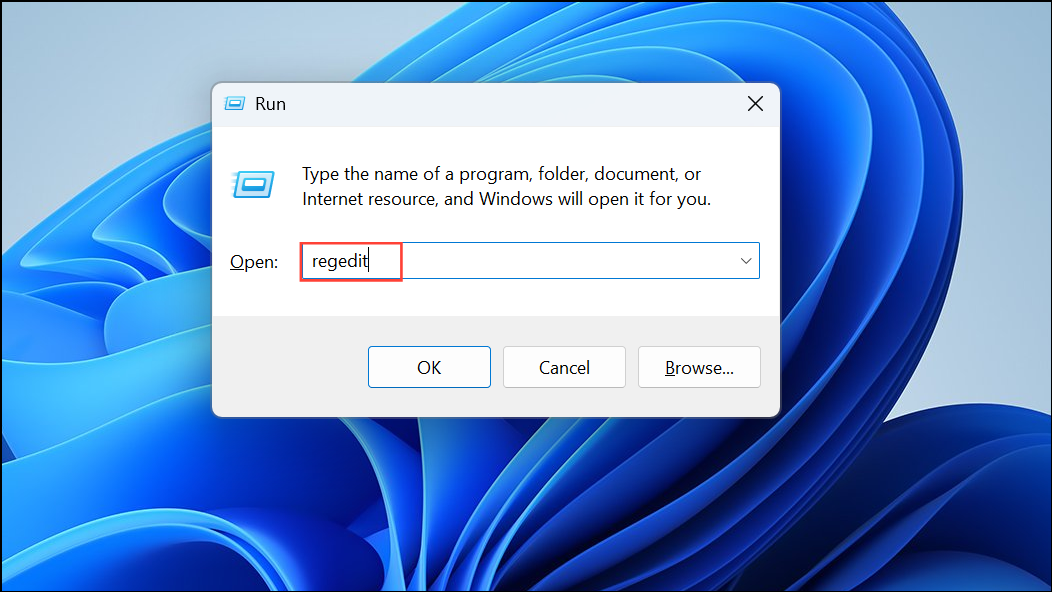
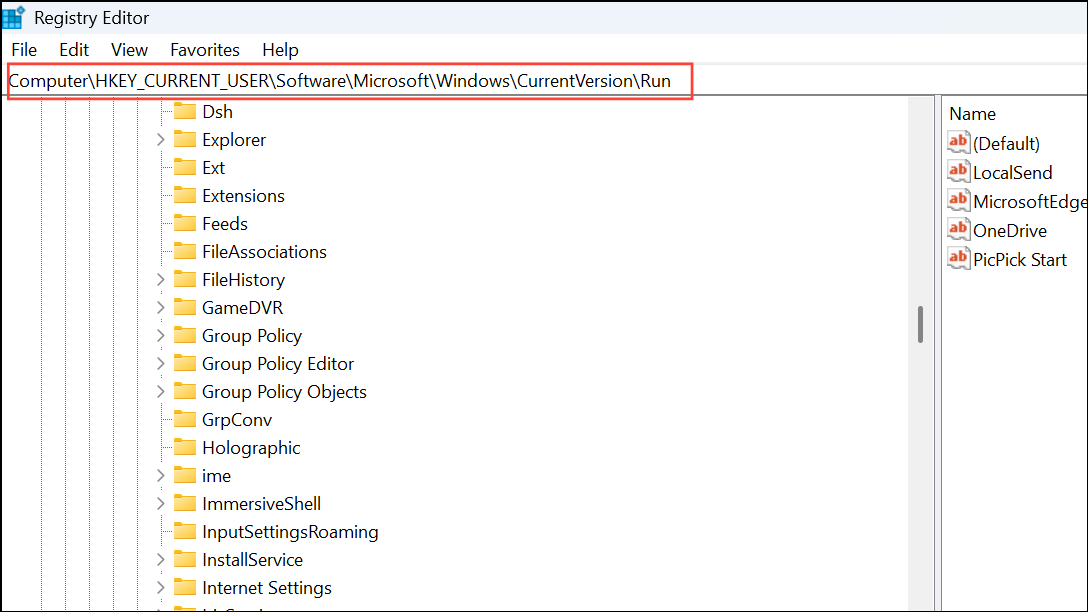
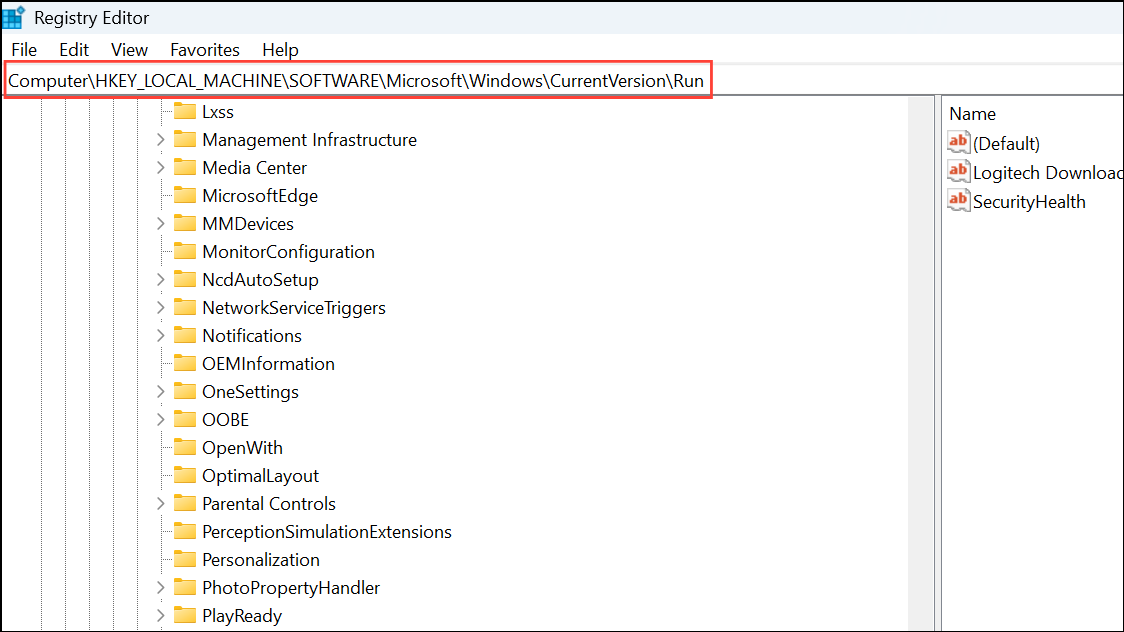
Carefully review the entries. Right-click and delete any value that matches the disabled startup app you want to remove. Be cautious—deleting the wrong entry can affect system behavior.
Close the Registry Editor and restart your computer to finalize changes.
Always back up your registry before making changes. Editing the registry incorrectly can cause system instability.
Cleaning up disabled apps from your Startup menu keeps your system organized and can slightly improve startup speed. Regularly reviewing your startup items helps maintain a tidy and efficient boot process.