
Copying and pasting stop working when Windows displays a message that the clipboard is “used by another application.” This error prevents you from transferring text, images, or files between programs, slowing down your workflow and causing frustration. Addressing this issue involves identifying which program is locking the clipboard and releasing it, so you can resume normal copy-paste operations.
Terminate the Application Holding the Clipboard
Open Task Manager using the
Ctrl + Shift + Esc keyboard shortcut. This tool shows all running processes and allows you to end tasks that may be interfering with clipboard access.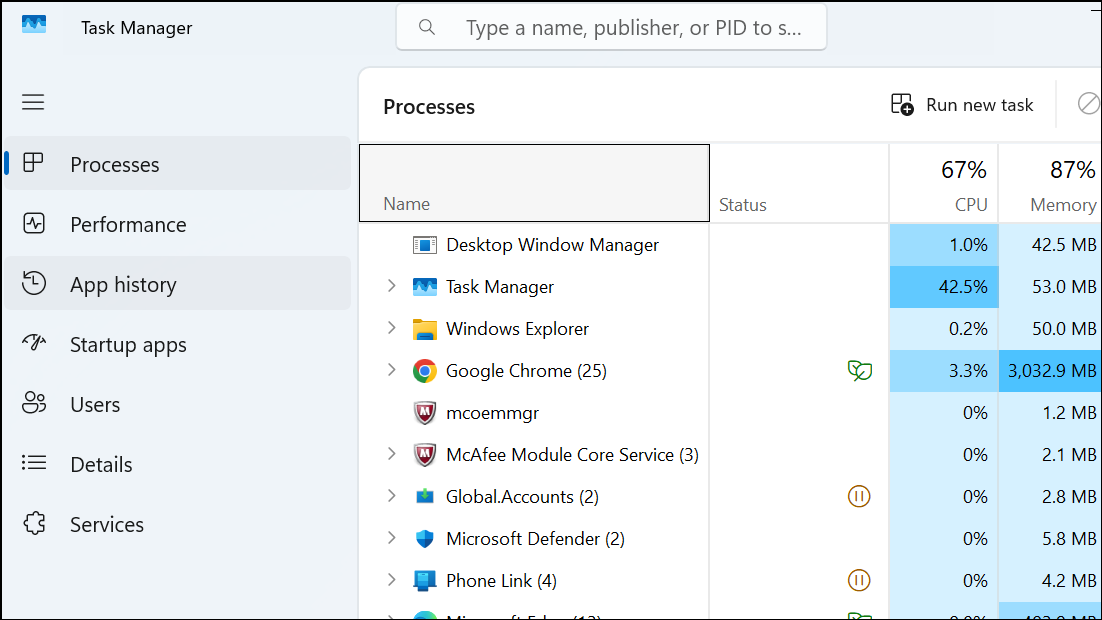
Look for any applications that commonly interact with the clipboard, such as remote desktop tools, screenshot utilities, or third-party clipboard managers. Common culprits include programs like Microsoft Teams, Skype, Remote Desktop, and clipboard extension tools.
Right-click the suspicious application and select
End Task. This will immediately close the program and release its hold on the clipboard.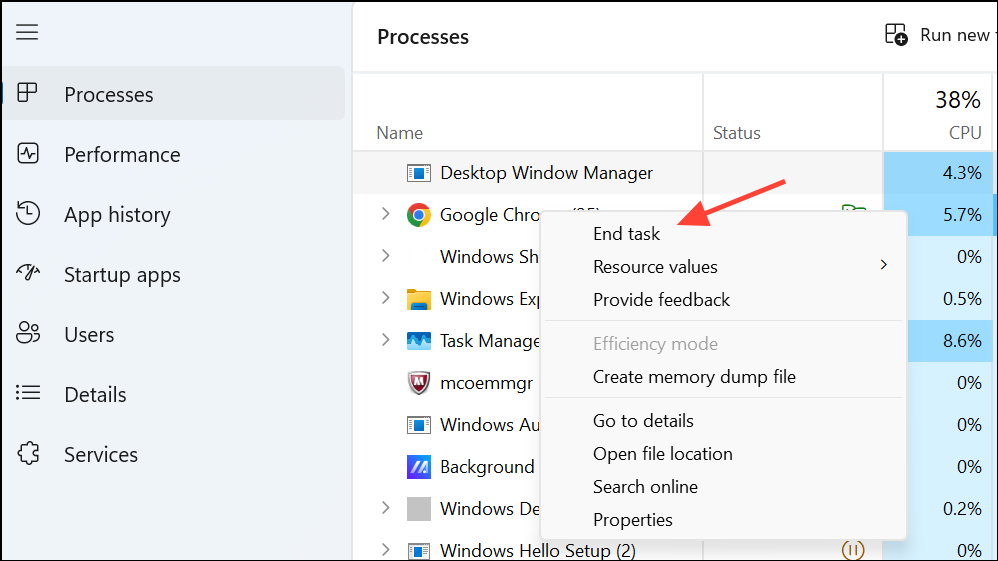
Test copy and paste in your desired application. If the error persists, repeat the process with other potential applications until clipboard access is restored.
Restart Windows Explorer
In Task Manager, scroll down to locate
Windows Explorer under the Processes tab. Windows Explorer manages the desktop and file system interface, and restarting it can refresh clipboard functions.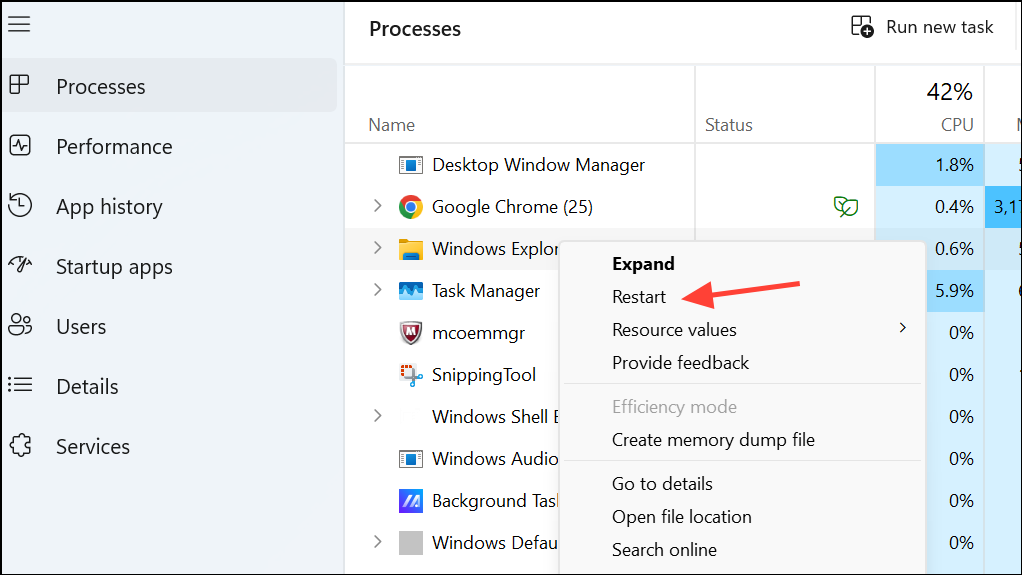
Once the desktop returns, attempt to copy and paste again. Restarting Explorer often resolves temporary clipboard locks caused by system processes.
Clear the Clipboard Manually
Open the Run dialog by pressing
Windows + R on your keyboard. Type cmd and press Enter to launch the Command Prompt.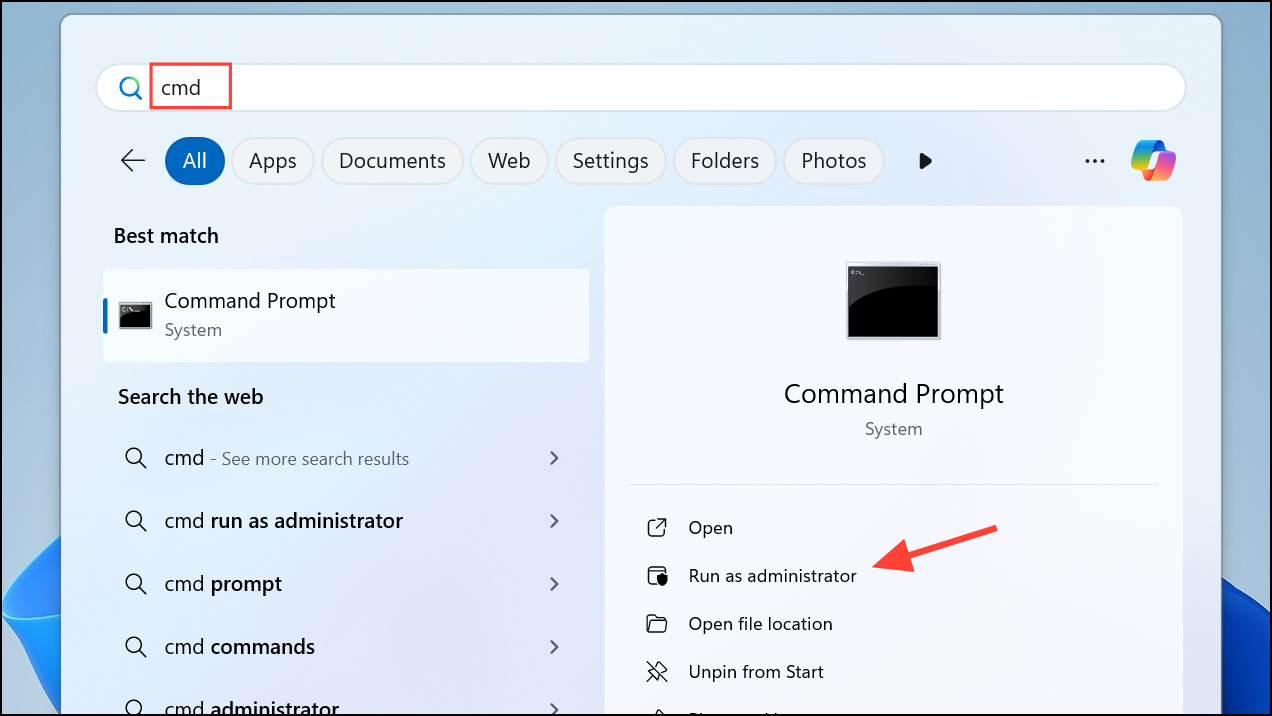
echo off | clip
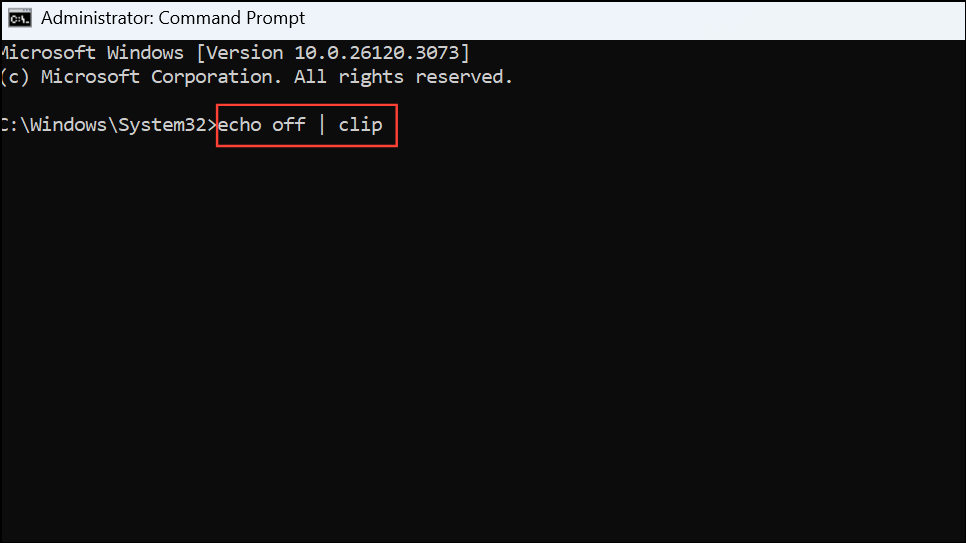
Close the Command Prompt and check if you can now use copy and paste features without encountering the error.
Disable or Update Third-Party Clipboard Tools
Identify any clipboard management tools or utilities installed on your system. These tools can sometimes conflict with Windows clipboard operations and cause locking issues.
Temporarily disable or exit these applications from the system tray to see if the problem resolves. If copy-paste starts working, consider updating or replacing the problematic tool.
Visit the software’s official website to check for updates or patches that address clipboard conflicts. Install any available updates and monitor for recurring issues.
Perform a System Restart
Save your work and restart your computer. A system reboot will close all programs and services, releasing any resources or locks on the clipboard.
After restarting, attempt to use copy and paste again. Most clipboard lock issues are resolved after a fresh reboot.
Restoring clipboard access removes frustrating interruptions from your workflow. Regularly updating applications and avoiding multiple clipboard managers helps prevent this issue in the future.





