

DHCP servers on Windows networks fail to authorize when the user account lacks the necessary Active Directory permissions, resulting in clients not receiving IP addresses and network connectivity disruptions. Authorization ensures only trusted DHCP servers operate in an Active Directory environment, preventing IP conflicts and rogue servers.
Granting Permissions to Authorize DHCP Server in Active Directory
Windows + R, typing dsa.msc, and pressing Enter.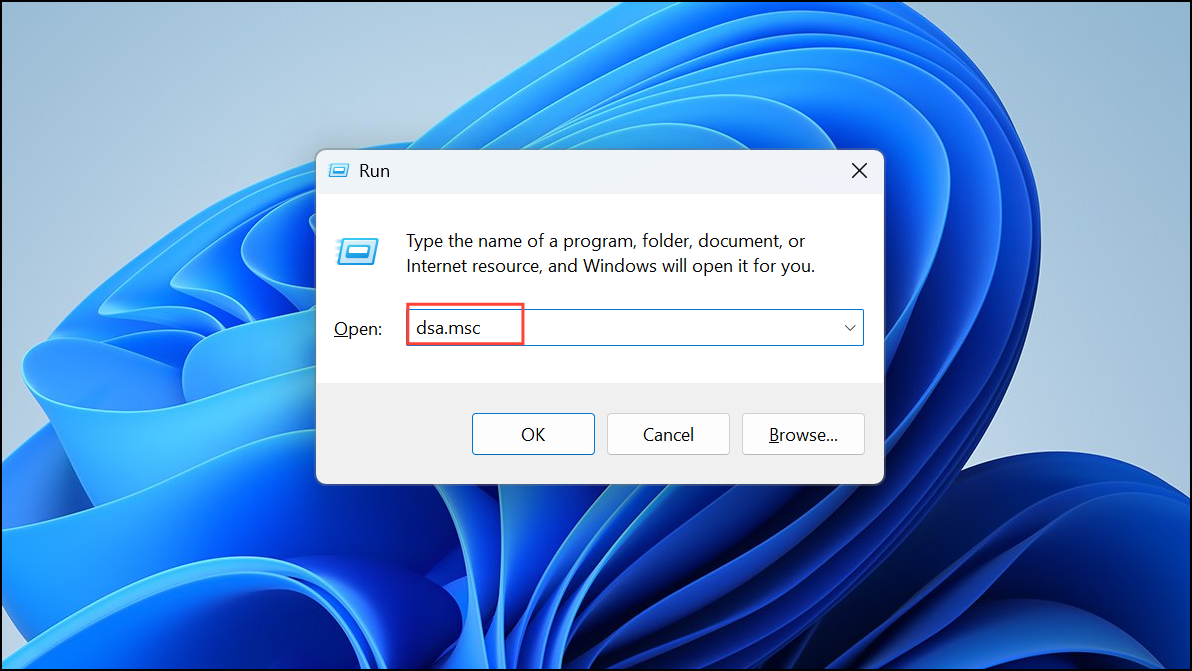
View menu. This option displays additional configuration tabs and security settings required for permission changes.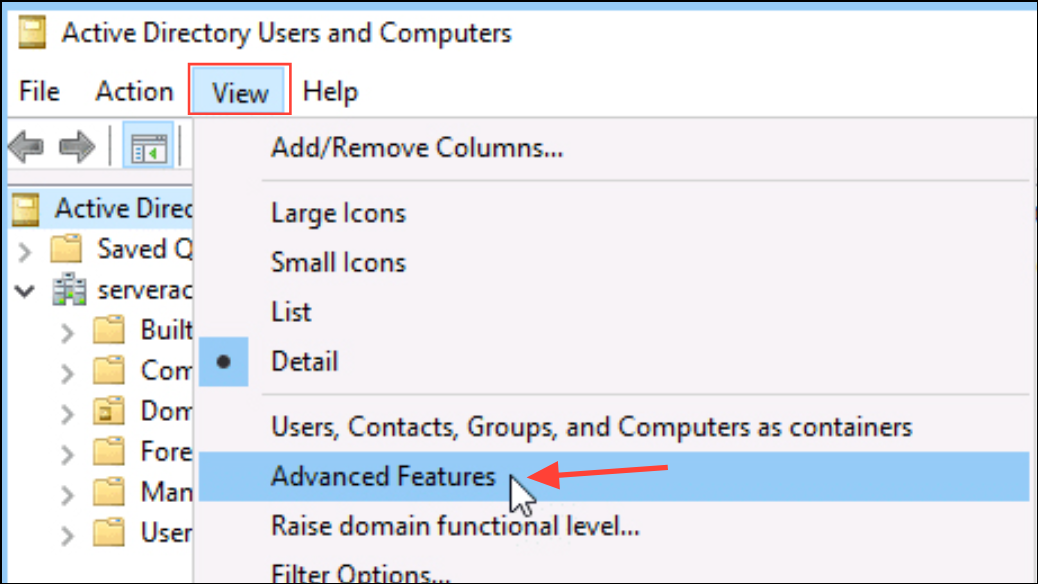
NetServices container. Expand your domain, then open the System container, and select NetServices. This container stores DHCP server authorization data.NetServices container and select Properties. Go to the Security tab. Here, you can grant or modify permissions for user accounts or groups.Add, enter the name of the user or group (such as the account running the DHCP server service), and click OK. Grant the Full Control or at minimum the Write permission. This allows the account to authorize and de-authorize DHCP servers in the domain.Apply and OK to save the changes. Close the console. The account should now have the correct permissions to authorize the DHCP server.Authorizing the DHCP Server Using DHCP Management Console
Server Manager > Tools > DHCP or by running dhcpmgmt.msc from the Run dialog.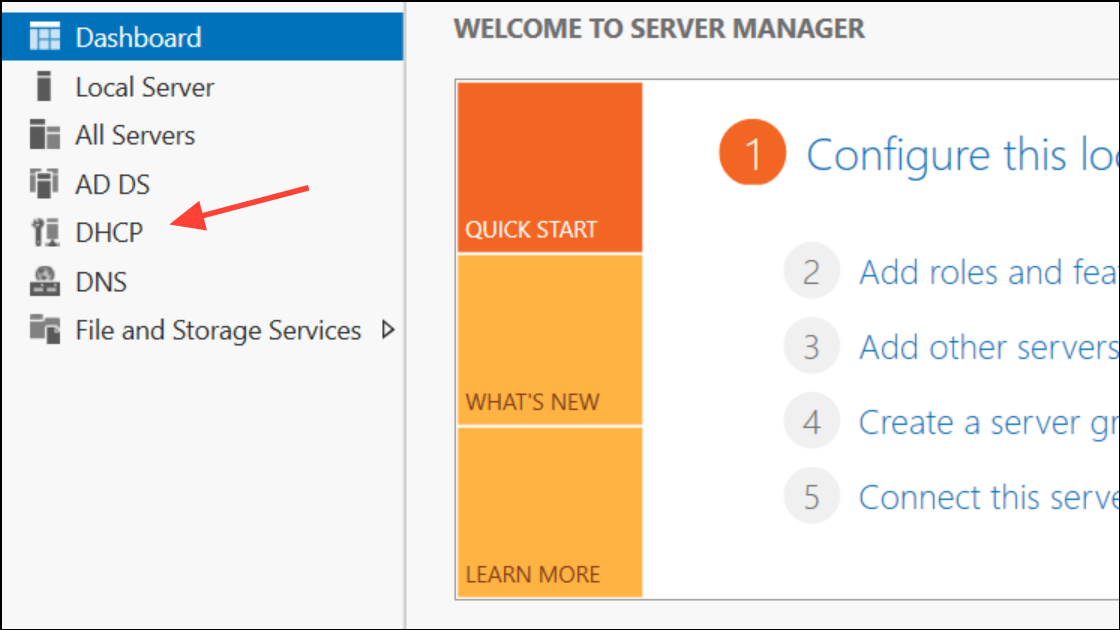
Authorize. The server will attempt to register itself in Active Directory. If you receive a permissions error, verify that the account you are using has the necessary rights in the NetServices container (as described above).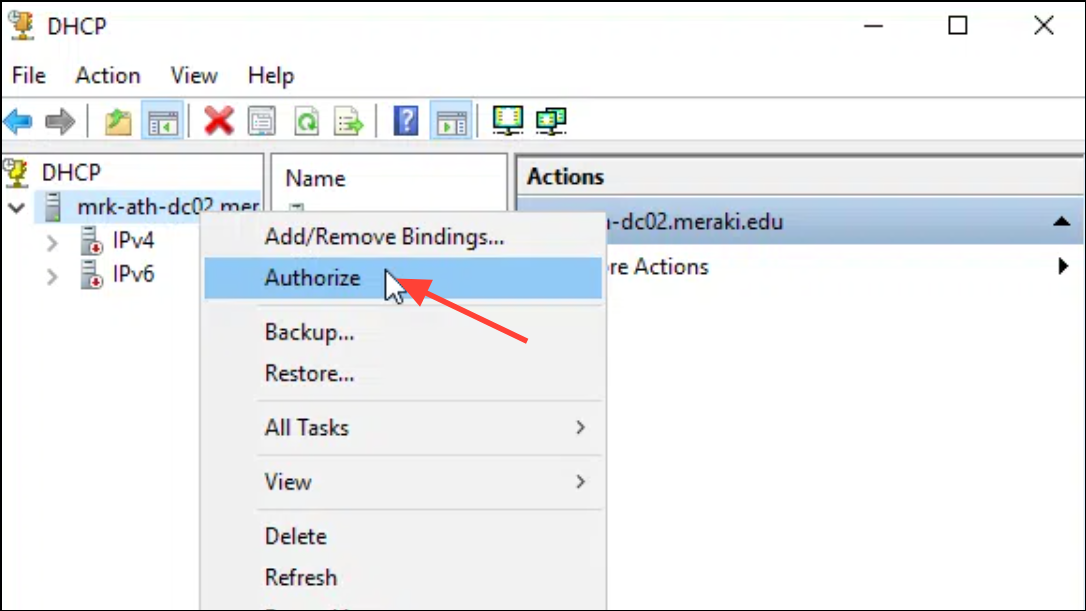
Using ADSI Edit for Advanced Permission Troubleshooting
adsiedit.msc from the Run dialog. ADSI Edit provides low-level access to Active Directory objects and permissions.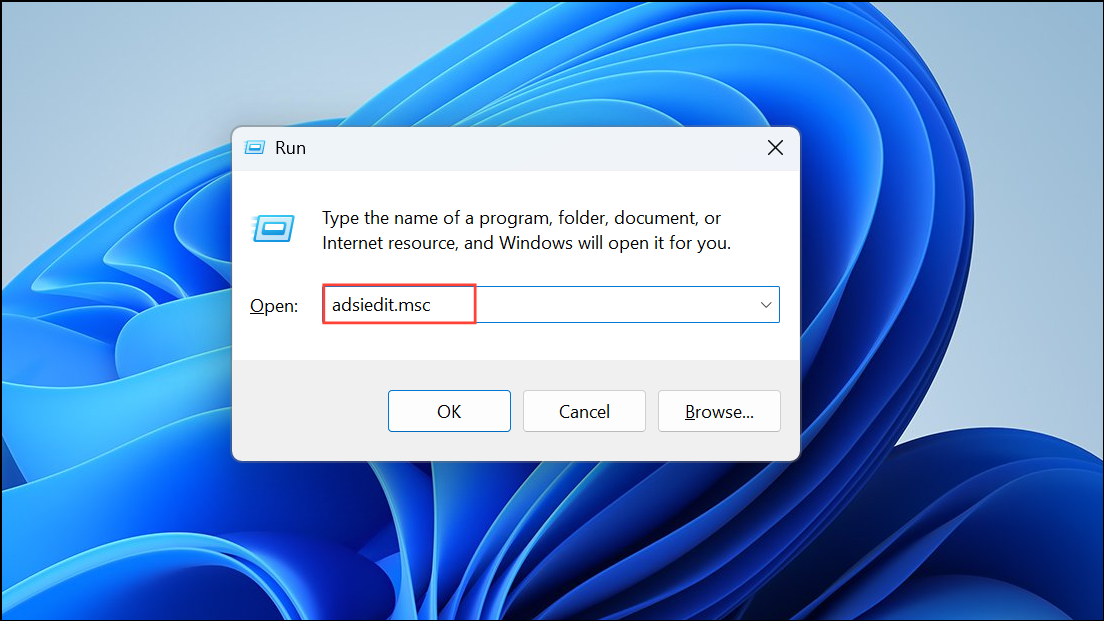
Default naming context. Expand the domain structure, then navigate to CN=NetServices,CN=System,DC=yourdomain,DC=com.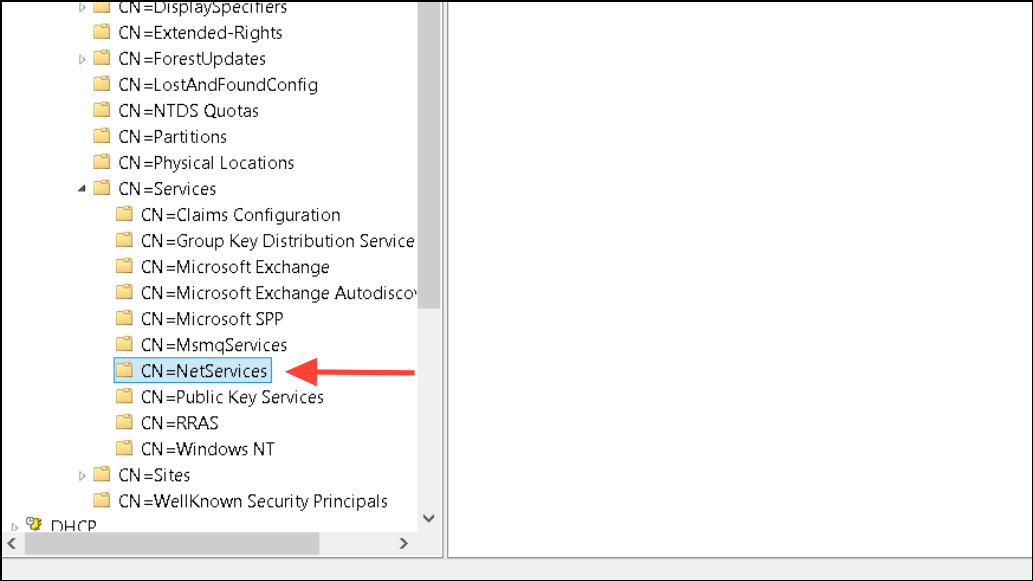
CN=NetServices and select Properties. Under the Security tab, review the list of users and groups. Confirm that the account running the DHCP service has Write or Full Control permissions. Make adjustments as necessary.Verifying DHCP Server Authorization Status
netsh dhcp show server
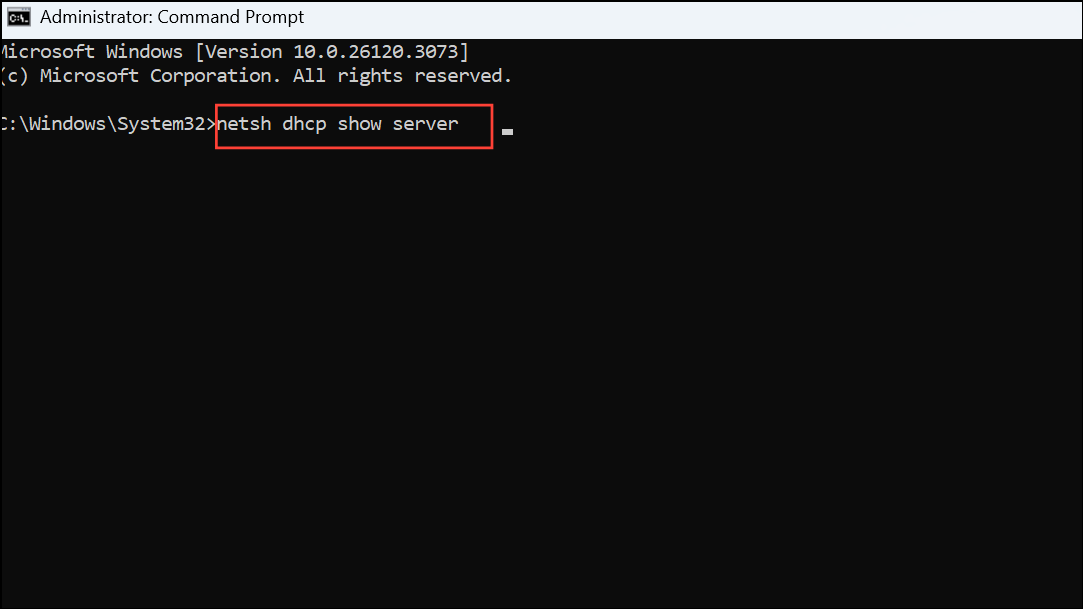
This command lists all authorized DHCP servers in the domain. Confirm that your server appears in the list. If not, repeat the authorization process using an account with sufficient rights.
Resolving DHCP server authorization permissions issues ensures reliable IP address assignment and stable network operation. Regularly review permissions and authorization status after changes to domain accounts or group policies to avoid unexpected disruptions.





