
Windows 11 sometimes displays a “No Internet Access” or “No Internet, Secured” message even when the device appears connected to a Wi-Fi or Ethernet network. This issue disrupts Microsoft Store, Windows apps, and other services, while web browsing might still work. The root cause often involves DHCP configuration errors, network adapter problems, or system update bugs. Addressing this issue requires a series of targeted troubleshooting steps to restore full connectivity and system functionality.
Update Windows to the Latest Version
Windows 11 updates frequently resolve network-related bugs and compatibility problems. Outdated system versions, especially after major updates like 24H2, can trigger persistent connectivity errors or DHCP issues.
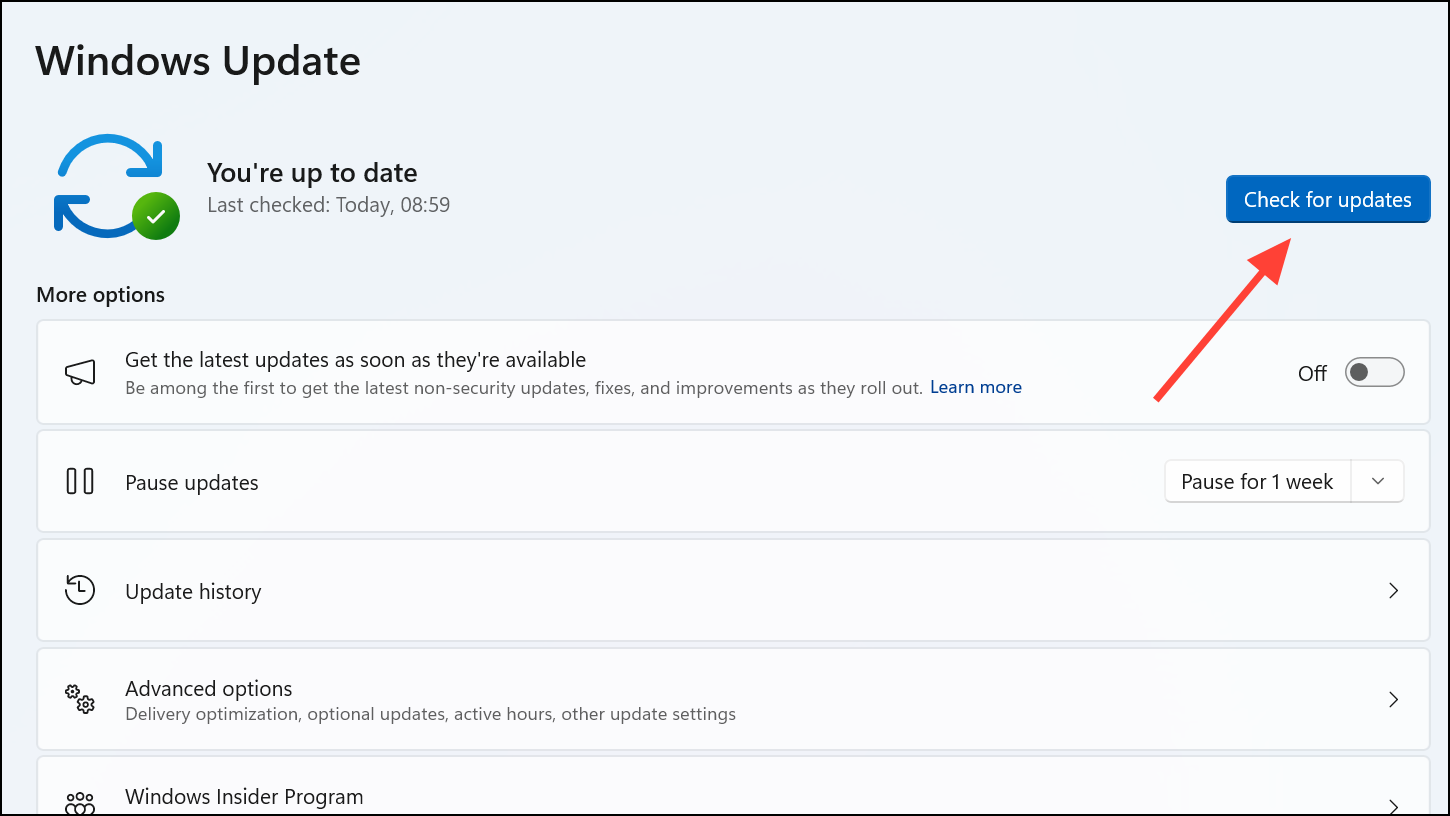
Updating to the most recent feature release (such as moving from 21H2 or 23H2 to the latest supported version) often restores normal network status and allows Windows apps to recognize internet access.
Reset Network Settings
Network configuration errors or legacy settings can prevent Windows from properly detecting internet access. A full network reset clears adapter settings, reinstalls network drivers, and returns network parameters to default.
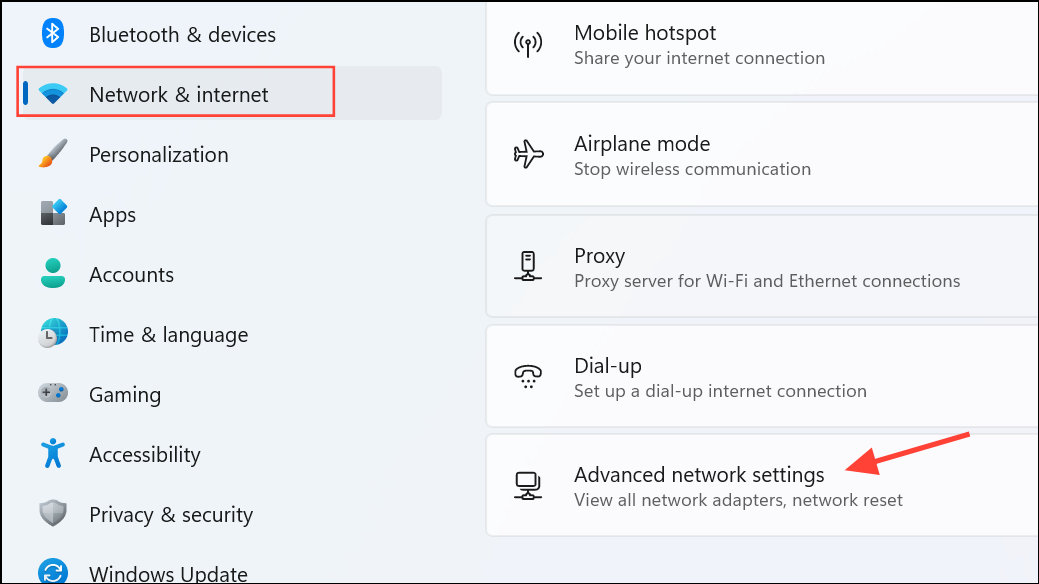
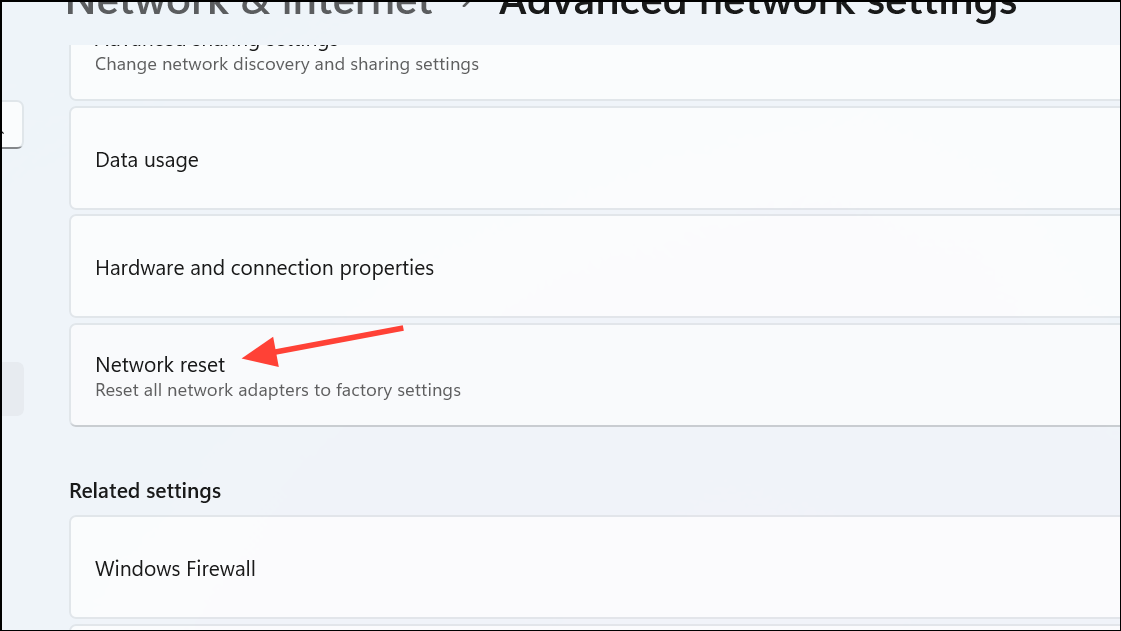
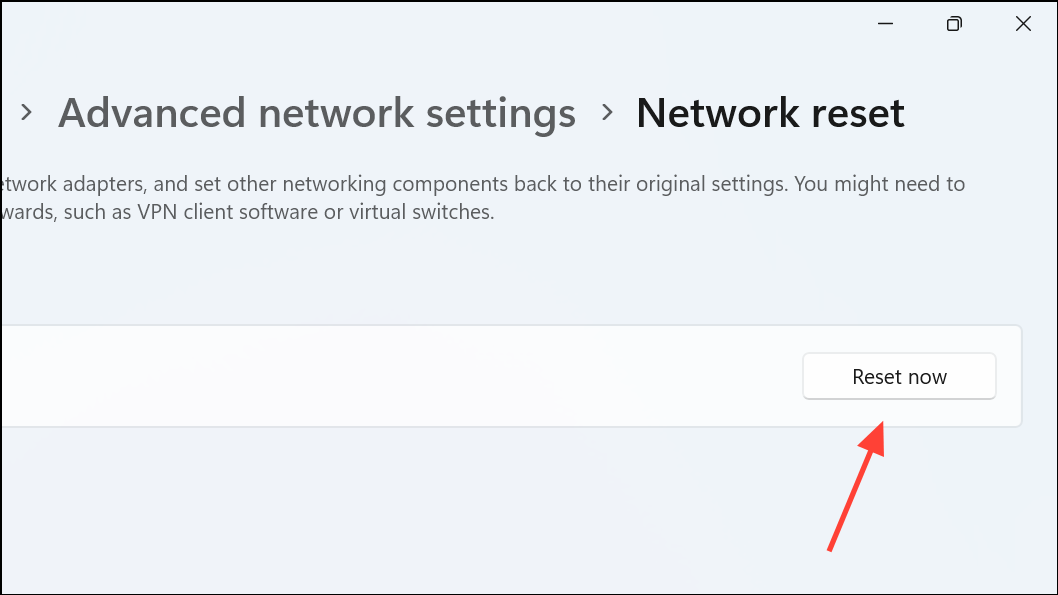
This process reinstalls all network adapters and clears out problematic configurations that may block internet detection.
Run Network Troubleshooter
Windows includes a built-in troubleshooter that scans for and attempts to fix common networking issues, including those that prevent the system from recognizing internet access.
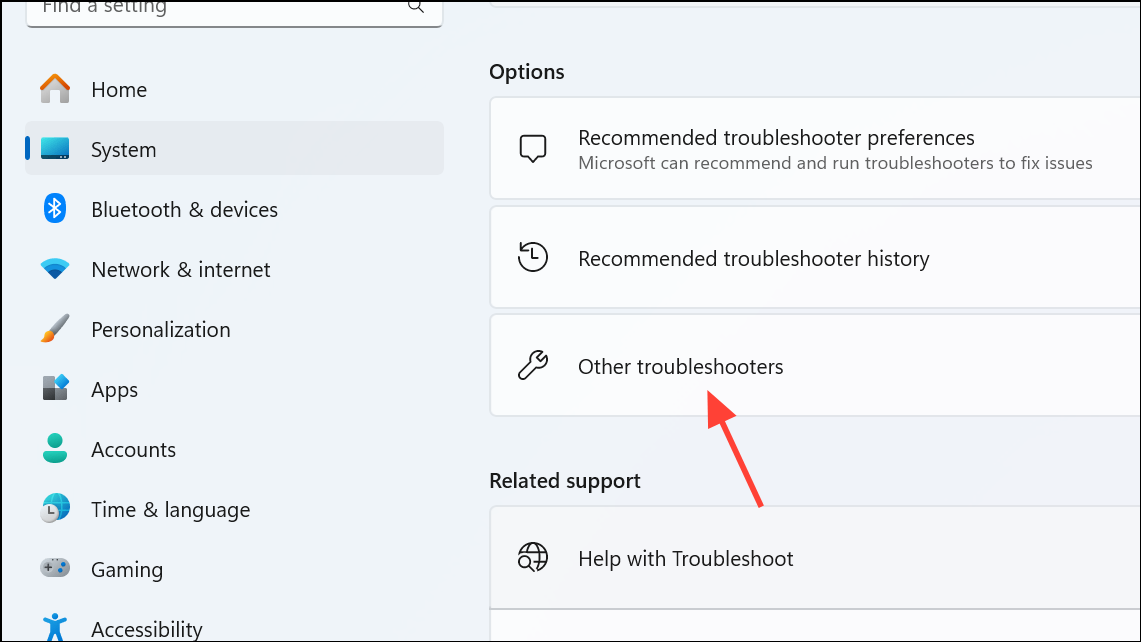
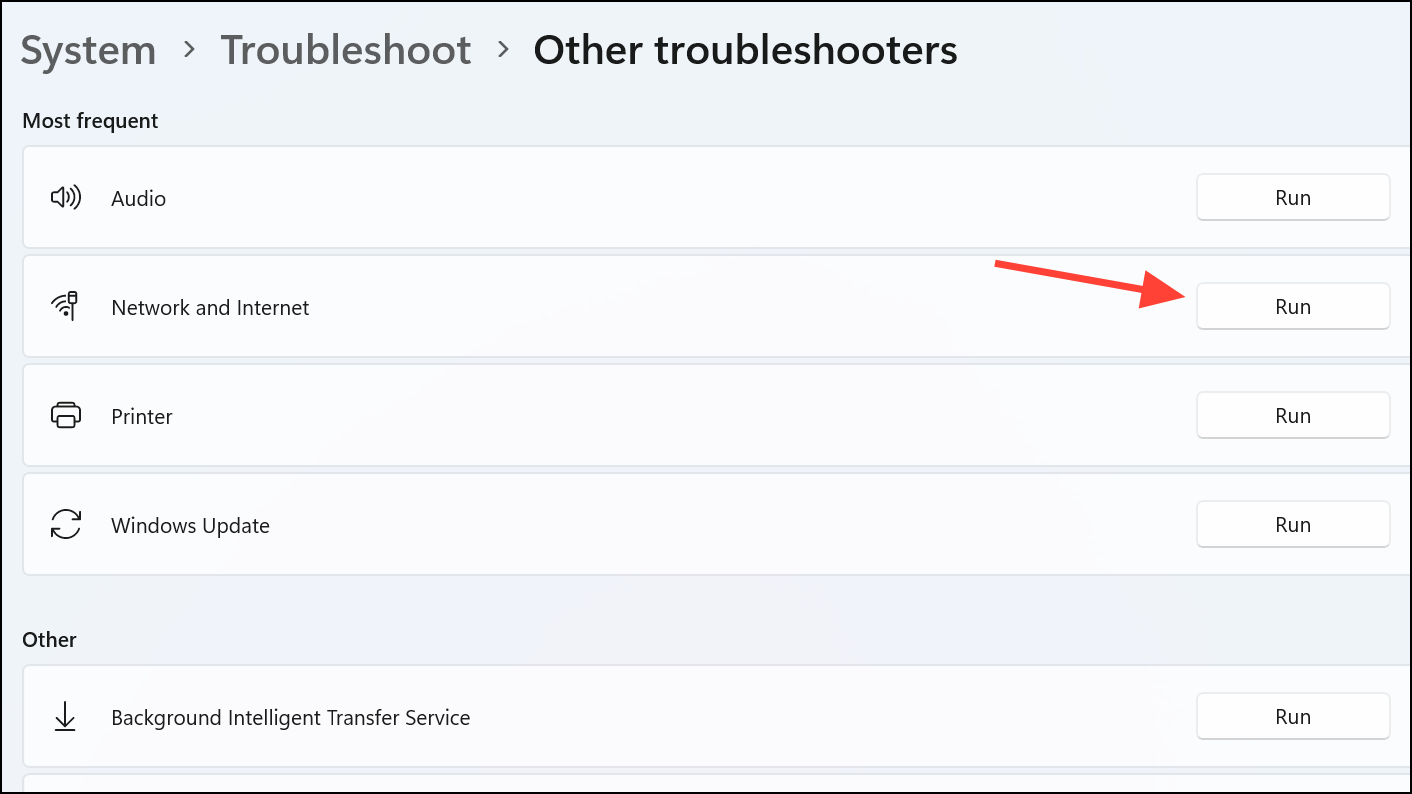
The troubleshooter identifies adapter errors, misconfigured settings, and other issues that may cause the “No Internet” indicator.
Update or Reinstall Network Adapter Drivers
Corrupted or outdated network drivers often cause connectivity problems, especially after system updates or hardware changes.
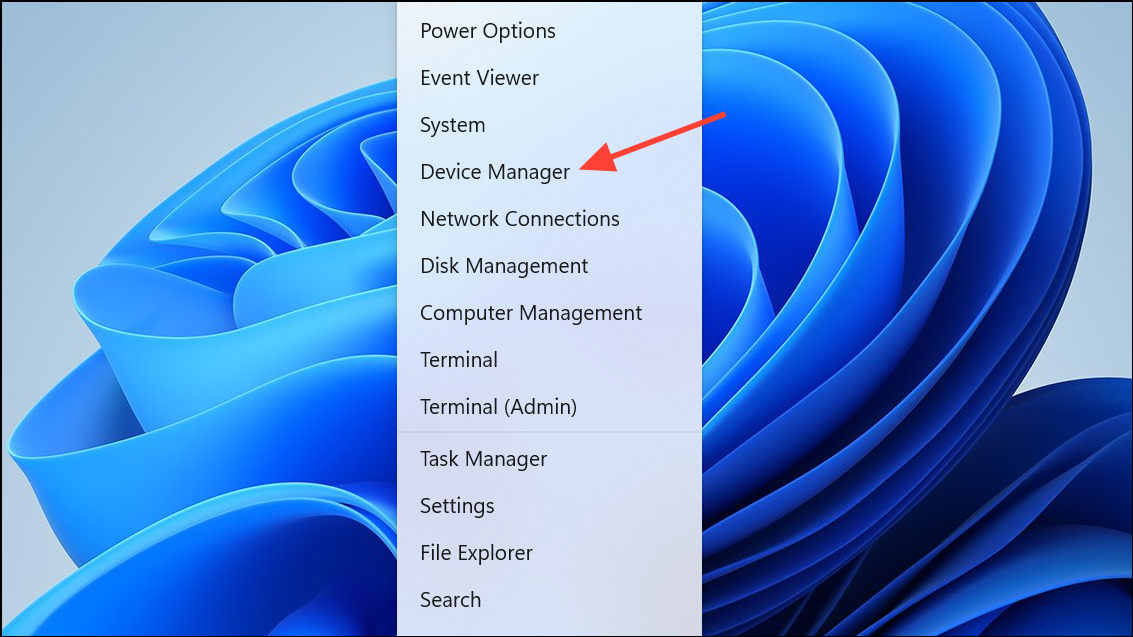
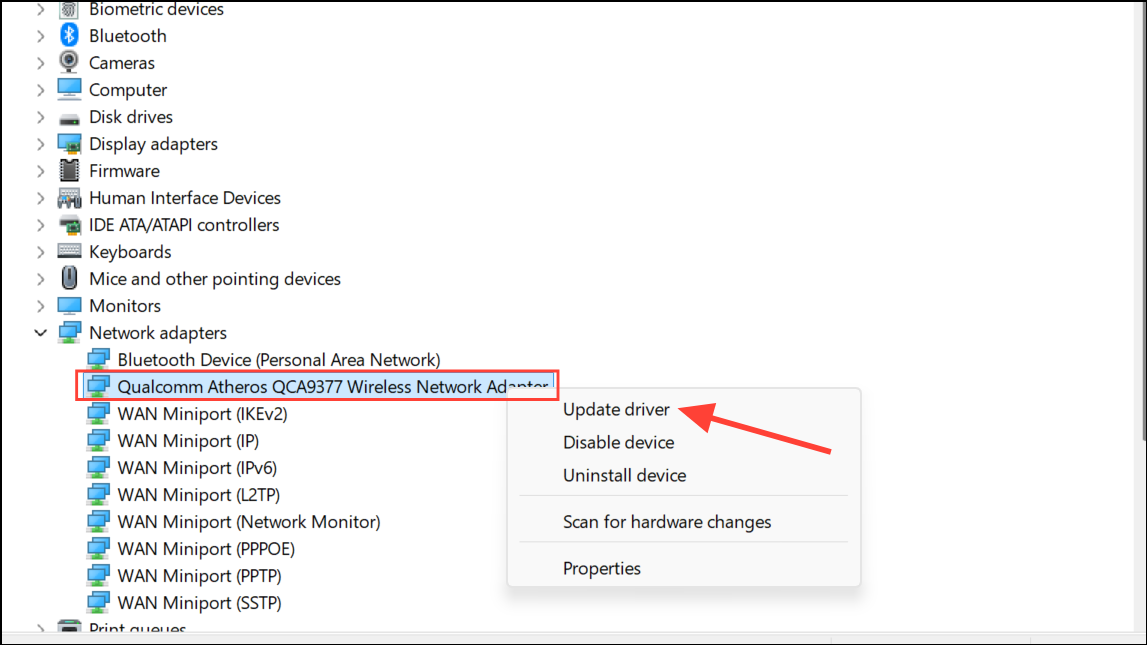
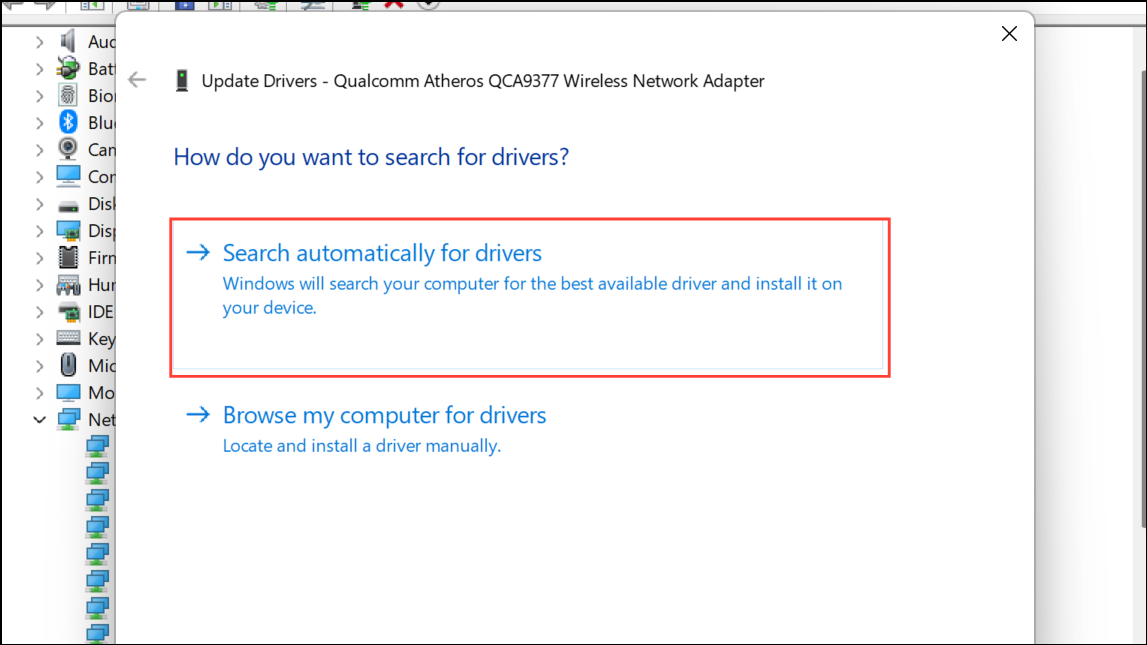
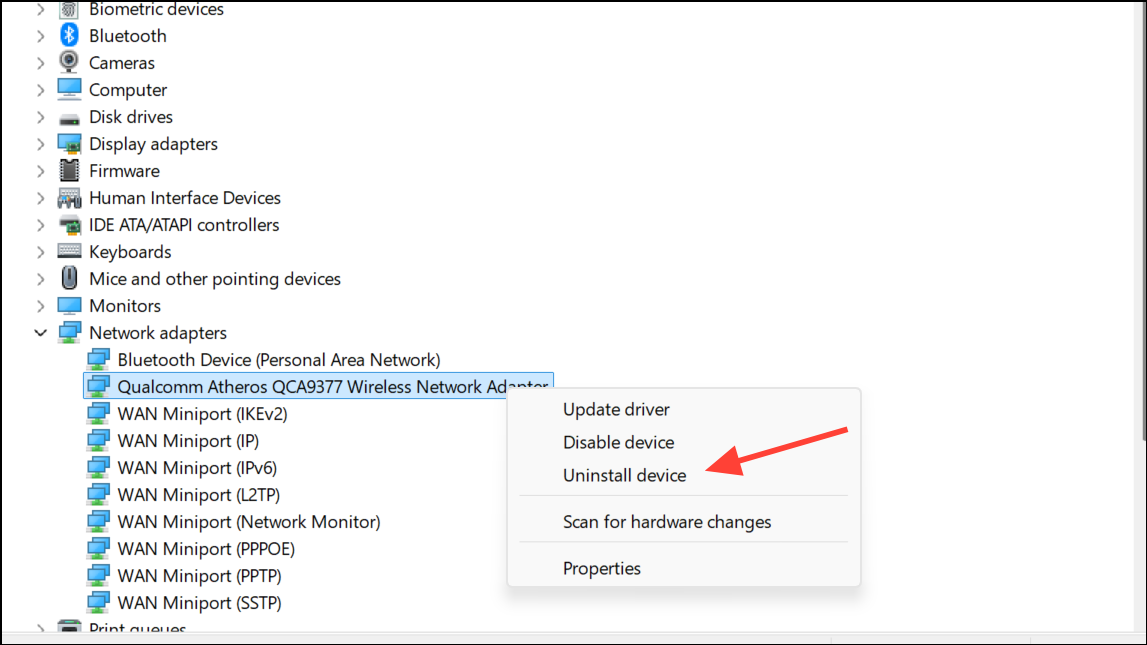
Up-to-date drivers improve network stability and help Windows accurately detect internet access.
Release and Renew IP Address, Flush DNS, and Reset TCP/IP Stack
Improper IP assignment or DNS cache corruption can prevent Windows from recognizing internet connectivity, even if the network is operational. Resetting these parameters often resolves the issue.
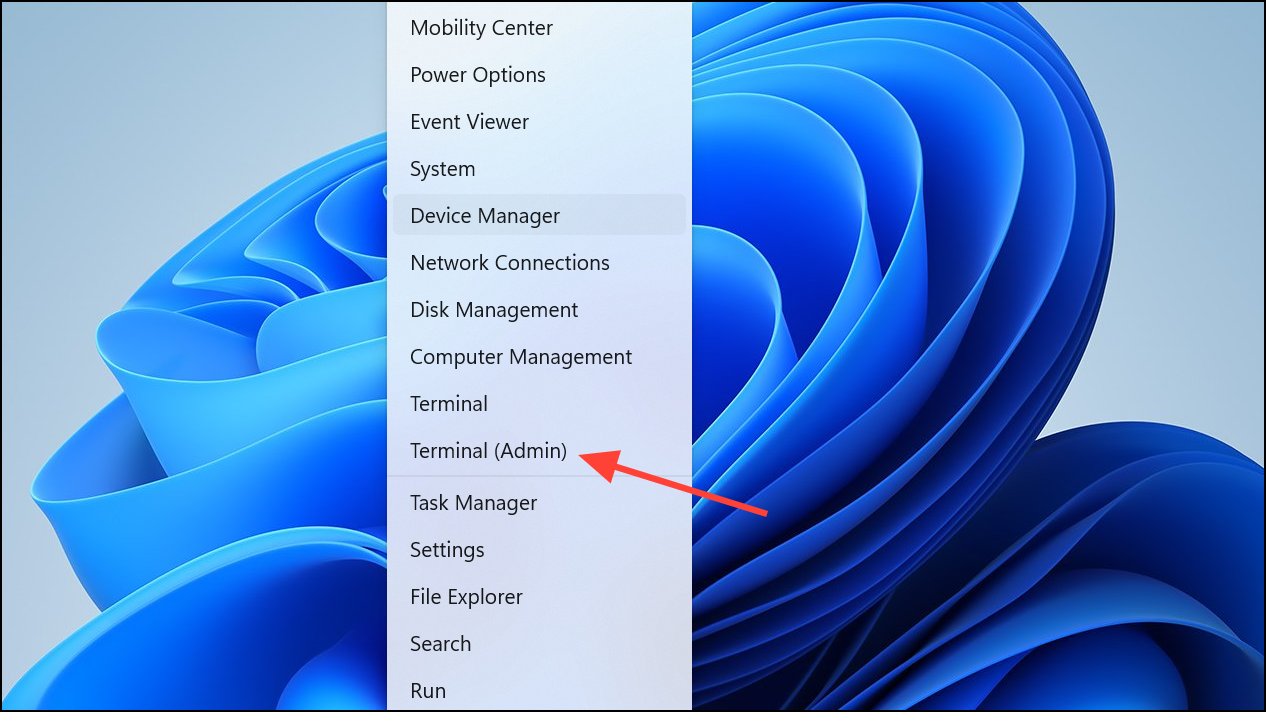
netsh winsock reset
netsh int ip reset
ipconfig /release
ipconfig /renew
ipconfig /flushdns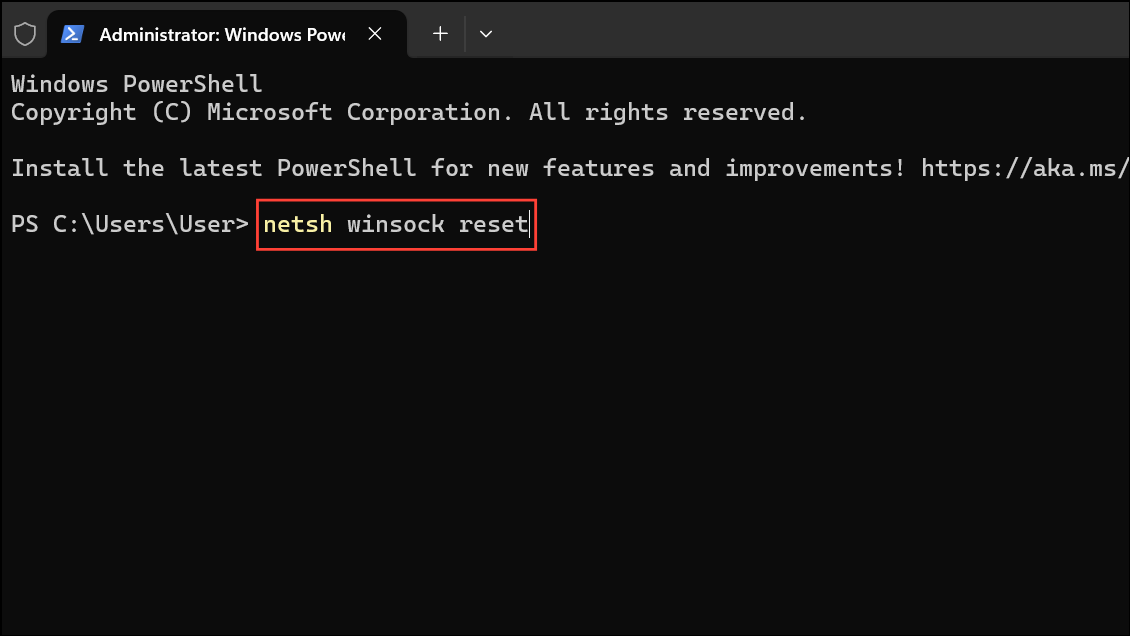
This process resets the TCP/IP stack, renews your IP lease, and clears the DNS resolver cache, restoring proper network communication.
Configure DNS and Proxy Settings
Incorrect DNS or proxy settings can block certain apps and services from accessing the internet, even if browsing works. Setting DNS to a reliable public server and disabling unnecessary proxies can resolve connectivity detection issues.
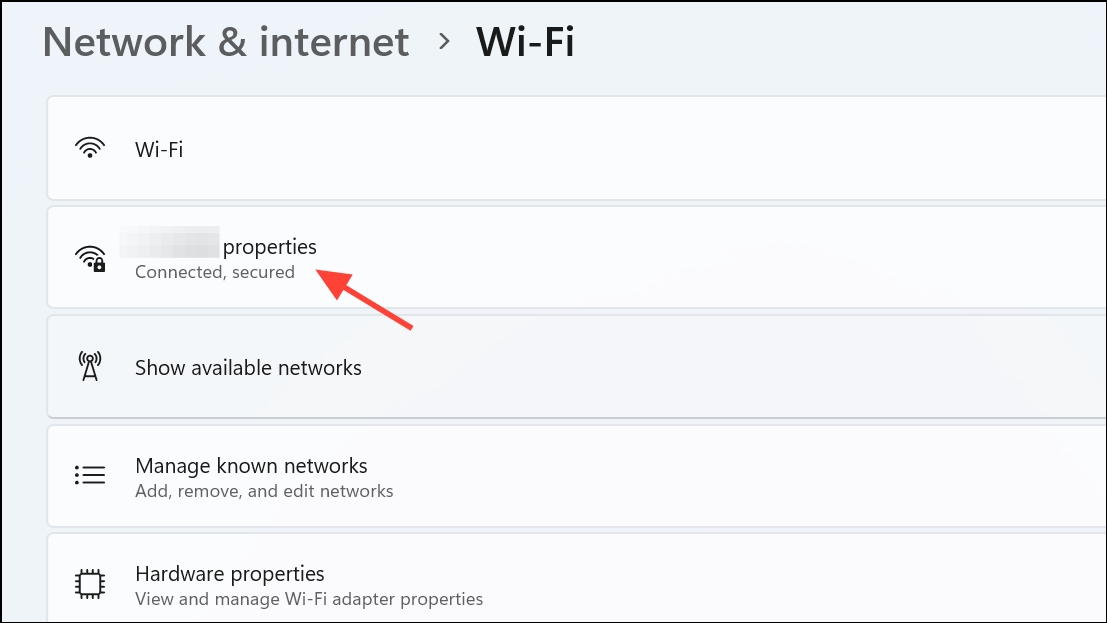
8.8.8.8 and 8.8.4.4 (Google Public DNS).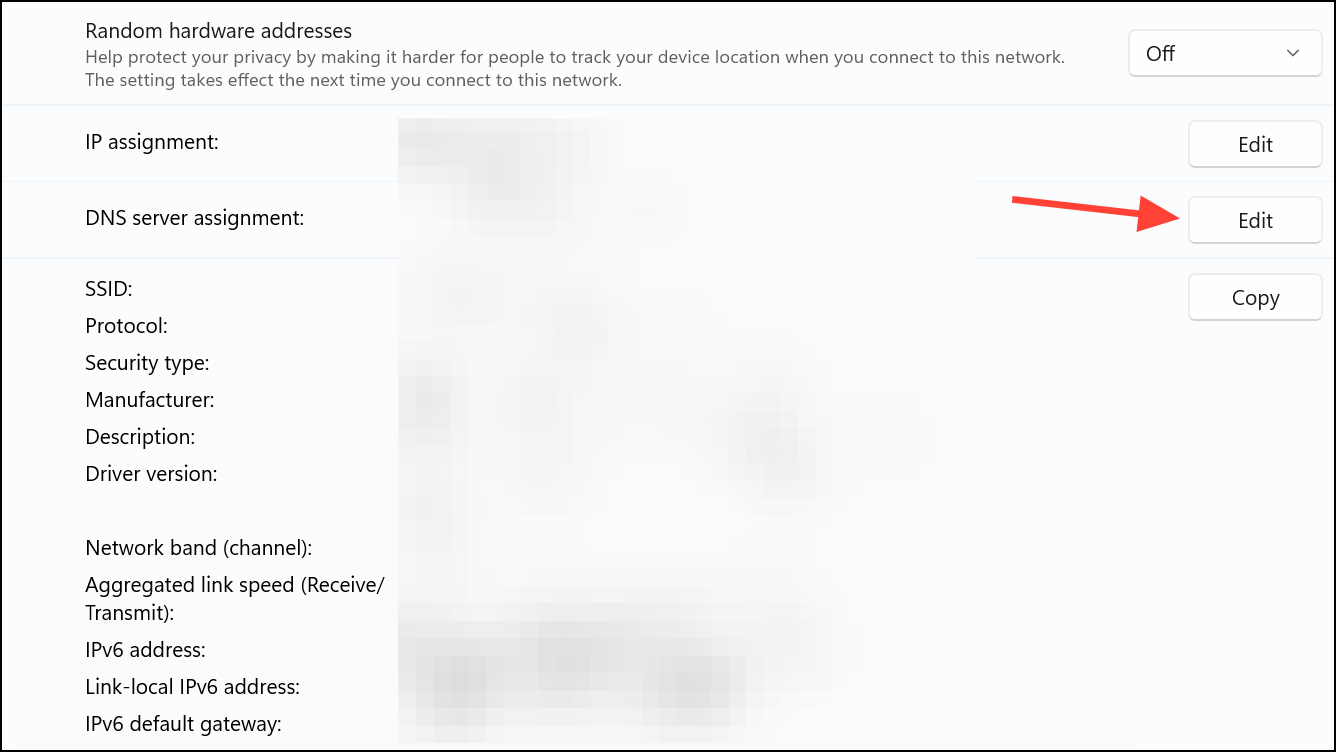
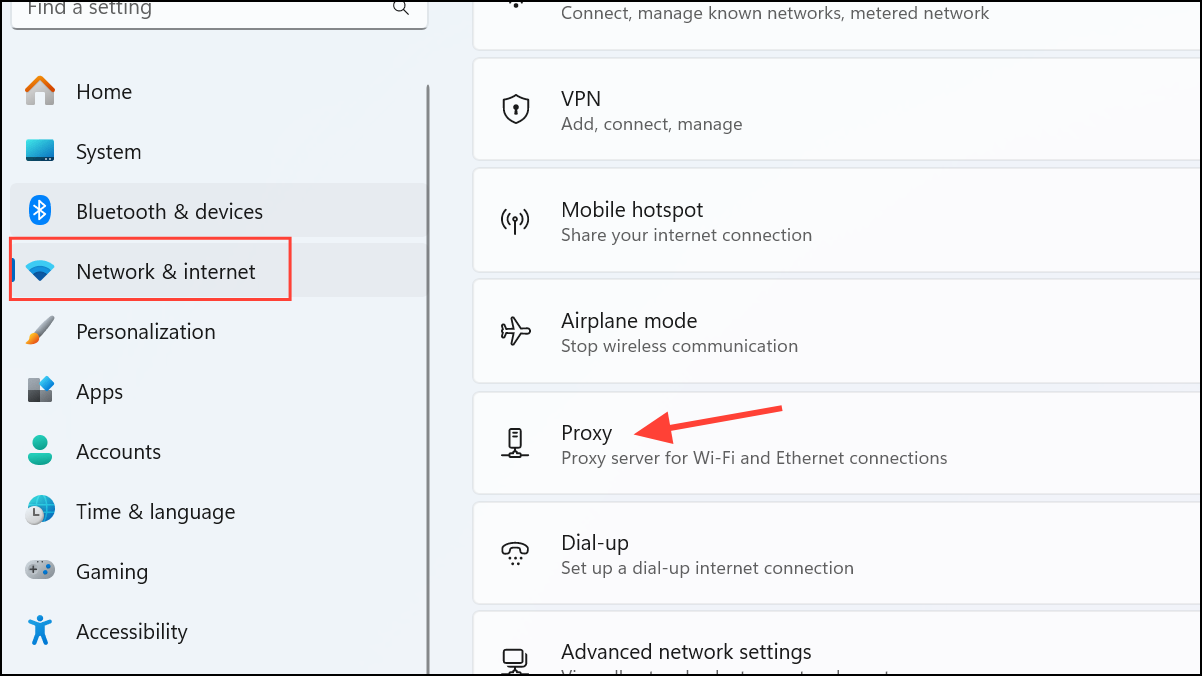
These adjustments ensure reliable name resolution and prevent proxy misconfigurations from interfering with connectivity.
Check DHCP and IP Address Assignment
Windows 11 may self-assign an APIPA address (169.254.x.x) if it fails to obtain an IP from the DHCP server, blocking internet access. This commonly occurs after certain updates or when DHCP options are duplicated on the network.
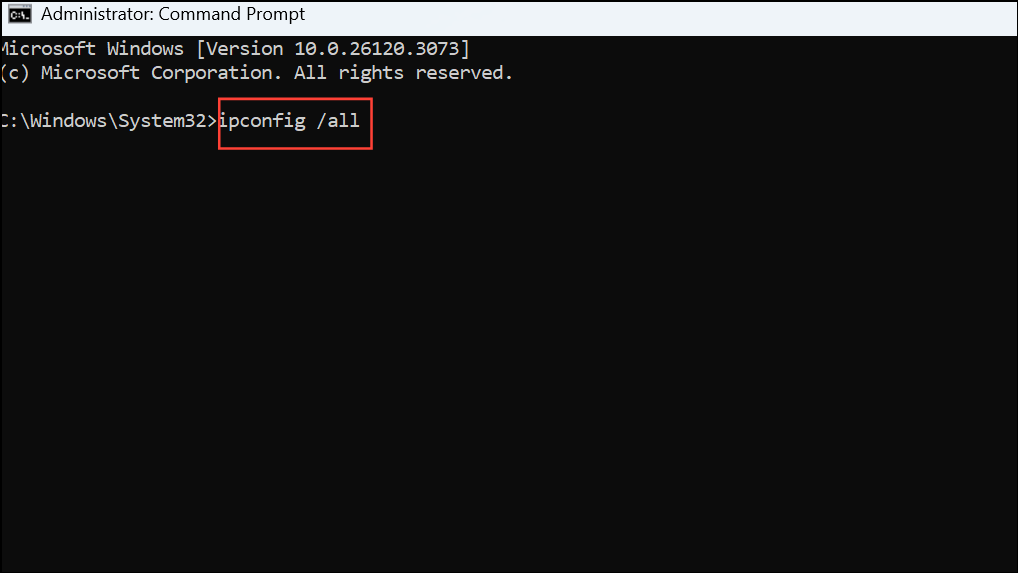
Proper DHCP assignment restores network routing and allows Windows to detect internet connectivity.
Disable VPN, Firewall, or Third-Party Security Tools
VPNs, firewalls, and some antivirus programs may interfere with Windows’ ability to verify internet access, especially after updates or configuration changes.
This step helps rule out software conflicts that block system-level connectivity checks.
Perform a Clean Boot
Background programs and services may conflict with networking components, causing Windows to misreport internet status. A clean boot starts Windows with only essential services.
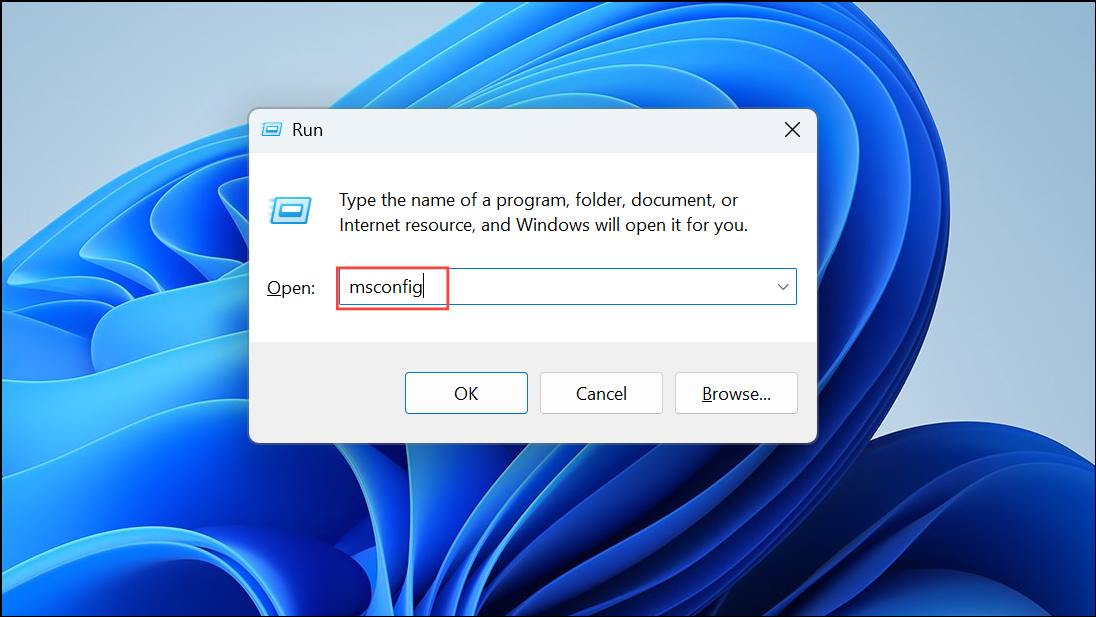
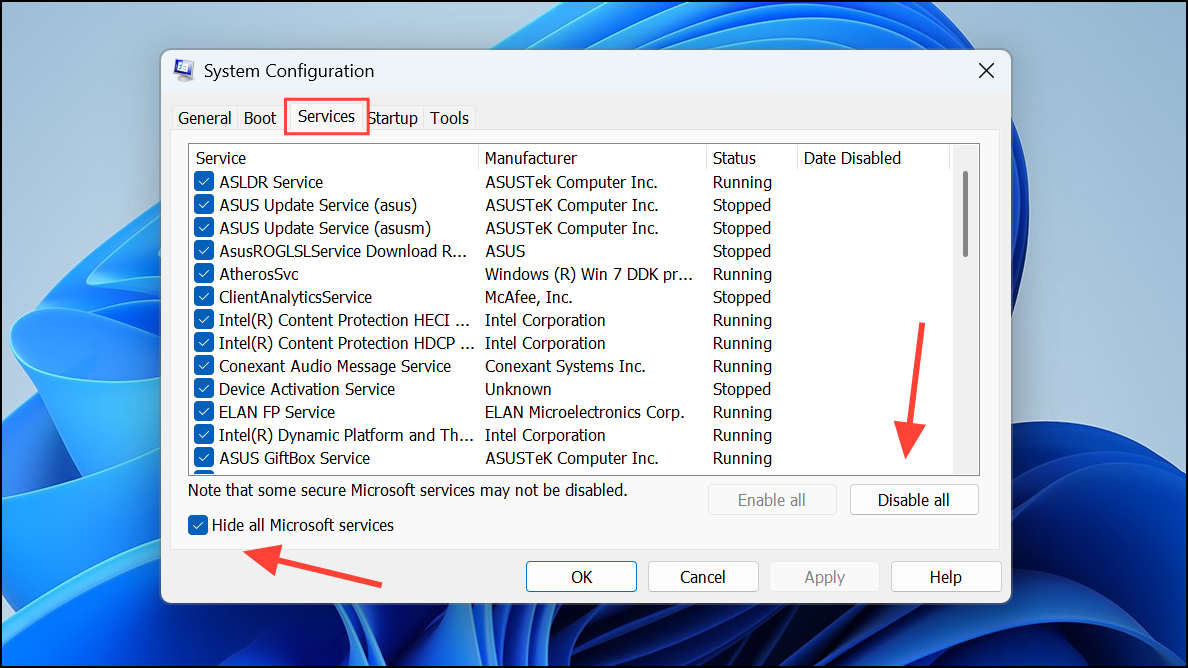
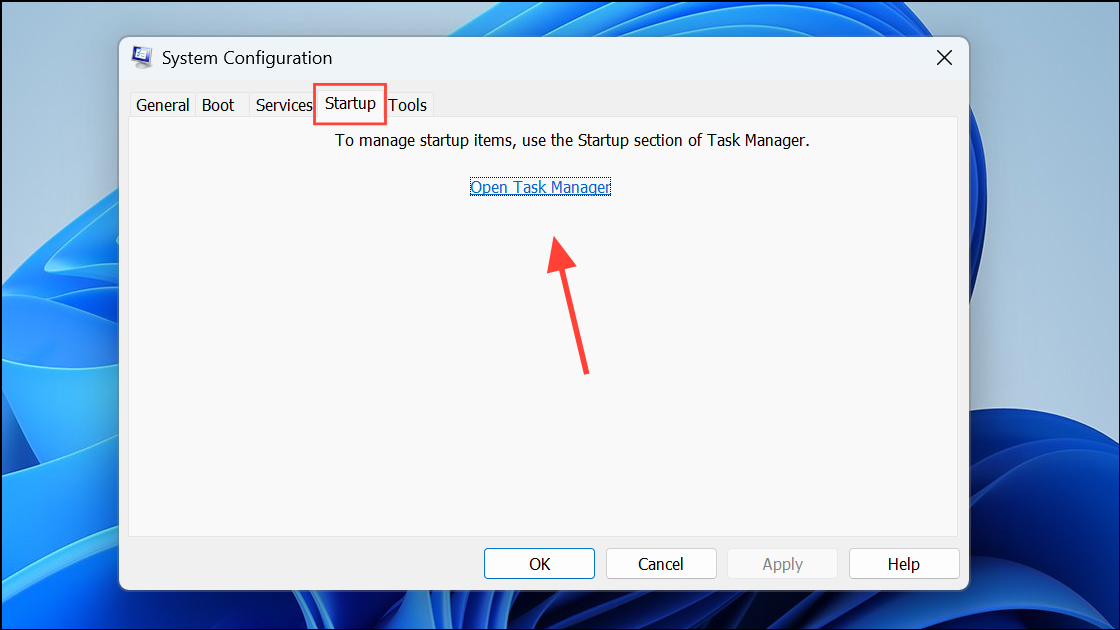
If the problem resolves, re-enable services and startup items one at a time to identify the culprit.
Advanced: Registry and Service Tweaks for Persistent Issues
On rare occasions, registry misconfigurations or disabled network services disrupt Windows’ connectivity detection. Adjusting these settings may help if all other methods fail.
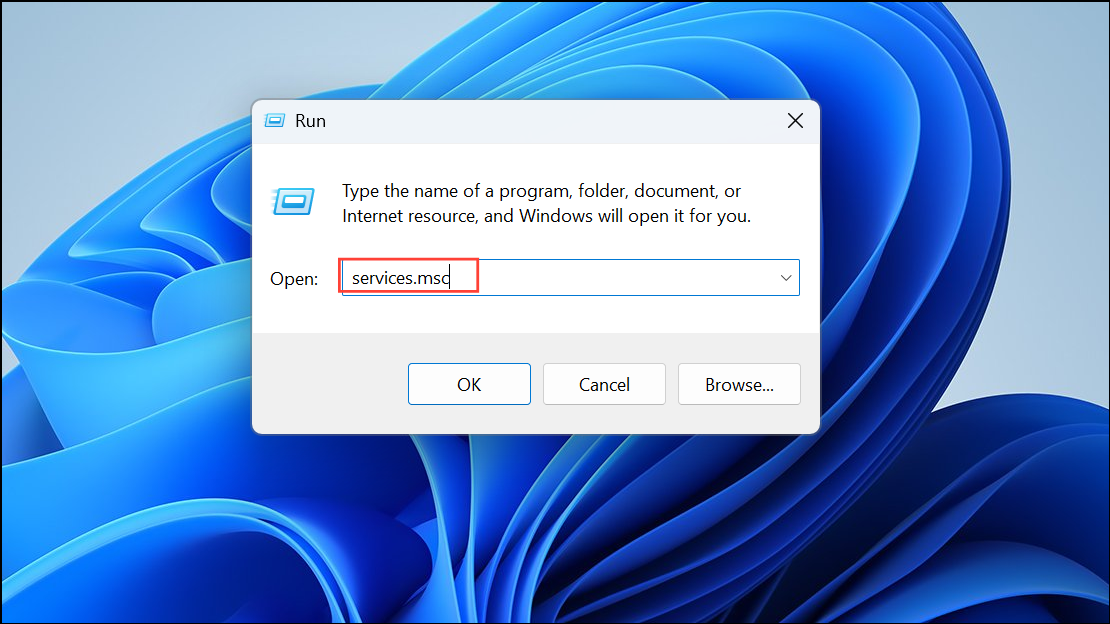
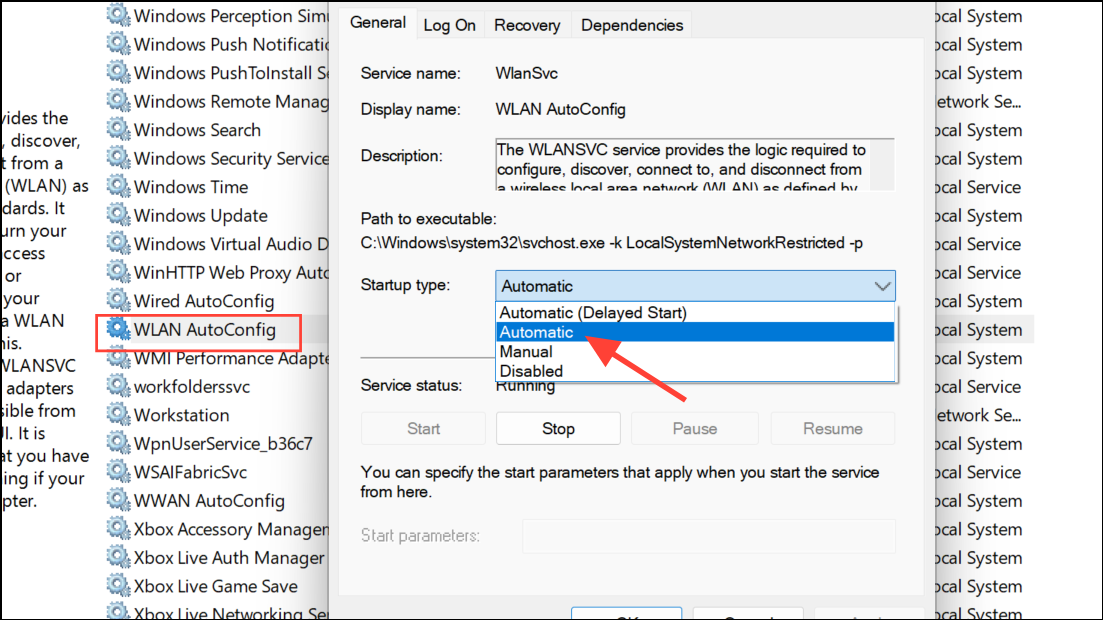
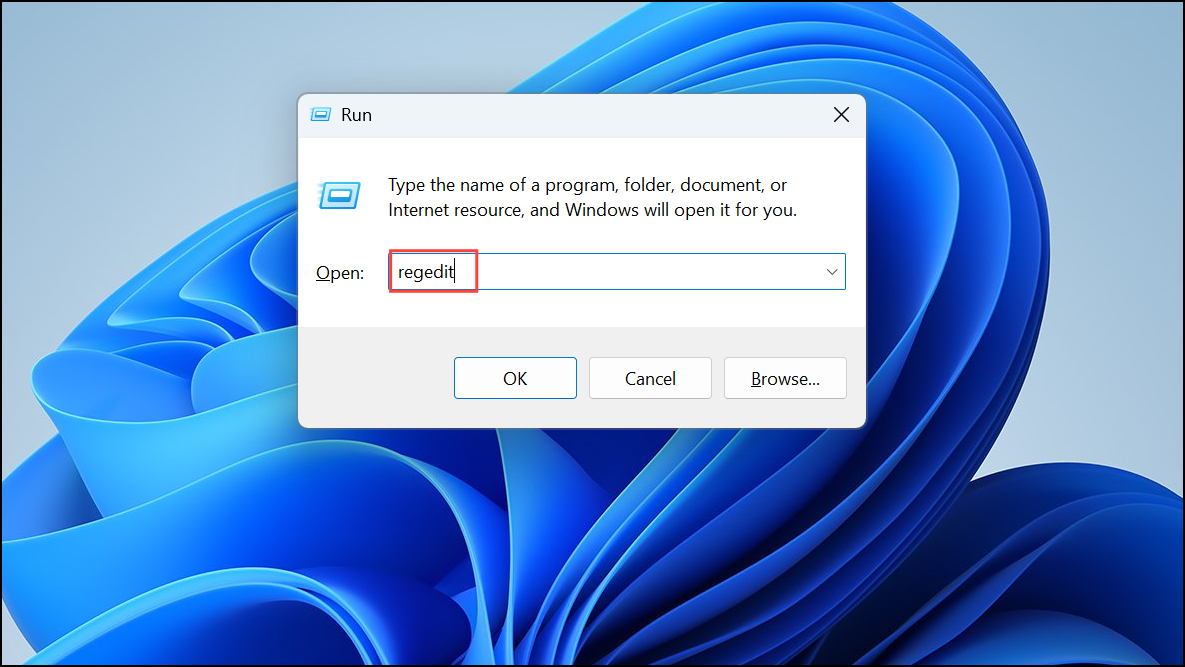
HKLM\System\CurrentControlSet\Services\WcmSvc. Check the DependOnService value and remove references to WinHTTPAutoProxySvc if present. Restart networking services afterward.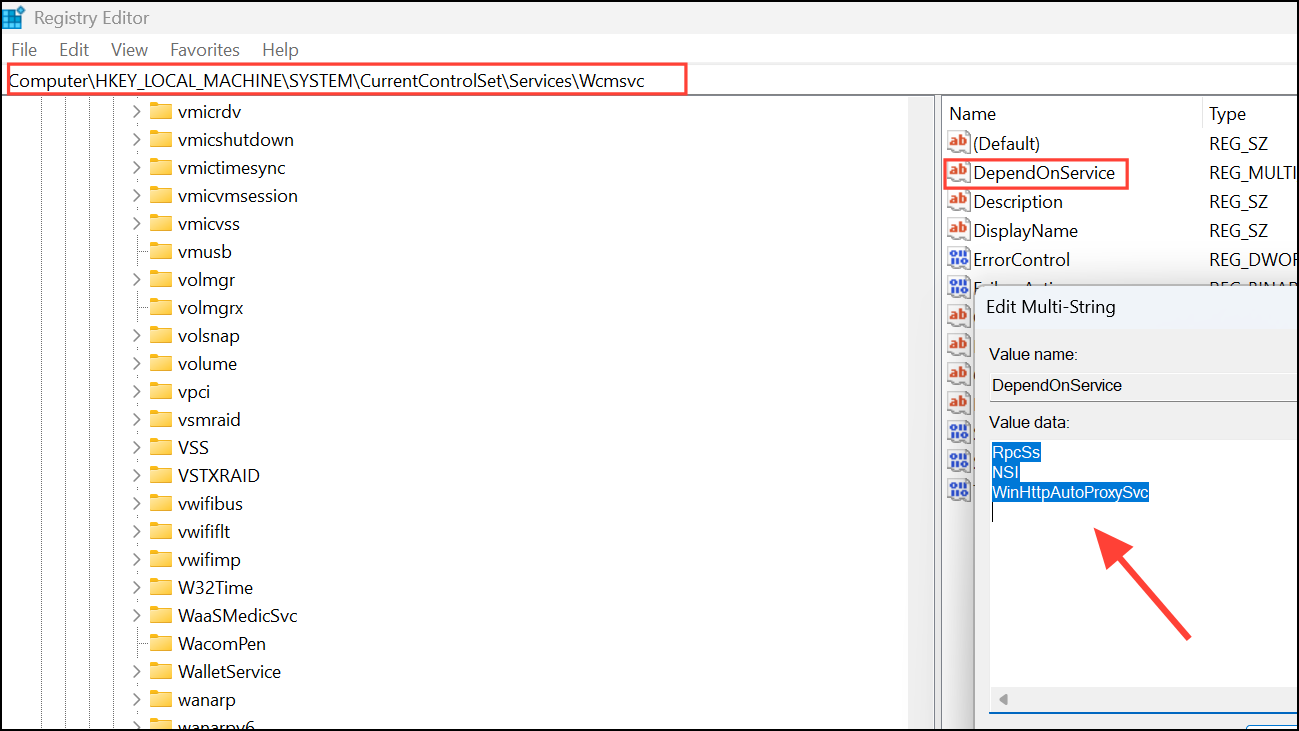
These steps are advanced and should be attempted only if standard troubleshooting fails, as incorrect registry edits can destabilize your system.
Resolving the “No Internet Access” message on Windows 11 usually restores full app functionality and system updates. If problems persist after these methods, consider rolling back to a previous Windows version or consulting your hardware manufacturer for further assistance.



