
VBA Error 400 appears as a cryptic message box with just the number “400” and no further details, interrupting Excel macros and halting automated tasks. This error typically points to issues in your VBA code, Excel settings, or even the integrity of your Excel installation. Addressing it promptly restores macro functionality and prevents workflow disruptions.
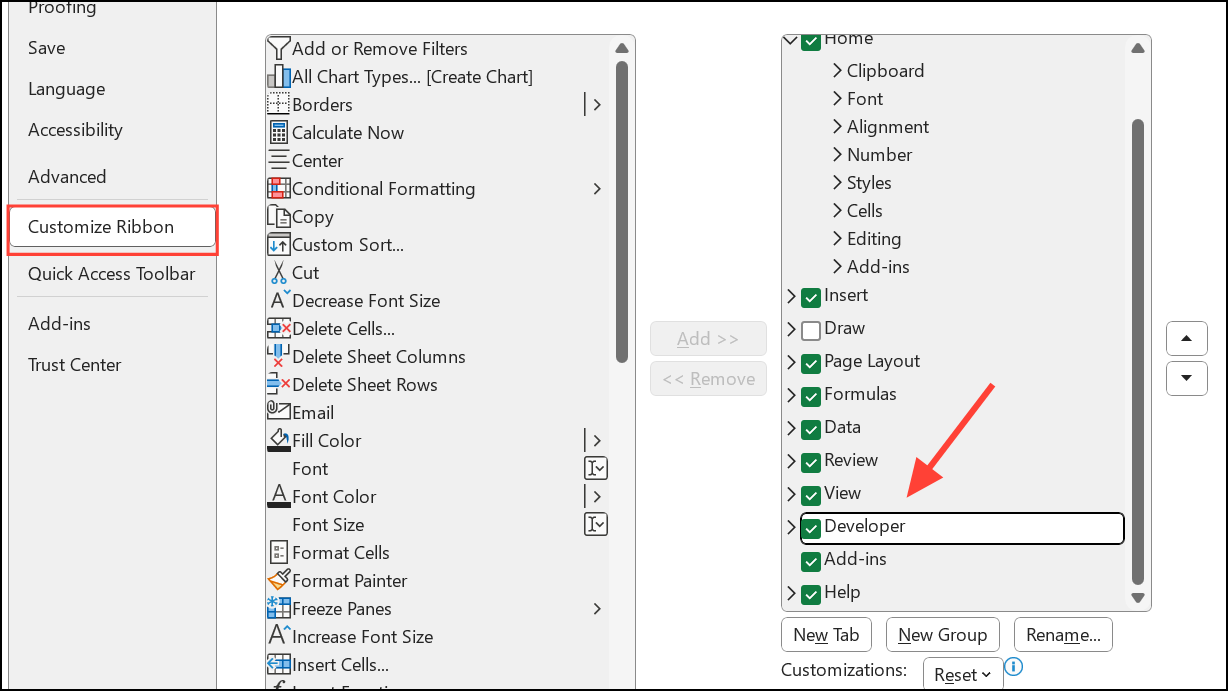
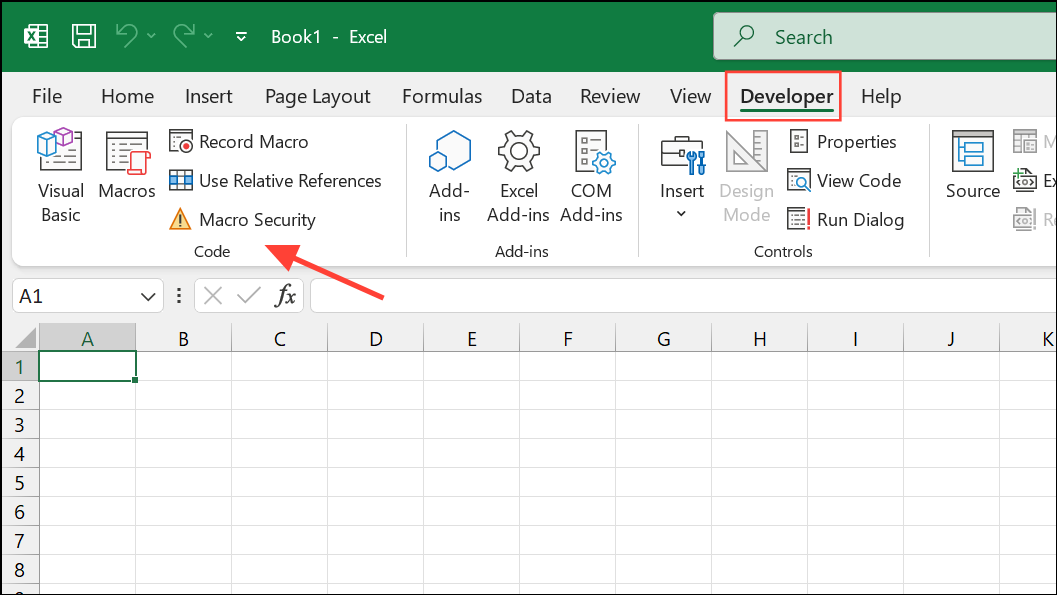
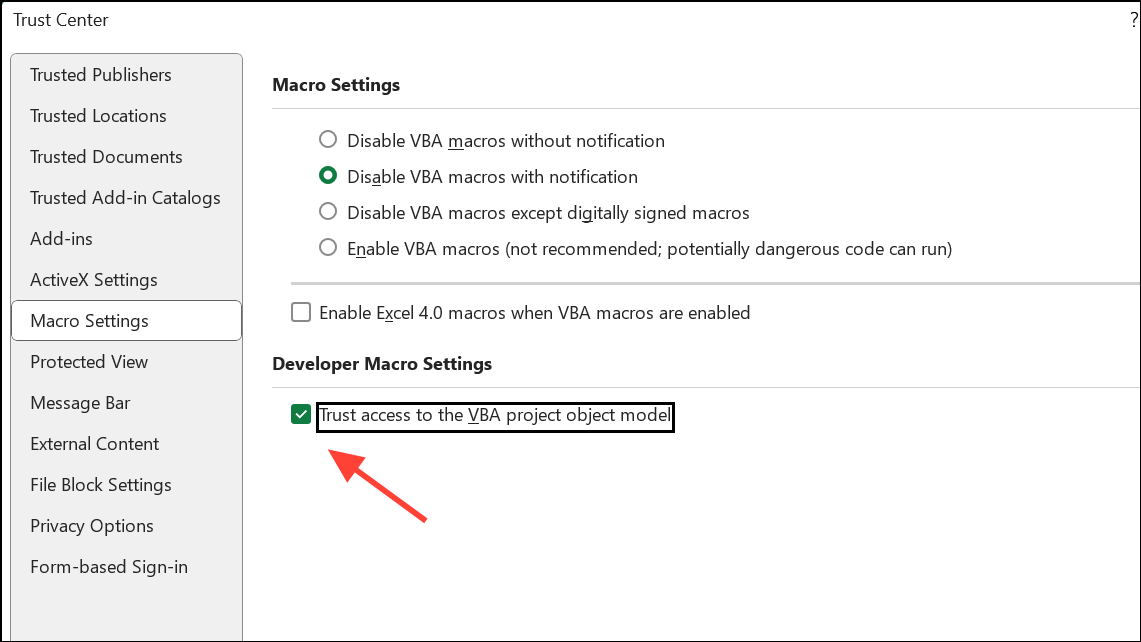
Enable Trusted Access to the VBA Project Object Model
Excel restricts macro execution for security reasons. If your VBA code attempts to interact with the object model without proper permissions, Error 400 can occur. Granting trusted access ensures your macros can run as intended.
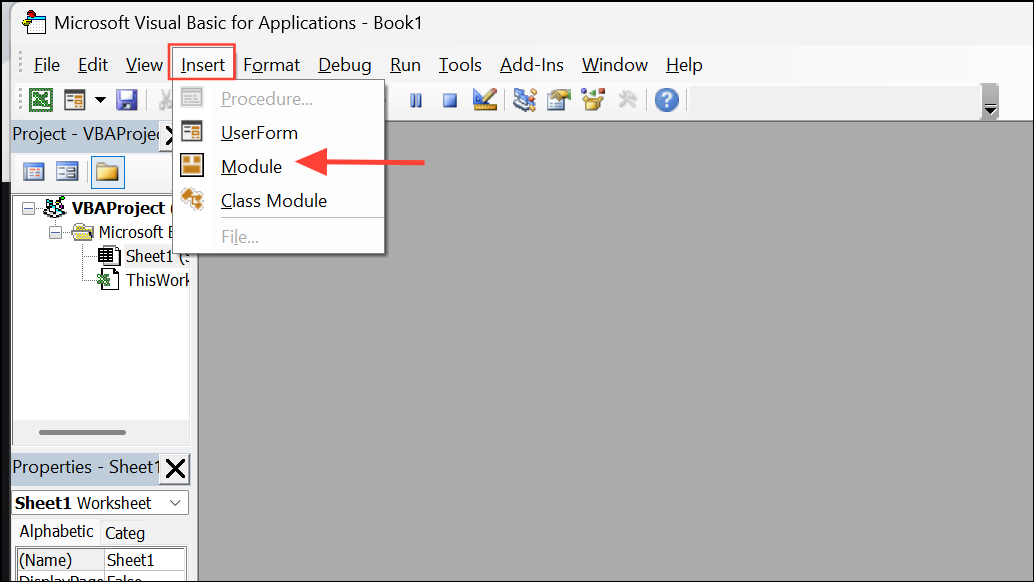
Transfer Macros to a New Module
Corrupted or outdated VBA modules can trigger Error 400. Moving your code to a new module often resolves hidden corruption and restores macro performance.
Debug and Review Your VBA Code
Error 400 often points to a mistake in your VBA code, such as referencing a non-existent range, object, or worksheet. Debugging helps pinpoint the exact line causing the failure.
F8 to execute your code line by line (Step Into). Each press advances to the next line, highlighting it in yellow.Repair or Reinstall Microsoft Office
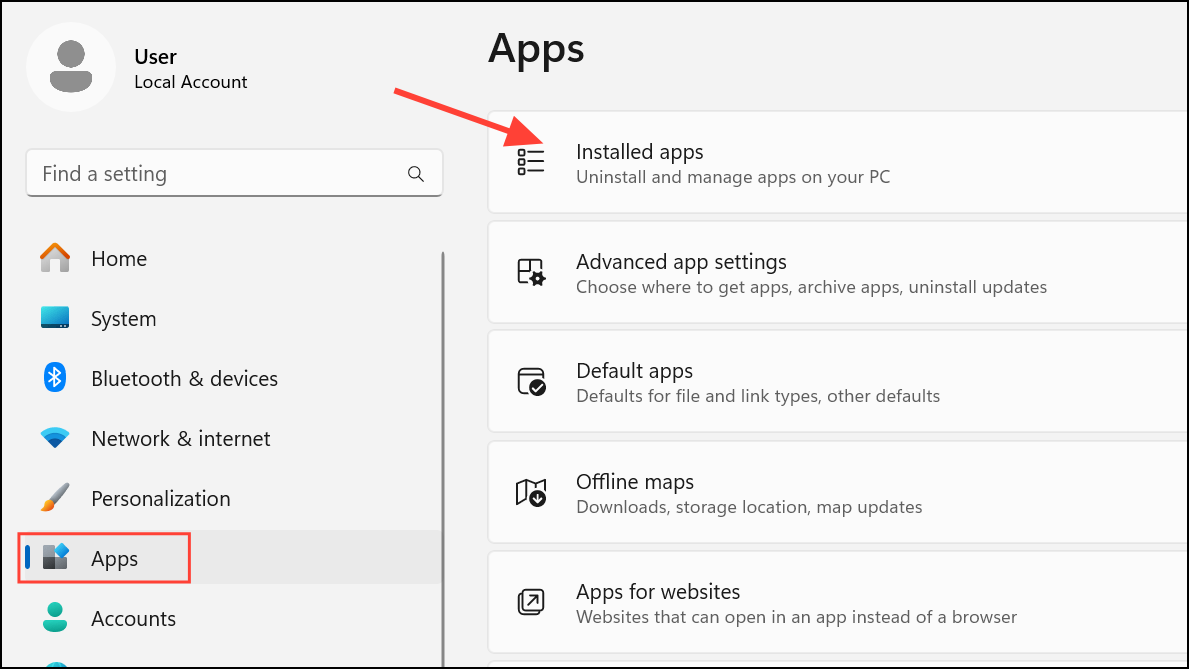
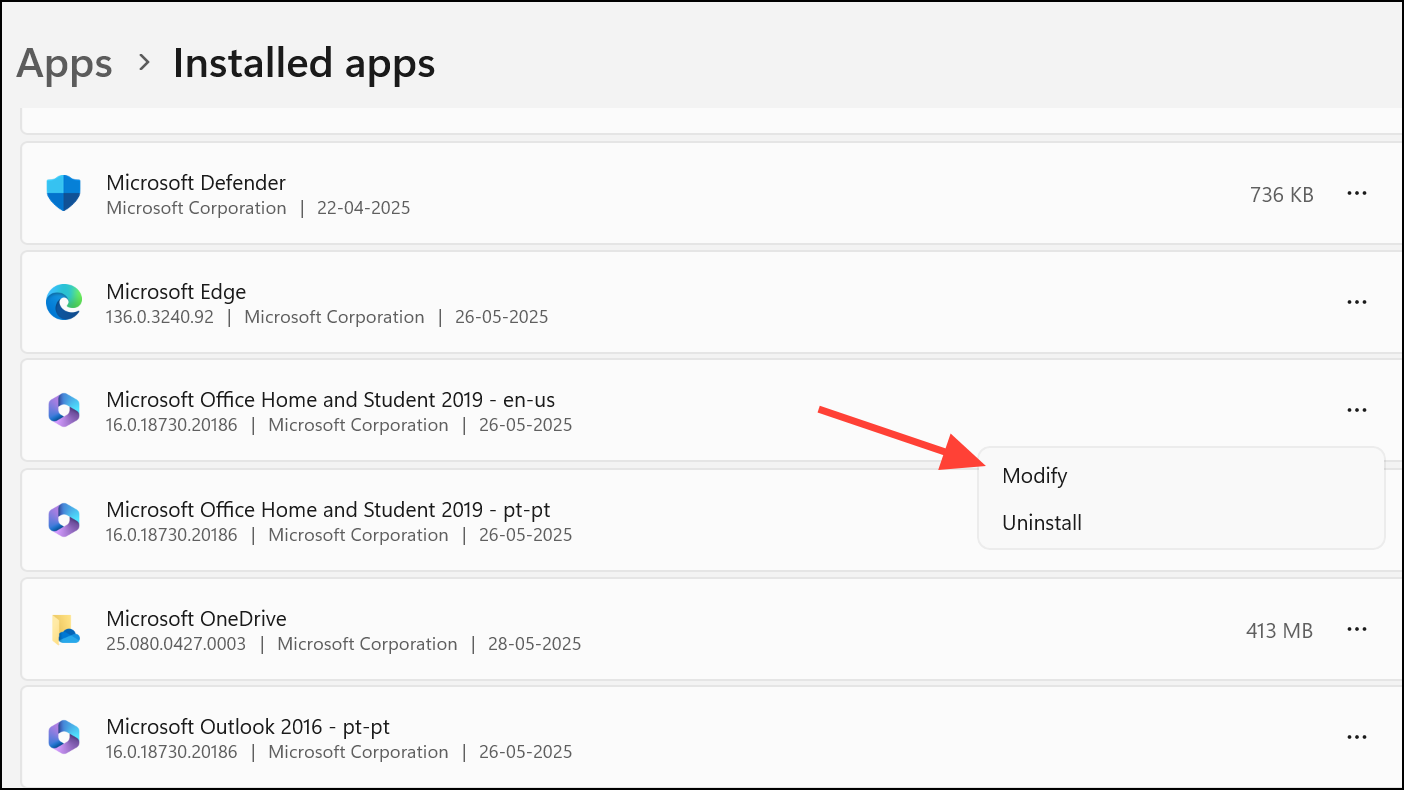
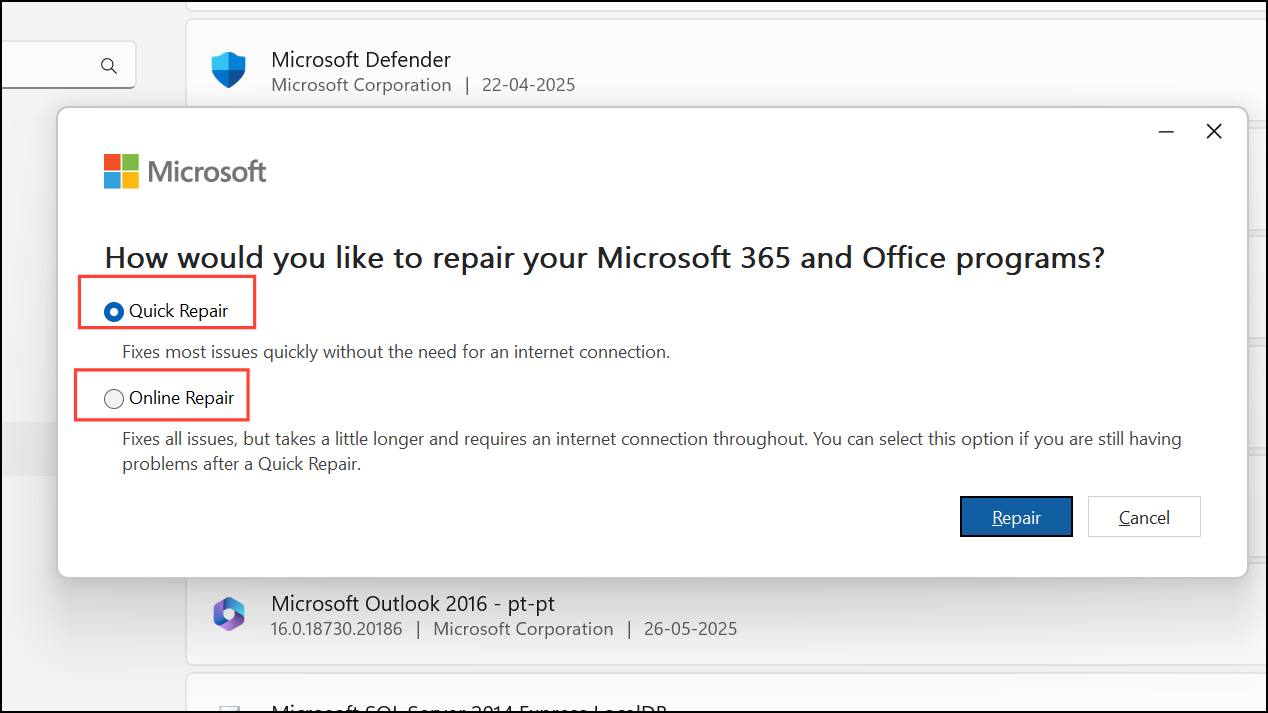
Corruption in your Office installation or registry can result in persistent VBA errors. Repairing or reinstalling Office restores missing or damaged files and registry entries.
Scan for Malware and System Issues
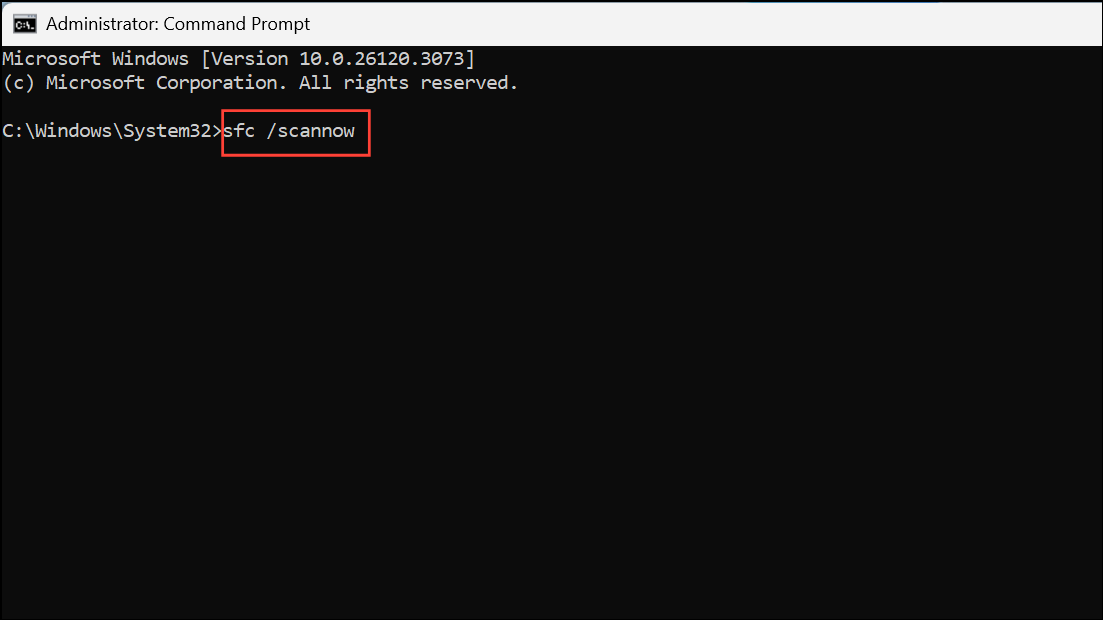
Malware infections or system file corruption can interfere with Excel’s operation and macro execution. Running security and system scans helps restore normal function.
sfc /scannow
Additional Tips for Preventing VBA Error 400
- Always check that all referenced worksheets, ranges, and objects exist before running your macro.
- Update Excel and Windows regularly to receive bug fixes and compatibility updates.
- Back up your workbooks before making significant changes to VBA code or modules.
- If you use third-party add-ins, ensure they are compatible with your version of Excel and do not conflict with your macros.
Applying these targeted fixes addresses the root causes of VBA Error 400, restoring reliable macro execution in Excel on Windows 11. Regular code review and system maintenance help keep similar issues from cropping up in future projects.





