

The error message Windows Resource Protection found corrupt files but was unable to fix some of them signals that Windows 11’s built-in System File Checker (SFC) utility detected corrupted system files but could not repair all of them. This typically means the local cache used for repairs is itself damaged, or that deeper system issues are interfering with automated fixes. When this occurs, system stability, updates, and certain Windows features may stop working as expected. Addressing this error promptly helps prevent further complications and ensures your device operates reliably.
Run the Deployment Image Servicing and Management (DISM) Tool
Windows + S, type cmd, then right-click Command Prompt and select Run as administrator. This launches a terminal window with the permissions needed to repair system files.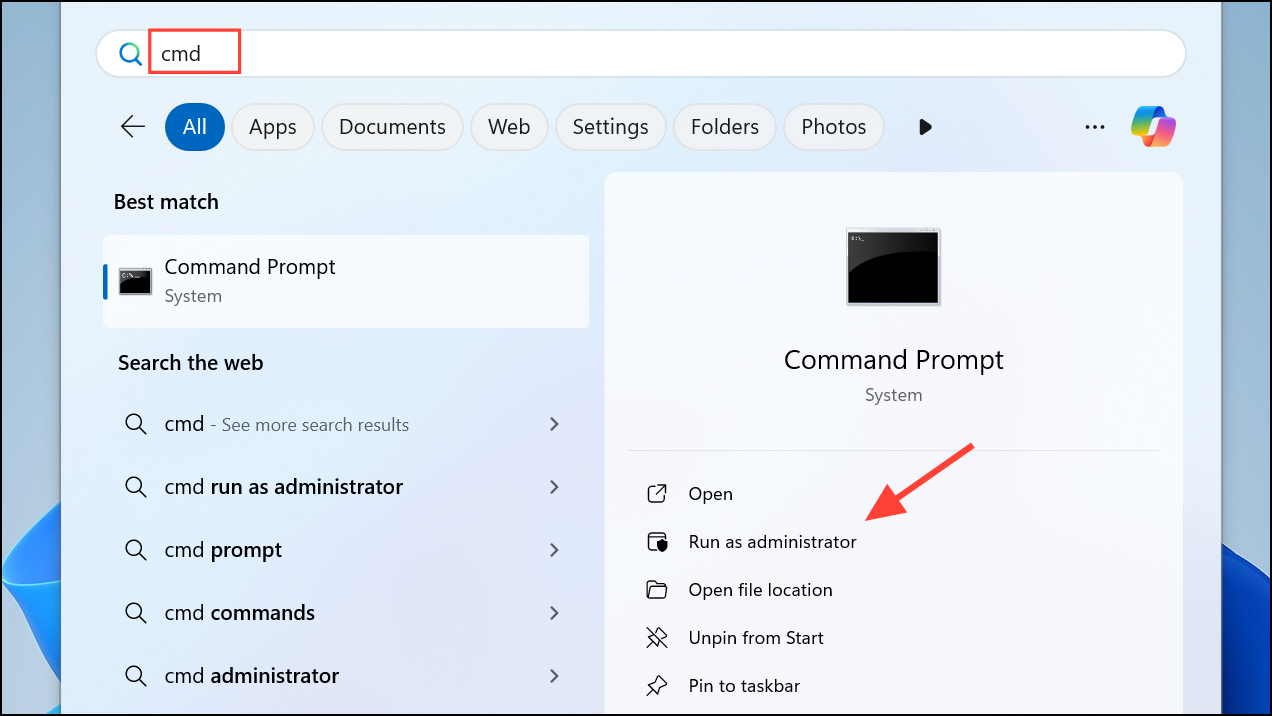
DISM /Online /Cleanup-Image /RestoreHealth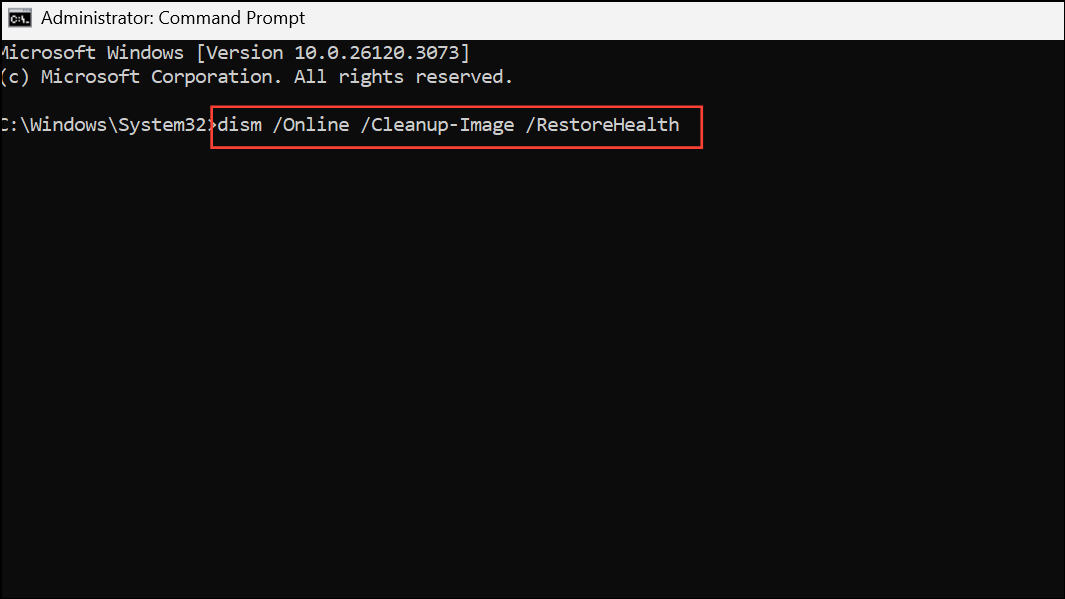
DISM will scan your system for corruption and, if necessary, download clean files from Microsoft’s servers to replace damaged ones. This process may take several minutes, especially if your internet connection is slow or your system image is severely damaged.
sfc /scannow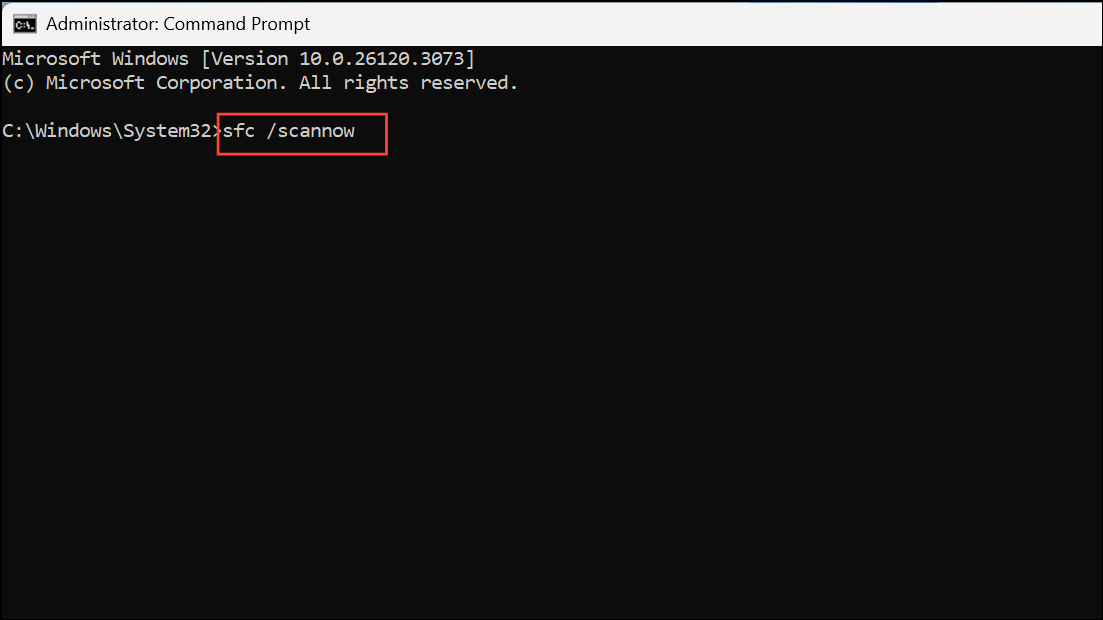
This command will attempt to repair system files using the now-updated system image. If SFC reports that all files were successfully repaired, the issue is resolved.
Check and Repair Disk Errors with CHKDSK
File system corruption or failing disk sectors can prevent SFC and DISM from repairing files. Running a disk check helps identify and fix these underlying problems.
chkdsk C: /f /r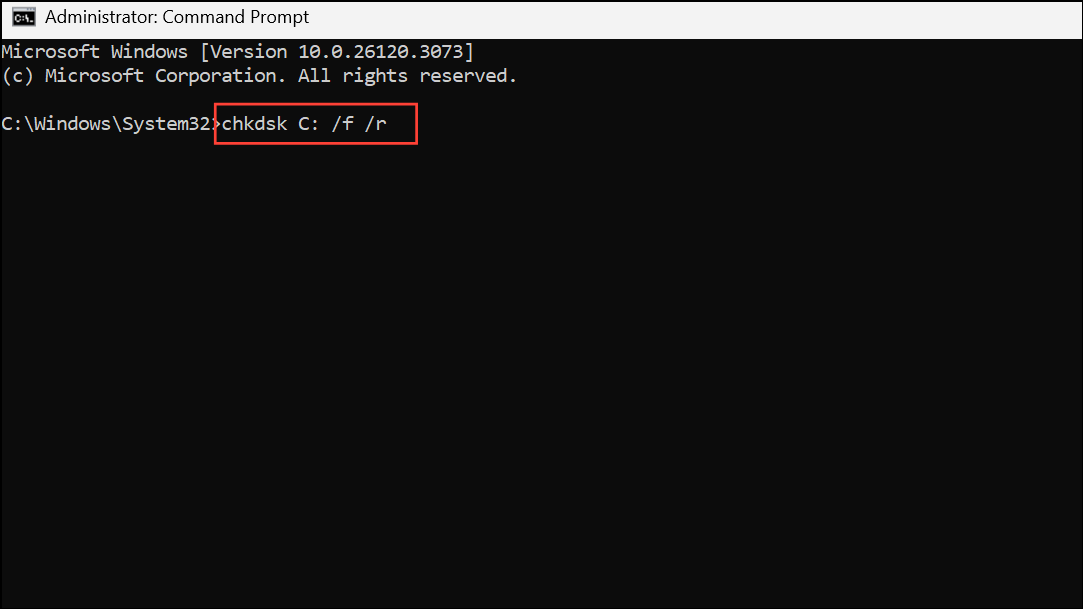
This command scans for file system errors (/f) and bad sectors (/r), then attempts to repair them. If prompted to schedule the scan at next restart, type Y and press Enter.
sfc /scannow to check if corruption issues remain.Perform SFC and DISM Scans in Safe Mode
Interference from third-party drivers or background processes can block system repairs. Safe Mode loads Windows 11 with only essential drivers and services, minimizing these conflicts.
Windows + I. Go to System > Recovery, then click Restart now under Advanced startup.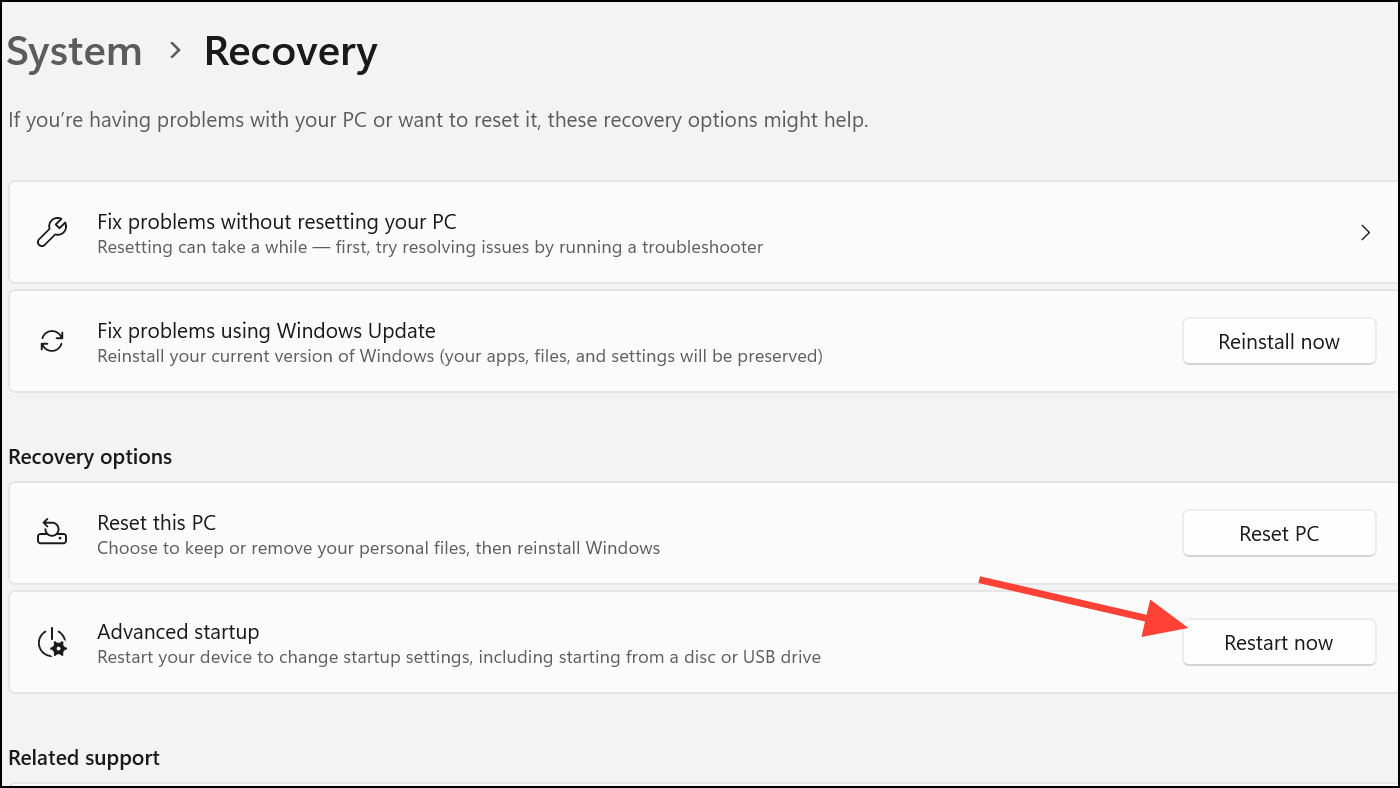
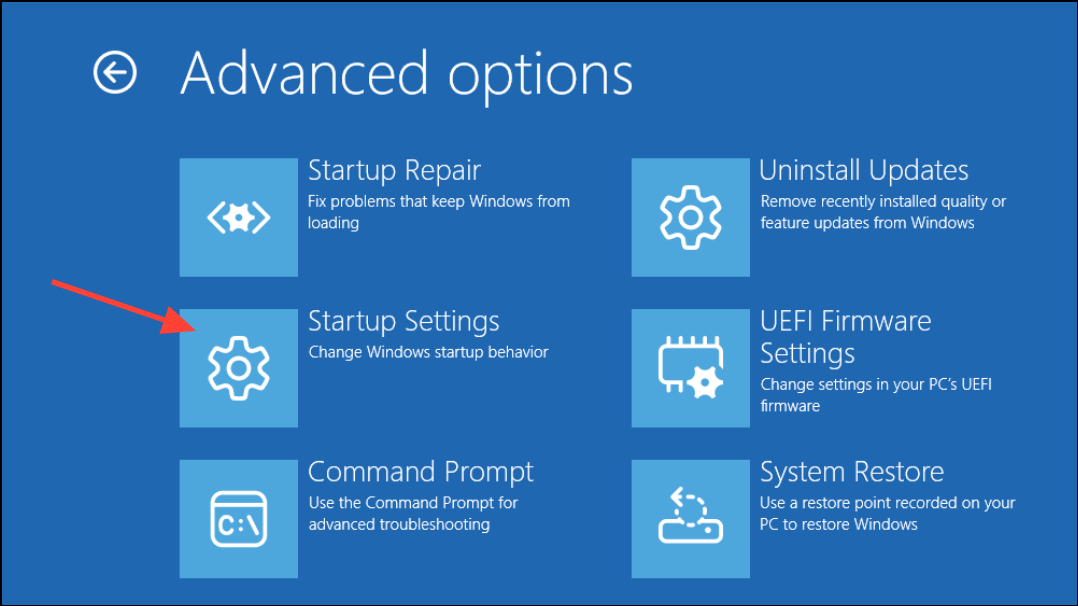
DISM /Online /Cleanup-Image /RestoreHealth command, then follow with sfc /scannow as described previously. Running these tools in Safe Mode often bypasses interference that prevented successful repairs in normal mode.Run SFC from the Windows Recovery Environment (WinRE)
When Windows cannot boot normally or system files are too damaged for repairs within the OS, running SFC from WinRE can help.
Shift and click Restart. Alternatively, boot from Windows 11 installation media and select Repair your computer.
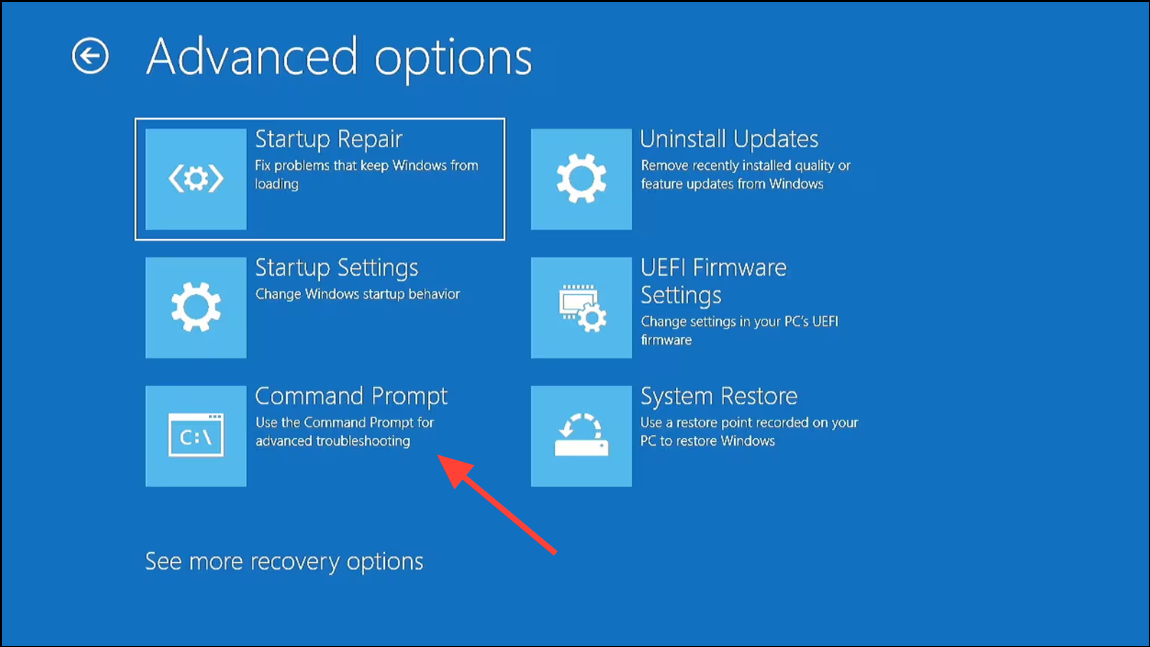
sfc /scannow /offbootdir=C:\ /offwindir=C:\Windows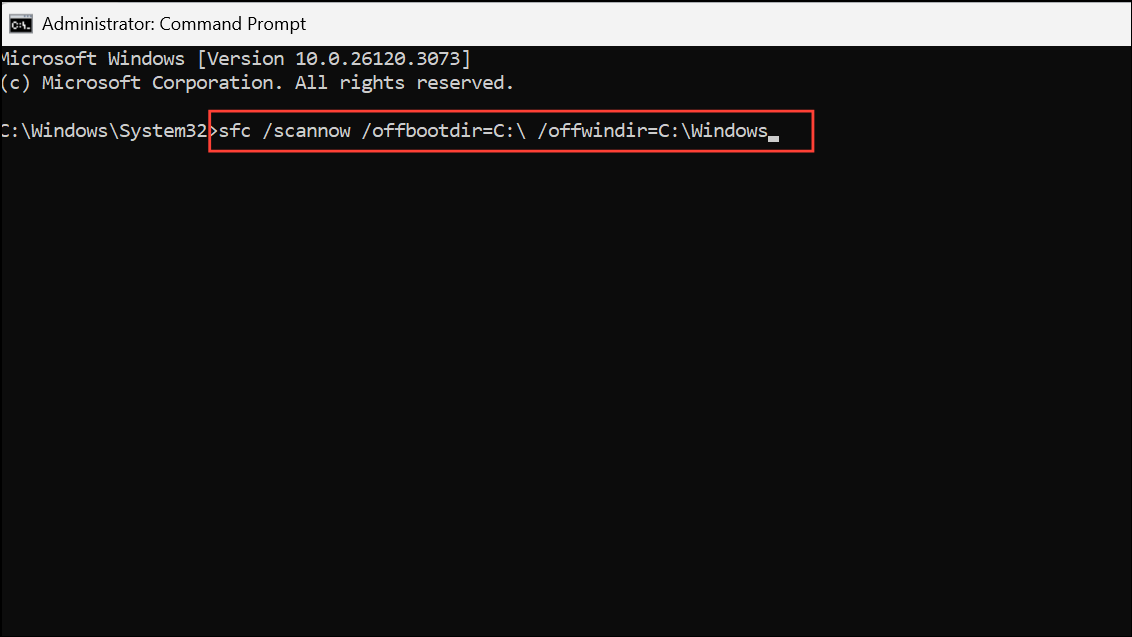
Adjust C: if your Windows installation is on a different drive. This command checks and repairs system files offline, which can succeed when online repairs fail.
Restore Windows 11 Using System Restore
System Restore can roll back your system files and settings to a previous state before the corruption occurred, without affecting personal files.
Restore. Select Create a restore point, then click System Restore in the System Properties window.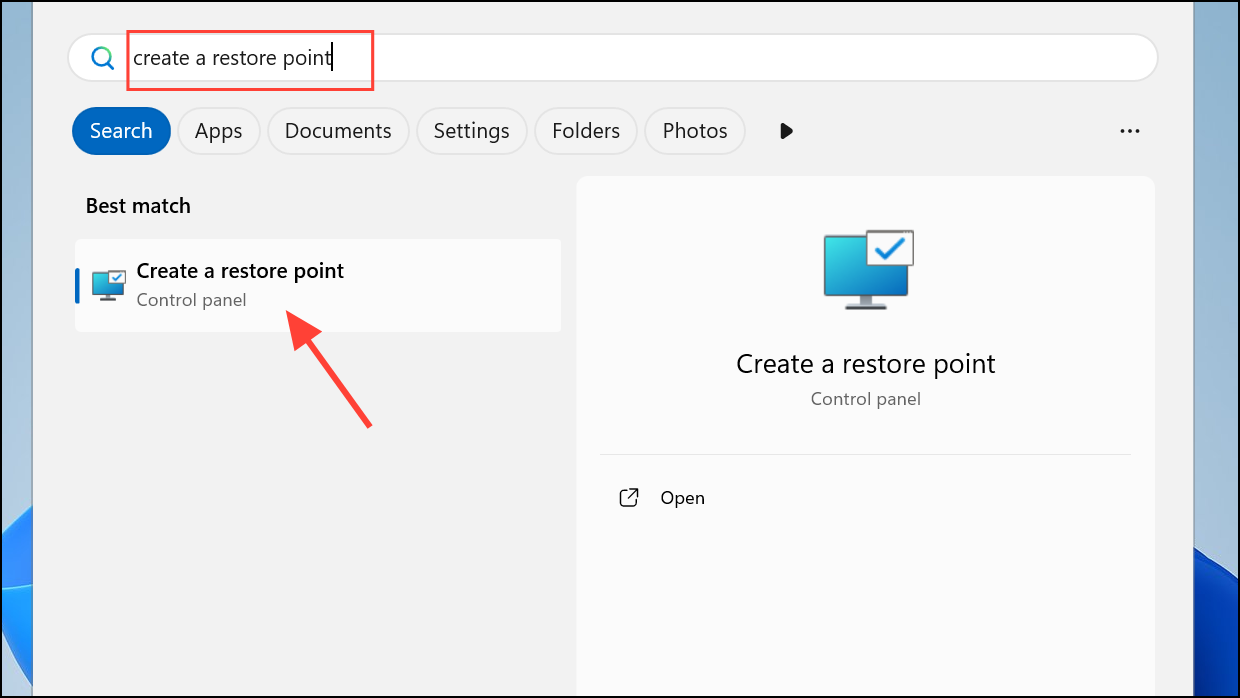
sfc /scannow to verify that system file integrity has been restored.Reset Windows 11 as a Last Resort
If none of the above methods resolve the corruption, resetting your PC reinstalls Windows 11 while giving you the option to keep or remove personal files. This process replaces all system files with fresh copies.
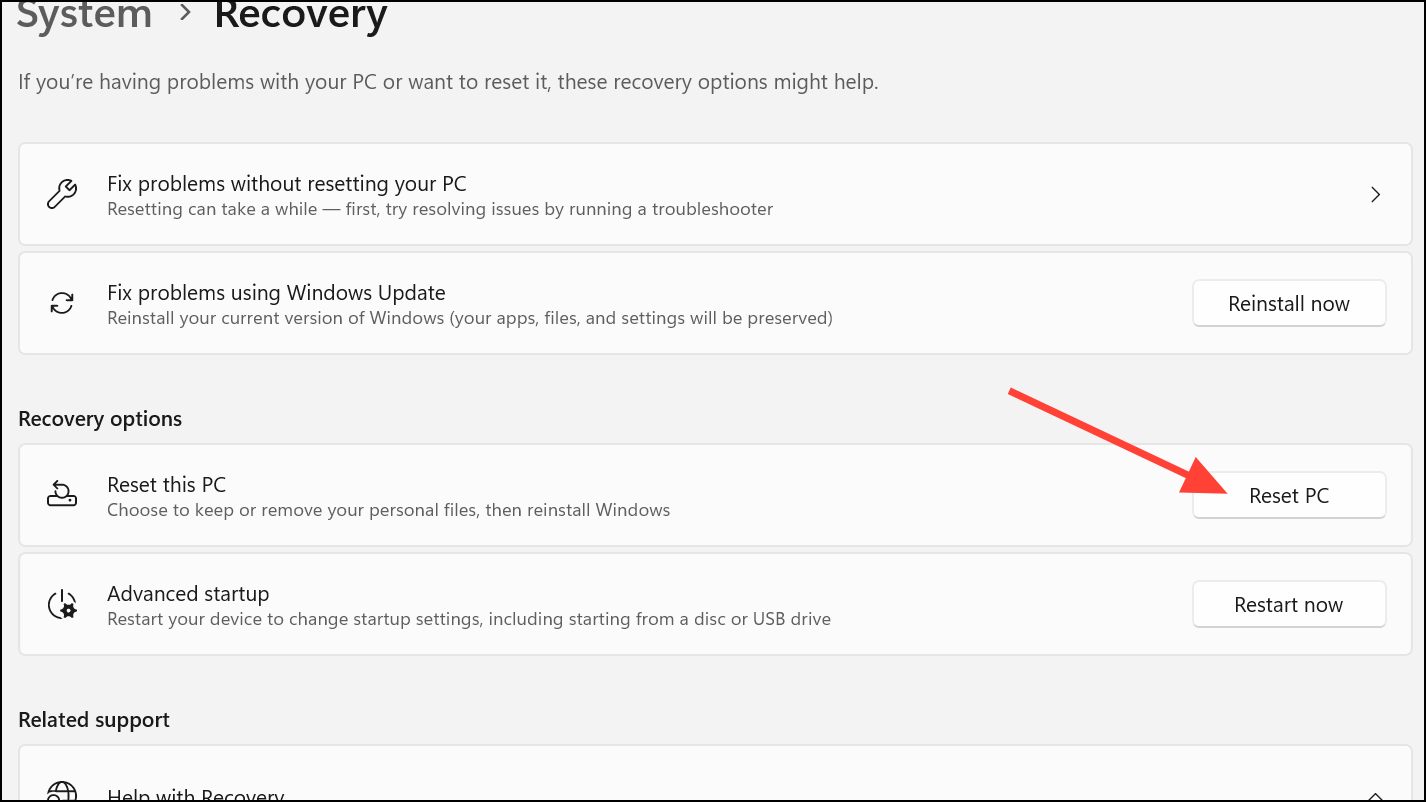
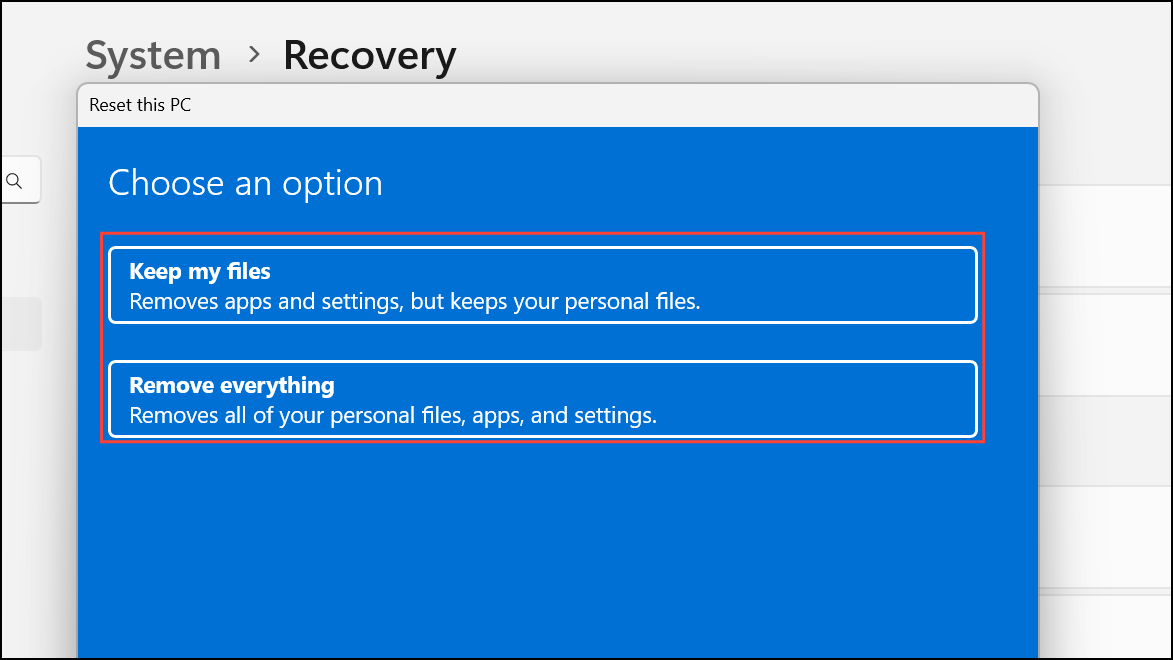
Addressing the “Windows Resource Protection found corrupt files but was unable to fix some of them” error in Windows 11 requires a combination of built-in repair tools and, in some cases, recovery options. Regularly updating Windows and creating restore points can help prevent future system file issues.



