Error Code 262 disconnects you from a Roblox experience and shows, “There was a problem sending data, please reconnect.” It means your device stopped communicating with Roblox’s servers while you were playing. The disruption could last just one second, or a firewall, damaged cache, or modified client may be causing it.
Quick answer: Click Reconnect first. If that fails, restart Roblox and your router, confirm Roblox’s servers are up, allow Roblox through your firewall, clear the Roblox temp folder, and reinstall the client as a last step.
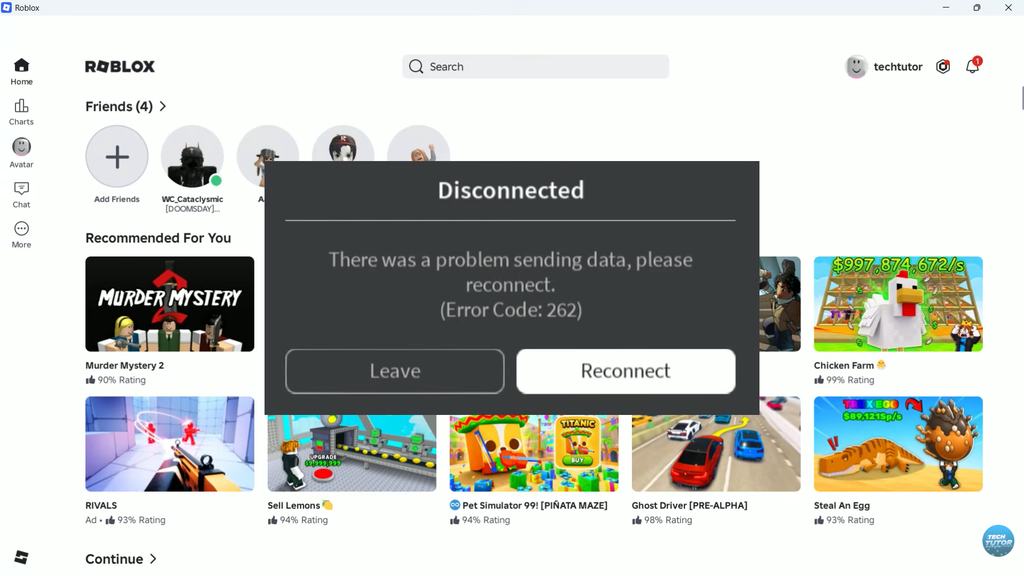
What Error Code 262 means
This code appears when the Roblox client and servers stop exchanging data. The source may be on either end: an unstable internet connection, a router that needs restarting, firewall or antivirus restrictions, corrupted client files, browser extensions, heavy background downloads, or a Roblox outage can break the link and trigger 262.
Because the cause varies, the fix is a process of elimination. Start with the quickest checks and only move to a reinstall if nothing earlier works.
Reconnect and restart first
The error dialog includes a Reconnect button. Click it. If the experience loads again, the drop was temporary and you are done. Watch for the experience to resume on screen without the disconnect dialog reappearing.
If reconnecting does nothing, close Roblox completely and relaunch it. When that still fails, restart your computer, then sign out of your Roblox account and sign back in. These steps clear the temporary connection states that cause most 262 drops.
Rule out a Roblox outage
Before touching any settings, confirm the problem is not on Roblox’s side. During an outage or maintenance window, joining experiences becomes slow or impossible, and 262 can appear no matter what you do locally. If the platform is down, waiting for it to recover is the only option.
Stabilize your internet connection
Roblox needs a steady connection to keep sending data. An unstable network is one of the most common reasons the 262 code returns again and again.
- Open a website in your browser to confirm you are actually online.
- Power off your router, wait about 30 seconds, then turn it back on.
- Switch from Wi-Fi to a wired Ethernet connection if you can.
- Pause active downloads and streaming apps that eat bandwidth.
- Disconnect other devices on the network to free up capacity.
- Turn off any VPN, since changing IP addresses can log you out.
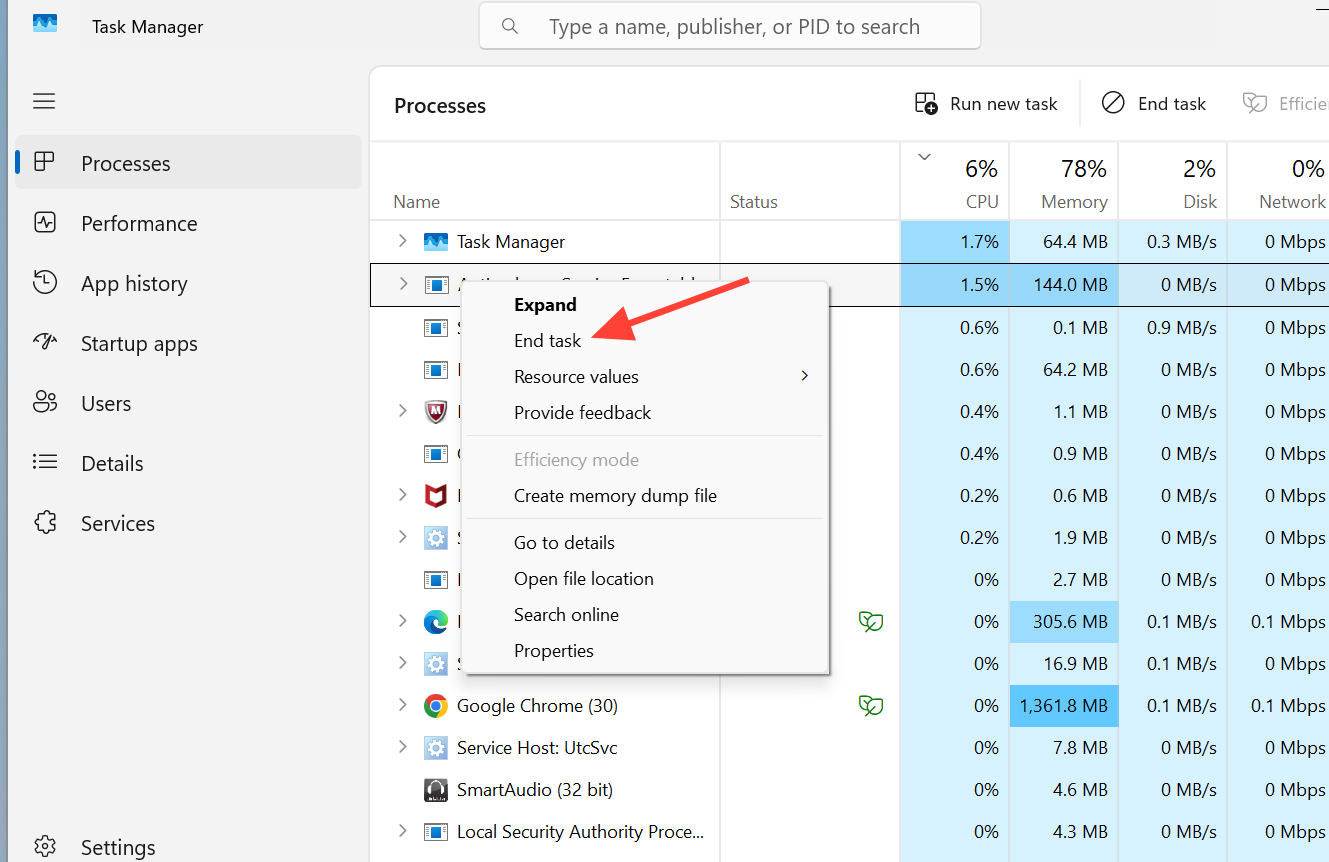
To close bandwidth-heavy processes on Windows, open Task Manager, select the Network column to sort by usage, then right-click the heaviest tasks and choose End task.
Allow Roblox through your firewall
A firewall or antivirus may prevent Roblox from contacting its servers, resulting in error 262. If you added security software recently, make sure it isn’t blocking Roblox. To whitelist Roblox in Windows Defender Firewall:
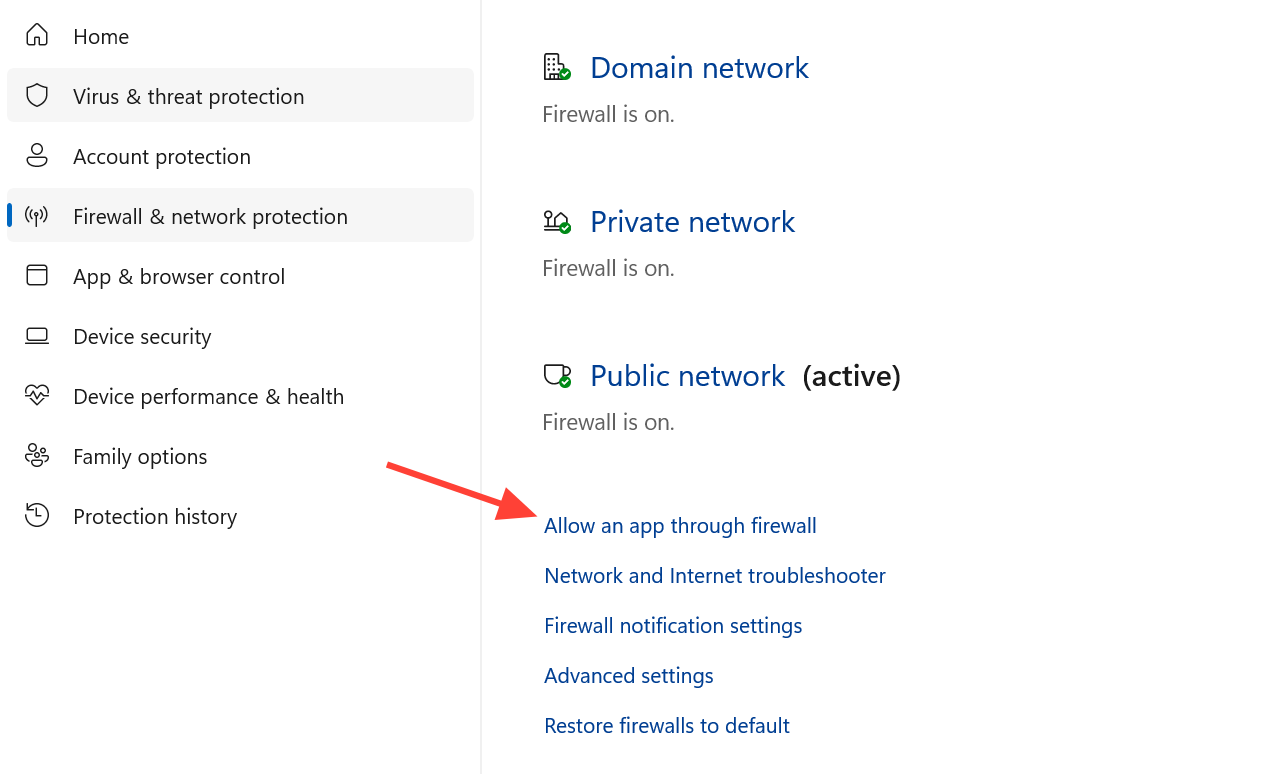
Third-party antivirus tools have their own allow lists. If you use one, follow that program’s instructions to whitelist Roblox as well.
Clear the Roblox cache on Windows
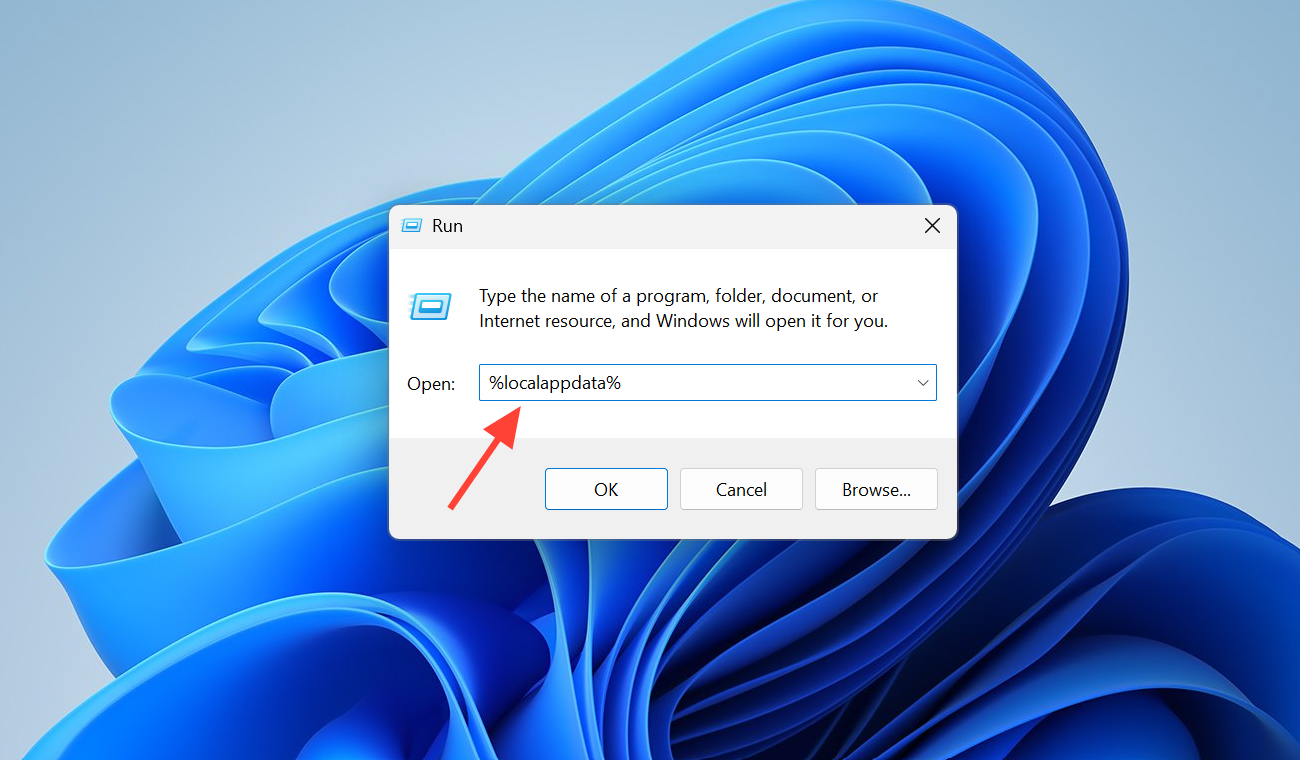
Corrupted temporary files can break the client and keep the 262 error coming back. Deleting the Roblox temp folder forces the client to rebuild clean files on the next launch.
Remove mods and browser extensions
Modified Roblox clients are not allowed and can cause compatibility problems or even account suspension. If you run a modded client, stop using it. Roblox-related browser extensions can also interfere with the connection, especially right after an update. Disable those extensions, relaunch the game, and remove any that turn out to be the cause.
Switch the Roblox client you use
Error 262 is often tied to one specific version of the client. You can run experiences through Roblox Player from the website or through the Microsoft Store app, and trouble on one does not always carry over to the other. Switch to whichever client you are not currently using and see if the disconnects stop. Do not run the web client and the Store app at the same time, since that can cause conflicts on its own.
If the error only hits one machine, logging into Roblox on another device confirms the problem is local to your setup rather than your account.
Reinstall Roblox
If everything above fails, a clean reinstall replaces corrupted or incomplete files that keep triggering the 262 error.
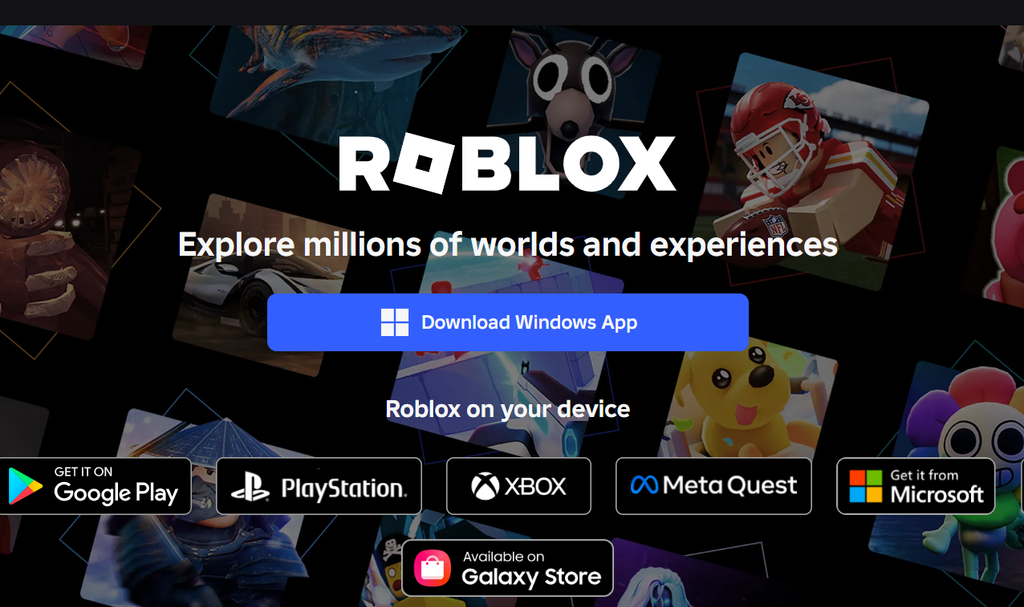
On mobile, the same idea applies. Press and hold the Roblox app to remove it, then reinstall the latest version from your device’s app store.
When 262 still won’t go away
You know the fix worked when you can load into an experience and keep playing without the “problem sending data” dialog returning. If the code keeps appearing after every step, the issue may need Roblox to investigate on its end. Contact Roblox Support and include your username, device model, operating system, the exact error message, and the steps that reproduce the disconnect so they can trace what is going wrong.