Running a shop in Supermarket Simulator on Roblox comes down to one repeating cycle: spend money on stock, put that stock on shelves, price it above what you paid, and get customers through the register fast enough to do it all again. Every upgrade, from extra shelves to self-checkouts, is just a way to make that cycle run bigger or faster.
Quick answer: Order products on the in-store computer, carry the delivered boxes inside, stock them on shelves, set a price above cost, then open the store and serve customers to earn cash and shop EXP.
Buy and place shelves
Shelves are the hard limit on how much you can sell. If every slot is full and customers are still browsing, more shelf space is the upgrade to buy before anything else.
The same terminal sells decorations and small props. A trash can, placed near the entrance for customers, runs $10, and the decoration menu also covers furniture, ceiling pieces, and plants.
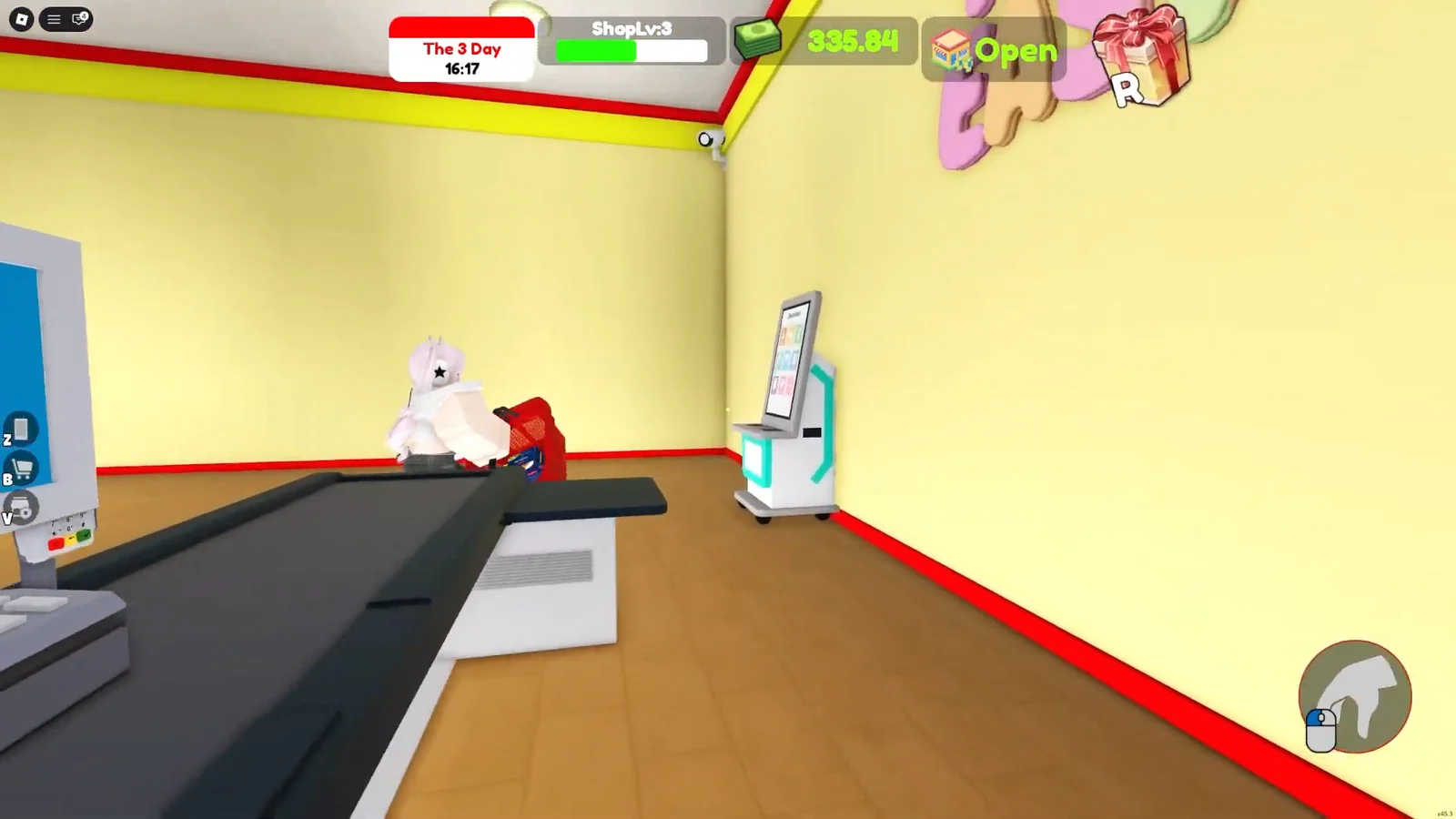
Order stock from the store computer
Products live under the Product tab of the same computer, and you buy them in packs. Ordering several packs of a few items at once is far less painful than running back to the terminal between customers.
Goods available for the shop include:
- Cheerios
- Pasta
- Flour
- Bread
- Olive Oil
- Sugar Powdered
Order in multiples that match your shelf space. Four packs of a product is a comfortable amount to restock a shelf without leaving boxes cluttering the floor.
Stock shelves and set prices
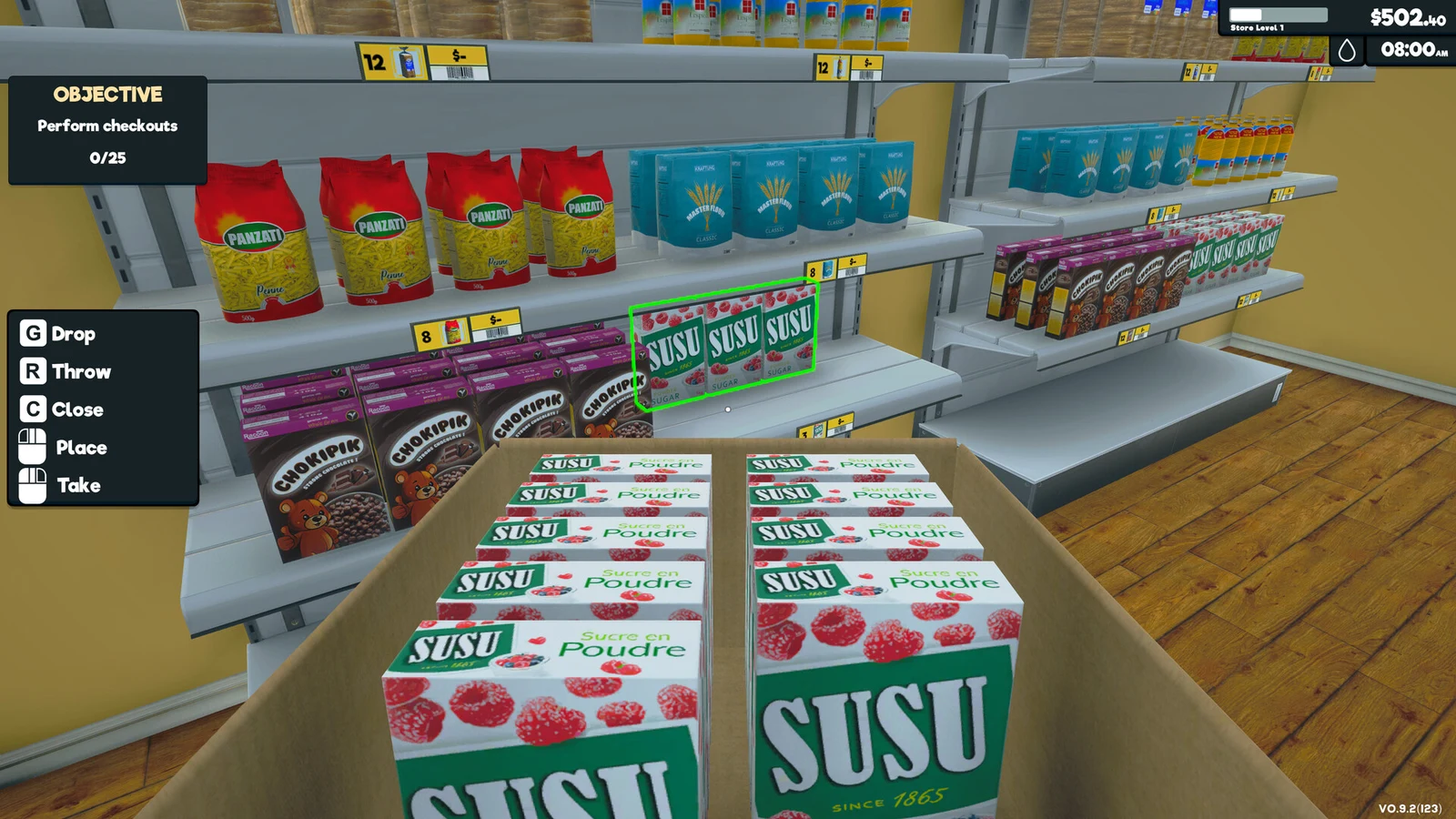
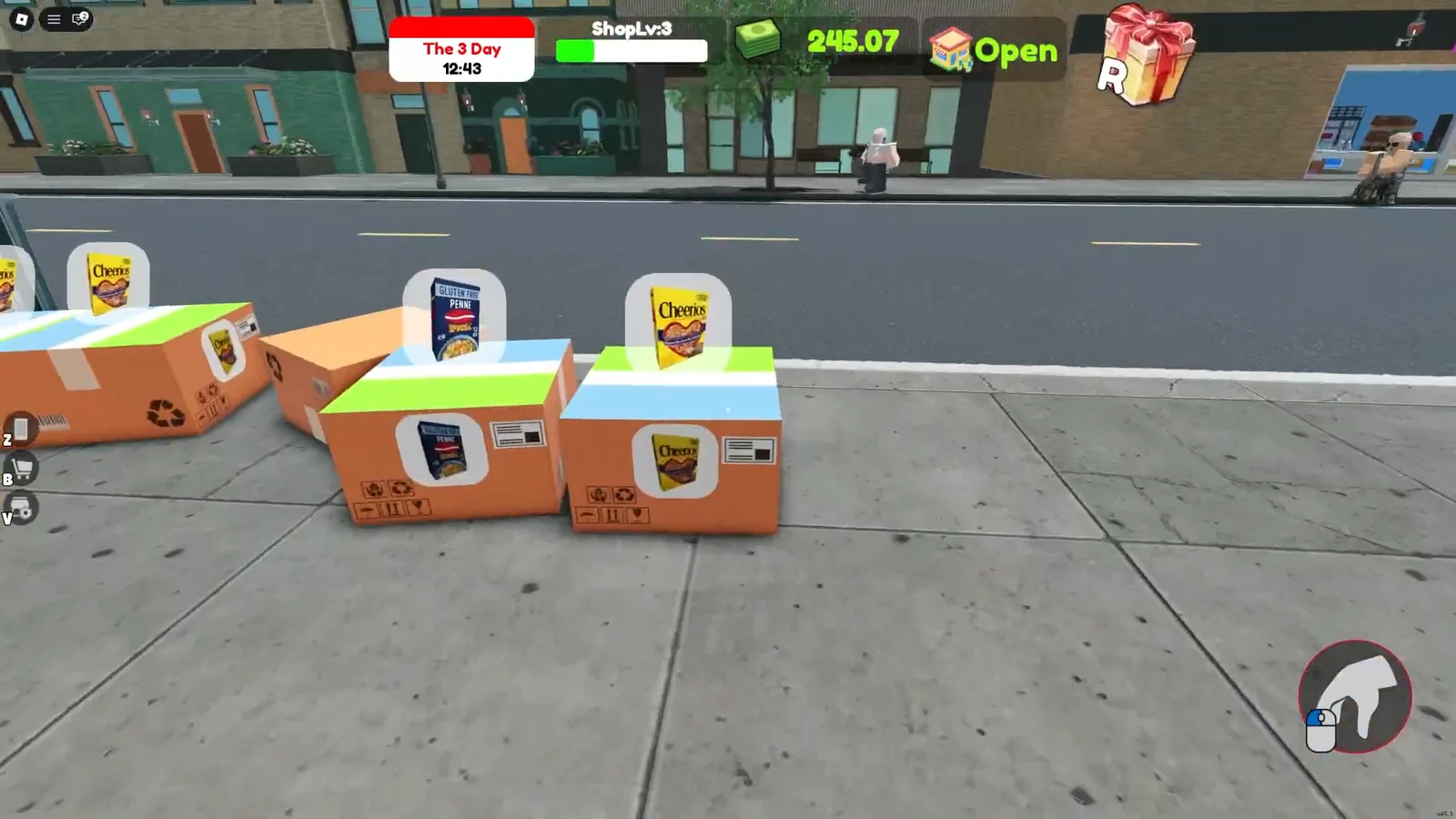
Restocking works exactly like shelf placement. Carry the delivered box in from outside, open it next to the shelf, and fill the slot. Products can be stacked on any shelf level, so the top row is fair game once the lower ones are full.
Pricing is where the actual profit comes from. Interact with the stocked product on the shelf to open the price keypad and type in whatever you want to charge. Raising a price by a small amount across every shelf adds up quickly once foot traffic picks up.
| Product | Example shelf price |
|---|---|
| Pasta | $3.50 |
| Flour | $2.00 |
Those are workable margins rather than fixed values. The keypad accepts any number, so you can nudge prices up after a restock and watch whether customers keep buying.
Check out customers with cash and card
Flip the store sign from Closed to Open and customers start filling baskets. Every one of them ends up at your register, and you handle the transaction manually.
You cannot use the computer while the queue is moving, so close the store when you need to place a large order or rearrange fixtures.
Shop level and store upgrades
Serving customers awards EXP, and enough of it triggers a “Shop Level Up !” banner with your level displayed on screen as ShopLv. Going from Level 3 to Level 4 takes only a steady run of checkouts, so the fastest progression is simply keeping shelves full and the door open rather than fiddling with layout.
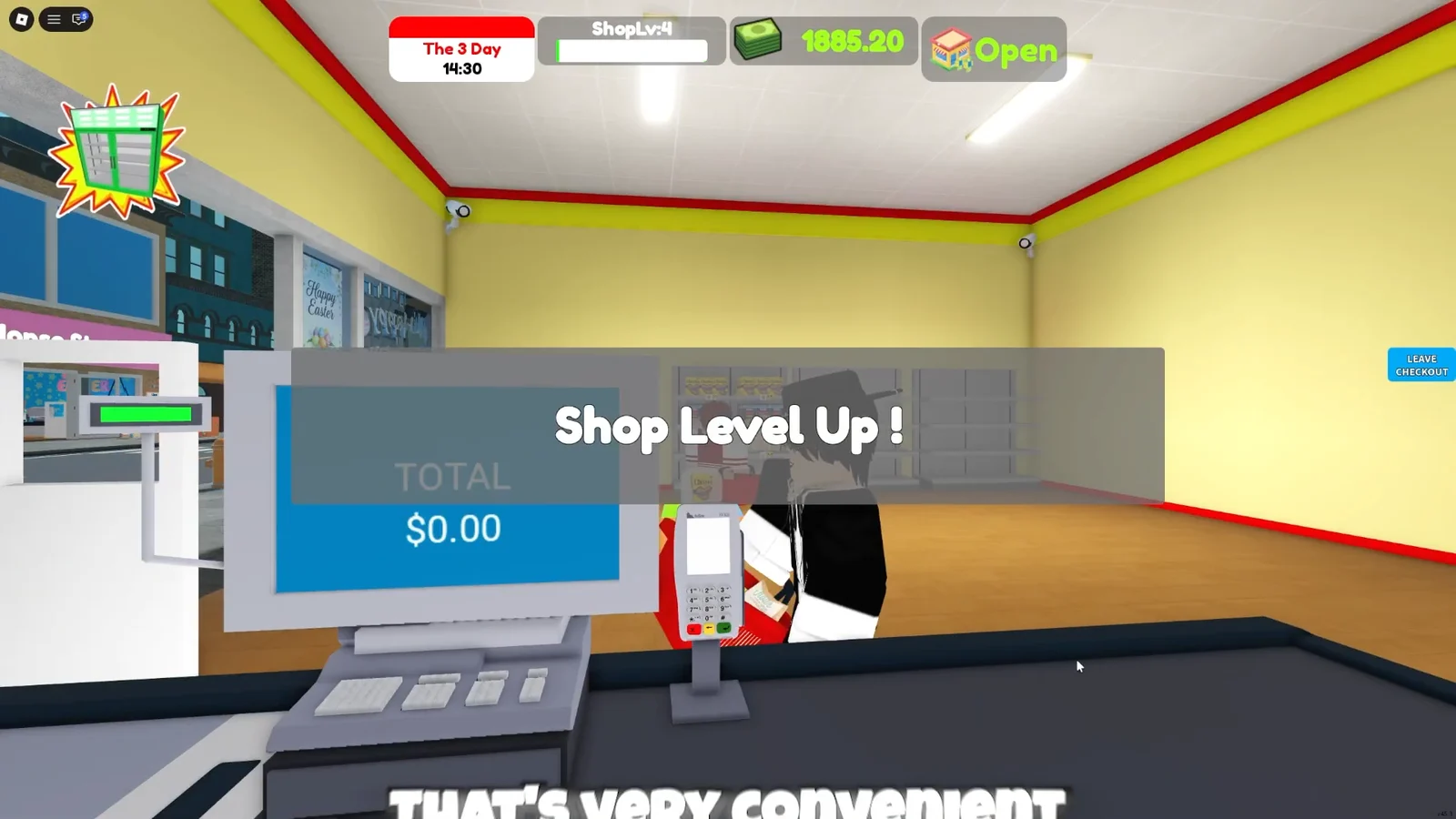
The store catalogue grows alongside the shop, and the fixtures worth knowing about are:
| Fixture | Purpose |
|---|---|
| Shelf | Basic product display space |
| Super Shelf | Upgraded shelving for more stock |
| Self-checkout | Checkout station customers use themselves |
| Super Self-checkout | Upgraded self-service checkout |
The phone menu in the bottom-right corner holds the rest of your options, including Invite, Setting, and Rebirth. Inviting friends to play is worth doing early, since each invite can pay out up to 100 cash toward your next stock order.
Codes
| Code | Reward |
|---|---|
| Excellence | 1,500 Cash |
| Outstanding | 1,400 Cash |
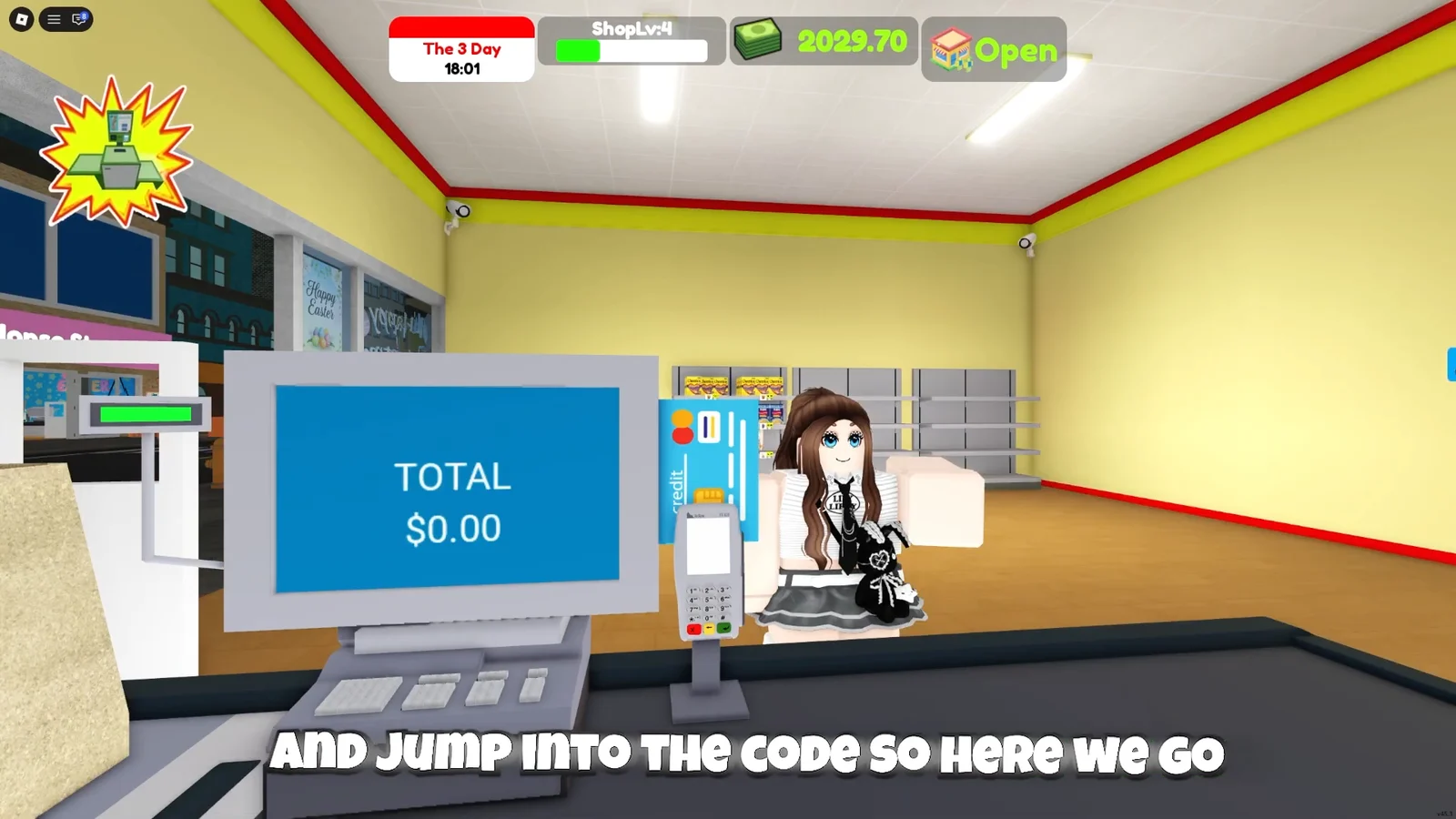
Press Z or tap the phone icon, choose the green Code button, type the entry exactly as written, and hit Enter to bank the cash.
Once the loop clicks, the store more or less runs itself: order in bulk before opening, price everything a little above cost, and keep the register moving. The cash piles up faster than any single upgrade can drain it, which is when expanding the floor and adding self-checkouts starts to make sense.