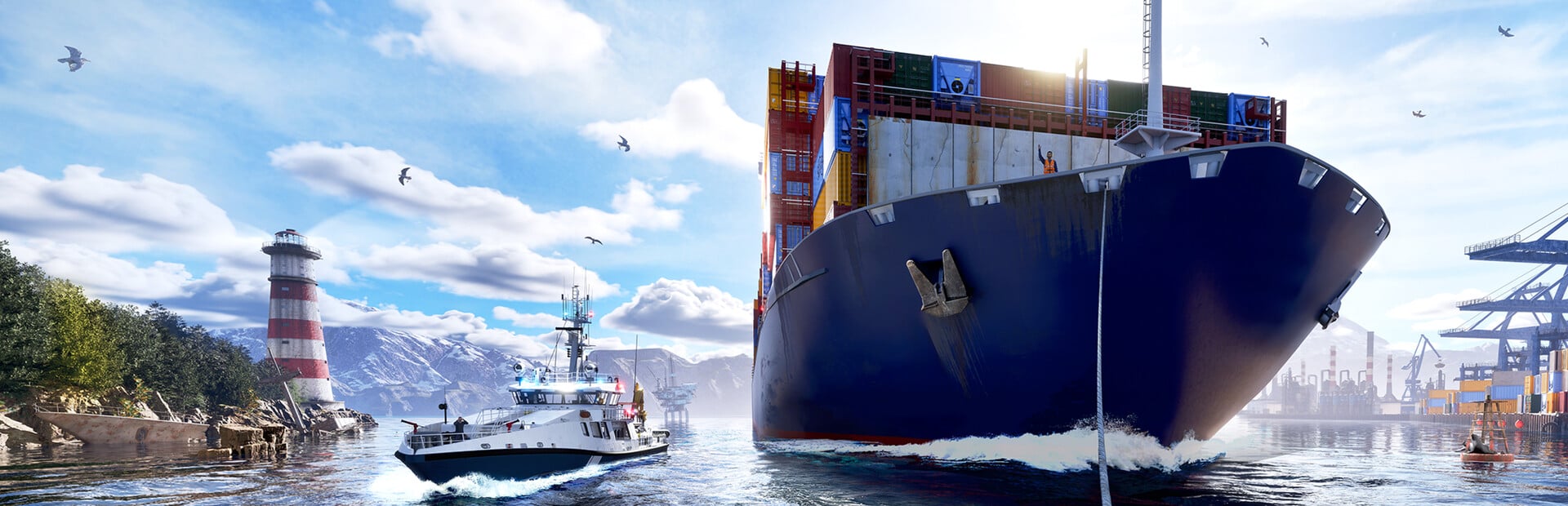
Fleet customization in Seafarer: The Ship Sim happens in one place, the Vessel Editor. Open it and you can rename a ship, stamp it with a fleet logo, and set its hull color, then save the look and take it out to sea. It works the same way whether you are dressing up a small rigid inflatable or a full-size container ship.
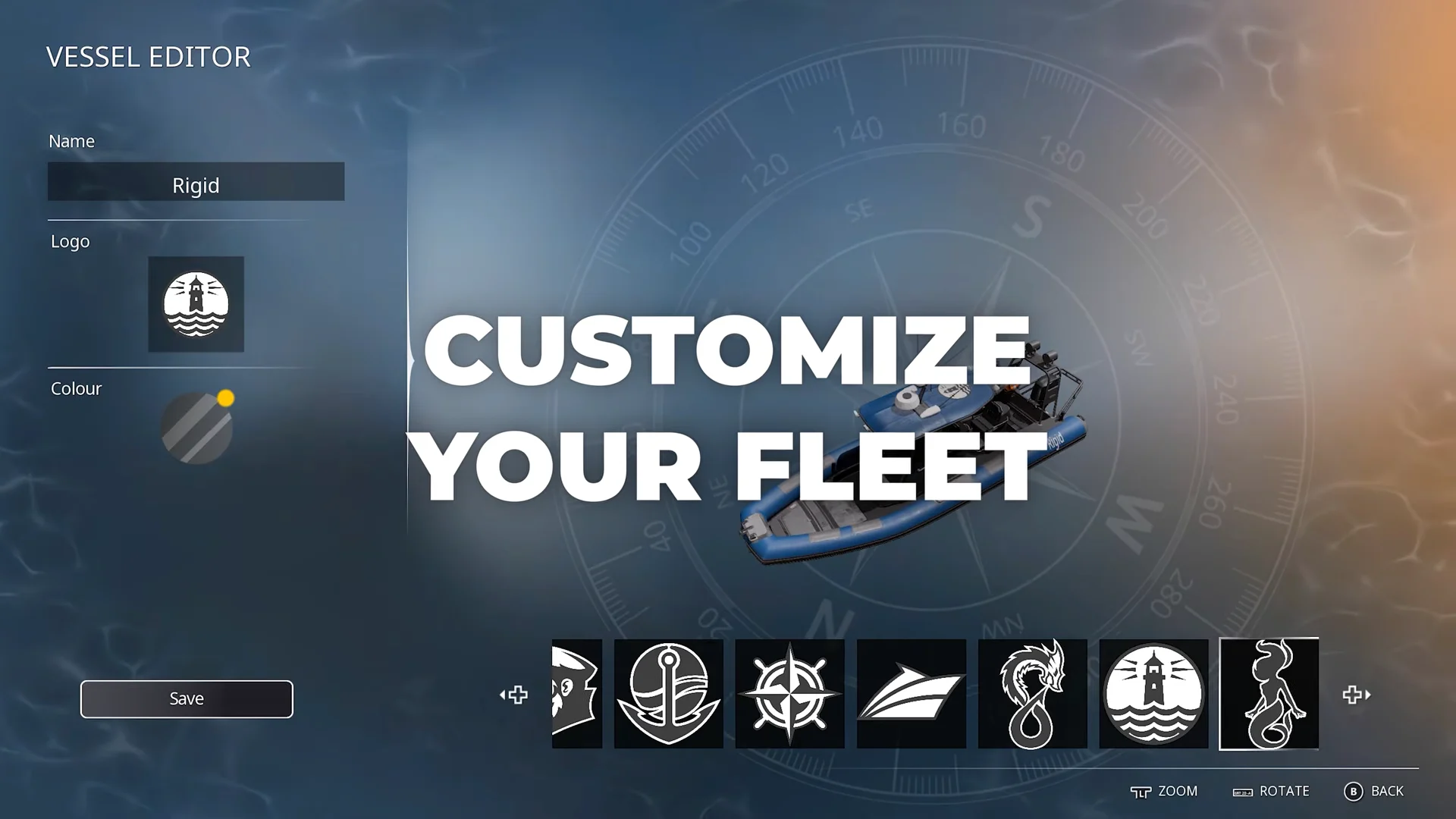
Quick answer: Open the Vessel Editor, edit the Name, Logo, and Colour fields, then press the Save button to apply the look to that vessel.
What the Vessel Editor lets you change
The editor exposes three attributes per ship. Each one is independent, so you can change a name without touching the paint, or swap a logo while keeping the rest as it was.
- Name — a text field for renaming the vessel, such as “Rigid”, “Lancer”, or “Nordic Power”.
- Logo — a fleet insignia picked from a bottom bar, including a sailor-cap icon, an anchor, a compass rose, a ship silhouette, a coiled sea serpent, and a lighthouse.
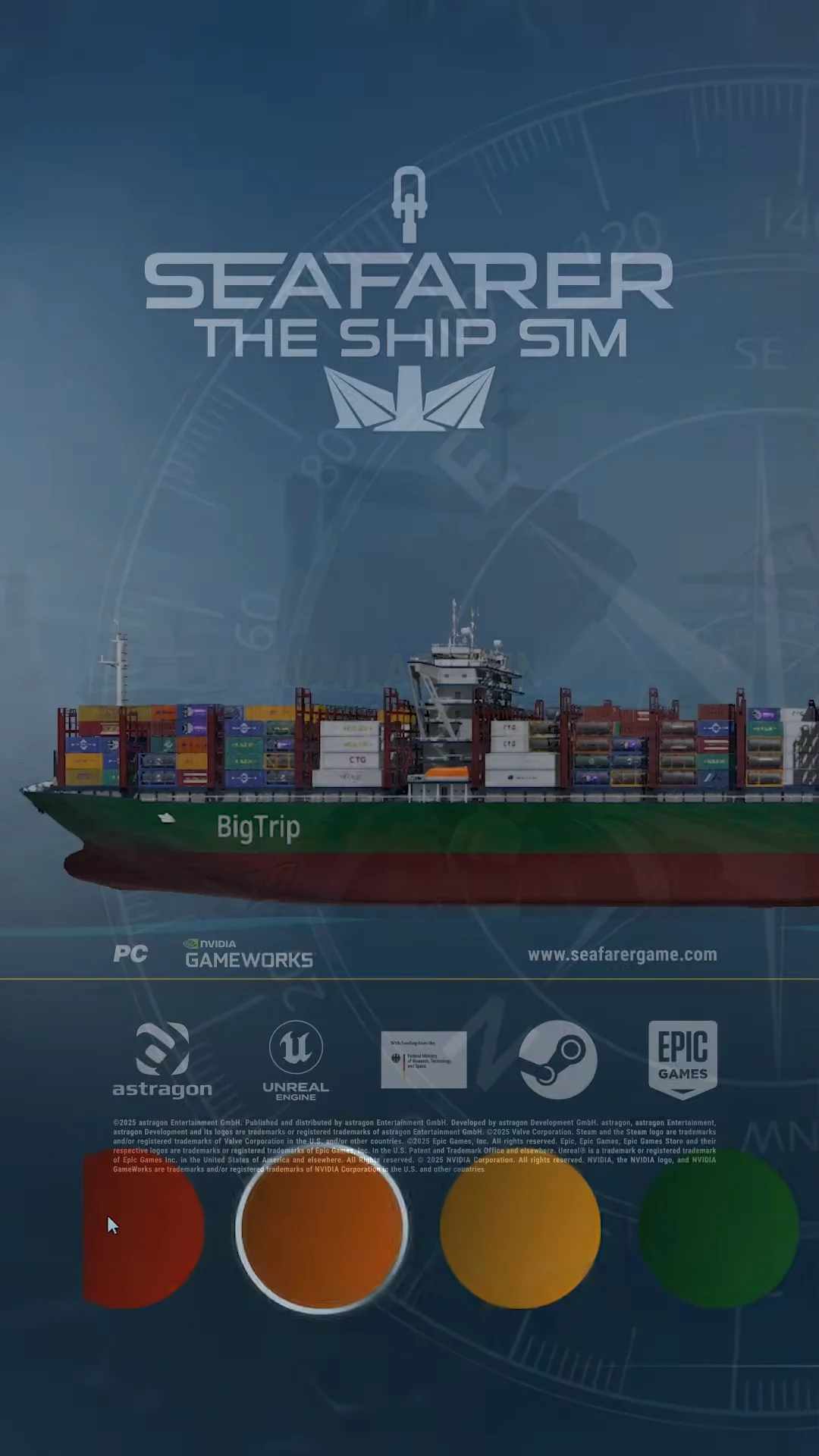
- Colour — primary and accent swatches, with both multi-color patterns and solid tones like grey/yellow, red/white, orange/white, green/dark green, and blue/navy.
Customize a vessel step by step
Vessel Editor controls
While you edit, you can inspect the ship in 3D to check how a livery reads from different angles before saving.
| Action | Control |
|---|---|
| Zoom | L2 |
| Rotate the ship model | R2 |
| Save and back out | B |
Which ships you can customize
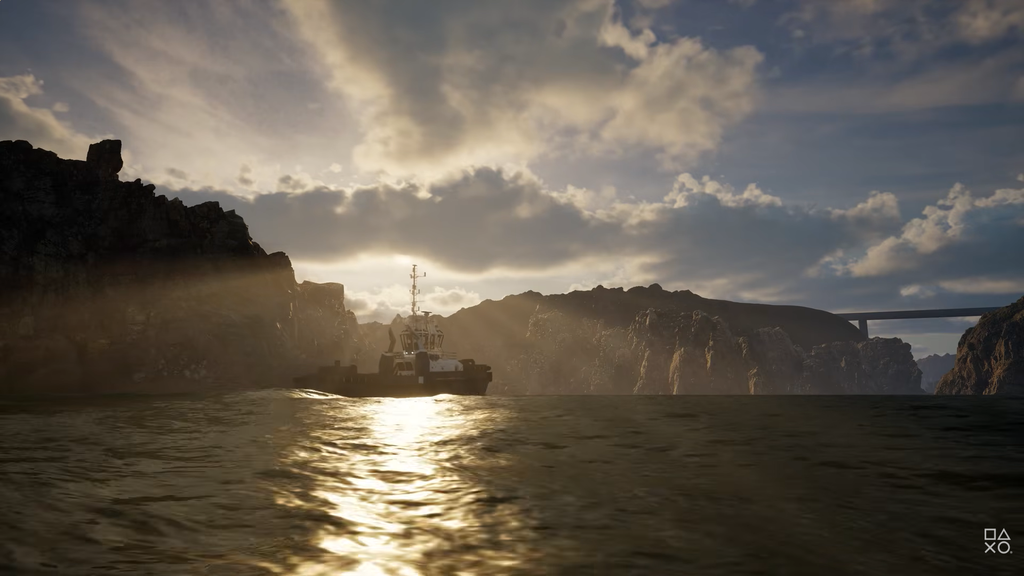
Customization is not limited to one class. The same Name, Logo, and Colour options apply across the fleet, from the smallest rescue craft up to the largest freighters.
- Small rigid inflatable rescue boats
- Offshore cutters and patrol vessels
- Bulk dry-goods carriers
- LNG tankers
- Large container ships, such as the BigTrip
Once saved, your custom names and liveries show up on the ships as they sail, so a fleet with unique logos and paint reads as your own on the water. Repeat the same steps on each vessel to give the whole fleet a consistent look.