
Assigning a distinctive notification sound in Windows 11 ensures that important alerts stand out, especially as the system’s default tones have shifted to a quieter, softer profile in recent versions. Custom sounds not only help prevent missed notifications but also allow you to tailor your PC’s behavior to your preferences, making everyday interactions more efficient and recognizable.
Change Notification Sound Using Windows Settings
Win + I. Navigate to System, then select Sound from the sidebar. This section manages all audio-related options for your device.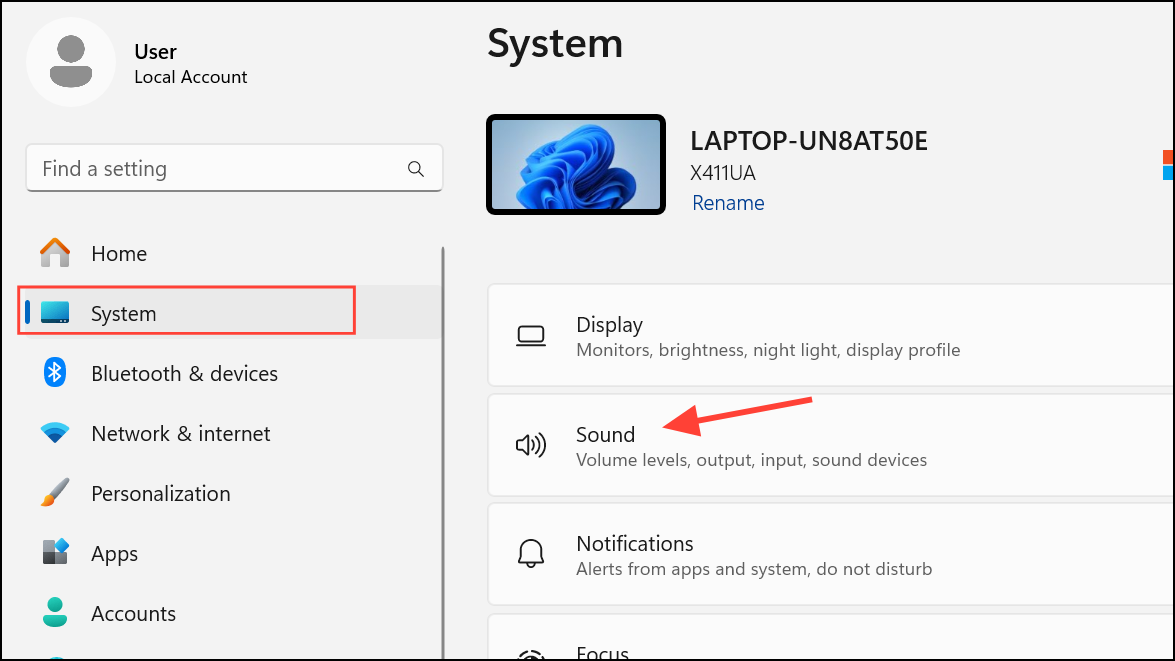
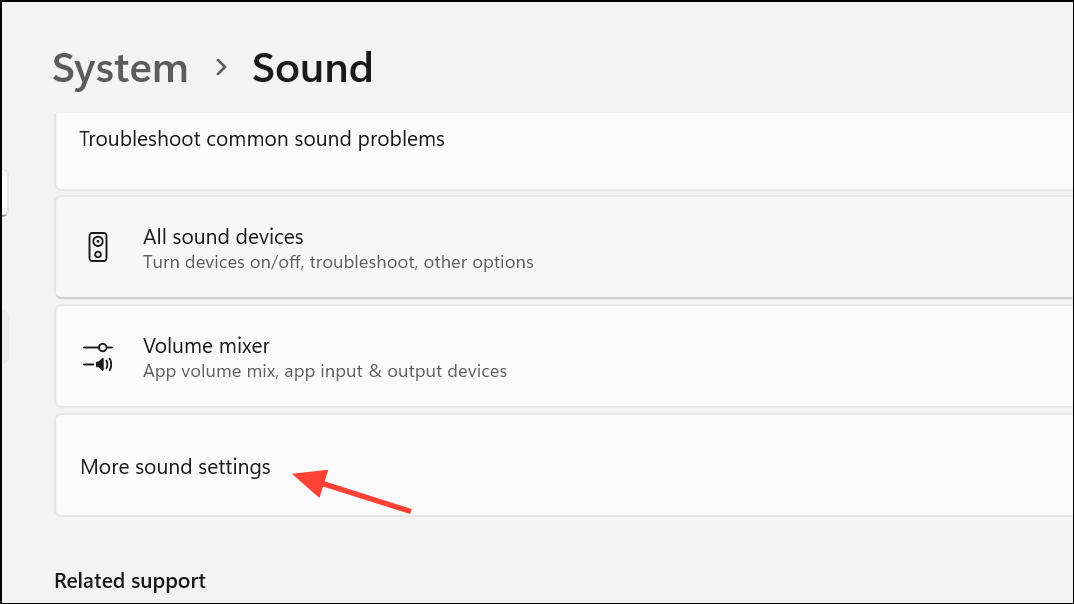
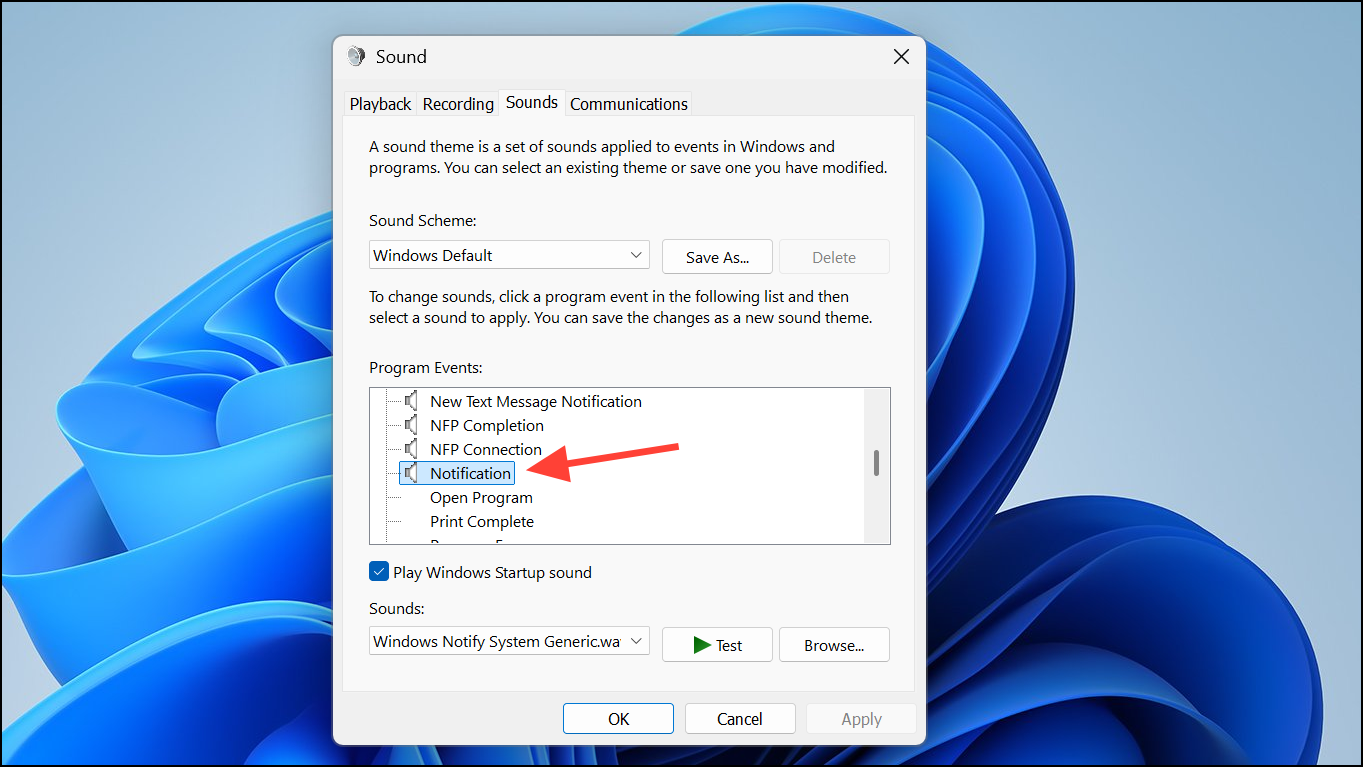
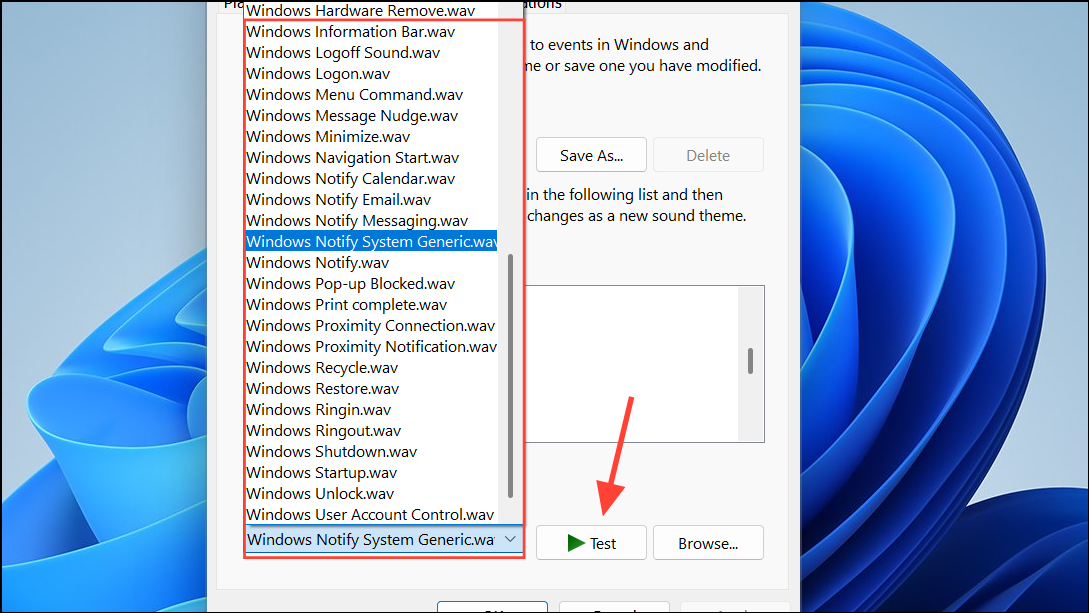
Assign Custom Notification Sounds via Control Panel
Win + R to open the Run dialog. Type Control Panel and press Enter to launch the classic Control Panel interface.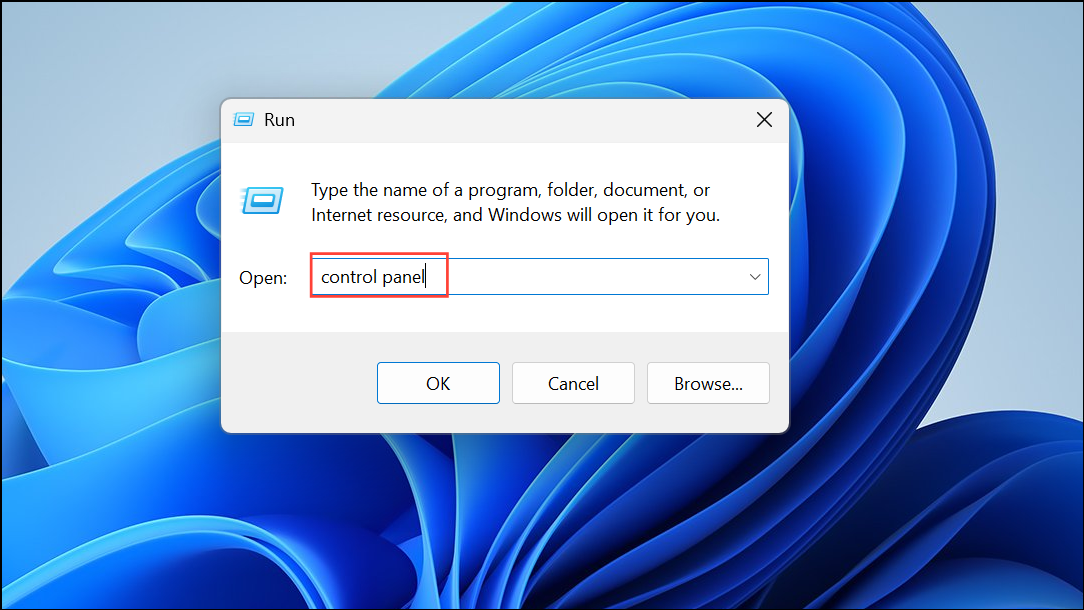
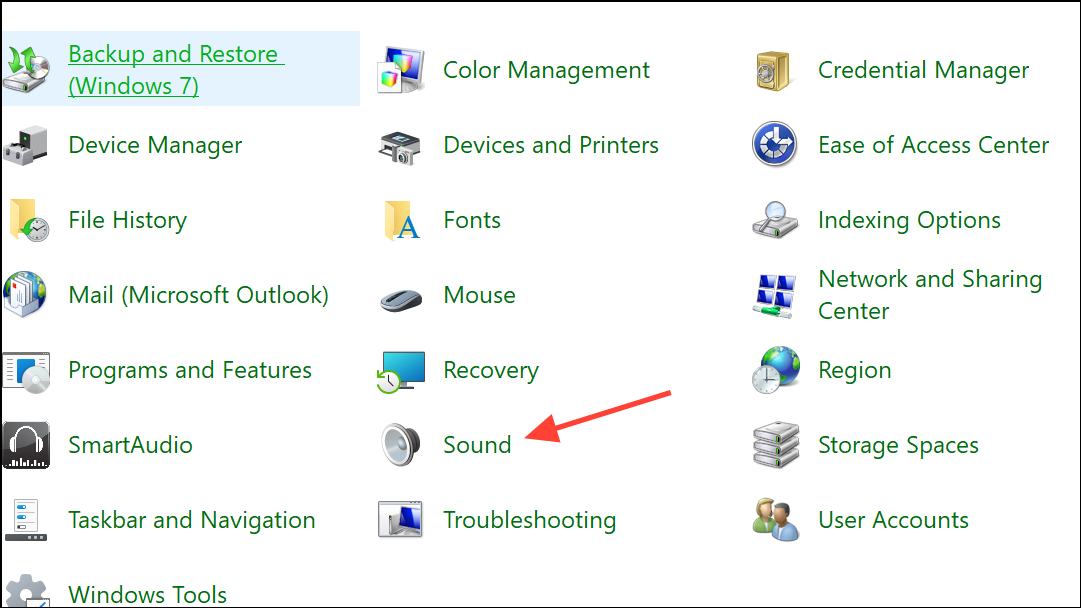
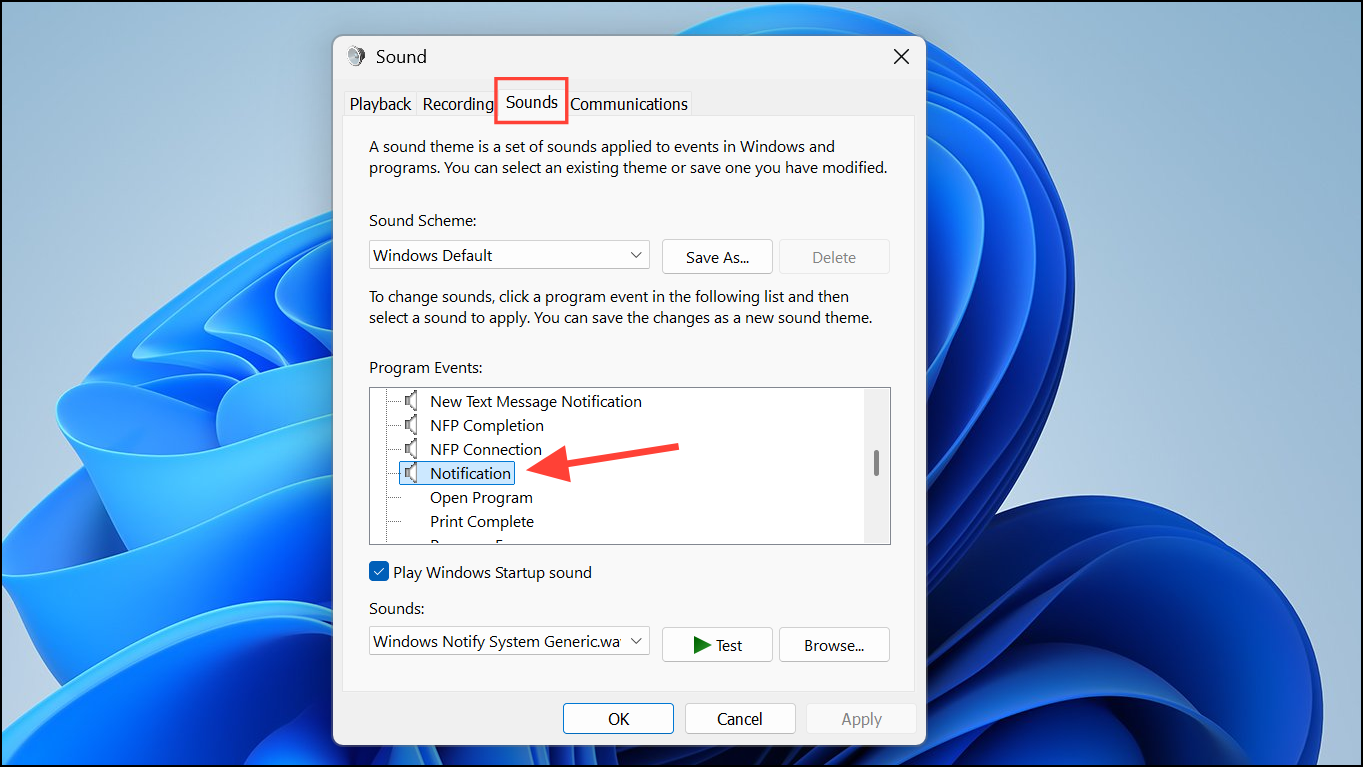
This method is particularly useful if you’re more comfortable with the traditional Windows interface or need to adjust sounds for other system events in the same session.
Set a Custom Notification Sound Using Registry Editor
Advanced users who want direct control over notification sounds can update the Windows Registry, which defines system-level behaviors.
Win + S to open the search bar. Type Registry Editor and select it from the results. If prompted by User Account Control, click Yes to allow changes.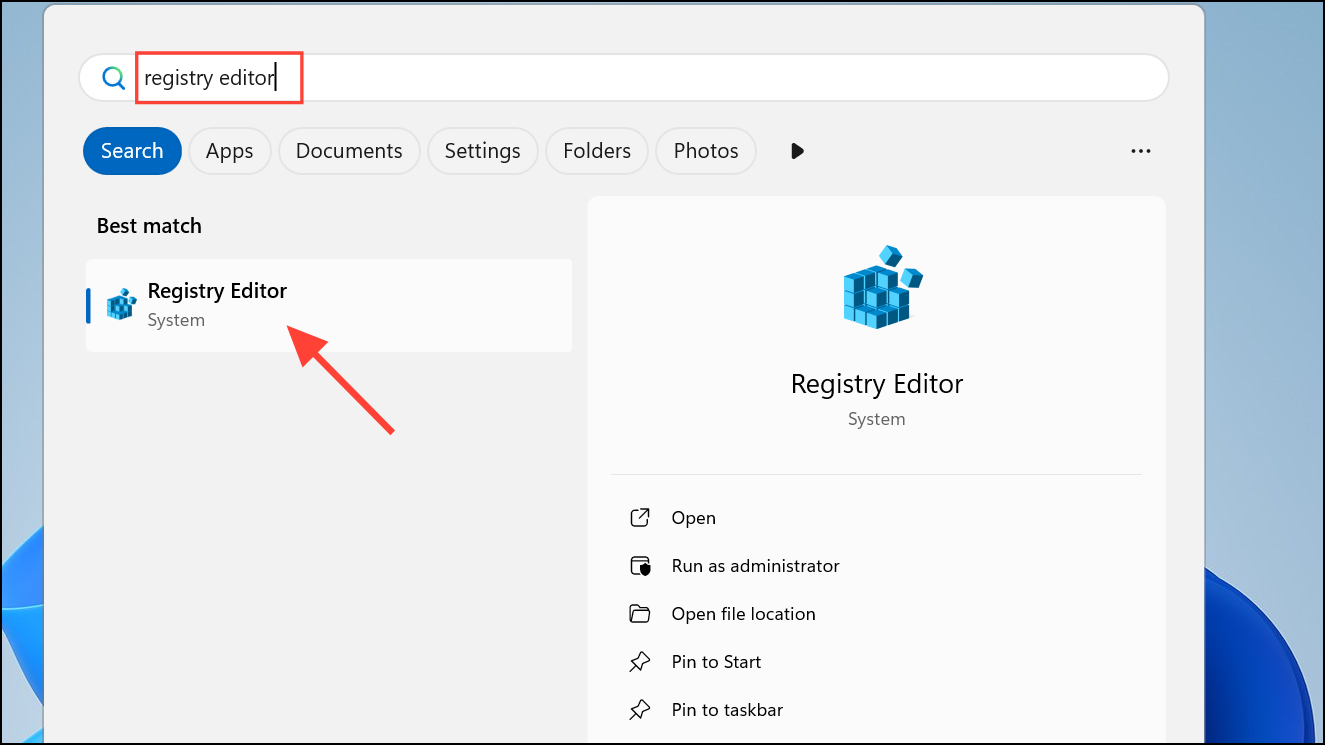
Computer\HKEY_CURRENT_USER\AppEvents\Schemes\Apps\.Default\Notification.Default\.Current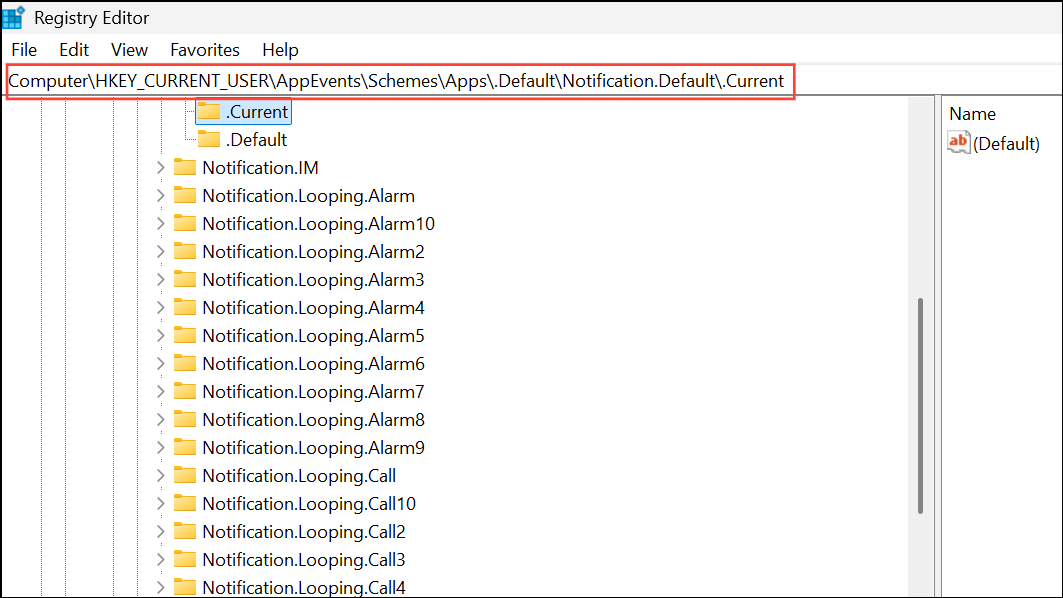
This key determines the current sound assigned to notification events for your user account.
C:\Windows\Media\Chime.wav) and click OK.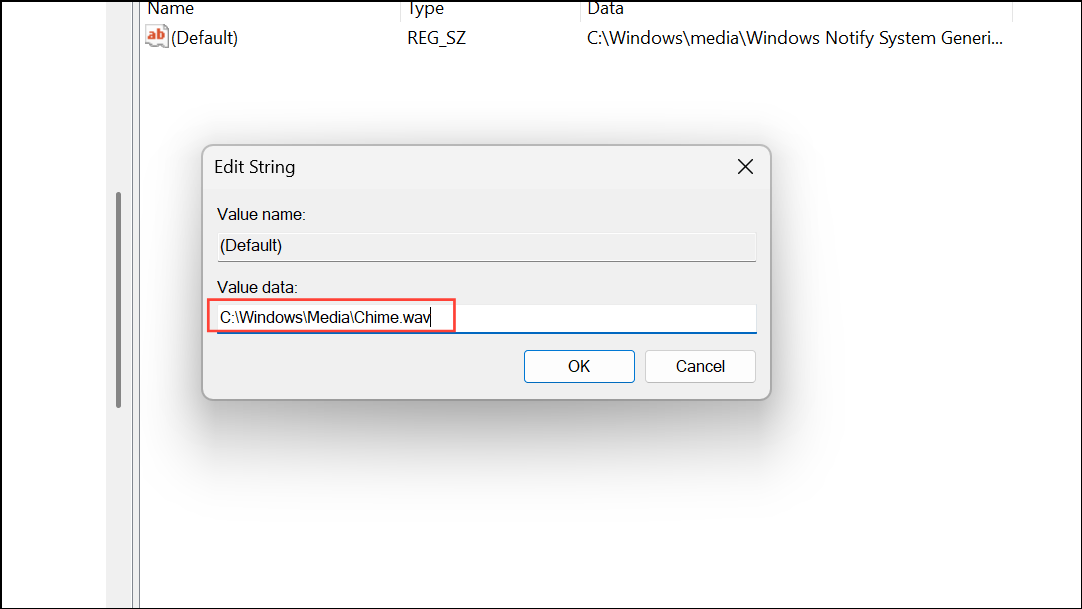
Additional Tips and Troubleshooting
Some users report that certain notification sounds in Windows 11 are quieter than in previous versions. This is due to Microsoft’s design choice to make alerts less intrusive. If your notification sound is too soft, select a louder or more distinct .wav file. For critical events, you might want to assign a more attention-grabbing sound.
If you want to assign custom sounds to specific apps (for example, Microsoft Teams or Mail), check whether the app itself offers in-app sound settings. Not all third-party apps support this, but some, like Teams, allow users to specify custom notification tones directly within their settings.
To ensure you hear system sounds, right-click the volume icon in the system tray, choose Volume mixer, and verify that System Sounds is not muted. If you are using external speakers or a headset, confirm that your device’s hardware volume is set appropriately and that other audio (such as music or videos) plays at normal levels.
For users who want to completely turn off notification sounds, open Settings, go to System > Notifications, expand the Notifications section, and uncheck Allow notifications to play sounds. This silences all notification alerts while leaving visual pop-ups enabled.
Assigning a custom notification sound in Windows 11 makes alerts more noticeable and personal. Experiment with different .wav files to find the one that best matches your needs and environment.



