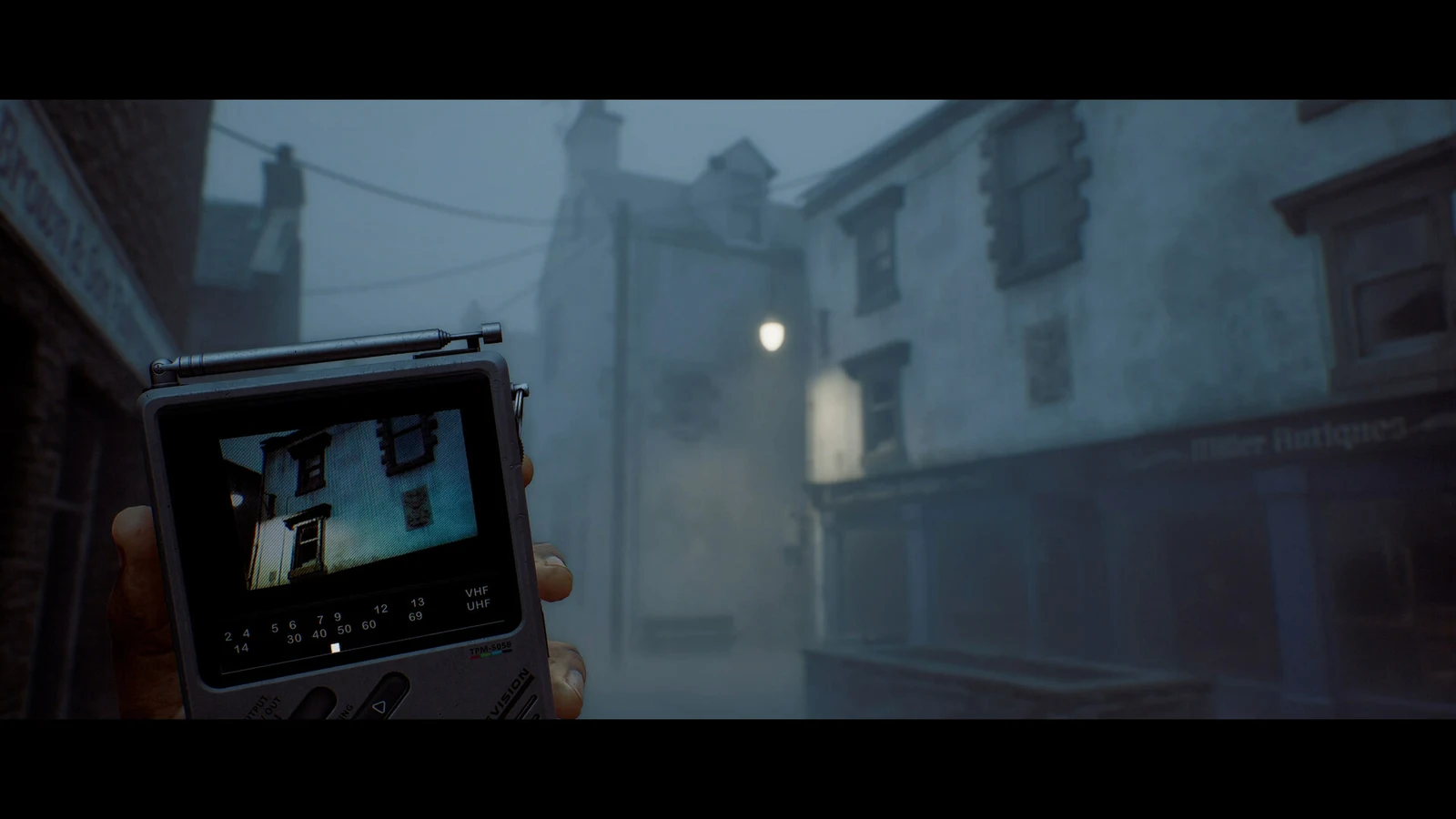
The CRTV is the handheld television Simon carries through St. Amelia, and it does more than sniff out monsters. Certain channels only resolve into a watchable video transmission after you physically calibrate the picture, first by tuning the frequency, then by dragging the red, green and blue color channels back on top of each other. That second part is the Align RGB Signals step, and it is the one that stops people cold the first time a radio lights up.
Quick answer: Use the right stick to steady the CRTV, wait for the colored elements to settle, move each one with the D-pad into its matching frame, then hold R2 to save the channel.
CRTV fine tuning controls: what each input does
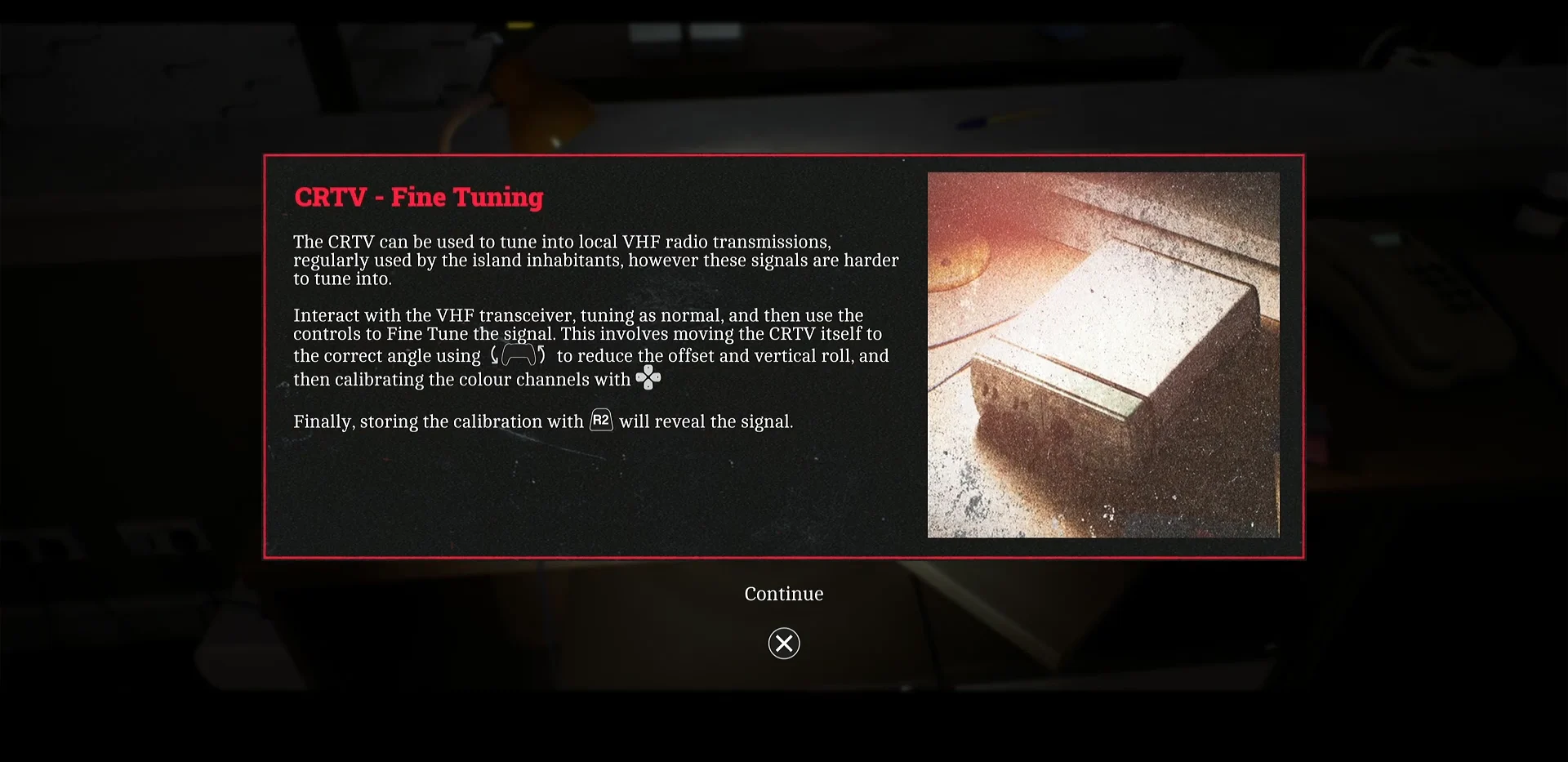
The game introduces all of this through a CRTV – Fine Tuning tutorial prompt, which appears the first time you interact with a VHF transceiver. It covers three separate ideas at once, and separating them is the whole trick.
- Fine tune slider — Scan the frequency band and stop when a pattern from an incoming transmission appears.
- Right stick — adjusts the tilt and angle of the CRTV, which is what freezes the drifting color elements.
- D-pad — moves an individual color channel into its matching frame.
- R2 (hold) — stores the channel once the screen reads Calibration Complete.
The angle and the alignment are not the same job. If you try to shove the colors around while the CRTV is still tilted badly, they will keep sliding and nothing will lock.
How to align the RGB signals on a CRTV channel
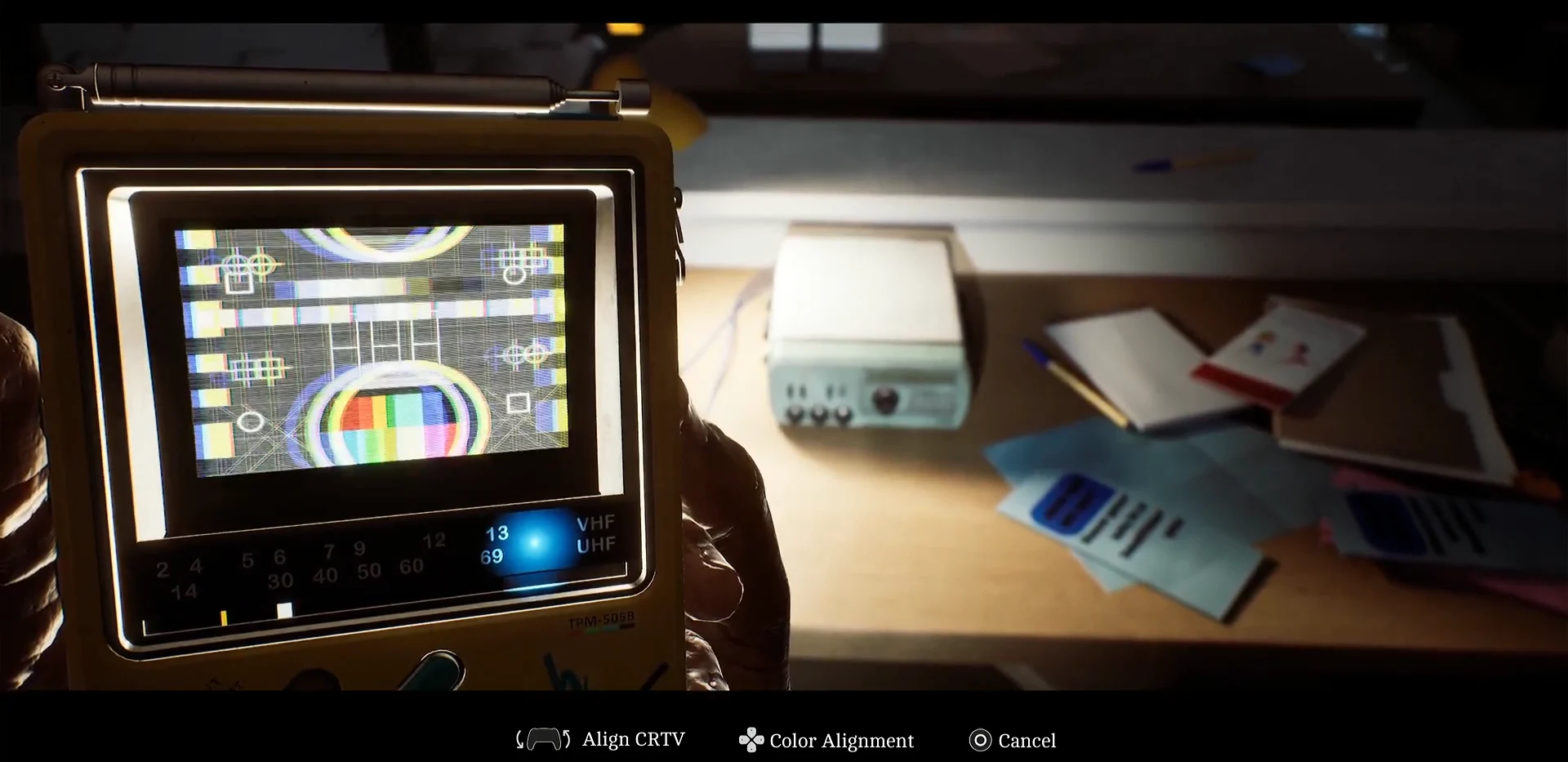
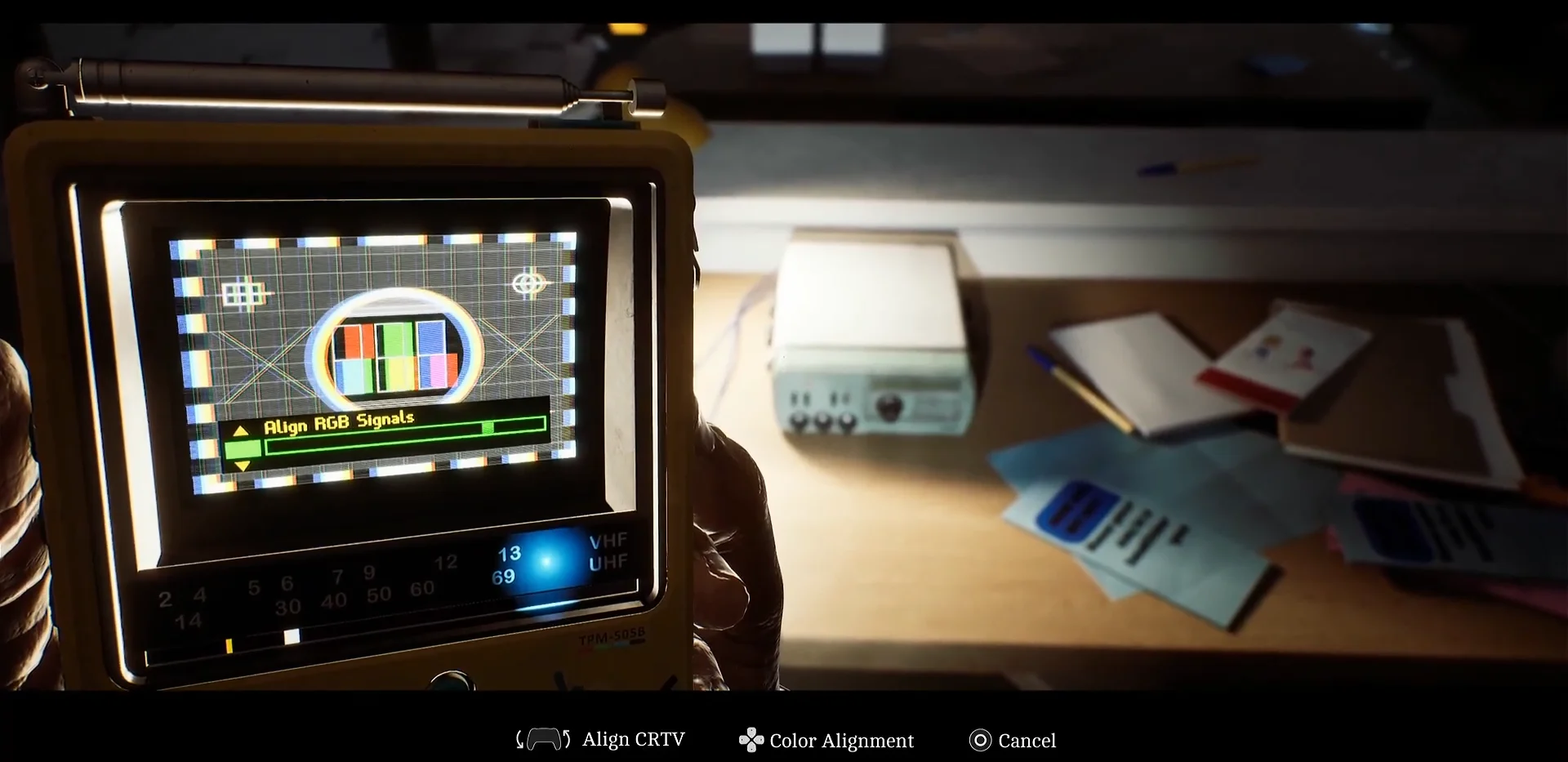
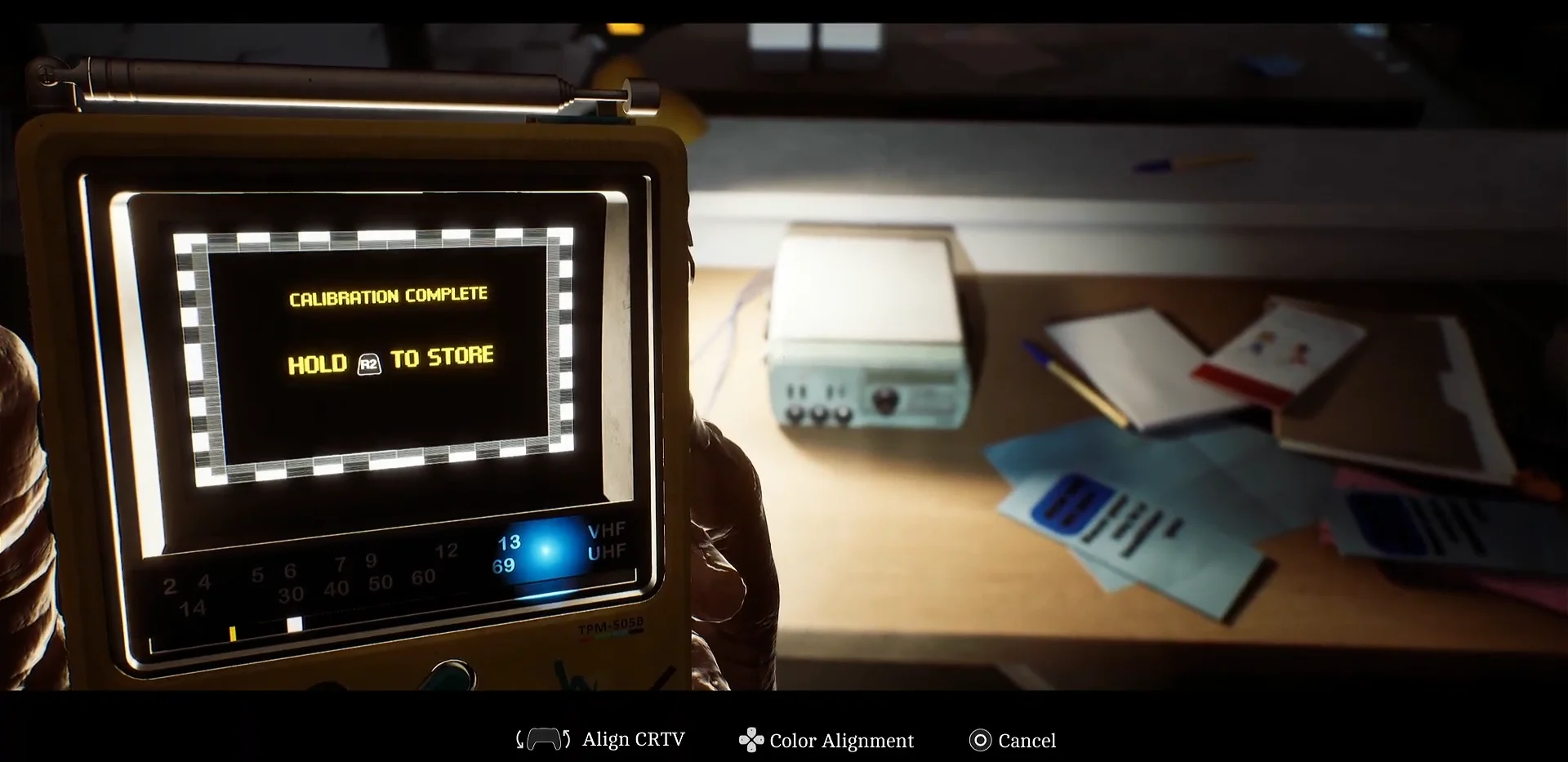
Calibration does not undo itself. Once a channel is stored you can leave the room and come back to it, so there is no need to redo the alignment for a signal you have already watched.
Turn off CRTV motion sensor controls on PS5
On PS5, the tilt portion of the puzzle can read your actual controller movement, which makes holding the picture steady much harder than it needs to be. Open the game settings and switch off Enable CRTV Motion Sensor Controls. The calibration then runs entirely off the right stick and D-pad, which is far more predictable when something is walking toward you.
Every radio that requires color channel alignment
Most CRTV recordings are found by simply tuning to a channel number in the open world. Eight of them are instead attached to a physical radio sitting on a table or inside a pipe, and those are the ones that force the full alignment sequence before the channel unlocks.
| Chapter | Radio location | Channel |
|---|---|---|
| 4: Looking for Zoe | Pharmacy back room, Coastal District – South | 30 |
| 6: Road to the Medical Centre | Apartment building south of the medical centre, second floor | 25 |
| 8: Many Become One | Other Medical Centre, past the narrow gap | 28 |
| 9: Start Again | Shop in Clara’s Wood, table mid-room | 61 |
| 10: Missing Pieces | House #5 on South Bray, left of the television | 59 |
| 14: Fix It | CEG Headquarters main hall, table on the right | 42 |
| 14: Fix It | Room left of the stairs after the central tower puzzle | 42 |
| 15: Another Try | SWDP, beside the bed after using the JOE Key | 55 |
Two of these sit on roughly the same frequency. The pair in Chapter 14 both resolve near Channel 42, and they are still two separate recordings that count independently, so clearing one does not retire the other.
How calibrated channels count toward the CRTV achievement
A dedicated achievement covers 18 CRTV video signals, with radio calibrations included in that total. The count includes only channels that display an actual video recording. Frequencies used by the CRTV to track enemies serve a different purpose and do not add to the total.
Signal progress also carries across playthroughs. If you walk past a radio and finish the story without it, a later run only needs the ones you missed rather than all 18 again. None of the recordings gate the main story — they exist for extra context, and some of them quietly set up things Simon runs into later.
The reason the calibration feels so fussy is deliberate. The static, bleed and color separation on the CRTV were produced by running real gameplay footage and cutscenes through old televisions and pocket TVs, damaging cables and holding magnets against the screens, then pulling that degraded video back into the game. Writer and director Jon McKellan put it plainly, saying the tool “doesn’t just look authentic; it really is authentic.” That also means the screen fights you in a way a clean UI would not, which is exactly why the stop-the-tilt-then-move-the-colors order matters so much.