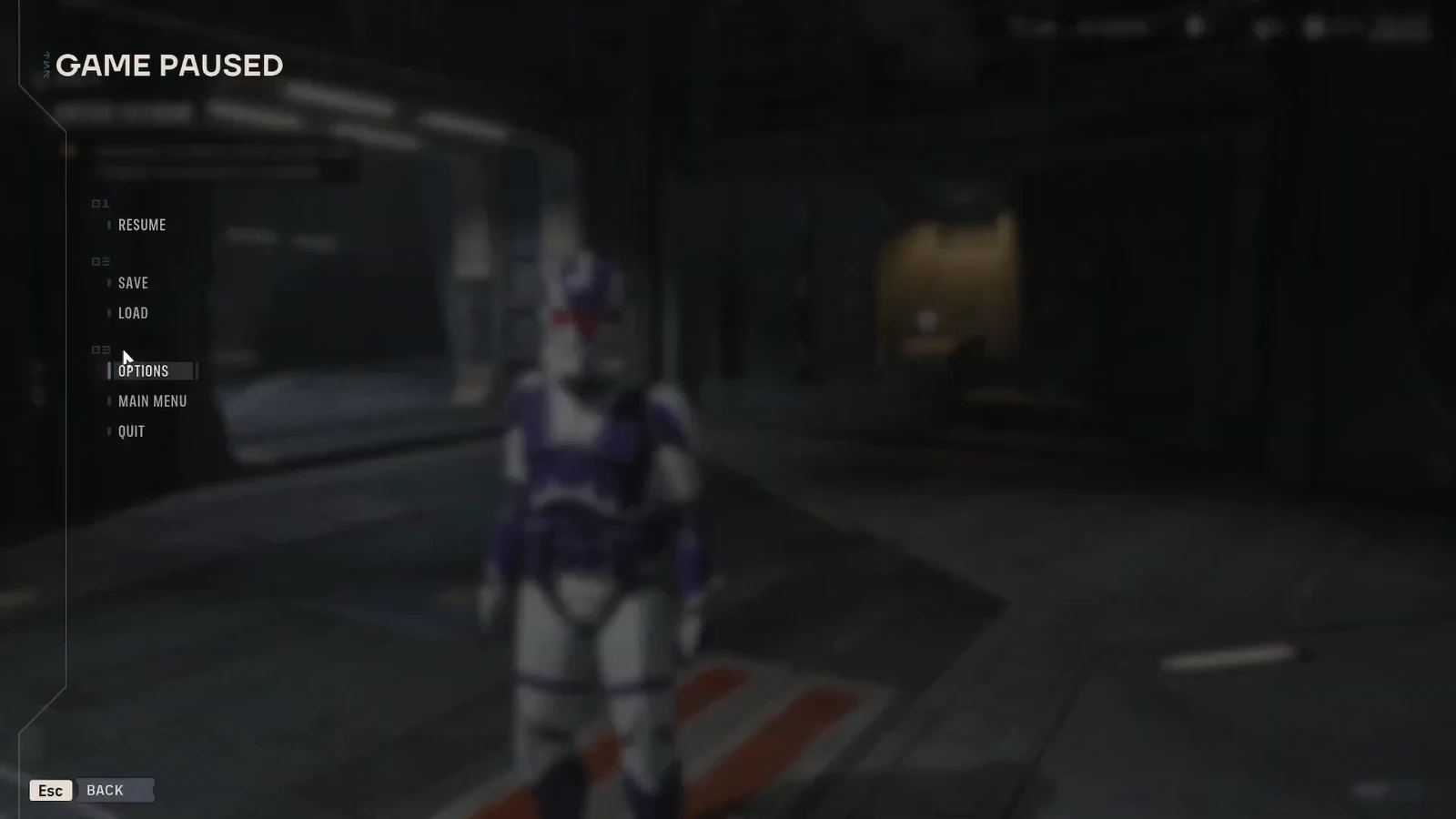
Star Wars Zero Company keeps its save system tucked inside the pause menu, which is easy to miss if you assume the game only autosaves for you. It does both. Manual saves let you name a file whatever you want, and the game drops its own checkpoints at fixed moments in a mission and at the start of each cycle.
Quick answer: Press Esc to pause, choose SAVE, type a name in the text box, and confirm with the SAVE button. To go back, pause again, choose LOAD, pick a manual or auto save from the list, and confirm with LOAD.
How to save the game in Star Wars Zero Company
Esc key. The GAME PAUSED screen appears with six entries — RESUME, SAVE, LOAD, OPTIONS, MAIN MENU, and QUIT. This menu is available while you are running around the Den and while you are out on a mission.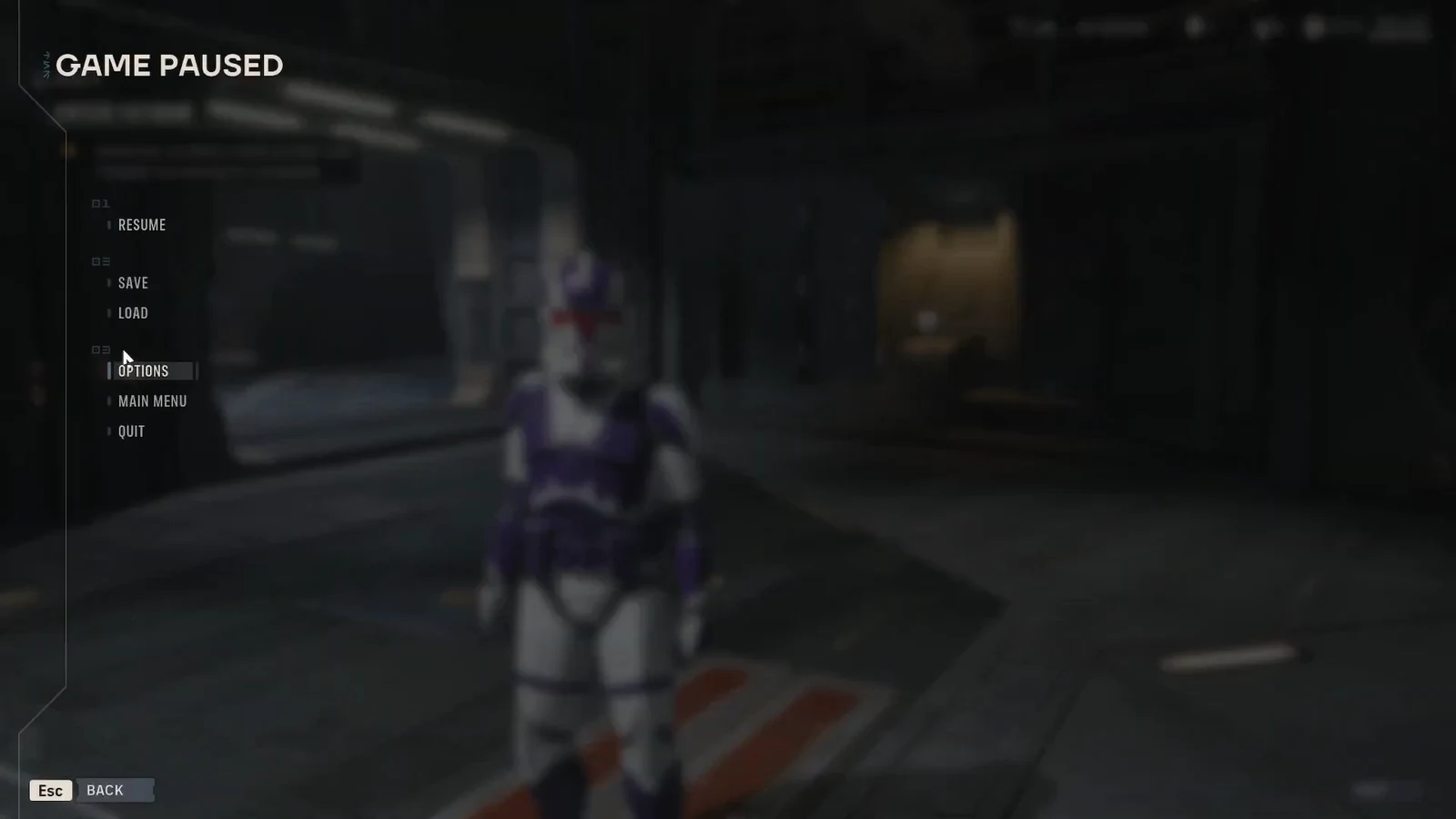
save 1 works, but naming saves after where you are — Enter Fathom, for example — makes the list far easier to read once a campaign has been running for a while.SAVE button to write the file. The new entry shows up at the top of your save list the next time you open LOAD, which is how you confirm it worked.How to load a save
LOAD. The game drops you back exactly where that save was written — mid-combat saves resume on the same turn, Den saves resume in the Den with the same cycle counter.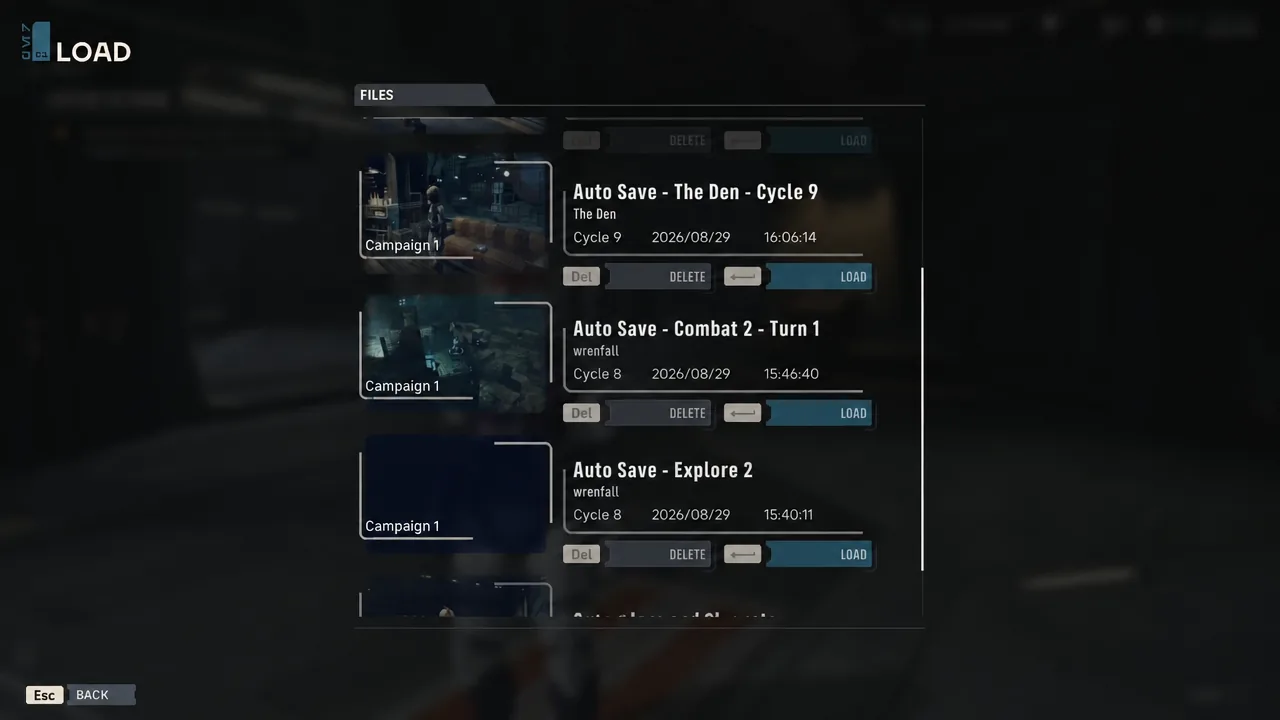
Note: loading an older file can overwrite autosave progress made after it. If you think you might want to come back to where you are now, write a manual save before loading anything further back.
When the game autosaves
Autosaves are named after the moment they were created, so the list doubles as a rough timeline of your campaign. The two you will lean on most are the one at the top of a battle and the one at the start of a cycle.
| Autosave trigger | How it appears in the list |
|---|---|
| First round of a battle | Auto Save – Combat 2 – Turn 1 |
| Exploration phase | Auto Save – Explore 2 |
| Start of a cycle at the Den | Auto Save – The Den – Cycle 9 |
Because the combat autosave lands on the first round, a battle that falls apart can always be restarted from the beginning. What it cannot fix is your loadout. Gear, weapon mods, utility items, and focus points are locked in before you deploy, so if you realize on turn four that you brought the wrong operator or forgot to spend focus points, the combat autosave puts you right back into the same bad setup. The next file behind it is the cycle autosave, and reloading that means replaying story beats and Den admin you already finished.
That gap is the argument for a manual save at the Den before any mission you care about. One file written on the holotable screen, right before deploying, costs a few seconds and covers the one mistake autosaves cannot undo.
Beskar mode disables loading previous saves
Beskar mode is the run type where reloading an earlier save is off the table. Every decision sticks, so the pause menu’s LOAD option stops being a safety net and a bad turn stays on your record. If you want the freedom to reload, do not start a campaign in Beskar mode.
Outside of that mode, there is a second way to undo a bad battle without touching a save file at all. You can restart a mission from the game menu and take the same operators back in with a different plan.
Where save files are stored on PC
On Windows, save data lives outside the install folder in your local app data directory:
%LOCALAPPDATA%\SWZeroCompany\Saved\SaveGames\*.savConfiguration files sit one level up in %LOCALAPPDATA%\SWZeroCompany\Saved\. Paste either path into the Windows Run box with Win+R to jump straight there. Copying the whole SaveGames folder somewhere else is the simplest backup you can make before experimenting with anything that touches your campaign.
The game also syncs saves to the cloud, which is what makes local file edits risky. Changing a .sav while a sync is active can put the local copy and the cloud copy out of step, and the version that wins is not always the one you wanted. All versions require an EA account, so cloud sync is part of the picture whether you bought on Steam, the Epic Games Store, or the EA app.
The habit worth building is small. Write one named manual save whenever you finish your prep at the Den and one before a Critical mission, and the autosaves handle everything in between. That leaves you with a clean set of restore points that actually match the decisions you might want to take back.