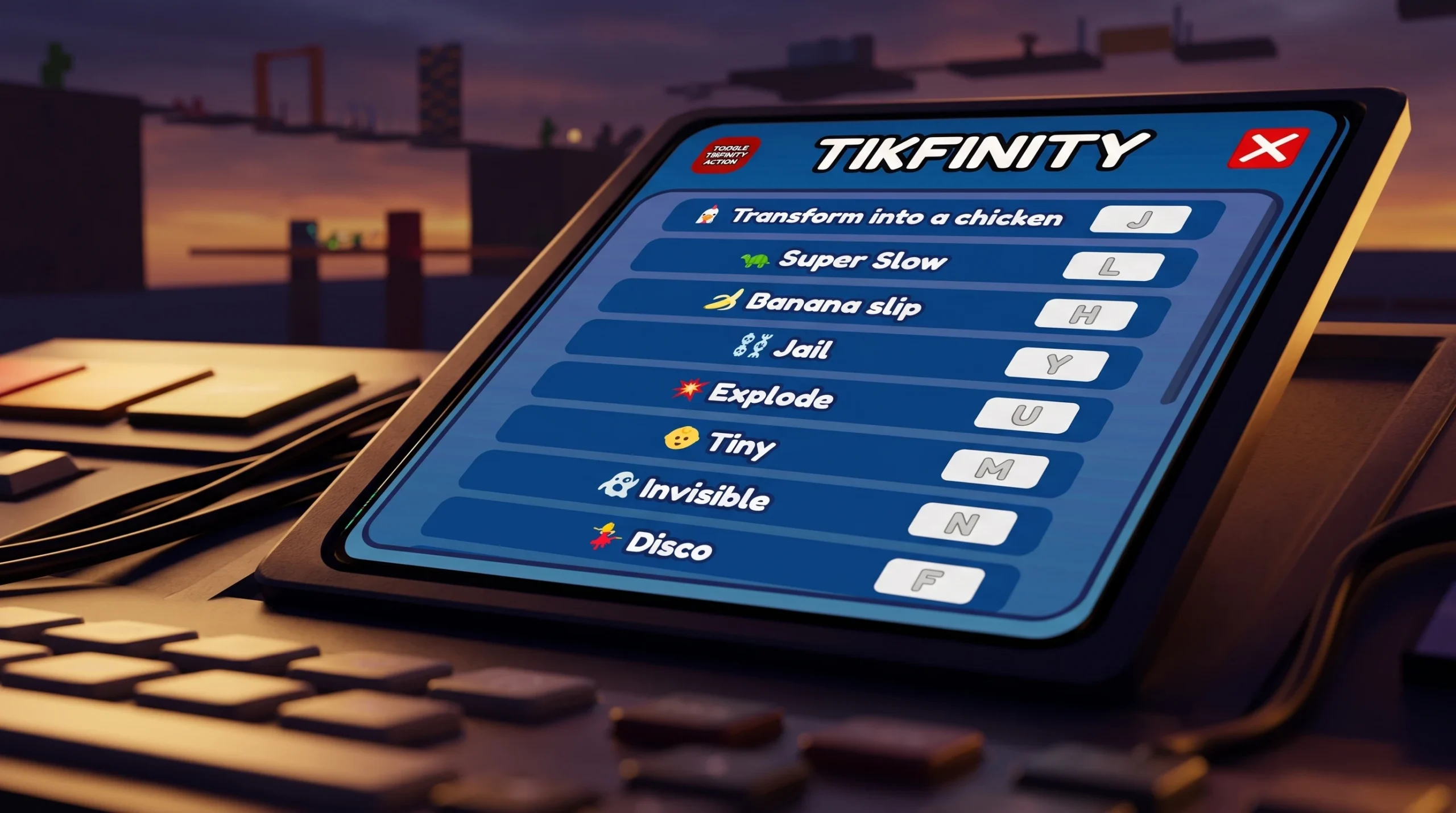
TIKFINITY is a built-in effects system in +1 Speed Keyboard Escape Candy & Chocolate. Once you switch it on, a set of keyboard hotkeys let you fire off gags like turning into a chicken, shrinking tiny, or slipping on a banana. It sits behind a single button in the corner of the screen and costs nothing to use. None of it touches your Speed or Wins, though. Every effect is either cosmetic or a deliberate handicap.
Quick answer: Click the TIKFINITY button in the top-right, open the menu, and click the top-left toggle until it turns green and reads Tikfinity: ON. Then press a bound key such as K to trigger an effect.
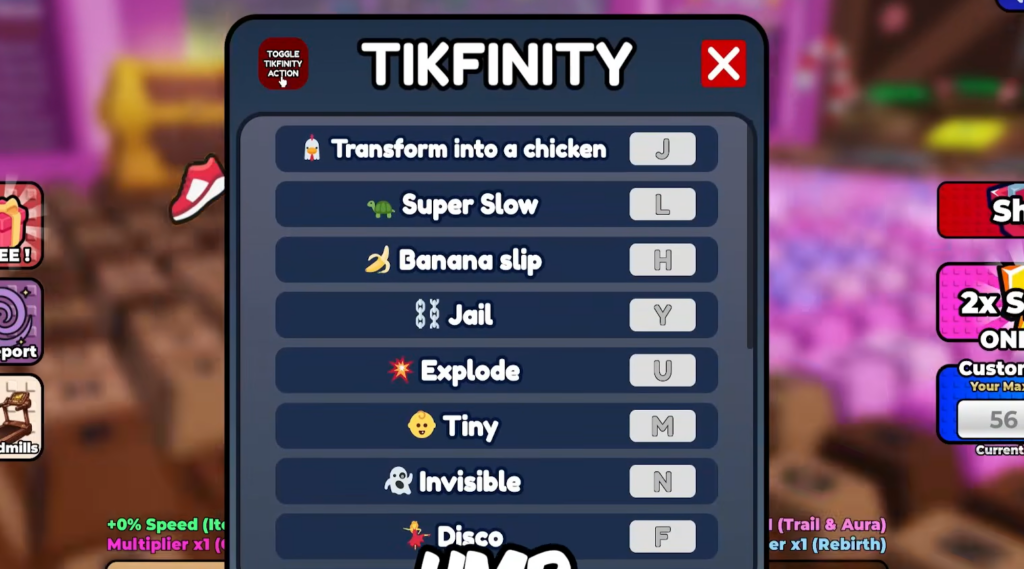
Enable TIKFINITY in +1 Speed Keyboard Escape
TIKFINITY button there to open its menu.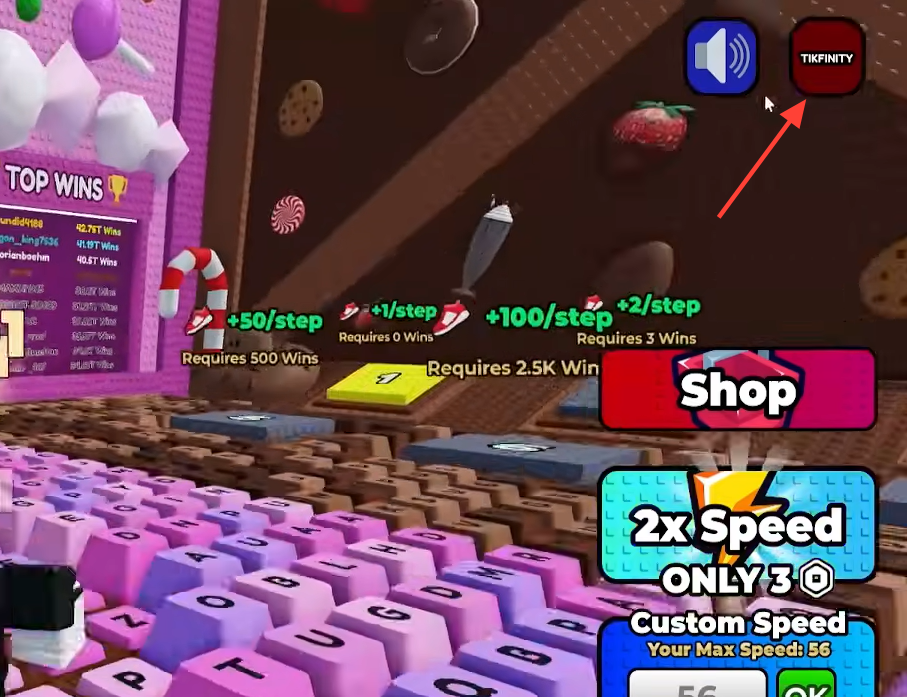
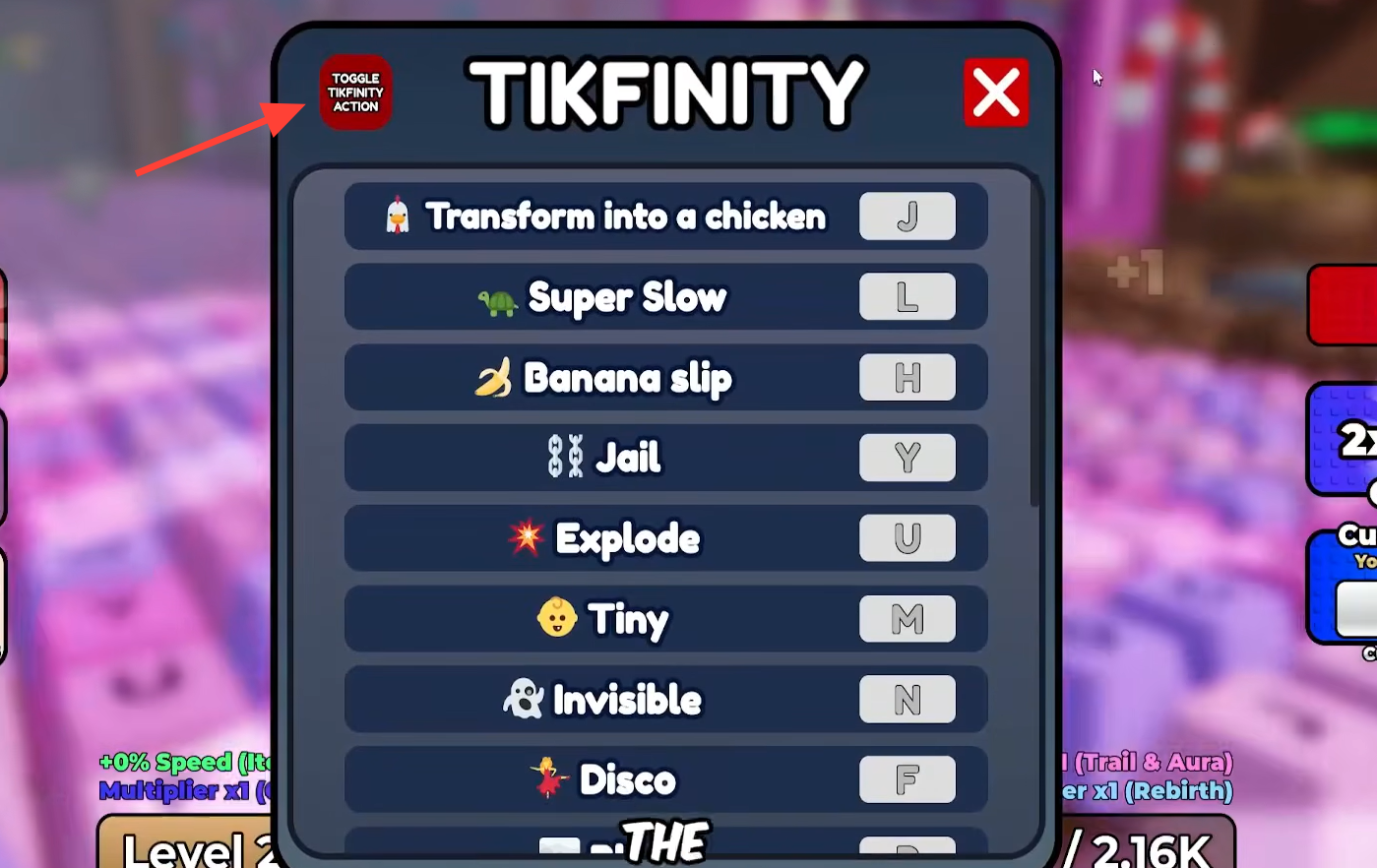
Tikfinity: ON. That green state is what tells you the hotkeys are live.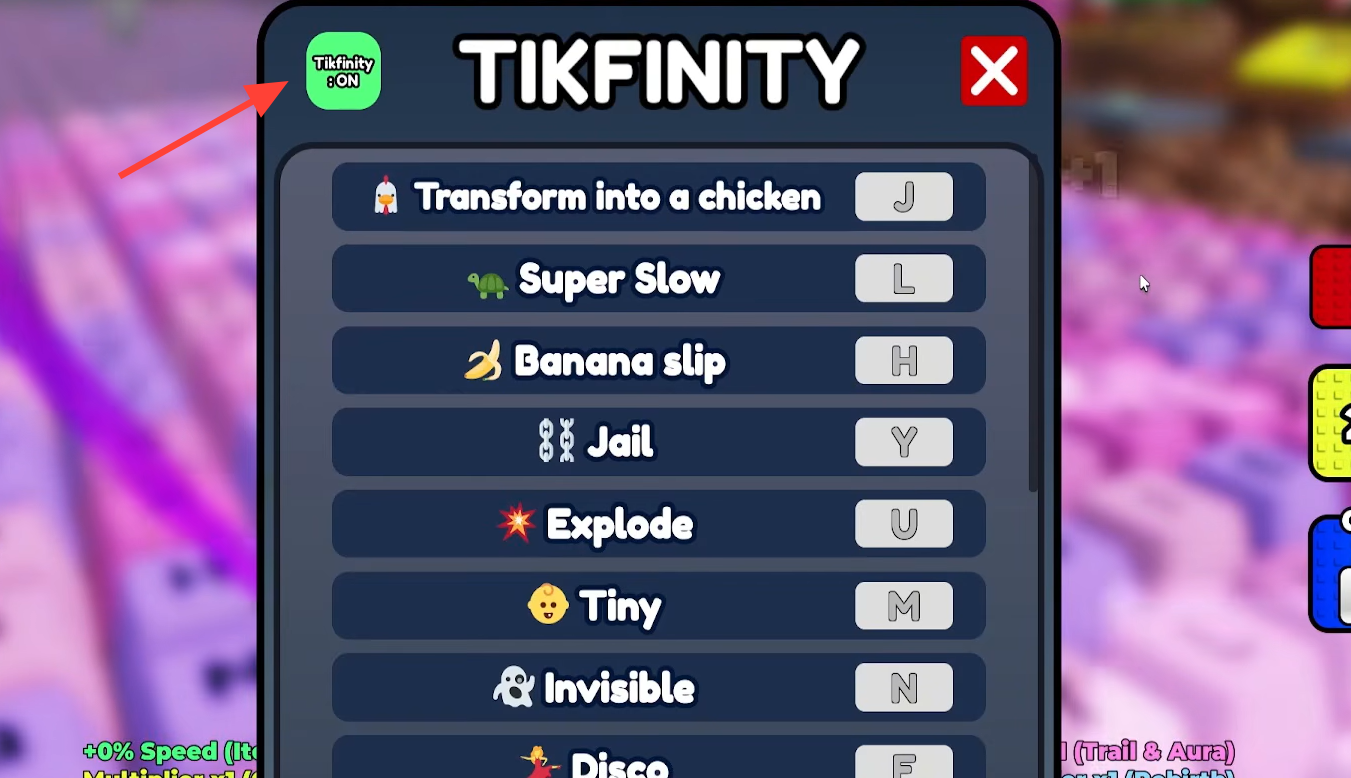
K to trigger an effect. If your avatar transforms, the feature is working.Make the toggle turn green before you press anything. While it still reads OFF, none of the hotkeys will fire no matter how many keys you press.
TIKFINITY default keybinds and effects
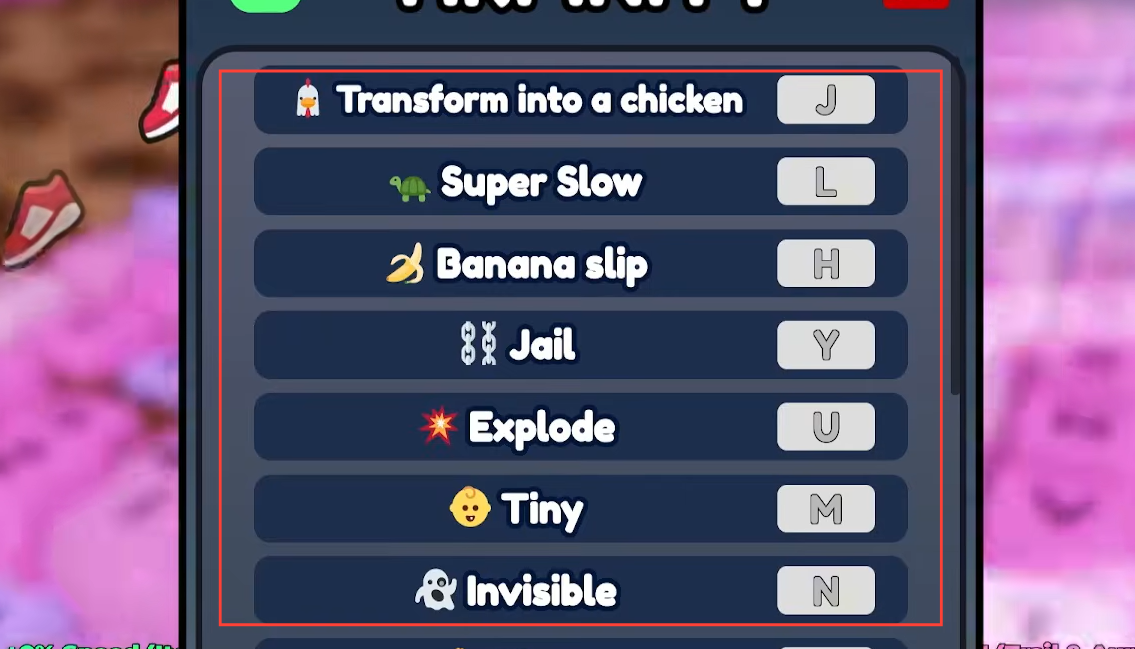
With the toggle green, every effect is tied to its own key, so you set them off straight from the keyboard while running the stages. These are the default binds shown in the menu.
| Key | Effect |
|---|---|
K | Transform into a chicken |
L | Super Slow |
H | Banana Slip |
Y | Jail |
U | Explode |
M | Tiny |
N | Invisible |
F | Disco |
R | Blur |
X | Earthquake |
If the defaults don’t suit you, every keybind can be changed. Open the TIKFINITY menu, set any effect to a key of your choosing, and then press that new key in play. After rebinding, the old default no longer does anything.
Why TIKFINITY keybinds are not working
Almost every “it won’t work” case comes down to the toggle. If pressing keys does nothing, reopen the menu and check that it is switched on and showing green. While it still reads Tikfinity: OFF, the hotkeys stay dead.
- You clicked a different top-right button. Go back and open the actual
TIKFINITYbutton. - You rebound a key earlier. Press your new bind, not the default.
Kwon’t turn you into a chicken if you moved that effect elsewhere. - You expected a stat boost. TIKFINITY only produces transformations and debuffs, so Speed, Wins, and rewards stay the same. That is intended behavior, not a bug.
On mobile and controller, the button layout is not arranged the same way, so the exact on-screen path can differ from the keyboard steps above.
TIKFINITY is not the Code button
It is easy to mix up TIKFINITY with the game’s rewards, but they are two separate systems. TIKFINITY handles the fun effects. Actual boosts, like extra Speed, come through the game’s Code (Social Code) system, which lives in the top-left corner of the screen. Nothing about codes is entered through the TIKFINITY menu.
To redeem a code, open the game and click Code in the top-left, paste your code into the “Paste here!” bar, and press OK. These codes are generated in the SecretVerse Studio Discord server by clicking the Get Code button, then copied into the game. A generated code lasts 15 minutes and expires after that, and you must wait 5 minutes before generating another one. If a code fails, it has usually expired or was typed instead of copied exactly.
Keep the two apart, and TIKFINITY becomes simple. Turn the toggle green for the gags, and head to the Code button whenever you actually want more Speed.