Transport Fever 3 lets you drop down to the driver’s seat of a vehicle on your map and watch the route roll past at eye height. The camera button that does it sits inside the vehicle’s own window, so you reach it the moment you select a vehicle running out in the world.
Quick answer: Select the vehicle on the map to open its window, select the camera button in the lower-left corner of the live view at the top of that window (its tooltip reads “Enter Cockpit”), and press Esc to leave.
How to enter the cockpit view in Transport Fever 3
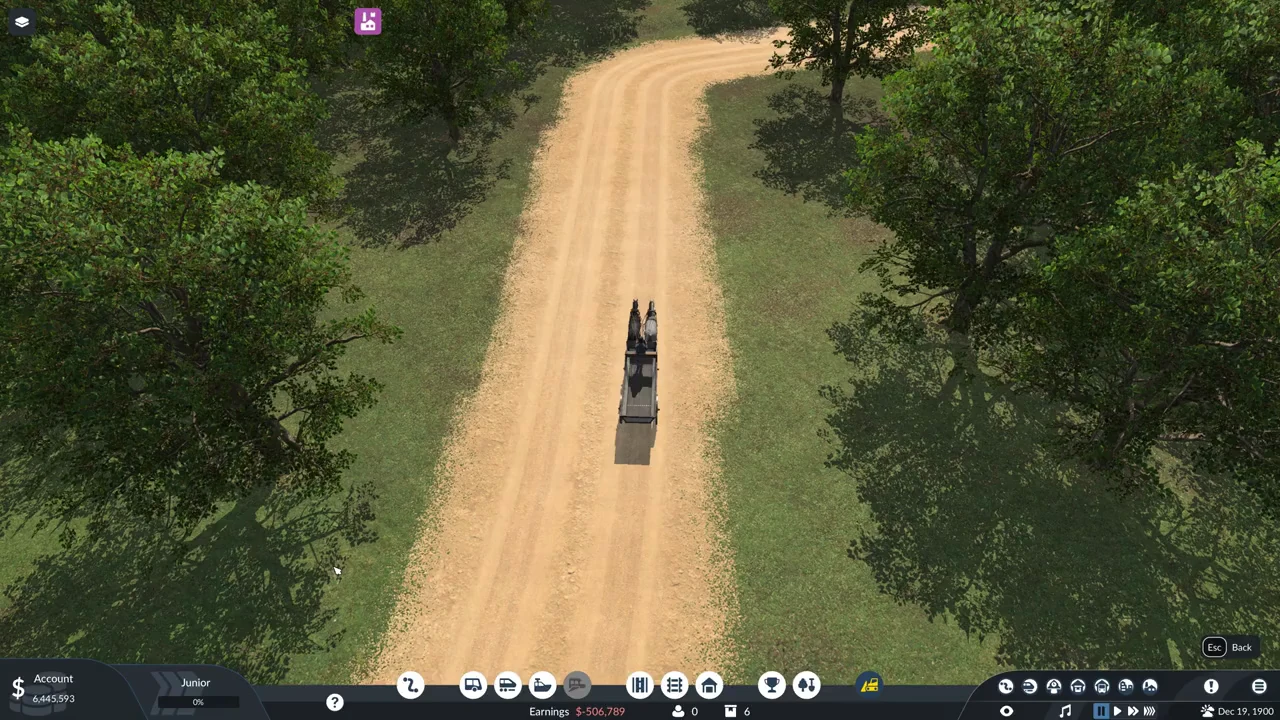
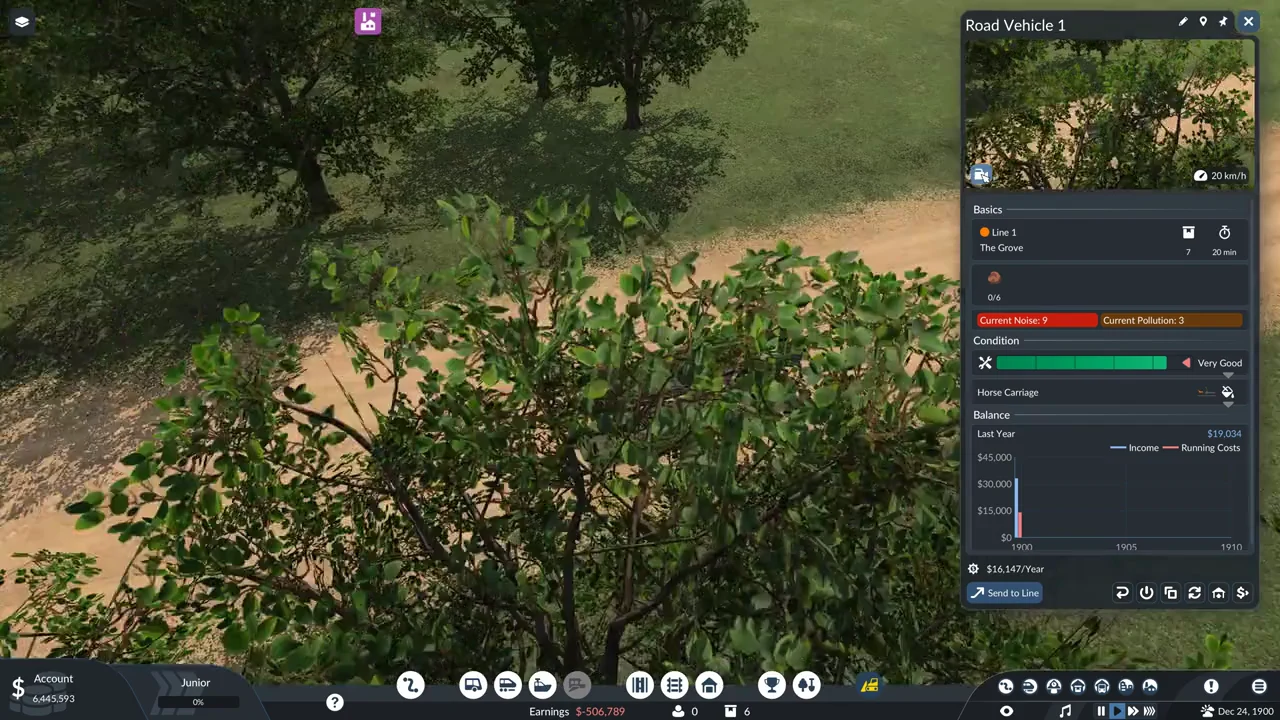
When the overhead map disappears and the road appears ahead at eye level, with the interface hidden, the cockpit view is active. You can use the button whether the game is paused or running.
Which vehicles can you ride
Road vehicles support cockpit view. One example is the Horse Carriage from the early 1900s, whose camera is positioned at driver’s-bench height. Available from 1893 to 1920, the Horse Carriage holds 6 units of any cargo type and reaches a top speed of 20 km/h, for a slow, steady ride.
The in-game tutorial gives two steps for entering a train: choose it in the 3D scene to bring up its window, then press the camera icon to view the cockpit. This method does not cover trams, ships, or aircraft.
What the cockpit view shows
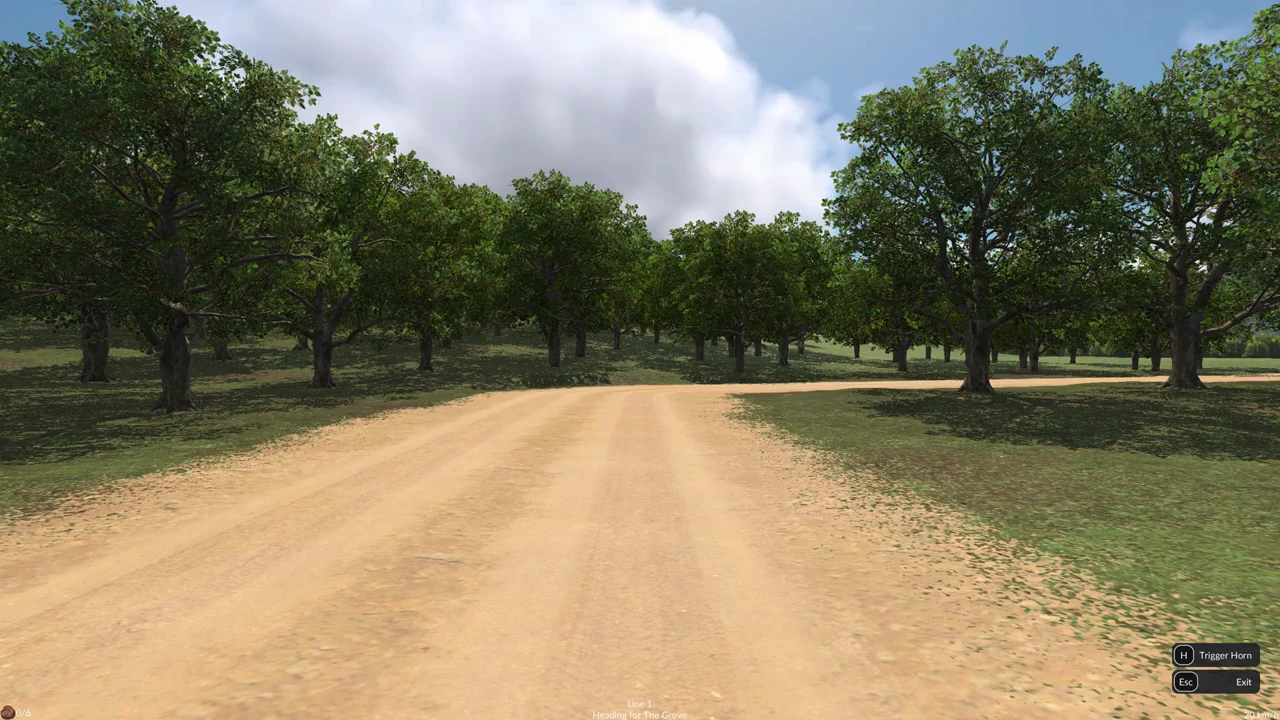
The whole interface is hidden. There is no bottom bar, no account balance, no date and no windows. Only a few readouts stay on screen.
- At the lower left, the cargo symbol appears beside the load amount, such as “0/6”.
- The lower-centre area shows the line name and upcoming stop, such as “Line 1” and “Heading for The Grove”.
- The vehicle’s speed is displayed at the lower right, for example “20 km/h”.
- Above the speed display at the lower right are two key prompts: “H Trigger Horn” and “Esc Exit”.
The two key hints fade after about five seconds. The keys keep working after they vanish; only the on-screen reminder goes away. The load, line and speed texts stay.
Controls while riding in the cockpit
You cannot steer the vehicle or change its speed. It keeps following its line. What you can do is turn and shift the view, sound the horn, and control the pause.
| Key | What it does |
|---|---|
| A | Turns the view to the left |
| D | Turns the view to the right |
| W / S | Shifts the viewpoint lengthwise along the vehicle in either direction |
| H | Sounds the horn |
| Space | Pauses and unpauses the game |
| Esc | Leaves the cockpit |
A and D are the only keys that rotate the view; it stays aimed where you leave it instead of returning automatically. W and S move the viewpoint along the vehicle without changing its tilt. Hold S for a second to pull back until the horses and wagon front occupy the lower half of the screen.
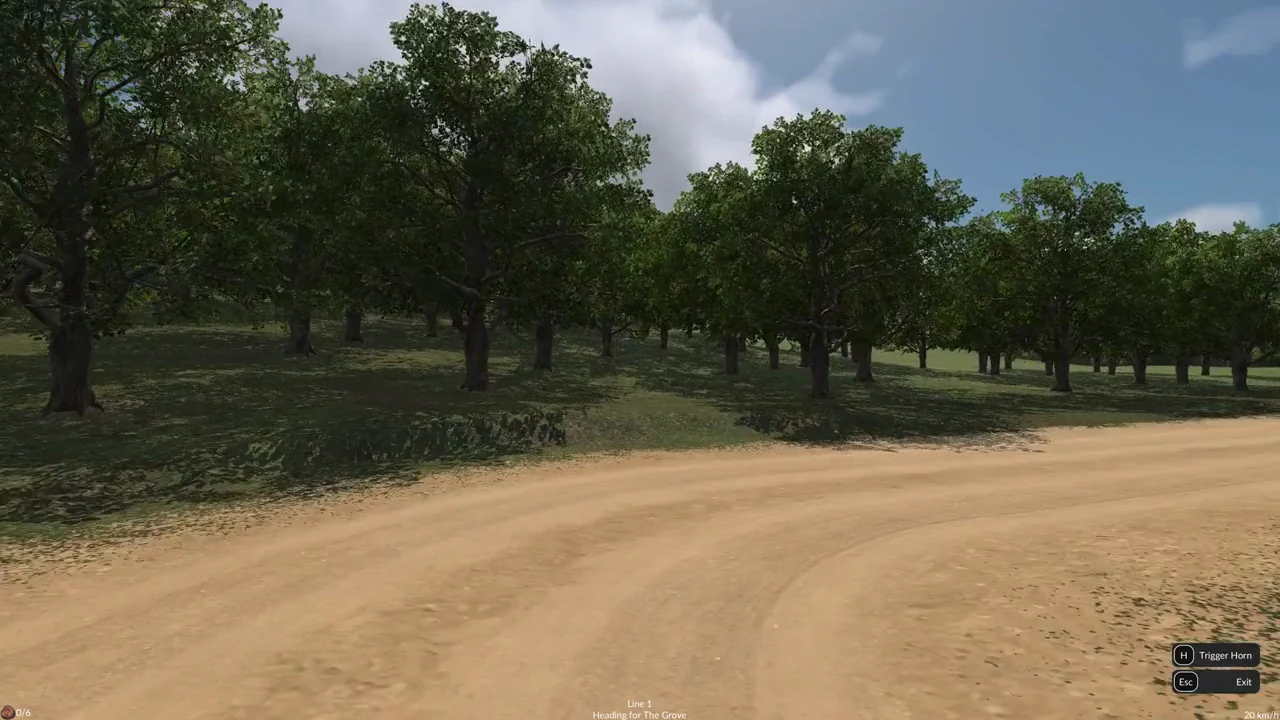
Use Space to start movement only if the game is paused: in that state, the cockpit image remains still. Since the speed controls vanish with the rest of the bar, set the game speed before entering.
Clicking either mouse button anywhere exits the cockpit, so avoid trying to drag the view. Use A and D to turn instead. Mouse movement has no effect on the view’s direction, and scrolling the wheel does nothing. Zoom is unavailable too.
What happens when you leave
The camera does not return to its previous position when you leave the cockpit. It appears outside, close to the vehicle, and tracks it along the route. While following, the lower-right corner displays “Esc Back”; the vehicle window and bottom bar also reappear.
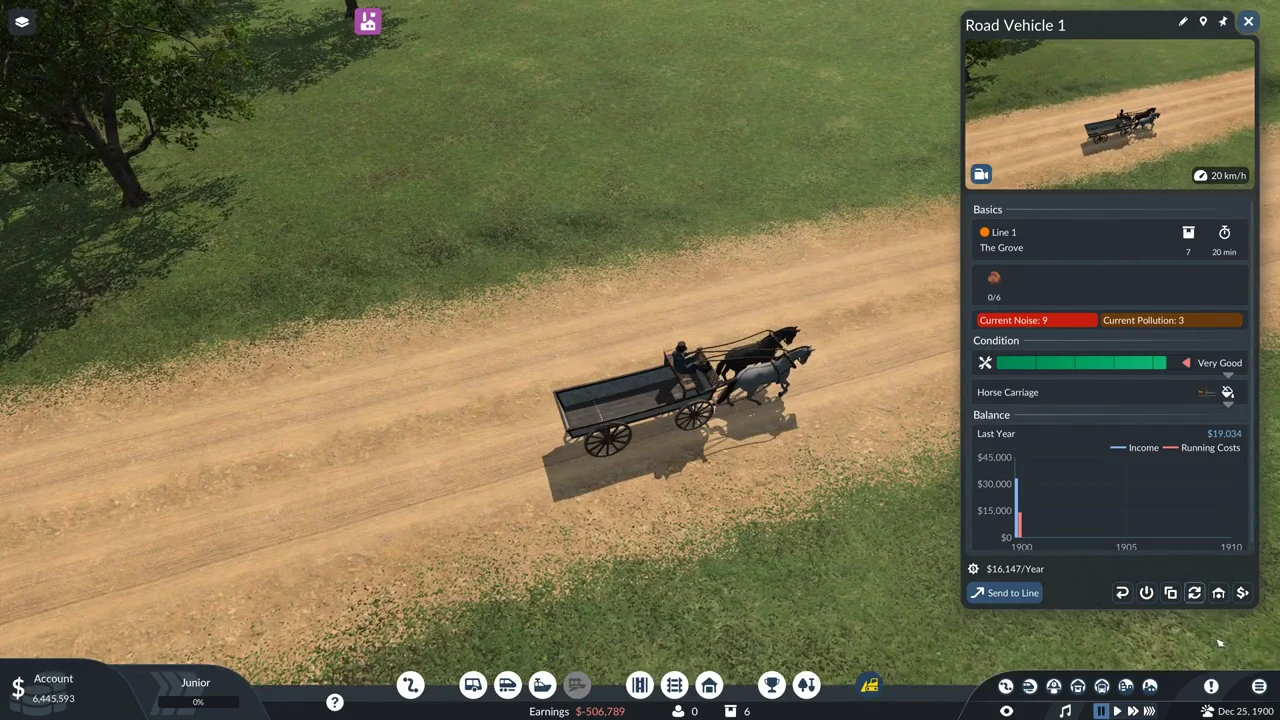
Press Esc once more to close the vehicle window. The game’s pause state is unchanged, so if it was running during your ride, it continues running after you exit.
Common mistakes to avoid
- Find the camera button within the live feed in the upper part of the window; it is not among the buttons along the bottom.
- The map-pin symbol at the window’s top is labeled “Locate”. It moves the camera to the vehicle, but does not enter cockpit view.
- With the game paused, the view is a frozen frame. Press Space to ride.
- A left click or a right click ends the ride, so do not click to look around.
Riding costs nothing and changes nothing about how your network runs.