Sandbox Mode is built into Transport Fever 3 as one of four option mods you can switch on before a game starts. With it active, the number under “Account” becomes editable and the Weather and Time window gains a “Current Date” section, so you can edit your bank balance and date. No download is needed.
Quick answer: On the New Game screen open the Add Mods tab, select Activate on the Sandbox Mode card, then start the game. Once loaded, click the Account number to edit your balance and the date in the bottom-right corner to change the year.
Turn on Sandbox Mode when starting a new game
Sandbox Mode lives on the third tab of the new-game setup, not in the difficulty settings. Here is the order to follow.
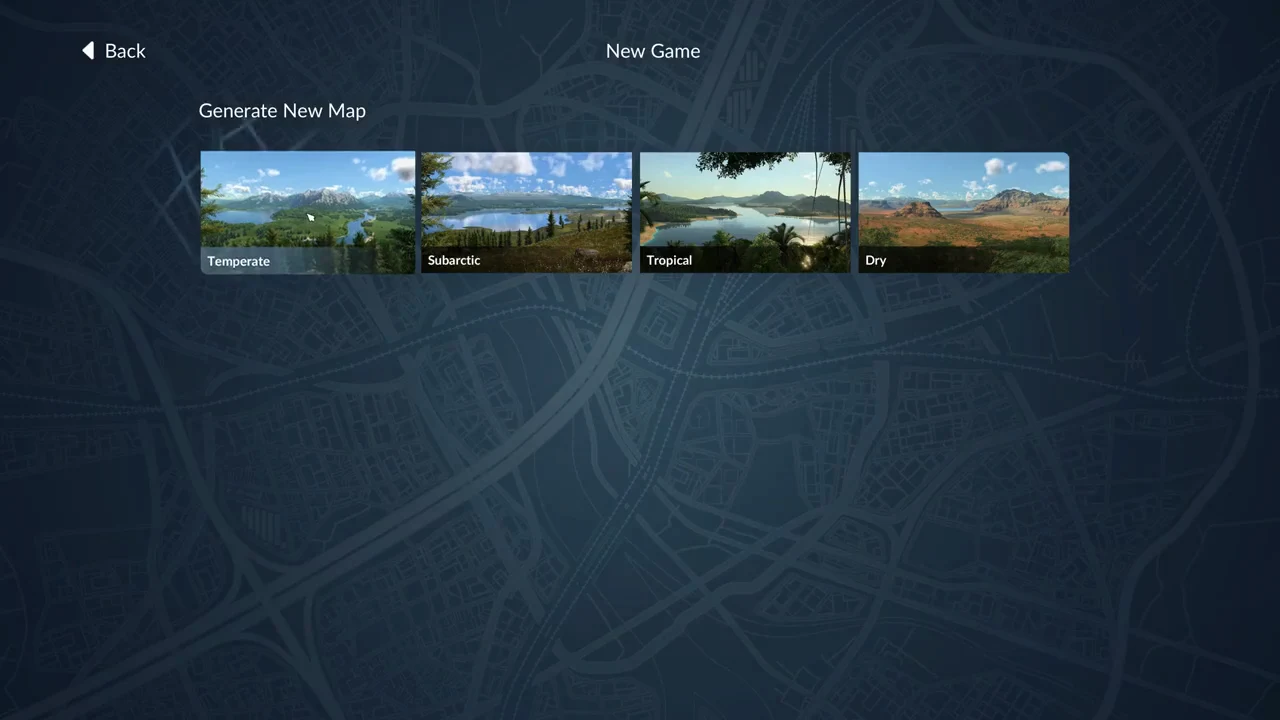
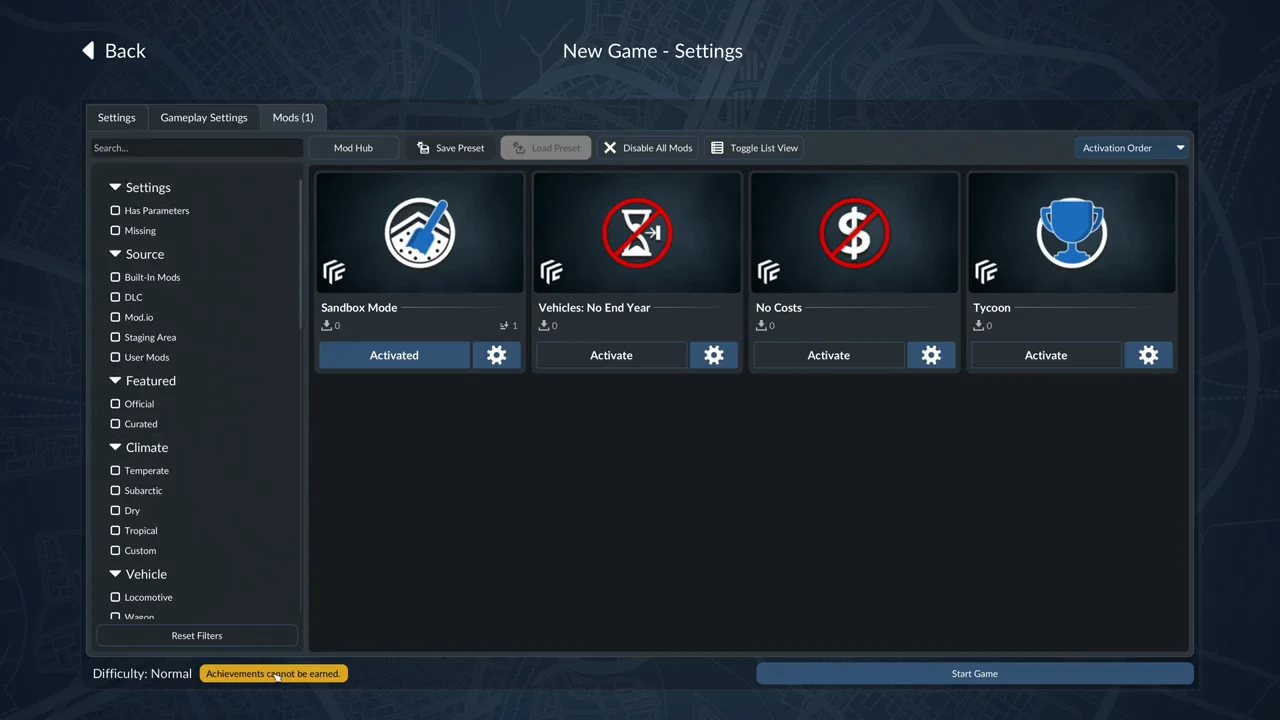
To turn the mod off again, select Activated on its card. There is no second “Activate” button to press. The New Game screen also remembers your last choice, so if your previous game used Sandbox Mode, the tab already reads “Mods (1)” the next time you open it.
What the game shows, and the achievement trade-off
Activating Sandbox Mode immediately puts a yellow badge in the setup screen’s lower-left corner, beside “Difficulty: Normal”. Its message is “Achievements cannot be earned.” Turning the mod off removes the badge at once. Any of the four built-in mods triggers the same notice, not just Sandbox Mode.
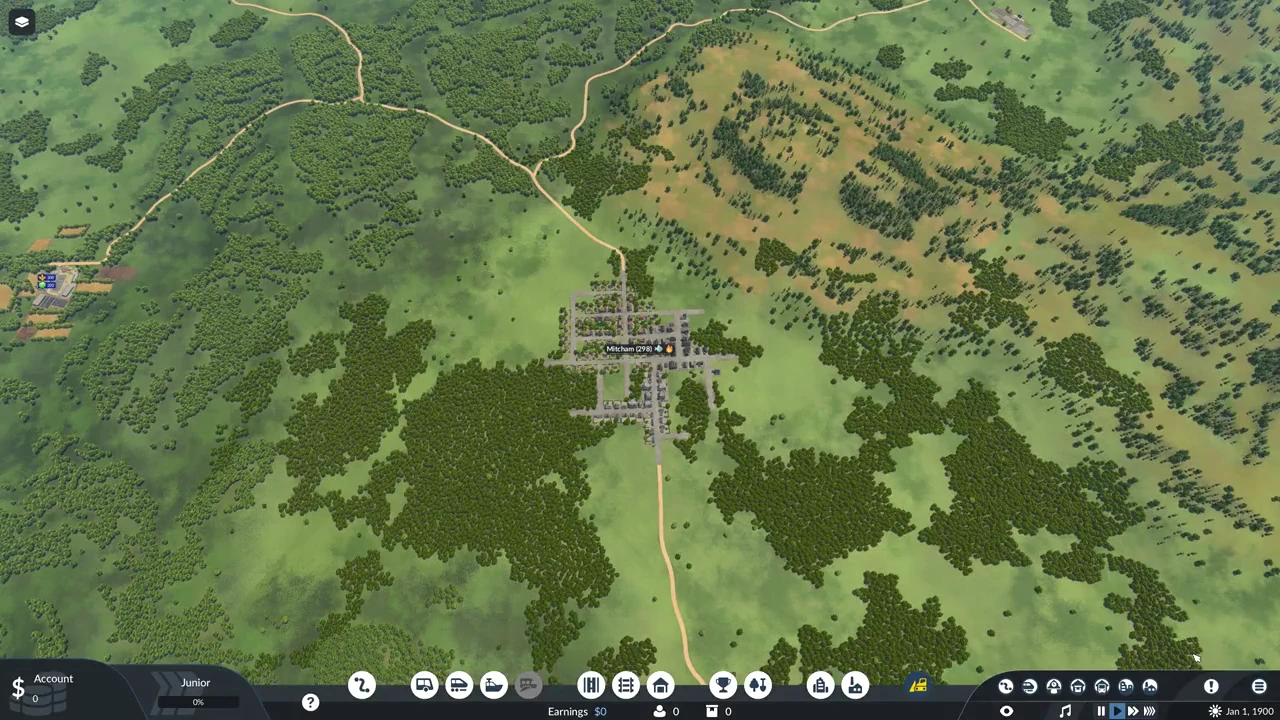
No status text appears during play to identify Sandbox Mode. Instead, look for the Town and Industry buttons at the bottom build bar’s right end; the Account value and calendar are also editable.
Starting a new game with Sandbox Mode does not hand you any money. On Normal difficulty the Account still begins at 0, exactly as it would without the mod.
Change your money
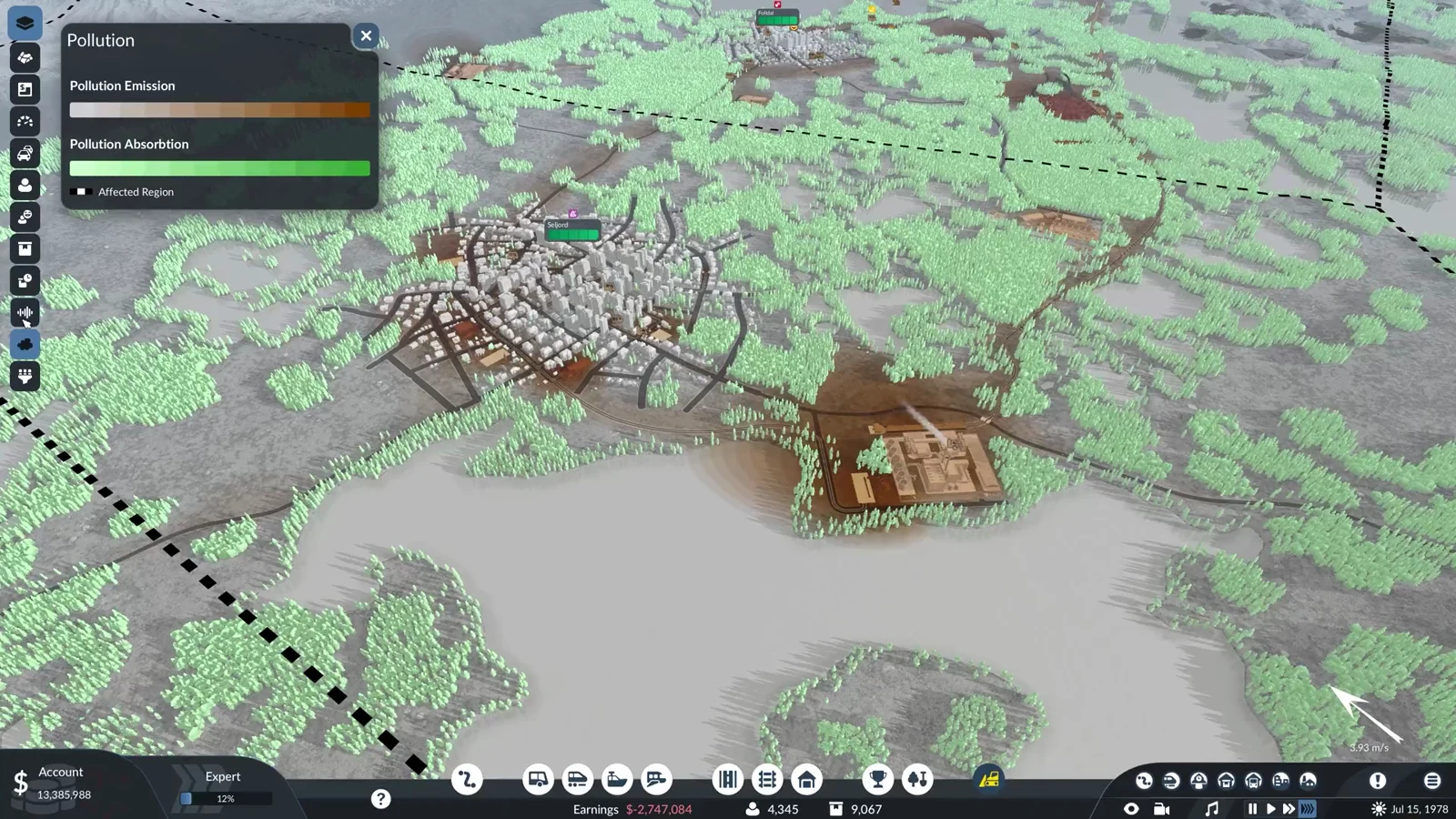
The value below “Account” in the screen’s lower-left corner shows your bank balance. When Sandbox Mode is enabled, clicking the value opens a text field with the current amount selected. Enter the new balance using plain digits, then press Enter to apply it immediately. Clicking the map also commits the typed amount; Esc discards it and preserves the previous balance.
Only the number itself is editable. If you click the “$” sign or the rest of the Account panel, the company window opens instead, with its Overview, Finances, Assets, Loans and Delivery Time tabs. Without Sandbox Mode, clicking the number only ever opens that window.
A few rules govern what the field accepts:
- Enter the amount without separators. The entry “1,000,000” is refused, leaving the existing balance unchanged.
- Letters are rejected and nothing changes.
- Any decimal value is rounded to an integer; for example, 12.5 becomes 13.
- You can enter a negative balance: typing -5000000 sets it to -5,000,000, displayed in red. A balance of zero is valid as well.
- The field’s upper limit is 92,233,720,368,548, roughly 92 trillion. Entering 999999999999999 results in that maximum value.
Values far beyond the limit roll over to a negative balance. For example, a 23-digit entry resulted in -92,233,720,368,548, shown in red. The bottom-bar “Earnings” amount changes by the same amount as the edit; setting Account to zero and then to 25,000,000 makes Earnings show $25,000,000.
Change the date
Click the date at the bottom right of the screen (for example “Jan 2, 1900”) to open the “Weather and Time” window. With Sandbox Mode on, that window has five sections: Weather, Time of Day, Calendar Speed, Current Date and Environment. Without the mod, only Weather, Time of Day and Calendar Speed appear.
The “Current Date” section provides three numeric inputs: Day, Month and Year. Each has small up and down arrows along its right side. Click an input, enter a value and press Enter to update the date in the bottom bar immediately. The fields enforce these limits:
| Field | Accepted range | Out-of-range behaviour |
|---|---|---|
| Year | 1900 to 5000 | Below 1900 snaps to 1900; 99999 snaps to 5000 |
| Month | 1 to 12 | 13 becomes 12; 0 becomes 1 |
| Day | 1 to the length of that month | 31 in February becomes 29; 0 becomes 1 |
The date can move backwards as well as forwards. Jumping forward makes every vehicle and building from the skipped years available at once, and the game marks them as a row of blue notification icons across the top of the screen. The year also drives building costs: a Road Stop runs $30,000 in 1900, $66,000 in 1950, $120,000 in 1990 and $180,000 in 2020. Vehicle prices do not change with the year.
The “Environment” dropdown in the same window switches the lighting between Temperate, Subarctic, Tropical and Dry, and the “Calendar Speed” slider (1.00x by default) sits there with or without Sandbox Mode.
Add Sandbox Mode to a game already in progress
You do not have to start fresh. A save that began without Sandbox Mode can have it added through the Load Game screen.
Before loading, choose “Activated” on a mod’s card to disable it for that save. The Save Settings tab lists the save’s Climate and Map Size, as well as Difficulty and Current Date. It also displays Current Population, Company Rank, Stations, Lines, Vehicles and Current Account. The Mods column shows how many mods that save uses.
The extra building tools Sandbox Mode adds
Sandbox Mode adds two buttons on the bottom build bar’s far right: Town and Industry. Use Town to place a town; its settings include a Size slider, set to Medium by default, plus Commercial and Industrial District dropdowns. Industry lets you place any producer or factory and configure Input, Boost Factor and Industry Size.
Placing an industry is labelled “Free”, but uneven ground can still charge for terrain work; one placement booked 116,194 under Investments. Every town window also gains a second tab, “Editor”, holding Cargo Demand slots, Target District Capacities with an Enable Town Development checkbox, a District Tool with Enable Custom Distribution Weights, and per-town Ratings Sensitivity controls. Sandbox Mode does not make anything free on its own and does not raise your company rank.
How Sandbox Mode compares to the other built-in mods
Sandbox Mode leaves money in the game while allowing you to change the balance and date. The other three mods have different effects. You can enable all four together; each increases the number shown in the tab label, and “Disable All Mods” switches every mod off. All four display the same achievements notice.
| Mod | What it does |
|---|---|
| Sandbox Mode | Edits the bank balance and the date; adds the Town and Industry tools |
| No Costs | Currency is disabled, purchases cost nothing, and the balance appears unlimited |
| Tycoon | Raises the company to the top rank and opens every perk, including landmarks and marketing |
| Vehicles: No End Year | Keeps vehicles purchasable forever once they become available |
Common mistakes to avoid
- The option sits on the Add Mods tab, not on Gameplay Settings, which holds only difficulty.
- When loading is complete, the loading screen remains open until you click Start Game a second time.
- Only the balance digits open the money editor; clicking the “$” just to their left brings up the company window.
- If the balance entry contains commas, the game ignores it.
- An excessively long number makes the balance roll over to a negative value rather than stopping at the limit.
- The Year cannot go below 1900, and the mod stays on for your next new game until you turn it off.
Check that the Sandbox Mode card reads “Activated”; in-game, look for the Town and Industry buttons and the editable Account and date fields. You can edit your Account and date, and the game displays “Achievements cannot be earned.”