
Audio effects that remain enabled every time the system boots can interfere with your preferred sound profile, cause unwanted sound coloration, or conflict with third-party audio software. Disabling Device Default Effects ensures your audio remains consistent and prevents system-imposed changes from affecting your listening or recording experience.
Disable Device Default Effects via Sound Control Panel
Right-click the speaker icon in the system tray at the bottom-right corner of your Windows desktop. Select
Sounds or Open Sound settings from the context menu.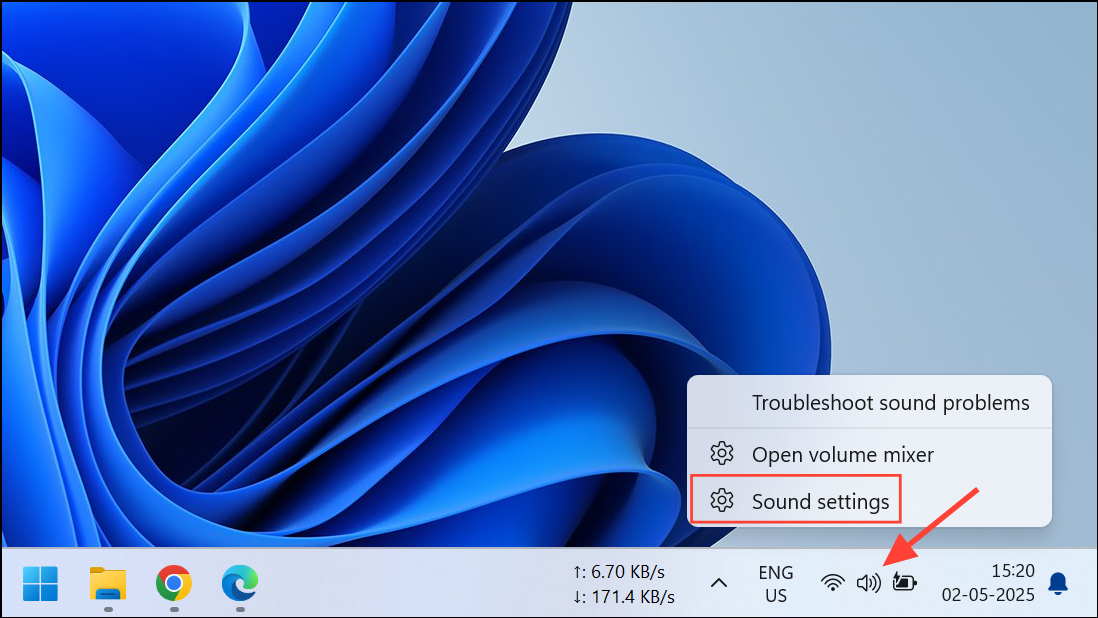
If you selected
Open Sound settings, scroll down and click More Sound Settings under the Adcvanced section. This opens the classic Sound window.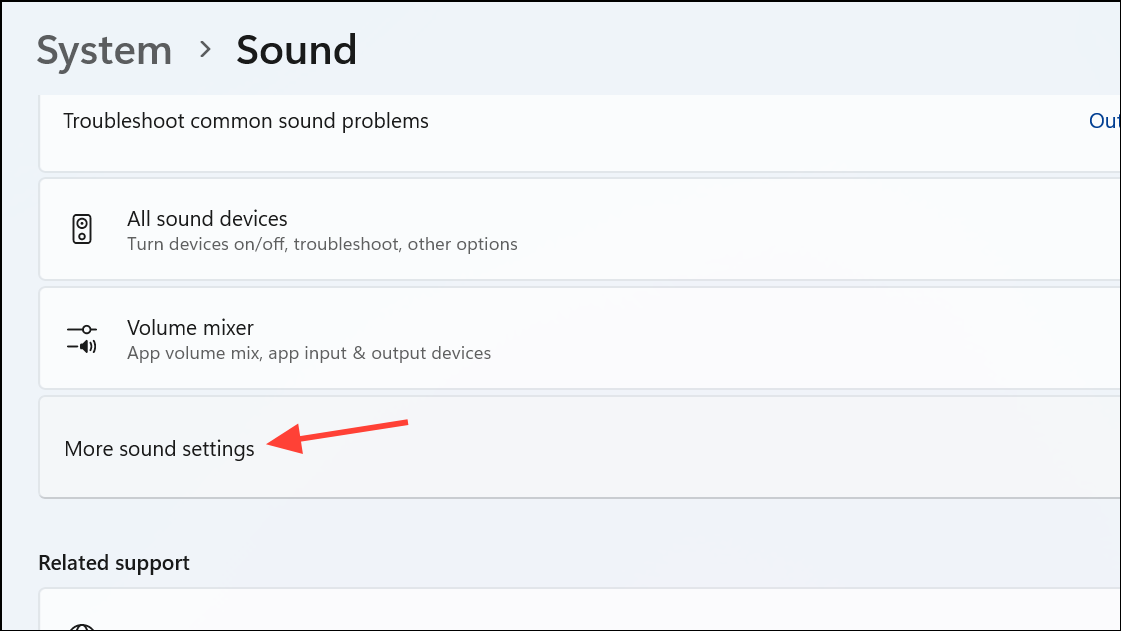
In the
Playback tab, select your default audio device (for example, Speakers or Headphones) and click Properties.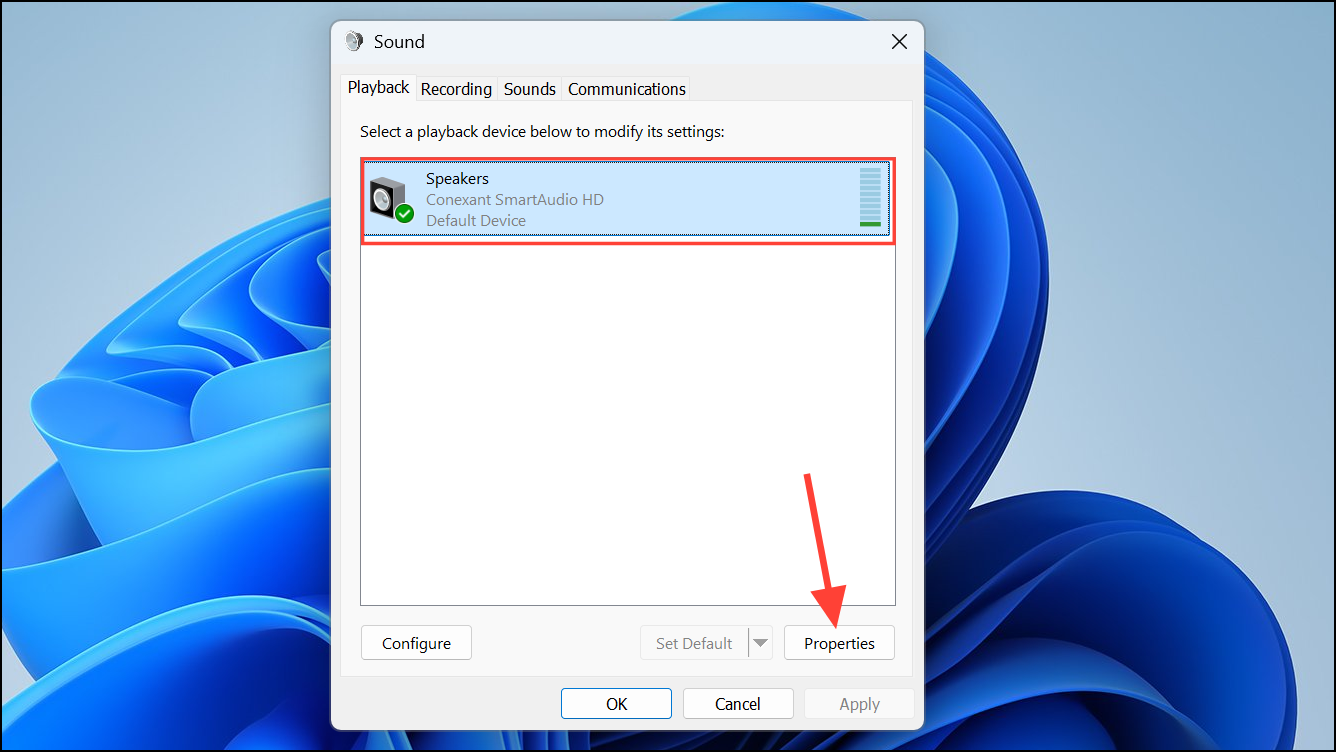
Switch to the
Enhancements or Advanced tab. If you see a list of audio effects (such as Loudness Equalization, Virtual Surround, etc.), uncheck the box labeled Enable audio enhancements or individually deselect each unwanted effect.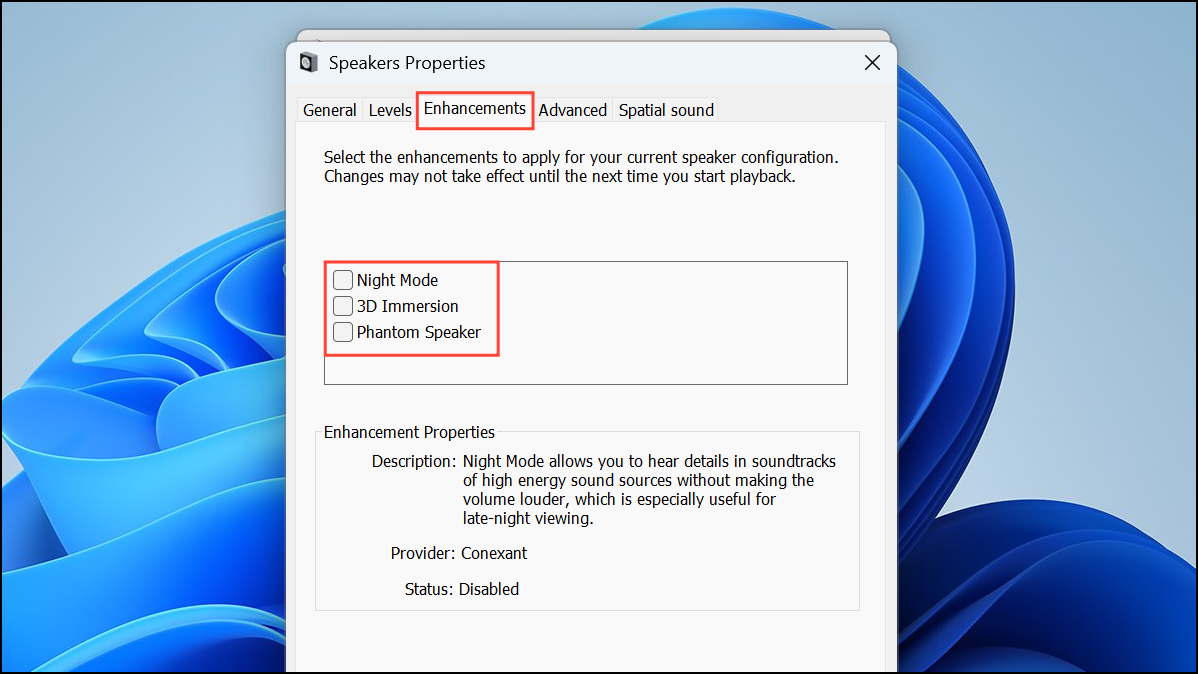
Click
Apply and then OK to save your changes. Restart your computer to confirm the effects no longer activate at boot.Turn Off Default Effects Using Device Manager
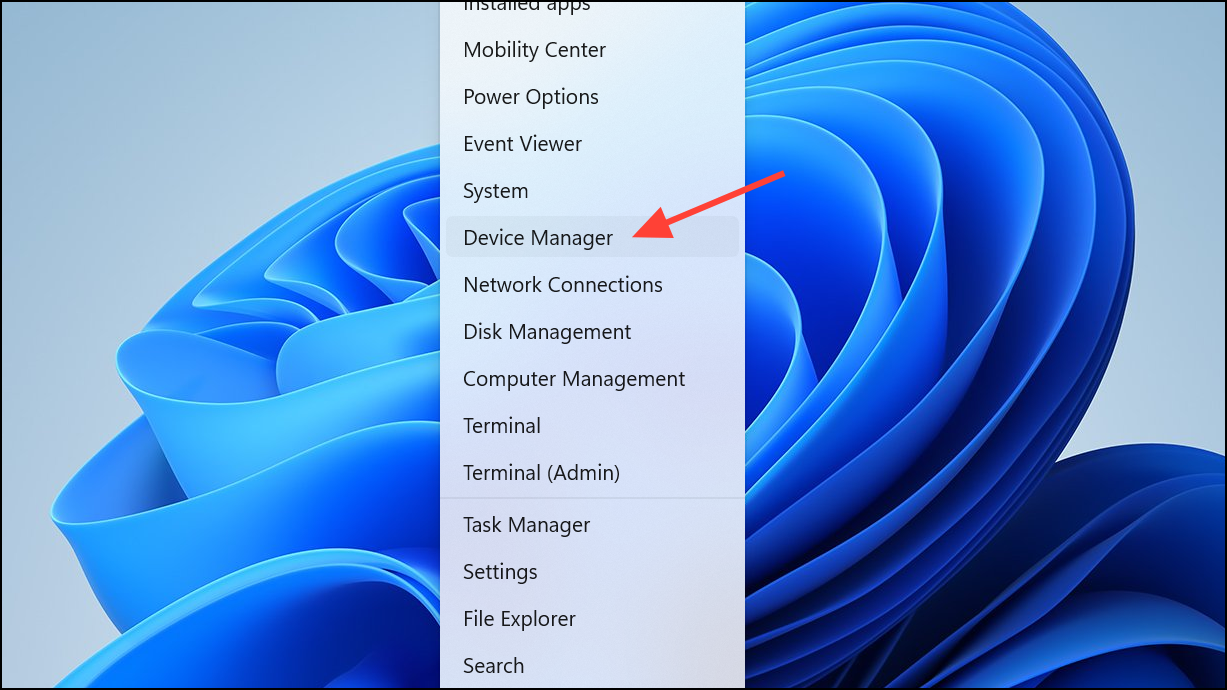
Expand the
Sound, video and game controllers section. Right-click your audio device and select Properties.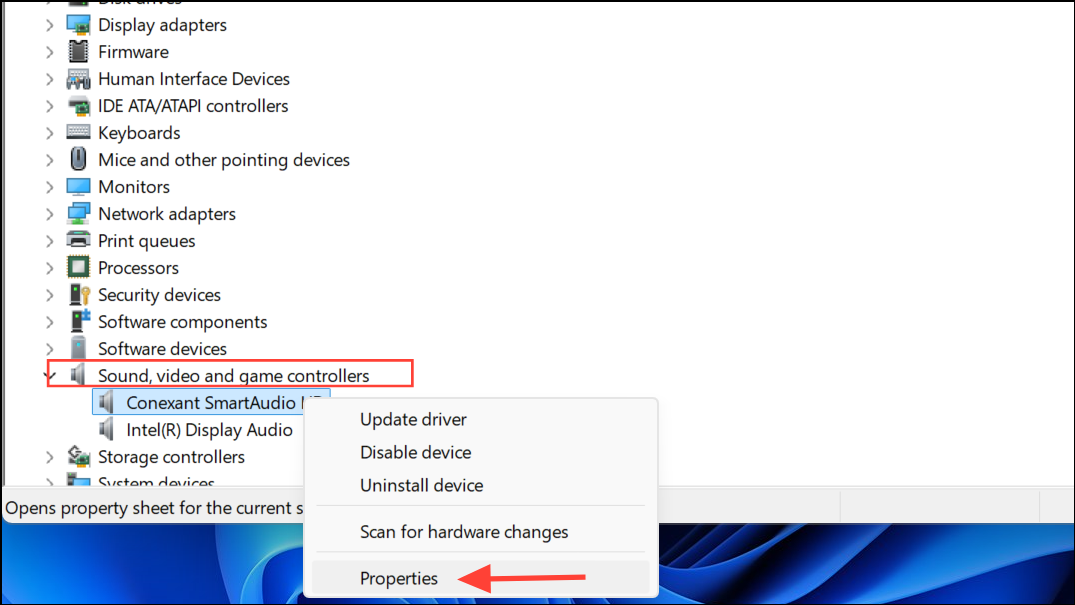
Look for a tab labeled
Enhancements, Effects, or similar. Some audio drivers allow toggling default effects directly from this panel. Deselect any unwanted effects or disable the feature entirely if possible.Disable Audio Effects in Third-Party Audio Software
If your system uses specialized audio software (such as Realtek HD Audio Manager, Dolby Atmos, or manufacturer-specific sound utilities), open the corresponding application from your Start menu or system tray.
Navigate to the section managing sound effects or enhancements. Turn off any default effects or set your preferred custom profile as the default so it loads at boot instead of the manufacturer’s preset.
Save your configuration and restart your computer to verify that the effect is no longer automatically applied.
Disabling Device Default Effects at startup gives you full control over your audio output and prevents system-imposed sound changes. If you update audio drivers, double-check these settings as some updates may revert your preferences.





