
Color vision deficiency often makes it difficult to distinguish between certain colors, which can cause confusion or errors when using a computer. Windows 11 addresses this by including built-in color filter options specifically designed for people with color blindness, such as deuteranopia (green-weak), protanopia (red-weak), and tritanopia (blue-yellow deficiency). Applying these filters can improve the visibility of interface elements, graphics, and text, making daily computer tasks more manageable and accurate.
Enable Color Filters via Accessibility Settings
Windows logo key + U or by clicking Start, selecting Settings, and then choosing Accessibility from the sidebar. This menu gathers all vision-related options in one place for quick access.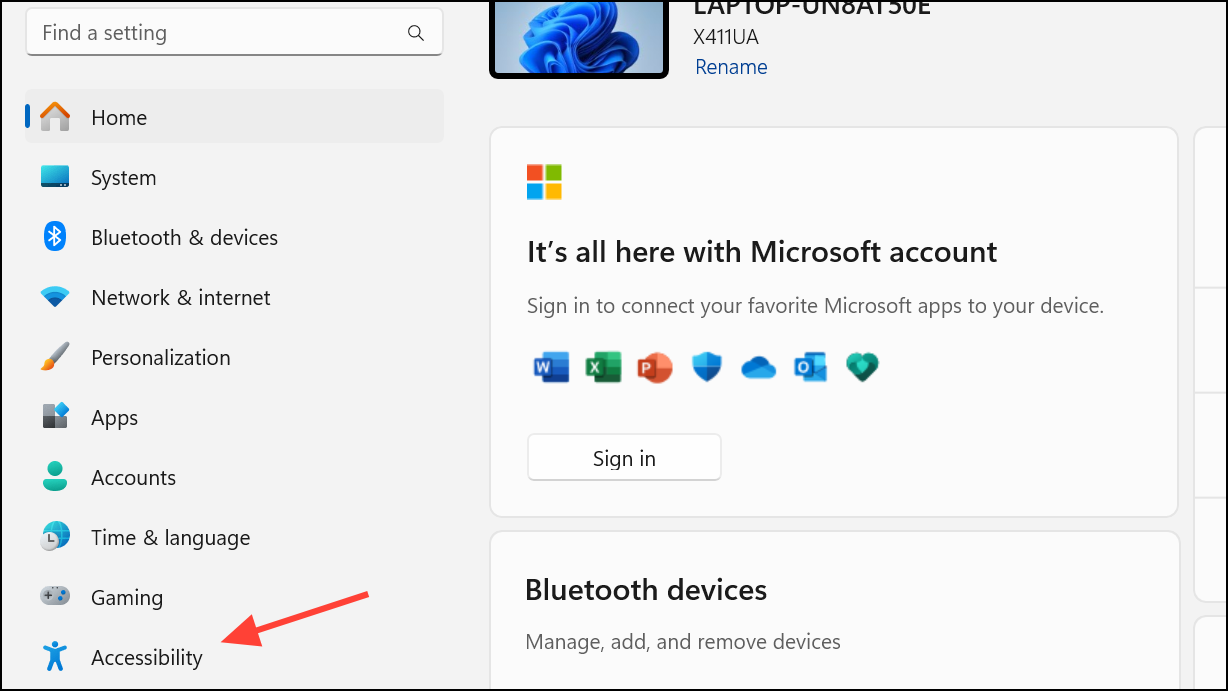
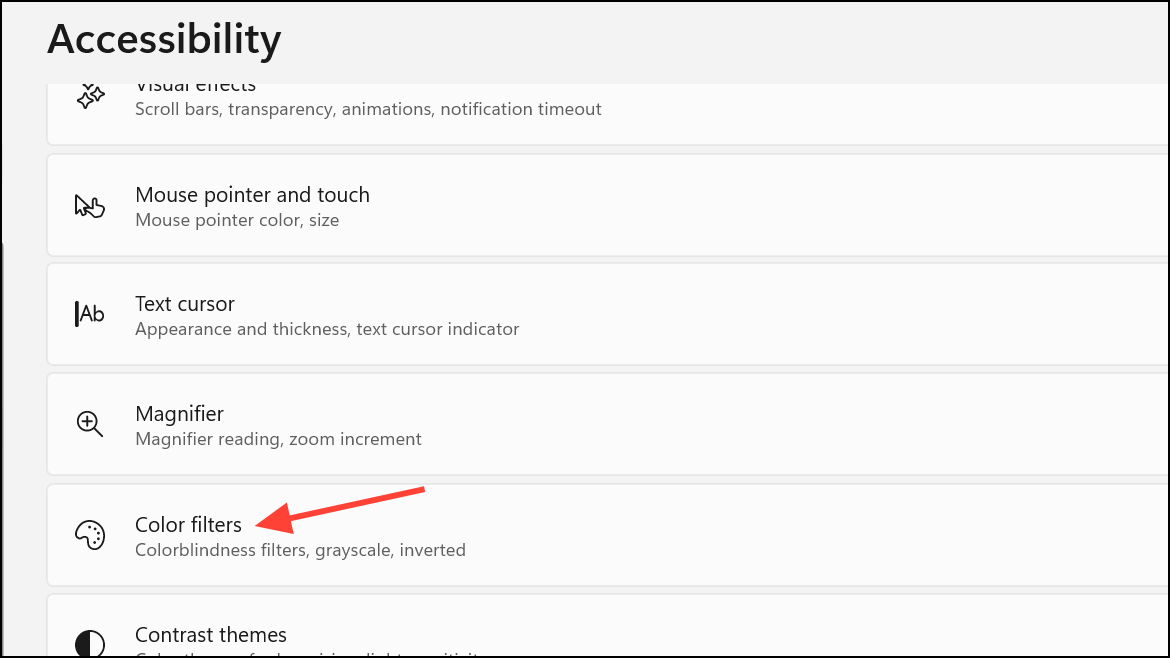
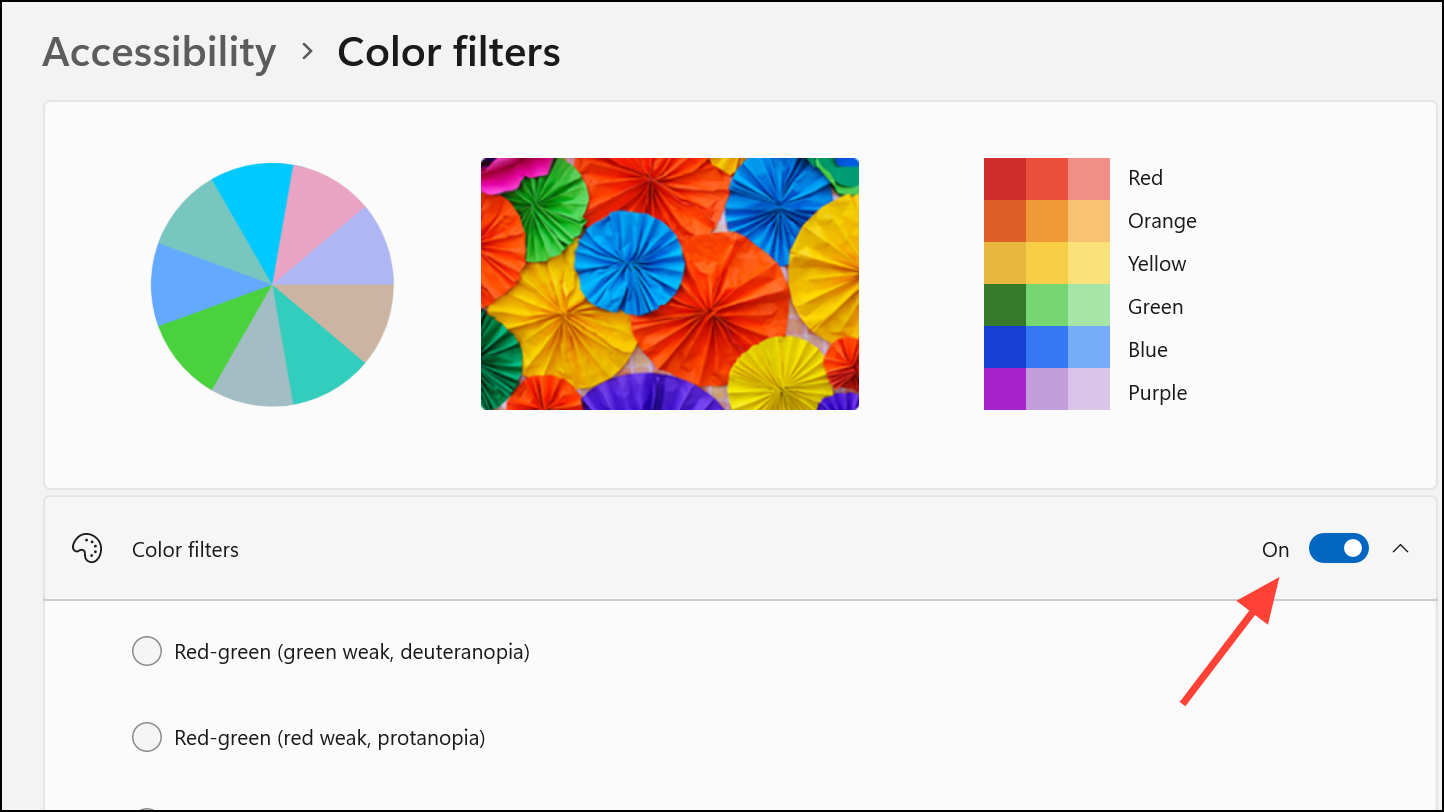
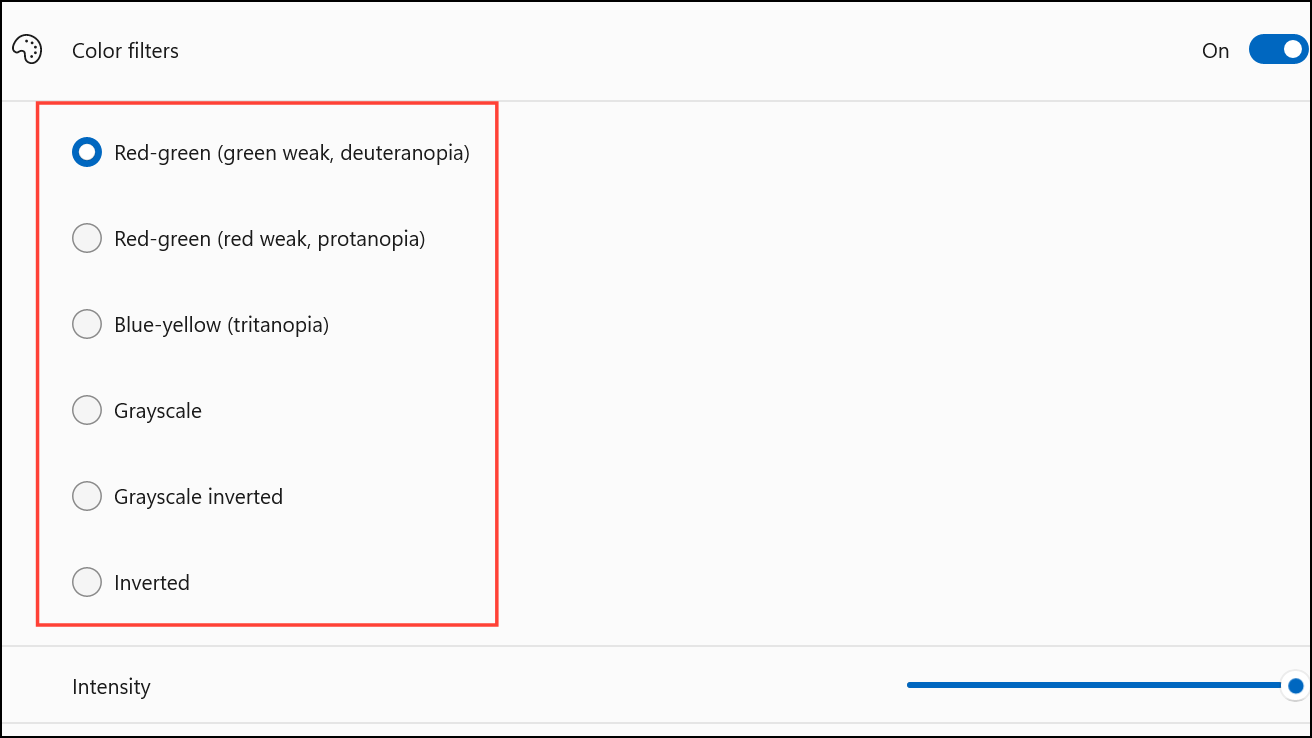
- Red-green (green-weak, deuteranopia).
- Red-green (red-weak, protanopia).
- Blue-yellow (tritanopia).
- Grayscale.
- Grayscale inverted.
- Inverted.
Select the filter that matches your type of color vision deficiency. The preview area will update as you click each option, so you can determine which filter provides the best distinction between colors for your needs. When the correct filter is chosen, colors in the preview wheel and example image appear more distinct and easier to tell apart.
Adjust Color Filter Intensity and Color Boost (Windows Insider Builds)
Recent Windows 11 Insider builds (build 25938 and above, Canary branch) introduce sliders that let you fine-tune the intensity and color boost of your chosen filter. These controls are especially useful for users whose color vision deficiency severity varies or who need more precise adjustment.
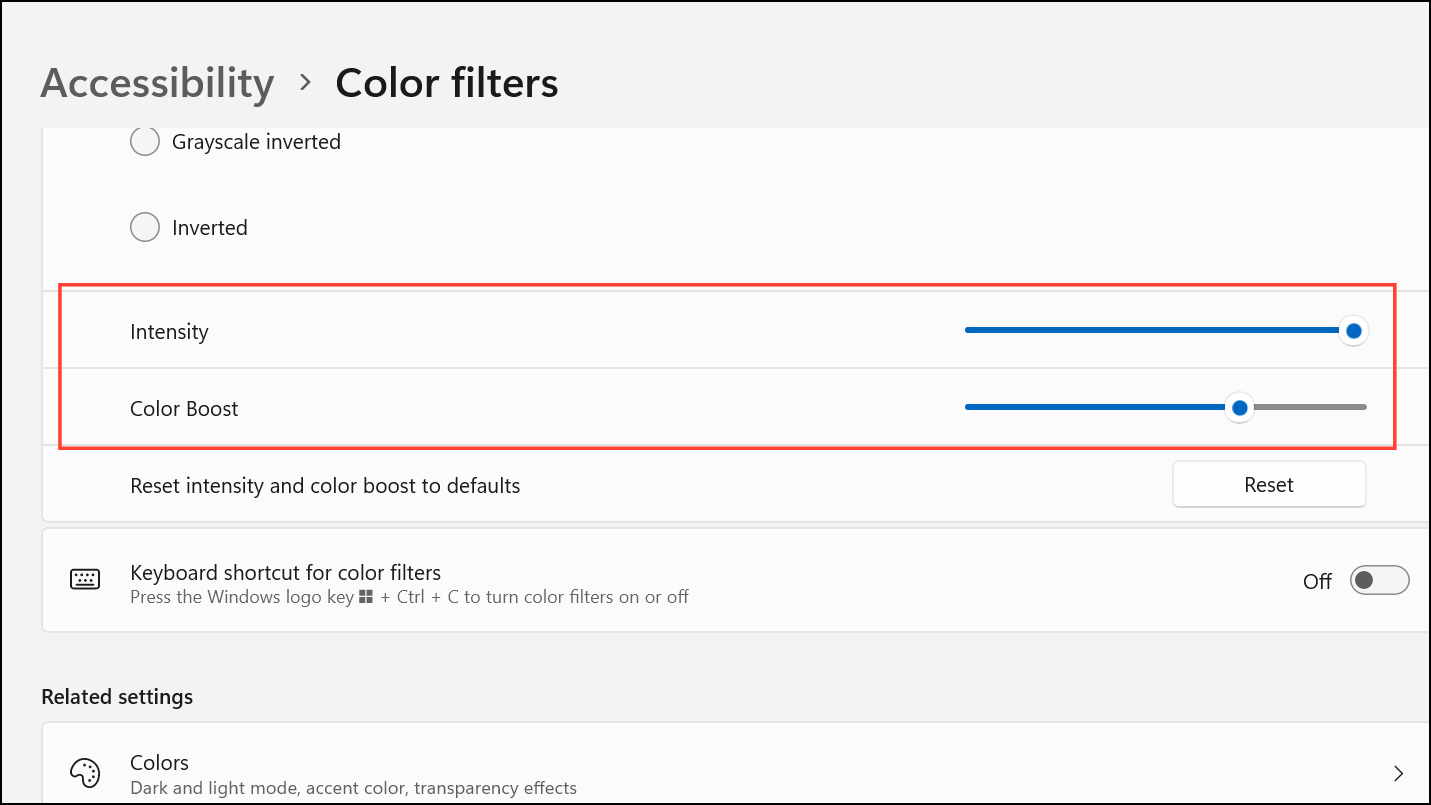
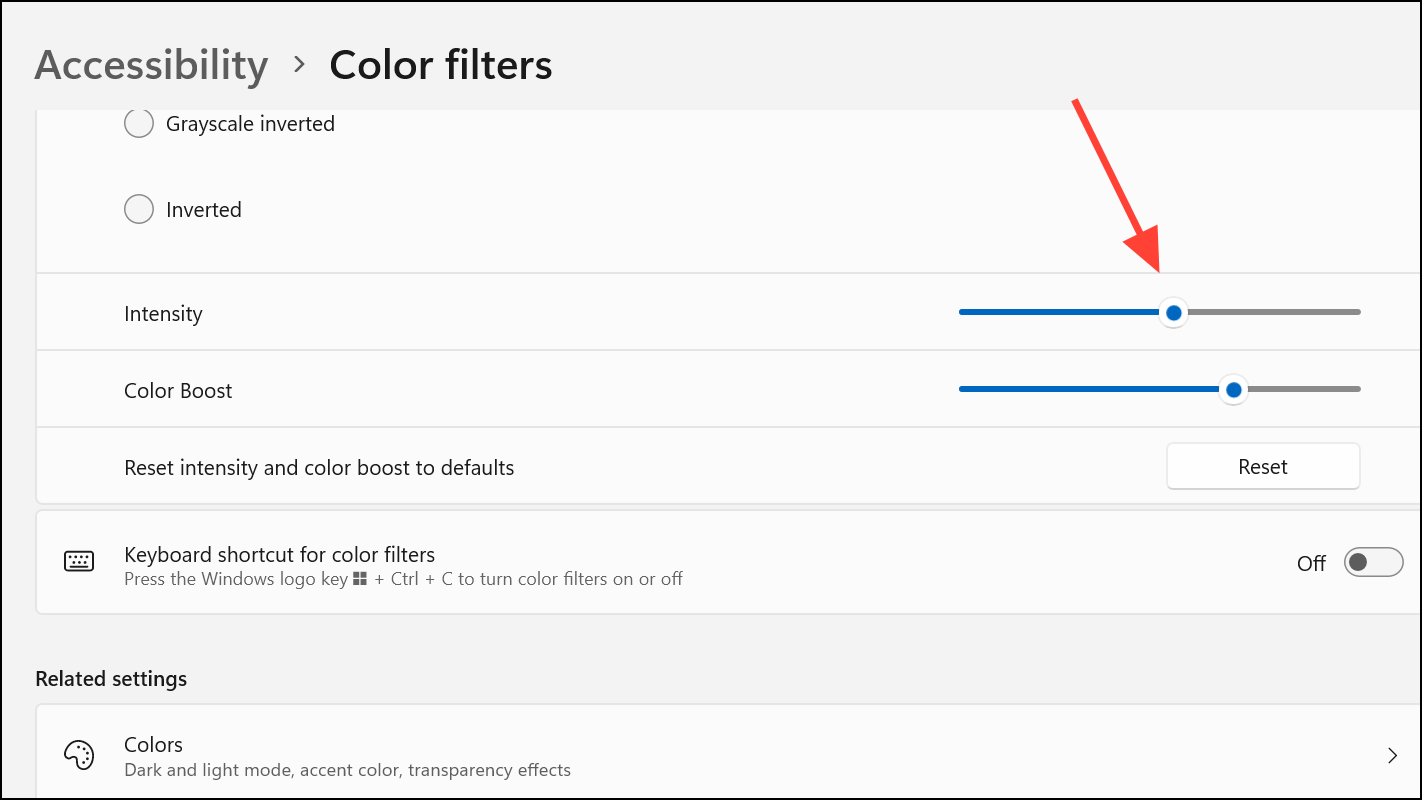
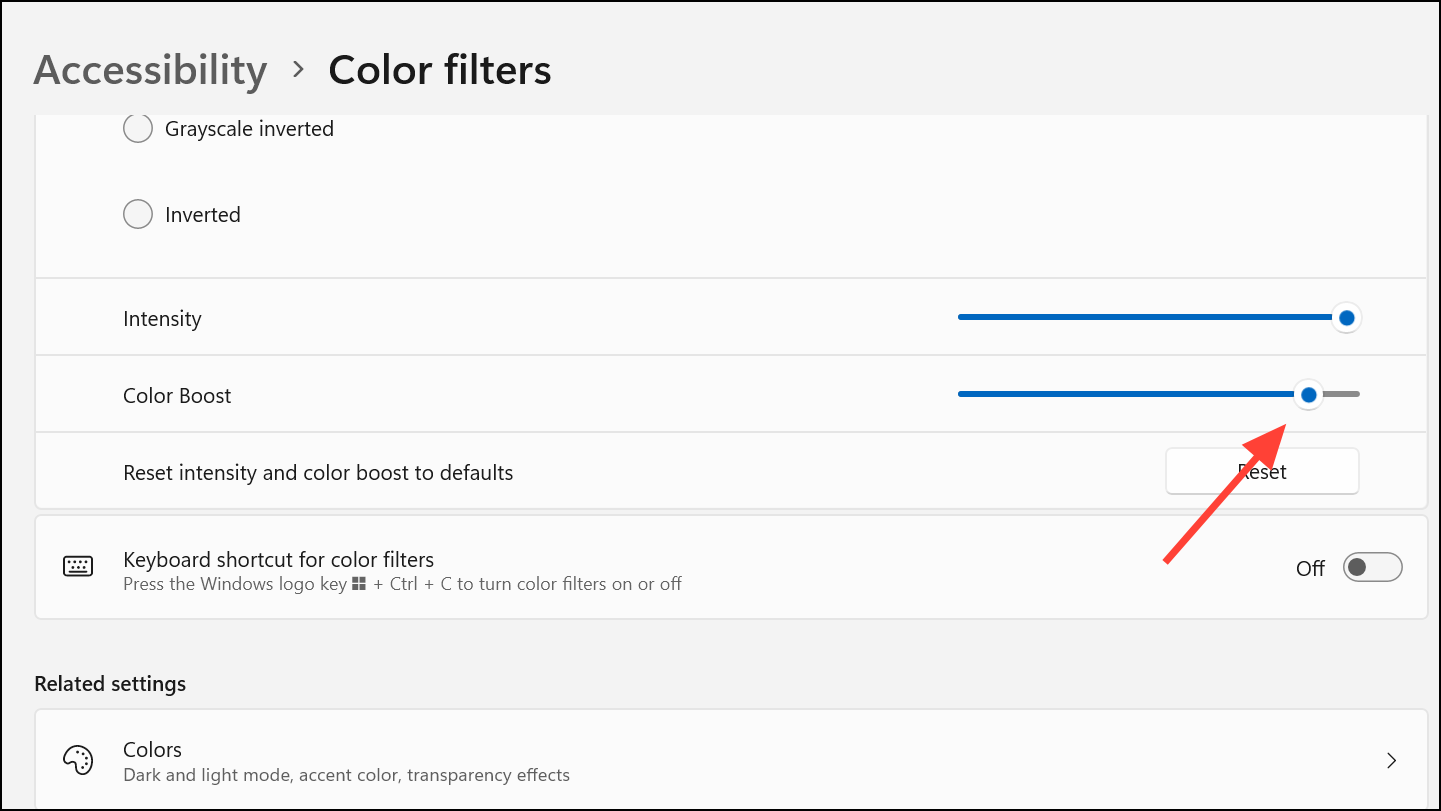
These adjustments utilize dedicated color matrix hardware in most modern GPUs, which means the changes apply instantly and do not affect system performance, even during gaming or video playback in full screen.
Enable Color Filters Quickly with a Keyboard Shortcut
For users who need to toggle color filters on and off frequently, Windows 11 provides a keyboard shortcut option.
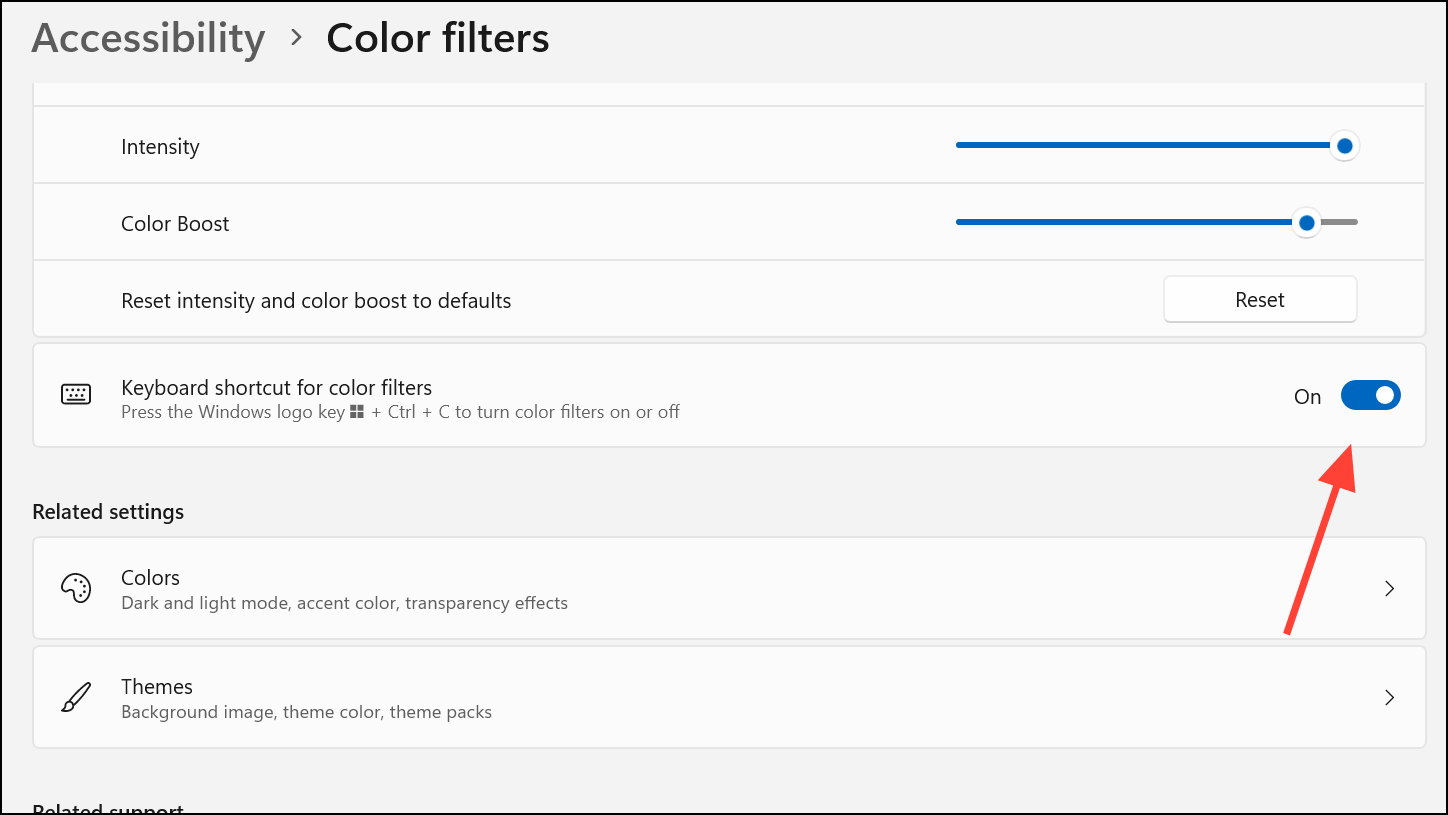
Windows logo key + Ctrl + C at any time to switch color filters on or off instantly. This is especially useful when sharing your screen or viewing content where the filter is not needed.Alternative Method: Enable Color Filters from the Taskbar
Windows 11 also allows quick access to color filters through the taskbar’s quick settings panel.
Windows logo key + A.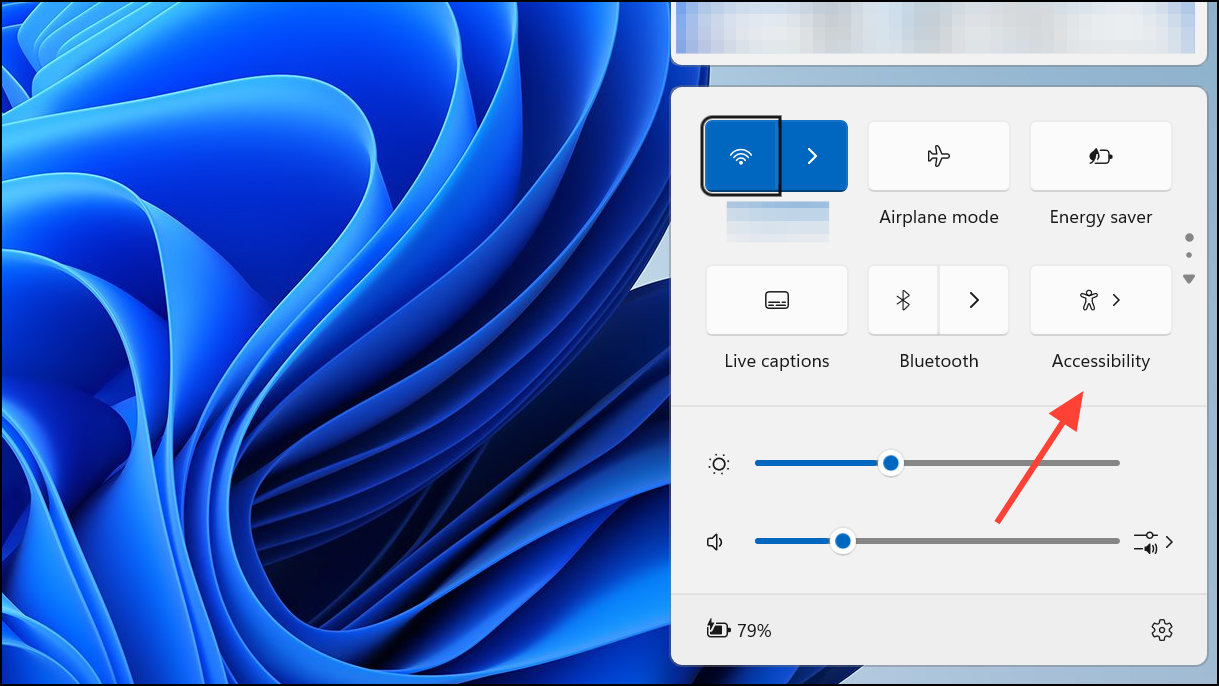
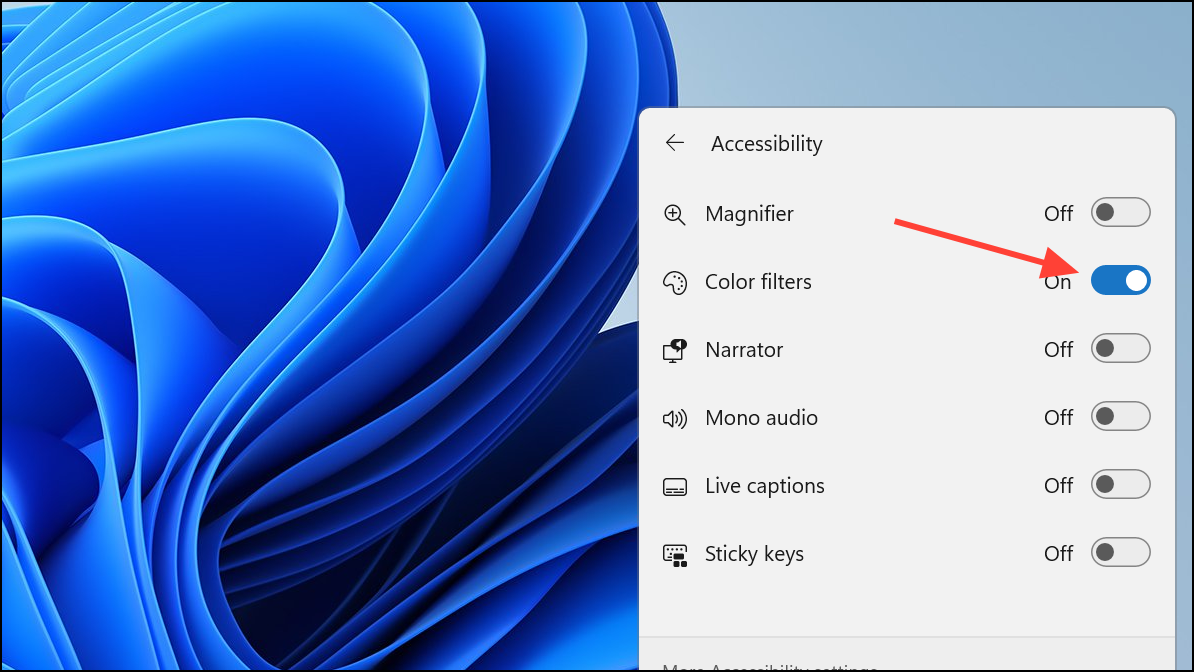
Tips for Best Results and Additional Adjustments
To maximize the effectiveness of color filters, test different options in the apps and websites you use most frequently. Some users find that certain filters work better in specific lighting conditions or with certain types of content, such as spreadsheets, charts, or games. If you notice that text or interface elements are still hard to see, consider combining color filters with other accessibility features like high contrast themes or adjusting display brightness.
For users who require even more customization, third-party tools are available that can apply overlays or further refine color presentation, but the built-in Windows 11 options are sufficient for most needs and integrate seamlessly with system updates and security features.
With these steps, Windows 11 makes it straightforward to improve color distinction for users with color vision deficiency. Adjust the filters as needed and use shortcuts for quick toggling to create a more accessible and comfortable computing experience.



