

Windows 11 now leans on a trick called the Low Latency Profile to make the desktop feel quicker. When you click the Start menu, open Search, or pull up the Action Center, the CPU jumps to its top frequency for a brief one to three second burst, renders the element, and then settles back to its idle state. The feature ships with the June 2026 security update and is part of Microsoft’s broader Windows K2 effort to fix core responsiveness.
Quick answer: Install Windows 11 KB5094126 (OS Build 26200.8655 or 26100.8655) and reboot. If the boost is not active because of the staged rollout, force it on with ViVeTool by running vivetool /enable /id:58989092,60716524,48433719,61391826 in an elevated Command Prompt, then restart.
What the Low Latency Profile does
Normally the Windows scheduler ramps the processor clock up gradually as workload rises. That slow climb is what produces the tiny hesitation you feel before the Start menu or a context menu draws on screen, and it is most obvious on budget and older machines. The Low Latency Profile skips the gradual climb. The moment Windows detects a high-priority interaction, it spikes the CPU to its maximum frequency just long enough to finish the job, then drops back down.
This is the “race to sleep” idea, where the chip works flat out for a fraction of a second and then spends more time in a deep low-power state. Because the burst is so short, the impact on battery life and temperatures stays small. Microsoft labels the change in its notes only as a general performance improvement, stating that the update “accelerates app launch and core shell experiences such as Start menu, Search, and Action Center.”
In current retail builds the boost reliably triggers for flyouts like the Start menu, Search, Notification Center, and right-click menus. Faster launches for inbox and third-party apps are part of the design but are not consistently active yet.
Requirements before you start
The feature needs no special hardware and there is no toggle in Settings. It simply runs in the background once active. The table below sums up what matters.
| Item | Detail |
|---|---|
| Update needed | KB5094126 (June 2026), Build 26200.8655 or 26100.8655 or newer |
| Windows version | Windows 11 24H2 and 25H2 |
| Rollout type | Controlled Feature Rollout, so not every PC activates it at once |
| Hardware | No special requirement; bigger effect on low-end PCs |
| User control | No Settings toggle; force enable or disable with ViVeTool only |
Enable Low Latency Profile through Windows Update
For most people the update is all that is required, since the boost is enabled by default once it reaches your device.
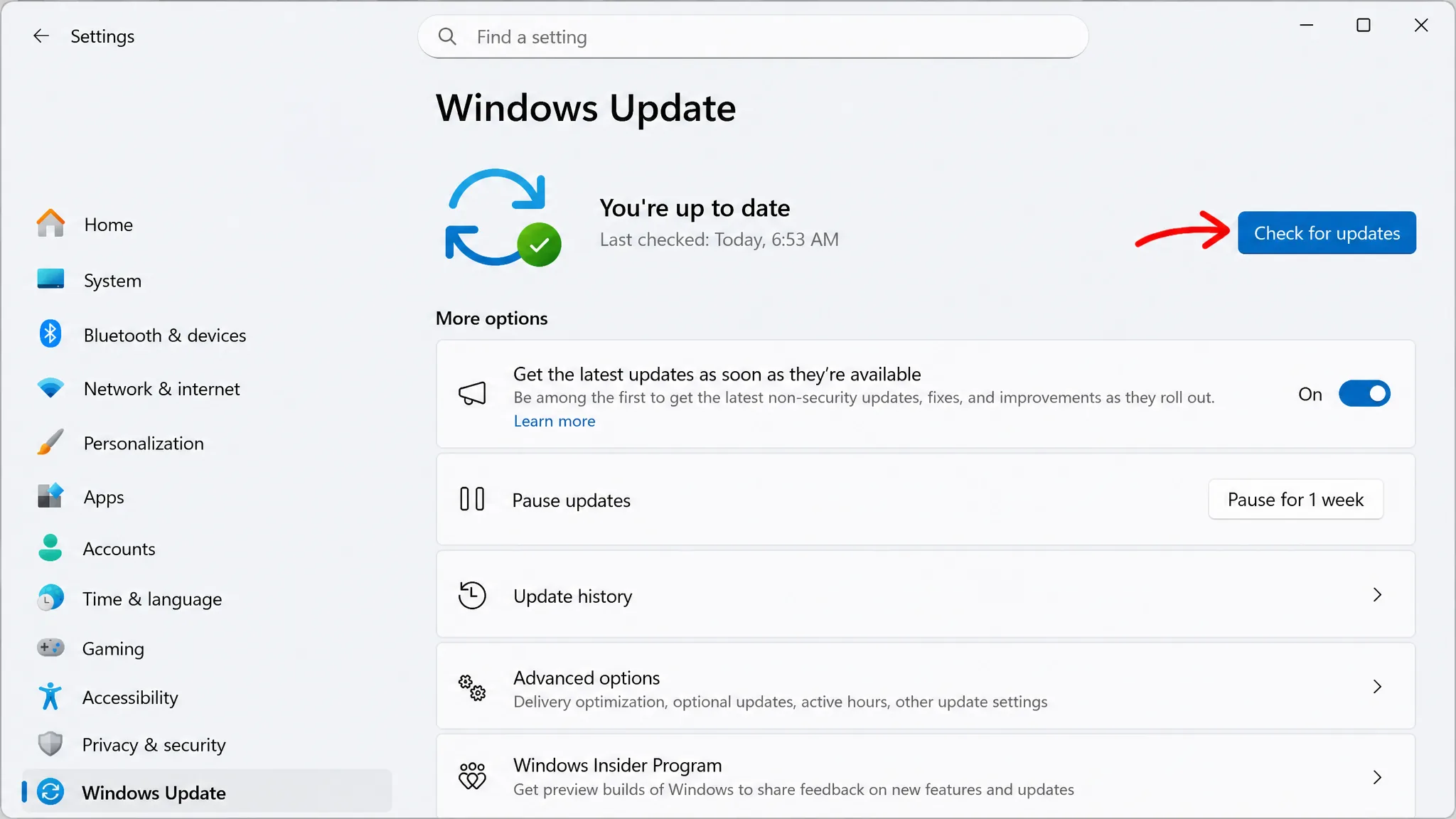
If you want the offline installer or the full release details, the KB5094126 support page covers the build.
Force enable Low Latency Profile with ViVeTool
Microsoft rolls the feature out gradually, so installing the update does not guarantee the switch is on. Your PC already has the underlying code, and you can turn it on yourself with the third-party utility ViVeTool. This was first surfaced by the Windows watcher phantomofearth.
C:\ViveTool. Copy the path to that folder.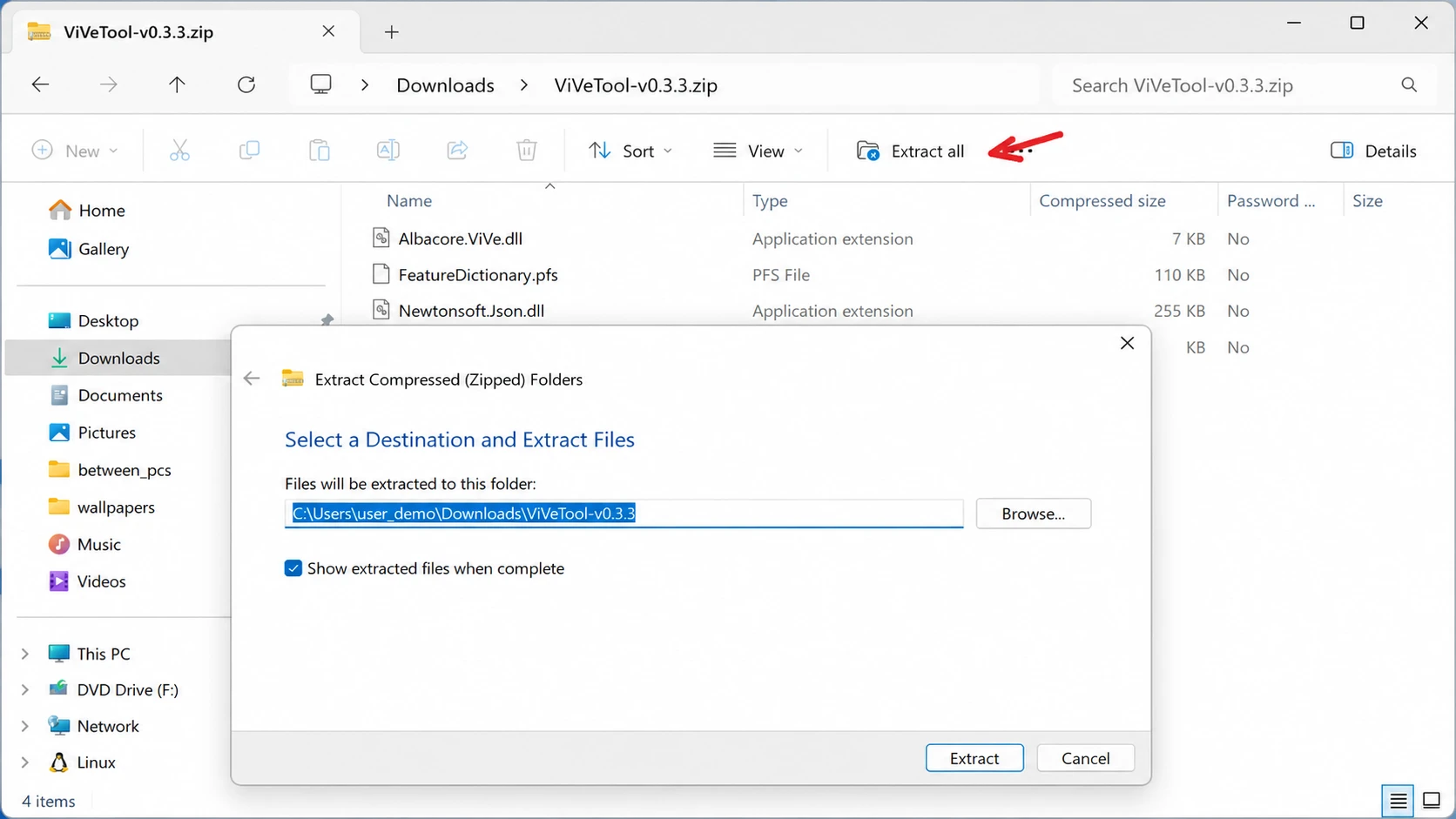
cd c:\folder\path\ViveTool-v0.x.xvivetool /enable /id:58989092,60716524,48433719,61391826The ID 58989092 on its own is usually enough to switch on the core boost. The remaining IDs, 60716524, 48433719, and 61391826, enable additional related components that ship with the same update.
To undo everything, repeat the steps but run vivetool /disable /id:58989092,60716524,48433719,61391826. Once the feature becomes the default on your device through the normal rollout, you can no longer turn it off this way.
Verify the CPU boost is working
There is no message or icon confirming the Low Latency Profile is on, so you have to watch the CPU behave. Open Task Manager, go to the Performance tab, and trigger the Start menu, Search, and Action Center a few times. If the feature is active, the clock briefly jumps toward its maximum and falls back within a second or two, and the menus feel smoother and pop up with less lag.
Task Manager polls fairly slowly, so it can miss the very short spike. For a cleaner read, use a monitoring tool with a fast polling rate such as HWiNFO and watch the CPU frequency as you open those shell elements. A sharp jump across your active cores on every menu open is the clearest confirmation.
Two things explain a missing spike. The first is the Controlled Feature Rollout, where Microsoft enables the change region by region rather than all at once, so an installed update may not yet be switched on. The second is your hardware. On a powerful desktop or a modern premium laptop the shell was already quick, so you mostly notice smoother rendering rather than a dramatic speed change. Budget and older PCs show the biggest difference.
Once the burst is firing on the Start menu, Search, and Action Center, the feature is doing its job. The everyday feel of Windows 11 gets noticeably tighter without your processor running hot or draining the battery, which is the whole point of trading a brief spike for a faster return to idle.



