Valor Mortis lets PC players remap every keyboard and mouse action one slot at a time, while controller users pick from five fixed button layouts (the launch version has no way to bind pad buttons one by one). All of it sits inside the Options menu, which you can reach from the main menu or from the Pause Menu during play.
Quick answer: Open Options, then the MOUSE & KEYBOARD tab to rebind keys. Click a slot, press the new key, then press F to apply. On keyboard, Sprint is a held key, and the launch version has no setting to make it a toggle. Valor Mortis has full controller support: on a pad, pick one of five fixed layouts under CONTROLLER > CONTROL SCHEMES, with Xbox or PlayStation button icons.
Where to find the controls in Valor Mortis
From the main menu, pick OPTIONS. You can also press Esc during play to open the Pause Menu and choose OPTIONS from there. Either way lands you on the same screen.
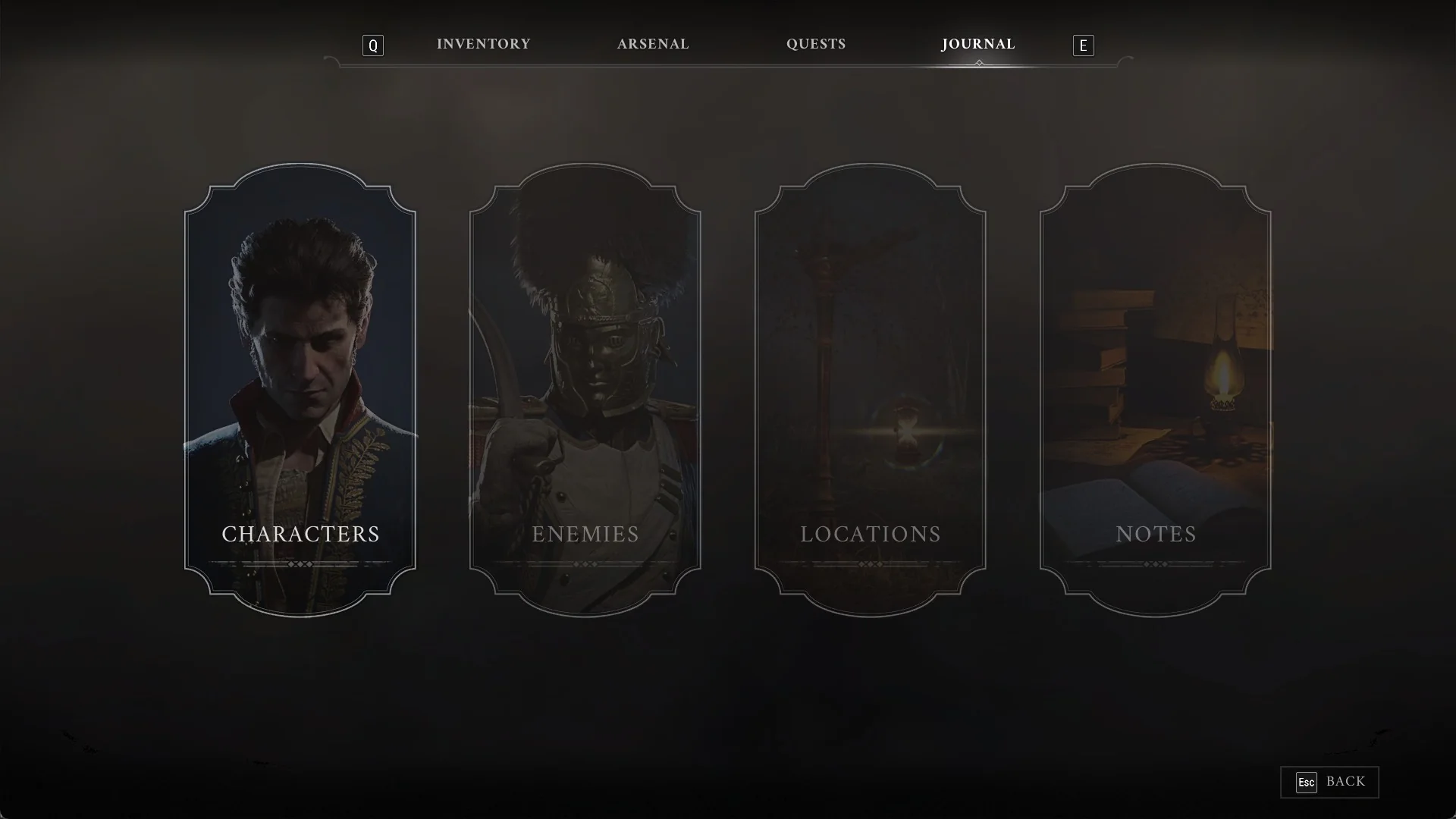
Five categories run across the upper edge: GAMEPLAY, VIDEO, AUDIO, MOUSE & KEYBOARD, and CONTROLLER. Use Q and E to switch tabs. On the right, a panel identifies the row beneath your pointer and provides a brief help line; the lower-right corner displays “Esc BACK”.
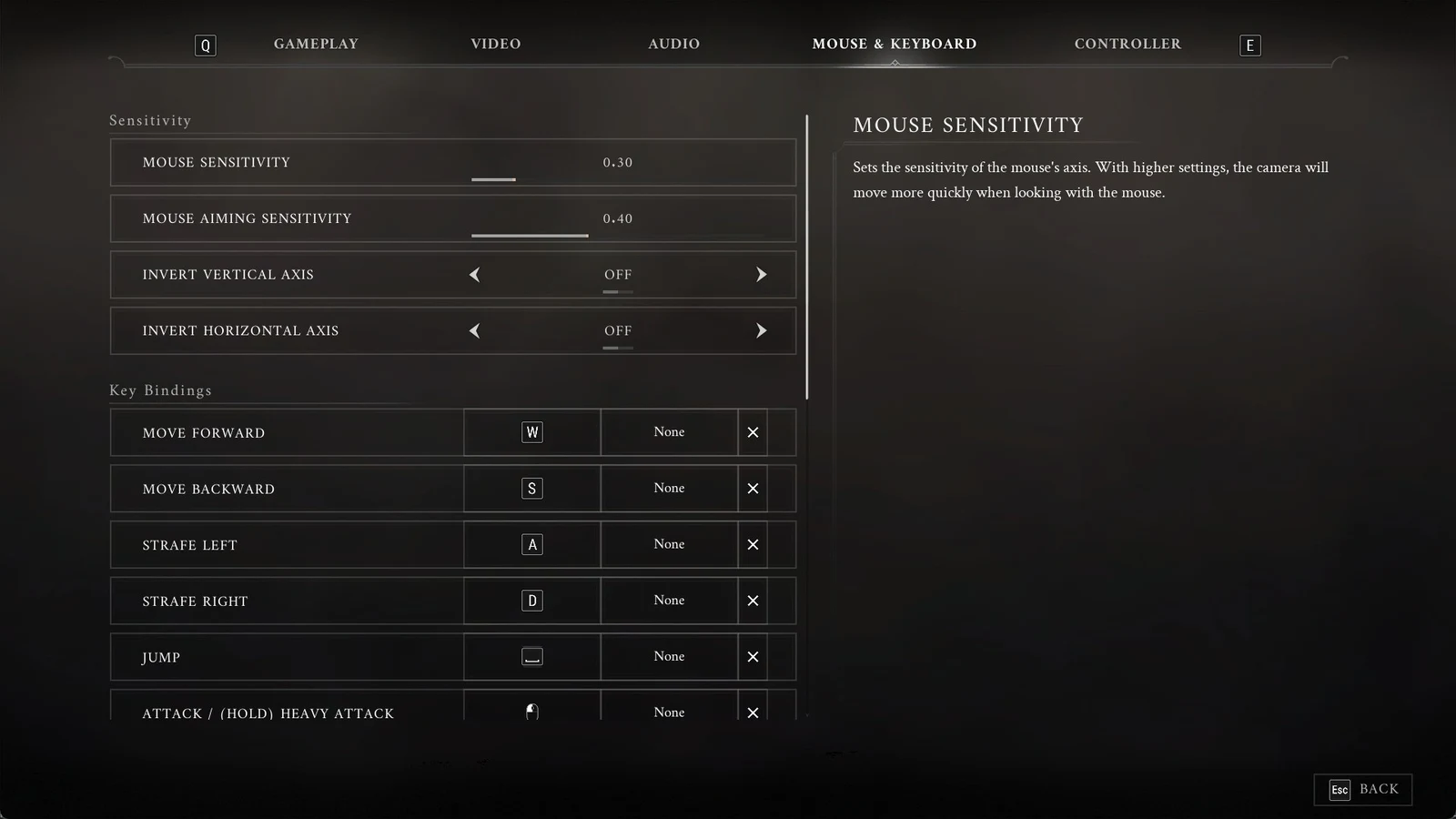
All default keyboard and mouse keybinds
The MOUSE & KEYBOARD tab lists 20 actions under “Key Bindings”. Each has a primary slot, a secondary slot, and an X button that clears it. “None” means the slot is empty.
| Action | Primary key | Secondary key |
|---|---|---|
| MOVE FORWARD | W | None |
| MOVE BACKWARD | S | None |
| STRAFE LEFT | A | None |
| STRAFE RIGHT | D | None |
| JUMP | Space | None |
| ATTACK / (HOLD) HEAVY ATTACK | Left mouse button | None |
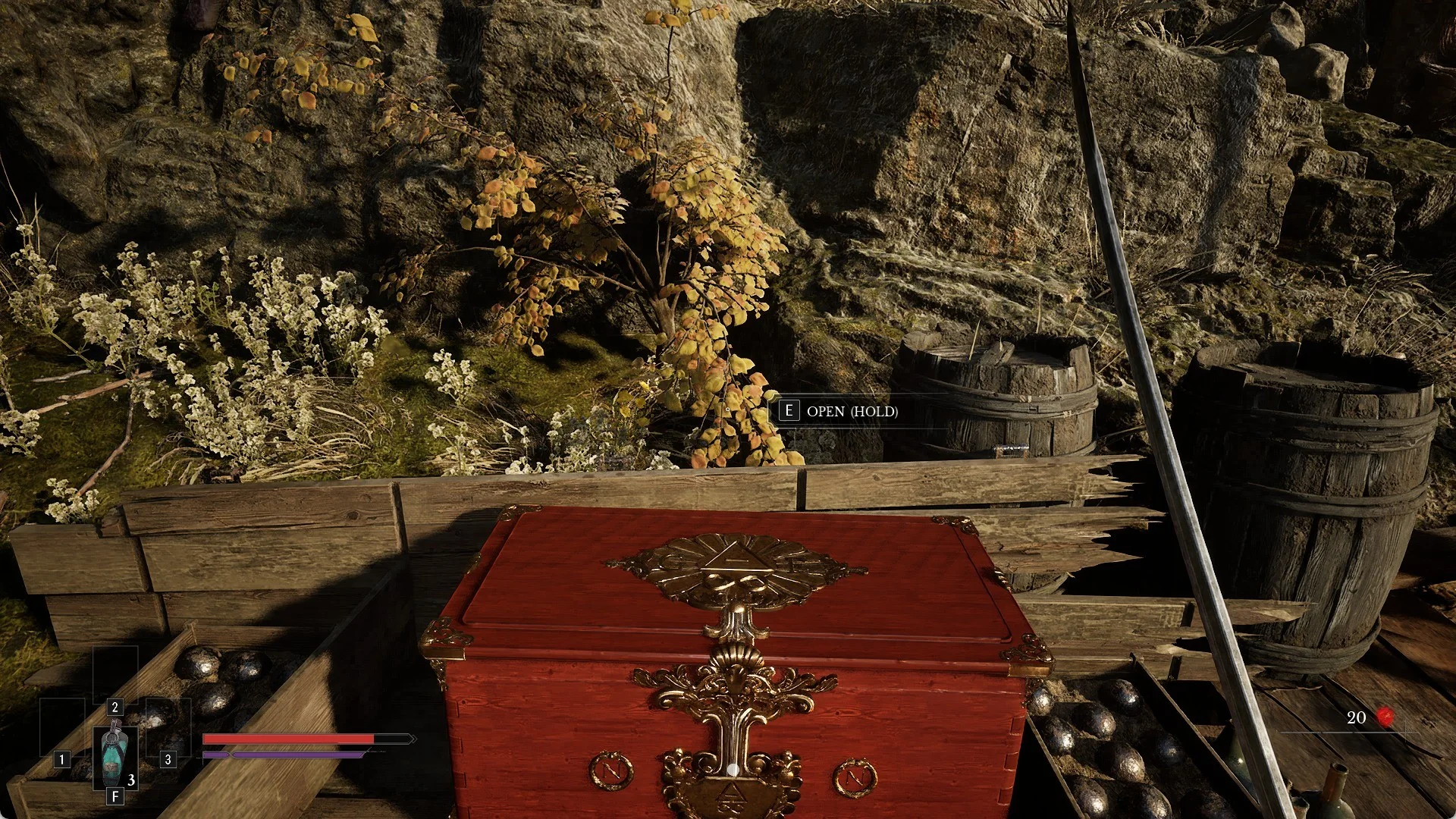
| INTERACTION | E | None |
| SPRINT | Shift | None |
| DODGE | Alt | Side (thumb) mouse button |
| HEAL | F | None |
| AIM / CAST | Right mouse button | None |
| RELOAD | R | None |
| SWAP WEAPON / (HOLD) WEAPON WHEEL | Q | None |
| PARRY / (HOLD) BLOCK | Ctrl | None |
| SLOT 1 | 1 | None |
| SLOT 2 | 2 | None |
| SLOT 3 | 3 | None |
| TARGET LOCK | Middle mouse button (wheel click) | None |
| INVENTORY | Tab | I |
| CROUCH | C | None |
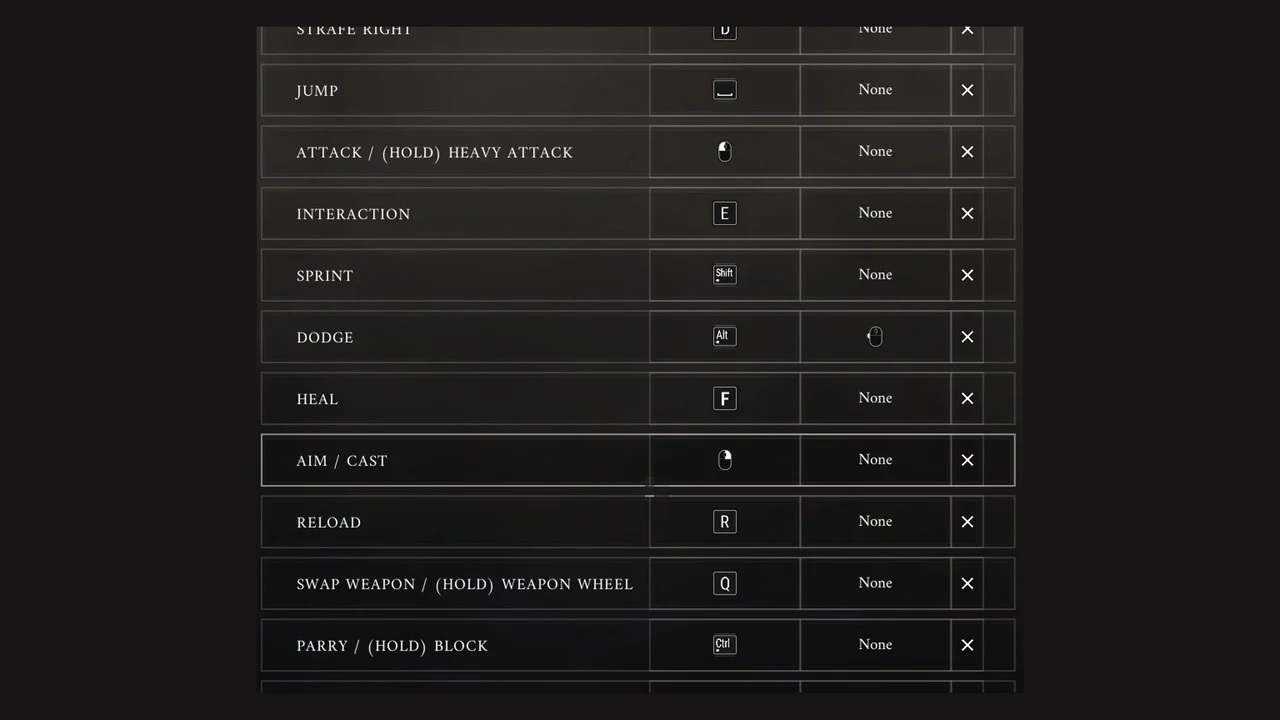
Several keys do two things depending on how you press them. Attack is a tap for a normal attack and a hold for a heavy attack. Swap Weapon is a tap to swap and a hold to open the weapon wheel. Parry is a tap to parry and a hold to block. Heal sits on F and Interaction on E.
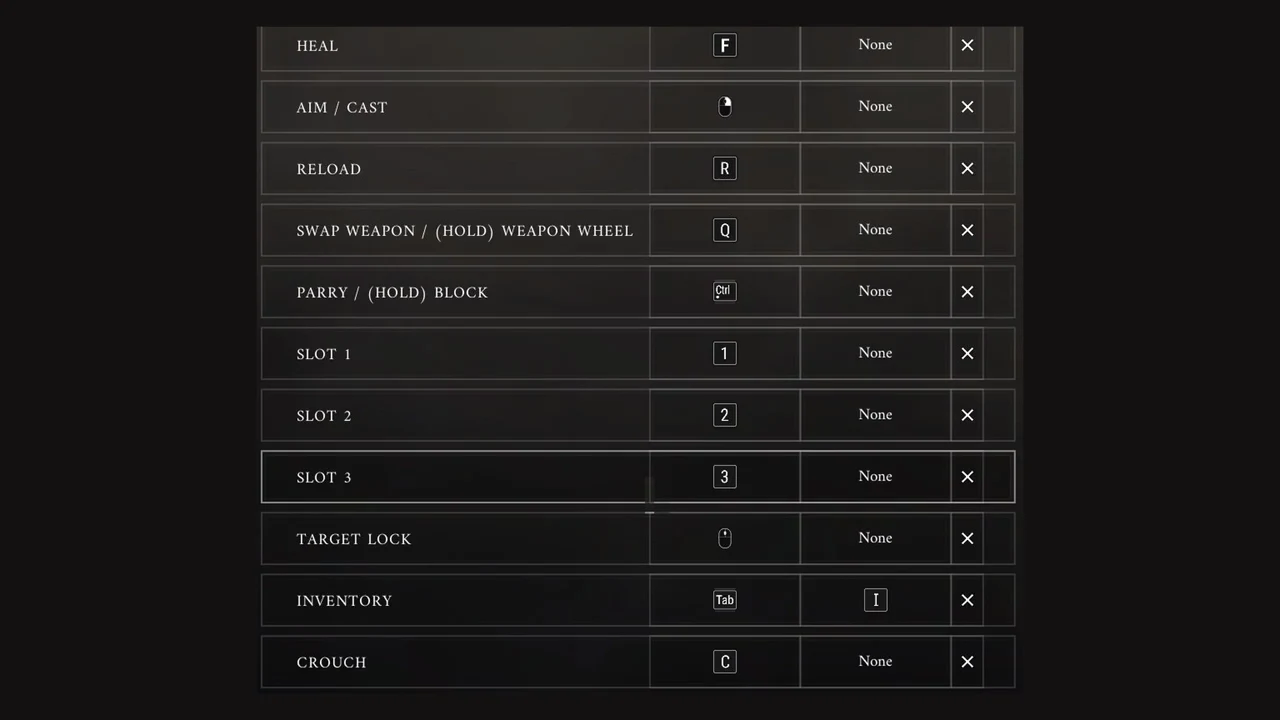
Press Esc to bring up the Pause Menu. Because it is absent from the binds list, you cannot assign it to another key.
How the weapon wheel works
The default bind reads “SWAP WEAPON / (HOLD) WEAPON WHEEL” on Q. Hold Q to open the wheel, a ring of icons around the centre of the screen that shows everything you own for both hands. That includes the Saber, the Rapier, the PISTOL, the BLUNDERBUSS, the FIRE TRANSMUTATION and the STASIS TRANSMUTATION.
While the wheel is displayed, move the mouse onto an icon to select it. Its name appears at screen centre; for a firearm, the loaded rounds are shown above your reserve, as in “PISTOL” “5 / 11”. Each firearm’s wheel icon also displays its ammunition count. Pointing to a Transmutation changes the centre label to its name, such as STASIS TRANSMUTATION. Release Q to equip the selected item.
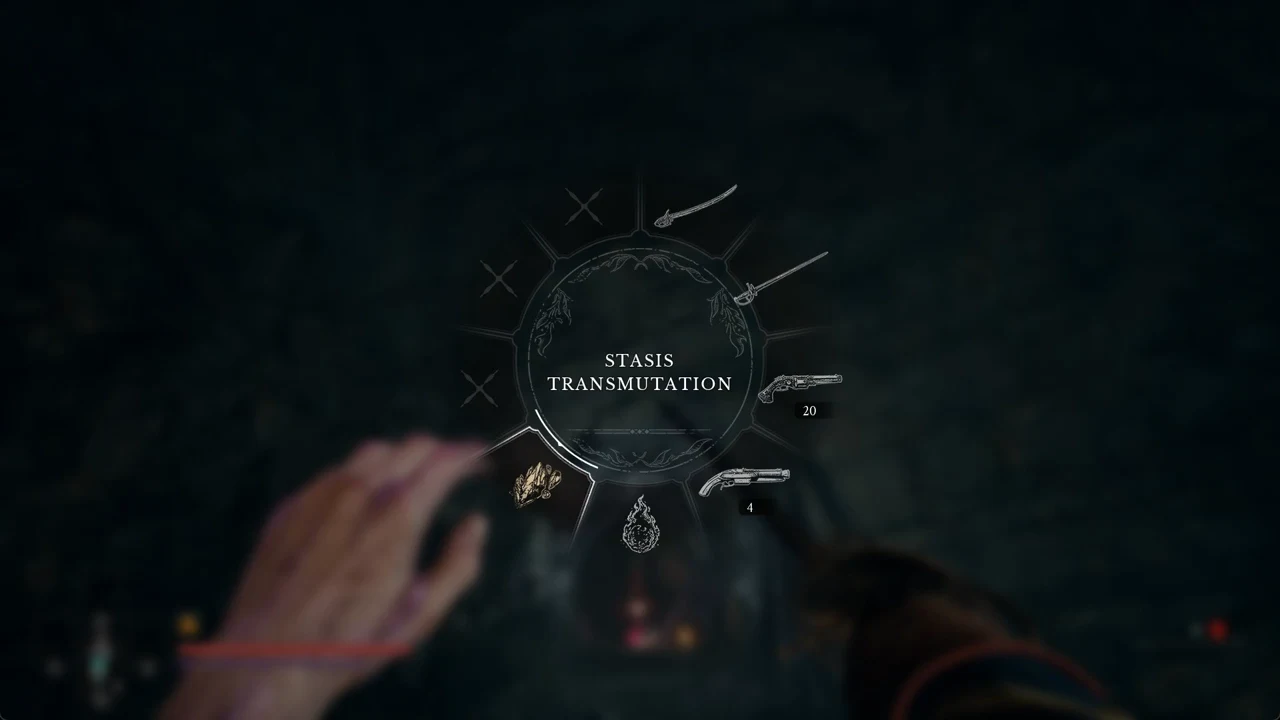
Your right hand carries the melee weapon, while your left can hold a firearm or a Transmutation. A quick Q tap switches the left-hand item between the Pistol and the Transmutation most recently chosen on the wheel. If Stasis was your last choice, the toggle is between Pistol and Stasis; if Fire was last, it switches to Fire instead of Stasis. To select a particular Transmutation, choose it using the wheel.
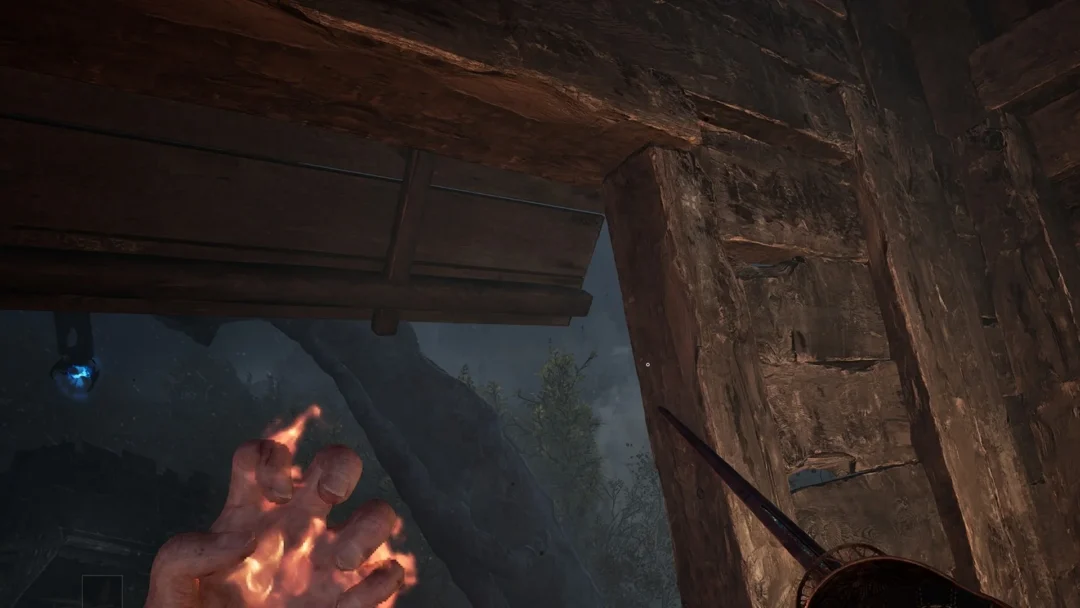
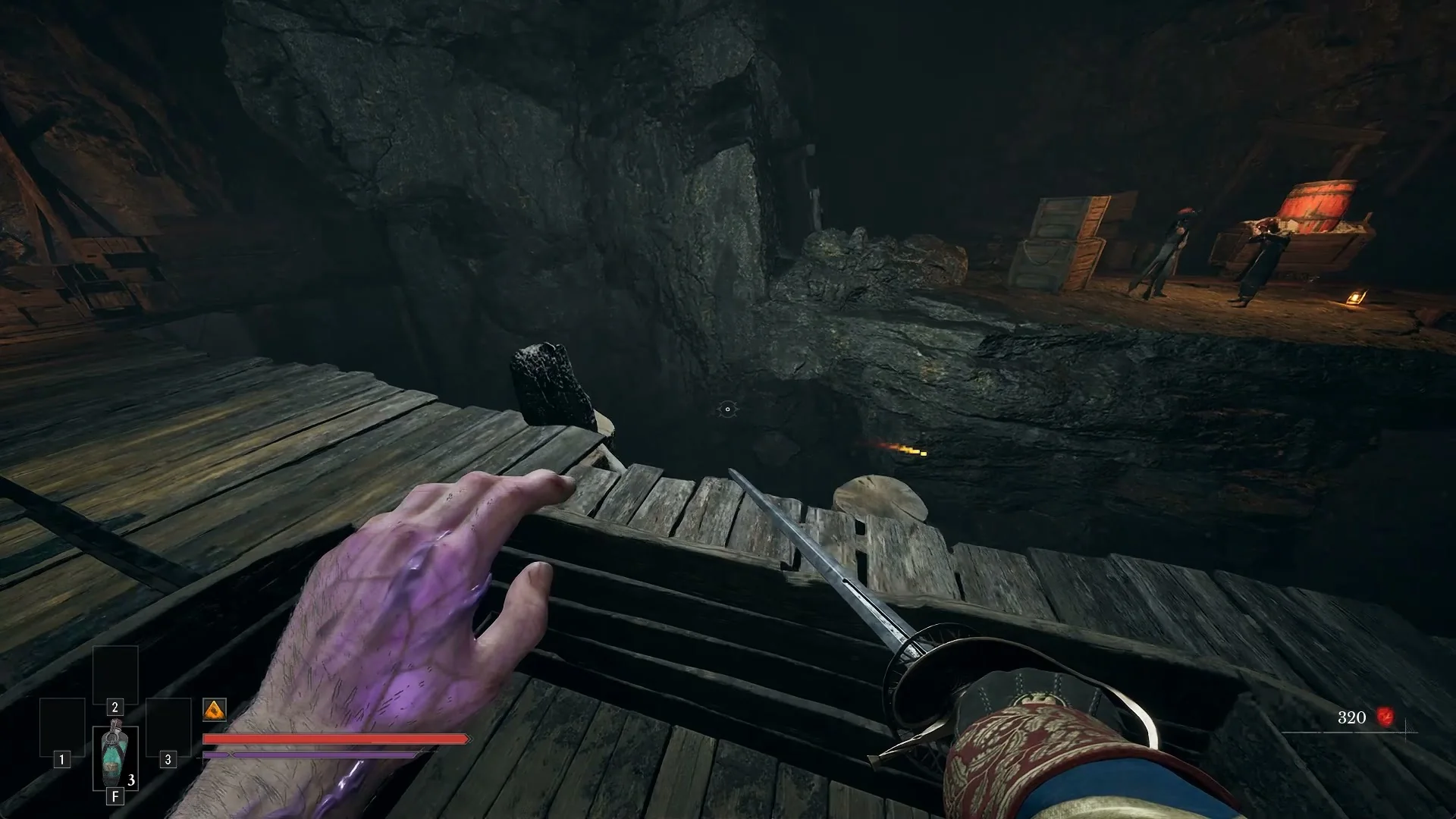
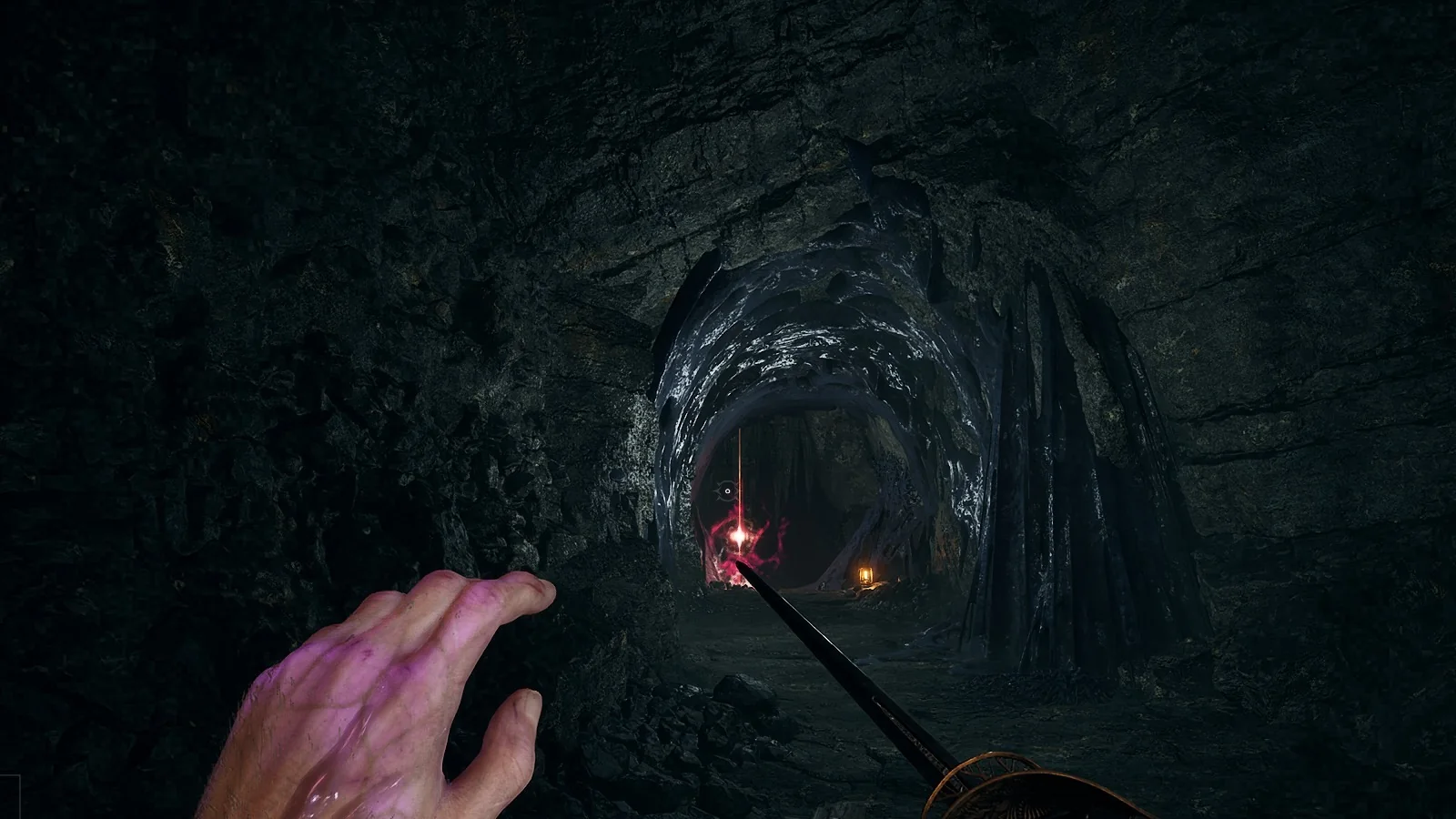
For a firearm, check the ammo counter at the bottom right; for a Transmutation, look for the change in your hand. A firearm shows an ammo counter there, the loaded rounds over the reserve. A Transmutation shows no counter, and the hand itself changes instead, with orange fire veins for Fire and violet veins for Stasis.
Both the firearm and the Transmutation use the same controls. Right mouse (“AIM / CAST”) aims a firearm or casts the Transmutation, and left mouse fires while you are aiming. When your reserve is already full and you pass more ammo, the game tells you “Your Ammunition reserve is full.”
Mouse sensitivity and axis settings
The top of the MOUSE & KEYBOARD tab holds a “Sensitivity” section with four options above the binds.
- MOUSE SENSITIVITY — slider, default 0.30; higher values turn the camera faster.
- MOUSE AIMING SENSITIVITY — slider, default 0.40; it slows the mouse while aiming, and 1 means no slowdown.
- INVERT VERTICAL AXIS: toggle OFF or ON; it starts OFF.
- INVERT HORIZONTAL AXIS: toggle OFF or ON; it starts OFF.
How to rebind a key
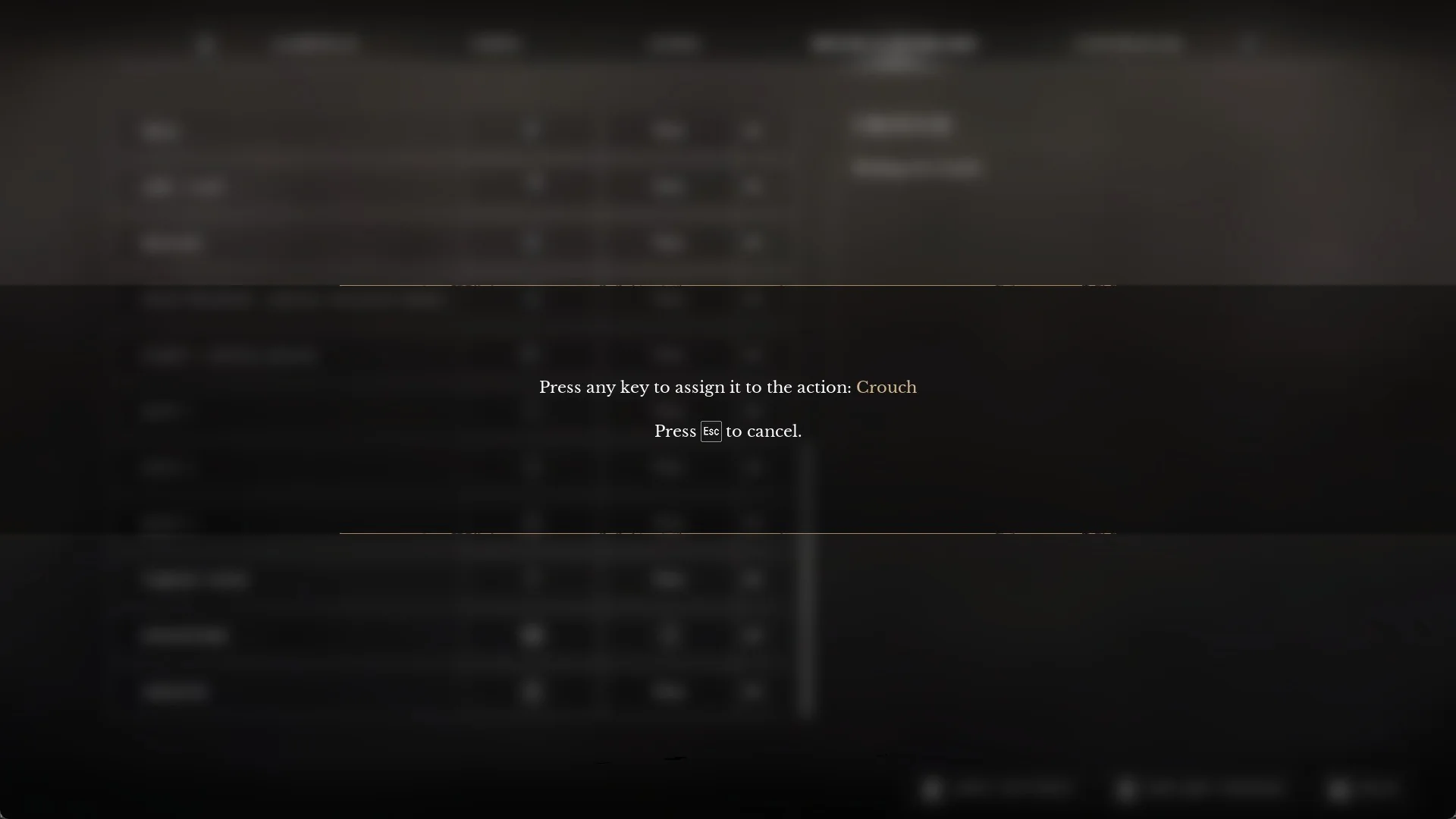
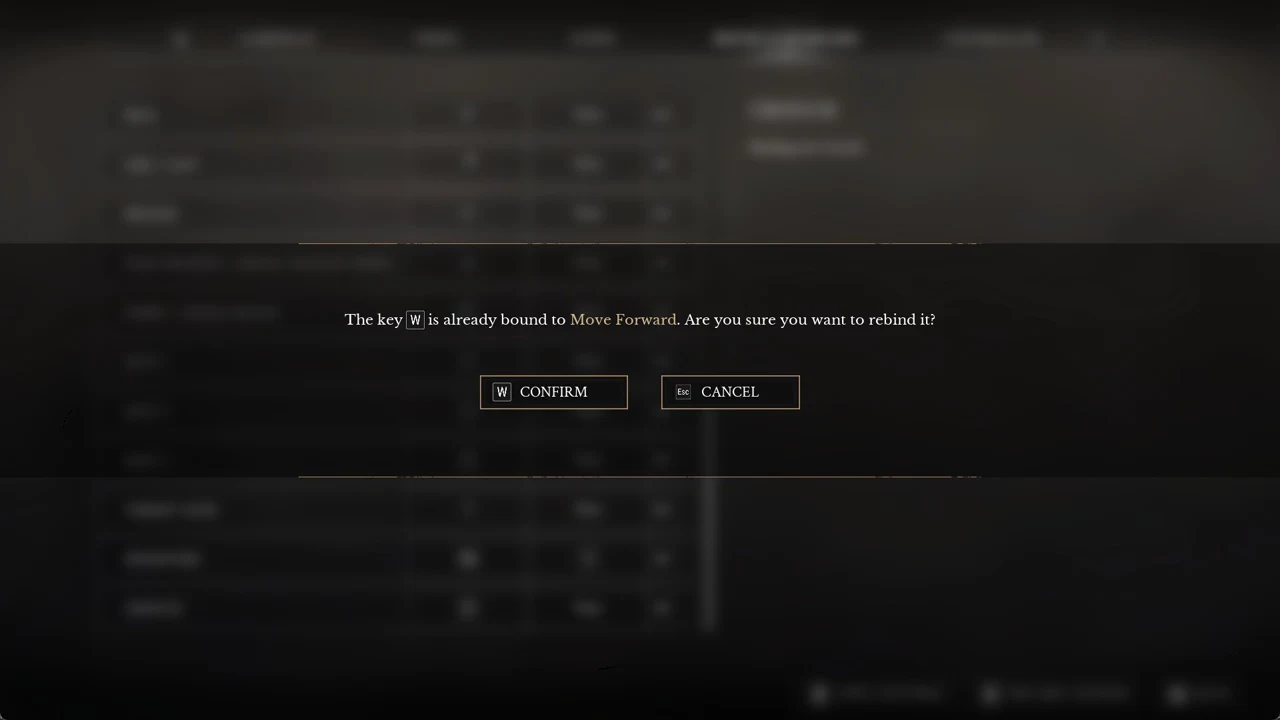
To clear a slot rather than assign another input, click its X. When no edits are pending, the bottom bar offers “R RESTORE DEFAULTS” and “Esc BACK”.
Is there a sprint toggle?
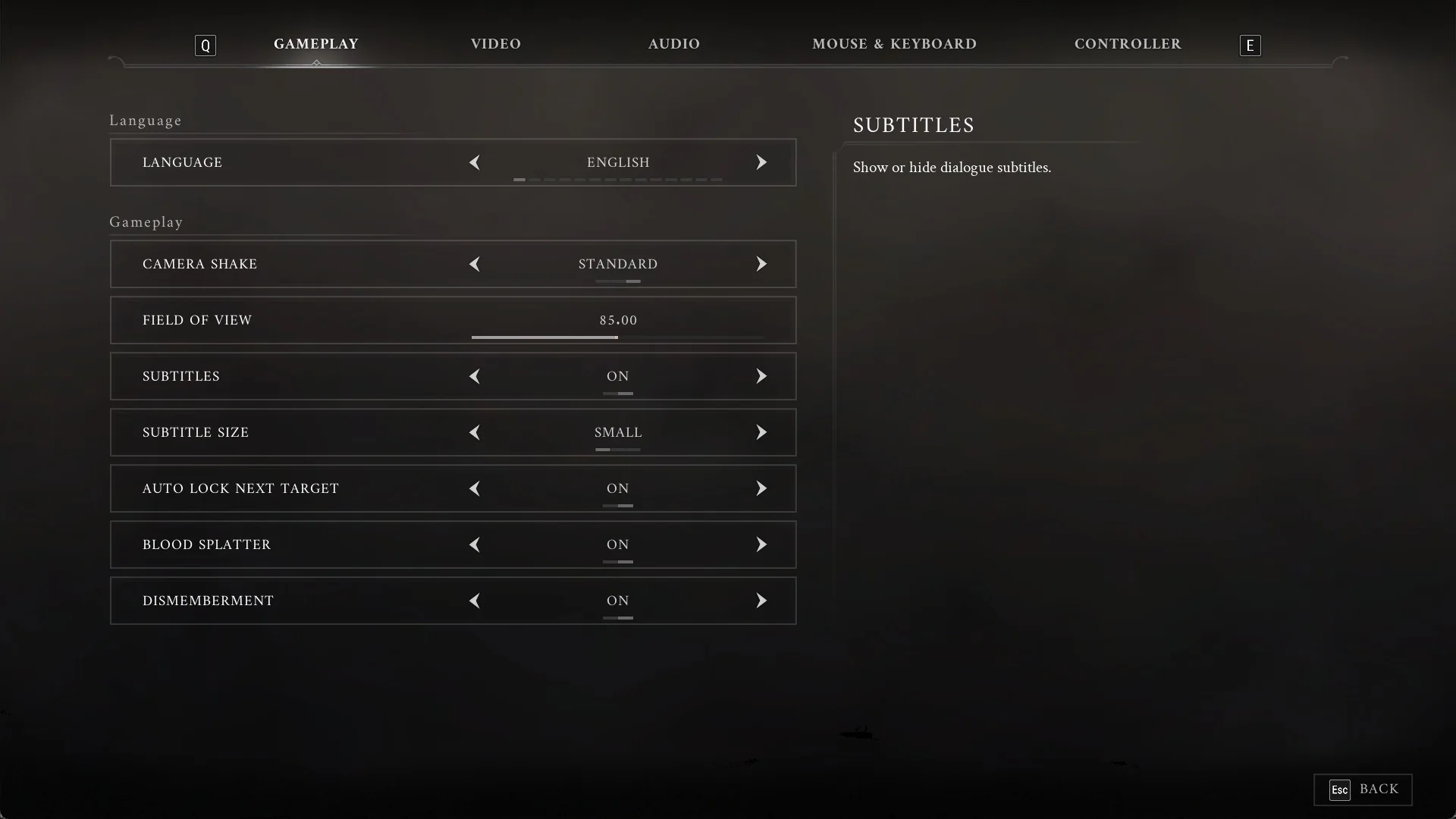
Not in the launch version. On keyboard, Shift is the default sprint input and works while you hold it, and no setting changes that. Neither the MOUSE & KEYBOARD nor GAMEPLAY tab has a sprint-toggle entry, a walk toggle, or any hold-versus-toggle setting. Camera, map, and pause bindings are absent too.
Controller setup options
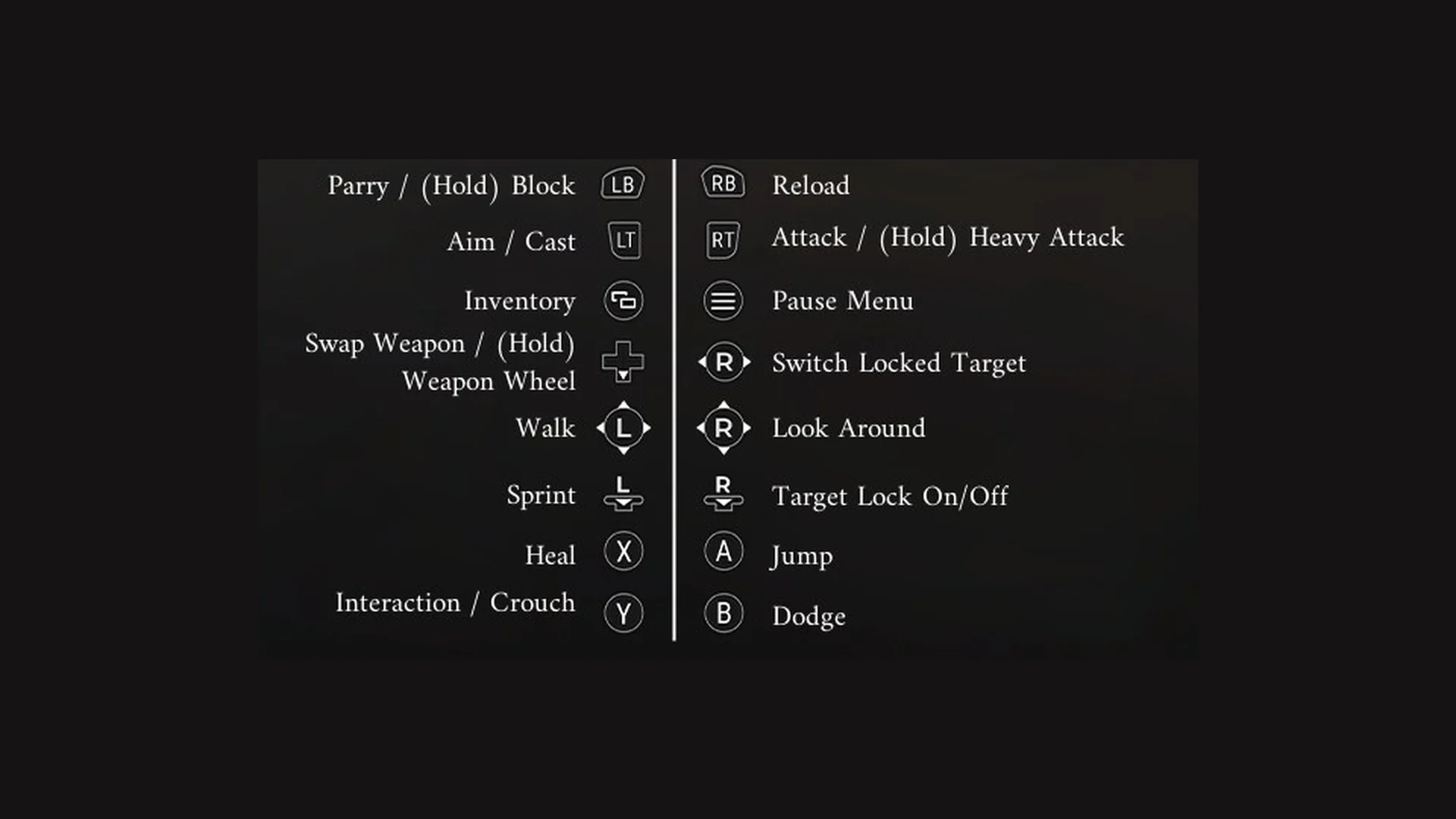
Controller setup differs from keyboard setup: individual pad buttons cannot be bound separately. Instead, select a full scheme under “Hardware”; a controller image and button legend display the selected mapping.
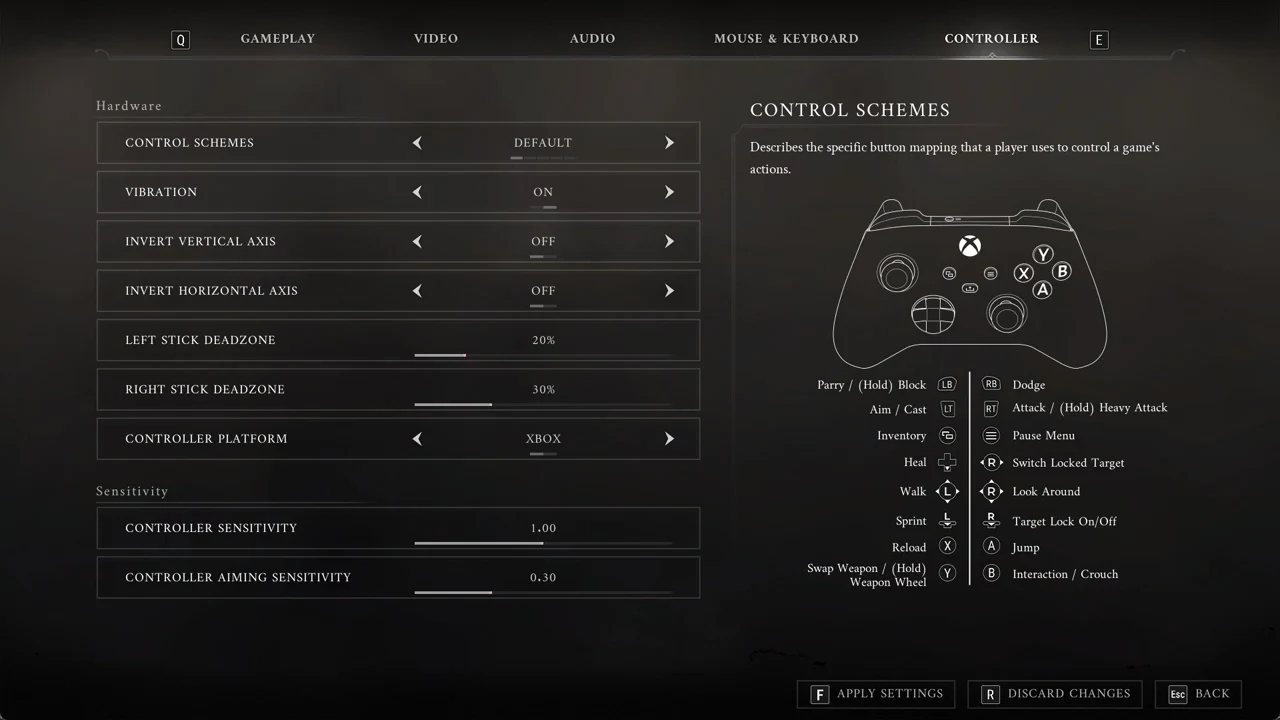
CONTROL SCHEMES offers DEFAULT, CLASSIC, DODGE/BLOCK SWAP, SHOULDER JUMPER, and SHOULDER JUMPER 2, with DEFAULT selected to start. The rest of the Hardware section covers these settings:
- VIBRATION — ON / OFF, default ON.
- INVERT VERTICAL AXIS and INVERT HORIZONTAL AXIS — default OFF.
- The LEFT STICK DEADZONE slider begins at 20%.
- The RIGHT STICK DEADZONE slider begins at 30%.
- Choose XBOX or PLAYSTATION under CONTROLLER PLATFORM; XBOX is selected initially, and this setting determines which button icons appear.
Under “Sensitivity”, CONTROLLER SENSITIVITY is set to 1.00 initially and determines how quickly the camera turns. CONTROLLER AIMING SENSITIVITY begins at 0.30 and adjusts how much turning slows while aiming; setting it to 1 removes the slowdown. A deadzone set too low can cause the character to continue moving after you release the stick.
The five controller schemes
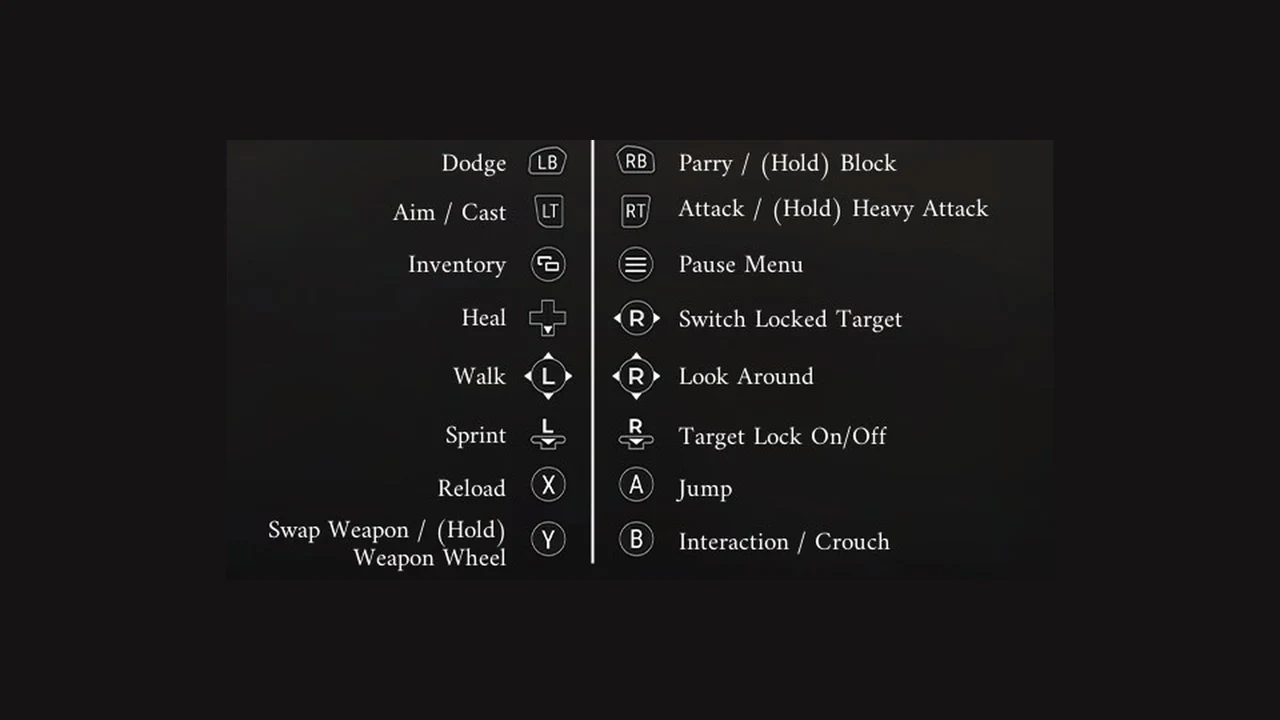
Some buttons stay the same no matter which scheme you choose (Xbox names shown):
- LT — Aim / Cast; RT — Attack / (Hold) Heavy Attack.
- View button — Inventory; Menu button — Pause Menu.
- Left stick — Walk; L3 (click) — Sprint.
- Right stick — Look Around; left/right — Switch Locked Target; R3 (click) — Target Lock On/Off.
The seven actions below are where the schemes differ.
| Action | DEFAULT | CLASSIC | DODGE/BLOCK SWAP |
|---|---|---|---|
| Parry / (Hold) Block | LB | LB | RB |
| Dodge | RB | B | LB |
| Jump | A | A | A |
| Interaction / Crouch | B | Y | B |
| Heal | D-pad (down) | X | D-pad |
| Reload | X | RB | X |
| Swap Weapon / (Hold) Weapon Wheel | Y | D-pad | Y |
| Action | SHOULDER JUMPER | SHOULDER JUMPER 2 |
|---|---|---|
| Parry / (Hold) Block | LB | LB |
| Dodge | B | B |
| Jump | RB | RB |
| Interaction / Crouch | A | A |
| Heal | D-pad | X |
| Reload | X | Y |
| Swap Weapon / (Hold) Weapon Wheel | Y | D-pad |
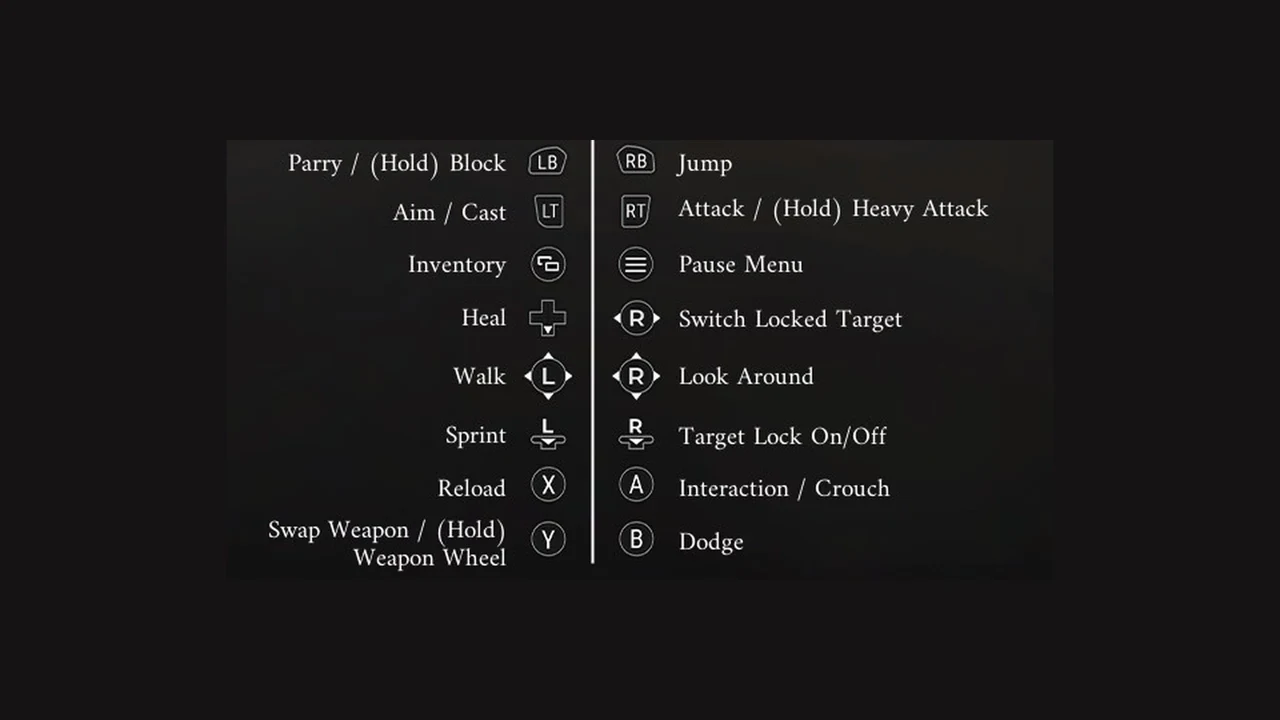
Pick SHOULDER JUMPER if you want to jump without lifting a thumb off the right stick. DODGE/BLOCK SWAP puts dodge on the left bumper and parry on the right bumper, and CLASSIC moves dodge to B and heal to X. Across every layout, jump rests on the face buttons unless you choose one of the Shoulder Jumper schemes.