Unlock and manage your stored login credentials in Windows 11 using built-in tools and browser settings.
Unlock and manage your stored login credentials in Windows 11 using built-in tools and browser settings.
by Pallav Pathak
Built-in Windows 11 features store your passwords for websites, apps, and network connections, making it easier to access your accounts without constantly typing credentials. When you need to retrieve a forgotten password or review your saved credentials, several reliable methods are available—each with distinct steps and security considerations.
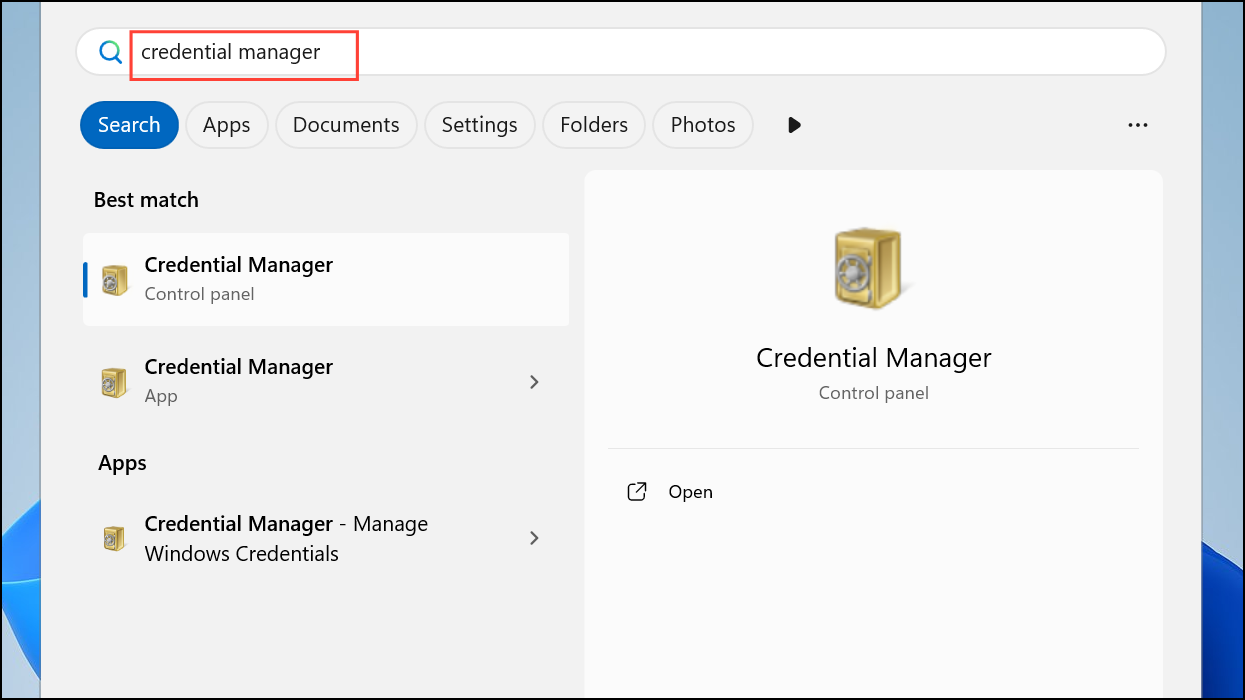
Press the Start button or tap the Windows key on your keyboard. In the search bar, type Credential Manager and select it from the results. This opens the Windows Credential Manager—an integrated tool that stores login details for websites, network shares, and applications.
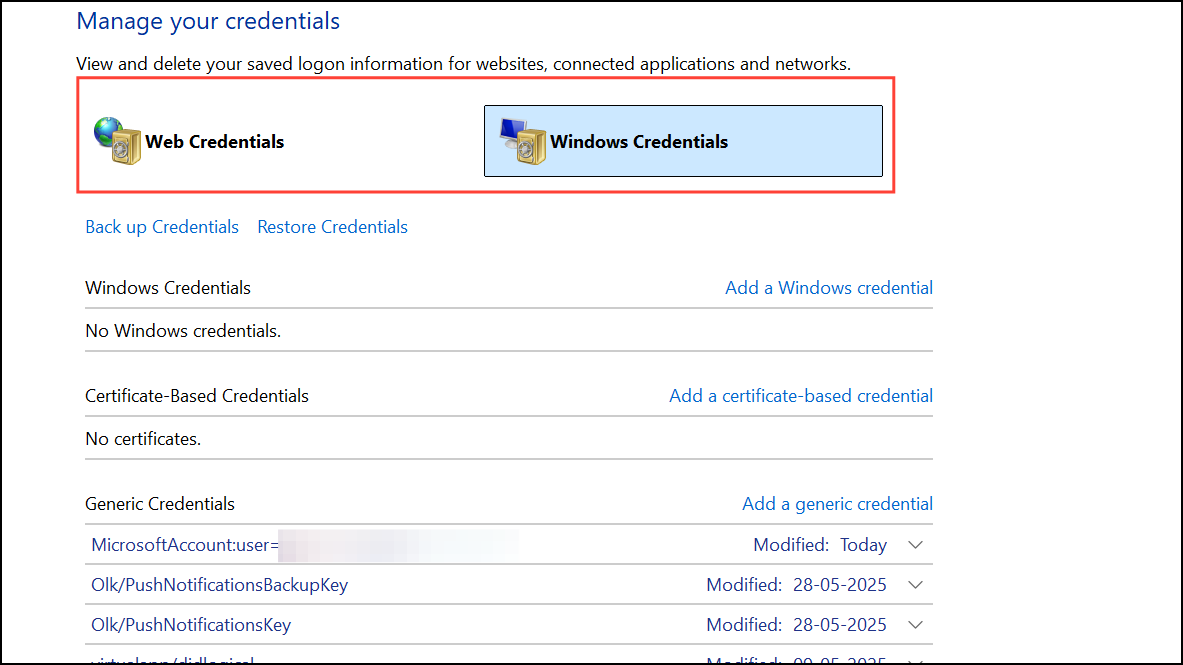
In the Credential Manager window, you’ll see two tabs: Web Credentials and Windows Credentials. Web Credentials lists passwords saved for websites and web-based apps, while Windows Credentials stores details for network resources and Windows services.
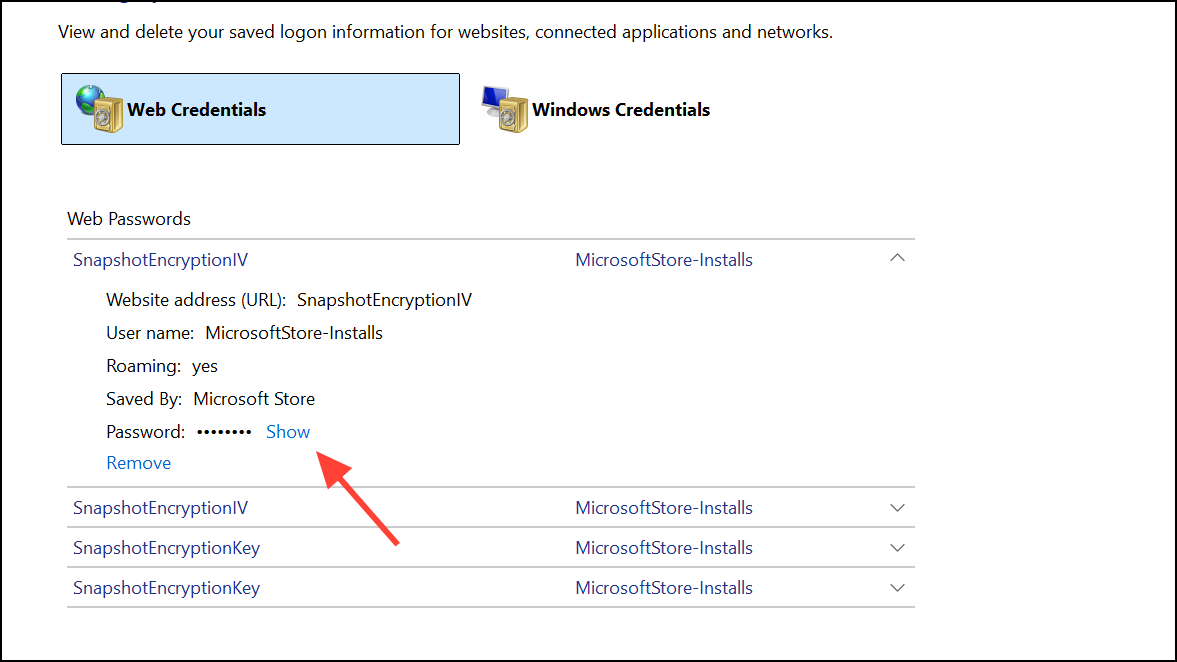
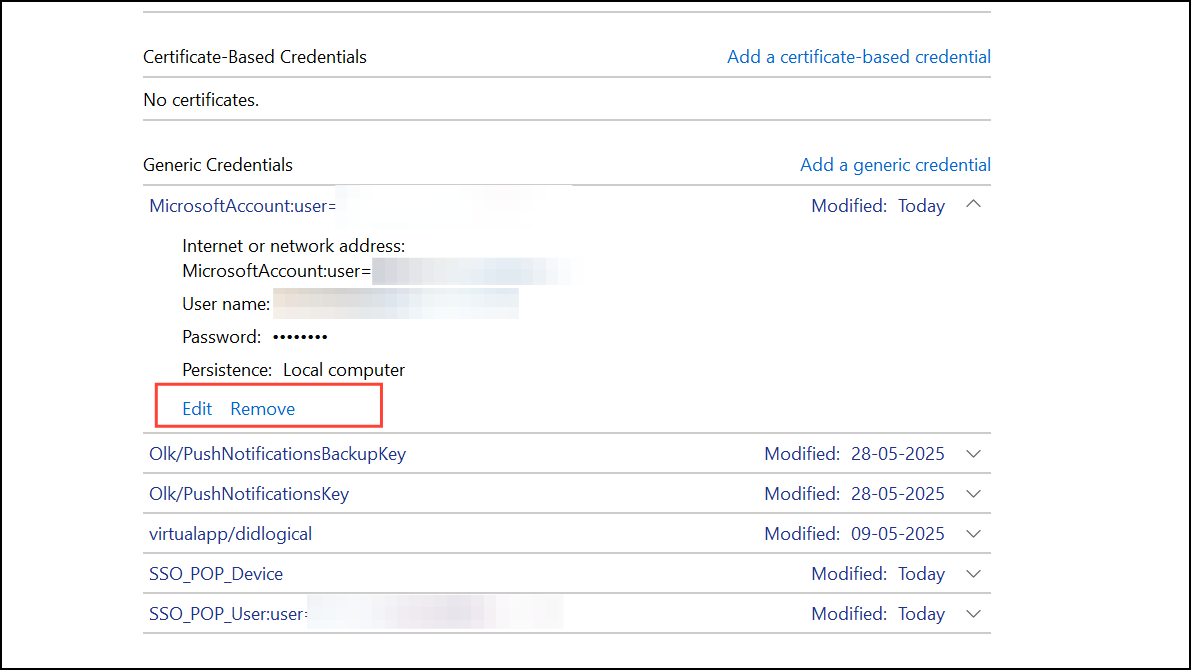
Click on the relevant credential to expand its details. For web credentials, click the entry and then click the Show button next to the password field. For security, you’ll be prompted to enter your Windows account password or PIN before the password is revealed.
After authentication, the password appears in plain text. You can use the Edit option to update the password or Remove to delete the credential. Note that some credentials, especially those encrypted by Windows, may not offer a Show option and can only be edited or removed.
When finished, close the Credential Manager window to exit. Always keep your device secure—anyone with access to your account can view these passwords.
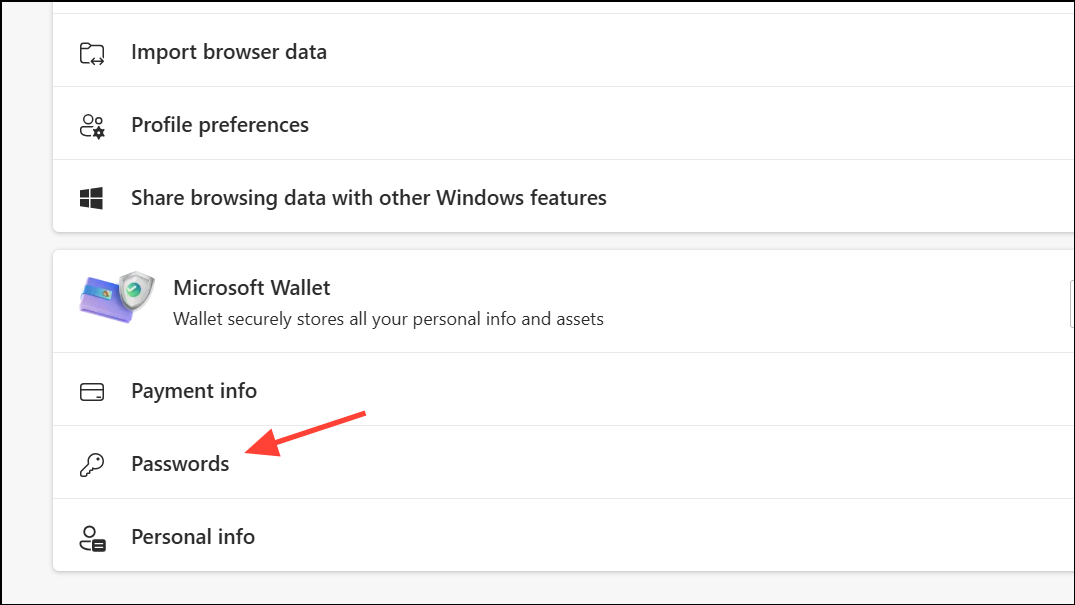
Open Microsoft Edge by clicking its icon on the taskbar or searching for it in the Start menu. Edge is deeply integrated with Windows 11 and offers password management features for web accounts.
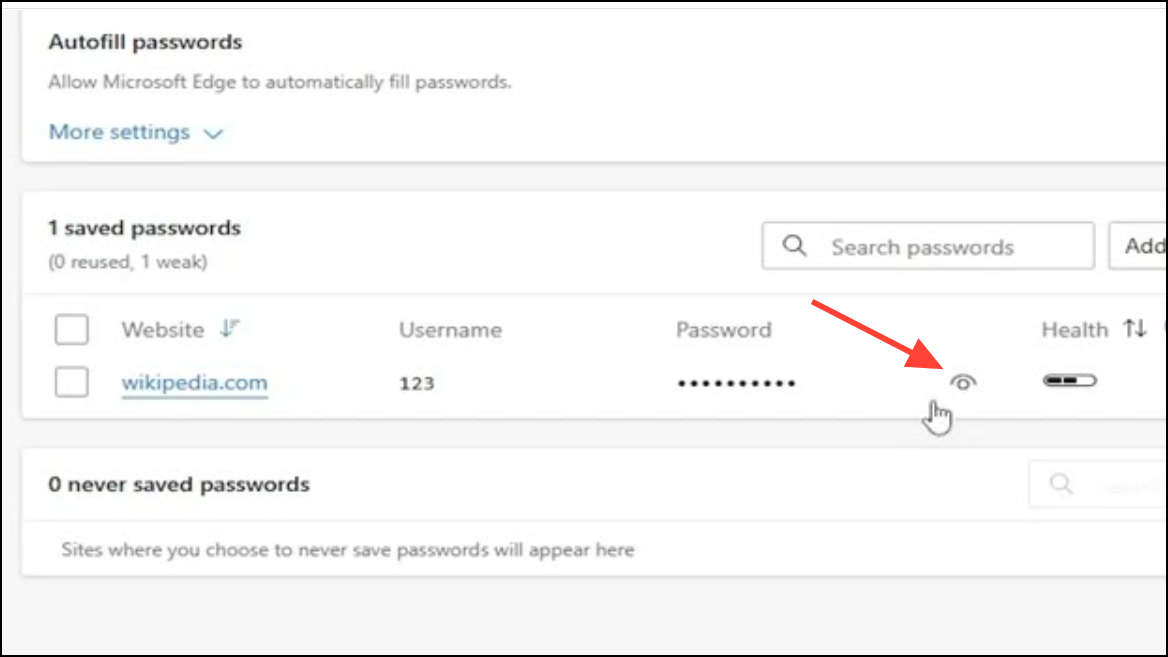
A list of saved website passwords appears. Each entry includes the website, username, and a masked password. To view a password, click the eye icon next to it. For security, Edge will require you to authenticate using your Windows password, PIN, or Windows Hello (face or fingerprint recognition).
After authentication, the password is displayed. Edge also allows you to copy passwords or export them in CSV format for backup. Use the Export passwords option in the Passwords section and follow prompts to save the file securely.
When finished, close the settings tab. Remember to sign out of your Edge profile on shared devices to prevent unauthorized access to your saved credentials.
Reveal Passwords Using Control Panel and Windows Credentials
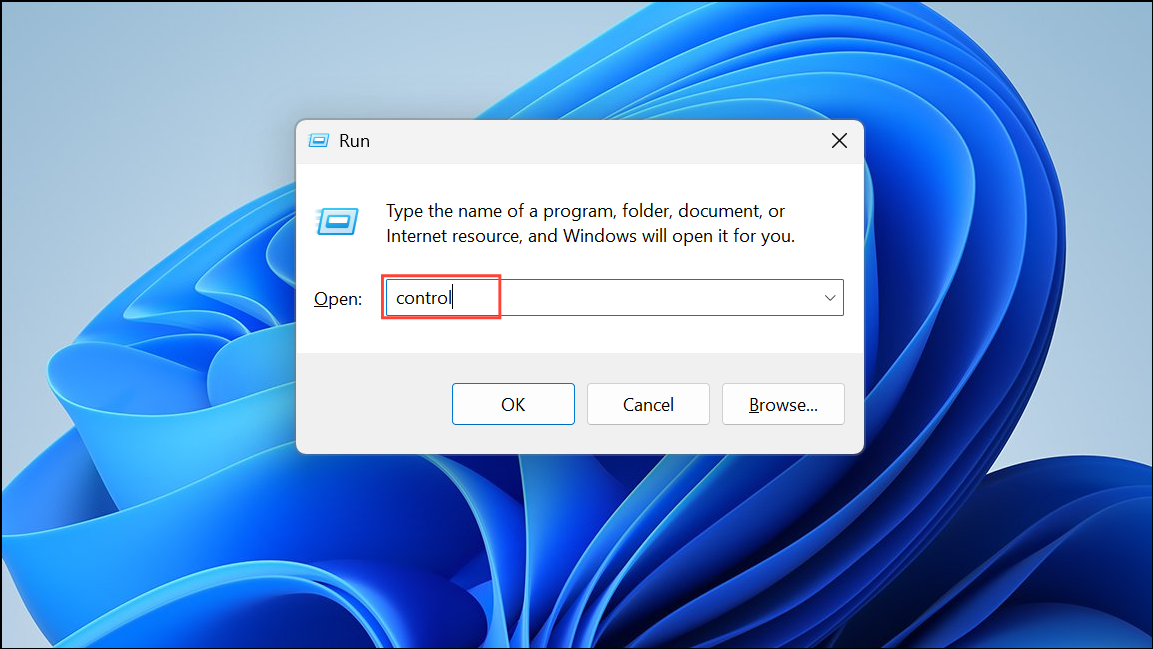
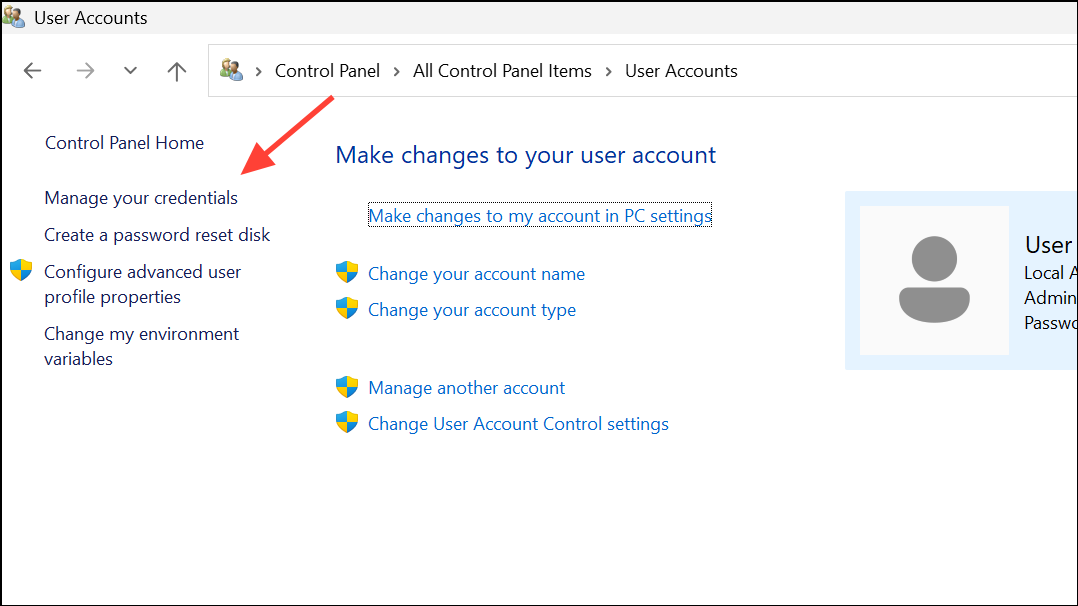
Click on User Accounts, then select Credential Manager. Here, you’ll find both Web Credentials and Windows Credentials just as in the dedicated Credential Manager app.
Expand the desired entry and click Show next to the password. Enter your Windows password or PIN to confirm your identity. The password will then be revealed.
Once you’re done, close the Control Panel. Always protect your account with a strong password or biometric login to prevent others from accessing your credentials.
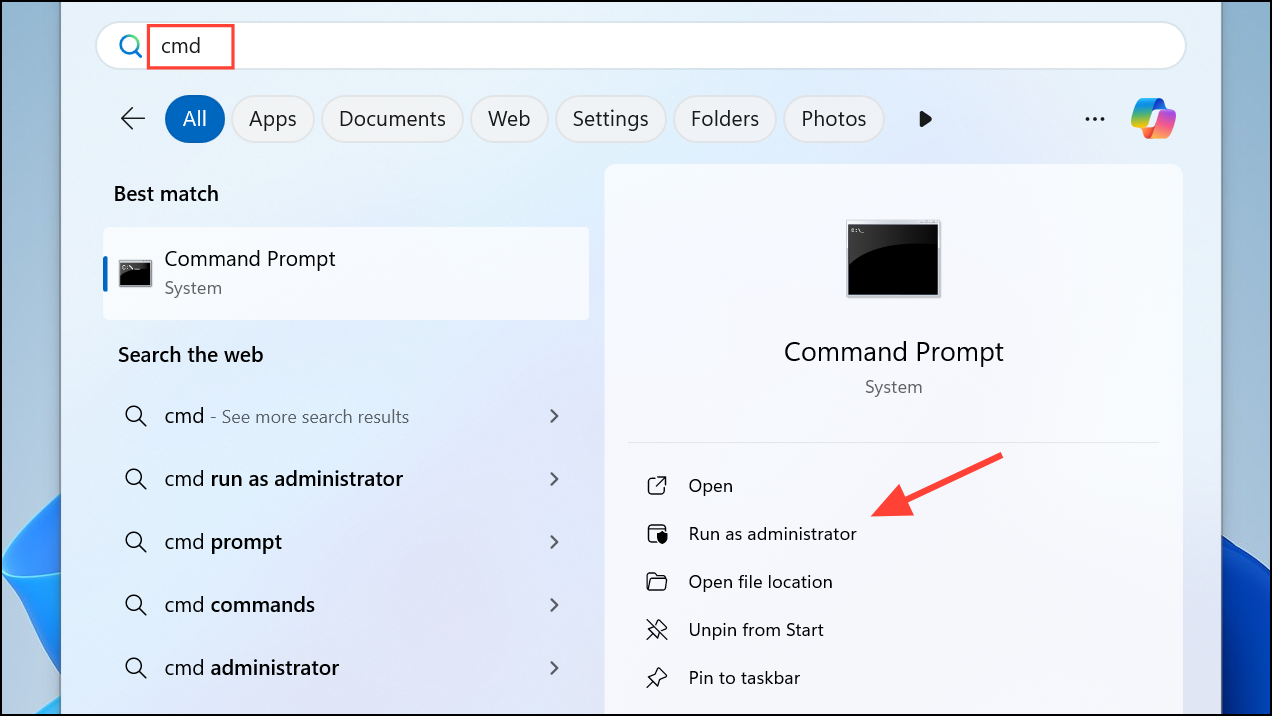
Open the search bar, type cmd, right-click Command Prompt, and select Run as administrator. This method is more technical and does not directly reveal passwords but lists all stored credentials.
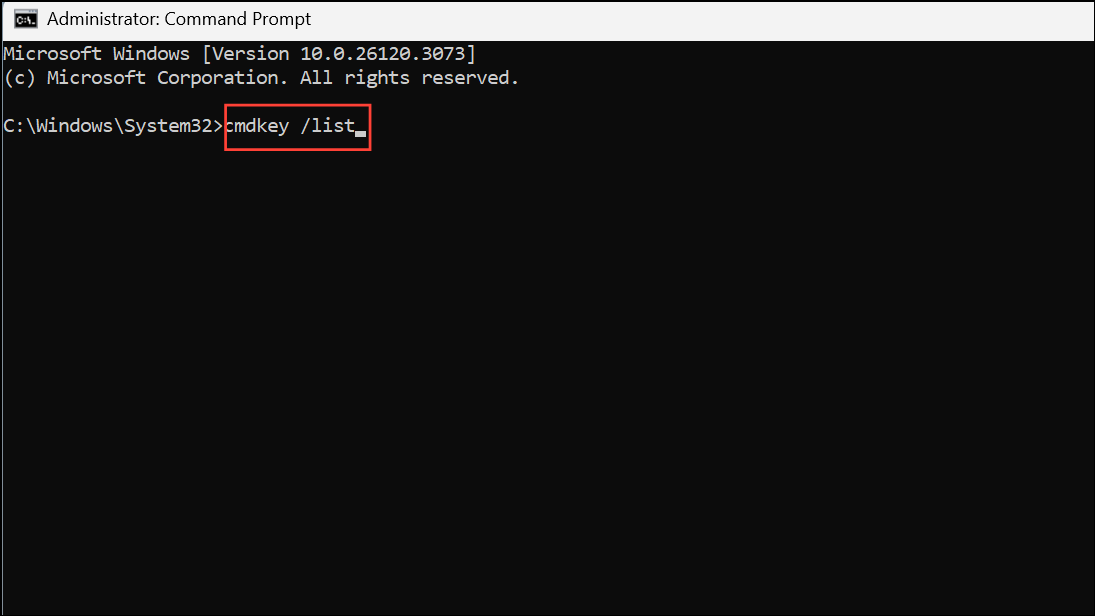
Enter the following command to list saved credentials:
cmdkey /list
This displays all credential entries stored on your system, including their target names and types. However, the actual passwords remain hidden. Use the information to cross-reference entries in Credential Manager for further details.
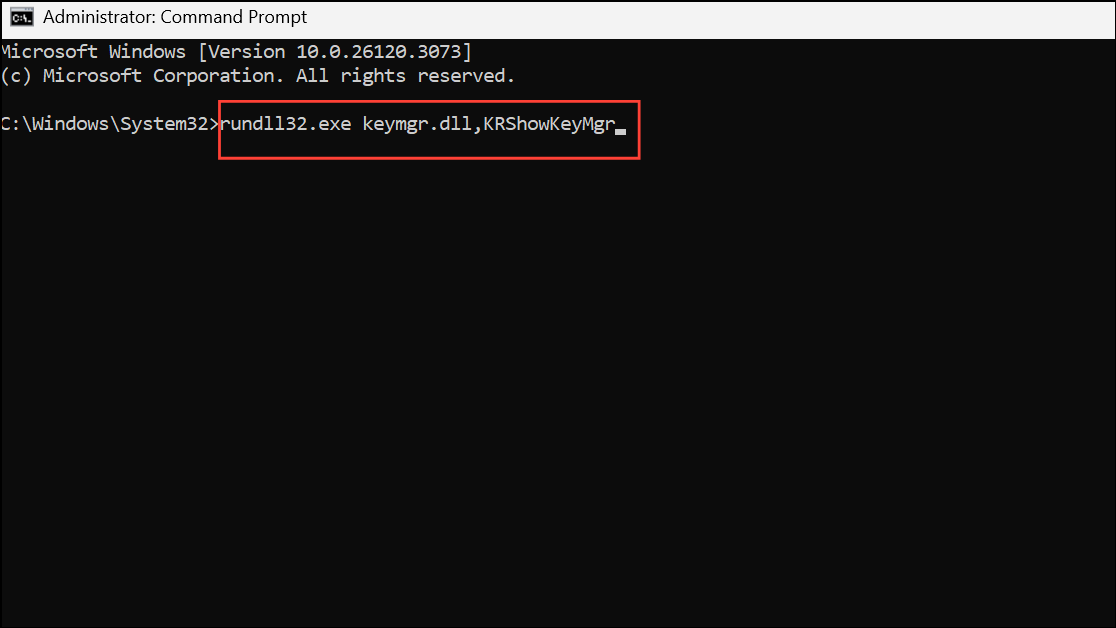
This command opens the Stored User Names and Passwords dialog, where you can view a list of saved credentials. While you can see usernames and resource names, passwords remain masked for security.
In the Settings search bar, type Passwords and select See your saved passwords on other devices. This section displays credentials synced with your Microsoft account, especially if you use Edge or have enabled password sync.
Authenticate using your PIN, Windows Hello, or account password. Once verified, you’ll see a list of saved website and app passwords, which you can view or manage.
Retrieve Passwords from Your Microsoft Account Online
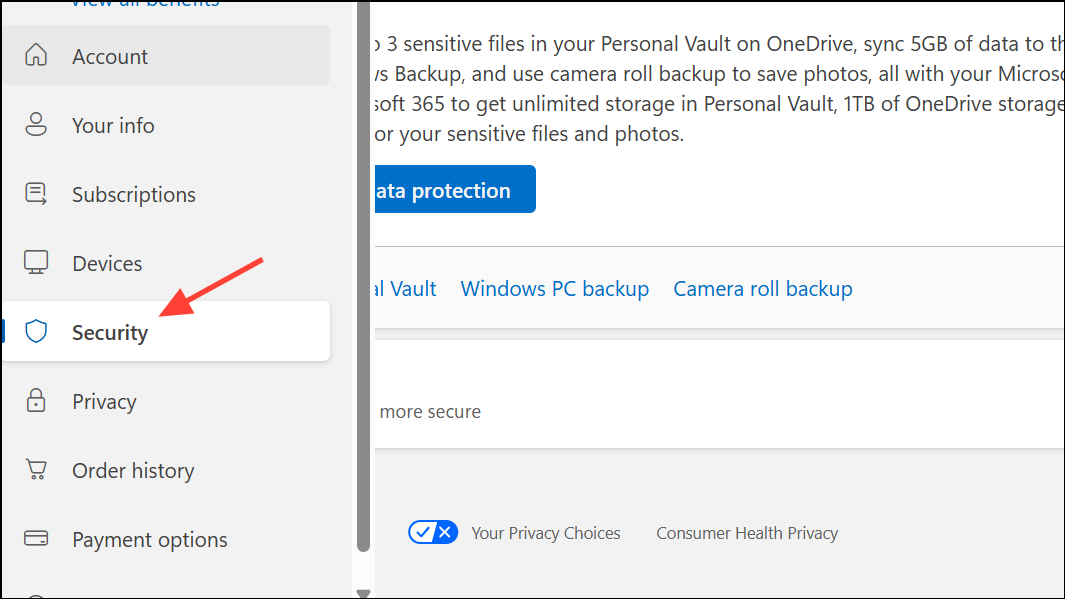
Navigate to the Security section and look for Passwords and security or Manage credentials. Here, you can view and manage passwords synced to your Microsoft account from Windows 11 and other devices.
Use the password reset feature if you need to recover access to an account where you’ve forgotten the password.
Best Practices for Managing Passwords on Windows 11
Always use a strong, unique password or PIN for your Windows account to prevent unauthorized access to Credential Manager and browser-stored passwords.
Enable Windows Hello (face or fingerprint recognition) for faster, secure logins.
Consider a trusted third-party password manager if you need advanced features like secure password generation, emergency access, or cross-device sync.
Regularly review and update your saved credentials to remove outdated or unused entries.
Enable two-factor authentication (2FA) on accounts that support it for an extra layer of security.
Be cautious on shared or public computers—always sign out and never save passwords on devices you don’t control.
Back up your password vault securely and keep your recovery options up to date.
Retrieving saved passwords on Windows 11 is straightforward using built-in tools like Credential Manager and Microsoft Edge, but always prioritize security by protecting your account and regularly reviewing your credentials.