Build 28000.2796 (KB5120996) is the September 2026 update for Windows 11, version 26H1. It carries a wide set of feature additions and fixes that already reached versions 24H2 and 25H2, and it is aimed only at the new ARM64 machines that ship with 26H1 preinstalled.
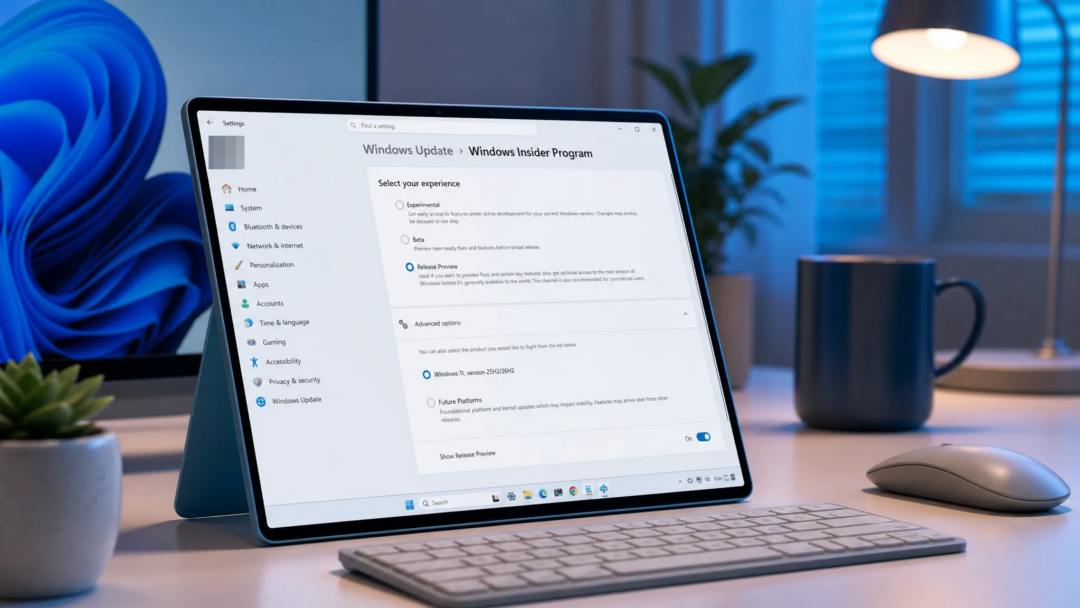
Quick answer: KB5120996 (build 28000.2796) reaches 26H1 devices as the general-availability update on September 8, 2026, with Microsoft usually starting deployment at 1PM Eastern Time. You can preview it now by enrolling an eligible device in the Release Preview channel and checking Windows Update. Devices on Intel or AMD hardware will never be offered 26H1, so this build does not apply to them. The full release notes for build 28000.2796 list every change.
Release timeline for the September 2026 update
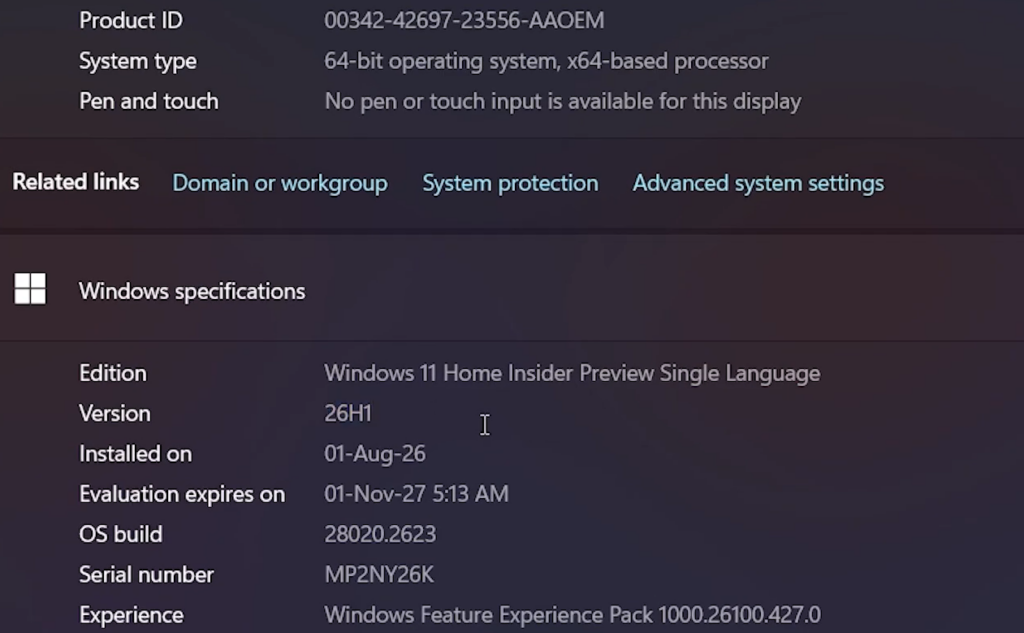
Microsoft builds these updates in stages, so the same package appears in different channels across two months. The changes shown in the Release Preview channel during August 2026 become the September 2026 update. The final security release lands on the September Patch Tuesday.
| Stage | Channel | Build | Date |
|---|---|---|---|
| Initial preview | Release Preview | 28000.2796 | August 14, 2026 |
| General availability | Patch Tuesday | 28000.2796 | September 8, 2026 |
Because 26H1 is a hardware-scoped release, this build only touches the ARM64 branch. It does not replace the 24H2 or 25H2 updates for existing PCs.
Who gets Windows 11 26H1
Version 26H1 is not an upgrade for anyone already running Windows 11. Microsoft ships it only as a preinstalled experience on select new devices that started arriving in early 2026, built around next-generation silicon. The first machines use Qualcomm Snapdragon X2 Series processors, including the Plus, Elite, and Extreme parts.
If your computer runs on Intel or AMD hardware, 26H1 will not be offered through Windows Update and cannot be installed in place. Devices already in the market keep receiving their normal monthly updates on 24H2 or 25H2.
26H1 sits on a different Windows core than 24H2 and 25H2, so these devices cannot jump to the next annual feature update planned for the second half of 2026. Microsoft says a path to a future release will come later.
File Explorer and Windows Search changes
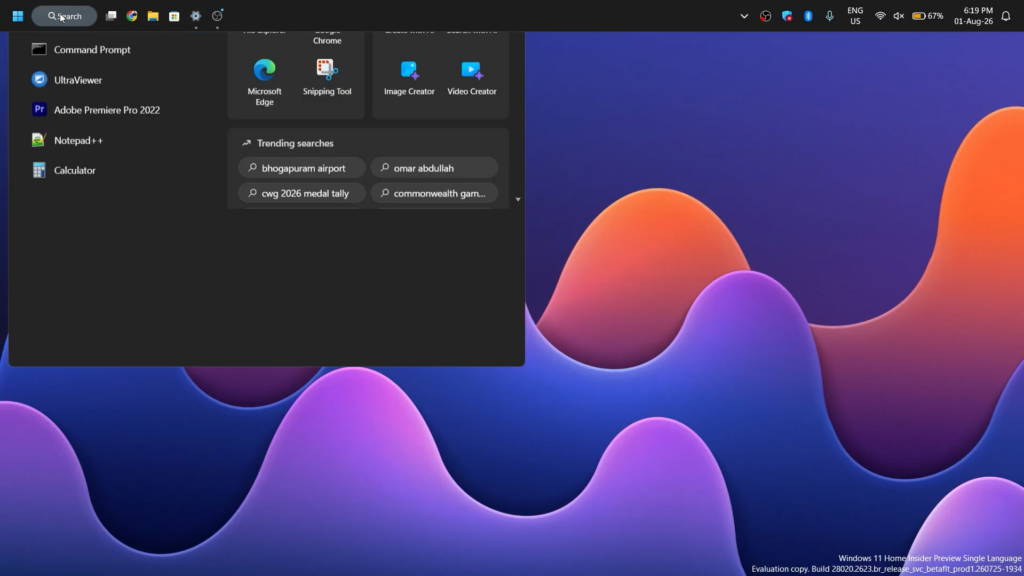
File Explorer gets several practical fixes. In Details view, file sizes now show in the right units such as KB, MB, and GB instead of listing everything in kilobytes, which makes large files easier to read at a glance. Middle-clicking a folder in the address bar or on the Home page now opens it in a new tab, matching how tabbed browsing works elsewhere.
The Home page no longer shows a gray flash while loading and no longer scrolls back to the top on its own. Thumbnails in the Recommended section are sharper, and startup reliability for Explorer, the Start menu, and the Taskbar has improved.
Windows Search picks up a few accuracy gains. You can now search with as few as 2 characters, app search handles partial names and typos better, and Settings results push more relevant options higher in the list.
Windows Hello ESS for external fingerprint readers
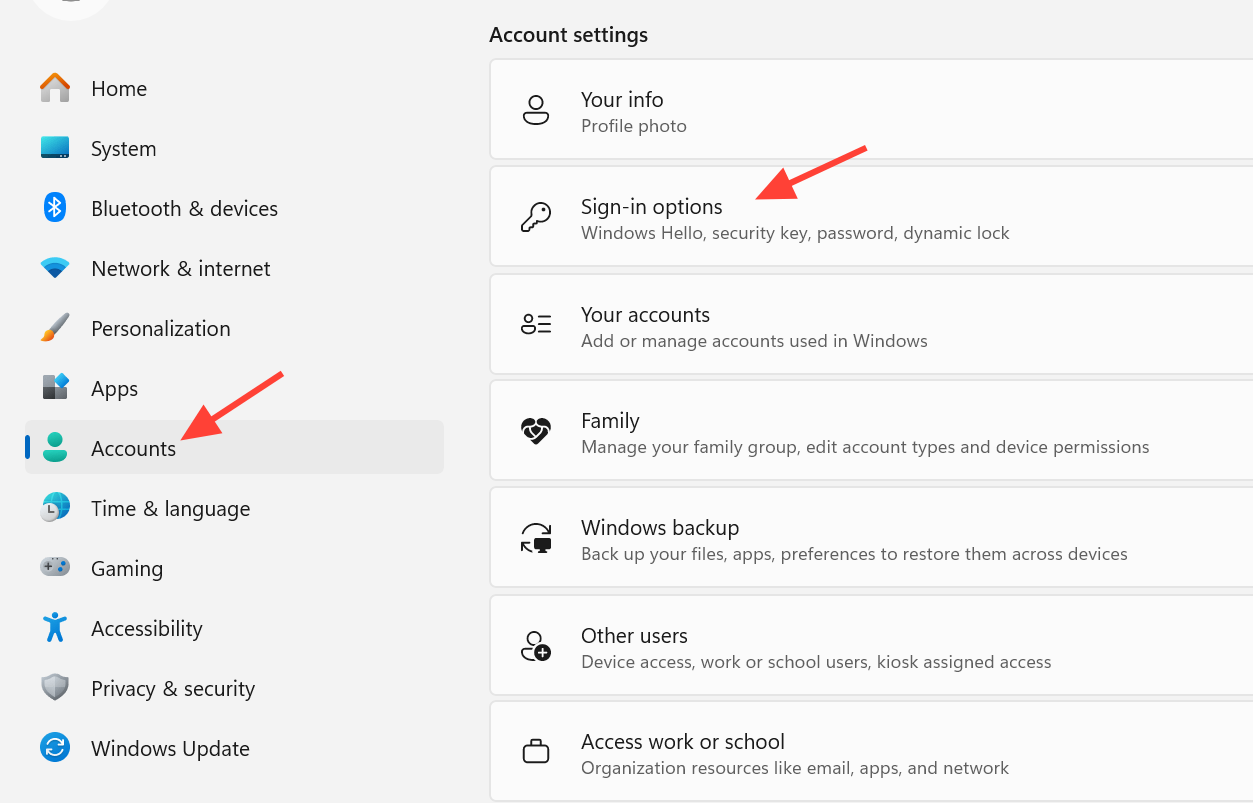
Windows Hello Enhanced Sign-in Security (ESS) now supports external, peripheral fingerprint readers. That means desktops and other PCs without a built-in sensor, including Copilot+ PCs, can use a supported ESS-compatible reader for more secure sign-in. The feature was first disclosed in the January 2026 preview update (KB5074105) and is now rolling out more broadly.
Account Control flyout redesign
The Account Control flyout, opened by selecting your account picture in the lower-left corner of the Start menu, has a cleaner design. It adds a badge that shows your subscription status and surfaces account benefits and storage details in one place, so you do not have to dig through multiple Settings pages.
You only see the new design when signed in with a Microsoft account. Local accounts and organization-managed devices keep the classic menu. If you qualify but still see the old flyout, the feature is likely still being enabled in your region.
Voice Access and Voice Typing updates
Voice Access adds Voice Isolation, which improves recognition by filtering out background noise and other speakers, with processing done on the device. You can choose one of three modes under Settings, then Voice Access, then Improve speech recognition.
| Mode | What it does | Setup |
|---|---|---|
| Voice Isolation | Filters other speakers and background noise | One-time voice setup |
| Remove background noise only | Suppresses typing, door slams, and similar sounds | None |
| No filtering | Uses raw microphone input | None |
Voice Access also adds Korean language support and starts more reliably. For Voice Typing, Fluid Dictation is now off by default for new users, and a teaching tip appears the first time the feature is used.
Touchpad, power, accessibility, and Widgets
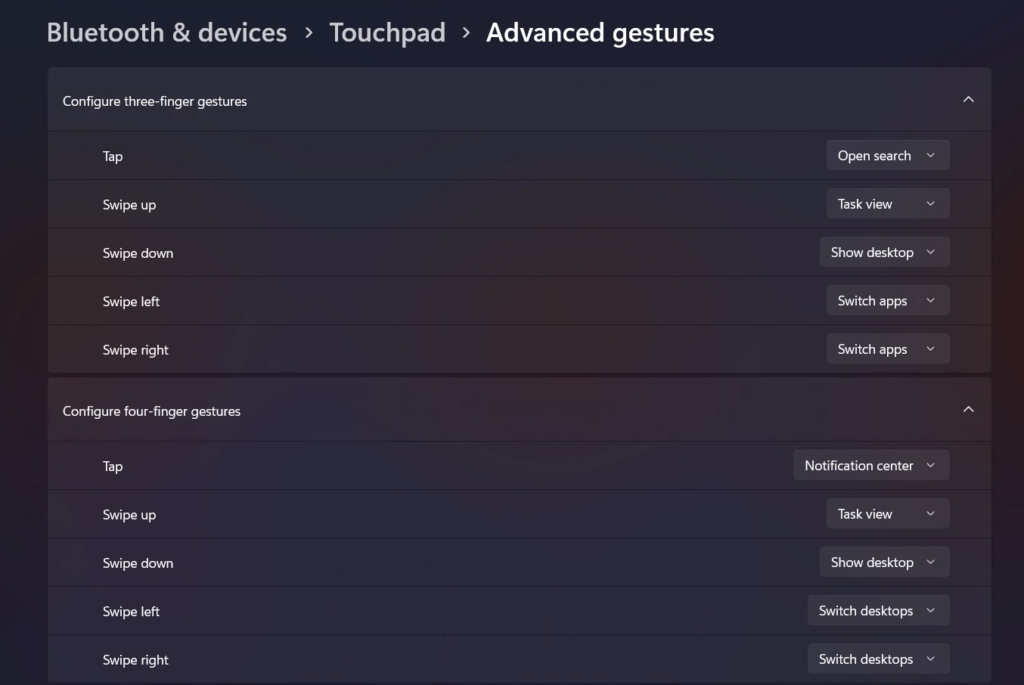
Precision touchpads gain new gesture controls under Settings, then Bluetooth & devices, then Touchpad. You can set the base speed for scroll and zoom gestures and turn on accelerated scrolling, which speeds up as you repeat the gesture for long documents and pages.
Power settings are now more consistent. Changes to display timeouts, sleep and hibernate timers, power and sleep button behavior, and lid-close actions apply to every power plan, not just the active one, and those preferences save more reliably. You can again set the battery percentage at which Energy Saver turns on under Settings, then System, then Power & battery.
For accessibility, the Magnifier’s horizontal and vertical touch bars are off by default on touch devices so they no longer cover content. You can re-enable them under Settings, then Accessibility, then Magnifier.
Widgets are quieter too. Taskbar notification badges use your system accent color instead of red, and new users see only the Weather widget on the Lock screen by default. Copilot+ PCs also let you uninstall the Image Generation AI component when it is installed, and Windows Setup now shows a parental controls notice during installation.
Reliability fixes and smaller changes
| Area | Fix or change |
|---|---|
| Start menu | Retains your selected view; better keyboard navigation in the apps list; steadier startup |
| Input | Selected mouse cursor size persists more reliably |
| Windowing | System dialogs open at the correct size on small tablets |
| Fonts | Restored Unicode variation sequences in Myanmar Text; better Mongolian Baiti shaping |
| Taskbar | More reliable system tray loading in tablet posture on touch devices |
| Windows Update | More accurate download and install progress; improved post-update cleanup |
| Sounds | Improved system sounds in dark mode |
| Date and time | Better time zone change detection; updated DST data for Beirut, Casablanca, Jerusalem, and Nuuk |
| Networking | More reliable DHCP renewals, including NACK responses and Modern Standby devices |
| Faster pages per minute for IPPS printers | |
| Clipboard | Better reliability in Remote Desktop and Azure Virtual Desktop |
| File Explorer | Fewer explorer.exe crashes; DFS-mapped files no longer wrongly flagged as internet-sourced |
The DFS fix is worth calling out. Files on DFS-mapped drives were sometimes treated as internet content after a network reconnect, which triggered unnecessary security warnings in the Preview pane and applied the Mark of the Web to copied files. That no longer happens.
How to install KB5120996 early
Before you install any quality update, create a restore point and a full backup so you can roll back if something goes wrong. A restart is required once the install finishes.
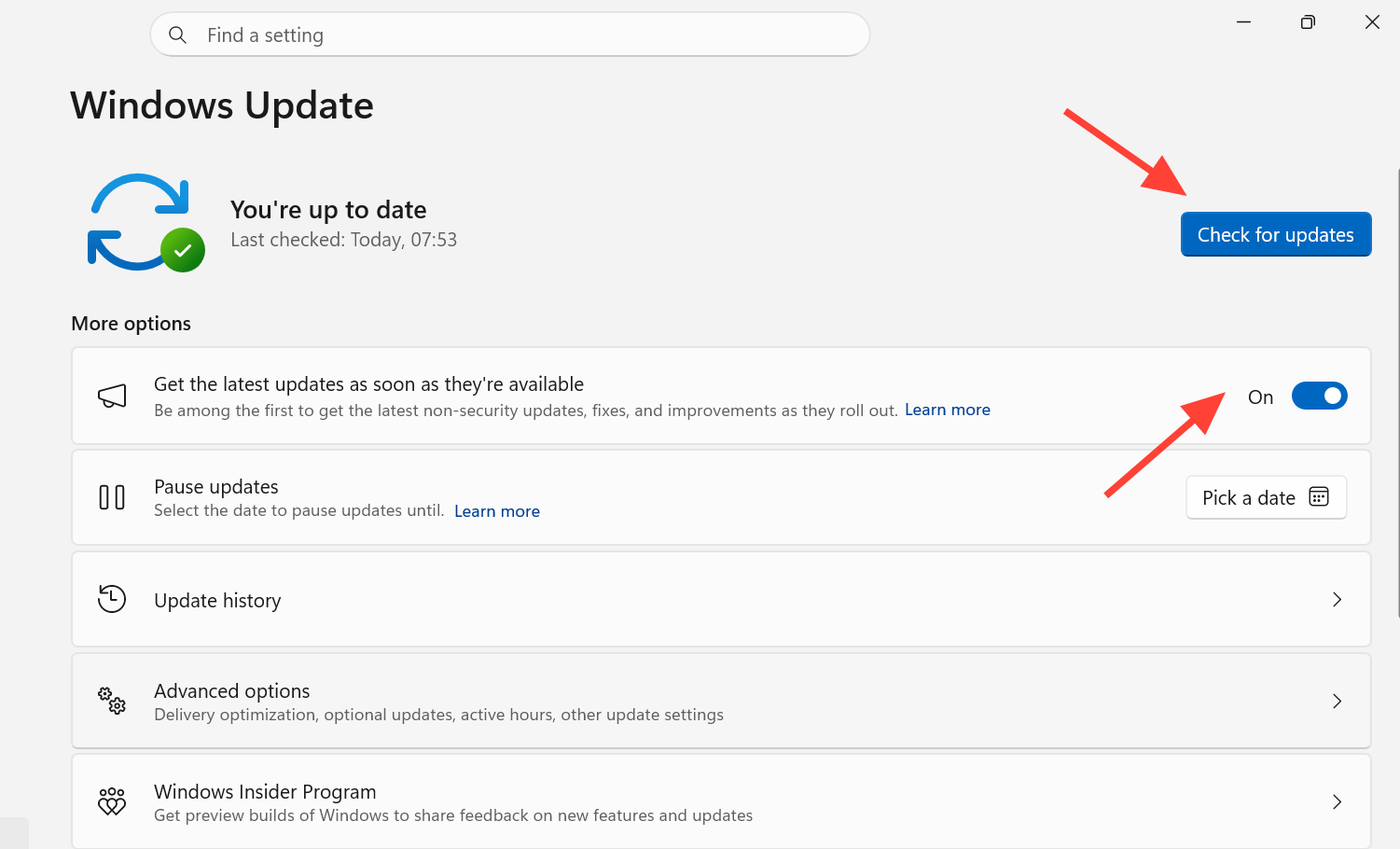
You know it worked when your device reports build 28000.2796 after restarting. Type winver in the search box and press Enter to confirm the build number. If the update does not show right away, the rollout is gradual, and it should appear within a few days.
Many of these features arrive through Controlled Feature Rollout, so exact availability depends on your region, hardware, and configuration. Some options take longer to appear in Europe because of regulatory requirements, which is normal even after the build is installed.