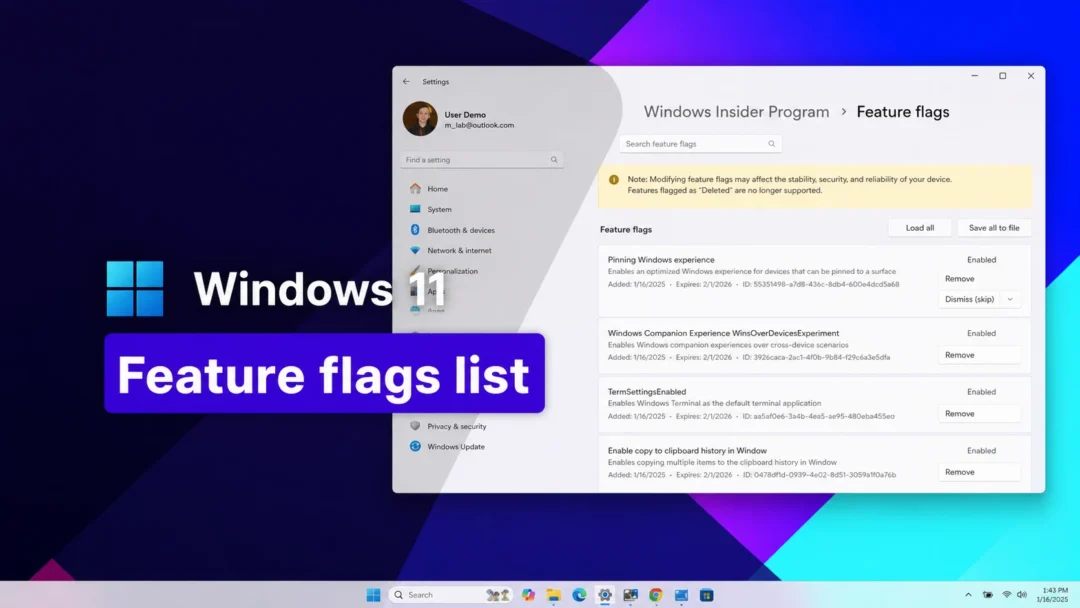
The Windows 11 September 2026 Update (KB5120998) ships several visible changes, but many of them stay dark on your PC because Microsoft turns them on in waves rather than all at once. Two machines on the exact same build can look completely different for weeks. If you would rather not wait, you can force the new options on yourself once the update is installed.
Quick answer: Install KB5120998 (builds 26200.9267 for 25H2 or 26100.9267 for 24H2), then run vivetool /enable /id:61161244 in an elevated Command Prompt and restart. That single ID switches on most of the new features; add the extra IDs below for the Taskbar and Start menu settings.
What you need before running any commands
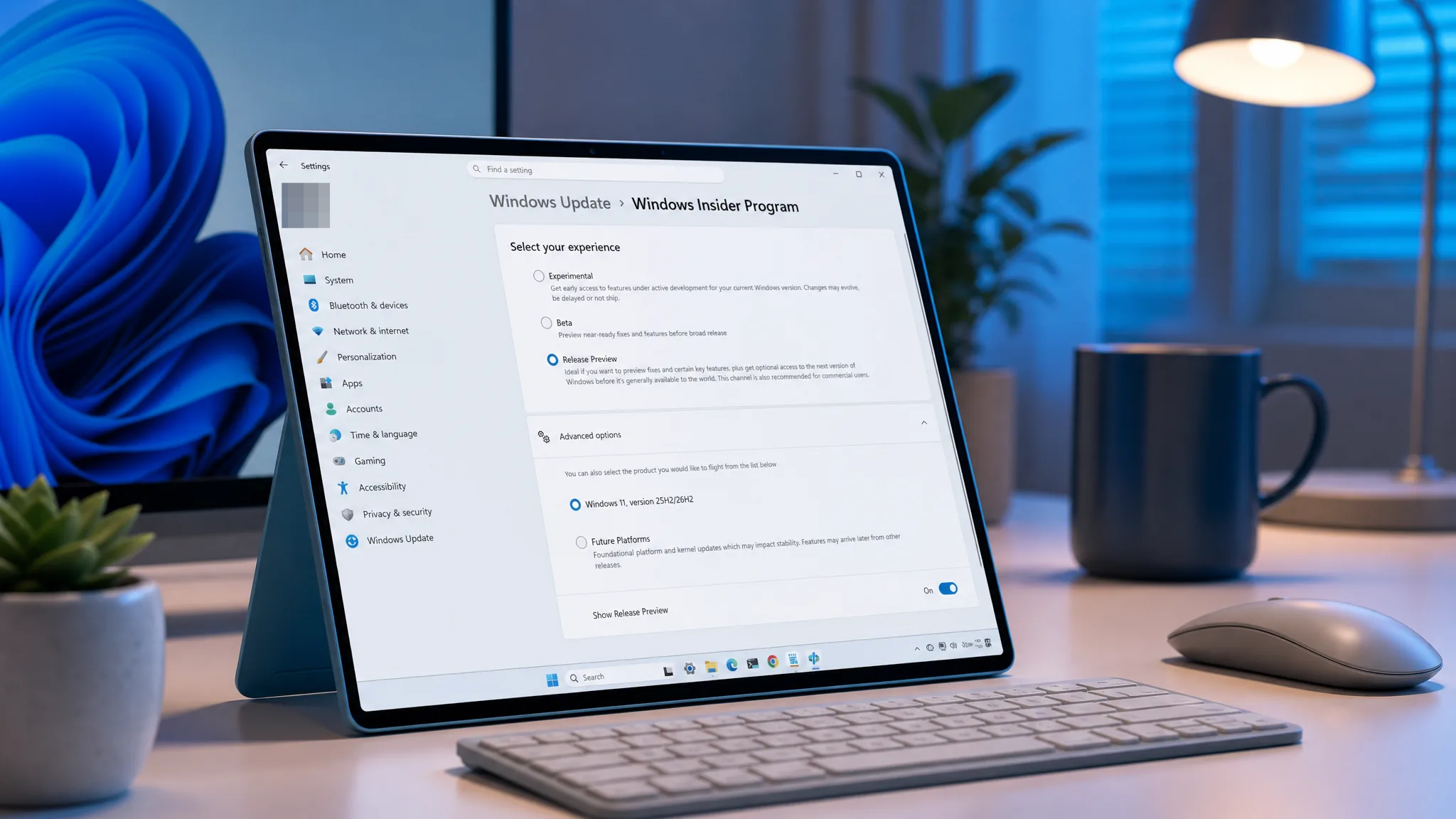
ViVeTool only works after the correct build is already on the device. KB5120998 reaches versions 24H2 and 25H2, with the broad rollout starting September 8, 2026. Before that date, the update lives in the Release Preview channel of the Windows Insider Program. After the general release, it appears as a normal optional update in Windows Update settings.
| Version | Build with KB5120998 |
|---|---|
| Windows 11 25H2 | 26200.9267 |
| Windows 11 24H2 | 26100.9267 |
Note: These feature IDs change often. Once Microsoft bakes a feature permanently into Windows, its ID stops doing anything. A command that returns success does not always mean the feature appears, because some changes are also tied to specific hardware, accounts, or regions.
Install KB5120998 first
Before general availability (Release Preview)
After general availability
Enable the September 2026 features with ViVeTool
ViVeTool is a small command-line utility that flips Windows feature flags on or off. Grab the latest release, extract it, then point Command Prompt at that folder.
cd c:\folder\path\ViVeTool-v0.x.xvivetool /enable /id:61161244vivetool /enable /id:59213768
vivetool /enable /id:61090762The following IDs are optional. They worked on earlier builds, and depending on what is already live on your setup, they may or may not add anything. Run only the ones you want.
| What it enables | Feature ID(s) |
|---|---|
| Most new features (master flag) | 61161244 |
| Taskbar position setting | 59213768 |
| Smaller Taskbar setting | 61090762 |
| Start menu customization settings | 61754985, 61225604, 61596616, 61596617, 61596618, 61596619 |
| Snipper process indicator | 59728252 |
For the Start menu customization settings, run them together on one line:
vivetool /enable /id:61754985,61225604,61596616,61596617,61596618,61596619Administrator Protection uses a longer combined ID string. It is disabled by default and normally managed through Microsoft Intune (OMA-URI) or Group Policy, so this flag may not surface the toggle on every device:
vivetool /enable /id:51406324,60288851,48433719,58989092,58989177,61160789,61161244,61161268,61161283,6116130461754985,61225604,61596616,61596617,61596618,61596619How to confirm the features are on
After the restart, the settings appear in their normal places rather than showing a generic confirmation. Check these paths to verify each change landed.
| Feature | Where it appears |
|---|---|
| Taskbar position (bottom, top, left, right) | Settings > Personalization > Taskbar > Taskbar behaviors > Taskbar position |
| Smaller Taskbar | Settings > Personalization > Taskbar > Taskbar behaviors > Taskbar size |
| Start menu size (Small, Large, Automatic) | Settings > Personalization > Start > Start menu size |
| Hide name and profile picture | Settings > Personalization > Start |
| Web and Store suggestions in Search | Settings > Privacy & security > Search |
| Suggested apps in Share | Settings > System > Share |
If a toggle still does not show up after a restart, the feature is most likely held back for your region, hardware, or account type. That is expected behavior with the controlled rollout, and no command can override those limits.
How to undo the changes
To reverse a specific flag, repeat the process but swap /enable for /disable using the same ID. For example, to turn the master flag back off:
vivetool /disable /id:61161244Disable each additional ID you enabled the same way. To wipe every customization at once and return to the default state, run:
vivetool /fullresetWhat KB5120998 actually changes
The headline additions center on customization. The Taskbar can finally sit on any edge of the screen, with tooltips, flyouts, animations, and most settings, including never combining icons, working in all four positions. The search box and the smaller Taskbar are limited to the top and bottom for now. Start gains Small, Large, and Automatic sizes, section toggles for Pinned, Recent, and All, and an option to hide your name and profile picture. The old “Recommended” section is renamed “Recent.”
Windows Search cleans up its home layout, labels where each result comes from, and adds a control for whether web and Microsoft Store suggestions sit alongside local results. File Explorer’s Home page loads faster and adds touch scrolling to the Recommended carousel. There are new progress spinners across startup, sign-in, restart, shutdown, and update installs, plus Windows Share app suggestions for work and school accounts and smaller fixes for Task Manager, graphics, networking, and Setup. Administrator Protection, first disclosed in October 2025, also begins rolling out, and the WMIC utility is now removed from 24H2 and 25H2.
Because these IDs are retired as Microsoft finalizes each feature, an unlock that works today can quietly stop working after a later build. If a command no longer takes effect, it usually means the change has already shipped to everyone and the flag is no longer needed.