Helicopters in WARDOGS are not arcade toys. The flight model is semi-realistic, momentum sticks around after you level the aircraft, and the default control layout leaves most new pilots fighting the machine instead of flying it. Getting the settings right is most of the work.
Quick answer: Enable Rotary Vehicle Mouse Control, keep pitch and roll on the mouse, move collective to W/S and yaw to A/D, then start mouse pitch and roll sensitivity between 30% and 50% and adjust one value at a time.
Helicopter mouse settings in WARDOGS
Every mouse-related helicopter option sits at the bottom of the Controls tab. The one that matters most is Rotary Vehicle Mouse Control. With it disabled, the mouse only moves the camera and you fly entirely on keys. With it enabled, mouse movement drives the cyclic, which is what gives you fine corrections during an approach or while lining up a gun run.
| Setting | Value | What it changes |
|---|---|---|
| Rotary Vehicle Mouse Control | Enabled | Mouse drives cyclic input |
| Helicopter Mouse Swipe Up/Down | Pitch | Nose up and nose down |
| Helicopter Mouse Swipe Left/Right | Roll or Yaw | Banking or heading |
| Helicopter Mouse Pitch Sensitivity | 30–50% | Pitch response per mouse movement |
| Helicopter Mouse Roll / Yaw Sensitivity | 30–50% | Horizontal response |
| Helicopter Mouse Axis Isolation | 20–70% | How much diagonal input bleeds across axes |
| Air Vehicle Multiplier | 0.50–1.50 | Overall aircraft sensitivity |
| Invert Y Axis – Air Vehicle | Disabled | Keeps mouse-up as nose-up |
The ranges exist because pilots split sharply on how much authority they want. A restrained setup, around 30% pitch and roll with an Air Vehicle Multiplier of 0.5, keeps small corrections small and is the easier place to learn. A faster setup, 50% on both axes with the multiplier raised to 1.50, makes the helicopter react immediately but punishes sloppy mouse movement. Axis isolation follows the same logic: low values (around 20%) let diagonal swipes blend pitch and roll together, while high values (70% and up) keep the two axes separate.
Change one value per flight. If you adjust pitch sensitivity, roll sensitivity, and the multiplier at the same time, you lose any way to tell which change helped.
Roll or yaw on the horizontal swipe
Mapping left/right mouse swipe to Roll gives you a banking control on the mouse, which suits pilots who turn with the cyclic and use A/D only for small heading corrections. Mapping it to Yaw instead leaves banking on the keyboard and makes the mouse a precision heading tool, which is what many pilots prefer when they need to walk rocket or minigun fire onto a ground target. Both are valid; pick one and stop switching.
Mouse DPI feeds into all of this. A pilot running 650 DPI with an in-game sensitivity of 0.73 needs completely different helicopter percentages than someone at 800 DPI, so treat any published number as a starting point rather than a target.
Best helicopter keybinds for mouse and keyboard
Default collective sits on Left Shift and Left Ctrl. Moving it to W and S puts climb and descent under your strongest fingers and frees the modifier keys for everything else. Yaw then lives on A and D, and the mouse handles the cyclic.
| Action | Bind | What it does |
|---|---|---|
| Collective (Raise) | W | Adds lift, climbs |
| Collective (Lower) | S | Reduces lift, descends |
| Yaw Left / Right | A / D | Rotates the nose |
| Pitch | Mouse up / down | Accelerates and brakes |
| Roll | Mouse left / right | Banks and moves sideways |
| Free Look | Alt | Look around without turning |
| Deploy Flares | V | Counters incoming missiles |
| Lock / Unlock Vehicle | L | Helicopters start locked |
| Toggle Camera | C | Switches cockpit and third person |
After moving the cyclic to the mouse, clear the keyboard binds for Cyclic X increase/decrease and Cyclic Y increase/decrease. Leaving both input methods live on the same axis creates inputs that seem to linger after the mouse returns to center, and that gets misdiagnosed as sensitivity being too high.
Free look is worth a comfortable key rather than the default. Some pilots remap a mouse side button to Left Alt in their mouse software so they can scan a landing zone without taking a hand off the collective.
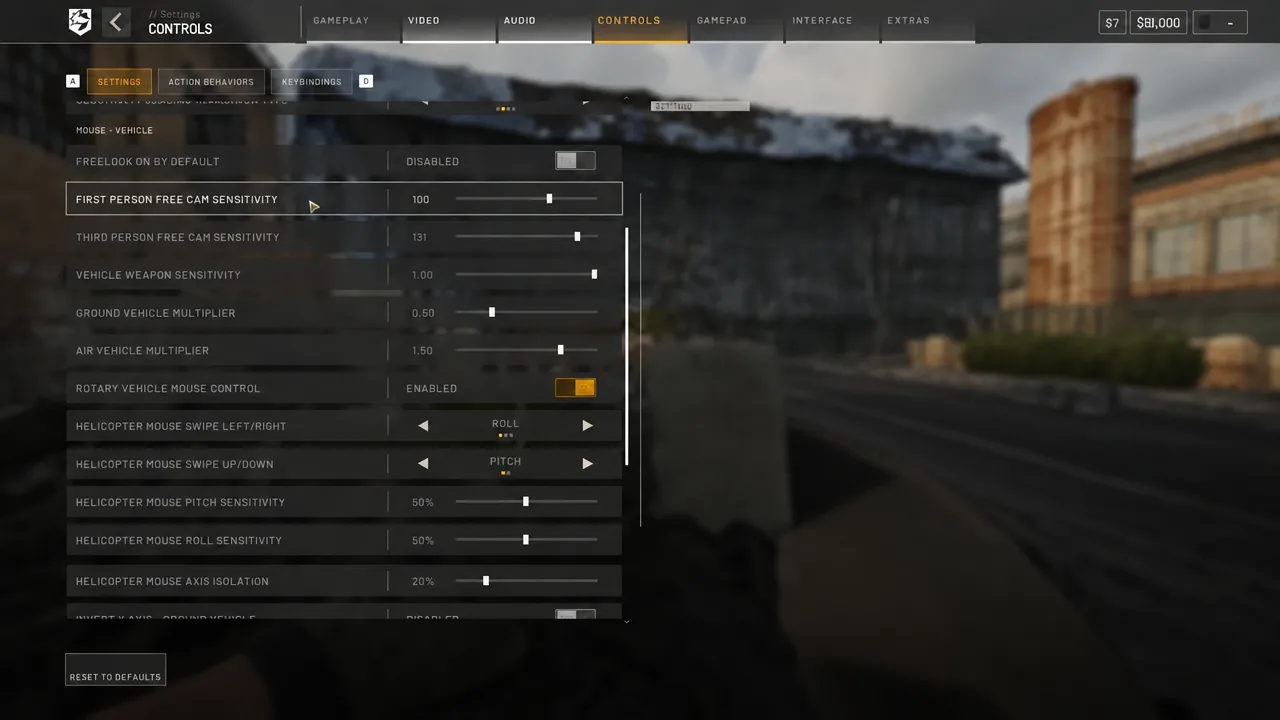
First Person Free Cam Sensitivity at 100 and Third Person Free Cam Sensitivity somewhere between 100 and 131 keeps head-turning quick without making it hard to settle on a target. Vehicle Weapon Sensitivity at 1.00 is a sane default for armed helicopters.
Flight assists: what to turn off and when
Flight Assists is a master switch with four sub-systems beneath it. Turning the master off disables all of them and gives you a fully manual aircraft.
- Stability Assist damps pitch, roll and yaw to hold the helicopter level. Useful for transport runs, a problem in a dogfight where you need to hold a bank angle.
- Auto-Hover Assist helps hold a hover when collective returns to neutral, which reduces drift at low speed.
- Envelope Limits caps extreme inputs and attitudes. Disabling it allows steeper, more aggressive maneuvers.
- Turn Coordination applies yaw automatically during banked turns to reduce sideways wobble.
If the helicopter feels like it is correcting against you or your aim gets snagged mid-turn, Stability Assist or Auto-Hover is the cause. Experienced pilots run everything disabled so nothing competes with manual input. Envelope Limits and Turn Coordination are the two most players switch off first, since they are the ones blocking sharp whip-around maneuvers.
Assists on is not a beginner trap. Leaving Stability and Auto-Hover enabled while you learn takeoffs, hovers and landings makes the aircraft far more forgiving, and none of them will save a helicopter that yaws hard 30 feet off the deck.
Gameplay, video and audio settings that affect flying
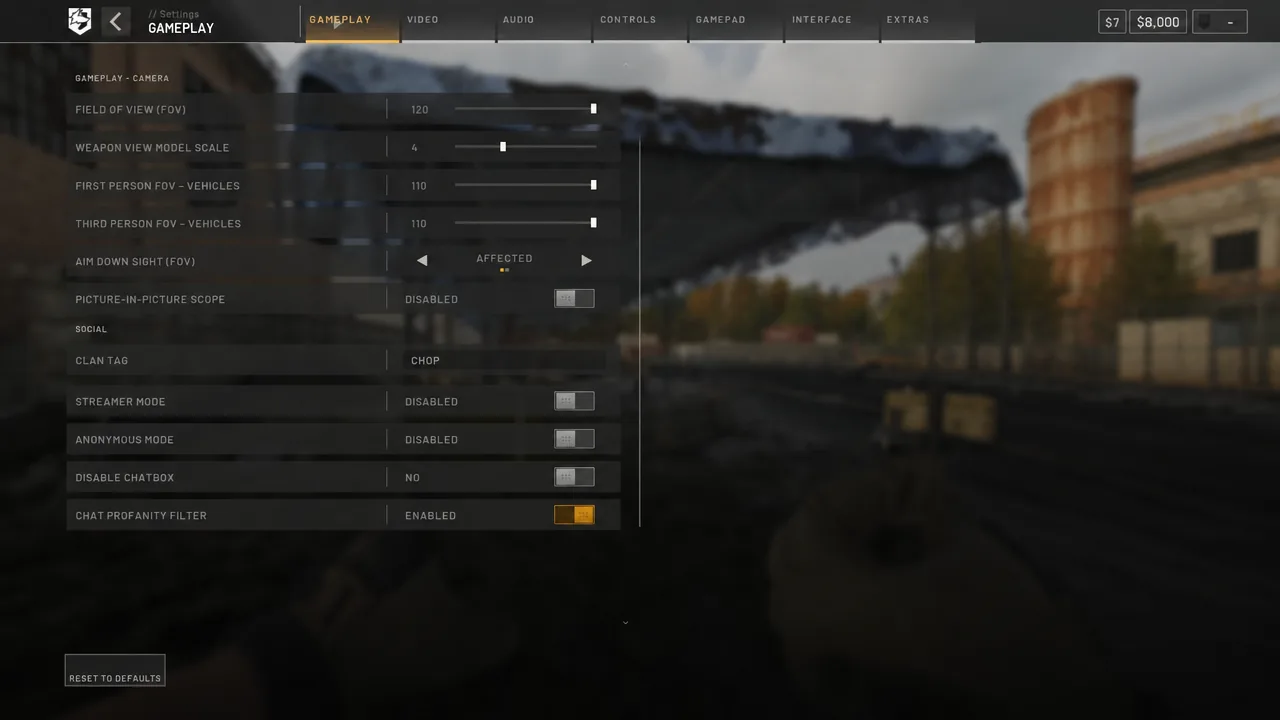
Field of view decides how much of the ground you can see while banking. A wide setting of 120 on foot with 110 for both first and third person vehicle FOV keeps terrain and obstacles in view during turns. Pulling first-person vehicle FOV lower produces a slight zoom that makes small ground targets easier to identify from altitude, at the cost of peripheral awareness.
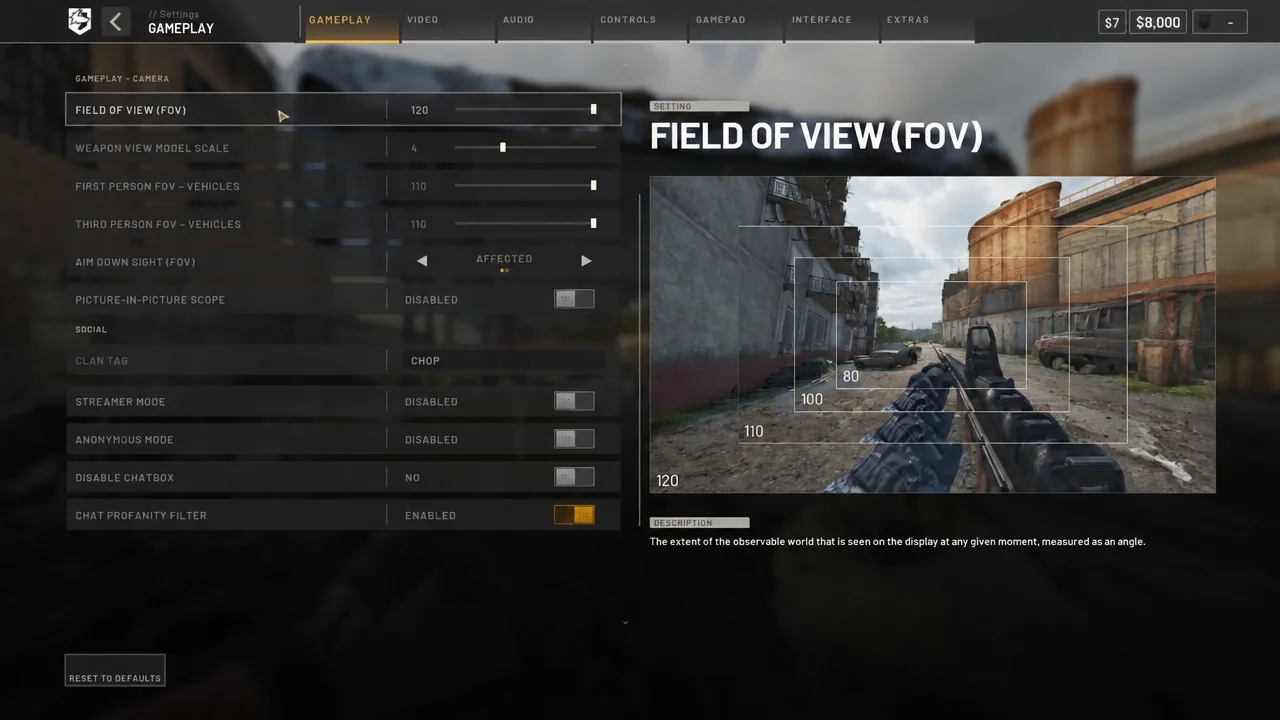
The rest of the Gameplay tab is housekeeping rather than flight-critical. Picture-in-picture scopes, clan tag, streamer and anonymous mode, the chatbox and the profanity filter all sit here, and none of them change how the helicopter handles.
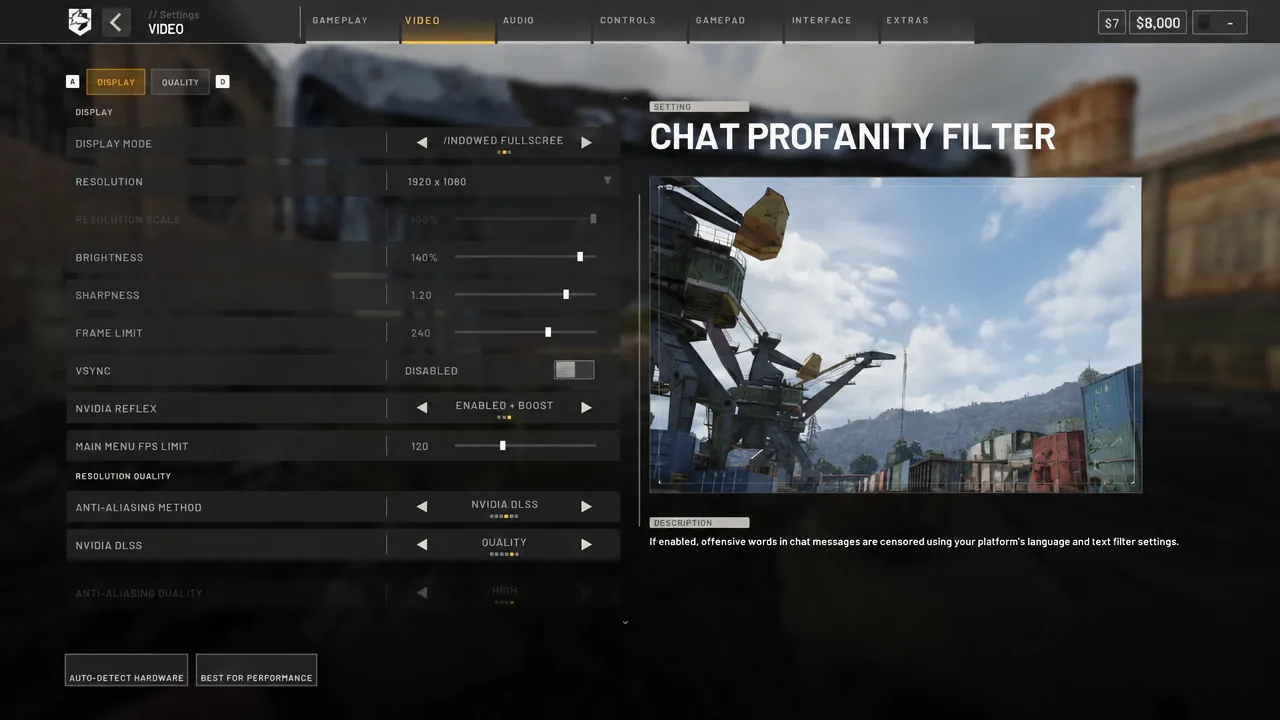
Video settings matter mostly for input latency. Windowed fullscreen at 1920×1080, 100% resolution scale, VSync disabled and a frame limit set above your refresh rate keeps frame pacing steady. NVIDIA Reflex on Enabled + Boost cuts latency, and DLSS on Quality with resolution quality at 100 preserves detail at distance so you can pick out treelines and power lines before you hit them.
On audio, 3D Spatial Audio enabled is the setting worth keeping, since positional sound is how you notice ground fire before you see it. Radio music volume set to 0 is standard for anyone recording or streaming.
Test your settings in the Firing Range
The Firing Range is the only place to tune a setup without losing cash or teammates. Vehicles spawn there for free, so you can cycle through settings changes for as long as you need.
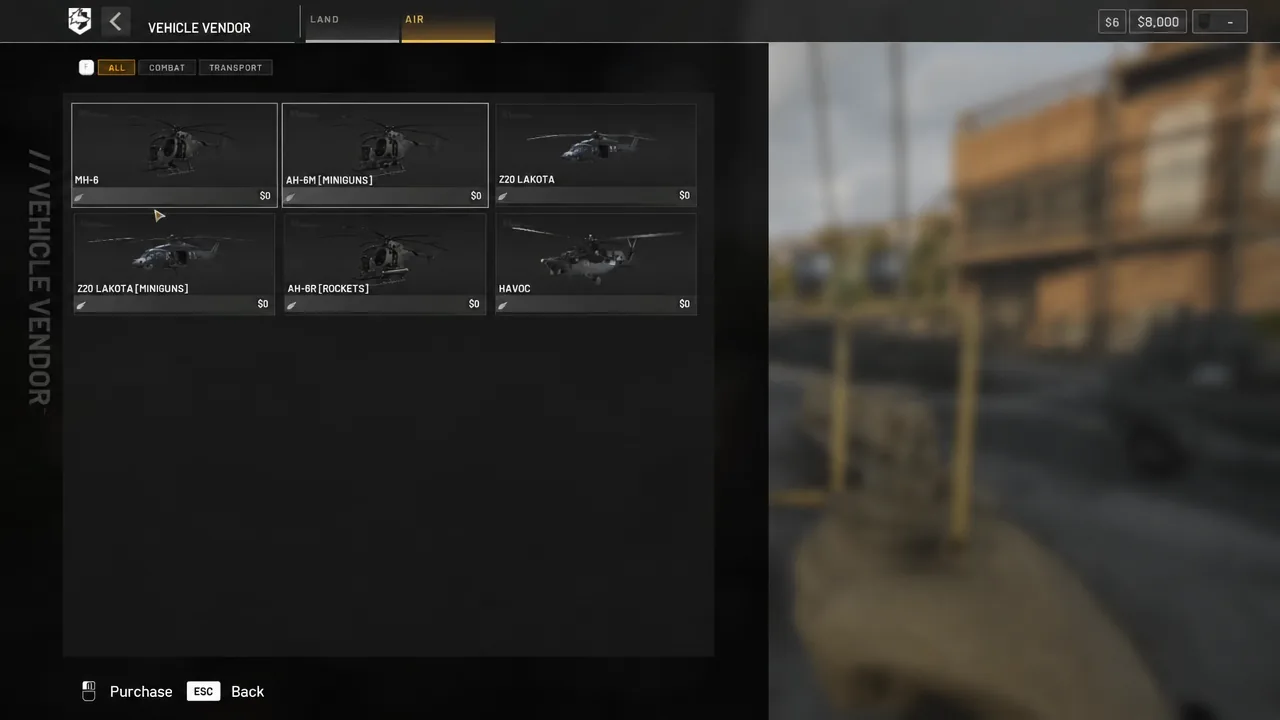
| MH-6 | Value |
|---|---|
| Price | $6,250 |
| Class | Transport |
| Seats | 6 |
| Top speed | 350.0 km/h |
| Fuel capacity | 105.0 litres |
| Fuel burned per km | 4.4 litres |
How to tell the setup is right
A tuned configuration produces three specific behaviors. A small mouse movement produces a small attitude change, not an overshoot. The helicopter returns toward neutral without you having to catch it. And at low speed you can hold a position over a fixed point rather than chasing it.
Judge hovers against nearby objects instead of the horizon. A roof edge, road marking or building corner sliding across your view means lateral velocity is still present, even when the aircraft looks level. That leftover sideways movement is what catches a skid and rolls the helicopter at touchdown, which is why a landing can look clean right up until the moment it is not.
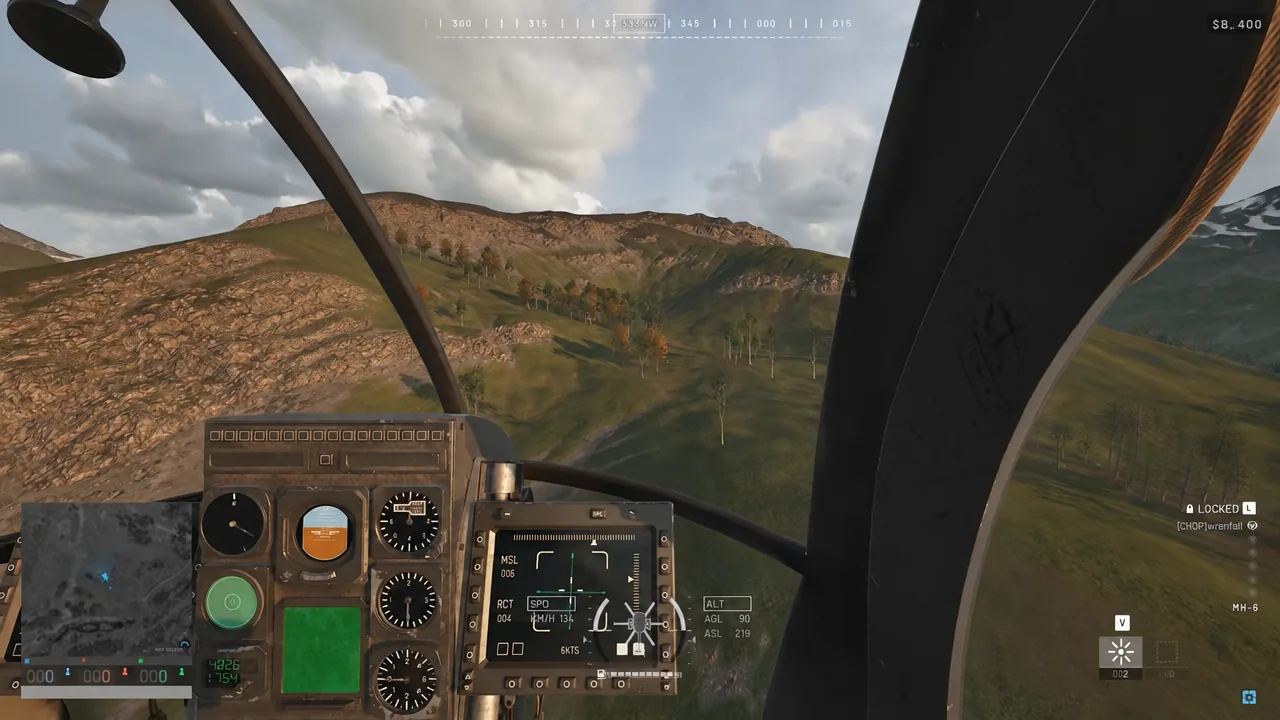
The HUD at the bottom center backs this up. The central vertical bar shows collective, with its midpoint marking neutral; side bars show bank angle, outer arrows show pitch attitude, and SPD, ALT AGL and ALT ASL give airspeed, height above terrain and height above sea level.
The chop flip landing
Once assists are off and the mouse feels predictable, the chop flip is a fast way to confirm it. Come in at around 220 km/h, then hold pitch up, yaw right and roll right at the same time. Leave the collective alone and let the aircraft bleed speed through the rotation, then level out at roughly 60 km/h and set down.
If that maneuver ends in a wreck, the problem is usually sensitivity rather than technique. Drop the pitch and roll percentages a step, fly the circuit again, and move back up only once the helicopter stops overshooting every correction.