Scrolling a server browser full of 100-player lobbies to find the exact one your squad is sitting in is a waste of time, and WARDOGS knows it. Every server the browser lists carries its own short numeric ID, and the game gives you a direct lookup box to punch that number in and connect without filtering by region, map, or name.
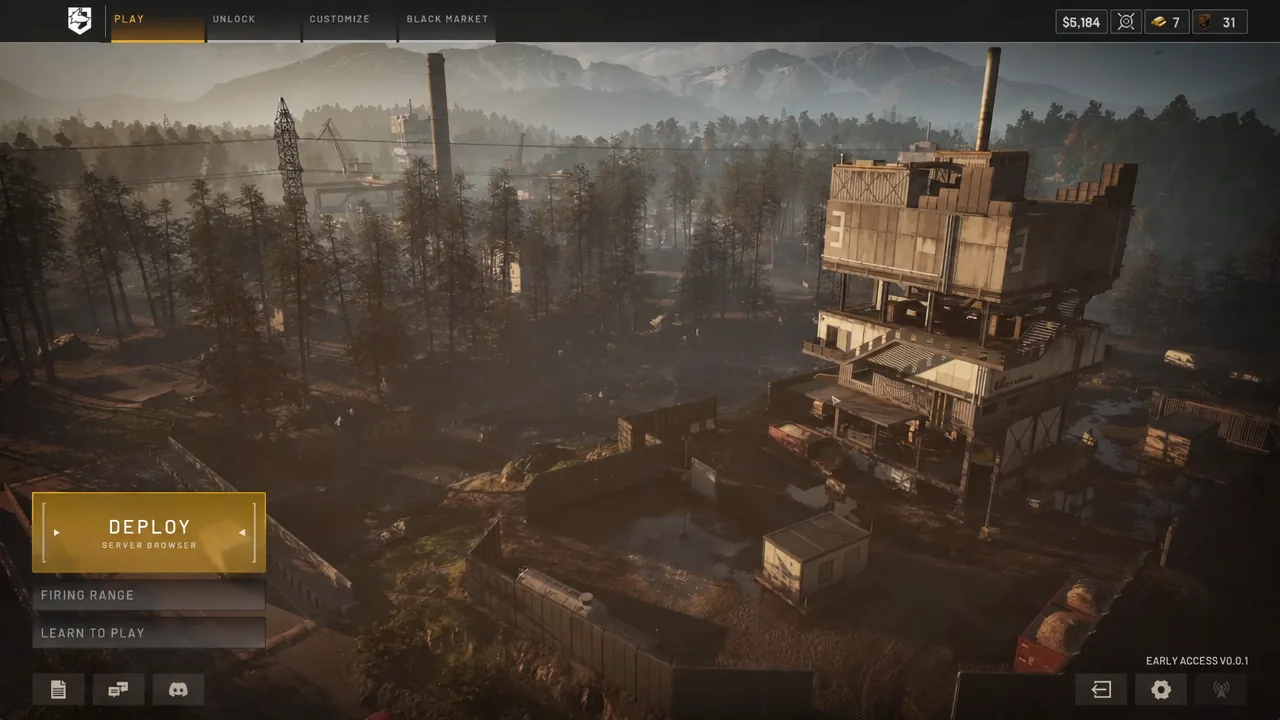
Quick answer: Press DEPLOY, click JOIN BY ID in the bottom-left corner of the Server Browser, type the ID digits without the dash, then hit LOOKUP.
Where the Server ID appears in the WARDOGS server browser
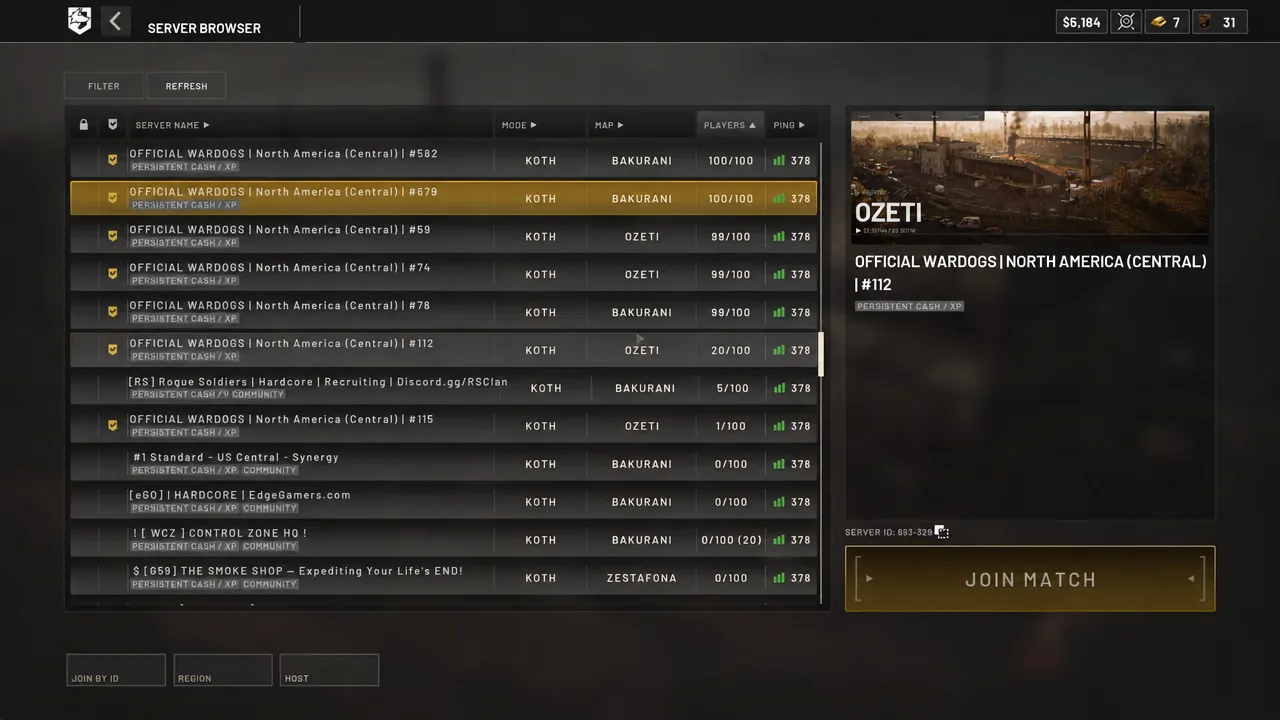
Click any row in the Server Browser and the details panel fills the right side of the screen with the map, the region, and the host. The ID sits at the bottom right of that panel, written as SERVER ID: 700-118. The dash is only there for readability, so the person reading it out to you should pass along all six digits.
That number is also the fastest thing to share in a Discord call. Server names such as OFFICIAL WARDOGS | NORTH AMERICA (CENTRAL) #112 are long, near-identical, and easy to mistype; a six-digit ID is not.
| Element | Where it sits | What it does |
|---|---|---|
| SERVER ID | Bottom right of the server details panel | The number you share or enter |
| JOIN BY ID | Bottom left of the Server Browser | Opens the Find Server box |
| LOOKUP | Inside the Find Server box | Searches for that ID and connects |
| JOIN MATCH | Bottom right of the browser | Joins the row you have selected |
How to join a WARDOGS server by ID
700-118 becomes 700118.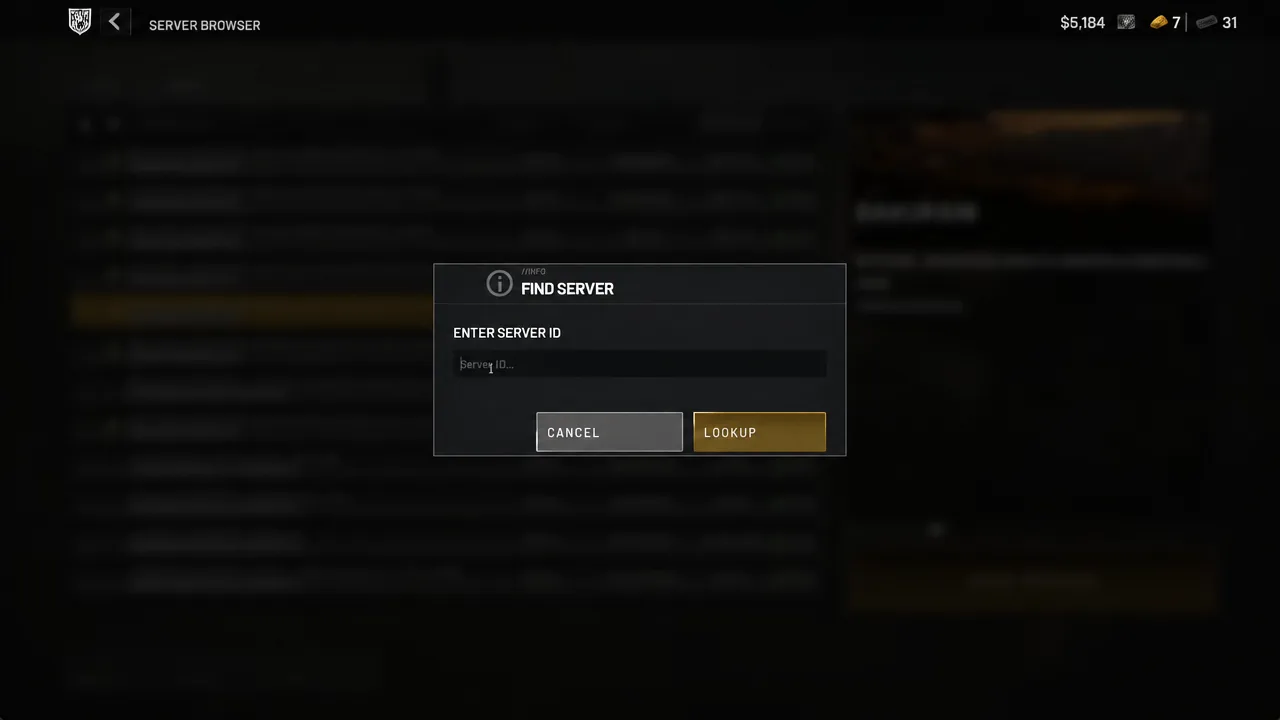
Read the number back before hitting LOOKUP. A single wrong digit returns the same error as a dead server, which makes a typo look like a bigger problem than it is.
How to confirm the lookup worked
A successful lookup closes the Find Server box and moves you into the connection flow for that match, ending at the team select screen. A failed one keeps you on the Server Browser and throws an ERROR popup reading SERVER NOT FOUND, with a RETRY button.
SERVER NOT FOUND: Why an ID stops working
Server IDs are not permanent. They belong to a live session, so once a server has closed or expired, the number attached to it stops resolving and the lookup returns SERVER NOT FOUND. Community servers behave the same way, and the ID changes whenever the server restarts.
- The session ended or the server went down.
- A community server restarted and was issued a new ID.
- The digits were entered incorrectly.
The fix in all three cases is the same. Refresh the Server Browser to pull a current list, then ask for the ID again rather than reusing an old one.
Find the server by name when the ID is dead
If the number keeps failing, the server name still gets you there. This is also the route to take for a rented community server, since its ID will be different every time it comes back up.
Between those two routes, the ID lookup is the one worth memorizing. It skips filters entirely and puts you on the same server as your squad in a few seconds, as long as somebody in the lobby reads the number off their screen while the match is still running.