
Restricting which programs can run on a Windows 11 system prevents unauthorized software, reduces malware risk, and improves compliance with organizational policies. Administrators and home users can accomplish this by whitelisting (allowing only specified apps) or blacklisting (blocking specific apps) through several built-in Windows features and management tools. The most effective method leverages application whitelisting, which only permits approved applications while blocking all others, but there are also targeted approaches for blacklisting and managing app access.
Whitelisting Programs Using AppLocker
AppLocker is available on Windows 11 Pro, Enterprise, and Education editions. It lets administrators define which executable files, installer packages, scripts, and packaged apps are allowed or blocked. This method is highly effective for organizations or anyone who needs strict control over application usage.
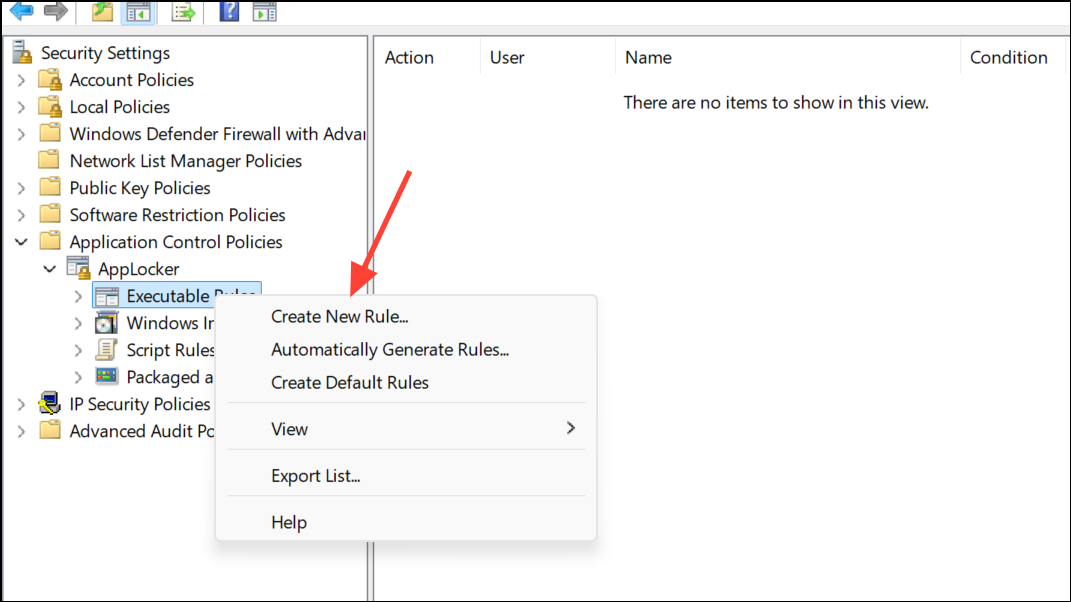
Windows key, type secpol.msc, and press Enter. This launches the Local Security Policy editor.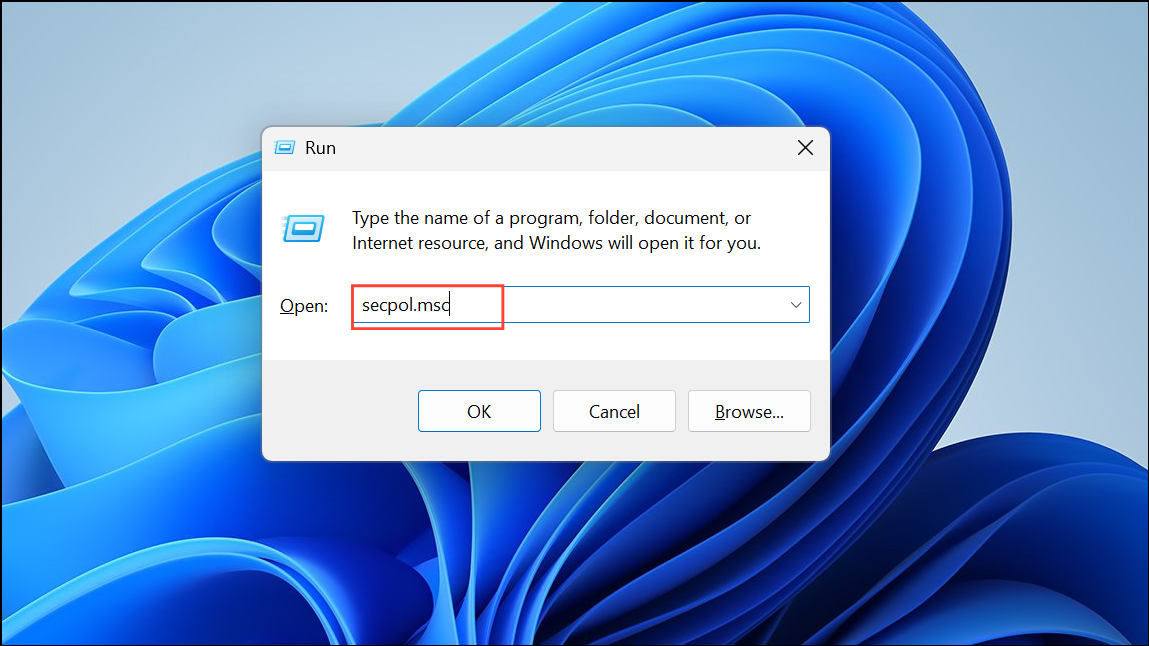
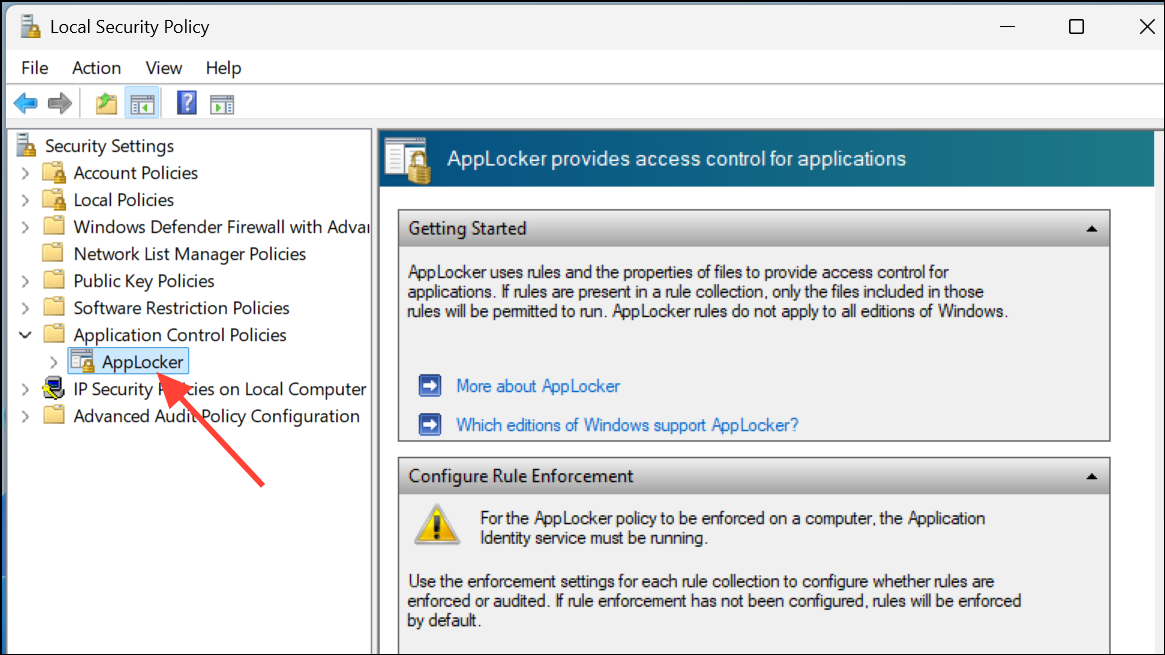
C:\Program Files) containing apps you want to permit. The wizard will create rules for all programs found in those directories.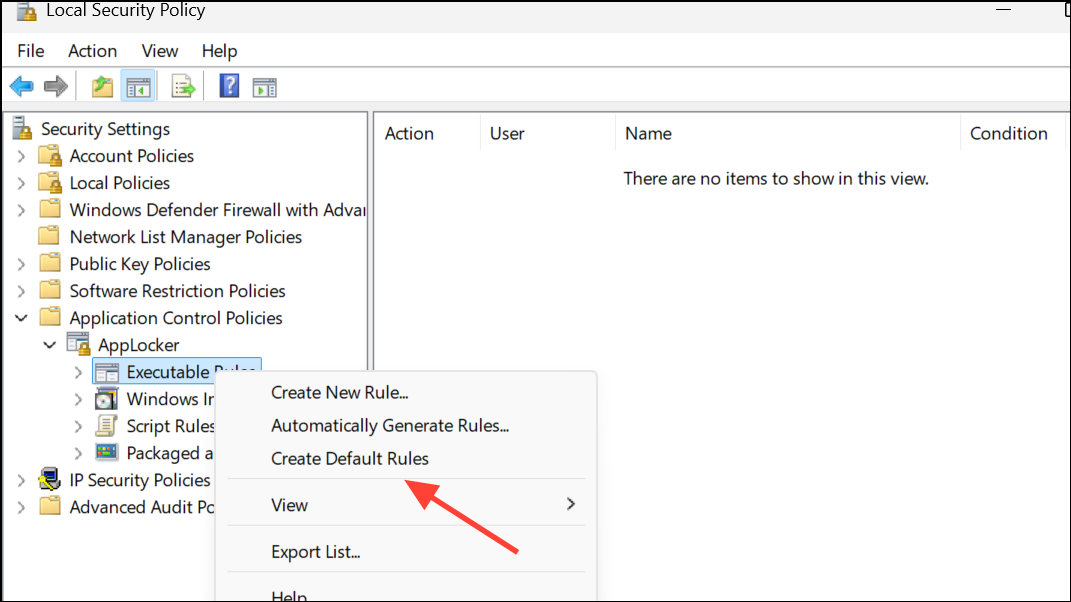
services.msc, find Application Identity, double-click it, and click Start. Set the startup type to Automatic if you want rules enforced on every reboot.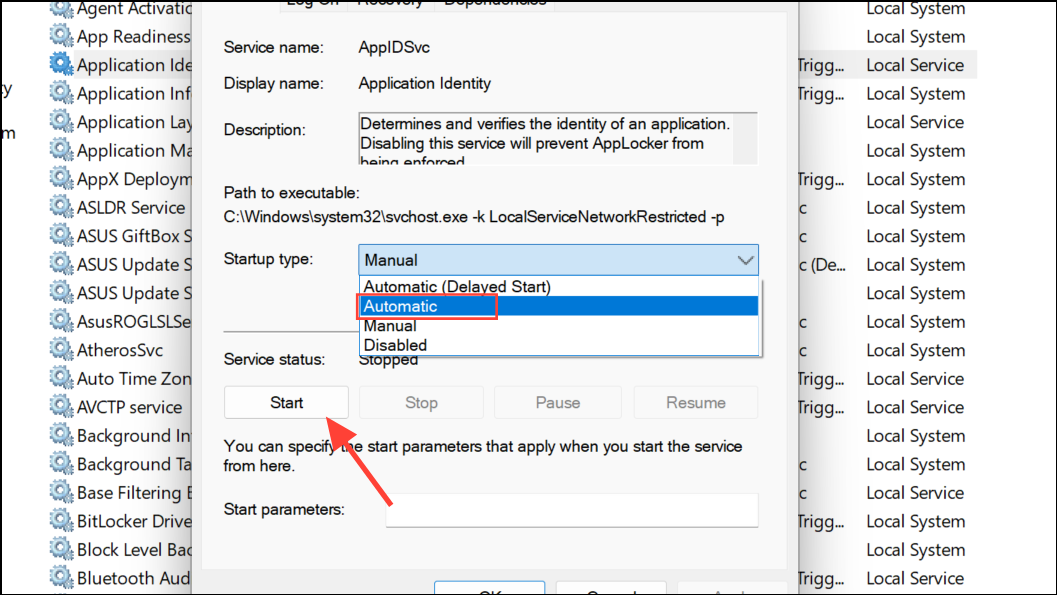
With AppLocker configured, only whitelisted programs can run. Attempts to launch blocked or unlisted applications result in a system administrator error message.
Blacklisting Programs Using Group Policy
For situations where you want to block specific applications but allow others, use the “Don’t run specified Windows applications” policy in the Group Policy Editor. This approach is suitable for targeted restrictions rather than broad lockdowns.
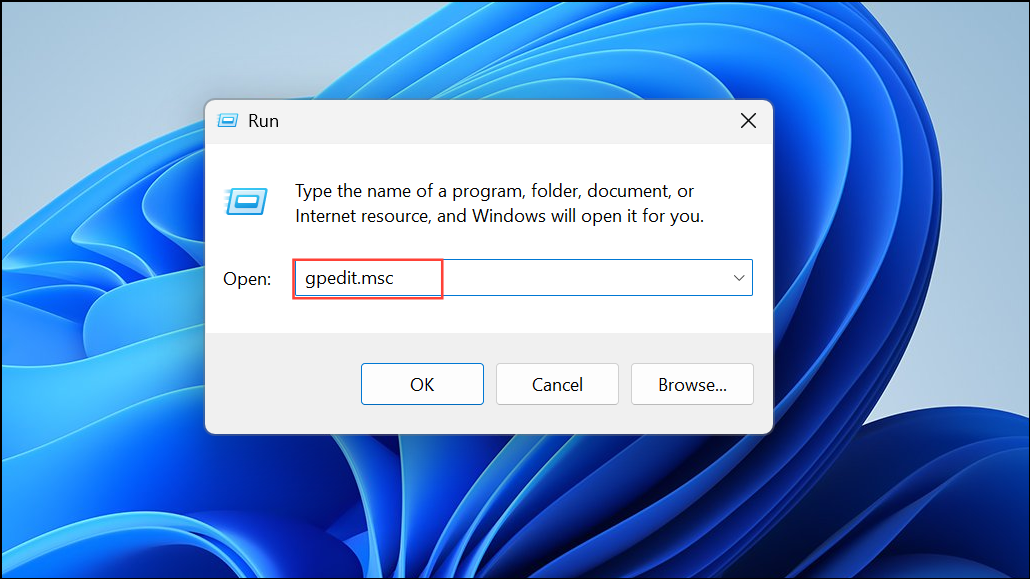
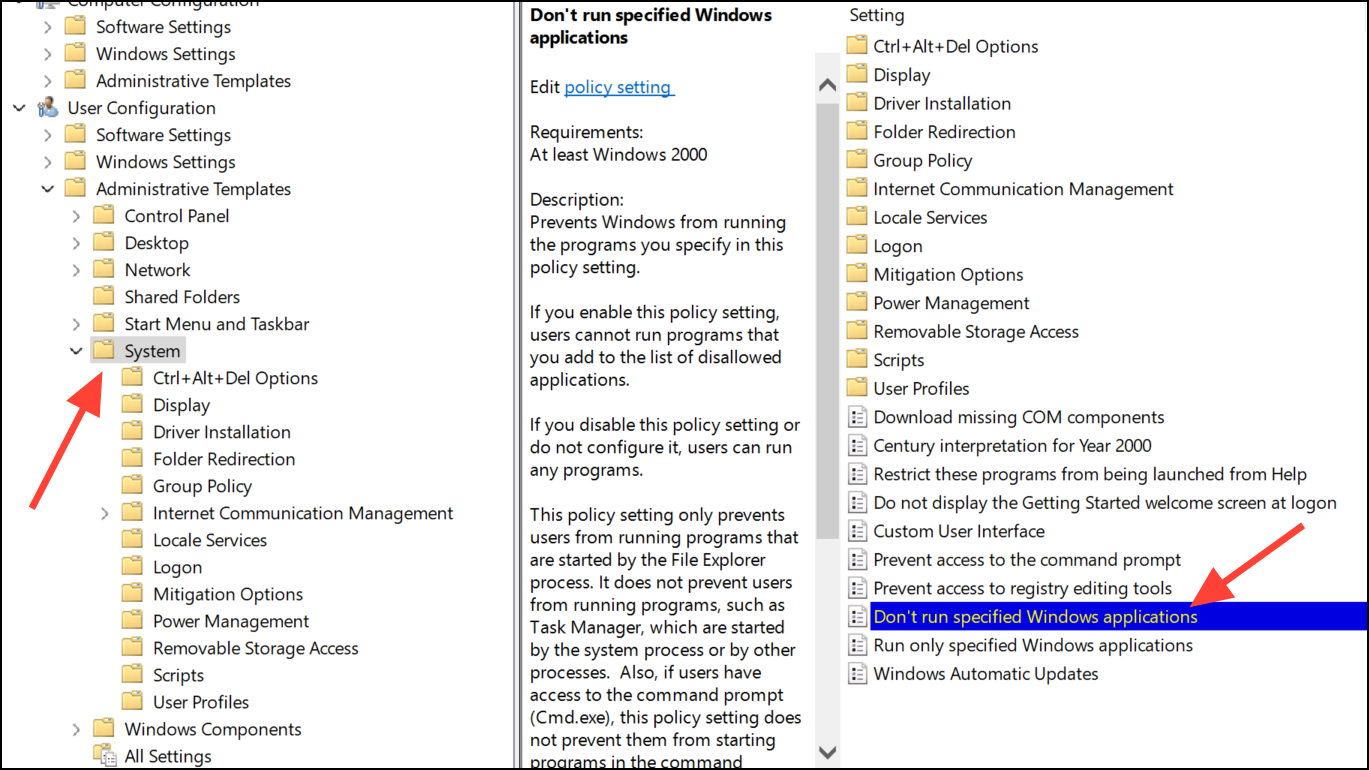
notepad.exe or firefox.exe).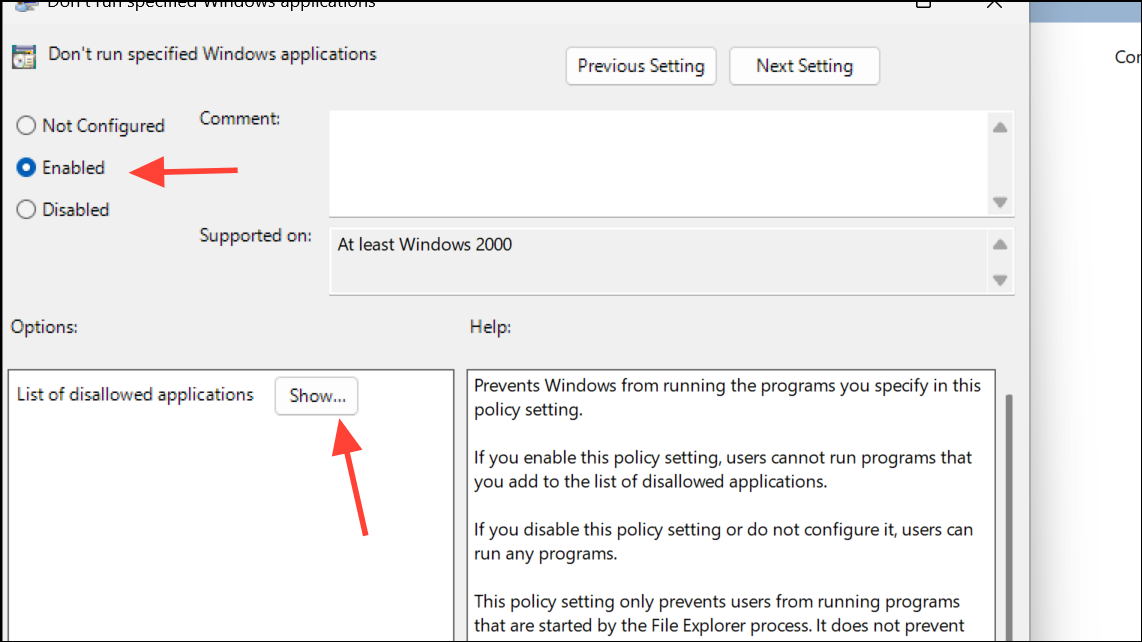
Whitelisting Programs with Software Restriction Policies
Software Restriction Policies (SRP) provide another option for controlling application execution. This feature is available in Windows Pro and Enterprise editions and is managed via the Local Security Policy editor.
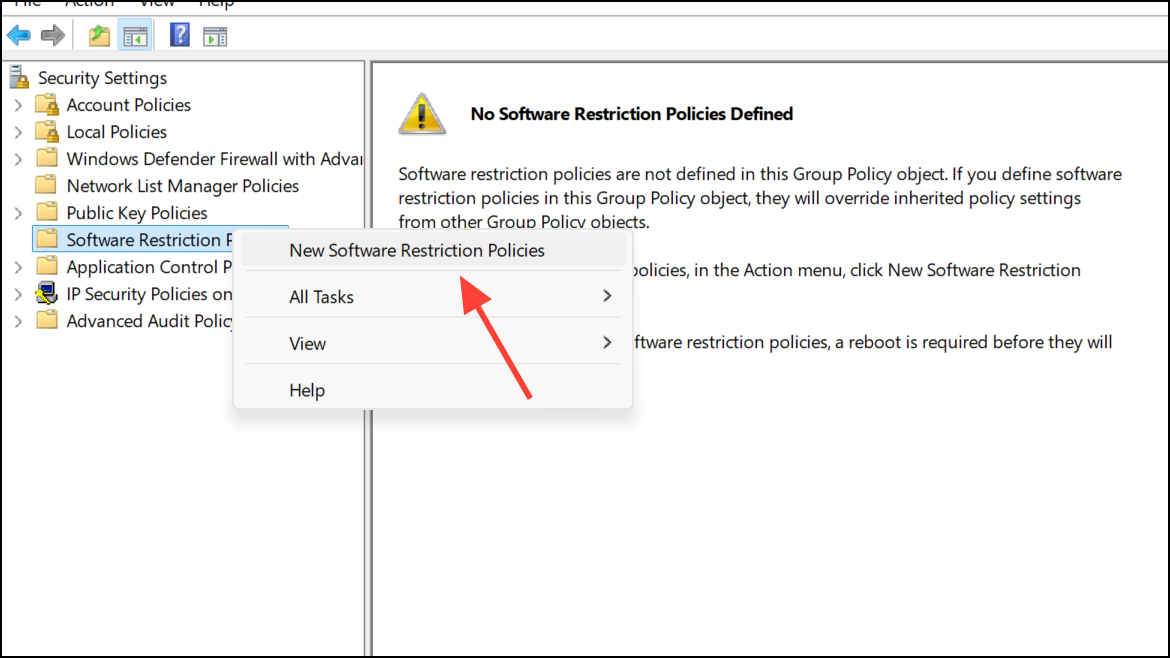
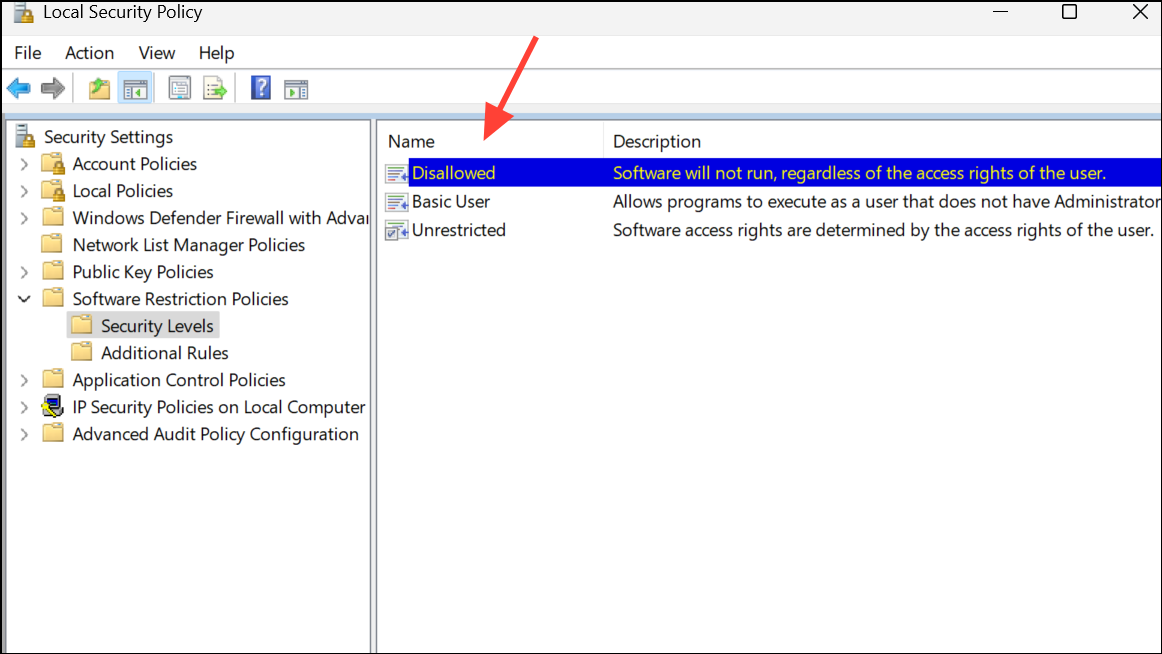
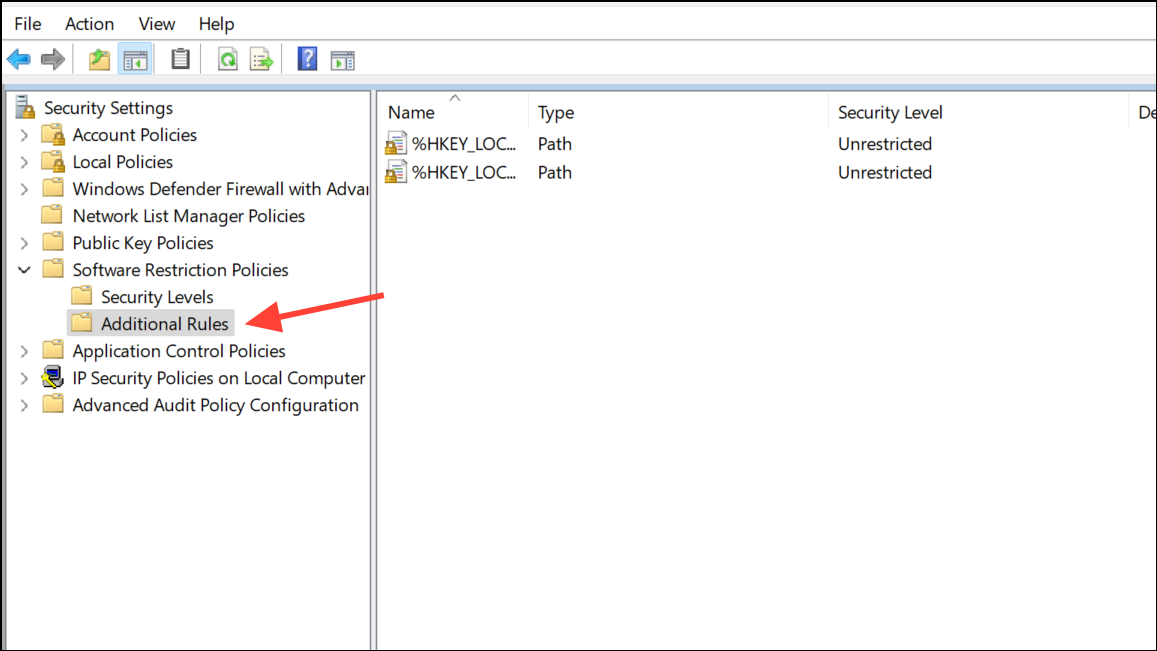
This method is effective for basic allowlisting, but AppLocker is more flexible and recommended for newer Windows versions.
Managing Applications with Microsoft Intune
Organizations using Microsoft Intune can enforce application restrictions across managed devices. Intune policies can define which apps are approved for installation and block others, and can integrate with AppLocker and Windows Defender Application Control (WDAC) for advanced scenarios.
apps.microsoft.com in your firewall or proxy).Using Third-Party Tools for Application Control
Several free and commercial tools offer additional options for whitelisting or blacklisting applications:
- NoVirusThanks Driver Radar Pro: Controls which kernel drivers can load and allows for detailed application allowlisting.
- VoodooShield (now Cyberlock): Takes a snapshot of installed applications and blocks anything new unless explicitly allowed.
- AirDroid Business: Provides centralized app allowlist/blocklist management for organizations.
- CryptoPrevent: Adds allowlist entries for trusted programs, especially those that need to run from directories typically blocked by anti-malware tools.
These tools can supplement or, in some cases, replace built-in Windows features, especially for home users or small businesses.
Managing Microsoft Store App Installs
Windows 11 allows users to install apps from the Microsoft Store or directly from apps.microsoft.com. Blocking the Store app alone is not always sufficient, as web-based installers may bypass restrictions. To limit installations:
- Set RequirePrivateStoreOnly via Intune, Group Policy, or registry to restrict app installs to your organization’s private store.
- Enable Block non-admin user install to prevent standard users from installing store apps.
- Consider disabling the InstallService (Install Service for Microsoft Store) to disrupt the installation process for store apps.
- Block access to
apps.microsoft.comat the network level for managed devices.
Due to ongoing changes in Microsoft Store delivery methods, test these settings thoroughly to confirm they block unwanted installations without disrupting approved workflows.
Controlling application access in Windows 11 is achievable with built-in tools like AppLocker, Software Restriction Policies, and Intune, as well as third-party solutions. Regularly review your allowlists and blocklists to keep your system secure and up to date.



