

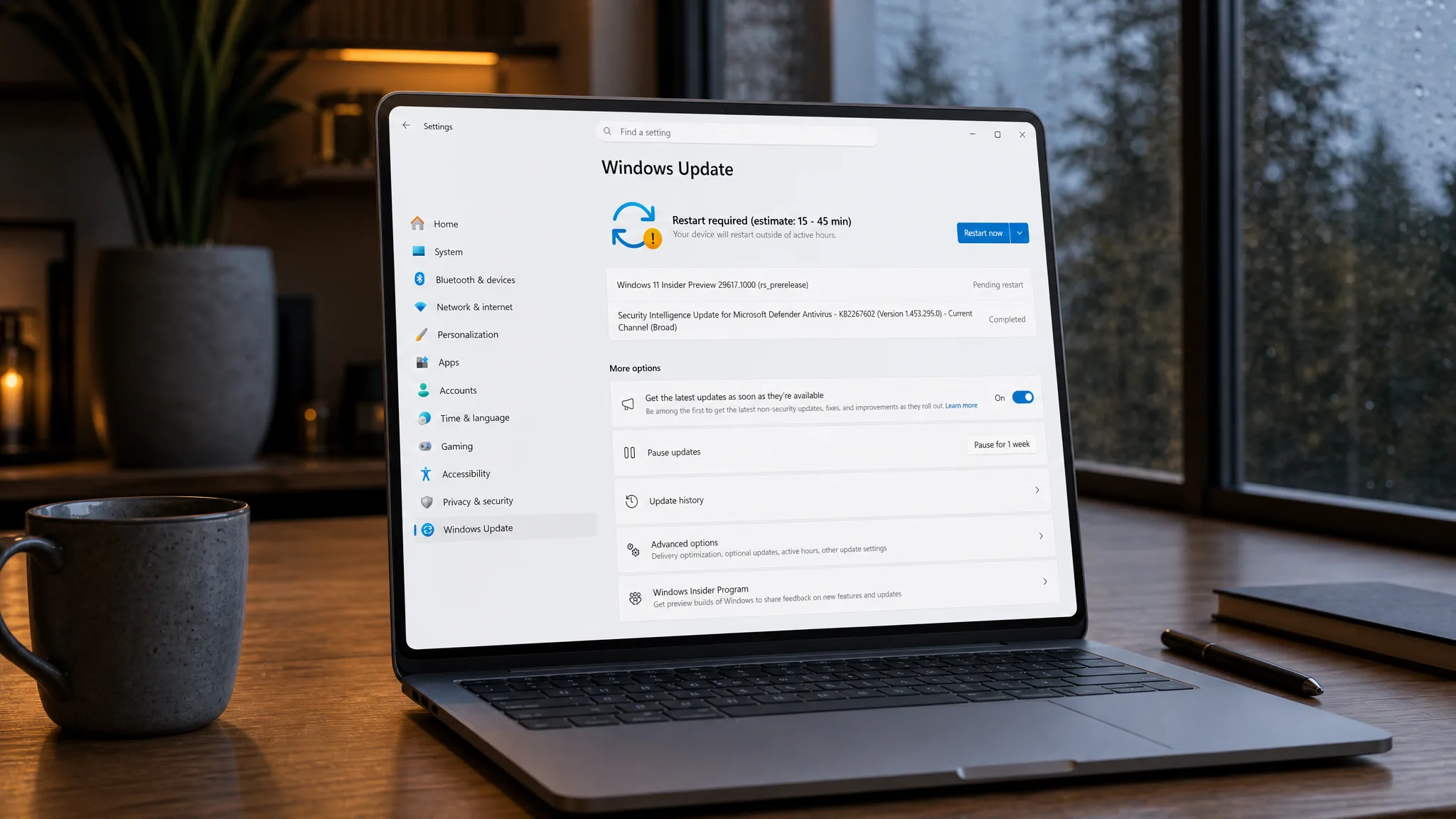
Windows 11 build 29617.1000 is now rolling out to Insiders in the Experimental (Future Platforms) channel, dated 26 June 2026. The headline change is a unified update experience that aims to cut monthly reboots down to one, joined by a new Screen tint accessibility overlay and finer Magnifier zoom controls.
Quick answer: Open Settings > Windows Update, turn on “Get the latest updates as soon as they’re available,” then click Check for updates to receive build 29617.1000 on a PC already enrolled in the Experimental channel.
Windows Update moves to a single monthly restart
The biggest shift in this build targets how often your PC reboots. Windows now coordinates driver, .NET, and firmware updates so they land alongside the monthly quality update. Instead of separate restarts scattered through the month, the goal is one restart tied to that monthly servicing.
This is the first phase of the change, so the set of updates being aligned may expand over time. For now, the practical effect is fewer interruptions when you sit down to work.
Screen tint adds a full-display color overlay
Screen tint is a new accessibility setting that lays a color wash across your whole display to soften its intensity. It is meant for people whose eyes feel tired or sensitive after long sessions on bright, saturated screens.
To enable it, press WIN + U to open Settings > Accessibility, then look under the Vision section for Screen tint. You can pick one of six preset colors or set a custom color, and a strength slider takes the effect from a light wash to a strong overlay.
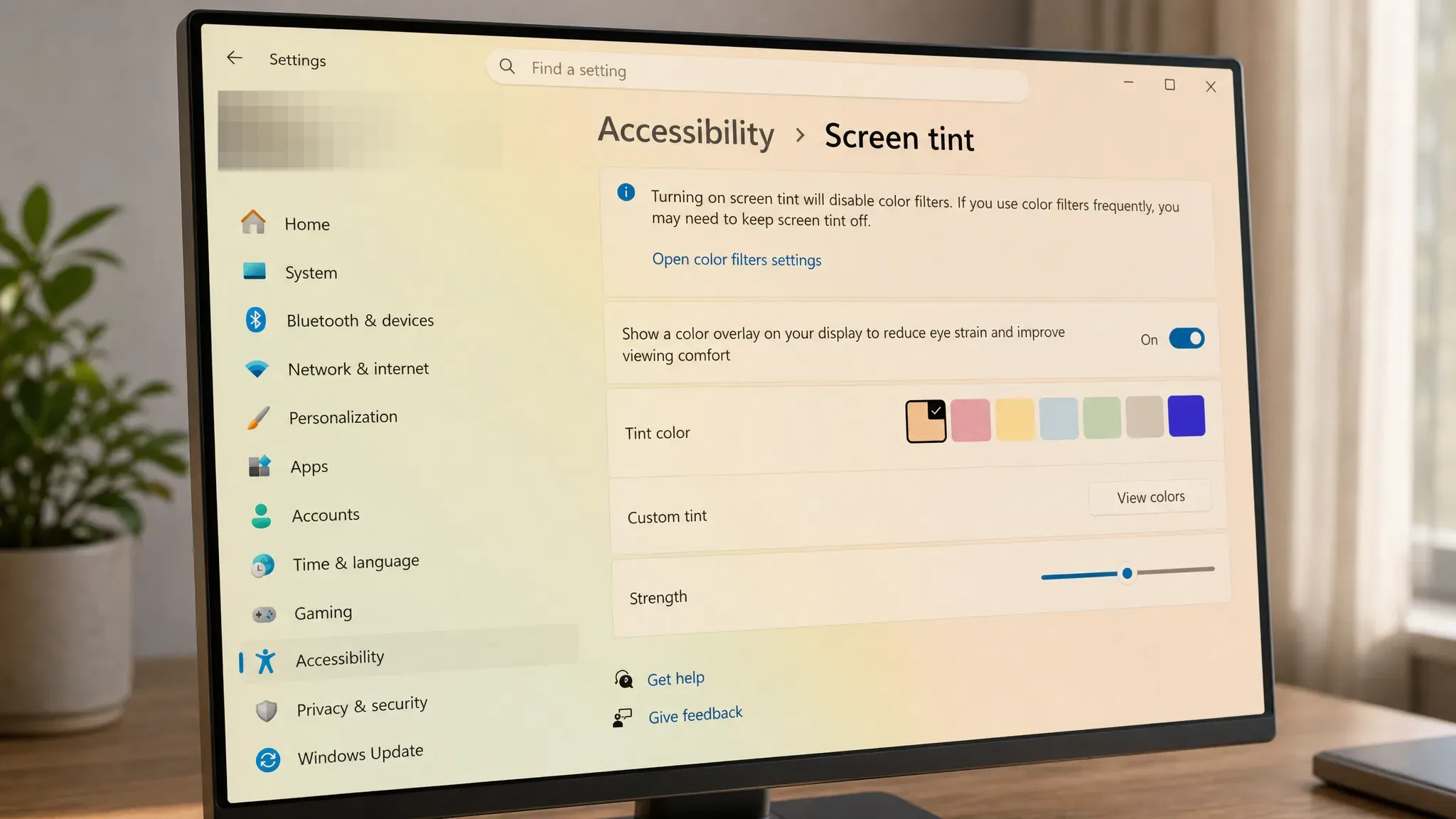
Screen tint and Night light solve different problems and can run together. Night light warms colors to cut blue light that interferes with sleep, while Screen tint lowers overall intensity to ease daytime eye strain. There is one conflict to know about. Turning on Screen tint disables Color filters, and turning Color filters back on disables Screen tint, so if you rely on color filters you may need to leave Screen tint off.
Magnifier gets exact zoom percentages and presets
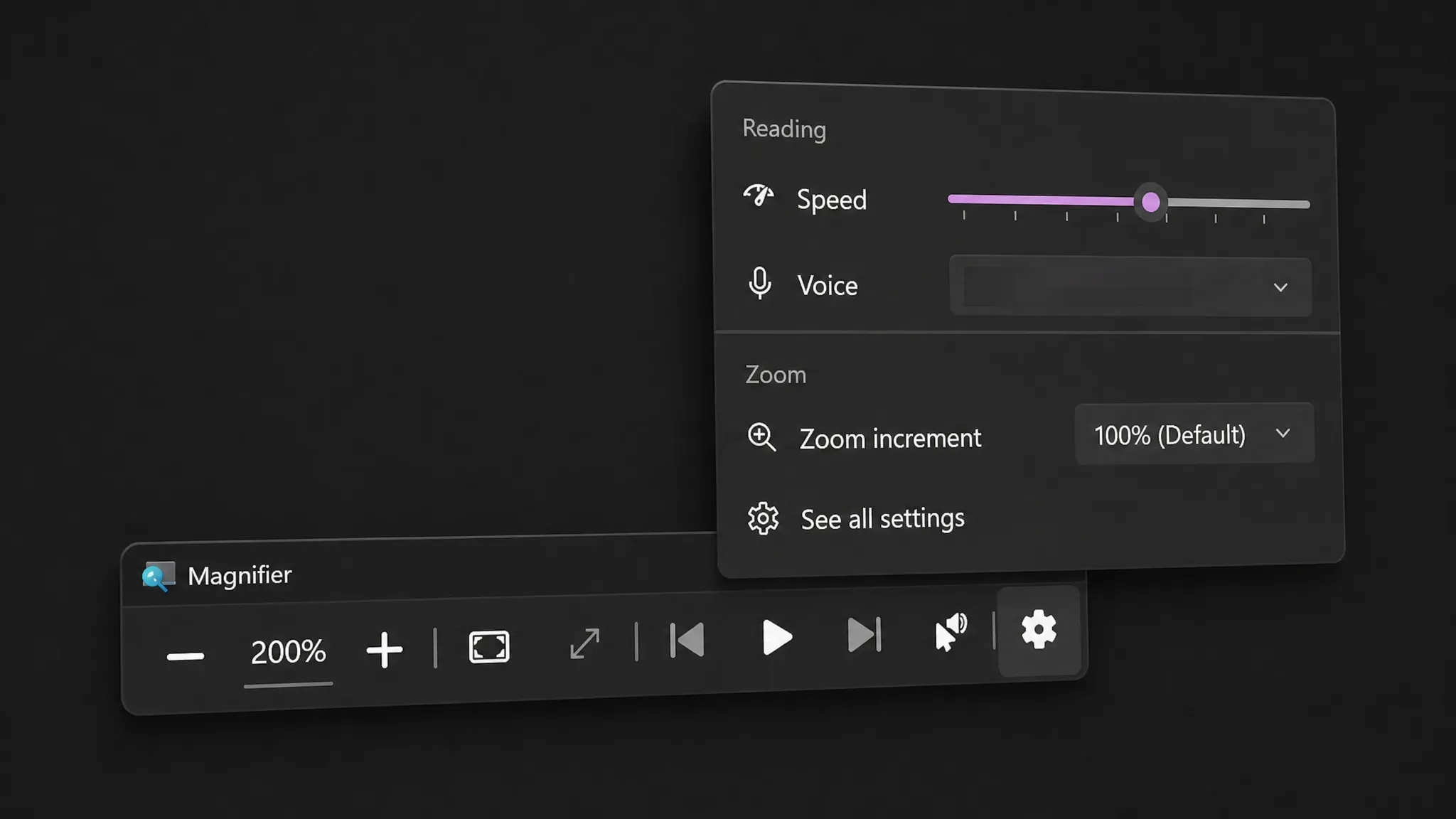
Magnifier now lets you type an exact zoom percentage directly into the toolbar, so you can land on the precise level you need instead of clicking up and down repeatedly.
The Settings dropdown also adds preset step increments at 5%, 10%, 25%, 50%, 100%, 150%, 200%, and 400%. That makes it a single click to jump between common zoom levels, whether you want a small boost or a heavy close-up.
Voice Access adds Portuguese and Korean
Voice Access now works in Portuguese (Portugal), Portuguese (Brazil), and Korean (South Korea), extending hands-free control to more regions.
Sound settings pull in more Control Panel features
Work on the modern Sound settings continues with two changes to audio device properties. The description for the Allow option now states the device’s current status, so it is clearer what the button does before you tap it. The “Listen to this device” option has also moved into device properties, which means you no longer need to open Control Panel to use it.
Dev Drive and volume sizing now use gigabytes
Creating a Dev Drive used to force you to enter sizes in megabytes. The dialog now accepts gigabytes (GB) instead, which is far easier to reason about for large drives. The same GB input applies when you change the size of volumes under Settings > System > Storage.
Personalization, desktops, and graphics fixes
Several reliability changes round out the build. The table below summarizes what each one does.
| Area | Change |
|---|---|
| Personalization (accent color) | More accurate color matching when automatic accent color is set to follow your wallpaper. |
| Personalization (wallpaper) | Better persistence across restarts and upgrades, including large-resolution images, to avoid falling back to a solid color. |
| Multiple desktops | Improved File Explorer reliability when switching between virtual desktops. |
| Display and graphics | More reliable and persistent application of color profiles. |
How to install build 29617.1000
You will know the update applied when the build reads 29617.1000 in Settings > System > About after the restart. A few caveats apply to this channel. The builds can be unstable, ship with limited documentation, and many features arrive through Controlled Feature Rollout, so they reach a subset of Insiders first and ramp up over time. The desktop watermark in the lower-right corner is normal for pre-release builds. Features here may change, get replaced, or never ship beyond Insiders. One known issue in this flight is that connecting to Wi-Fi networks using WPA2-Enterprise (802.1X authentication) can fail in certain scenarios.



