

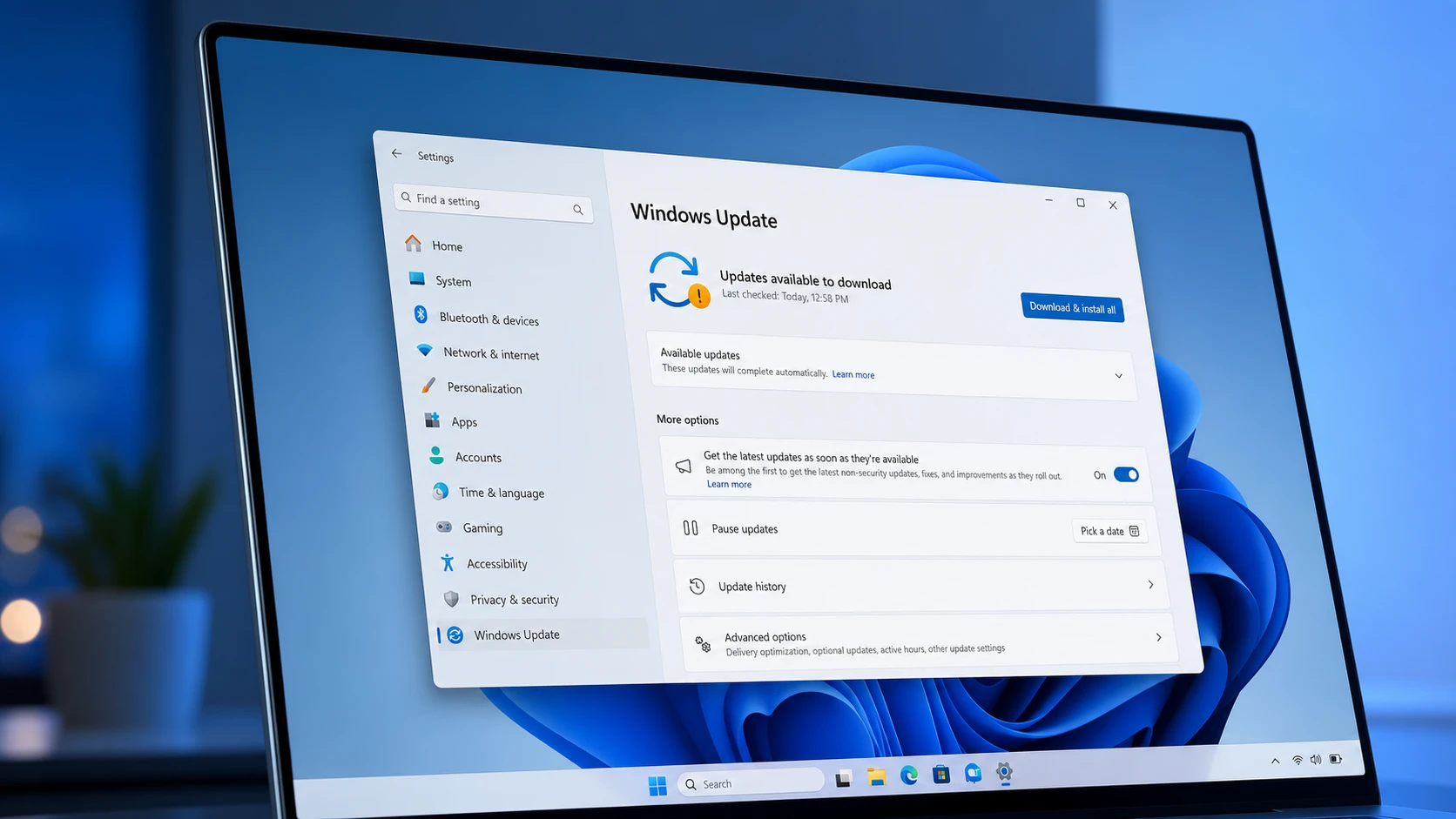
Two fresh Windows 11 Insider Preview builds for version 26H1 went out on June 12, 2026, splitting their attention between accessibility and raw responsiveness. Build 28020.2298 in the Beta channel adds a new Screen Tint overlay to ease eye strain, and build 28120.2302 in the Experimental channel focuses on cutting the time it takes apps and core shell surfaces to open.
Quick answer: Open Settings > Accessibility > Screen Tint on build 28020.2298 to turn on a color overlay; on build 28120.2302, faster Start menu, Search, and Action Center launches roll out automatically with no setting to toggle.
What changes in each build
Both flights target Windows 11 26H1, and both carry a small set of undisclosed fixes plus the same Task Scheduler tweak. The headline additions differ by channel, so here is how they line up.
| Build | Channel | Main addition |
|---|---|---|
| 28020.2298 | Beta | Screen Tint accessibility overlay, plus fixes |
| 28120.2302 | Experimental | Faster app launch and shell responsiveness |
Both builds also make Task Scheduler keep your column-width adjustments in the task list view, so the layout no longer resets between sessions.
Screen Tint in build 28020.2298 (Beta)
Screen Tint applies a color wash across the whole display to lower its overall intensity. It is built for daytime comfort and light sensitivity rather than sleep, which sets it apart from Night Light. The two can run together, so you can warm colors at night and still dial down brightness during the day.
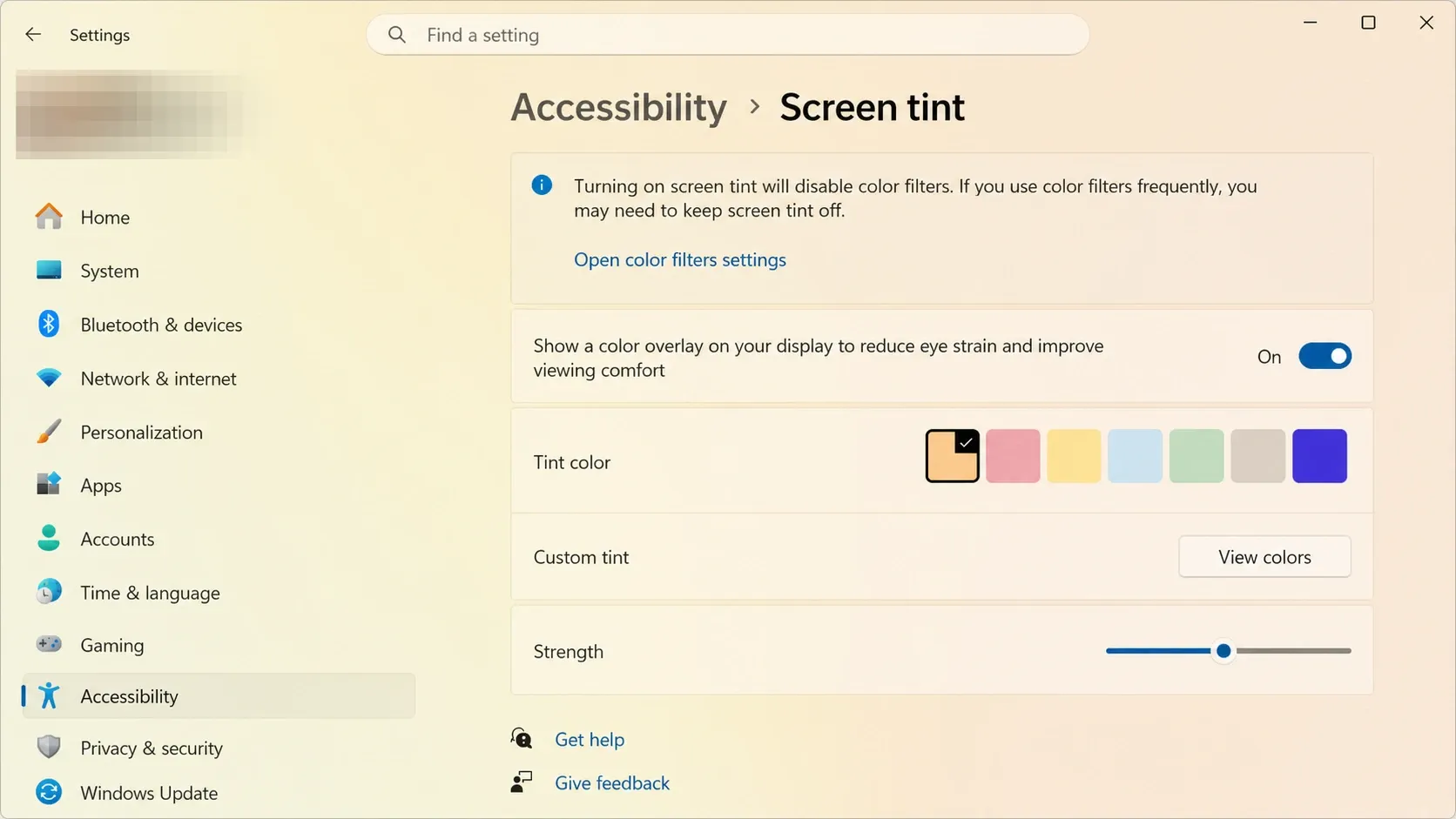
You control the look from the Screen Tint settings under Accessibility. There are seven preset colors plus a custom color picker, and a strength slider takes the overlay from a barely visible tint to a full wash.
Note: Turning on Screen Tint automatically disables Color filters, and turning on Color filters disables Screen Tint. The two cannot run at the same time, so if you depend on Color filters for accessibility, keep Screen Tint off.
Performance changes in build 28120.2302 (Experimental)
The Experimental flight speeds up app launches and core shell experiences, including the Start menu, Search, and Action Center. The release notes describe this as accelerated launch behavior rather than naming a specific technology, but the practical effect is the system briefly pushing the CPU harder to make those surfaces open faster.
You can read the full Experimental release notes for the exact wording. There is no toggle to flip; the change arrives as part of the build and ramps up through Controlled Feature Rollout, so not every Insider will see it on day one.
Who can install Windows 11 26H1
Version 26H1 is not a feature update for existing PCs. Microsoft has stated it is a hardware-optimized release designed for next-generation silicon and will ship preinstalled on select new devices, starting with machines powered by Snapdragon X2 Plus, Elite, and Extreme processors. Computers running on Intel or AMD hardware will not be offered 26H1 through Windows Update.
Because these are pre-release flights, the builds can be unstable and may ship with limited documentation. A desktop watermark in the lower-right corner is expected, and some in-progress features may not be fully localized yet.
How to get the builds
Many of these changes roll out gradually through Controlled Feature Rollout, so even after installing the right build you may not see Screen Tint or the faster shell behavior immediately. If something looks off, the Feedback Hub remains the place to report it while these builds keep moving through the channels.



