
Accessing your favorite websites quickly can enhance your browsing experience. Instead of typing out URLs every time, Google Chrome allows you to add shortcuts directly to its homepage. This makes reaching your most-visited sites faster and more convenient. Below, we’ll explore how to add and manage these shortcuts on both desktop and mobile versions of Chrome.
Adding Shortcuts to Chrome Homepage on Desktop
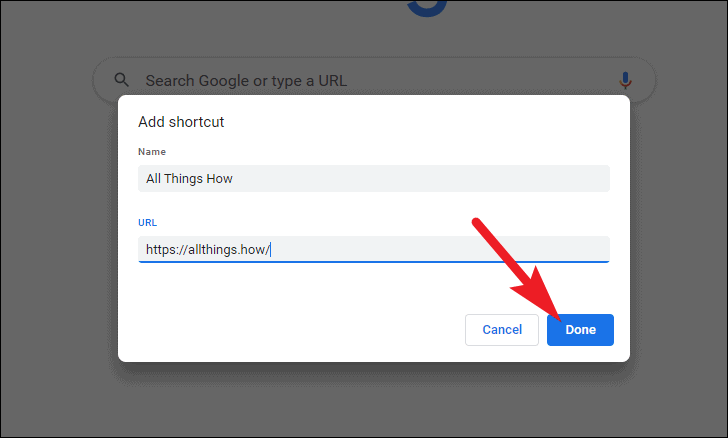
On desktop, Google Chrome offers two options for managing shortcuts on the homepage: you can manually add your preferred websites, or let Chrome automatically display your most visited sites. Here’s how to customize these shortcuts according to your preference.
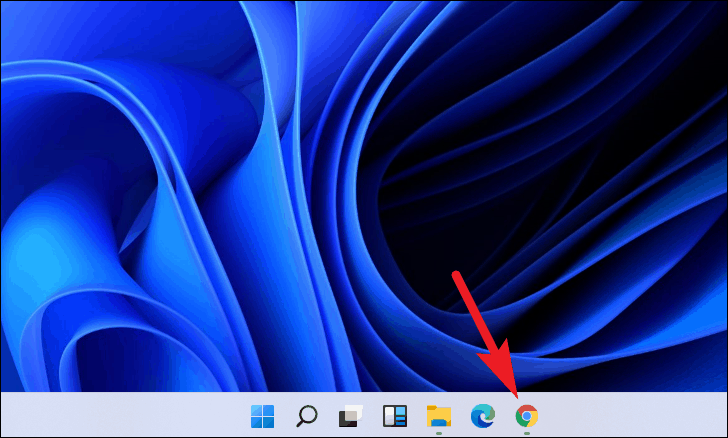
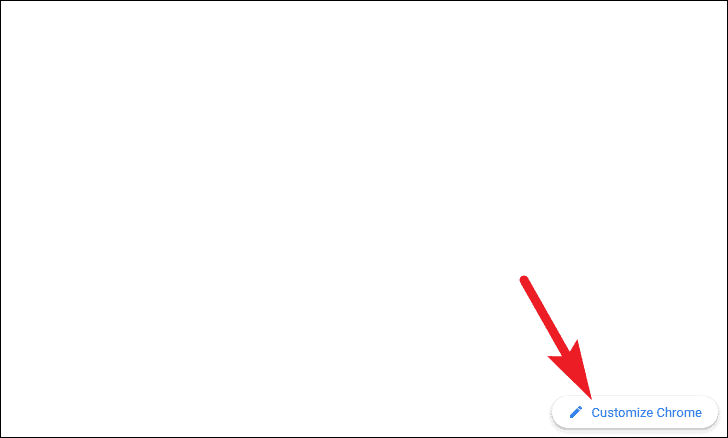
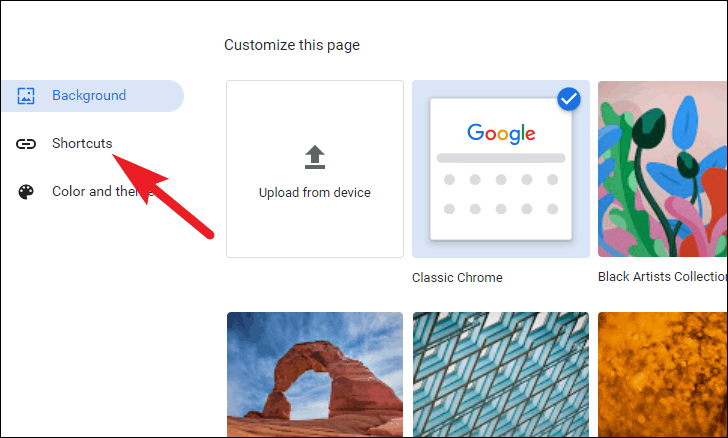
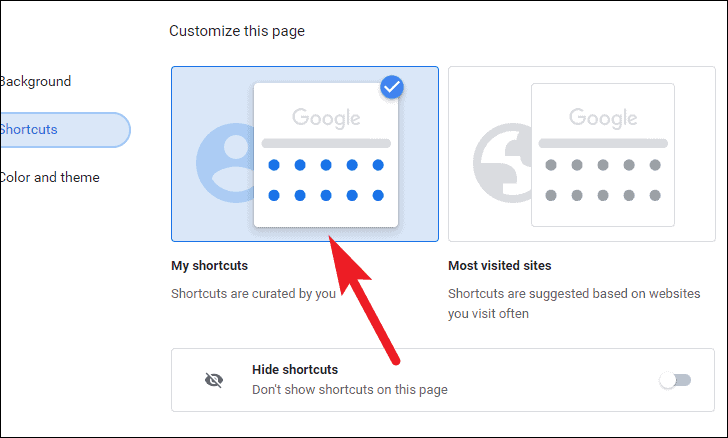
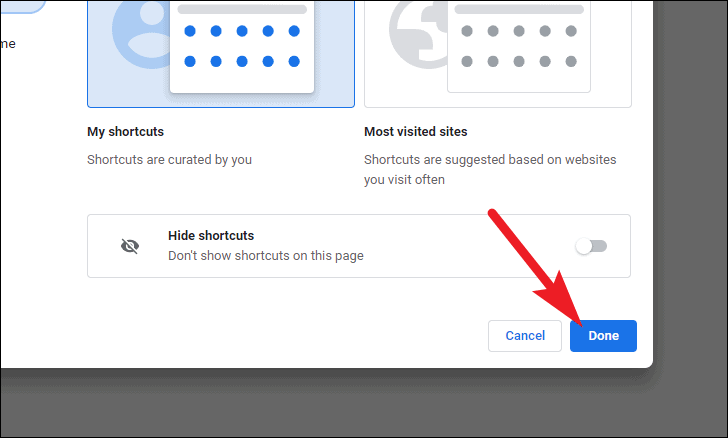
If you opted for Chrome to show your most visited sites, your homepage will automatically display shortcuts to those websites. If you chose to manually add shortcuts, you’ll see empty shortcut tiles ready for your customization.
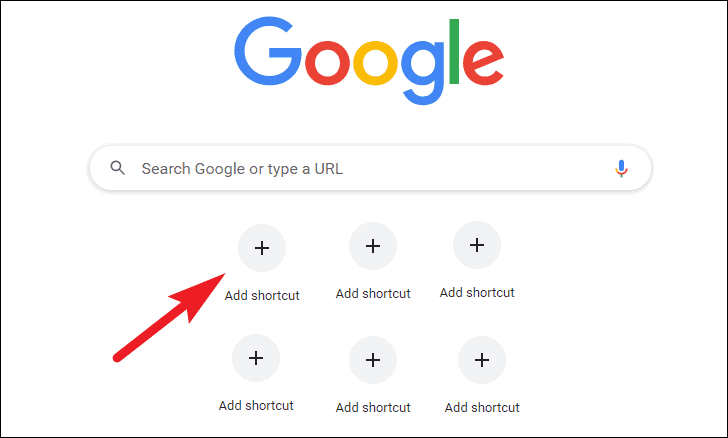
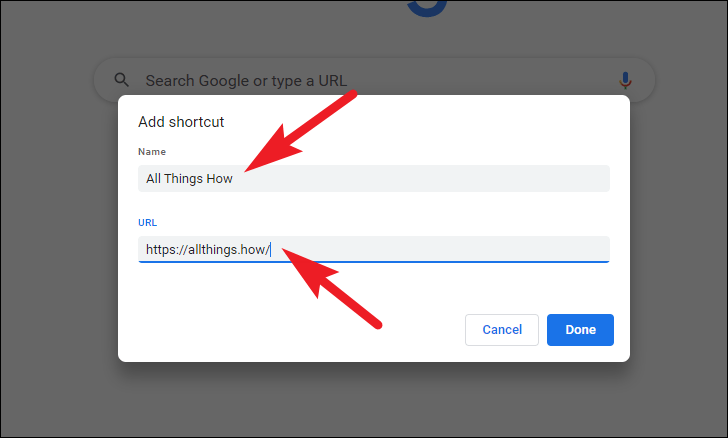
Editing Shortcuts on the Chrome Homepage
If you need to modify or replace a shortcut, you can easily edit it directly from the homepage.
⋮) in the upper-right corner of the shortcut tile.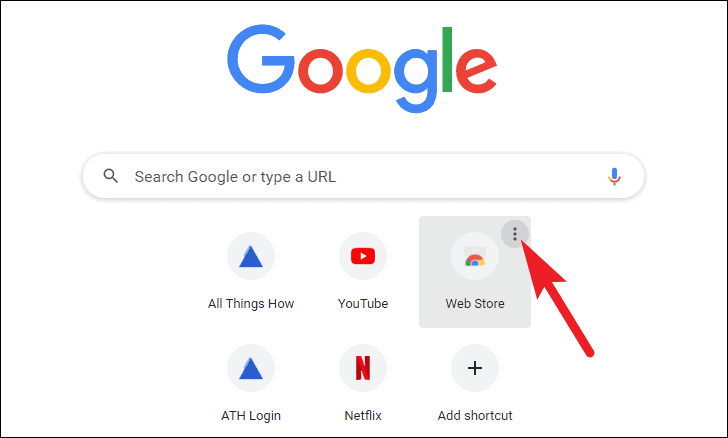
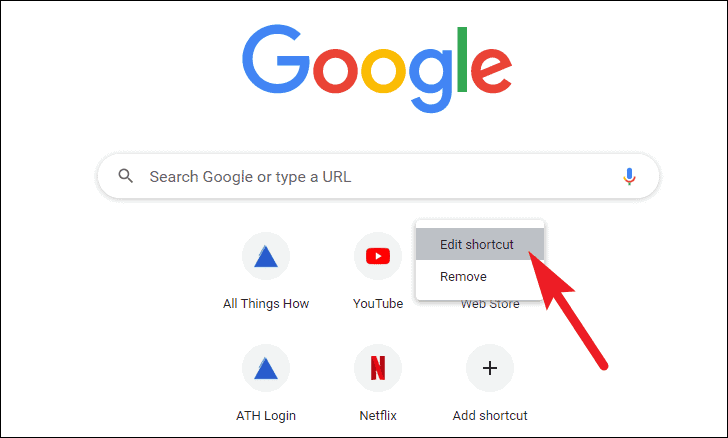
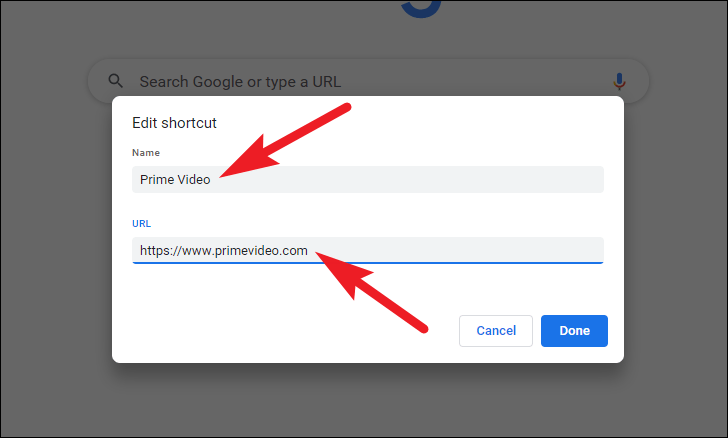
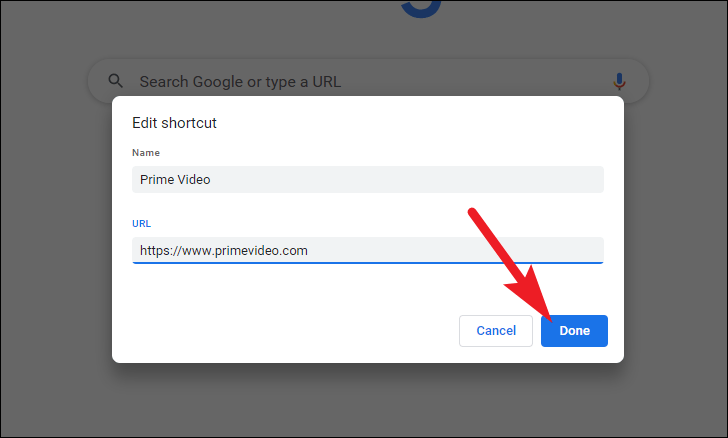
Your edited shortcut will appear on the homepage, ready for use.
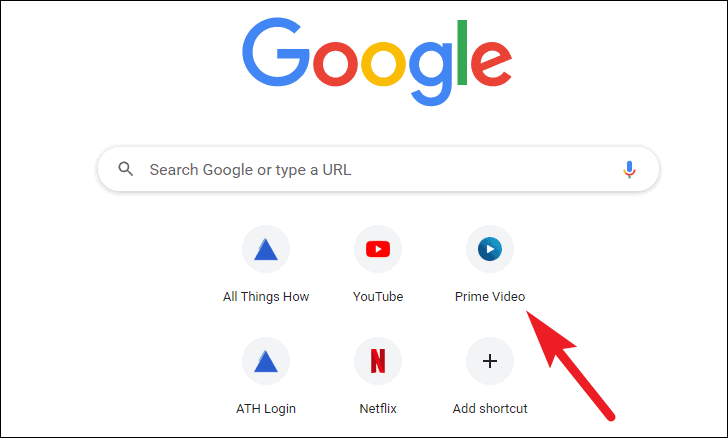
Adding Shortcuts to Chrome Homepage on Mobile
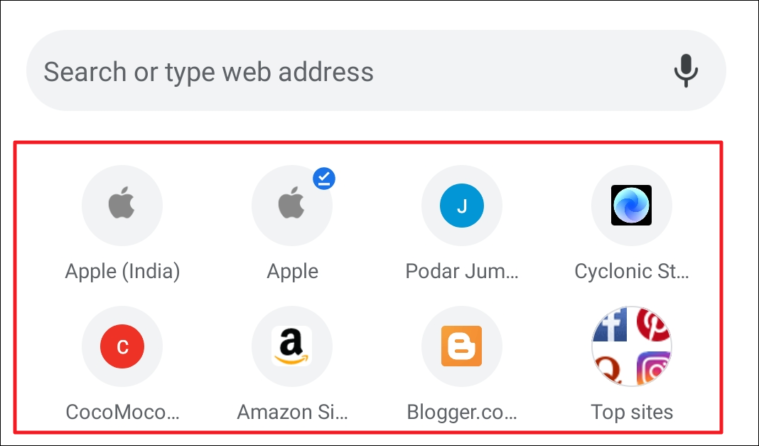
On mobile devices, managing shortcuts in Chrome is slightly different. Chrome automatically generates shortcuts based on the websites you visit most frequently, and there isn’t an option to manually add or curate these shortcuts as you can on desktop.
By default, Chrome displays up to 8 of your most visited sites as shortcuts on the homepage.
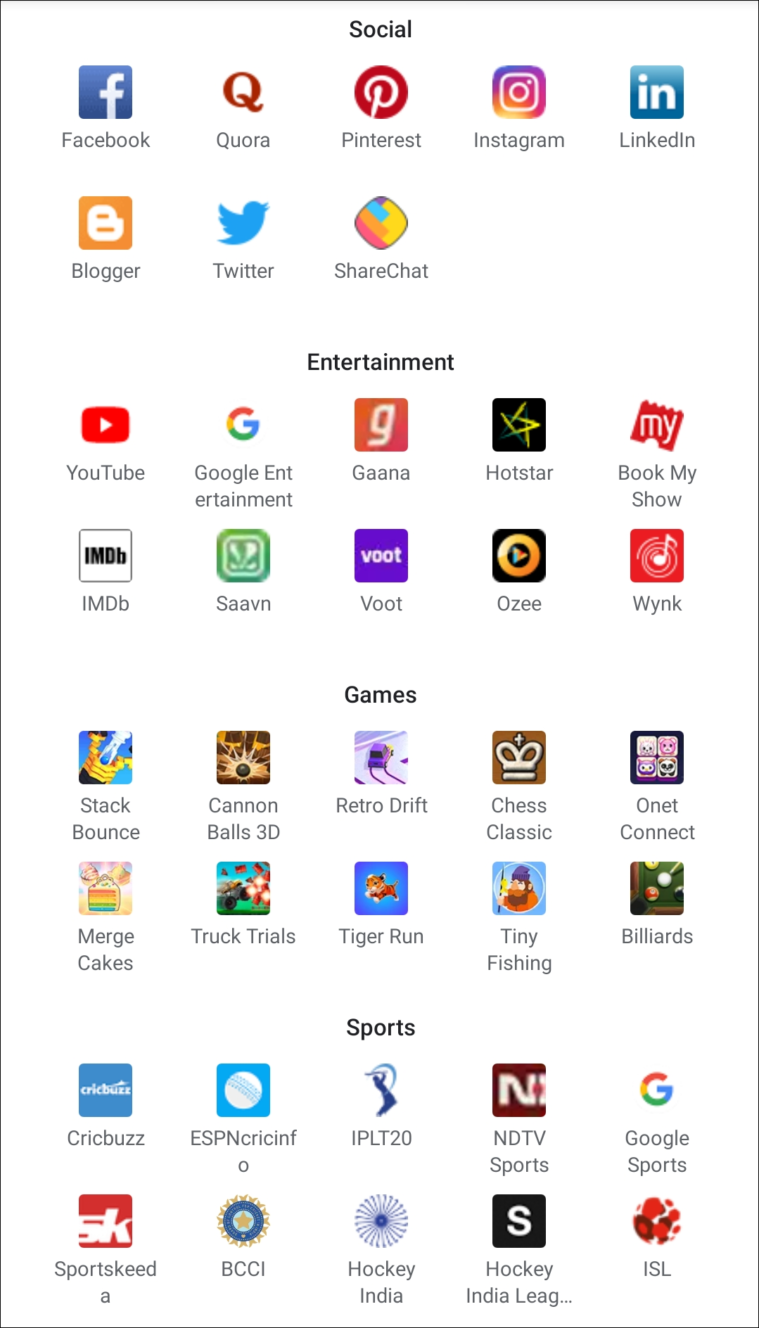
To supplement these shortcuts, Chrome provides a Top sites folder, which offers quick access to popular websites across various categories like Social, Entertainment, News, Shopping, and more.
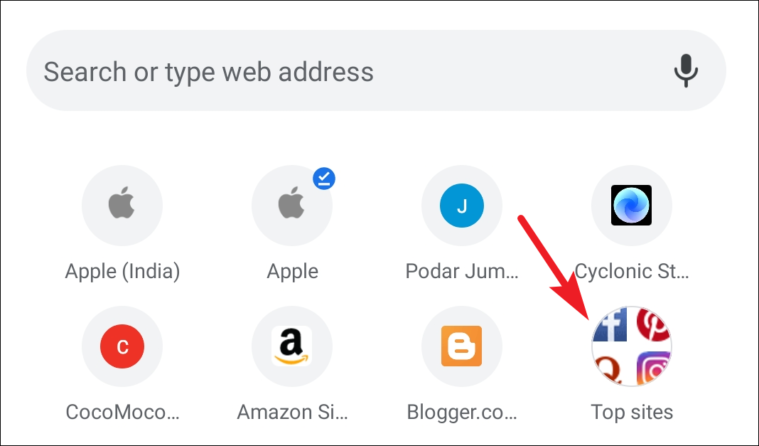
While you can’t manually add shortcuts on mobile, the automatically generated ones and the Top sites folder help you reach frequently visited websites efficiently.
Removing Shortcuts from Chrome Homepage on Mobile
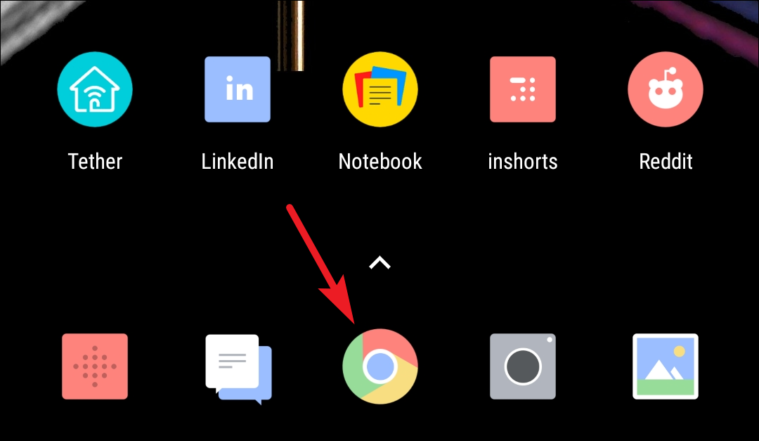
If you want to remove a shortcut from the Chrome homepage on your mobile device, you can do so easily.
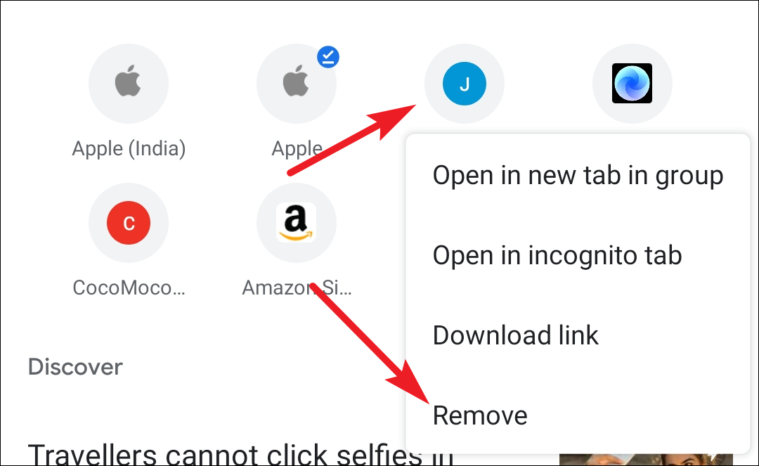
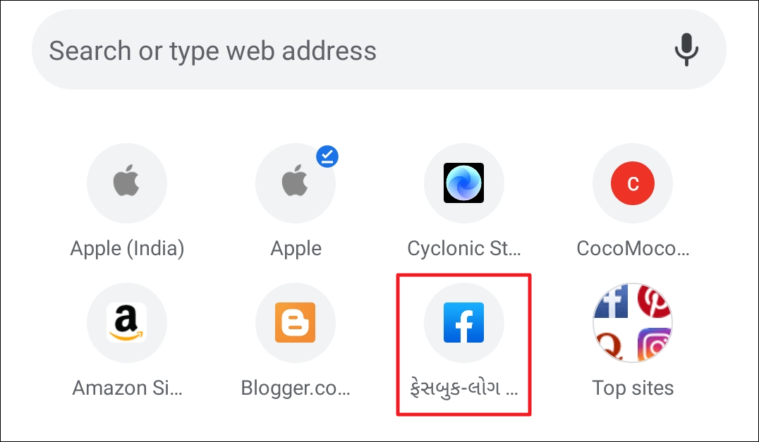
After removing a shortcut, Chrome will automatically replace it with another site based on your browsing activity.
By customizing your Chrome homepage with shortcuts, you can navigate to your preferred websites more efficiently. Whether you’re on desktop or mobile, these steps help you tailor your browsing experience to your needs.



