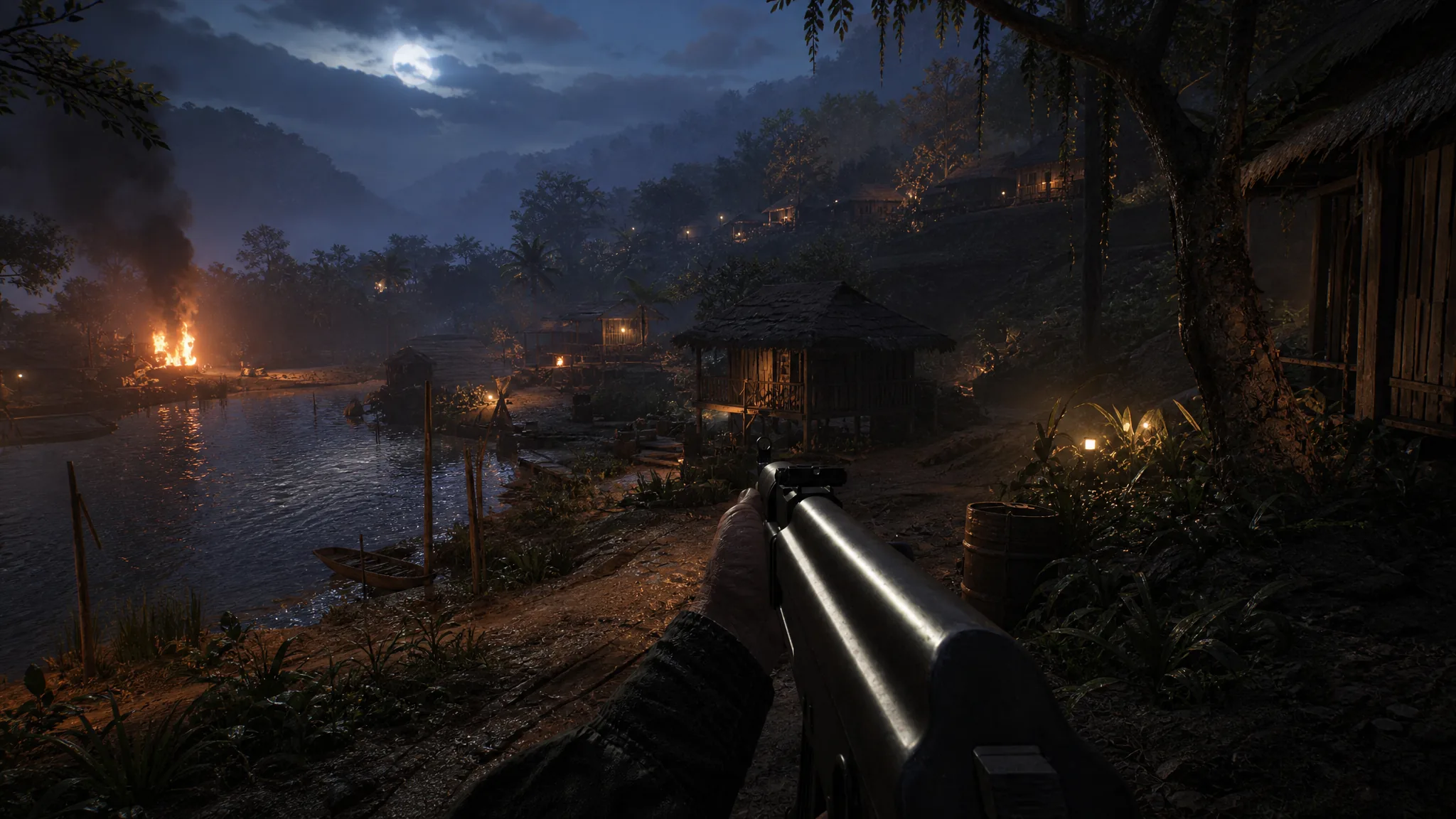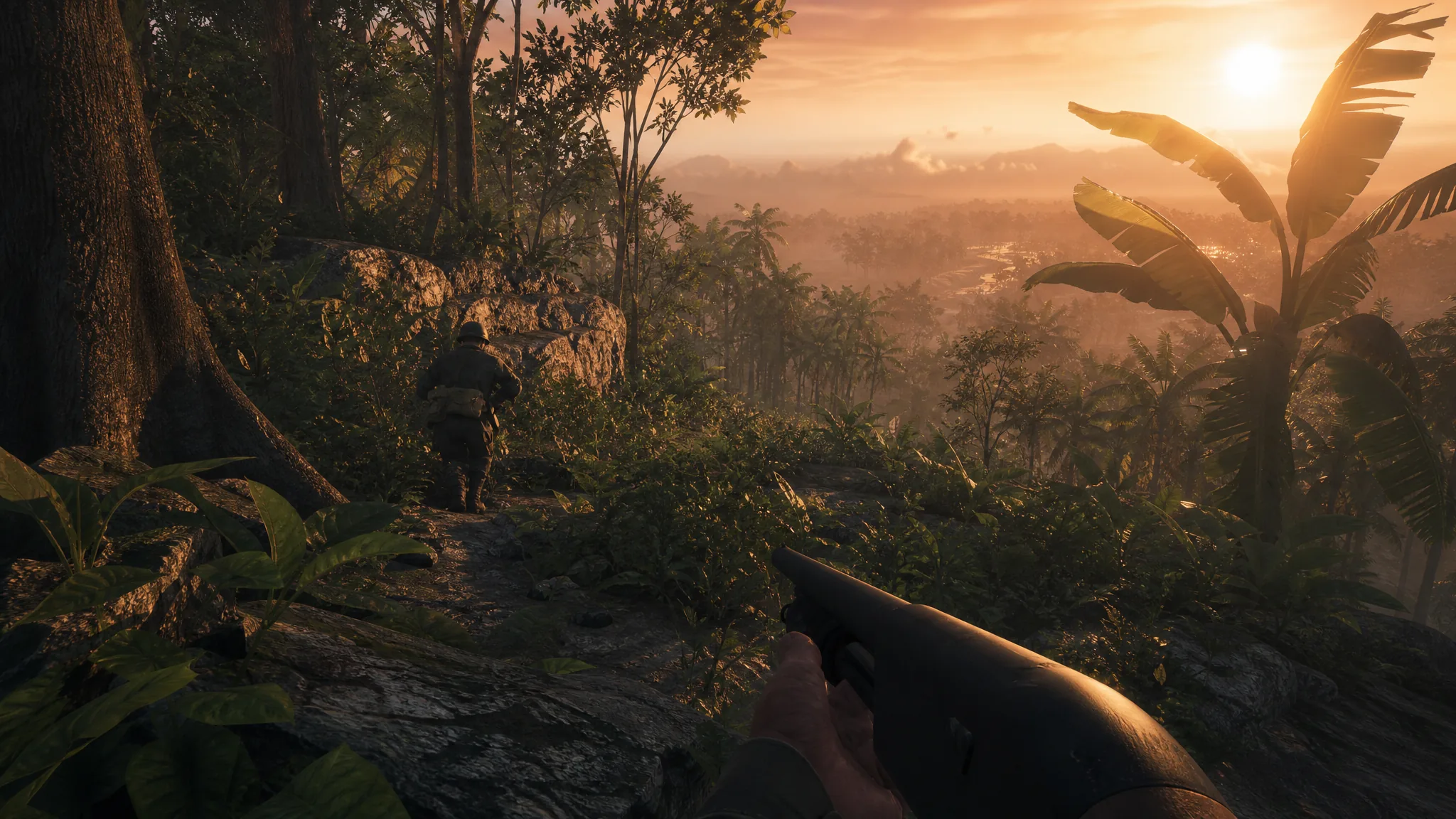
Hell Let Loose: Vietnam runs on Unreal Engine 5 and pushes dense jungle foliage, large 50v50 battles, and complex lighting, so the default profile leans on visuals more than frame rate. Dialing in the video options gives you a smoother frame rate, less stuttering, and enemies that stand out against thick vegetation.
Quick answer: Set Window Mode to Windowed Full Screen, turn Vertical Sync off, keep Image Reconstruction on TSR at 100 resolution scale, and drop Global Illumination Quality and Foliage Quality to Medium or Low. Turn off Motion Blur and Film Grain, then leave View Distance on High.
Recommended video settings for Hell Let Loose: Vietnam
The table below lists two usable profiles. The Balanced column keeps strong image quality for high-end PCs, while the FPS-first column strips the heaviest options for weaker systems or players who want the steadiest frame rate. Set Master Quality to Custom before changing anything so your values stick.
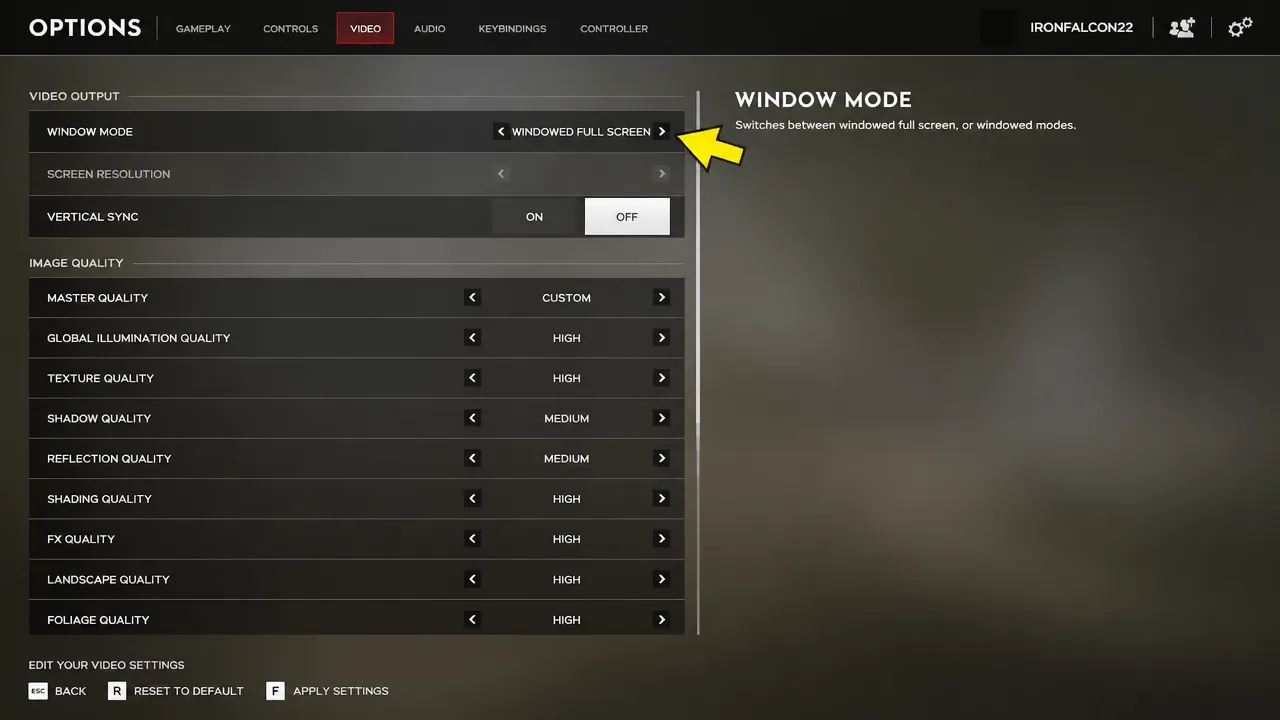
| Setting | Balanced (high-end) | FPS-first |
|---|---|---|
| Window Mode | Windowed Full Screen | Fullscreen |
| Screen Resolution | Native / Default | Native / Default |
| Vertical Sync | Off | Off |
| Master Quality | Custom | Custom |
| Global Illumination Quality | High | Medium/Low |
| Texture Quality | High | High |
| Shadow Quality | Medium | Low |
| Reflection Quality | Medium | Medium |
| Shading Quality | High | Medium |
| FX Quality | High | Medium |
| Landscape Quality | High | Medium |
| Foliage Quality | High | Low/Medium |
| Image Reconstruction | TSR | TSR |
| TSR Resolution Scale | 100 | 100 |
| SSAO | High | High |
| Motion Blur | Off | Off |
| Film Grain | Off | Off |
| Post Process Quality | High | Low |
| View Distance | High | High |
| Low Latency | On | On |
| Hardware Lumen | Low | Low |
Note: Texture Quality can stay High in both profiles as long as your GPU has enough VRAM, since it barely affects frame rate. Hardware Lumen on Low noticeably improves lighting and shadows while costing very little performance, so it is worth enabling on capable hardware.
Settings that cost the most frame rate
A few options carry most of the performance weight. Lower these first before touching everything else, because they recover the most frames for the smallest hit to how the game looks.
- Global Illumination Quality is one of the biggest drains. Keeping it on Medium or Low frees up a large amount of headroom.
- Foliage Quality is expensive because of the dense jungle. Low or Medium keeps frames stable and can also make crawling enemies easier to pick out.
- Film Grain is cheap to remove and heavy to run. Turning it off can add up to around 10 FPS on its own.
- Post Process Quality can drop to Low on struggling systems without hurting your ability to read the battlefield.
Motion Blur should stay off in both profiles. It smears fast movement and makes tracking targets harder, and switching it off also gives back a little performance.
Use TSR and upscaling to recover frames
Image Reconstruction is your main lever for scaling performance to your hardware. TSR handles both upscaling and anti-aliasing on AMD GPUs, and it is the safe default across the board. Nvidia owners have access to DLSS 4.5 with Frame Generation, which can add a large amount of frame rate on supported cards.
Keep TSR Resolution Scale at 100 while you have the headroom, since that renders at full internal resolution for the sharpest image. If the frame rate is still uneven after lowering the heavy settings above, reduce the resolution scale or lower your output resolution. That is usually a bigger and cleaner win than grinding every quality slider down to the bottom.
Gameplay options that help you spot enemies
Video quality is only half of the picture. A few gameplay and view settings change how much of the battlefield you can read and how easily you track movement through the undergrowth.
| Setting | Value |
|---|---|
| Field of View | 100 |
| Field of View in ADS | 75 |
| Camera Motion | Off |
| Team View Distance | 250 |
| Unit View Distance | 250 |
| Vehicle View Distance | 250 |
| Team Nameplate Occlusion | Off |
| Unit Nameplate Occlusion | Off |
A wider Field of View shows more of your surroundings, and turning Camera Motion off removes shake that makes fast fights harder to follow.
Tuning for lower-end PCs
On weaker hardware, target a stable frame rate over maximum fidelity. Move most quality options to Low or Medium, keep Texture Quality as high as your VRAM allows, and lean on TSR to fill the gap. If frames still dip in heavy fights, lower the resolution or the TSR resolution scale before anything else.
Tip: Install the game on an SSD, ideally an NVMe drive. Unreal Engine 5 streams large amounts of map data, and a hard drive causes long loads and stutter that no graphics setting can fix.
How to confirm your settings are working
Test the changes in a full battle rather than a menu or spawn area, since the frame rate load spikes when foliage, smoke, and dozens of players fill the screen. Watch for a frame rate that holds steady during firefights and near dense vegetation, which is where the heaviest options above make the biggest difference. On PS5, Xbox Series X, and Xbox Series S the game targets 60 frames per second, while on PC the frame rate is limited only by your hardware.
If stutter or long hitches persist even after lowering these settings, update your graphics drivers and let the game rebuild its shader cache on the first launch afterward. From there, small adjustments to Global Illumination and Foliage are usually all it takes to lock in a smooth, readable experience.